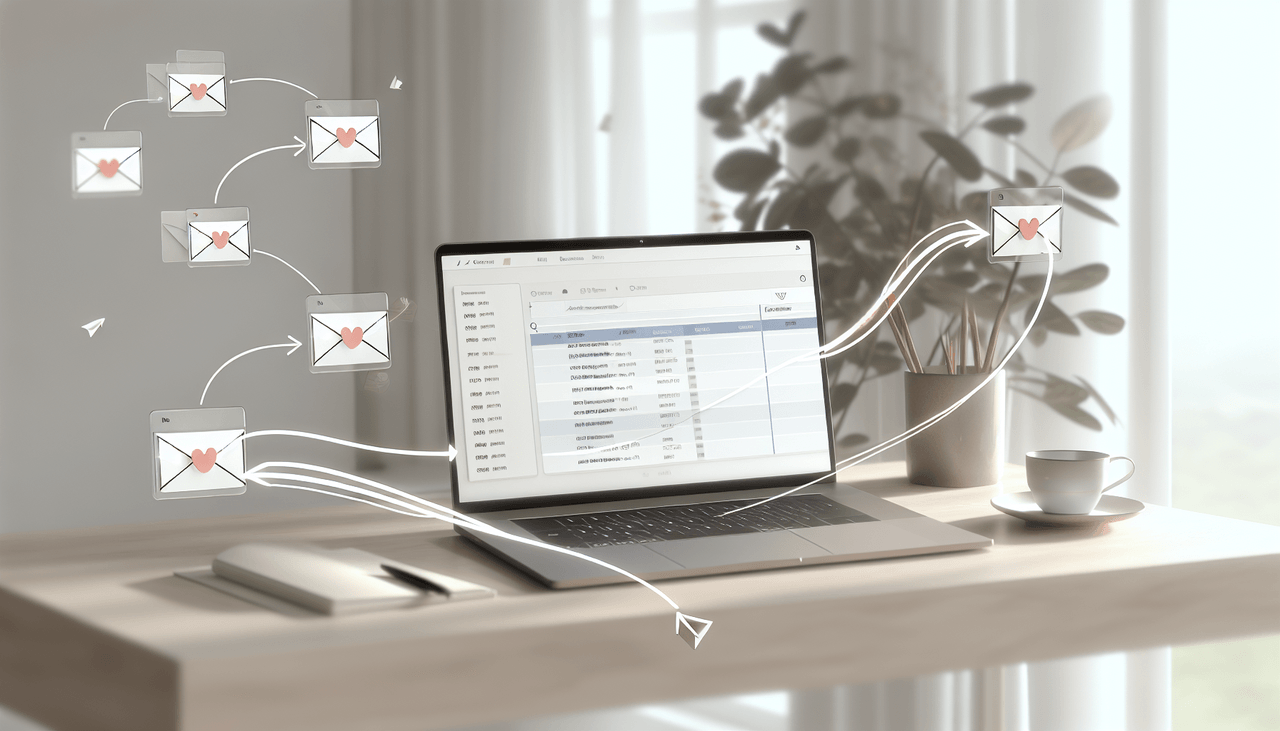
How to Forward Emails to Your Calendar: Complete Guide
Your inbox is packed with events hiding in plain sight. Flight confirmations. Meeting requests. Conference invitations. School newsletters. Restaurant reservations. Each one represents something you need to remember, and each one takes precious minutes to manually enter into your calendar. Learning how to forward email to calendar can change everything.
Research shows the average professional receives over 120 emails per day. Buried in that flood are dozens of scheduling details that should live on your calendar, not lost in an endless scroll of messages. Manually copying dates, times, and locations from emails to calendar apps is tedious, error-prone, and frankly, a waste of your time.
There has to be a better way. And there is.
This guide covers every method to forward email to calendar, from built-in features in Gmail and Outlook to automation tools and AI assistants that add email to calendar automatically. Whether you use Google Calendar, Outlook, or Apple Calendar, you’ll find a solution that fits your workflow.
Method 1: Carly AI (The Best Solution)
After testing every method available, Carly AI stands out as the clear winner for forwarding email to calendar. She reads the email, extracts the event details, and adds it to your calendar automatically.
No configuration. No special formatting. No switching apps. No learning curve.
Forward a flight confirmation? It’s on your calendar. Forward a meeting request? Done. Send a screenshot of a conference schedule? Every session gets added. Carly handles it all, which is why she consistently ranks as the best AI calendar available.
How Carly Works
Carly is an AI scheduling assistant that works through email and text:
Forward any email: Send it to Carly and she extracts all event information, creating calendar entries automatically. Flight confirmation? Meeting request? Conference schedule? All handled.
Text or SMS events: Don’t want to open email? Text Carly “Add dentist appointment Thursday 2pm” and it appears on your calendar.
Send photos and screenshots: Snap a picture of a printed schedule, a conference agenda, or a school calendar. Carly reads the image and adds every event.
CC Carly on scheduling threads: When coordinating meeting times, just CC Carly on the email chain. She checks everyone’s availability and proposes times.
Why Carly Beats Every Other Method
Traditional tools look for specific patterns or require structured data. AI agents like Carly actually read and understand your emails like a human would. As detailed in our comparison of the best AI calendars, this fundamental difference changes everything.
This means she can handle:
- Informal meeting requests (“Can we chat next Tuesday?”)
- Complex travel itineraries with multiple legs
- Event newsletters with several dates mentioned
- Confirmation emails from any service
- Handwritten notes in photos
- Screenshots of schedules
Unlike every other method, there’s nothing to configure:
- Works with Gmail, Outlook, Yahoo, or any email provider
- Works with multiple Google and Outlook calendars
- No automation rules to set up
- No specific formatting required
- Handles any type of event
This is what Carly users mean when they talk about what Carly can do. Forward an email, get a calendar event. That’s it. Check out the top 10 ways to use CalBot to see the full range of capabilities.
The rest of this guide covers alternative methods if you’re curious, but for most people, Carly is the answer.
Method 2: Gmail’s Built-In Event Detection
Gmail can automatically detect certain types of events in your emails and add them to Google Calendar. This is the simplest way to forward email to calendar if you use Google’s ecosystem. It works behind the scenes without any action from you.
What Gmail Detects Automatically
Google’s event detection focuses on travel and reservations:
- Flight bookings and confirmations
- Hotel reservations
- Restaurant bookings
- Car rental confirmations
- Concert and event tickets
- Package delivery tracking
When Gmail spots one of these emails, it automatically creates a calendar event with the relevant details pulled from the message.
How to Check If It’s Enabled
- Open Gmail and click the gear icon in the top right
- Select “See all settings”
- Navigate to the “General” tab
- Scroll down to “Events from Gmail”
- Make sure it’s set to show events on your calendar
Gmail’s “Add to Calendar” Button
For some emails, Gmail shows an “Add to Calendar” button right in the message. Click it, and the event appears in Google Calendar with the details pre-filled.
You’ll typically see this button on:
- Event invitations with structured data
- Some reservation confirmations
- Emails with clear date and time formatting
Limitations of Gmail’s Built-In Features
Gmail’s automatic detection is helpful but limited:
- Only works with specific email types: Personal emails, informal meeting requests, and many business communications slip through
- Requires structured formatting: Emails need specific markup for Gmail to recognize them
- Google ecosystem only: You must use both Gmail and Google Calendar
- No manual control: You can’t forward random emails and expect them to become events
- Hit or miss accuracy: Sometimes it works, sometimes it doesn’t
If you need something more reliable or use a different email provider, you’ll need another solution.
Method 3: Outlook’s Email-to-Calendar Features
Microsoft Outlook offers several ways to forward email to calendar events, with the most powerful features available on the desktop app.
Automatic Event Detection in Outlook
Like Gmail, Outlook can detect events in certain emails and offer to add them to your calendar. This works for:
- Flight reservations
- Hotel bookings
- Package deliveries
- Some event invitations
To configure this feature:
- Open Outlook Settings
- Navigate to Calendar
- Find “Events from email”
- Toggle on the types of events you want automatically added
The Drag-and-Drop Method
On Outlook desktop, you can drag any email directly to your calendar:
- Select the email in your inbox
- Drag it to the Calendar icon in the navigation pane
- A new event window opens with the email content pasted in
- Fill in the date, time, and other details
- Save the event
This gives you full control but still requires manual data entry for the actual scheduling details.
Reply with Meeting Button
When you need to schedule a meeting related to an email conversation:
- Open the email
- Click “Reply with Meeting” in the toolbar
- Outlook creates a new meeting invitation with the email participants
- Set your date, time, and location
- Send the invite
This is perfect for converting email discussions into scheduled meetings but doesn’t help with events you’re receiving rather than creating.
Limitations of Outlook’s Features
- Desktop-focused: Mobile apps have fewer features
- Manual work still required: Drag-and-drop saves time but you’re still entering details
- Microsoft ecosystem: Best features require Outlook + Microsoft 365 Calendar
- Limited automation: No way to “just forward” and have it handled
If you need to share your Outlook calendar with colleagues, that’s a separate process worth exploring.
Method 4: Forwarding to a Calendar Email Address
Another way to forward email to calendar is through hidden email addresses. Both Google Calendar and Outlook have unique email addresses that can receive event invitations. This is a somewhat technical approach but works for specific use cases.
Google Calendar’s Secret Email Address
Every Google Calendar has a unique email address that can receive events:
- Open Google Calendar on the web
- Click the three dots next to your calendar name
- Select “Settings and sharing”
- Scroll down to “Integrate calendar”
- Copy the calendar email address (ends in @group.calendar.google.com)
You can forward properly formatted .ics calendar files to this address, and they’ll appear on your calendar.
Outlook Calendar Email
Microsoft offers a similar feature, though setup varies by account type and organization settings.
Why This Method Often Fails
The catch? Emails need to contain properly formatted calendar data (.ics files) or very specific structured content. A regular email saying “let’s meet Tuesday at 3pm” won’t work.
This method is designed for calendar-to-calendar communication, not email-to-calendar conversion. It’s useful for forwarding formal meeting invitations but useless for most everyday emails.
Method 5: Automation with IFTTT and Zapier
For power users willing to invest setup time, automation platforms can create custom email-to-calendar workflows.
Setting Up IFTTT Email-to-Calendar
IFTTT (If This Then That) lets you create “applets” connecting email to your calendar:
- Create an IFTTT account
- Search for Gmail or Outlook integrations
- Create an applet: “If new email from [specific address], then create Google Calendar event”
- Configure the trigger conditions
- Map email fields to calendar event fields
Pros:
- Highly customizable
- Works across platforms
- Free tier available
Cons:
- Requires technical setup
- Need to define rules in advance
- Doesn’t work for unexpected email types
- Limited flexibility once configured
Zapier Workflows
Zapier offers more powerful automation with similar concepts:
- More integration options than IFTTT
- Better for business users
- Can handle complex multi-step workflows
- Paid plans for serious use
When Automation Makes Sense
This approach works best when:
- You receive high volumes of similar emails (newsletter event announcements, for example)
- The emails come from consistent sources
- You’re comfortable with technical setup
- You want hands-off processing for specific email types
For most people, the setup investment outweighs the benefits. You’ll spend more time configuring rules than you’d save on calendar entry.
Method 6: Travel Apps Like TripIt
Travel apps specialize in turning itinerary emails into organized trip calendars.
How TripIt Works
- Forward travel confirmation emails to plans@tripit.com
- TripIt parses the email and creates a trip itinerary
- Sync your TripIt calendar to Google Calendar, Outlook, or Apple Calendar
TripIt excels at:
- Flight confirmations
- Hotel reservations
- Car rental bookings
- Restaurant reservations during trips
The Inbox Sync Feature
TripIt Pro can connect directly to your email inbox and automatically scan for travel confirmations, eliminating the need to forward anything.
Best For Specific Use Cases
TripIt is excellent for frequent travelers but limited outside that domain. It won’t help with meeting requests, school events, or personal reminders. For comprehensive calendar scheduling best practices, you need a broader solution. That’s why we recommend starting with Carly AI (Method 1) instead.
Which Method Is Right for You?
Here’s how each approach compares:
| Method | Best For | Setup Required | Works With |
|---|---|---|---|
| AI Assistant (Carly) | Everyone | None | Any email, any calendar |
| Gmail built-in | Gmail users, travel bookings | None | Gmail + Google Calendar only |
| Outlook built-in | Outlook users, travel bookings | Minimal | Outlook ecosystem only |
| Calendar email address | Forwarding formal .ics invites | Moderate | Limited email types |
| IFTTT/Zapier | Power users, repetitive patterns | Complex | Multiple platforms |
| TripIt | Frequent travelers | Easy | Travel emails only |
If you’re looking for the best AI calendar assistant options, we’ve covered the full landscape in a separate guide.
Common Problems When Forwarding Email to Calendar
Even the best methods sometimes hit snags. Here’s how to troubleshoot common issues when you forward email to calendar.
Email Forwarded But Event Didn’t Appear
Possible causes:
- Calendar sync delay (wait a few minutes and refresh)
- Event went to wrong calendar (check all calendars in your app)
- Email filter sent it to spam (check spam folder)
- Formatting wasn’t recognized (try a different method)
For AI assistants: Check that you forwarded to the correct address and that Carly confirmed receipt.
Event Shows Wrong Time or Timezone
Timezone confusion is common with travel emails or invitations from other regions:
- Check the original email for timezone specifications
- Verify your calendar’s default timezone setting
- Look for timezone indicators in the event details
- Manually adjust if needed
Recurring Events Not Recognized
Most methods struggle with recurring events mentioned in emails. “Team standup every Monday at 9am” might become a single event rather than a recurring series.
Solutions:
- Manually set up the recurrence after the initial event is created
- Use an AI assistant that can understand recurring patterns
- Set up automation rules specifically for recurring emails
Works on Desktop But Not Mobile
Some features (especially Outlook’s drag-and-drop) are desktop-only. If you’re frequently on mobile:
- Use email forwarding instead of desktop-specific features
- Try an AI assistant that works via text message
- Forward to TripIt for travel-specific needs
Pro Tips for Email-to-Calendar Success
After helping thousands of users manage their calendars, here are the habits that make the biggest difference. These align with what we’ve learned from deep work research and time-blocking best practices:
Forward immediately: Don’t let scheduling emails sit in your inbox. The moment you see a confirmation or invitation, forward it to your calendar. Waiting leads to forgotten events.
Include the full email thread: When forwarding to AI assistants, include the entire conversation. Context helps with accurate event creation.
For travel, forward the confirmation: Don’t forward marketing emails or promotional messages. Forward the actual booking confirmation with your specific flight times and confirmation numbers.
Check your calendar after forwarding: A quick glance confirms the event was created correctly. Better to catch errors immediately than discover them when you miss the meeting.
Use consistent systems: Pick one method and stick with it. Mixing multiple approaches leads to confusion and duplicate events.
Beyond Email: Photos, Screenshots, and Text
One advantage of AI assistants is handling scheduling information that isn’t in email at all.
Screenshots: Capture a conference schedule, workshop agenda, or event flyer and send it to Carly. She reads the image and adds each event.
Photos of printed materials: School sends home a paper calendar? Take a photo. Sports team posts a schedule on the wall? Snap it.
Text messages: Skip email entirely. Text “Remind me about Sarah’s birthday party Saturday 3pm” and it’s on your calendar.
These workflows are impossible with Gmail’s built-in features, Outlook’s drag-and-drop, or automation tools. They require AI that can see and understand images and natural language.
Managing Multiple Calendars
Many people juggle work and personal calendars, or share calendars with family members. Email forwarding gets complicated when you need events on different calendars.
Most methods default to your primary calendar. This means:
- Gmail adds events to your main Google Calendar
- Outlook uses your default calendar
- TripIt syncs to one connected calendar
AI assistants can be smarter. Carly can learn that work meetings go to your work calendar while personal appointments go to your personal calendar.
If you’re also looking to share your Google Calendar with colleagues or family, that’s a separate setup worth configuring.
The Real Cost of Manual Calendar Entry
Consider the math: According to time management research, the average professional spends 4.5 hours per week on calendar management. Much of that time goes to:
- Switching between email and calendar apps
- Copying dates, times, and locations
- Correcting errors from rushed data entry
- Searching for that email with the event details you forgot to add
Even if you only convert one email to a calendar event per day, the time adds up. Over a year, that’s 365 instances of app-switching, copy-pasting, and double-checking details.
Automating this process, whether through native features, automation tools, or AI assistants, reclaims hours of productive time.
Conclusion
Now you know how to forward email to calendar using multiple methods. Your inbox is already doing the work of remembering your schedule. Confirmations, invitations, and itineraries contain everything your calendar needs. The question is which method you’ll choose.
For Gmail or Outlook users with simple needs, built-in features handle common travel bookings automatically. For power users, automation platforms like IFTTT and Zapier offer customizable workflows. For travelers, TripIt specializes in itinerary management.
But here’s our honest recommendation: Carly AI is the best solution for most people. Forward any email, from any provider, and get a calendar event on any calendar. No configuration. No special formatting. No learning curve. She’s consistently rated among the best productivity tools available.
Ready to stop manually entering events? Get started with Carly now and forward your first email today. You can also explore fun things to try with CalBot once you’re set up. See how simple it is to forward email to calendar when AI handles the busy work.
FAQs
What’s the best way to forward email to calendar?
Carly AI is the best solution for most people. Unlike Gmail or Outlook’s built-in features that only work with specific email types, Carly can process any email, photo, or text message and add it to your calendar. No setup required.
Can I forward any email to my calendar?
With native Gmail or Outlook features, only specific email types (flights, hotels, reservations) are recognized. With automation tools, you need to set up rules in advance. With Carly AI, yes, you can forward any email and have it processed, no matter the format or source.
Does forwarding to calendar work on mobile?
Email forwarding works from any device, making it the most mobile-friendly approach. Native app features like Outlook’s drag-and-drop are desktop-only. Carly also works via text message, so you can add events without even opening your email app.
What if the email has multiple events?
Most methods create only one event. Carly can parse emails with multiple events (like conference schedules) and create separate calendar entries for each, saving you from manual data entry.
Can I forward to a shared or team calendar?
This depends on your calendar settings and the method used. Carly can be configured to add events to shared calendars if you have the appropriate permissions.
Is forwarding emails to AI assistants secure?
Carly processes only the information needed for scheduling and follows strict privacy practices. You can learn more about how AI assistants work and why they’re safe to use.
How do I get started with Carly?
Get started with Carly now in just a few minutes. Forward your first email and watch it appear on your calendar automatically.
Related guides: How to schedule an email in Outlook · How to schedule an email in Gmail · Best AI email tools · How to schedule a meeting by email
Ready to automate your busywork?
Carly schedules, researches, and briefs you—so you can focus on what matters.
Get Carly Today →Or try our Free Group Scheduling Tool or Free Booking Page