AI Statistics 2026: Adoption, Market Size, Jobs & Trust
How many people and companies use AI, how big the AI market is, what it means for jobs, and how much the public trusts it: 2026 numbers, sourced inline.
Expert tutorials on calendar management, AI tools, and productivity techniques to help you work smarter.

How many people and companies use AI, how big the AI market is, what it means for jobs, and how much the public trusts it: 2026 numbers, sourced inline.

The best Discord AI in 2026: AutoMod, MEE6 AI, Mava, ChatGPT, Claude, and the assistant that runs announcements, AMAs and support around your server.

TickTick's own AI works on tasks you already typed. These 6 AI assistants capture tasks from email and meetings and plan your day around your calendar.

Yahoo Mail's AI summarizes and suggests. These 7 assistants turn Yahoo emails into calendar events, tasks and replies without switching providers.

Does 7shifts have AI? Yes: sales forecasting, auto-scheduling and AI Log Book summaries. Here are 7 tools for the email and calendar work around it.

ADP Assist answers payroll questions and flags errors inside RUN and Workforce Now. Here is what handles the pay stub emails and timecard chases around it.

Apollo AI builds lists, writes sequences, and books meetings. These 7 AI automation tools handle the replies, follow-ups, and CRM work it leaves to you.
The best AI automation tools for AppFolio. Realm-X answers leads and residents. Here is what handles the owner email, vendor quotes, and board threads.

The best AI automation tools for BambooHR. Its AI answers HR questions inside the app. Here is what handles candidate emails, PTO asks and onboarding chases.

The best AI automation tools for Buildertrend. Its built-in AI drafts client updates and reads bills. Here is what handles the email and scheduling around it.

The best AI automation tools for Buildium. Lumina AI handles bills and work orders. Here is what handles owner email, vendor quotes, and HOA boards.

The best AI automation tools for Bullhorn. Amplify works inside the ATS. Here is what handles candidate replies, interview scheduling and client chases.

Clio AI, Grow AI, Zapier, and Smith.ai, ranked. Clio's AI works inside the matter. Here is what handles the client email and scheduling that come first.
Coda AI is now Docs AI, and it works inside the doc. 9 AI automation tools for Coda, and the one that handles the email and follow-up around it.
CompanyCam AI turns job photos into reports and checklists. Here are the AI tools that handle the adjuster emails, reschedules and follow-up around it.

The best AI automation tools for DocuSign. Iris handles the agreement. Here is what chases signers, answers their emails, and starts the work after signing.

Does Dotloop have AI? Its automation is templates and compliance rules. Here are 6 AI tools for the deal email, deadlines, and calendar around your loops.
The best AI tools for Dentrix. Ascend AI and Detect AI work inside the chart. Here is what handles the insurance emails, reschedules, and referral letters.

What Gong AI does in 2026, and 7 AI automation tools for the work it leaves on reps: the follow-up, the next meeting, the quiet champion, the CRM.

Gemini writes inside the doc. These AI tools fill the template from a client email, send the follow-ups, and chase the sign-off around Google Docs.

The best AI automation tools for Gorgias. AI Agent answers the tickets. Here is what handles the supplier emails, refunds, and escalations left for you.

The best AI automation tools for Gusto. Gus and Cofounder handle payroll inside Gusto. Here is what takes the onboarding emails and PTO requests off you.

The best AI automation tools for Help Scout. Its own AI answers customers well. Here is what handles the refunds, CRM updates and calls a ticket kicks off.

The best AI automation tools for HoneyBook. Its own AI and automations run the lead-form path. Here is what handles the inquiries that skip the form.
Jobber automation ranked. The Receptionist takes calls and texts, the builder runs on dates. Here is what handles the Jobber work that arrives by email.
The best AI automation tools for Karbon accounting firms. Karbon AI drafts and summarizes. Here is what chases documents, books meetings, and replies.

The best AI automation tools for Klaviyo. Composer now builds the campaigns and flows. Here is what handles the replies, wholesale threads, and follow-up.
Lever AI screens applicants, transcribes interviews and flags fraud. These 8 tools handle the scheduling and follow-up still stuck in your inbox.

The best AI automation tools for Loxo. Its agents source and reach out. Here is what handles the replies, interview scheduling and client updates after.
The best AI automation tools for Motive. Its AI covers safety, ELD, and fault codes. Here is what takes the broker emails, shop bookings, and reports off you.
The best AI automation tools for PandaDoc. Its AI writes and edits the proposal. Here is what chases the buyer, answers replies, and books the kickoff.
Planning Center AI, its MCP, Text In Church, Zapier and more, ranked for church offices. Here is what handles the email and calendar around Planning Center.

The best AI automation tools for Procore. Procore AI drafts RFIs and daily logs inside Procore. Here is what handles the sub emails and follow-ups around it.
Ramp AI codes, approves and chases receipts inside Ramp. These 9 AI automation tools handle the invoices, approvals and close work still hitting your inbox.
Rippling AI answers questions and builds workflows inside Rippling. Here is what handles the candidate emails, PTO asks and onboarding chases around it.
The best AI automation tools for Samsara. Samsara AI watches the trucks. Here is what handles the ETA emails, shop bookings, and paperwork chases around it.
SimplePractice AI, Blueprint, Upheal, Zapier and more, ranked for therapists. Note Taker writes the progress note. Here is what handles the practice inbox.
Archie, Lawmatics, Clio, Zapier and more, ranked for Smokeball firms. Archie works inside the matter. Here is what handles client email and scheduling.
Squarespace AI builds and writes your site. These 7 AI automation tools handle what it leaves you: inquiries, bookings, follow-ups and order emails.
TaxDome AI files every client upload and Atlas is on a waitlist. Here is what handles the partner's inbox, IRS notices, and busy-season calendar.
Tebra AI, Weave, Freed, Zapier and more, ranked for independent practices. Tebra's AI works inside the chart. Here is what handles the office email.
Tekmetric AI, Steer, Podium, Zapier and more, ranked for auto repair shops. Tekmetric's AI writes review replies. Here is what handles the shop's email.

The best AI automation tools for Toast. Toast IQ answers questions about your sales. Here is what handles the catering emails, invoices, and staff messages.
Tripleseat AI drafts replies inside Tripleseat. Here are 7 AI automation tools for the inquiry emails, site visits and deposit chasing around it.
Vagaro AI answers client chats and fills empty slots. We ranked 8 AI automation tools for salons and spas on the email, texts and calendar Vera never sees.
WebPT AI, Weave, Freed, Zapier and more, ranked for PT, OT, and SLP clinics. WebPT's AI works inside the note. Here is what handles the clinic's email.
Workable AI sources and screens candidates. Here is what automates the interview scheduling, reschedules, feedback chasing and offers around it.

The best AI automation tools for Yardi. Virtuoso and Chat IQ handle prospects and residents. Here is what handles owner email, vendor quotes, and scheduling.

AI for client onboarding, sorted by job: the agent that runs the whole first 30 days, plus e-signature, intake forms, client portals and billing.

AI for staffing agencies, sorted by job: the agent layer that runs the desk, ATS/CRM AI, sourcing, interview scheduling, and onboarding for placements.

Your AI assistant replied on the wrong thread or chased a client who already paid. How to fix this one mistake and write the rule so it never repeats.
One person set up an AI assistant that works, now the whole team wants in. Share the agent, not the login: named agents, own accounts, approval rules.

Spending an hour a day approving drafts and re-prompting your AI assistant? Three setup changes that cut supervision to a five-minute morning check.
The best AI apps for couples: which ones answer the vet, the landlord and the RSVP, keep both calendars straight, and which only show you the week.
The best AI apps for dads: which ones handle sports schedules, doctor bookings, camp sign-ups and the family calendar, and which only put them on a screen.
The best AI apps for life admin: which ones chase renewals, appointments, bills and returns for you, and which just hand you another list to work through.
The best AI apps for family caregivers: which ones answer appointment emails, track refills, share the calendar with siblings, and which only log things.
The best AI tools for executive assistants in 2026: which ones run two executives' inboxes and calendars for you, which only draft, and what each costs.
The best AI assistants and apps for single parents: which ones answer the school, book the appointment and handle a custody swap, and which only record it.

Gemini stays inside Google, Copilot stays inside Microsoft. We compared nine assistants on both suites at once: which cross the fence and which pick a side.
Six client mailboxes, six logins, six sets of rules. We priced nine AI assistants on the work VAs and OBMs actually do, including the per-inbox math.
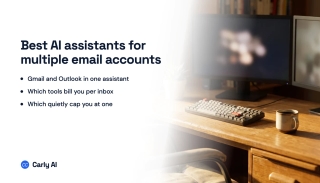
We checked 9 AI assistants against two or more companies. Carly is the one that replies as the right business. Which bill per seat, which per inbox.
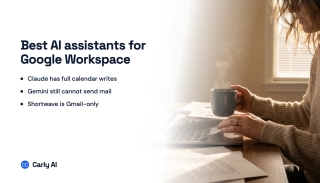
Most AI assistants hold one Google Workspace login and a second sign-in replaces it. We compared nine on two or more tenants: which hold all of them.
The best AI assistant for accountants and bookkeepers in 2026: AI and human options compared on document chasing, scheduling, client email and price.
The best AI marketing assistant for small business in 2026: AI tools and human marketing VAs compared on price and on who actually presses send.
Which virtual assistant services really train or equip their assistants with AI, what to ask in the interview, and the AI your VA should be running.
ChatGPT has no BoldTrail app, and Inside Real Estate's MCP work is back office and invite-only. How to bring kvCORE leads and tasks into ChatGPT.
ChatGPT has no Buildium app and Buildium ships no MCP server. How to bring your rent roll, work orders and leases into ChatGPT through Carly.
ChatGPT has no CINC app and CINC ships no MCP server. Its API opens by broker authorization. How to bring CINC leads and deals into ChatGPT.
ChatGPT has no Housecall Pro app and Housecall Pro ships no MCP server. How to bring your jobs, estimates and invoices into ChatGPT through Carly.
Jobber now has an official ChatGPT plugin. What it reads, what it won't change, and how Carly handles the Jobber work that happens after the chat closes.
Lofty publishes an official ChatGPT app and a real MCP server. What it does inside the chat, and what still needs something watching your pipeline.
ChatGPT has no Real Geeks app, and mcp.realgeeks.com is an admin panel, not an MCP server. How to bring your Lead Manager leads into ChatGPT.
Grok has no Housecall Pro connector and Housecall Pro ships no MCP server. How to bring dispatch, estimates and invoices into Grok through Carly.
Grok has no Jobber connector, and Jobber's own unannounced MCP server is mostly read-only. How to bring quotes, visits and invoices into Grok with Carly.
Grok has no Lofty connector, and Lofty's own MCP server ships no sign-in for Grok. How to bring leads, tasks and deals into Grok through Carly.
The best virtual assistant for entrepreneurs in 2026: AI and human options compared on price, setup and what each one takes off a one-person business.
The best virtual assistant for service businesses: AI and human options for plumbers, HVAC, cleaners and landscapers, with real prices and who each fits.
Picking a virtual assistant for a startup: what Athena, Belay, Time Etc, Wing and Magic cost, what an AI assistant like Carly covers, and when to run both.
Choosing a virtual secretary for a small business: what Time Etc, Belay, Ruby and Smith.ai cost, what an AI secretary like Carly covers, and when to use both.

How many companies use AI agents, how many have scaled them, what they spend, what agents do, failure rates and trust: 2026 numbers, sourced inline.

How many marketers use AI, what they use it for, the time saved, budgets, and how consumers feel about AI-made ads. 2025 and 2026 data, sourced inline.
How many jobs AI is forecast to replace, how many it has replaced so far, which workers are most exposed, and what employers plan. Sourced inline.

How many people use ChatGPT, what they use it for, who pays, and what OpenAI earns. Every number dated to the month and linked to its primary source.
CRM market size, how many companies really use one, what bad CRM data costs, and where the famous $8.71 ROI and 91% adoption figures came from.
Churn rates by industry, why customers leave, what loyalty is worth, and where the famous 5x and 25-95% retention stats really come from. Sourced inline.

What a data breach costs, how attackers get in, FBI-reported losses, phishing and ransomware numbers, and four famous stats traced to their source.

U.S. ecommerce sales and share of retail, holiday spend, cart abandonment, conversion rates, returns, and marketplaces. Primary sources, cited inline.

What a lead costs by industry, how landing pages convert, how fast companies reply, and where the famous 5-minute stat comes from. Sourced inline.

How many workers are burned out, which jobs are hit hardest, what actually causes it, and what it costs employers. Key 2026 stats, sourced inline.

How many conversations bots resolve alone, what customers think of them, where handoffs break, and what a resolution costs. Key stats, sourced inline.

How long a blog post runs, how long it takes to write, what one costs, and where AI landed in content production. Every figure sourced inline.

What customers expect for response time, what bad service costs, how much support work is admin, and where AI has landed. Key stats, sourced inline.

Global and U.S. engagement rates, what disengagement costs, what drives it, and how remote, hybrid and frontline workers compare. Sourced inline.

How many businesses Americans start, how many survive year five, who founders really are, and how they fund it. Every figure sourced inline.

How many US freelancers there are, why credible counts differ by 40 million, what they earn, and how late clients pay. Each stat sourced inline.
How many HR staff per 100 employees, where the HR budget goes, what turnover costs a business, and how much of HR is automated. Sourced inline.

How many projects land on time, what overruns look like, why projects fail, and the hours lost to manual status reporting. Sourced inline.
How long hiring takes, what a hire costs, how many applicants land per opening, and where candidates drop out. Every figure sourced inline with its year.

How many apps companies run, what they spend per employee, how many licenses go unused, and what shadow IT really costs. Every figure sourced inline.

How many follow-ups it takes to book a meeting, how fast you have to reply to a lead, and what the delay costs. Key sales follow-up stats, sourced inline.

How little of a rep's week is actual selling, how few hit quota, what cold calls convert at, and where AI is landing in sales work. Sourced inline.

Where clicks go by position, how many pages get zero traffic, what AI Overviews changed, and how long ranking really takes. Sourced inline.

How many people use social media, how long they spend there, which platforms are biggest, and what engagement rates run. Every figure sourced inline.
The best AI apps for busy and working moms: which ones handle school emails, appointments, the family calendar and meal plans, and which only remind you.
The best AI calendar assistants for ADHD, judged on one test: does it keep your calendar right on its own, or only work when you open it and plan?

The best AI family assistants for school emails, RSVPs, activity schedules and the family calendar. Carly, Ollie, Ohai, Fambot, Anna and more, compared.
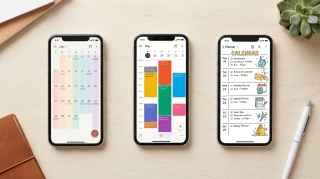
Family calendar apps with AI, judged on one question: does it put school emails, flyers and practice changes on the calendar for you, or just show them?

The best AI household managers for bills, renewals, contractors, groceries, chores and the shared calendar. What each one handles and what it costs.

What an AI answering service does, how a call flows, and what it costs next to Ruby, Smith.ai and AnswerConnect. Plus how to pick one that books.

Aircall starts at $30 a license with a 3-license minimum, and AI minutes cost extra. 7 Aircall alternatives compared on price, AI answering and CRM sync.
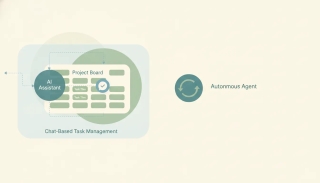
The best AI assistants for Asana: what AI Studio, AI Teammates, Claude and ChatGPT cover, and which one turns email requests into assigned tasks on its own.
The best AI assistants for ClickUp. What Brain, Super Agents and the Claude and ChatGPT connectors cover, and which turns client emails into assigned tasks.
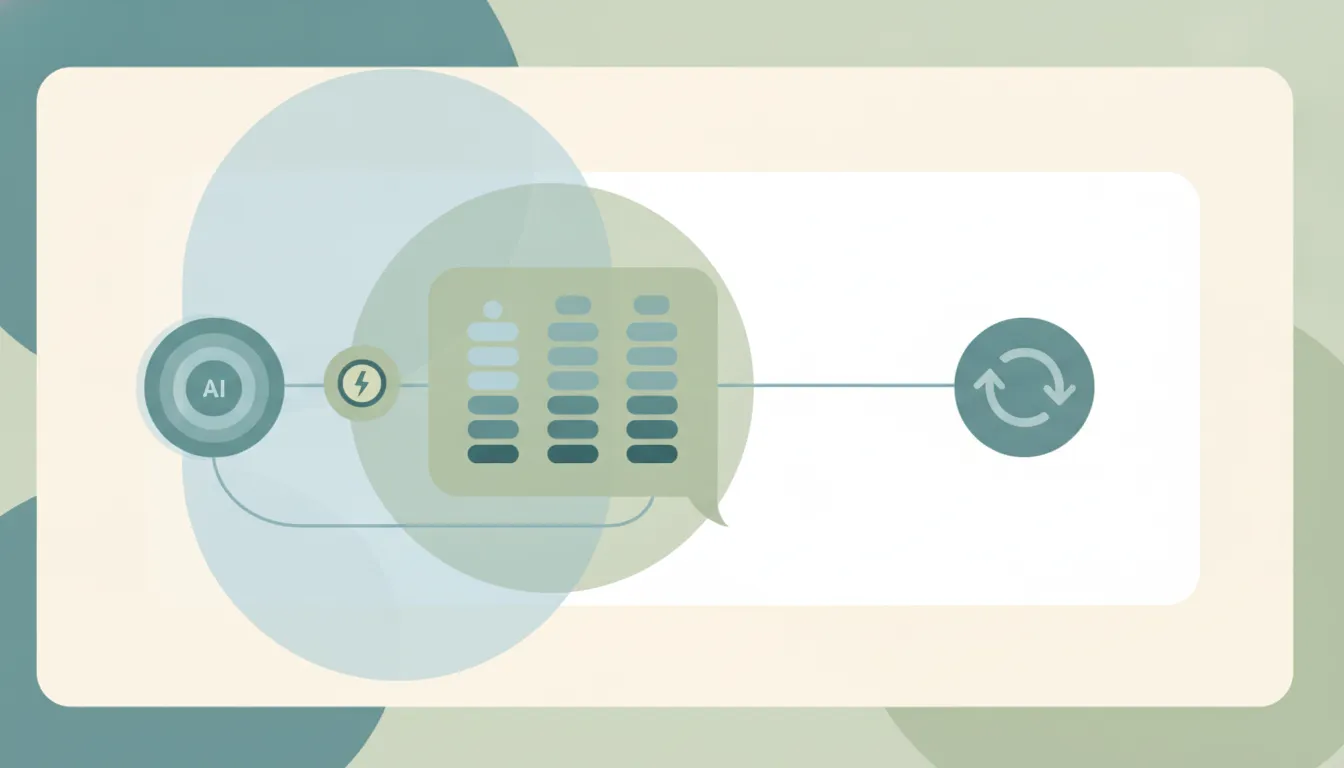
The best AI assistants for Pipedrive. What Sales Assistant, Claude and ChatGPT cover, and what to use when a small sales team lives in the inbox.
The best AI assistants for Salesforce. What Agentforce covers and costs, Claude and ChatGPT with Salesforce, and what to use when a rep lives in the inbox.
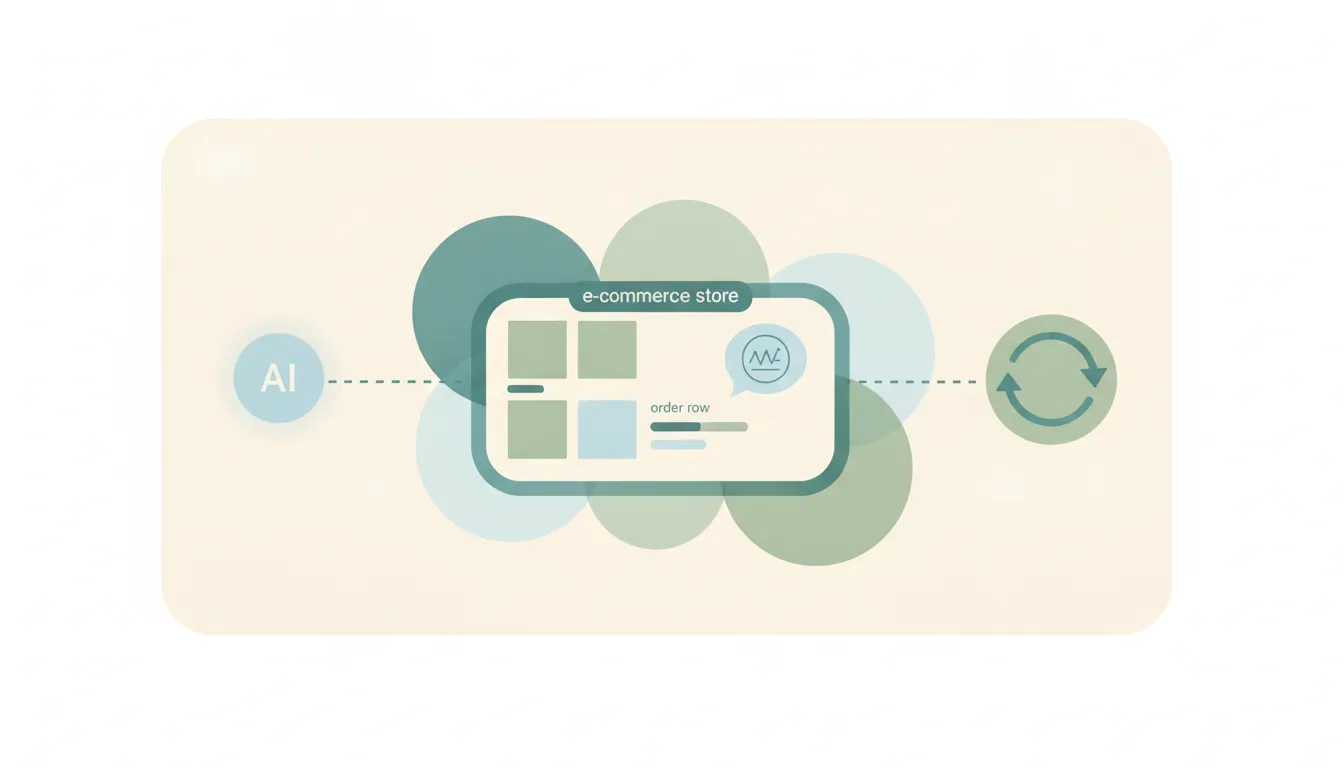
The best AI assistants for Shopify. What Sidekick, Claude and ChatGPT can do in your store, and what to use when your day runs through the inbox.
The best GoHighLevel automation tools for agencies. What Workflows and AI Employee cover, what bills per run, and what handles client email HighLevel misses.
Google Forms automation that goes past the notification email. Seven tools, ranked by how much of each response they handle: the reply, the call, the CRM.
The best Smartsheet automation tools in 2026: what Smartsheet workflows, Smart Assist and AI connectors cover, and what updates the sheet from your inbox.

The 9 best small business phone systems for 2026, compared on US prices, AI answering, texting and contract terms: Carly Phone, Quo, RingCentral and more.

RingCentral cancels by phone or chat, wants 30 days' written notice before renewal, and bills the rest of your term. Port your numbers out first.

Leaving Dialpad? Compare 8 alternatives on price, seat minimums, AI answering and texting: Carly Phone, Quo, RingCentral, Aircall, Nextiva and more.
Google Voice for business runs $0 to $30 per user. What each plan includes, whether free Voice is allowed, texting rules, AI notes and 5 alternatives.

Grasshopper alternatives compared: Carly Phone, Quo, Google Voice, RingCentral, Dialpad, Nextiva and Ooma, with checked 2026 US prices and why users switch.

Leaving Quo, formerly OpenPhone? Compare 8 OpenPhone alternatives on price, AI answering and CRM sync, including an AI receptionist that books real meetings.

Quo (formerly OpenPhone) is $19, $33 or $47 per user monthly, or $15, $23, $35 annually. Plus Sona AI credits, 10DLC, extra numbers, taxes and team math.

Honest Quo review (formerly OpenPhone): plans from $15/user, what the Sona AI agent really does, what users complain about, and who outgrows it.

Quo, formerly OpenPhone, runs $15 to $47 per user. Google Voice runs $0 to $30. How texting rules, shared numbers and AI differ, and who each fits.

Quo (formerly OpenPhone) charges per user from $15/month. Grasshopper charges per account from $14. Plans, texting fees, AI and which fits your team.

Quo (formerly OpenPhone) starts at $15/user and RingCentral at $20, but texting, AI receptionists and contracts split them. Here's which to pick.

Why teams leave RingCentral (auto-renewing contracts, add-on fees, per-minute AI) and 10 alternatives compared on price, terms and AI call answering.

How RingCentral's AI Receptionist (AIR) answers and routes calls, what it costs past 100 minutes, how to set it up, and the limits in RingCentral's own docs.

Honest RingCentral review for small businesses: RingEX plans from $20/user, the AI Receptionist in practice, contract complaints and who is overbuying.

RingCentral RingEX is $20, $25 or $35 per user billed annually, $30 to $45 monthly. Plus AI Receptionist, texting fees, contracts and 5 to 25 user math.

RingCentral starts at $20/user and Dialpad at $15, but texting caps, AI add-ons and annual contracts split them. Here's which business phone to pick.

Nextiva starts at $15/user and RingCentral at $20, but contracts, texting caps and AI receptionist pricing split them. Here's which to pick.

The best AI assistants for Calendly: Callie, Notetaker, and the agent that schedules across every inbox and does the work around the meeting.
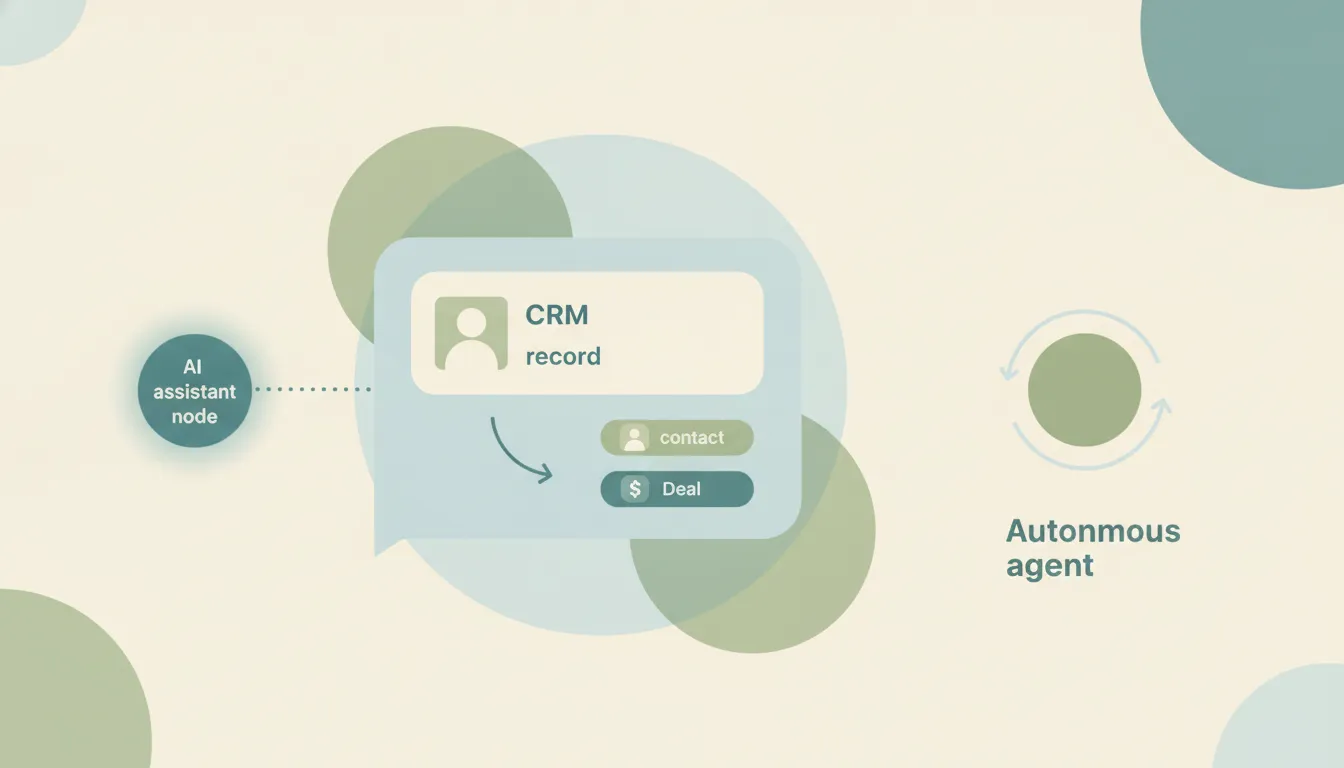
The best AI assistants for HubSpot. What Breeze and HubSpot's agents cover, what credits meter, and what to use when a rep's day runs through the inbox.
The best AI assistants for Zoho Mail. What Zia does, which plans include it, and what to use when the work an email creates lives outside Zoho.

The best AI automation tools for Acuity Scheduling. Follow up after every session, rebook no-shows and keep your other apps in sync, without building Zaps.

The best AI automation tools for Calendly, Callie included. Turn every booking into prep, CRM updates, tasks and follow-ups across all your mailboxes.
The best AI automation tools for Fathom. Turn every call summary into the sent follow-up, the CRM update and the next meeting, without building a workflow.

The best AI automation tools for Greenhouse. Keep interview scheduling, reschedules and scorecard chasing moving from your inbox and calendar.

The best AI automation tools for Keap. Your campaigns already run; these handle the replies, reschedules and proposals they leave in your inbox.
The best AI automation tools for Wrike. Keep projects current from your inbox and calendar, past the per-seat caps on Wrike's own automation rules.
The best AI automation tools for Xero. Chase late payers, file inbox receipts and see what a client owes before the call, without building a workflow.
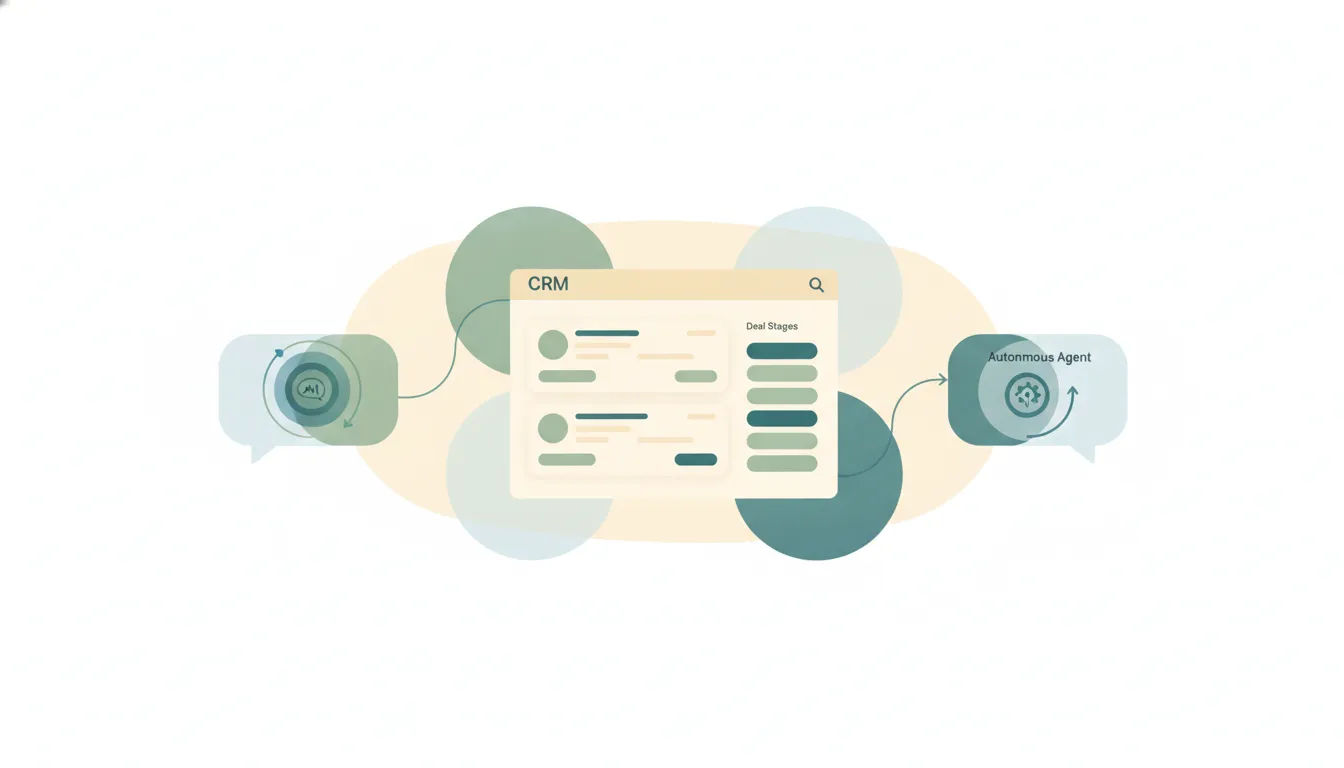
The best AI automation tools for Attio. Update records, log conversations and chase deals from your inbox without building a single workflow.
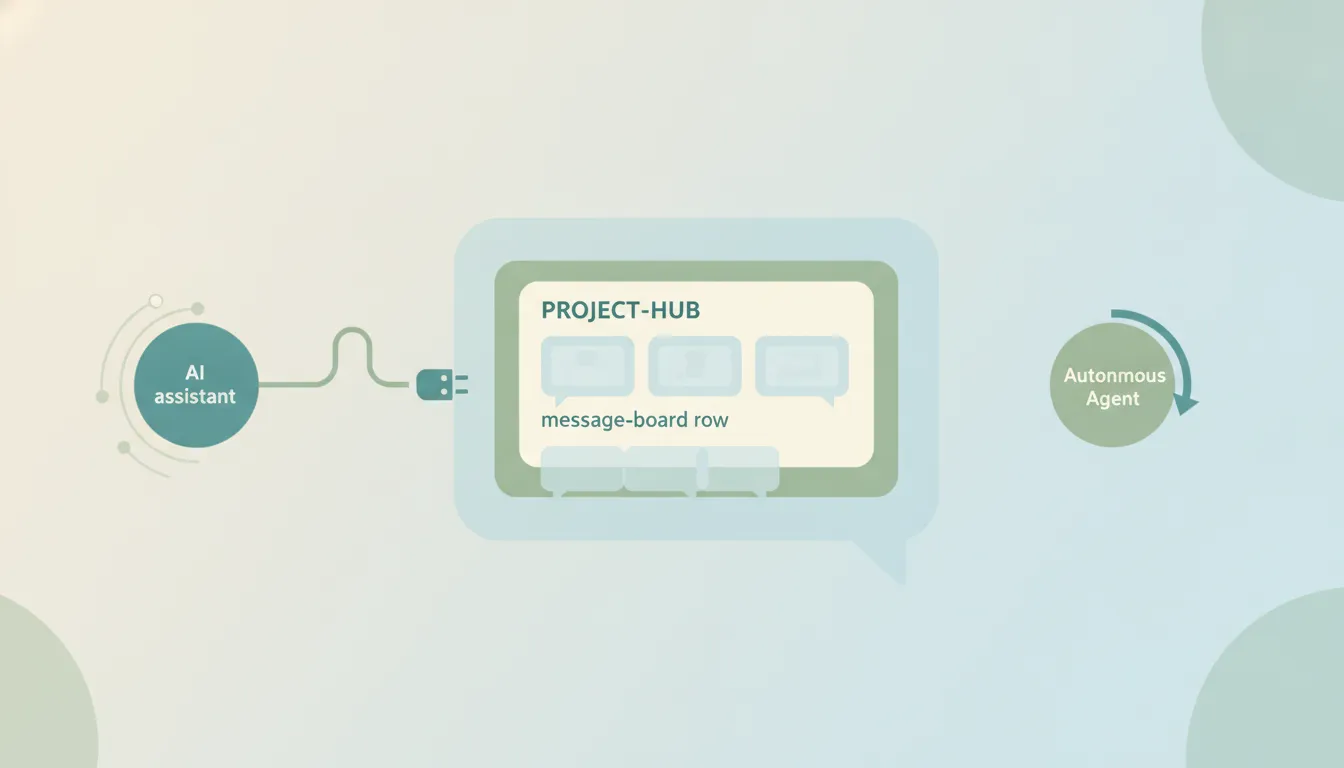
The best AI automation tools for Basecamp. Create to-dos and chase what is stalling from your inbox, without the automation engine Basecamp declines to ship.
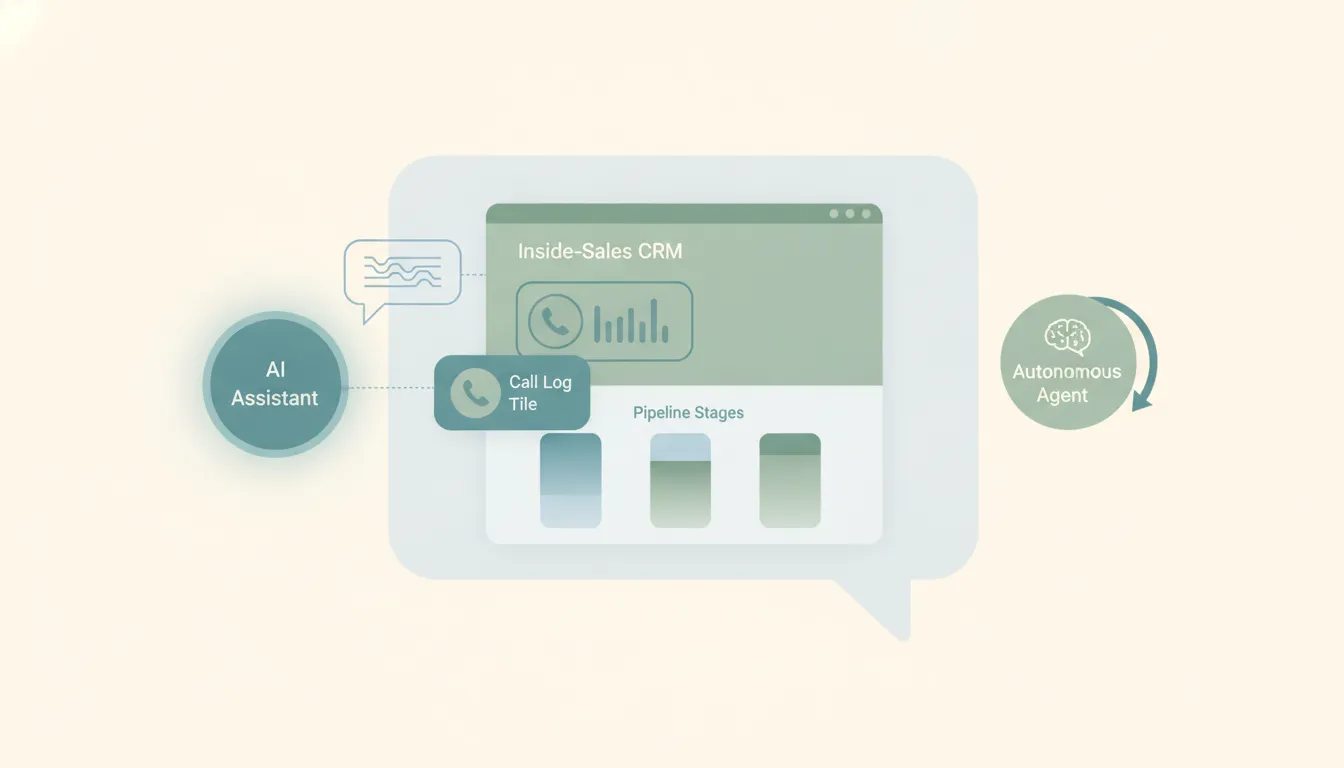
The best AI automation tools for Close CRM. Log calls, update opportunities and chase quiet deals from your inbox without building a workflow.

The best AI automation tools for Folk CRM. Keep contacts current and follow-ups moving from your inbox, without building a single workflow.
The best AI automation tools for Front. Route, draft, and act on shared inbox conversations without burning through your plan's rule cap.
The best AI automation tools for Google Sheets. Fill the sheet from your inbox and calendar, and get told what changed, without writing a script.
The best AI automation tools for Jotform. Answer a submission the moment it lands, with a real reply rather than another email notification.

The best AI automation tools for Missive. Route, draft and act on shared inbox threads without paying for a plan tier and an OpenAI key on top.
The best AI automation tools for QuickBooks. Chase invoices, file receipts and answer money questions from your inbox, without building a workflow.

The best AI automation tools for Square. Chase unpaid invoices, answer customer email and read the numbers, without building a workflow.
The best AI automation tools for TickTick. Create, complete and reschedule tasks from your email and calendar without building a single workflow.
The best AI automation tools for Typeform. Act on a submission the moment it lands, with a real reply rather than another notification.
The best AI automation tools for Zoom. Turn a finished call into the follow-up email, the CRM note and the next meeting, without building a workflow.
Grok has no BambooHR connector, and BambooHR's own MCP server is set up for Claude and ChatGPT. How to bring your HR data into Grok anyway.

Grok doesn't have a Capsule connector, and Capsule's own MCP server is a private beta Grok can't use. How to bring your Capsule pipeline into Grok anyway.

Grok has no Follow Up Boss connector and Follow Up Boss ships no MCP server. How to bring your leads, deals and tasks into Grok through Carly.

Grok has no FreshBooks connector and FreshBooks ships no MCP server. How to bring your invoices, clients and time into Grok through Carly instead.

Grok reads Gmail but not the Google Contacts behind it. Why no official server fills that gap, and how to bring your contact book into Grok.

Grok connects to Gmail and Google Calendar but not Google Tasks. Why no official server fills that gap, and how to add your task lists to Grok.
Grok has no JobNimbus connector and JobNimbus ships no MCP server. How to bring your jobs, contacts and tasks into Grok through Carly instead.
Grok has no Keap connector and Keap ships no MCP server. What that leaves you with, and how to bring your contacts, tags and pipeline into Grok.
Grok reaches Outlook, Teams and SharePoint but not Microsoft Planner. Why no official server fills that gap, and how to bring your plans into Grok.
Grok reaches Outlook and Teams but not Microsoft To Do. Why no official server fills that gap, and how to add your To Do lists to Grok through Carly.
The best AI automation tools for Clover. The App Market covers the counter. Here is what handles the supplier and booking email behind it.

The best AI automation tools for Filevine. DemandsAI and Sidebar cover the case file. Here is what handles the work that arrives in the inbox.

The best AI automation tools for Follow Up Boss. Action Plans and native AI cover the lead. Here is what handles the deal after it goes under contract.
The best AI automation tools for Housecall Pro. CSR AI answers the phone on every plan. Here is what handles the jobs that arrive by email instead.
The best AI automation tools for JobNimbus. AssistAI answers the phone and Scout runs the truck. Here is what handles the work that arrives by email.

The best AI automation tools for Kajabi. Creator Studio writes the funnel. Here is what handles the email that a visual automation builder never sees.

The best AI automation tools for Mindbody. Messenger[ai] covers the front desk 24/7. Here is what handles the work that arrives by email instead.
The best AI automation tools for MyCase. MyCase IQ drafts and summarizes inside the matter. Here is what handles the work that arrives in the inbox.

The best AI automation tools for NowCerts. The AMS handles policies and certificates. Here is what handles the carrier and client email around them.

The best AI automation tools for ServiceTitan. Titan Intelligence covers the board and the truck. Here is what handles the work that arrives by email.

Double pairs a human executive assistant with an AI delegation layer. The four plans start at $549 a month for 10 hours. Here is who that maths works for.
Granola is the AI notepad that never joins your meeting. How it works, the three plans, and the tier where its MCP access actually starts.

Granola ships an official remote MCP server at mcp.granola.ai. The six tools it exposes, how to connect it, and what it still leaves you to do.
The best AI assistants for Front. What Front's own AI covers, what sits behind Enterprise, and what to use when the work leaves the shared inbox.

The best AI assistants for Google Meet, split by job: booking the call, capturing what was said, and doing the follow-up. Plus who actually gets Gemini notes.
We tested 8 AI assistants against two or more Google Calendars. Which schedule across all of them, which hold one login, and which only display the grid.

We tested 8 AI assistants against two or more Outlook calendars. Which book across every tenant, which stay inside one licensed seat, and what each costs.

The best AI assistants for Zoom, split by the job you actually have: booking the call, capturing what was said, and doing the follow-up afterwards.

The best AI automation tools for Freshdesk. What Freddy costs per agent and per session, and what to use when the ticket creates work in other systems.
The best AI automation tools for Mailchimp. Which tier unlocks the AI features, where Journey Builder stops, and what to use for the work around the send.
The best AI automation tools for Microsoft Planner. Create, assign, and update tasks from email and chat without a Copilot licence or a Power Automate flow.
The best AI automation tools for Shopify. Flow is free on every plan and Sidekick now writes it, so here is what still needs something outside the store.
The best AI automation tools for WhatsApp. What the Business app actually automates, what per-message pricing costs, and what changes on 1 October 2026.
Muse is Meta's personal AI agent for errands, travel and shopping. What it connects to, the free and paid tiers, and the limits to plan around.

Cliniko has one plan with every feature, priced in six bands by practitioner count from $45 to $395. SMS at 10 cents a message is the only other charge.

Copper runs $29, $69 or $134 per seat monthly, or $23, $59 and $99 annually. The upgrade trigger is not seats, it is the contact cap on each plan.

Jane is $54, $79 or $99 a month, then charges $17.50 to $40 per extra practitioner. Balance caps you at 20 appointments, and admin staff are always free.

Lawmatics publishes no prices. It does publish the limits: a three-user minimum on both plans, 500 contacts on Essential, and 50 texts a month on either.
Assembly's Neos starts at $109 per user paid annually across three tiers. The AI sits entirely in the top tier, and exact rates still come by quote.
PracticePanther runs $59 to $124 per user monthly, or $49 to $114 annually. The annual discount is the same $10 a user on all four tiers, worth most on Solo.
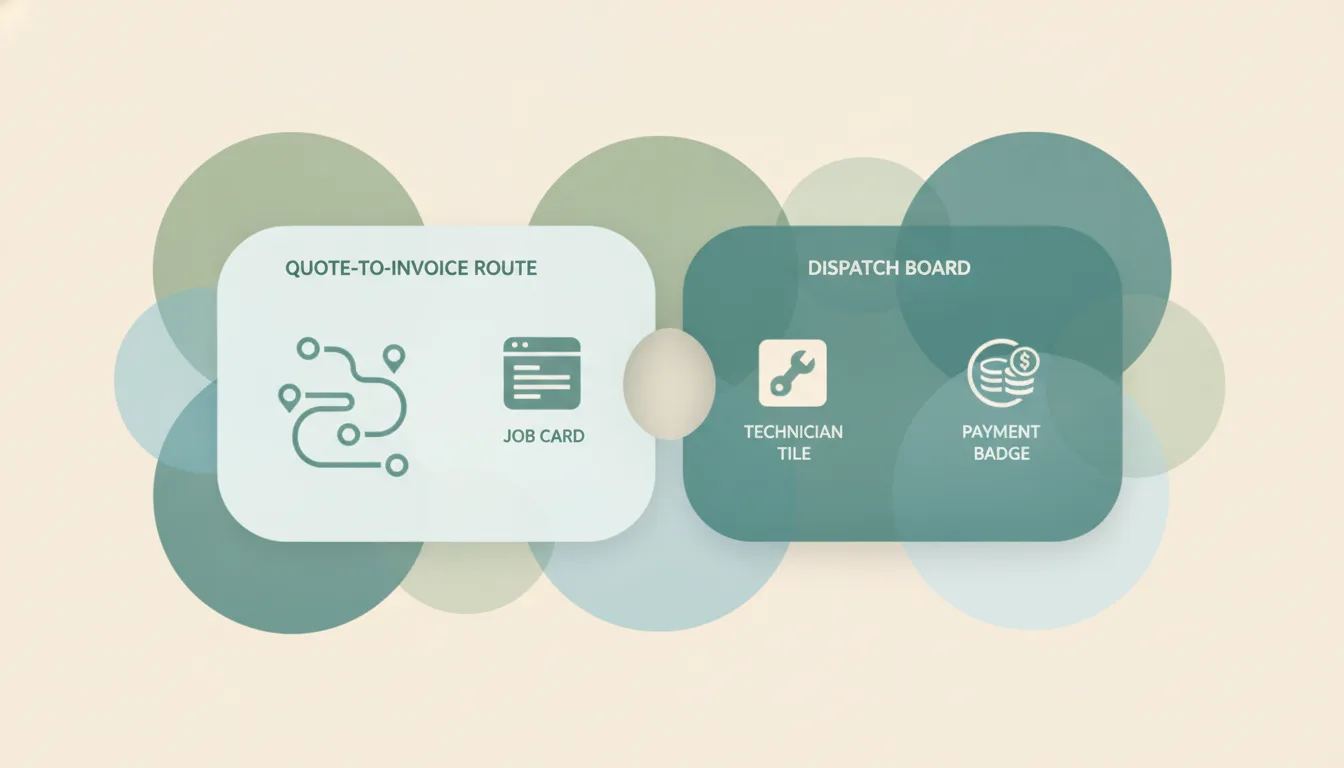
ServiceM8 charges by jobs per month, from a free 30-job plan to $349 for 1,500+. Every paid plan carries unlimited users and the same feature list.

Smokeball publishes no rates. Bill, Boost, Grow and Prosper+ are all quote-only, and the quote depends on your contract term as well as your headcount.

Vagaro is $30 a month for one bookable employee and $10 for each one after, stopping at $90 for seven or more. Every step gets the same features.

Workable starts at $299 a month for up to 20 employees, rising to $599 and $719. Add-ons and AI credits sit on top of every published number.
Workiz no longer shows plan prices. Standard, Pro and Ultimate are quoted, gated on automations at 5, 10 and 30, with Open API only on the top plan.
The best AI automation tools for Confluence. Keep pages, notes, and status updates current automatically from email, meetings, and Jira. No rules to build.

The best AI automation tools for Excel. Keep spreadsheets updated from email, forms, and your CRM automatically, without macros, scripts, or flow builders.
The best AI automation tools for Dynamics 365. Keep CRM records current from email and meetings automatically, without building flows or business rules.
The best AI automation tools for Intercom. Automate the work around your conversations, from CRM updates to follow-ups, without building workflows by hand.
The best AI automation tools for Microsoft 365. Automate Outlook, Teams, Excel, and SharePoint together without building flows or maintaining connectors.
The best AI automation tools for Microsoft Teams. Automate messages, approvals, and scheduling across Teams and the rest of your stack without building flows.
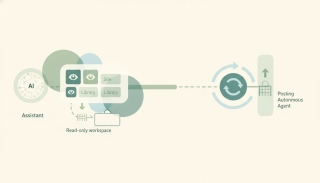
The best AI automation tools for SharePoint. File documents, update lists, and run approvals automatically from email and Teams, with no flows to build.
We checked 7 AI assistants against two or more Slack workspaces. Which reach all of them, which make you disconnect first, and which are priced per workspace.

We checked 6 AI assistants against two or more Microsoft Teams organizations. Which reach all of them, which are read-only, and which stop at one tenant.
Microsoft To Do has no automation engine of its own. Six tools that create, complete, and chase tasks from your mail and calendar, ranked by work removed.
Claude Code reaches accounts through MCP, so the server decides the count. Register one and address every inbox and calendar you own by name.
Claude's Google and Microsoft 365 connectors each hold one login. What Claude reaches natively, and the setup that puts every account in one chat.

OpenAI's multi-account plugin note names ChatGPT, not Codex, and there is no Outlook plugin. One MCP server reaches every mailbox and calendar you own.

Copilot's multiple account access is a licensing bridge, not mailbox reach. What one seat actually sees, and how to work across every account you own.
Cursor's Gmail plugin has an Accounts list that users report does not stick, and Outlook holds one. One MCP server reaches every account you own.
Grok signs in to one Google account and one Microsoft mailbox per connector. Here is what that leaves out, and the setup that reaches all of them.
Perplexity documents one primary calendar, one Outlook mailbox, and no multi-Gmail setup. Here is what it reaches, and how to work across every account.
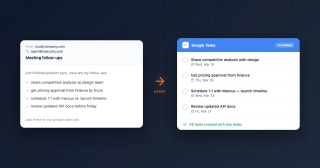
We tested 7 AI assistants on Google Tasks. Which actually create and complete tasks, which only talk about them, and which need a workflow built first.
We checked 8 AI assistants against two or more Outlook accounts. Which act across all of them, which make you switch, and which bill you per mailbox.
We tested 7 AI assistants on Todoist. Which capture tasks from your email on their own, which need asking, and which want a workflow built first.

We tested 7 AI assistants on Trello. Which create and move cards from your email, which only chat about the board, and which need Butler rules first.

The best AI automation tools for Google Calendar. Book, move, and defend time from email and text without building a single workflow.
The best AI automation tools for Jira. Create, triage, and update issues from email and chat without building another automation rule.
The best AI automation tools for Linear. File, triage, and update issues from email and chat without leaving the thread they started in.

The best AI automation tools for Outlook Calendar. Book, move, and defend time from email and text, across every mailbox you own.
The best AI automation tools for Stripe. Turn payments, failures, and disputes into the follow-up work they actually require.

The best AI automation tools for Zendesk. Triage, route, and resolve tickets, then handle the follow-up work that happens outside the helpdesk.
We tested 7 AI invitation makers on a real guest list. Which ones send and track RSVPs, and which just hand you a picture and wish you luck.
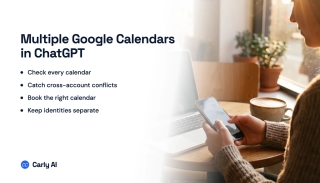
Yes, since August 2026. Secondary and team calendars stay undocumented, and Outlook is a separate connector. Here is what it covers and what it misses.
OpenAI says plugins beyond Gmail now take several accounts, but names no Outlook or tenant rules. Connect them to Carly and ChatGPT reaches all of them.
OpenAI says plugins beyond Gmail now take several accounts, but names no Outlook or tenant rules. Connect them to Carly and ChatGPT Work reaches all of them.
No. Gmail authorizes one Google identity per user, so a second account replaces the first. With Carly, ChatGPT Work reaches every inbox at once.
No. Claude's Google connector holds one account. Shared calendars under that login work; a second login does not. With Carly, Claude holds both.
No. Claude's Microsoft 365 connector holds one Entra tenant, so a second work account replaces the first. With Carly, Claude reaches all of them.
No. Consumer Copilot's Gmail connector holds one Google account and the work SKU has none. With Carly, Copilot reaches every inbox you own.
No. Multiple account access is a licensing bridge for documents, not mailbox reach. With Carly, Copilot works across every Outlook account you own.
No. Grok's Gmail connector signs in to one Google account at a time. With Carly, Grok works across every inbox you own in one conversation.
No. Perplexity's Gmail connection is one Google account with no second-account flow. With Carly, Perplexity reaches every inbox you own.

AppFolio Core is $1.40 per residential unit a month, Plus is $3.00. A 50-unit minimum and an unpublished minimum spend set the real floor.
BambooHR is $10, $17 or $25 per employee monthly, with a $250 monthly minimum under 25 employees. Payroll and benefits are add-ons, not plans.

Buildium starts at $62, $192 or $400 a month on Essential, Growth and Premium. The per-transaction fees move more money than the plan gap does.

DoorLoop is $69, $149 or $209 a month billed yearly for the first 10 units, then $3 per unit. The per-transaction fees differ sharply by plan.
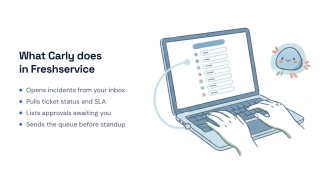
Freshservice is $19, $49 or $99 per agent monthly billed annually, or $29, $59 and $119 monthly. Freddy AI Copilot is a separate per-agent add-on.

Gusto is $49, $80, or $180 a month plus $6 to $22 per person. The add-on list is what decides whether Simple is actually cheaper than Plus.
Jotform is free, $34, $39 or $99 a month billed annually. Bronze, Silver and Gold are all single-user plans, so a second seat means Enterprise.
Kajabi is $143, $199 or $399 a month billed annually, or $179, $249 and $499 monthly. Contacts, admin seats and AI credits decide the tier.

PandaDoc is free for 60 documents a year, then $19 or $49 per seat monthly billed annually. The document limits above Free are never published.

Skool is $9 or $99 a month, $7.50 and $82 billed yearly. The 10% transaction fee on Hobby makes Pro cheaper above roughly $1,268 a month.
An AI event planner that makes the invitation, sends it, and tracks every RSVP. Run the guest list from Claude or ChatGPT, or design it in the browser.
Most AI invitation makers hand you a picture. This one designs the invitation, sends it, reads the replies, and chases the people who went quiet.
The best AI chat widgets for websites, ranked. Most just answer questions. The best ones train on your own docs and finish the task behind the question.
Send corporate event invitations that look right, keep the guest list organized, and track every RSVP. Guests reply without an account, an app, or a login.
A guest list app that imports your spreadsheet, groups households, tracks RSVPs and plus-ones, holds a waitlist, and checks people in from a phone.
A no-code chatbot builder that trains on your own site and installs with one script tag, or hand the whole build to Claude or ChatGPT and paste the result.
Compare the alternatives to Partiful for invitations and RSVPs, including one your AI agent can build end to end while you approve the send.
Otto by Workato went self-serve on August 26, 2026: an AI teammate in Slack, SMS and the web, billed in credits. What it does, what it costs, who it fits.
Apollo is free, $49, $79, or $119 per seat monthly billed annually. Credits and mailbox limits shape the tier far more than the per-seat price does.
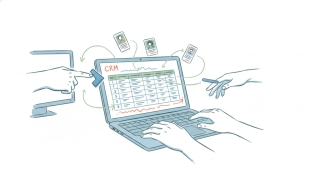
Attio is free, $35, or $79 per user monthly billed annually. Seat caps and the two-part credit system decide the tier more than the per-user price does.
Clio publishes exactly one number: Manage Starter from $49 per user monthly. Core, Signature and Elite are quote-only, and the plan lineup has been renamed.
Freshdesk is $19, $55, or $89 per agent monthly billed annually. The free plan is gone, and Freddy AI sessions and day passes are billed on top.
GoHighLevel is $97, $297, or $497 a month. Sub-account limits, metered AI usage and per-sub-account add-ons decide the real bill more than the tier does.
Housecall Pro is $59, $149, or $299 a month billed annually. Included users and the $100 per extra user charge decide the bill more than the tier does.
Intercom is $29, $85, or $132 per seat monthly billed annually. Fin costs $0.99 per outcome on top, and three add-ons sit outside every plan price.
Jobber starts at $29 a month for one user. Add a second person and the entry plan disappears, so the real starting price for a crew is $149 a month.
Mindbody starts at $79 a month per location. Starter, Accelerate and Ultimate are all quote-only, so the published price is a floor rather than a plan.
MyCase is $50, $100, or $130 per user monthly billed annually. Accounting is a $39 add-on and the AI discovery tool is capped at 5,000 pages per user.

Claude Code adds MCP servers with one command. Local, project, and user scopes, remote HTTP servers, and the difference from claude.ai custom connectors.

Claude connects to any remote MCP server through custom connectors. The exact click path, the free plan limit, and why the server must be publicly reachable.

Copilot supports MCP via Copilot Studio and federated connectors, but discovery is not invocation. Which surfaces call your server, and which quietly do not.
Cursor adds MCP servers by one-click link, settings UI, or mcp.json. Project versus global config, which wins on a conflict, and the tool limit to watch.

Gemini supports custom MCP servers through Connected Apps for Spark. The exact steps, the five eligibility gates Google applies, and what MCP still can't do.
Grok takes custom MCP servers at grok.com/connectors. The setup, why a local server needs tunneling, and the admin step that blocks business accounts.
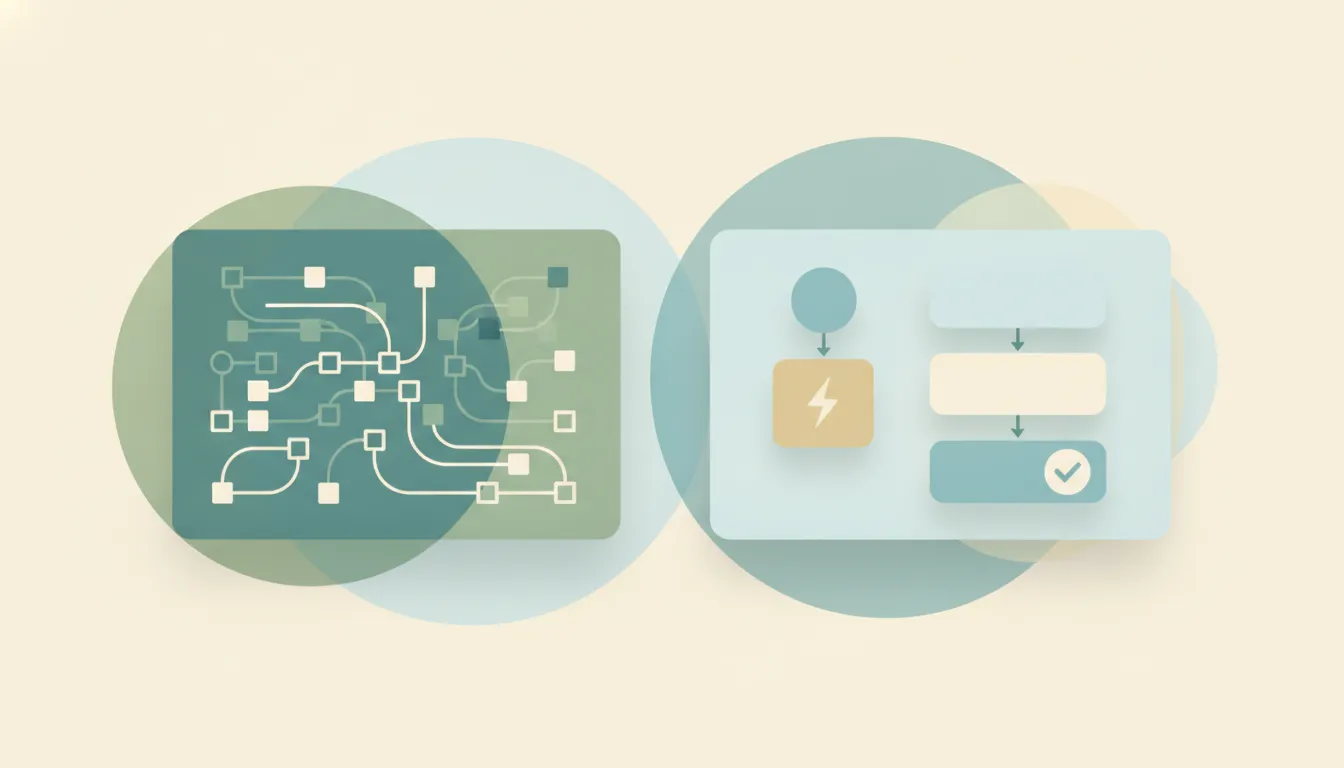
n8n does MCP three ways: exposing workflows as a server, consuming servers as tools, and an instance server that builds workflows from your AI client.
Perplexity takes custom remote MCP servers from Account settings. The exact fields, the admin toggle that is off by default, and a help page that is stale.

VS Code reads MCP servers from mcp.json in your workspace or user profile. Why the tools are invisible outside agent mode, and how server bridging works.
Windsurf adds MCP servers through the Cascade plugin store or a custom entry. Where mcp_config.json lives, and what the connection still cannot do for you.

We priced seven AI employee platforms against their live pages in August 2026. What each one finishes, what it meters, and which is worth paying for.

Google Calendar not syncing on iPhone, Android, Outlook, or desktop. Work through the fixes in order, starting with the ones that solve it most often.

Create a shared Outlook calendar on desktop, web, or Microsoft 365, set the right permission levels, and know when a group calendar is the better choice.

Create an .ics calendar file with a free generator, export one from Google or Outlook, or write it by hand, then add it to any calendar app.
Lock down who sees your Google Calendar: public settings, per-event privacy, free/busy sharing, and how to check what others can actually see.

Open an .ics file on Windows, Mac, iPhone, or Android, add it to Google Calendar or Outlook, and fix the file that opens in Notepad instead.

Share an iCloud, Google, or Outlook calendar from your iPhone, pick the right permission level, and fix the invite that never arrives.

Link Google, iCloud, Outlook.com, or Office 365 to Alexa, ask the right questions, and fix the calendar that stops syncing after a password change.

Get iCloud and Google calendars into one view on iPhone, Mac, and the web, plus the one-way subscription trap that makes events read-only.
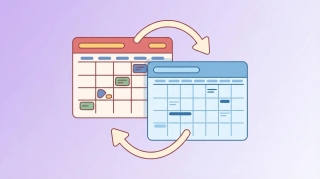
What OGCS is, how the free open-source Outlook and Google calendar sync works, the Windows-only catch, and when a live-read assistant fits better.
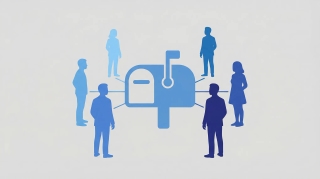
Every chat assistant now reads a shared mailbox. Which ones reply from that address, which can open the attachments, and which act when mail arrives.

Most shared inbox tools give your team a place to work the queue. Only one works it for you, replies from the address, and opens the attachments.

ChatGPT reads and sends from shared Outlook mailboxes. It cannot retrieve attachments from one, needs the owner's UPN, and never acts on arrival.

Yes, since August 2026, widened to more plugins and every plan in September. Here is what it covers, what it leaves unsaid, and the way around it.
Claude reads shared and delegated mailboxes through Mail.Read.Shared. It cannot reply from one, and nothing starts when a message arrives.
No. Claude's Google connector holds one account, and a second replaces the first. Connect every inbox to Carly instead and use them all in one chat.
Claude connects to one Gmail account at a time. Connect every inbox to Carly instead and a single Cowork task reaches all of them.
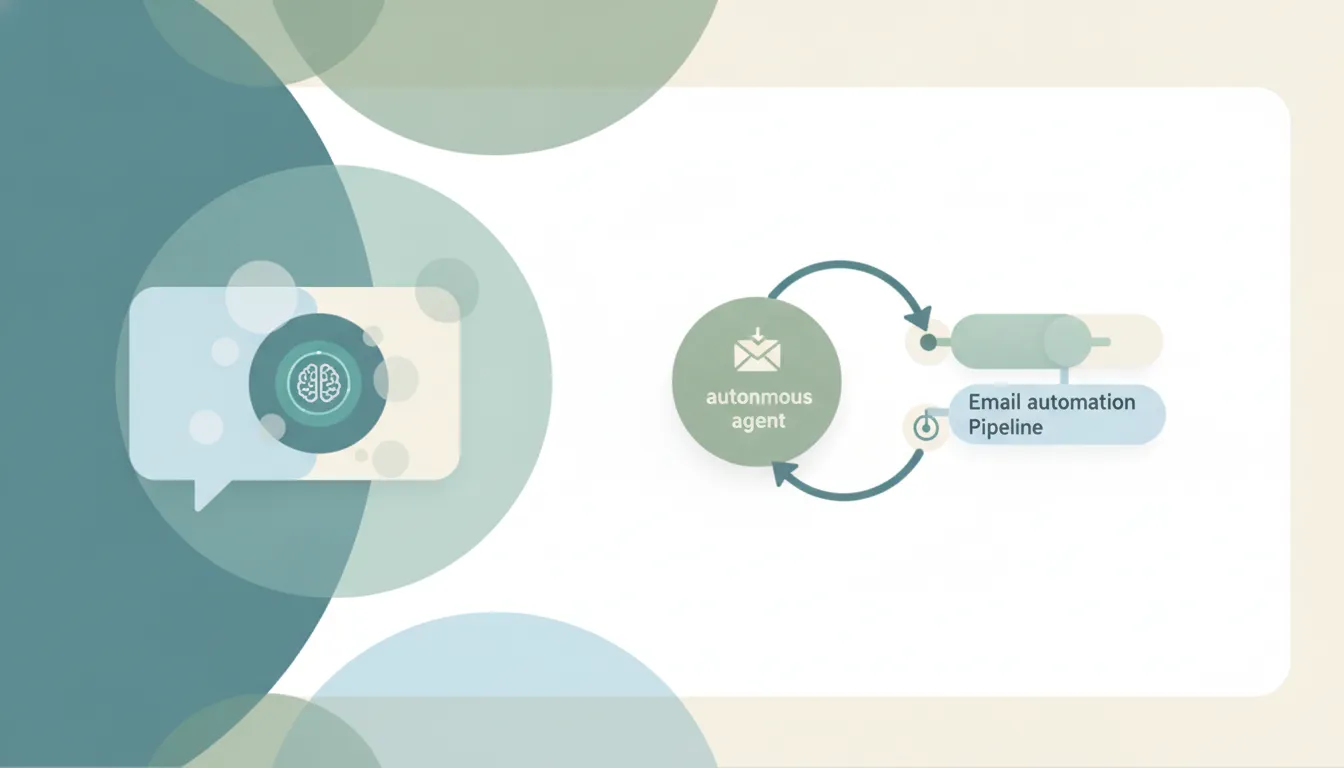
Automate inbound email operations and outbound sequences without confusing the two. Compare tools, map triggers and controls, and launch safely.
Build an executive assistant software stack for calendars, inboxes, meetings, travel, tasks, and follow-up without buying overlapping tools.
The smartest AI document assistants compared: Claude for long documents, ChatGPT for breadth, Gemini for Workspace, and Carly for acting on what they find.

Learn what a virtual administrative assistant can own, when to choose a human or AI assistant, and how to compare cost, controls, and coverage.

Compare human, AI, and hybrid virtual executive assistants by tasks, cost model, risk, and fit, with a practical checklist before you buy.
ActiveCampaign starts at $15, $49, $79, or $145 a month billed annually. Those are floors: the price climbs with your contact count and seats are capped.

Why every AI wants to be Jarvis: the Marvel backstory, the startup renamed over it, Zuckerberg's version, and 40 jarvis-style names that won't get you sued.
Callie is Calendly's AI assistant you CC into email to book meetings. What it handles, the plan it requires, and the mailbox limits to plan around.
Calendly's new Standard Plus and Teams Plus cost $18 and $24 per seat monthly. What the extra $8 buys, the seat tiers, and when the upgrade is not worth it.
CapCut ships no official MCP server or editing API. What the community draft-file servers can actually do, how to set one up, and their limits.

Female names dominate AI assistants — Siri, Alexa, Cortana. The research on why, the UNESCO critique, and 120 female AI name ideas sorted by tone.

There's no official Google Calendar widget for macOS. What Apple's iPhone-widget system does and doesn't allow, and the four workarounds that work.
Sales Cloud runs $25 to $350 per user monthly. The editions are the small half of the bill: the add-ons are priced per user again, from $100 to $220.
Instinct is an invite-only personal agent controlled by text. Here is what it does, what early users accomplished, and why it triggered a backlash.
Acuity is $16, $27, or $49 a month billed annually. The tiers are sold by calendar count, there is no free plan, and monthly billing costs 20% more.
Copilot's Planner agent needs a licence and ChatGPT's route runs through Teams. Here is what each one can actually create, and which one acts on its own.

Most AI assistants cannot touch Microsoft To Do at all. Here are the ones that read and write your task lists, and the one that acts without being asked.

Claude Code has no message count. It has a rolling 5-hour window, a weekly cap, and a shared pool. Here is what moves the meter and what resets it.
Claude Code has no price of its own. It is included in every paid Claude plan and metered against it. Here is every tier and what really drives the bill.
Codex has no separate subscription. Every ChatGPT plan includes it and meters it against a 5-hour window. Here is every tier and what drives the cost.

Cursor runs two usage pools, not one, and that decides which tier you need. Every plan, the included allowances, and what overage really costs.
Front is $25, $65, or $105 per seat monthly billed annually. Seat caps, channel limits and automation-rule limits shape the tier more than the price does.
Why Instinct AI triggered a backlash: retained Gmail copies, a prompt-injection test, unapproved actions, outages, and training on your data by default.
Pipedrive runs $14 to $79 per seat monthly billed annually, with no free plan. Email sync, multi-inbox and AI sit on higher tiers than most people expect.
Skydive launched August 20, 2026: cloud agents with their own computers, reachable in Slack, email, and iMessage. What it does and who it is for.

Zoho CRM is free for 3 users, then $14, $23, or $40 per user monthly billed annually. Monthly billing costs 25% to 52% more. Here is what each tier adds.
Asana's AI credits are pooled per billing account, not per user, which changes the math. What each piece does, what you get, and where Carly picks up.
ClickUp AI is a separate per-user subscription on top of your plan. What Brain and Super Agents do, the real monthly number, and where Carly fits.
Rovo comes with your Confluence plan and needs no separate purchase, but it runs on credits. What it does, who gets it, and where Carly picks the work up.
Copilot in Excel writes formulas, builds PivotTables and pulls in web data. What it does, what the licence costs, and the automation it can't start.
Gemini turns Drive into a searchable knowledge base and it's bundled into Workspace. What it does, which plan you need, and the part it hands back to you.
Gemini builds whole spreadsheets from a prompt and is bundled into Workspace, not an add-on. What it does, which plan you need, and where Carly fits.
Linear Agent ships on every plan and Loops fire on real events. But no plan includes AI credits. What each does, what it costs, and where Carly fits.
monday.com's AI runs on credits that differ by plan and by product line. What the agents do, how many credits you actually get, and where Carly picks up.
SharePoint agents are free if you hold a Microsoft 365 Copilot licence and metered to Azure if you don't. What they do, who pays, and where Carly fits.
Zoom retired the AI Companion brand and shipped ZoomMate as a paid add-on. What each Zoom AI piece does, the free limits, and how Carly acts on a call.

Ten AI email triage tools compared: what each one sorts, what it surfaces, and which ones actually act on a message instead of just filing it somewhere.
Two ChatGPT logins stay signed in at once, web only, sharing nothing. What the switcher covers, what workspaces do instead, and the setup spanning both.

Cowork has no connector list of its own. It inherits Claude's. What the built-in ones do, how permissions gate writes, and where custom MCP starts.

The Drive connector reads Sheets but has no cell-editing tool. What Cowork builds instead, and the routes that get changes back into the real sheet.

The tasks Cowork is genuinely good at, taken from Anthropic's own examples, plus the shape of job it keeps failing and what to hand off instead.
WhatsApp is not in Anthropic's directory. Cowork reaches it only through a custom MCP server on the Business API. What that buys, and what it does not.

Agent mode is gone, Operator was folded into it, Atlas shut down on Aug 9. Here is what each ChatGPT agent is in 2026 and which one you actually want.

Two of these edit the workbook in front of you. The rest read a copy and hand you a new file. Which is which, and what happens to macros.
ChatGPT can now move, rename, and delete Drive files. Only one assistant does it without being asked, and across more than one Google account.

Gemini now builds and edits whole spreadsheets from a sentence. Most of the rest read your sheet and hand you a separate file. The honest split.
Gmail, Calendar, and Drive are the easiest surfaces in AI to read and the hardest to act on. Which assistants write, and which hold a second Google account.
We checked nine assistants against a real Microsoft 365 tenant. What each can write, what needs an admin, and which ones survive a second tenant appearing.
ChatGPT can post in Teams now, Claude still cannot, and Copilot only drafts. What each assistant does in Teams, and which one replies without you.
One personal drive and one work drive is the request nobody serves cleanly. Which assistants read OneDrive, which write, and the one partial workaround.
ChatGPT writes shared calendars and not your own. Claude needs an admin. Which assistants really create and move Outlook events, and which just read.

Copilot is hard to beat inside one tenant. The moment a client tenant appears, or a document needs to trigger something, the ranking changes completely.
Most of these draft and stop. Which ones actually send from your Outlook address, what an admin has to approve first, and which watch the inbox.
Yes, and it does more than read. Claude finds, analyses, and saves new files to Drive. What it cannot touch is anything already in there.

Yes, through the Microsoft 365 connector. Reading works out of the box, writing needs two separate admin switches, and nothing fires on a SharePoint event.

Gmail now sends, replies and forwards. Outlook needs an admin first. And Cowork has no inbox, so nothing ever reaches it unprompted.

No. Claude reads your sheet and saves new files, but it cannot change one that already exists. What that rules out, and the two ways around it.
Two answers, because there are two products. The Outlook add-in drafts and never sends. The Microsoft 365 connector sends, once an admin allows it.
Yes, with nothing to connect. Gemini reads and summarizes your files and exports new ones. It cannot edit, move or organize what is already in Drive.
The Microsoft Graph version of recurring Outlook events is easy to get wrong. Here’s the exact recurrence shape, what endDate actually means, and working payloads you can copy.
Freestyle is a Y Combinator AI assistant for Gmail that drafts, schedules, and bulk-unsubscribes. What it does, what it does not, and what it costs.

Gemini reads and searches Gmail well. It does not draft, send, or delete through the Workspace connection, and nothing starts when mail arrives.

OpenAI excludes connector data from training and keeps an indexed copy of your mail. The four risks worth weighing, and how to reduce each one.

Macros, custom forms and network shares are gone. Snooze, Sweep and undo send are new. The full picture, plus how long classic Outlook actually has.
We checked 10 AI assistants against two or more Microsoft accounts. Which hold every tenant, which force a reconnect, and which bill you for the second login.
Most AI assistants pick an ecosystem and stay in it. We checked which ones hold a Google inbox and a Microsoft inbox at once, and what each can do in both.

ChatGPT's Outlook Email and Calendar apps read, draft and send, and now reach shared mailboxes. The plan requirements, the admin gates, and the one gap left.

Microsoft Copilot connects to Gmail, Google Calendar, Contacts and Drive. What it can do with them is narrower than the word connector suggests.
The Gemini app is a Google-account product. Gemini Enterprise has a real Outlook connector that reads mail and sends it, and an admin has to build it.
Gemini finds, summarizes and prioritizes mail, and inbox cleanup is coming. What it still will not do is handle the inbox while you are not looking.
Three routes get a file in front of Gemini, and only two are reliable. What Google documents about attachments, images in Gmail, and the 25 MB ceiling.

Gemini searches Gmail two ways: AI Overviews in Gmail search, and the Gemini app with Workspace connected. What each finds, and where the search stops.

The source settings error, the toggle nobody finds, and the one-word prompt habit that fixes it. Seven causes of Gemini losing access to Gmail, in order.
AI Overviews, Help me write, Suggested Replies, Proofread, AI Inbox. What each one does, who gets it free, and why the side panel disappeared for some users.
Two different connections get confused for one. The exact toggles, the consent screen, and what Gemini can really do with Gmail once connected.
Work, personal, and team calendars in one assistant. Which tools see every calendar, which only sync busy blocks, and which cap you at one login.
We checked 11 AI assistants on two or more Gmail accounts. Carly is the only one that acts across all of them. Which hold, which switch, which bill you.
One person, two logins. Which AI assistants can see work and personal mail and calendars without dumping one identity into the other.
Gmail, Calendar, and Drive across two Google logins. Which AI tools hold more than one identity, and which replace the first when you add a second.
ChatGPT Work takes several Google accounts now, but one Microsoft account, one Drive, and no shared mailboxes. Here is the setup that holds all of them.
Claude's Google connector is one identity. Microsoft 365 is another. What Cowork sees natively, and how to run work and personal in one task.
SpaceXAI's Grok Bot gives AI teammates one shared cloud computer. What it can do, which plans unlock it, and the shared-login catch to plan around.
Zapier MCP connects Claude, ChatGPT, and Cursor to 9,000+ apps. Every tool call costs two tasks from the same quota your Zaps use. Here's the math.
The Zapier SDK gives code and coding agents authenticated access to 9,000+ apps without OAuth setup. TypeScript only, and free while in beta.
ChatGPT can send a Gmail or Outlook message, but its native email action does not attach files. Send a permissioned link, attach manually, or use Carly.
Fourteen practical AI-agent examples, grouped by what starts them, with a current comparison of ChatGPT, Claude, Gemini Spark, and Carly.
AI automation for small business without a consultant. The five jobs worth automating first, what each costs, and the trap of automating the wrong one.
ChatGPT Work sends Outlook mail, but calendar writes run backwards: your own calendar is read-only while shared calendars get full write. Setup and limits.
Reusable ChatGPT workflow templates for recurring work, what OpenAI means by a template in 2026, and the step every one of them still needs a human for.
Google calls them Connected Apps. The full list by category, the Keep Activity setting that silently disables them, and why the directory is consumer-shaped.
Builder Prime has Bolt Insights for analytics and an open API for contractor workflows. See what each can do and how to connect Builder Prime to Carly.
Builder Prime has no official Claude connector or MCP server, but its scoped open API provides a supported path. See the setup, limits, and Carly option.
JobTread's official MCP server connects Claude, ChatGPT, Gemini, and Carly to live job data. See what it can change, how to connect it, and the risks.

ChatGPT can edit a shared Outlook calendar but not your own, and Google Calendar writes depend on your plan. The rules are stranger than they look.

ChatGPT can now send mail from Gmail and Outlook, not just draft it. The limits are in the permission model and the shared-mailbox rules, not the model.

A skill is a folder with a SKILL.md file that Claude loads when a task matches. Here is the structure, the token cost, and the sync gap nobody mentions.
Doodle markets AI-enabled coordination, but the actual AI features live on an Enterprise plan starting at USD 15k. What the free and Pro tiers really get.
Front sells five AI products across three plans, and the most autonomous one costs extra even on the $105 Enterprise tier. What is included and what is not.
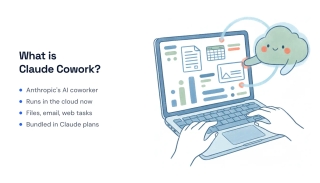
Claude Cowork works differently depending on which surface you open it in. Here is how to start a task, pick the right one, and what each run costs you.

Outlook's AI is Microsoft 365 Copilot, and it now comes in two SKUs at very different prices. What it does, what it really costs, and where it stops.

Shortwave sells AI by the tier, and five different things get metered as you move up. What Free, Pro, Business, Premier and Max really buy in 2026.

Superhuman AI no longer means one thing. Mail, Grammarly, Docs and Go are four products with four AI stories, four prices, and one shared limit.
We tested 11 AI assistants across Gmail and Outlook together. Carly holds every inbox and acts in each one. Which others cap you, and which bill per account.
A no-show costs more than the empty slot. Here's the follow-up sequence that rebooks the client, and the no-show policy that prevents the next one.
Cloudflare open-sourced an AI agent workspace on August 5, 2026. What Gatekeepers actually do, what it costs to run, and who should deploy it.

Helena from Enrich Labs runs SEO, ads, social, and email on its own. What it connects to, what it publishes, and where the approval gates actually sit.

Sapiom raised $35M to run agents that pay for their own tools. What Router, agent.studio, and Runtime do, and exactly what gets metered.
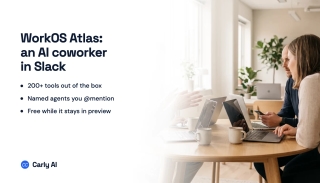
Atlas is WorkOS's AI coworker for Slack: 200+ tool connections, named custom agents, per-request permission checks, and free while it stays in preview.

The best CalendarBridge alternatives for syncing multiple calendars, hiding event details, and sharing availability, including free options compared.

Calendly Notetaker records meetings, writes recaps and drafts follow-ups. What it covers, which platforms it joins, and how the gradual rollout works.
Four ways to sync Outlook and Google Calendar, including the free built-in ICS method, its refresh delay and privacy tradeoff, and when to use a sync tool.
Learn Microsoft To Do properly: lists and groups, My Day, smart lists, steps, recurrence, sharing, and how it connects to Outlook flagged email and Planner.
Microsoft Planner and To Do overlap but solve different problems. How they differ on ownership, boards, licensing, and how tasks flow between them.
Microsoft To Do has no standalone API. Tasks live behind Microsoft Graph. Which endpoints and scopes you need, what the data model looks like, plus gotchas.
The best Microsoft To Do alternatives compared on capture speed, structure, collaboration and platform reach, with guidance on which one fits how you work.

Microsoft To Do vs Todoist on capture speed, organization, Outlook integration, platform reach, and cost, plus which one actually suits how you work.

Why your Outlook calendar is not syncing across desktop, web, and mobile, with nine fixes in order, plus the cases that are working exactly as designed.

How to use the Outlook Scheduling Assistant in every version, what the free/busy colors mean, why external attendees show as blank, and what to do instead.
The best Appointy alternatives in 2026. Appointment scheduling, staff booking, and free tiers compared on what each plan actually includes.

The best Calday alternatives in 2026 for service businesses. Booking pages, client records, payments, and reminders compared on real published pricing.

The best Crab.fit ("crabfit") alternatives in 2026. Open-source availability grids, timezone-aware meeting polls, and calendar-connected scheduling compared.
The best Cronofy alternatives in 2026. Calendar APIs, embedded scheduling, and enterprise interview tools compared on pricing, coverage, and fit.

The best Dudle alternatives in 2026, including the DuD-Poll rename. Privacy-first meeting polls, open-source grids, and calendar-connected tools.

The best Framadate alternatives in 2026. Open-source meeting polls, privacy-first scheduling, and calendar-connected availability grids compared.

NeedToMeet has closed and its domain is for sale. Here are 8 alternatives for meeting polls, availability grids, and personal booking links.

Schedulicity has merged into Vagaro and its site now redirects. Here are 9 alternatives for salons, wellness studios, and independent professionals.
The best Setmore alternatives in 2026 for appointment booking, staff scheduling, and payments, compared on free tiers and real per-user pricing.
The best SimplyBook.me alternatives in 2026 for booking websites, appointment scheduling, and client management, compared on real published pricing.
The best Trafft alternatives in 2026 for appointment booking, group bookings, and team scheduling, compared on price and free-tier limits.

The best Xoyondo alternatives for group scheduling in 2026. Ad-free meeting polls, availability grids, and calendar-connected tools compared.

The best zcal alternatives in 2026. Free booking pages, scheduling links, and team round-robin tools compared on what each free tier actually includes.

The best Zeeg alternatives in 2026. Booking pages, round-robin team scheduling, and GDPR-friendly options compared on price and free-tier limits.

ChatGPT plugins came back in July 2026 as the directory for everything. What a plugin bundles, how it differs from apps, and the permission model underneath.
Anthropic's 11 open-source Cowork plugins, what a plugin bundles, where hooks and sub-agents actually run, and the one thing no plugin can start on its own.
Claude for Excel is an add-in with cell-level citations and formula-aware edits. What it handles, what it refuses, and the macro gap that matters.

Claude for PowerPoint edits single slides without regenerating the deck and keeps your template. What it does, the version limits, and where it stops.

Claude for Word proposes every edit as a native tracked change you accept or reject. What it does, the version requirements, and where it stops.
Office agents lets one Claude conversation span Excel, PowerPoint, Word, and Outlook. How to enable it, and the open-files rule that limits it.
What a Claude Skill is, how SKILL.md and progressive disclosure work, where Skills run across claude.ai, Claude Code, and the API, and where they stop.
Microsoft 365 Copilot plugins only work as actions inside declarative agents, not in Copilot itself. What they connect to, how they resolve tools, the caps.
MCP Apps is the first official MCP extension: servers return interfaces that render inline in Claude, ChatGPT, and VS Code. How it works and what it skips.
Claude Design turns a prompt into prototypes, decks, and one-pagers. What it does, which plans get it, what it exports, and where it stops.
alfred_ is an AI executive assistant for email, calendar, and tasks, on Gmail and Outlook. What it does, what it costs, and where its own app is the limit.
The best AI assistants for creators in 2026: content strategy, scripting, editing, repurposing, sponsor email, scheduling, and business operations.
Yes, Buildern connects to AI. Carly uses your Buildern credentials directly, so estimates get chased, selections get followed up, and clients stay informed.
Circleback is an AI meeting assistant that writes notes and assigns action items. What it costs, what it does well, and how it compares to Granola and Fathom.
Cofounder.co runs a company with AI agents organized into departments. What it does, what the $20 plan really costs once usage lands, and who it's built for.
Yes, CompanyCam connects to AI, and it's the easiest jobsite app to wire up. Photos become client updates, invoice evidence, and documentation checks.
AI that works with Procore, Jobber, CompanyCam, JobTread and Buildern, using your own credentials. Chase estimates, update clients, and get paid sooner.
Cora turns your inbox into twice-daily briefs and drafts the replies that matter. What it does for $20 a month, and the one thing it deliberately won't do.
Jace AI is an email assistant that drafts replies and organizes Gmail. What it does, how its credit pricing works, and where it stops short of acting for you.
Yes, Jobber connects to AI, and you can do it for your own account with no approval. Quotes get chased, jobs get invoiced, and clients hear from you.
Kuse is an AI workspace returning finished docs, slides, and sites. Junior is its AI employee for Slack and Teams. Two products, two very different prices.
Lutra is an AI agent that automates Google Workspace, Slack, and Airtable work. What its credits cost, where the free tier runs out, and four alternatives.
Orchid is a YC-backed personal assistant that lives in your texts, drafting email and booking travel. What it connects to today, and where it falls short.
Paradigm is an AI spreadsheet where every cell can run an agent. What credits really cost, where the model breaks down, and four alternatives.
Yes, Procore connects to AI. Carly uses your own Procore credentials, so overdue RFIs get chased, rejected submittals reach the sub, and nothing sits waiting.
Slashy won Product Hunt with AI drafting and triage at $25 a seat. Two constraints decide it: Gmail-only today, and it replaces your email client.

Stanley AI costs $47/month for Instagram and $149/month for LinkedIn. See what each product includes, trial caveats, and which one is worth it.
Tavus builds real-time AI video humans you talk to face to face. What PAL Maker does, what the Phoenix, Raven, and Sparrow models handle, and what it costs.
Trevor AI drags your tasks onto your calendar and suggests smart time blocks for $5 a month. What it does well, and the line between planning and doing.
Cloudflare's Agents SDK gives an agent durable identity, its own SQL storage, scheduled work, and email. What it provides, what it costs, and who it suits.
Cloudflare shipped send and receive email as an agent primitive: an onEmail hook, a Workers binding, and 3,000 messages a month. What it does and who it fits.
Google renamed Vertex AI to the Gemini Enterprise Agent Platform and folded Agentspace in. What changed, what each piece does, and who it is actually for.
Agentspace was Google's enterprise search and agent hub. It has been folded into Gemini Enterprise. What it did, what migrates, and what the new name means.
Vertex AI Agent Builder was renamed in April 2026. What it bundled, what carries forward, what you need to change, and whether it still fits your team.

Decagon builds AI agents that resolve customer support in chat, email, voice and SMS. What it does, what it costs, and which companies it actually fits.

Sierra is Bret Taylor's enterprise AI agent platform for customer service, valued at $15.8B. What it does, how outcome-based pricing works, and who it fits.

ChatGPT Work reads context from 1,400+ connectable apps, but reading and acting aren't the same permission. What connects, what writes, and where it stops.

ChatGPT Work isn't sold separately: it's gated by your plan and metered against it. Here's every tier, what unlocks Work, and what drives the real cost.

ChatGPT Work is built for long multi-step jobs, not quick answers. Twelve tasks it genuinely completes, three it doesn't, and how to tell them apart.

Claude Tag puts @Claude in Slack as a taggable teammate with memory and ambient updates. What it does, who gets it, and the Aug 3 migration deadline.
MyCase publishes every price, $50 to $130 per user. Clio publishes only its $49 entry tier. Here's how the two actually compare in 2026.
Jobber starts at $49/month and Housecall Pro at $59, but the tier where each unlocks integrations is $139 vs $299. Here's which to pick.
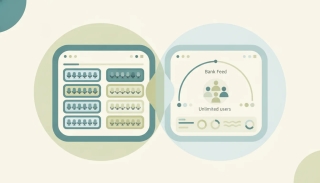
QuickBooks Online now runs $38 to $275/month with hard seat caps. Xero runs $25 to $90 with unlimited users. Here's which one to pick in 2026.
Stripe and Square both charge 2.9% + 30¢ online, so the fee sheet won't decide it. Here's the real split between them, with 2026 rates.
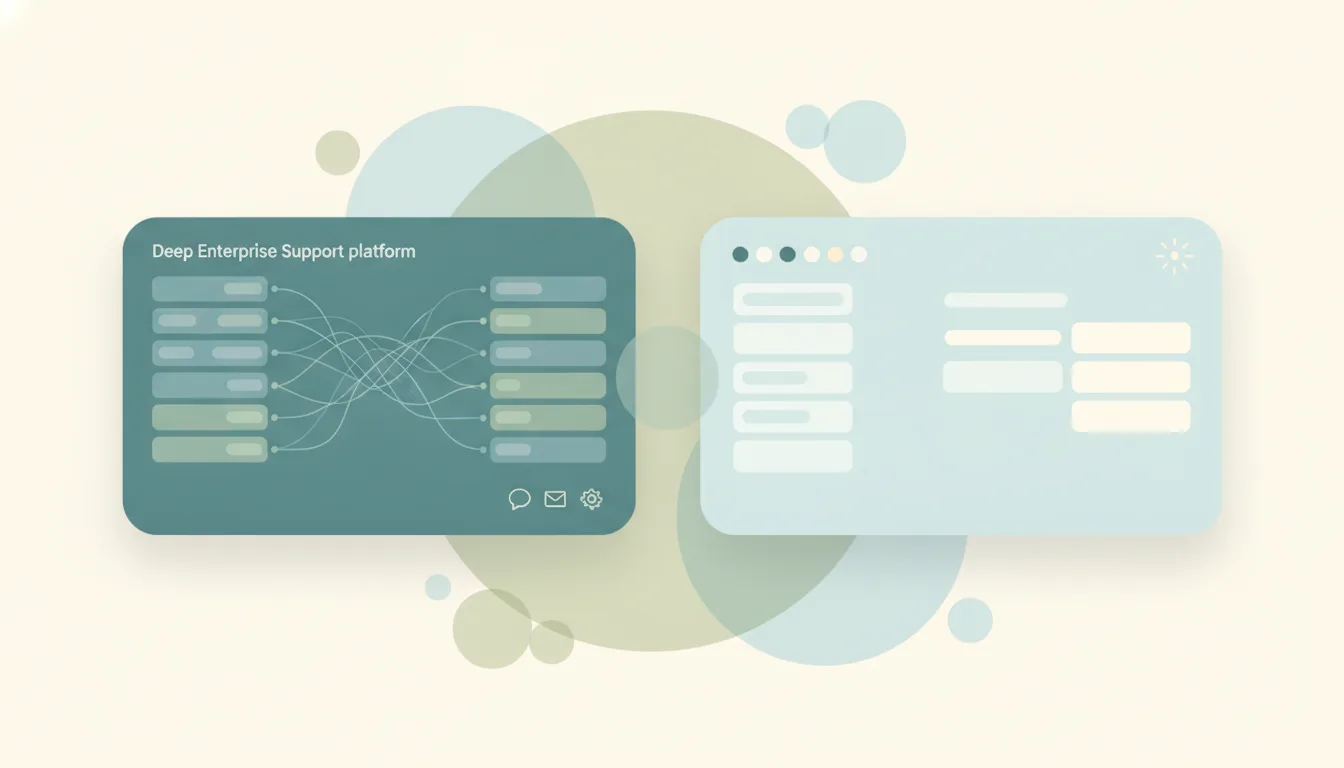
Zendesk and Freshdesk both start at $19/agent and both hit $55 at mid-tier. The gap is in AI add-on pricing and the top tier. Compared for 2026.

AI for nonprofits, sorted by job: donor CRMs, grant tools, and the automation layer that runs the admin. What's worth it for a small team on a tight budget.
Give an agent a real address in one call, with threading, attachments, webhooks and per-tenant pods. Six common agent email builds and how to ship each.
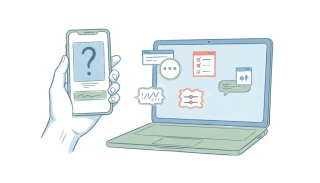
Jotform's free plan stops at 5 forms and 100 submissions a month, and paid tiers meter by submission. Here are 9 alternatives with verified 2026 pricing.
Jotform is a powerful form builder with payments and e-signatures; Google Forms is free and unlimited. Here's which to pick in 2026.
SurveyMonkey meters every response and charges $0.15 over your cap. Here are 9 alternatives with higher or unlimited limits and verified 2026 pricing.
Typeform is conversational, design-first forms; Jotform is a maximalist builder with PDFs, approvals, and payments. Which to pick in 2026.

AI agents for business compared for 2026 — the difference between a chatbot that advises, a builder you configure, and an agent that actually does the work.
An AI assistant for small business owners earns its keep on seven admin jobs. What to hand off first, what to type, and how to start in an afternoon.

AI customer service agents compared for 2026 — enterprise deflection bots vs. the assistant a small team actually needs to run support from a shared inbox.
Airtable's AI is real and generally available — Omni, Field Agents, field-level AI — but credit-metered and base-bound. What it does, and where Carly differs.
How Attio works as an AI-native CRM: the objects-and-attributes data model, Ask Attio and agent Workflows, the API, and where Carly extends it across apps.
Set up an AI email agent: its own email address anyone can write to, restricted tools, uploaded knowledge, and sender approval — in about five minutes.
What you get from the xAI API in 2026: Grok 4.5 at 500k context, high limits before you spend a dollar, first-party X search, and one billing trap.
Grok can now run jobs on a schedule or when an email arrives. How Automations work, what the triggers can match on, what's free, and the one event it watches.
Every app Grok connects to: the seven built-in connectors, the OAuth catalog, and custom MCP, with the permissions each one asks for.
xAI shipped Grok for Excel on July 20, 2026 as a free Microsoft 365 add-in. What it does in a workbook, how it pulls from your connectors, and its limits.
Grok runs inside Excel, Word, PowerPoint and Outlook, plus connectors for Teams, SharePoint and OneDrive. What's free, what's paid, and how it beats Copilot.
xAI shipped Grok for Outlook on July 21, 2026. What the add-in does inside your inbox, how it differs from the Outlook connector, and what it costs.
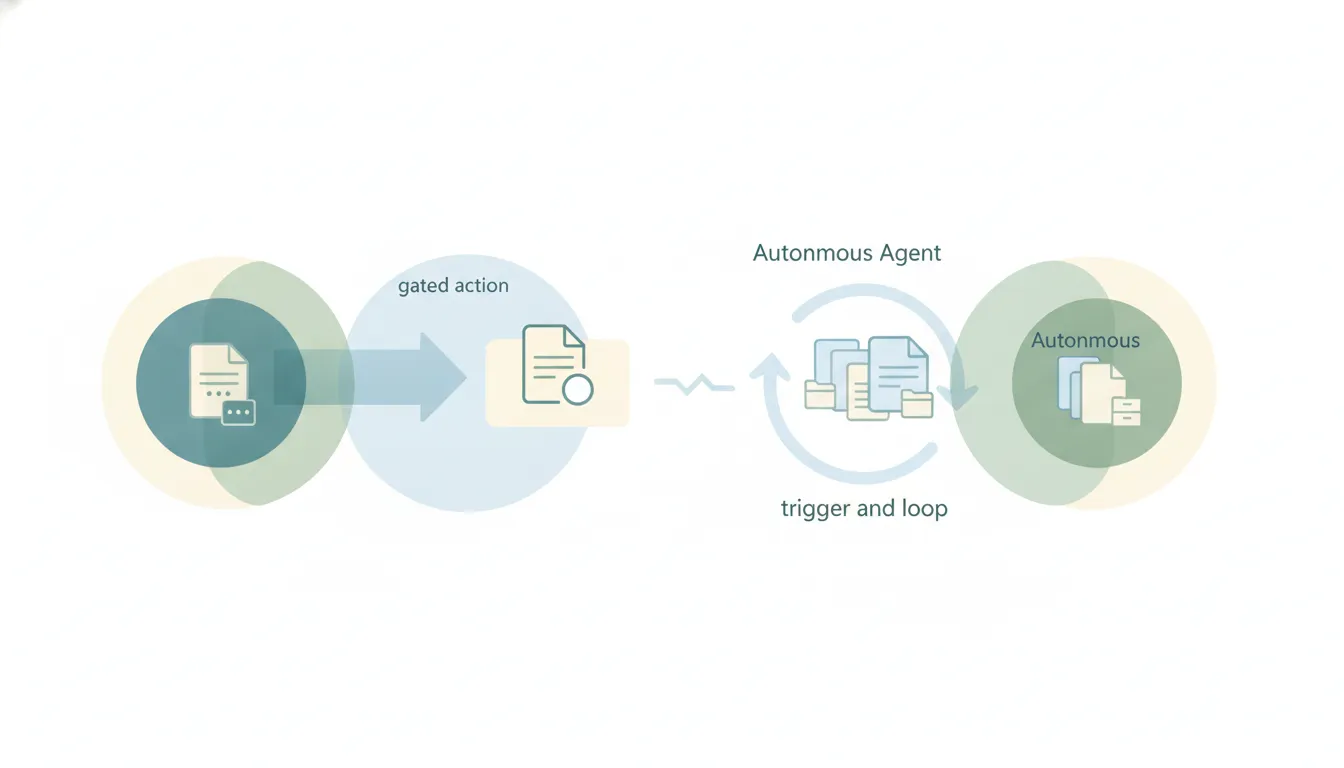
Grok shipped free Word and PowerPoint add-ins in June 2026. What each one does, how they pull from your connectors, and where the assistance stops.
The best Outreach.io alternatives in 2026: Salesloft, Apollo, Klenty, HubSpot and more, compared on real pricing and AI credits.
The best Salesloft alternatives after the Clari merger: Outreach, Apollo, HubSpot, Klenty and more, compared on real pricing.
Buildium's Premium API offers broad read/write access and near-real-time webhooks. See how Carly handles on-demand, recurring, and event-driven work.
Filevine exposes projects, notes, tasks, deadlines, and webhooks. See what Carly handles on demand, on a schedule, or in a configured workflow.

Hermes Agent is Nous Research's open-source AI agent with a built-in learning loop. What it does, how to install it, and what running it actually takes.
Smokeball exposes matters, contacts, tasks, billing, and webhooks. See what Carly handles on demand, on a schedule, or in a configured workflow.
Ask your Yardi rep to license the interfaces you need, connect them to Carly, and leads, service requests, renewals, and AP start handling themselves.
Carly answers new leads in minutes off your inbox and runs quote follow-up — no webhooks needed. Plus what the AgencyZoom API can and can't do.
Connect Alvys to Carly to chase PODs, start billing, flag detention, update customers, review settlements, and brief dispatch.
Hand your Clio Manage account to an AI agent. Clio is a built-in provider on Carly's integrations page — create a private app, paste the client ID and secret, authorize once.
Connect Crelate to Carly for candidate follow-up, interview coordination, stale-pipeline checks, client updates, and recruiter briefs.
Fieldwire ships ~40 webhook events and full CRUD — but API access isn't in any published tier. Even Business Plus at $89/user needs two sales conversations.
Fleetio's API needs Professional or Premium — Essential has none at all. What each plan lets you automate, and the 70+ events that can trigger the work.
Connect Geotab to Carly for safety alerts, arrival notifications, coaching tasks, maintenance briefs, and recurring fleet checks.
Givebutter's API is free and genuinely open, and a donation fires an event the moment it lands. What you can automate, and the one thing you can't.
Connect JobTread to Carly for estimate follow-up, invoice collection, payment updates, client communication, daily logs, and job briefs.
Loxo's API and AI agents sit on Professional, from $199 per user a month. What Core includes, how the Loxo MCP works, and how to automate Loxo.
Mindbody meters API calls but not webhook events. Learn the four gates to live access, webhook delivery rules, and how Carly runs the resulting workflows.
Momence hands you credentials instantly, with no approval and no per-call fee. But nothing gets pushed to you, and the class schedule is read-only.
Motive's dashboard says Request API Key, but the flow is immediate. Undocumented rate limits, 18 webhook events on SHA1, and what Motive's AI actually ships.
Neon CRM retired API v1 and legacy webhooks on July 11, 2026. If yours were never re-selected they're dead now. Plus the account merge that rewrites writes.

Connect NexHealth to Carly for appointment requests, waitlist outreach, form follow-up, schedule briefs, and sync alerts across 15 health systems.
Automate NowCerts lead follow-up, renewals, certificate requests, document collection, client updates, and daily agency briefs with Carly.
Planning Center's full API works on the free plan. Real rate limits, which modules are read-only, and the token quirk that silently truncates your data.
Samsara turns the API on for every customer, but your plan decides which data you get. What can run on its own, what still can't, and how to set it up.
Auto repair is a gated vertical — AutoLeap excludes every plan, Tekmetric needs review. Shopmonkey ships API and webhooks on every tier, self-serve.

Any SmugMug subscriber can get a key on any plan. But SmugMug never tells you when something happens, so automation has to work a different way.
Connect TeamUp to Carly to fill cancellations, follow up after first visits, recover failed payments, re-engage members, and brief coaches.
Tripleseat admins can set this up themselves — no sales call. Contract signed and deposit paid both fire events, so the follow-up can run on its own.

Connect Vetspire to Carly to fill cancellations, follow up after visits, organize referrals, watch inventory, and update clients.
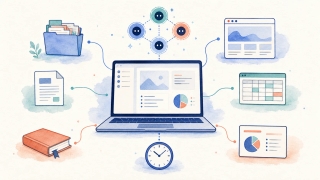
Kimi Work is Moonshot AI's desktop agent for local files, browser tasks, reports, and schedules. See its features, pricing, limits, and best use cases.
Zeffy's API is free and self-serve but read-only, so it reports rather than updates. What you can automate, and the refund gap worth knowing about.
Zoho Recruit's API works on the free plan with 5,000 credits a day. But webhooks are Professional-tier only — and Zoho's own docs send you to the wrong host.

Native connectors, MCP servers, iPaaS AI steps, AI-native assistants, and direct API — what each can read, write, and run on its own, and how to pick.

Amazon MCP means three different things: the AWS MCP Server, the Amazon Ads server, and Seller Central, which has no official server at all. Which you want.

Apify's hosted MCP server at mcp.apify.com exposes thousands of Actors as AI tools with dynamic discovery. How it works, what runs cost, and where MCP stops.
Applied Epic AI: which of Applied Recon, Book Builder, Epic Max, and Epic Bridge are live, where the API gate stops you, and what to automate around it.

Ashby's official MCP server is in open beta, with OAuth, so Claude or ChatGPT can read your pipeline and move candidates between stages. Setup and limits.

Attentive sells AI as paid add-ons — AI Pro, AI Grow, AI Journeys, AI Essentials, and Concierge. Here's what each one really does, what the public API will and won't let you automate, and where an outside AI assistant fits.
Bitrix24 AI is CoPilot, rate-limited to 600 requests an hour across your whole account. What it covers, the two Bitrix24 MCP servers, and what webhooks allow.

Bloomerang now ships a real AI stack — Penny, the Content Assistant, and Dataro's predictive scoring. Here's what's included, what's gated, and the stewardship gap none of it closes.

Booksy's own AI is a Google AI Mode booking deal; the AI receptionists in the ads are third parties. Why its API docs return a 401, and what you can automate.

Boulevard AI covers Precision Scheduling, marketing copy, and the Billie support chatbot. Here's what it does, what it skips, and how to automate the rest.
BrazeAI is a real suite — Sage AI agents, predictive churn, Intelligent Timing and Channel, generative copy. Here's what's GA, what's credit-gated, and what the REST API lets your own key do.

Brex's official MCP server at api.brex.com/mcp has OAuth and ~42 tools across expenses, cards, banking, and bills — but none that issue cards or move money.

Buildertrend AI now covers Client Updates, Bill Capture, Page Naming, Selections and Submittals. API access stays partner-gated. What that means for you.

ChatGPT Team is now ChatGPT Business. Per-seat pricing, seat minimums, Enterprise-only features, and the caps teams hit in month one.
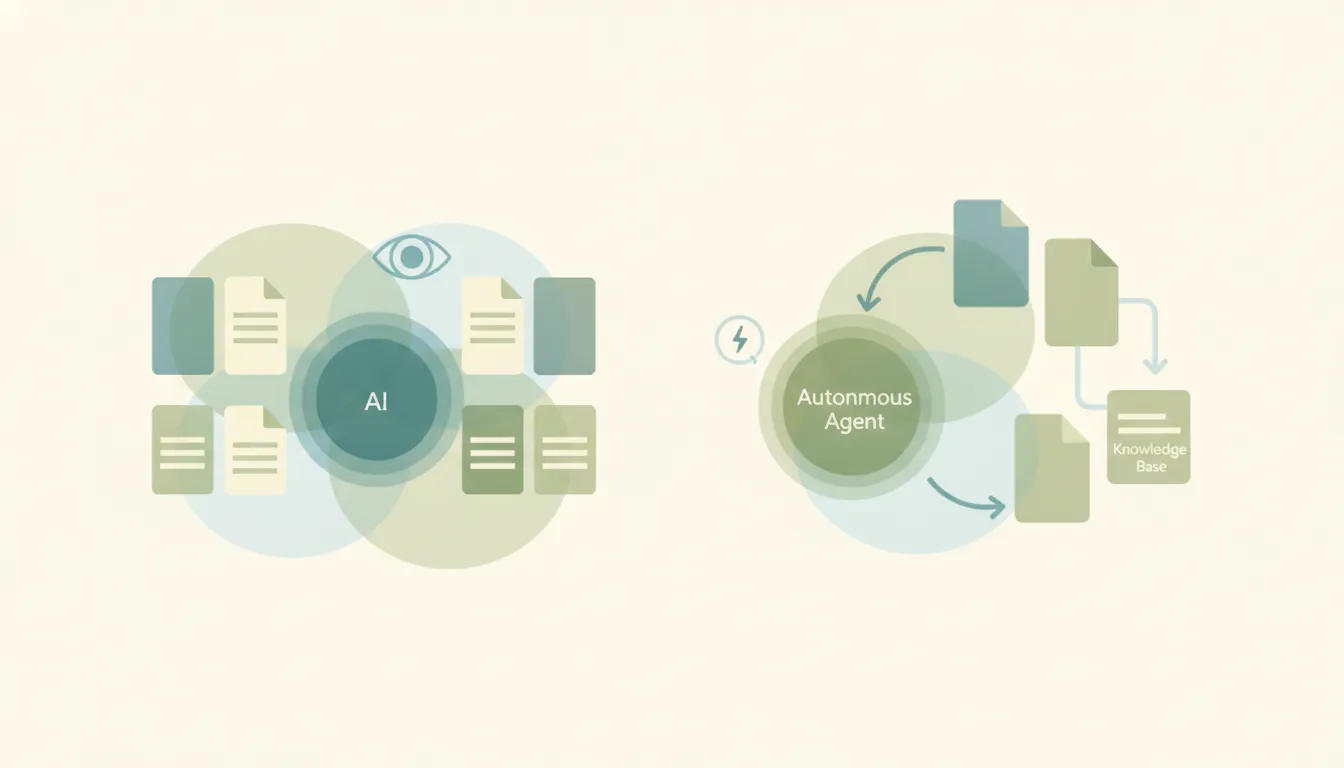
Company knowledge lets ChatGPT answer from your Slack, Drive, SharePoint, and GitHub with citations. Which plans get it, whether it respects permissions, whether your docs train models, and the one job it's built not to do.
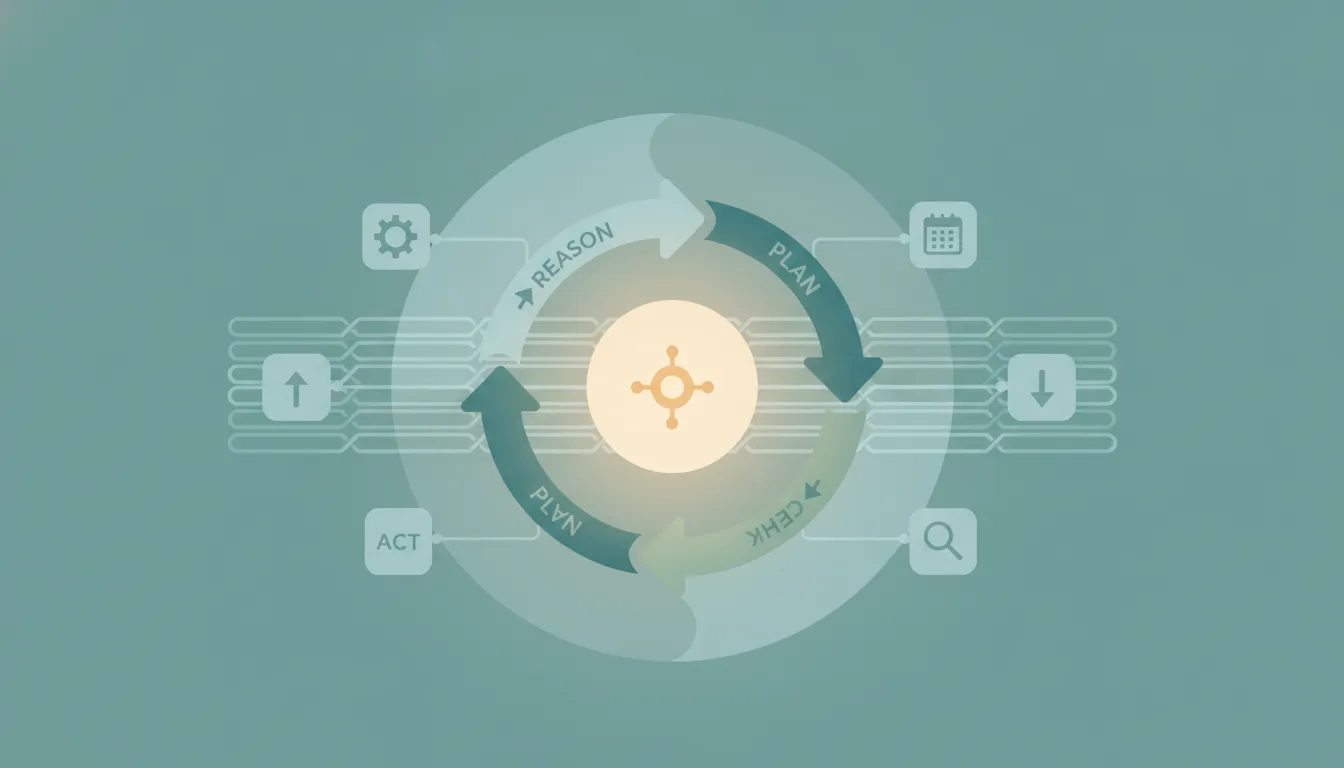
Every app ChatGPT connects to, grouped by category — what replaced plugins, which plans unlock which connectors, and what they can actually write in 2026.
Every MCP server you can connect to ChatGPT, grouped by category — which are official, what Developer Mode unlocks on each plan, and the limit they all share.
Circle.so AI is three things: AI Agents, Circle AI, and an MCP server. Which plan each sits behind, where the Admin API and webhooks stand, and what to build.
Cliniko has deliberately not shipped its own clinical AI. Here's what 'Cliniko AI' actually means in 2026 — the scribes, the AI phone receptionists, and the open API that lets a solo clinic wire up its own front-desk automation.
MCP servers worth wiring into OpenAI Codex, by category — plus config.toml syntax, codex mcp add, stdio vs streamable HTTP, and what Codex drops.

Constant Contact's AI writes your email copy and builds campaigns. It won't watch your list or act between sends. Here's the honest line, plus the v3 API path.
Contentful's official MCP server runs on the Management API, so a CDA or CPA key won't work. The tool list, the token that does work, and where it stops.
Copper ships an AI email rewriter, contact enrichment, and Copper GPT for ChatGPT — but Copper GPT is read-only. Here's what that means and what to use for the write side.

Customer.io ships an official OAuth remote MCP server that opens its Journeys and Pipelines APIs through generic read/write tools, not a fixed tool menu.
DrChrono's AI is clinical documentation — ambient scribing, speech-to-text, a no-show predictor. It leaves the front desk alone. But unlike most EHRs, DrChrono's API is genuinely self-serve.

Figma's official MCP server turns designs into code and now writes back to the canvas. What it exposes, and why View and Collab seats get 6 calls a month.
Fresha AI is a phone receptionist, dynamic rescheduling, and marketplace demand. What each costs, why there's no public API, and what to automate around it.
Freddy AI scores contacts, flags deal risk, and writes emails inside Freshsales — but it won't fix CRM hygiene. What Freshsales AI covers, what it costs, and what to add.

GlossGenius AI ships real agents for marketing and waitlists. It also ships no public API and no Zapier app. Here's what that means for automating around it.

Healthie AI is AI Scribe plus the Intelligence suite. What each piece covers, why the API is gated behind Group and Enterprise plans, and what to automate.

There's no official Instagram MCP server from Meta — every one is community-built on the Graph API, and all of them need a professional account.

Iterable AI means Nova Intelligence — Nova Agent, Send Time and Channel Optimization, Brand Affinity, Predictive Goals, Copy and Journey Assist. Here's what's included, what's an add-on, and what your own API key reaches.

Jane's AI is AI Scribe — charting only. It doesn't touch scheduling, intake email, or follow-ups, and Jane has no public API. Here's what a clinic can actually automate.
Atlassian's Rovo MCP Server is GA and Jira Cloud only - Data Center and Server aren't supported. The tool list, the admin gating, and the rate-limit reality.
Knowify ships an MCP-based AI Connector for Claude and ChatGPT on Advanced and Enterprise plans. Here's what it answers, what it can't start on its own, and how the QuickBooks side fills the gap.
Linear's official remote MCP server lets Claude, Codex and Cursor find, create and update issues. What it exposes, setup per client, and the SSE retirement.

Marketo AI, Email Designer AI Assistant, Dynamic Chat, and the AEP AI Assistant are four different things — and only some reach your instance. Plus the REST API limits.

Mighty Networks AI is AI Cohost, People Magic, and Make It Better. What each one covers, where the Admin API stands, and what to automate around it.

Odoo 19 ships real AI: AI fields, AI agents, AI server actions, OCR bill digitization. Here's what each one actually does, why the Standard plan blocks the external API, and how to get an AI assistant that acts across CRM, inventory, and accounting.
OpenTable ships Concierge, Voice AI, and AI booking channels — but its reservation API is partner-gated, so no restaurant can self-provision a key. Here's what an operator can actually automate.
Podia's only shipped AI is a support chatbot, and there's no public API or webhooks. What's there, what Zapier gives you, and how to automate around it.

Practice Better's AI charts your sessions and drafts your forms. It won't chase a renewal or answer an enquiry. The honest line, plus the Open API gate.
Resend's official MCP server lets an AI send email, read inbound mail, manage contacts and broadcasts, and verify domains. Setup, API key, and the limits.
There's no official SendGrid MCP server, and Twilio's alpha MCP covers none of SendGrid's APIs. What community servers do, and what the Event Webhook can't.
ServiceM8 ships real AI — a writing helper, Auto-Invoice, a Phone Agent, and its own MCP server. Here's what each one covers, where the gaps are, and how to close them.

SevenRooms AI covers Voice AI, table management, feedback summaries, and AI Notes. What each one does, why the API is partner-gated, and the webhook path.
7shifts AI is the Auto-Scheduler plus an AI schedule importer. What each one needs to work, where the self-serve API sits, and which webhooks fire.

Shortcut's official OAuth MCP server reaches Stories, Epics, Iterations and Docs, but CRUD coverage is uneven. What's read-only, and where webhooks fit.

Simpro shipped Cooper and four AI agents on its Lightning platform, then RAIN in July. Here's what each one covers, what the API lets you build, and where maintenance contracts still fall through.

SugarCRM renamed itself SugarAI in April 2026. What the Intelligence add-on ships today, what it costs, and where the REST API and web logic hooks go further.

Tebra's AI Smart Staff covers notes, calls, billing and reviews. Its API key comes through a support case. What a small practice can actually automate.
Tekmetric's own AI drafts Google review replies; the rest comes from partners. Why its API is partner-gated, and where declined-work follow-up sits.

TheraNest's AI is documentation only — Session Assistant, Case Summaries, Notes Enhancement. It has no public API and no Zapier app. Here's what a practice can actually automate around it.
Thinkific AI generates outlines, quizzes, landing pages, and captions. What each covers, and where the read-only Thinkific MCP and the API actually stand.

TickTick's official MCP server at mcp.ticktick.com lets any MCP client read, create, and complete tasks. But the Open API has no webhooks, so nothing pushes.
Toast IQ answers questions and edits menus and shifts with your OK. Toast's API is read-only. What an independent restaurant can automate on top of it.

Tradify AI is SmartTools — SmartRead and SmartWrite, on the Plus plan. What each does, why there's no API or Zapier app to build on, and the three open doors.
Vagaro's AI is Vera Receptionist, Fill My Books, and an AI form builder. What each covers, where Vagaro's API stands, and what to automate around it.

Vtiger AI is Calculus AI, a paid add-on with separately metered GPT tokens. The free One Pilot plan allows zero API calls a day. Here's where that leaves you.

WooCommerce's official MCP is a developer preview you enable on your own site and reach through a local proxy — not a hosted URL. Setup, keys, and limits.
Workiz Genius answers your phone, books jobs, and summarizes calls — and it's genuinely good at it. Here's what it covers, what it costs, and the work that still lands on you after the call.
Every app with an MCP server, grouped by category — what MCP connectors do, the limit they all share, and how to connect AI to 260+ apps without hosting one.
ActiveCampaign ships an official no-code remote MCP server. What it reads and updates in contacts and automations, how to connect it, and where it stops.
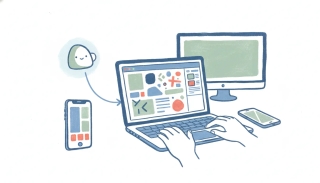
Adobe ships an official MCP connector, Adobe for Creativity, live in Claude since April 2026. What it reaches across Photoshop and Firefly, and where it ends.
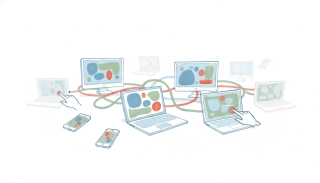
Relay.app, Clockwise, Mindy, Notion Mail. The endings are different, and the differences decide what happens to your data. How to buy accordingly.
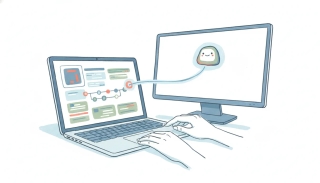
Attio's official hosted MCP server lets an AI read and write your CRM after one OAuth login. Here's what it does, how to set it up, and where it stops.

37signals added an official MCP server to the Basecamp CLI in September 2026, and a hosted one is live but undocumented. What each does and how to connect.

Box hosts an official MCP server at mcp.box.com, but a Box admin has to switch it on. What it can search and read, how to enable it, and where it stops.
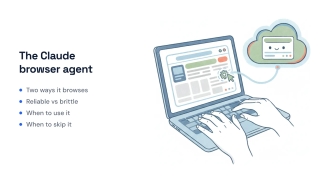
A 'Claude browser agent' shows up two ways — the Claude in Chrome extension and Cowork's autonomous browsing. Here's what each does, what's reliable, and when to skip the browser entirely.
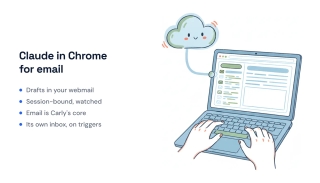
Claude in Chrome can read your inbox, draft replies, and click through Gmail or Outlook in the browser. Here's what it handles well and where it stops.
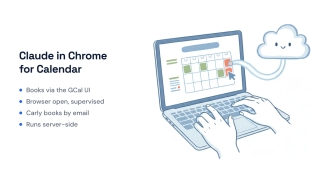
Claude in Chrome can create and move events by clicking around Google Calendar in your browser. Here's what it does well, where it stops, and when to hand scheduling to an agent that runs on its own.
Coda's official MCP server is now the Superhuman Docs MCP. What it reads and writes across docs, pages, tables, and rows, and where it stops.
Dropbox ships an official remote MCP server in beta, plus a second one. What the Dropbox MCP reads and writes, how to set it up, and where it stops.
Relay.app deletes free accounts on August 15, 2026 — a month before paying customers. Seven free automation options, with the real limits on each.
Freshdesk's official MCP server is an Enterprise-only early-access beta. What it does with tickets and contacts, the community fallback, and where both stop.
Freshservice's official MCP server is an Enterprise-plan early-access beta you have to request. What it does, the community route, and where both stop.
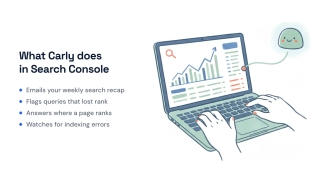
There's no official Search Console MCP server — Google ships one for Analytics, not GSC. What the community servers do and where they stop.

Google's official Slides MCP server exposes two tools and needs a Cloud project to run. Here's the honest picture, and how to automate Slides without it.
Relay.app made human approval a first-class workflow step. With Relay shutting down, here's who actually has an approval primitive — verified against the docs — and how to decide what needs a human gate.
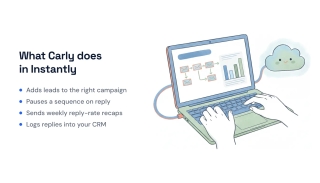
Instantly hosts an official MCP server at mcp.instantly.ai, so an AI can pull campaign stats and manage leads. How to set it up, and where it stops.
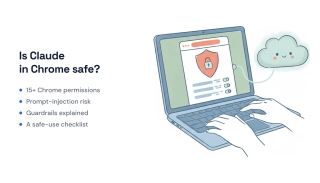
Claude in Chrome is useful but needs 15+ browser permissions and Anthropic calls it 'still risky.' Here's the real safety picture and how to use it sensibly.
Mailchimp's only official MCP server covers Transactional (Mandrill). For campaigns and audiences it is community servers only, and here is what they do.
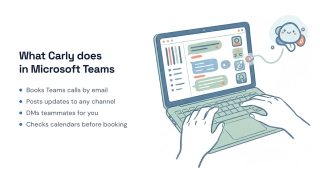
Microsoft's official Teams MCP server, Work IQ Teams, is a preview gated behind a Copilot license and an IT admin. What it does and where it stops.
PandaDoc hosts an official MCP server at mcp.pandadoc.com, so an AI can read and write documents and templates. How to set it up, and where it stops.

Pipedrive's official MCP server launched June 2026 on every plan and connects by OAuth. Here's what it does, how to turn it on, and where it stops.
Relay.app shuts down August 15, 2026 for free users and September 14 for paying customers, and data gets deleted. The honest replacement map.
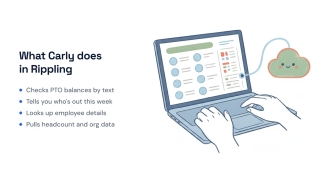
Rippling shipped an official MCP server in August 2026. How to connect it to Claude or ChatGPT, the admin and subscription gates, and where it stops.
Square's official MCP server is in beta and reaches payments, orders, customers, and catalog. Here's what it does, how to connect it, and where it stops.
Telegram has no official MCP server, only community ones split between the sanctioned Bot API and personal-account userbots that can get you banned.
Typeform ships an official MCP server in beta that reads your forms and responses and works with contacts. What it does, how to connect it, where it stops.
Webflow maintains an official, open-source MCP server at mcp.webflow.com. What it reads and updates across sites, CMS, and pages, and where it stops.
Claude Cowork is Anthropic's agentic coworker that runs multi-hour tasks on its own, now remotely on Anthropic's servers even when your laptop is closed.
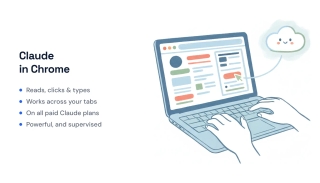
Claude in Chrome lets Claude read, click, and type inside your browser across multiple tabs. Here's what it does, which plans include it, setup, and the safety catch.

Wix's official hosted MCP server searches Wix docs, writes site code, and acts on your live site through its API. How to connect it and where it stops.

Wrike's official hosted MCP server works with Claude, ChatGPT, Copilot, Cursor, and Gemini. What it does with tasks and projects, and where it stops.

Xero's official MCP server is self-hosted: you run it with developer credentials, not a one-click connector. What it reaches in your org, and where it stops.
YNAB ships no official MCP server, only community projects built on its free API and a personal access token. Here's what they can and can't do.

Ahrefs ships an official remote MCP server with 100+ tools for live SEO data. Here's what it does, how to connect it, and where it stops.
The phrase 'AI agent email address' means two very different things: an inbox API for developers, or an AI assistant you email like a coworker. Here's the difference and how to choose.
Give your AI assistant a branded from-address on your own domain. A step-by-step, registrar-neutral guide to DNS, DKIM and SPF so Carly emails come from you@yourcompany.com.
Airtable ships an official MCP server at mcp.airtable.com that reads and writes your bases. What it does, how to set it up, and where it stops.
Apollo.io ships an official MCP server that works with Claude, ChatGPT, and Perplexity. What it does with prospects and sequences, and where it stops.
Asana's official MCP server at mcp.asana.com lets any MCP-compatible AI read and write your tasks and projects. How to set it up, and where it stops.
The Airtable integrations worth setting up — Slack, Google Calendar, Typeform, Google Drive, Stripe, and more — grouped by what they do.
The Asana integrations worth setting up — Slack, Teams, Google Drive, GitHub, Harvest, and Power BI — grouped by what they do.
The ClickUp integrations worth setting up in 2026 — Slack, Google Calendar, GitHub, Toggl, HubSpot and more — grouped by what they actually do.
The Datadog integrations worth wiring up — AWS, Kubernetes, PagerDuty, Slack, GitHub, and more — grouped by what they do, plus how to connect Datadog to anything.
The Discord integrations worth setting up — Twitch, YouTube, Spotify, MEE6, Patreon, webhooks — grouped by what they actually do for your server.
The DocuSign integrations worth setting up — Salesforce, HubSpot, Google Workspace, Microsoft 365, Box, Workday, and Stripe — grouped by what they do.
The HubSpot integrations worth setting up — Gmail, Outlook, Slack, Shopify, QuickBooks, Aircall, Zoom — grouped by what they actually do.
The Jira integrations worth setting up — GitHub, Slack, Confluence, Opsgenie, Tempo, Figma, and more — grouped by what they do.
The Linear integrations worth setting up — GitHub, Slack, Figma, Sentry, Zendesk, Intercom — grouped by what they do, plus how to connect Linear to anything.
The Mailchimp integrations worth setting up — Shopify, Salesforce, Canva, QuickBooks, Typeform, Stripe, and more — grouped by what they do.
The monday.com integrations worth setting up — Slack, Teams, Gmail, Salesforce, GitHub, Zoom, and more — grouped by what they do.
The NetSuite integrations worth setting up — Shopify, Salesforce, Stripe, Expensify, Avalara, ShipStation, Celigo — grouped by what they do.
The Notion integrations worth setting up — Slack, Google Drive, GitHub, Google Calendar, Jira, and Figma — grouped by what they do.
The QuickBooks Online integrations worth setting up — Stripe, Shopify, Gusto, Bill.com, Expensify, HubSpot — grouped by what they actually do.
The Salesforce integrations worth setting up — Slack, Einstein Activity Capture for Gmail and Outlook, Zoom, DocuSign, Mailchimp, QuickBooks — grouped by what they do.
The Shopify integrations worth setting up — Klaviyo, Judge.me, Recharge, ShipStation, QuickBooks and more — grouped by what they actually do.
The Slack integrations worth setting up — Zoom, Google Drive, Asana, Jira, GitHub, Salesforce and more — grouped by what they actually do.
The Square integrations worth setting up — QuickBooks, Xero, WooCommerce, Wix, Mailchimp, Gusto, ShipStation — grouped by what they do.
The Todoist integrations worth setting up — Google Calendar, Slack, Gmail, Toggl Track, Alexa, and Zapier — grouped by what they do.
The Zendesk integrations worth setting up — Salesforce, Slack, Jira, Shopify, WhatsApp, Aircall, and more — grouped by what they do.
No — Claude has no inbox you can email or CC. Via connectors it can read and draft your mail, but it doesn't have its own address. Here's the reality, and the alternative.
Canva's official remote MCP server lets any MCP-compatible AI generate, edit, search, and export your designs. How to set it up, and where it stops.
The most natural way to use an AI assistant: CC it on a live thread or forward the email, and it reads the context and finishes the job. Here's how, with real examples.
Guesty ships an official read-only MCP server (beta), but ChatGPT isn't a listed client — you add it as a custom connector, and it can't write reservations or run on triggers.
Kajabi ships an official MCP server at mcp.kajabi.com, so ChatGPT connects over OAuth — but every write lands as a draft, and it only runs in a session you're driving.
There's no official ChatGPT connector or MCP server for MyCase — the only route is a custom MCP built on MyCase's OAuth 2.0 Open API, Advanced tier only.
There's no official ServiceTitan MCP server or ChatGPT connector — you connect through a community MCP or ServiceTitan's API v2, always inside a session you drive.
Box is an official ChatGPT connector, but it's read-only grounding — ChatGPT Work can reason over your Box content across a whole connected stack, yet Box stays the system of record and nothing writes back.
ChatGPT Work reads and writes Gmail, Drive, and Calendar — it sends, creates, and edits. What it can't do is act on its own: no webhooks, no event triggers.
There's no one-click ChatGPT connector for Power BI, but Microsoft's official remote Power BI MCP server (public preview) is documented to register with ChatGPT via OAuth — and it's read-only DAX querying.
There's no OpenAI-native Salesforce connector — you add Salesforce's own official hosted MCP server (GA April 29, 2026, read and write) to ChatGPT Work as a custom MCP connector.
There's no official ChatGPT connector for SAP — you reach SAP through a custom MCP server over SAP BTP, inside a metered agent run you start.
There's no official OpenAI connector for ServiceNow — you connect ChatGPT Work through ServiceNow's own Now Assist MCP Server as a custom connector, and it's Now Assist-licensed and metered on both sides.
SharePoint is an official ChatGPT connector, but it's read-only grounding — ChatGPT Work agents can read and cite your files, not write back, and every agent run is metered.
There's no native Snowflake connector in ChatGPT's directory, but Snowflake ships an official managed MCP server you add as a custom connector via ChatGPT Developer Mode — OAuth- and RBAC-governed, SQL defaulting to read-only.
There's no official OpenAI Tableau connector — you connect ChatGPT Work to Tableau's own MCP server, which queries data and metadata read-only inside a metered session.
There's no official ChatGPT Work Workday connector — you reach Workday only through a custom MCP server on Enterprise, and every agent run is session-driven and metered.
No official Claude Actionstep connector or MCP server exists in 2026 — Actionstep only offers a REST API, so any Claude link is a custom, developer build.
Cal.com ships an official MCP server at mcp.cal.com — connect it to Claude as a custom connector for 34 booking tools. What works, and the one real limit.
There's no official Claude-CapCut connector and no public CapCut editing API. Here's the real route — community MCP servers that write CapCut draft files — and its limits.
No official Claude connector for CARET Legal exists; the only path is CARET Legal's public API (matters, contacts, notes, files) wired to Claude through a custom or community MCP server.
Clari is native in Claude's connector directory via the Clari + Salesloft MCP server — but it's read-only and forecasting data is still rolling out. Here's what works.
No official Claude Clover connector exists in Anthropic's directory; you reach Clover through its Platform REST API or an unofficial community MCP server.
Egnyte ships an official remote MCP server, so Claude can search and reason over your governed content. But it runs only in a chat you start. The honest guide.
There's no official Claude Framer connector, but Framer's new Server API and a marketplace MCP plugin make it very doable. The honest guide to what works and the limits.
HeyGen ships an official remote MCP server, so Claude can generate avatar videos for real. What works, the auth, and the one thing it still can't do.
HiBob shipped an official MCP server (beta) in 2026, so Claude can read employees, time off, and tasks in Bob. Here's how it works — and the trigger it can't pull.
Lattice shipped an official MCP server in July 2026 — Claude can read goals, reviews, and feedback. But nothing in Lattice can trigger it. The honest guide.
LaunchDarkly ships an official MCP server, so Claude can read and manage flags in chat. What actually works, the REST API route, and the one hard limit.
There's no official Claude connector for Lightspeed — you reach it through the Lightspeed Retail (X-Series) or Restaurant (K-Series) API via a custom or community MCP server.
No dedicated Claude-Litify connector exists, but because Litify runs natively on Salesforce, Salesforce's official Hosted MCP Servers can reach Litify's objects with SOQL query and record writes.
Mattermost shipped an official MCP server in January 2026, so Claude can read, search, and post to your workspace. Here's how it works — and the one limit.
There's no official Claude/Motion connector or MCP server for the usemotion.com calendar app — but a community MCP server and the Motion API make it very doable. Here's how.
No Anthropic directory connector, but n8n has first-class MCP: a built-in instance server, MCP Server Trigger and Client nodes, plus the REST API. What works and the limit.
Outreach shipped an official MCP server that installs as a Claude connector in 2026. What it actually does, the Amplify + read/create/delete limits, and how to run it on triggers.
Plaid ships two official MCP servers for Claude — but they cover integration diagnostics and sandbox building, not your live bank data. The honest guide to routes and limits.
Retool ships an official MCP server, so Claude can build apps, run queries, and manage users. Here's how it connects, the API route, and the real limit.
Salesloft shipped an official MCP server that's native in Claude's connector directory. Here's what it does, the API route, and the limits that actually matter.
Sketch ships an official, built-in MCP server — Claude can read layers, assets, and run SketchAPI code locally. The catch: it's Mac-only and session-bound. The honest guide.
Statsig ships an official remote MCP server, so Claude Code can read gates, experiments, and metrics over OAuth. But it only runs inside a session you start. The honest guide.
Sunsama shipped an official MCP server in 2026, so Claude can read and create tasks — but MCP runs only inside a session you start. Here are the real routes and limits.
Teamwork.com ships an official remote MCP server for Claude in 2026. Here's how to connect it, the API route, and the one limit — no triggers.

ClickUp's official MCP server lets any MCP-compatible AI read and act on your tasks and docs. What it does, how to connect it, and where it stops.
Confluence is covered by Atlassian's official Rovo MCP server, alongside Jira. What an AI can read and write in your pages, and where it stops.

Discord hasn't published an MCP server for its API. Here's what the community Discord MCP servers do, how to set one up, and where they stop.
No, ChatGPT has no inbox you can email or CC like a coworker. Here's what it can do with email, and how to give an AI its own real address instead.
You already know how to delegate email to a human assistant. Here's how the same moves — forward, CC, hand off recurring work — now work when the assistant is an AI with its own address.
Give your AI its own email address so you can email or CC it like a coworker and get finished work back. What it means and the easiest way to set it up.
Google's official Gmail MCP server is in Developer Preview and needs a Cloud project and your own OAuth client. Here's what it does and how to connect it.
GoHighLevel's official MCP server, LeadConnector, lets Claude and other AI tools read and write your CRM. What it does, how to set it up, and where it stops.
Gong's official MCP server is read-only and hands back AI-generated summaries, not raw transcripts. What it can query, how to set it up, and where it stops.
Google publishes an official open-source Google Ads MCP server. It is read-only and you host it yourself. What it can query, and where it stops.

Google's official Google Analytics MCP server runs locally and reads GA4 data only. Here's what it does, how to set it up, and where it stops.

Google's official Docs MCP server is a developer-preview feature that needs a Google Cloud project, not a toggle. Here's the honest picture.
Google's official Drive MCP server is real but sits behind a developer preview and extra setup. What it does, how to connect it, and where it stops.

Google ships no official Sheets MCP server — its MCP work covers Cloud services, not the Workspace apps. The real landscape and how to connect Sheets to AI.

HubSpot ships two official MCP servers: one for your CRM records, one for developers. What each reads and writes, how to connect them, and where they stop.
Intercom's official MCP server at mcp.intercom.com has 13 mostly read-only tools. Here's what it does, how to connect it, and where it stops.

Klaviyo's official MCP server at mcp.klaviyo.com is generally available and reads and writes campaigns, flows, and profiles. Setup and limits explained.
LinkedIn has no official MCP server, only community projects that ride your own browser session. What they can and can't do, and the limits worth knowing.
Meta shipped an official Meta Ads MCP server in April 2026: 29 tools, Meta Business OAuth, free during open beta. Here's what it does and where it stops.
Microsoft's official Asana Copilot connector is read-only grounding; turning Copilot conversations into Asana tasks runs through the separate Asana agent in the Agent Store.
Box ships two official Microsoft 365 Copilot integrations — the Box AI Agent and the Box Connector for Microsoft Graph — but both are read-only grounding, with no write-back and no triggers.
Microsoft's official Confluence Cloud Copilot connector is read-only grounding — it indexes pages, blogs, and attachments into Microsoft Search but never writes back to Confluence.
Microsoft's official Google Drive Copilot connector is read-only — it indexes Drive files for grounding and search but can't write anything back to Drive.
Both official paths — Microsoft's HubSpot federated Copilot connector and HubSpot's own Agent for Copilot — are read-only; neither can create or edit HubSpot records.
Microsoft's official Jira Cloud Copilot connector is read-only grounding; writing to Jira only happens through Atlassian's Teams plugin, inside a chat you drive.
Microsoft ships an official Notion federated Copilot connector built on MCP, but it's read-only — it grounds answers in your Notion pages and databases live at prompt time and can't write anything back.
Microsoft's official Salesforce CRM Copilot connector is read-only grounding; write-back to Salesforce only exists through the separately licensed Sales agent.
Microsoft's three official ServiceNow Copilot connectors are read-only grounding; creating or updating tickets only happens through a Copilot Studio agent you build yourself.
Microsoft's two official Zendesk Copilot connectors are read-only grounding; the separate Zendesk-built agent can create, comment on, and resolve your own tickets — but only in a session you drive.
Miro's official MCP server is hosted at mcp.miro.com. What AI tools can read, search, and build on your boards, how to connect it, and where it stops.
monday.com's official Platform MCP server is preinstalled, so an AI can read and write your boards, items, and updates. How to use it, and where it stops.
Notion's official hosted MCP server lets an AI search, read, and write your workspace. Here's what it does, how to turn it on, and where it stops.
Microsoft ships an official Outlook MCP through Work IQ Mail and Calendar, but it needs a Copilot license and IT admin setup. What it does and where it stops.
PagerDuty maintains an official MCP server you can self-host or use hosted. What it does with incidents and on-call schedules, and where it stops.
Intuit runs an official QuickBooks connector in Claude and ChatGPT, plus a local open-source server for developers. What each does and where they stop.
Reddit has no official MCP server, only community projects built on its paid, rate-limited API. What those servers can and can't do, and where they stop.

Salesforce's official Hosted MCP Server lets an AI read and write records, run flows, and call Apex actions. How to set it up, and where it stops.
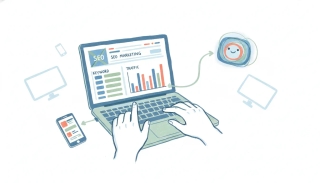
Semrush's official MCP server pulls live keyword, traffic, and backlink data into an AI chat. Here's what it does, how to connect it, and where it stops.

Microsoft's official SharePoint MCP is Work IQ SharePoint, a preview that needs a Copilot license and IT admin setup. What it does and where it stops.
Shopify ships official MCP connector apps for Claude and ChatGPT, plus a Dev MCP server. What they read and write in your store, and where they stop.
Slack's official MCP server lets AI tools like Claude and Cursor search your workspace, read messages, and post for you. How to set it up, and where it stops.
Stripe hosts an official MCP server at mcp.stripe.com that reads your account and can move money. What it does, how to set it up, and where it stops.

Todoist hosts an official MCP server at ai.todoist.net, so an AI can read, create, and update your tasks. How to set it up, and where it stops.

Trello has a dedicated official MCP server at mcp.trello.com, separate from Atlassian's Jira server. Here's what it does and where it stops.
Meta ships no official WhatsApp MCP server. Here's what the community WhatsApp MCP servers actually do, the honest setup path, and where they stop.
Agencies need an AI assistant that emails clients from their own domain, not a generic AI address. Here's how a white-label, own-domain agent works and how to set one up.
A white-label AI email assistant emails clients from your own domain, DKIM-signed and SPF-aligned, so no one sees a generic robot address. Here's who needs it and how to set it up.
Google ships no official YouTube MCP server, but community servers on the YouTube Data API let AI tools search, read, and manage YouTube content.

Zendesk now runs a first-party MCP server on your own subdomain, with read and write scopes. What it covers and how it differs from Zendesk's MCP client.
Zoho runs an official MCP platform plus four pre-built servers for Zoho CRM. What they read and write, how to connect them, and where they stop.
Zoom's official MCP server gives Claude, ChatGPT, and other MCP tools access to meeting summaries, transcripts, and notes. How to set it up, and its limits.

1Password pricing in 2026: Individual $2.99/mo, Families $4.49/mo, Teams $24.95/mo flat, Business $8.99/seat. No free plan, only a 14-day trial. Full breakdown.
The best AI administrative assistant software in 2026, mapped to the admin duties each one actually covers — scheduling, inbox triage, data entry, expenses, and more.
A source-checked comparison of AI email response tools, from free reply generators and inbox drafters to approved sends and triggered responders.
The best AI meeting assistants for 2026, ranked across the full meeting lifecycle — scheduling and prep, live notes, and the follow-up nobody wants to do.

An AI virtual assistant does the assistant work itself — email, scheduling, follow-ups. We tested 10 and ranked them by what they actually handle, from $35/month.
Aider is a free, open-source terminal AI pair programmer; Cursor is a paid AI-native IDE. Here's which one fits your workflow in 2026.
Airtable is Free, $20 or $45 per seat monthly billed annually. Billable editors, AI credits, record caps and the Portals add-on decide the real bill.
Asana pricing in 2026: Starter is $10.99/user/mo and Advanced $24.99/user/mo billed annually, the free plan now caps at 2 users, plus the seat-bundle and AI credit gotchas.
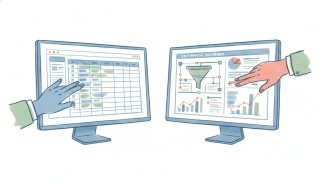
Attio vs Salesforce in 2026: a fast, moldable AI-native CRM against the enterprise standard. Compared on cost, setup, and AI approach.
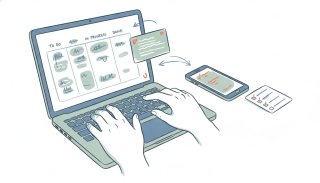
Basecamp pricing in 2026: the Plus plan is $15 per user per month and Pro Unlimited is a flat $299/mo billed annually, plus the exact team size where flat beats per-seat.

Every Calendly tier in 2026: Free, Standard, Standard Plus, Teams, Teams Plus, Enterprise. Per-seat rates plus the costs the pricing page glosses over.

Full Canva pricing breakdown for 2026: Canva Pro costs $18/month or $144/year, the free plan is genuinely free, and here is where Business, AI credits, and the fine print bite.
7shifts now has an official MCP server for Claude. It is read-only, live data needs an admin access token, and nothing fires on a call-out.
No official Claude AccuLynx connector exists. AccuLynx has a self-serve API for your own account behind a paid add-on. The plain-English guide for roofers.
There's no official Claude Aircall connector. Aircall has a self-serve API, so a developer can wire one up — but a finished call still triggers nothing. The honest guide.
There's no official Claude BigCommerce connector, but BigCommerce has a self-serve API, so a developer can wire one up. The catch: it never reacts to an order.
There's no official Claude Blackboard connector. Blackboard Learn has a REST API, but real course data is locked behind your school's admin. The honest guide.
No official Claude Canopy connector. Canopy has an API, but access is approval-gated. The plain-English guide for accounting firms — and how to run it on its own.
There's no Claude CDK Global connector. CDK's data lives behind the Fortellis partner marketplace, so access is approval-gated. The plain-English guide for dealers.
No official Claude CINC connector exists. CINC has a real API, but the credentials are approval-gated. The honest guide — and running it on its own.
There's no Claude Clever connector, and there can't easily be one. Clever is a student-data privacy gate by design. The honest guide for schools.
No official Claude Deputy connector exists. Deputy has a self-serve API, so a developer can wire one up — but it only works while you're in the chat.
There's no Claude Drake Tax connector, no API, and no Zapier — Drake is desktop software Claude can't reach. The plain-English guide for tax preparers.
No official Claude Envestnet connector. The advisor platform (Tamarac) is partner-gated; only Yodlee's data API is self-serve. The plain-English guide for advisors.
No official Claude Faire connector, and Faire's API is gated to approved sellers. What actually works for brands and retailers, and how to make Faire orders act on their own.
No official Claude FieldEdge connector exists, and FieldEdge's API is partner-approval-gated — not self-serve. The plain-English guide for contractors.
There's no official Claude Five9 connector, and Five9's API is approval-gated. What actually connects the two in 2026, the AI mix-up to avoid, and what won't run itself.
No official Claude Homebase connector exists. Homebase publishes API docs but you request access from Homebase — and a build only works while you're in the chat.
JobTread built its own AI Connector, an official MCP server Claude can use. It still only acts when you ask. A plain-English guide for contractors.
Karbon's official MCP server now connects to Claude. How to set it up, what it can do, and how to run Karbon work on its own when a client emails.
Kustomer ships a real first-party MCP server for Claude — but it's read-only and only on the Enterprise and Ultimate plans. What it does, and what still won't run itself.
No official Claude Magento connector. Adobe shipped a Commerce MCP in 2026, but it's a developer tool. What actually works for store owners on Magento and Adobe Commerce.
There's no official Claude Moodle connector. But Moodle's API is admin-controlled, so if you run the site a developer can wire one up. The honest guide.
No official Claude Olo connector, and Olo's API is partner-certified only — you can't self-provision a key. What actually works for operators in 2026.
There's no official Claude PowerSchool connector. Its API needs a plugin installed on your district's server plus admin sign-off. The honest guide.
There's no official Claude Real Geeks connector, and the API is approval-gated. The honest guide — plus how to run Real Geeks work on its own.
No official Claude Restaurant365 connector exists. R365 has an API, but you must ask R365 to switch it on for your integrator — and a build still won't fire on events.
No official Claude Resy connector, and Resy has no self-serve API — its restaurant API is partner-only. What actually works for operators in 2026.
There's no official Claude Roofr connector and no public Roofr API. What actually connects them is Zapier and the inbox — the plain-English guide for roofers.
There's no official Claude Schoology connector. Its API uses an older login standard most tools can't use, and roster data needs district sign-off. The honest guide.
ServiceM8 ships its own official MCP server, so Claude can genuinely connect. But a finished job still can't start anything. The plain-English guide.
ShipStation ships an official MCP server, so Claude can create labels and pull shipments in a chat. The catch: it runs on your laptop and only acts when you ask.
No official Claude Sierra Interactive connector exists. Sierra has a real API, but it's plan-gated. The honest guide — and running it on its own.
There's no official Claude Talkdesk connector, and Talkdesk's API is gated to customers and partners. What actually connects the two in 2026 — and what won't run itself.
No Claude TaxDome connector or public API exists yet. TaxDome says both arrive this fall; today the only bridge is a thin Zapier connection.
There's no Claude Tekion connector. Tekion's API lives behind its Automotive Partner Cloud, so access is approval-gated. The plain-English guide for dealers.
No official Claude Top Producer connector, and no self-serve API. The only seam is inbound lead-posting. The honest guide — and running it on its own.
No official Claude TouchBistro connector, and TouchBistro's API is partner-gated — a restaurant can't self-provision a key. What actually works in 2026.
No official Claude Wise Agent connector exists. Wise Agent has an API, but the developer credentials are approval-gated. The honest guide.
There's no official Claude Workiz connector. Workiz has a self-serve API, but it's gated behind a paid add-on. The plain-English guide for service pros.

ClickUp pricing runs from a free plan to $12/user/month, but AI add-ons and per-member billing change the real number. Here's what ClickUp actually costs in 2026.
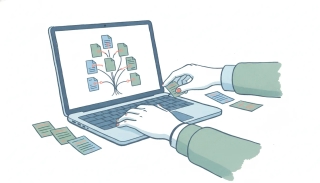
Confluence pricing in 2026: Free (10 users), Standard ($5.42/user), Premium ($10.44/user), Enterprise. Full per-user breakdown, free plan limits, and the hidden costs.
Doodle pricing in 2026 explained: Professional is $15/mo (or ~$11/mo annual), Team runs $8.95–$19.95/user/mo, and yes, Doodle is still free — with real limits.

Evernote pricing in 2026: the free plan is 50 notes, Starter is $99/year and Advanced is $249.99/year. Full breakdown of tiers, monthly vs annual, and gotchas.

Fathom pricing explained: free plan, Premium ($16/mo annual), Team, and Business tiers — plus the 5-summary cap that catches free users off guard.

Figma pricing in 2026 runs from a free Starter plan to $16/seat Professional and up. Here is what each plan costs and how the new seat model works.
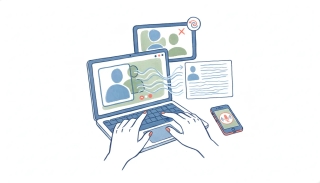
A plain-English breakdown of Fireflies.ai pricing in 2026 — Free, Pro, Business, and Enterprise per-seat costs, the AI credit caps, and what "unlimited" really covers.
Gong is a full revenue-AI platform; Chorus is ZoomInfo's conversation intelligence, cheapest inside the ZoomInfo stack. Which to pick in 2026.
Grammarly pricing in 2026: Free is $0, Pro is $12/mo annual ($30 monthly), plus the new Superhuman Business bundle. Is Grammarly free? Full breakdown.

Granola pricing explained: the free plan and its 30-day cap, Business at $14/user/month, Enterprise from $35, and why annual billing is not an option.
Granola vs Notion in 2026: Granola is a standalone AI notepad; Notion AI Meeting Notes lives inside your workspace. Which to pick.

A complete guide to when2meet: what it is, how to use it, how to read the results, and how to work around its limits. Free, no signup.

HubSpot pricing and cost explained for 2026: free CRM, per-seat plans, marketing-contact tiers, and the mandatory onboarding fees that inflate year one.
Intercom vs Freshdesk in 2026: Intercom (now Fin) is AI-first per-resolution support; Freshdesk is structured per-seat ticketing. Which to pick?
Jira pricing in 2026: Free (10 users), Standard ~$7.91/user, Premium ~$14.54/user, and custom Enterprise. Monthly vs annual, Rovo AI gating, and is Jira free?
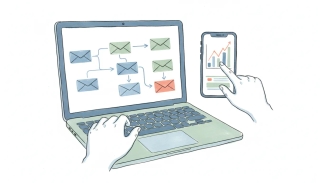
Klaviyo pricing starts at $20/month but bills on active profiles, so costs climb with your list. Here are the real 2026 bands, SKUs, and hidden fees.
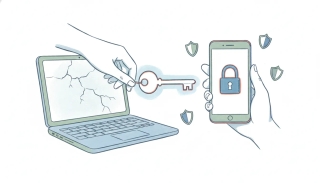
LastPass pricing in 2026: Free, Premium ($3/mo), Families ($4/mo), Teams and Business plans explained, plus the free-plan device catch and annual-only billing.
A plain breakdown of Linear pricing in 2026 — Free, Basic ($10), Business ($16), and Enterprise — plus the free-plan issue cap and per-seat gotchas.

Loom pricing in 2026: free Starter, Business at $18/user/mo, Business + AI at $24. Plus the seat auto-billing trap and whether Loom is really free.

Mailchimp pricing starts at $13/month, but the bill scales with every contact you store, including unsubscribers. Here is what each plan really costs in 2026.
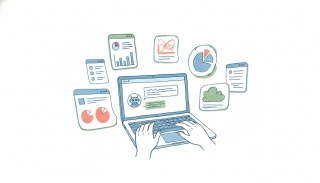
Looking for a Mio alternative? Here are 7 AI coworkers and assistants that know your company context — from Slack-native agents to email-first executive assistants that work outside Slack too.
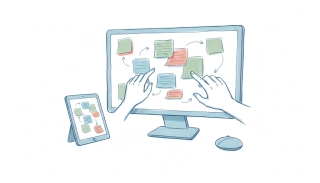
A plain breakdown of Miro pricing in 2026: Free, Starter, Business, and Enterprise costs, the per-member billing catch, AI credit caps, and free-plan limits.
monday.com pricing runs $9-$19 per seat per month on annual billing — but a 3-seat minimum and seat bundles mean small teams pay more than the sticker price.
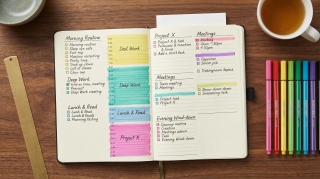
Motion pricing explained for 2026 — Pro AI at $19/mo, Business AI at $29/mo, the $49 AI Employee tier, credit systems, and the big annual-vs-monthly gap.

Notion pricing in 2026: Free ($0), Plus ($10/mo), Business ($20/mo), and Enterprise. Full per-seat breakdown, free plan limits, and where the hidden costs are.

Obsidian pricing is simpler than it looks: the app is free, even for work. Here is what Sync, Publish, and the optional licenses actually cost.
The best open-source AI assistants in 2026 — chat UIs, voice assistants, and autonomous agents — with verified licenses, self-hosting requirements, and the honest costs.

Otter.ai pricing for 2026: free plan minute caps, Pro at $8.33/mo annual, Business at $20/mo, and the hidden limits most people miss. Is Otter.ai free?
Roam Research is a cloud-hosted outliner for networked thought; Obsidian is a free, local-first markdown app. Which to pick in 2026, and why.

Slack pricing in 2026: Free ($0), Pro ($7.25/user), and Business+ ($15/user) billed annually, plus Enterprise+. Real per-seat costs and the hidden ones.
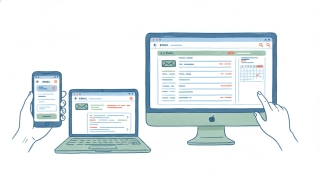
Spark by Readdle is a cross-platform email client you point at any account; Outlook is Microsoft's full email and calendar hub. Which to pick in 2026.
A plain breakdown of Superhuman pricing in 2026: Starter, Business, and Enterprise tiers, annual vs monthly billing, AI feature gating, and the new parent-company confusion.

Todoist pricing in 2026: the free Beginner plan, Pro at $5/mo, and Business at $8/user/mo. What each tier adds, the reminders catch, and whether Todoist is free.
Trello pricing in 2026: Free, Standard ($5/user), Premium ($10/user), and Enterprise ($17.50/user). Monthly vs annual, AI gating, and is Trello free?
Typeform's free plan is down to 10 responses a month and paid tiers meter every response. Here are 9 alternatives with unlimited or far higher caps, verified 2026 pricing.
A plain breakdown of Typeform pricing in 2026 — Free, Basic, Plus, Business, and Growth, monthly vs annual, and how the monthly response cap quietly forces you up a tier.
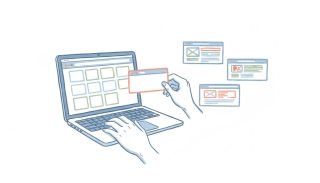
Webflow's May 2026 pricing split site plans from workspace seats, so many teams pay twice. Here are 9 Webflow alternatives with clearer pricing and gentler learning curves.
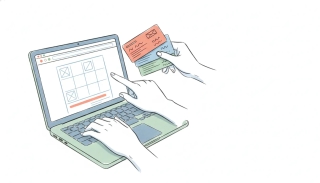
A plain breakdown of Webflow pricing in 2026 after the May simplification — Site plans (Starter, Basic, Premium) and Workspace plans stack, so most people pay two bills. Here is what each costs, monthly vs annual.
Zapier pricing explained for 2026: every plan and price, what actually counts as a task, why multi-step Zaps burn quotas fast, and the overage math to watch.
Zoom pricing in 2026, explained: free vs Pro, Business, Business Plus, and Enterprise per-seat costs, monthly vs annual billing, and the add-ons that quietly stack up.

1Password is a security-first vault with a Secret Key; LastPass is a familiar, cheaper option rebuilding after its 2022 breach. Which to pick in 2026.
Airtable is a relational database and app builder; Excel is the deep analytical spreadsheet. Here's which to pick in 2026.
Airtable is a relational database that looks like a spreadsheet; Google Sheets is a true spreadsheet. Here's which to pick in 2026.
Apple Notes is free, fast, Apple-native capture; Notion is a flexible cross-platform workspace. Here's which to pick in 2026.
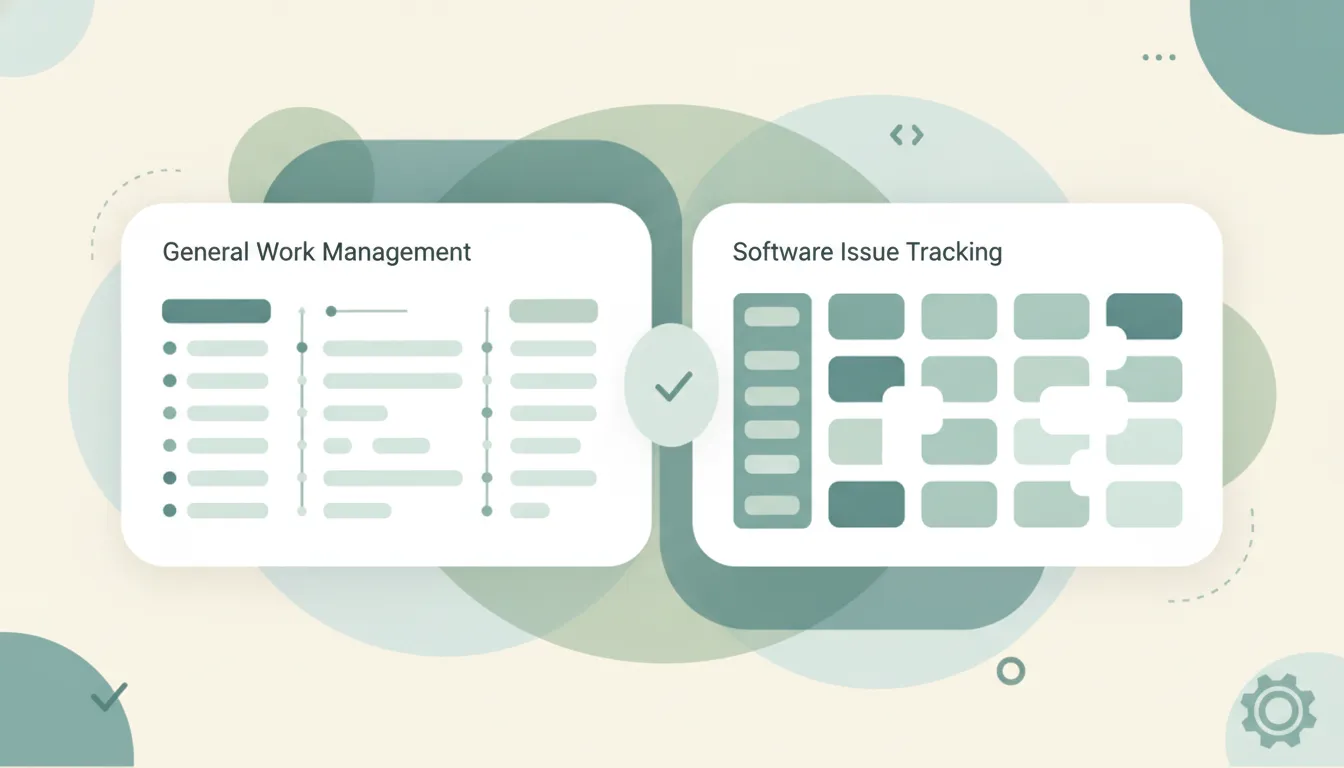
Asana is general work management for cross-functional teams; Jira is issue tracking built for software engineering. Here's which to pick in 2026.
Asana is clean, approachable work management; Wrike is configurable project and resource management. Here's which to pick in 2026.
Ashley is a chat-first scheduling chief of staff that never touches your inbox; Alfred is an inbox-first assistant that triages email overnight. Here's which to pick in 2026.
Attio is a modern, moldable, data-first CRM for tech teams; HubSpot is the all-in-one platform with marketing, sales, and service. Here's which to pick in 2026.

Basecamp is a calm, opinionated all-in-one team tool; Asana is flexible, feature-rich work management. Here's which to pick in 2026.
Buffer is broad, simple cross-platform scheduling; Later is visual-first Instagram and creator-commerce planning. Here's which to pick in 2026.

Calendly is the standalone booking-link leader that works with any calendar; Microsoft Bookings is the appointment app bundled into Microsoft 365. Here's which to pick in 2026.

Canva is the template-rich all-in-one design suite; Adobe Express is Adobe's Firefly-powered, commercially safe editor. Here's which to pick in 2026.
Capacities is object-based PKM for your own thinking; Notion is a flexible all-in-one workspace for teams. Here's which to pick in 2026.
Cassidy builds AI agents that answer from your company knowledge base; Gumloop builds multi-step AI workflows on a visual node canvas. Here's which to pick in 2026.
Claude Code is Anthropic's autonomous terminal agent; GitHub Copilot is a multi-model IDE assistant. Here's which to pick in 2026.
Claude Cowork works on your real desktop and files; ChatGPT agent works in its own cloud sandbox. Here's which to pick in 2026.
Claude Cowork works on your local desktop files and comes bundled with your Claude plan; Manus runs long autonomous jobs in a cloud VM on credits. Here's which to pick in 2026.
Coda turns documents into interactive apps with formulas and automations; Notion is a flexible blocks-and-database workspace with a huge ecosystem. Here's which to pick in 2026.
Confluence is a dedicated enterprise wiki with governance and Jira integration; Notion is a flexible all-in-one workspace for docs, databases, and projects. Here's which to pick in 2026.
Microsoft Copilot lives in your Office apps, Gemini lives in Google Workspace, and ChatGPT is the flexible standalone leader. Here's which to pick in 2026.
Cora is a new AI email assistant that screens and drafts on Gmail; SaneBox is veteran provider-agnostic triage that works on any inbox. Here's which to pick in 2026.

Cora is an AI assistant that screens your Gmail and briefs you twice a day; Shortwave is a faster AI email client you work inside. Here's which to pick in 2026.
Cursor is an AI-native code editor; Claude Code is Anthropic's terminal-native coding agent. Here's which to pick in 2026.
Cursor is a standalone AI-native editor; GitHub Copilot is an assistant inside your existing IDE. Here's which to pick in 2026.

DeepSeek is open-weight, ultra-cheap, and China-hosted; Claude is Anthropic's frontier, US-hosted, safety-first lineup. Here's which to pick in 2026.

DeepSeek is a cheap, open-weight reasoning model you can self-host; Gemini is Google's multimodal assistant baked into Workspace. Here's which to pick.
Devin is Cognition's autonomous software engineer that turns tickets into pull requests; Manus is a general autonomous agent that runs any web, research, or build task in a cloud VM. Here's which to pick in 2026.
Doodle is built around group time polls; Calendly is the leading personal booking-link tool. Here's which to pick in 2026.
Dropbox is the fastest cross-platform file sync; Google Drive is Workspace-native storage with 15GB free. Here's which to pick in 2026.
Duckbill pairs you with a human plus AI to run personal errands; Ohai is an affordable AI assistant for family and household coordination. Here's which to pick in 2026.
Ellie drafts email replies in your voice overnight; Fyxer triages your inbox, drafts, and takes meeting notes in one app. Here's which to pick in 2026.

Evernote is a clip-and-search notebook with a strong web clipper; OneNote is a free, free-form notebook deep in the Microsoft ecosystem. Here's which to pick in 2026.

Fantastical is a premium calendar app with natural-language input and polish; Google Calendar is the free, universal calendar tied to your Google account. Here's which to pick in 2026.
Figma is a professional UI/UX and product design tool; Canva is template-driven design for non-designers. Here's which to pick in 2026.

Figma is a professional interface-design and prototyping tool; Miro is a collaborative visual whiteboard. Here's which to pick in 2026.

Fyxer is a full inbox suite with triage, drafts, and meeting notes; Serif is a lightweight assistant that acts as you and asks when unsure. Here's which to pick in 2026.
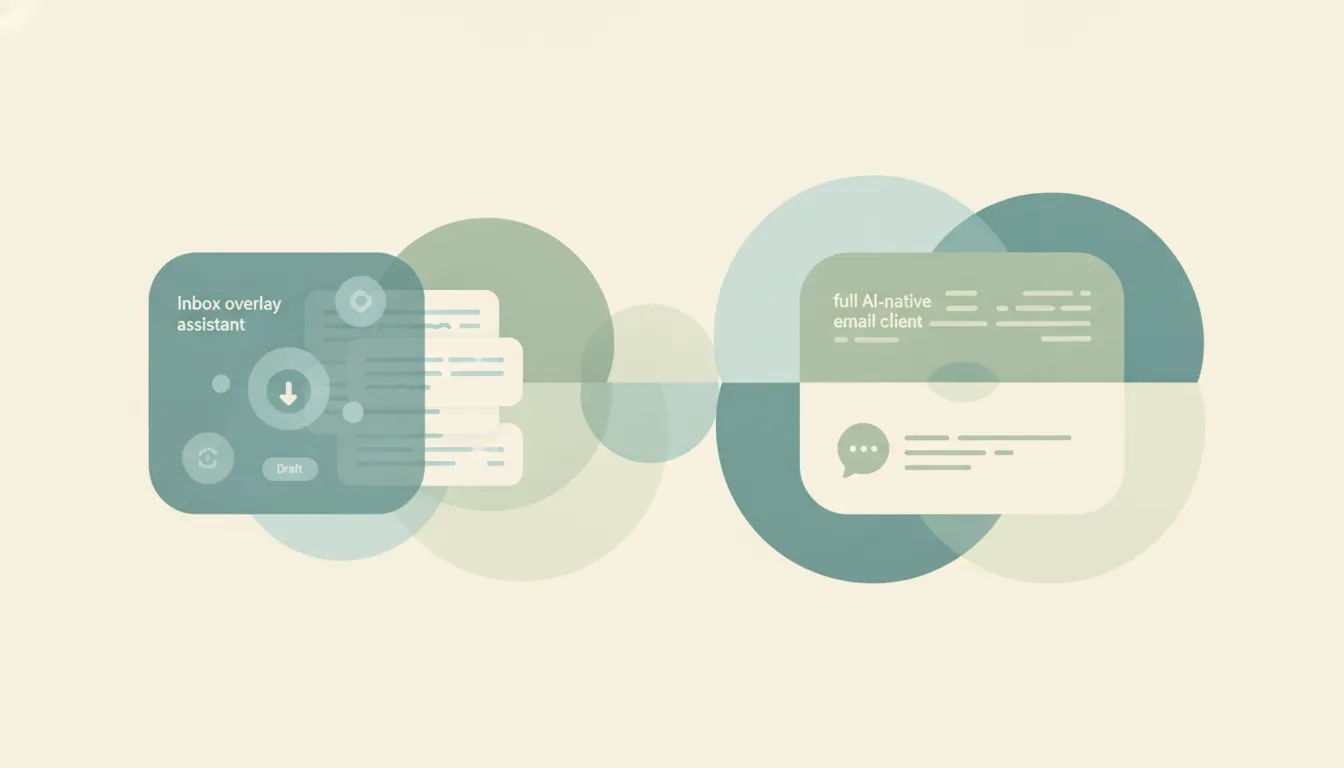
Fyxer adds an AI assistant on top of the inbox you already use, while Shortwave replaces Gmail with an AI-native client. Here's which to pick in 2026.

Genspark is an all-in-one super-agent workspace with 80+ built-in tools and multi-model routing; ChatGPT agent is agent mode inside the ChatGPT you already pay for. Here's which to pick in 2026.

Genspark is an all-in-one Super Agent workspace with 80+ tools; SuperNinja is an autonomous agent with a dedicated VM and a free tier. Here's which to pick in 2026.
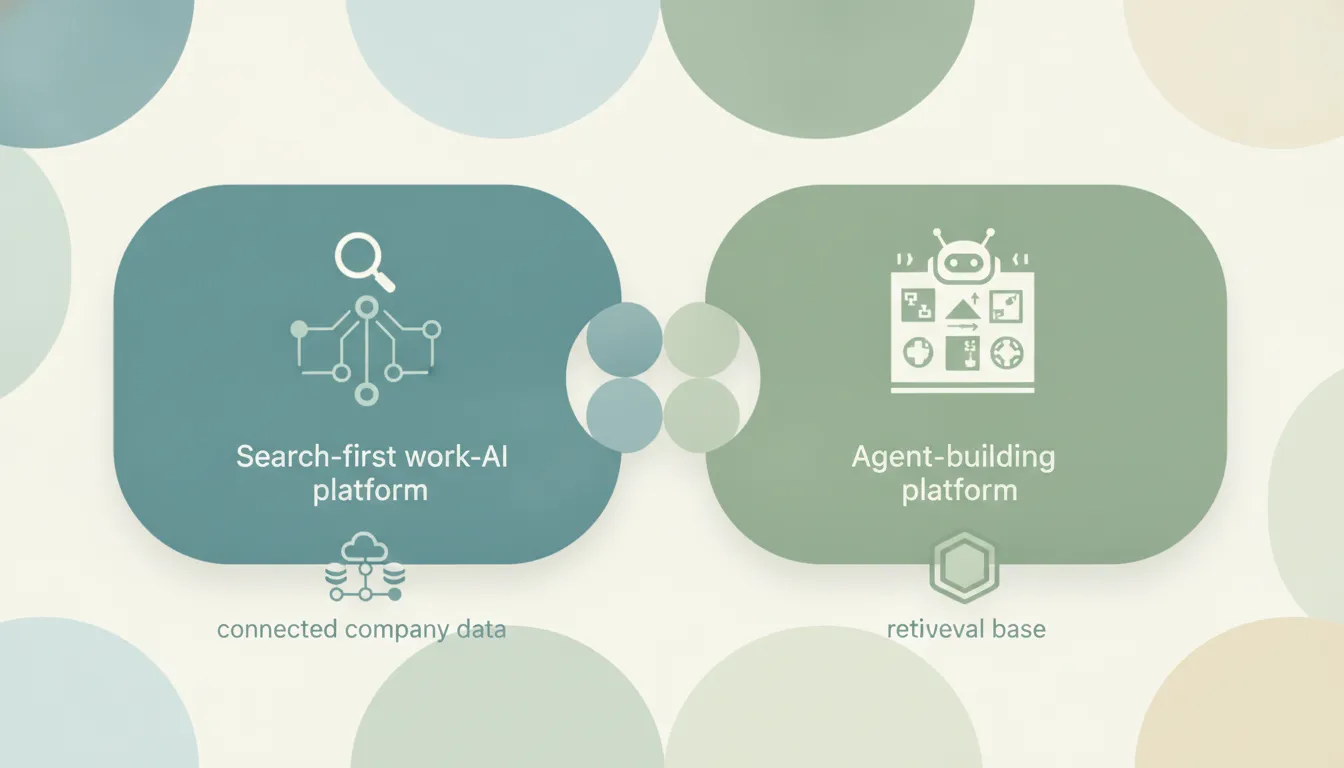
Glean is a polished search-first enterprise Work AI platform; Dust is an agent-building platform with transparent per-user pricing and no seat minimum. Here's which to pick in 2026.
Glean indexes 100+ apps into a searchable knowledge graph; Guru pairs enterprise search with a human-verified wiki. Here's which to pick in 2026.
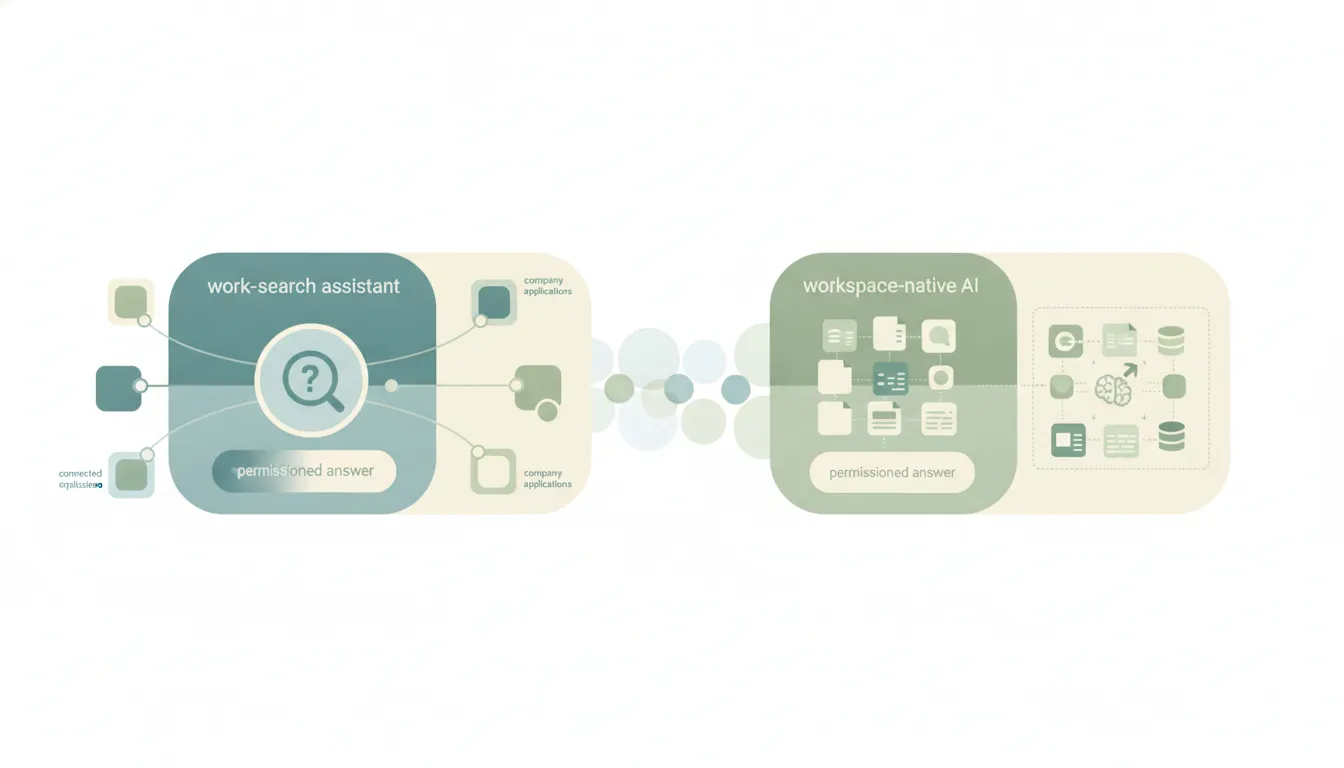
Glean is enterprise Work AI that searches your whole company's app stack; Notion AI is intelligence built into your Notion workspace. Here's which to pick in 2026.
Glean deeply indexes 100+ company apps into a permissions-aware knowledge graph; Perplexity Enterprise blends internal data with a fresh live web at a lower per-seat price. Here's which to pick in 2026.
Gmail is the ecosystem-and-search inbox tied to Google Workspace; Yahoo Mail is a free consumer inbox with generous storage and handy tracking features. Here's which to pick in 2026.

Google Drive is storage built around Google Workspace and Gemini; OneDrive is built around Microsoft 365 and Copilot. Here's which to pick in 2026.
Google Sheets is a free, web-first spreadsheet built for real-time collaboration; Excel is the deep analytical powerhouse. Here's which to pick in 2026.
Grammarly polishes original writing everywhere; QuillBot rewrites and summarizes existing text for students. Here's which to pick in 2026.
Granola quietly sharpens your own notes with no bot on the call; Fathom sends a recorder that captures and summarizes everything. Here's which to pick in 2026.
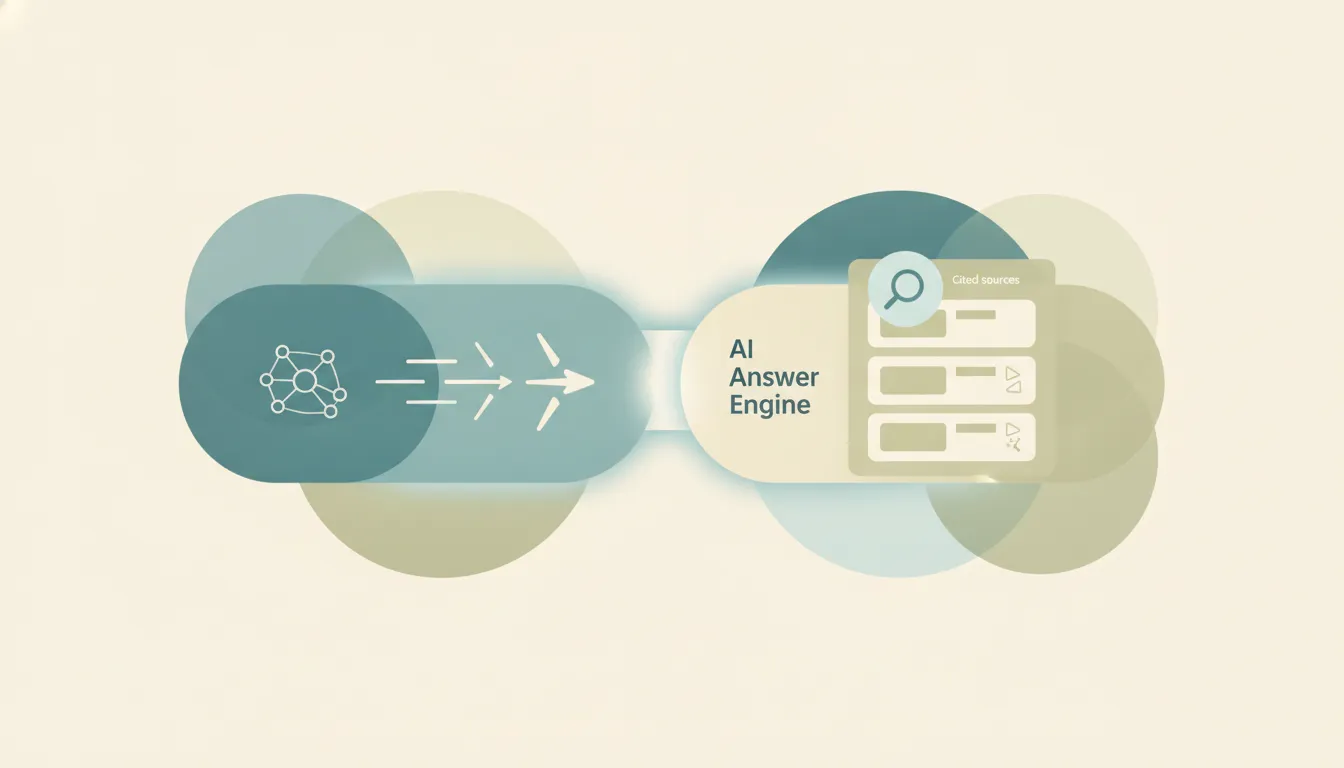
Grok is xAI's conversational chatbot with live X access; Perplexity is a cited answer engine. Here's which to pick in 2026.
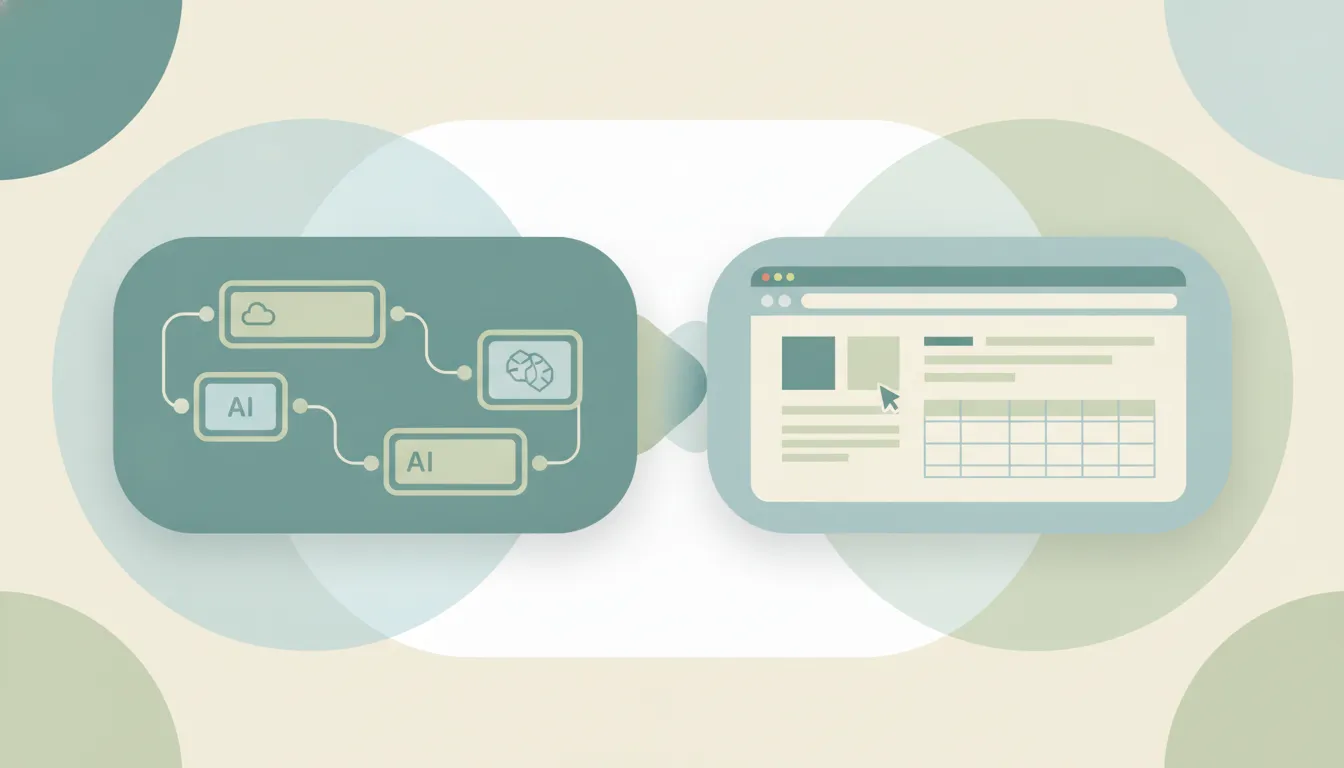
Gumloop is a no-code canvas for multi-step AI workflows; Bardeen is a Chrome-first browser-automation and scraping agent. Here's which to pick in 2026.
Hootsuite is enterprise-grade social management with listening and team inboxes; Buffer is simple, affordable scheduling. Here's which to pick in 2026.

HubSpot is the easy, all-in-one CRM for SMBs and mid-market; Salesforce is the deeply customizable enterprise standard. Here's which to pick in 2026.
HubSpot is a polished all-in-one CRM that gets pricey; Zoho is a cheap, sprawling business suite. Here's which to pick in 2026.
Inbox Zero is an open-source, self-hostable AI agent for your inbox; Cora is a closed AI assistant that screens mail and sends a twice-daily brief. Here's which to pick in 2026.

Inbox Zero is an open-source AI agent that runs on the inbox you already have, while Shortwave is a polished AI-native Gmail client you switch to. Here's which to pick in 2026.

Jace is a credits-based AI email assistant for Gmail; Alfred is a flat-price autonomous inbox and calendar EA. Here's which to pick in 2026.
Jira is the deeply configurable incumbent that scales to complex orgs; Linear is a fast, opinionated tracker product teams love. Here's which to pick in 2026.
Lifestack plans your day around your body's energy, while Sunsama is a deliberate manual planning ritual. Here's which to pick in 2026.
Linear is a fast, keyboard-driven issue tracker for software teams; Asana is flexible work management for any team. Here's which to pick in 2026.
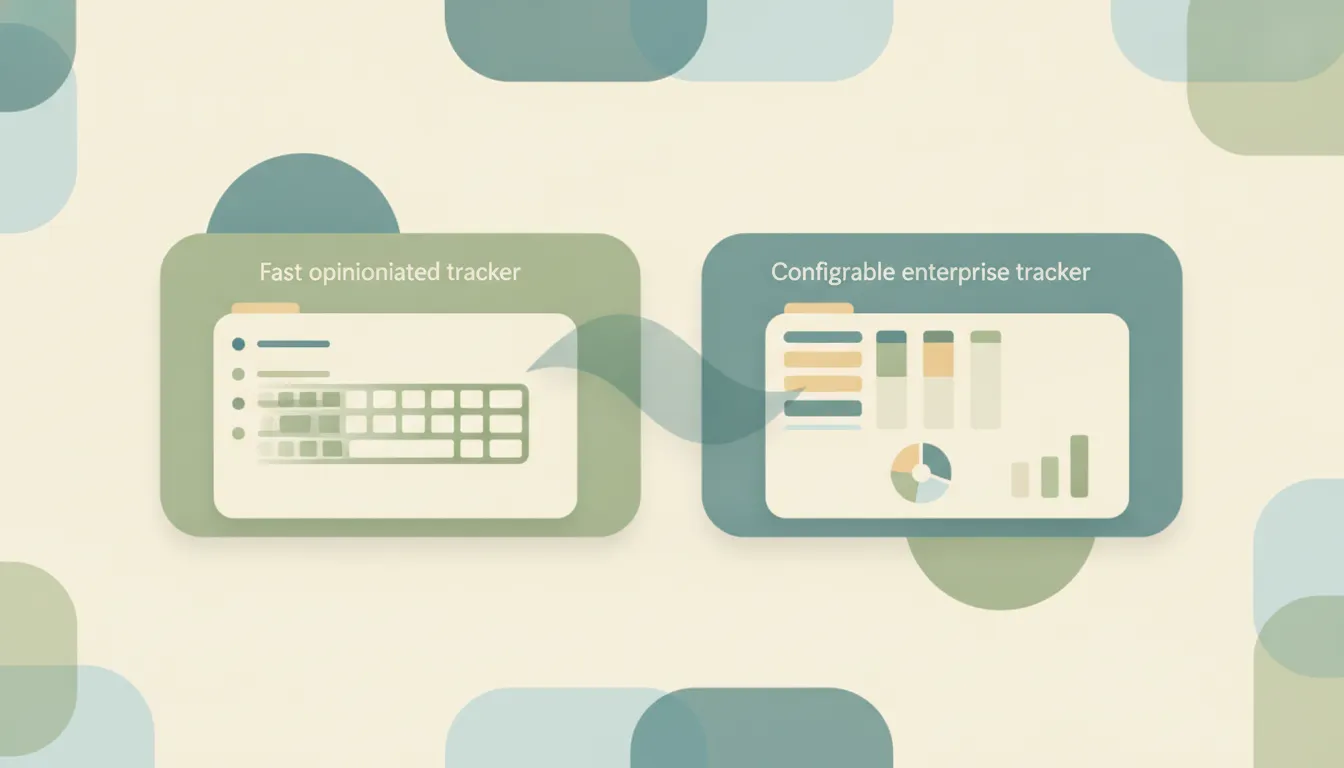
Linear is a fast, opinionated issue tracker for modern software teams; Jira is the configurable enterprise standard. Here's which to pick in 2026.

Logseq is an open-source outliner built on blocks and journals; Obsidian is a file-based markdown editor with a huge plugin ecosystem. Which to pick in 2026.
Loom is async screen-recorded video you send as a link; Zoom is live real-time meetings. Here's which one to pick in 2026.
Mailchimp is the deeper marketing-automation platform; Constant Contact is simpler with events and support. Here's which to pick in 2026.

Mailchimp is general-purpose email marketing for any small business; Klaviyo is ecommerce revenue automation. Here's which to pick in 2026.
Manus is a dedicated long-running autonomous agent with its own Linux VM; ChatGPT agent is agent mode inside the ChatGPT you already use. Here's which to pick in 2026.

Meta AI is a free assistant built into your social apps; ChatGPT is OpenAI's dedicated, capable standalone. Here's which to pick in 2026.
Miro is a broad visual innovation workspace; Mural is a facilitation-first whiteboard for workshops. Here's which to pick in 2026.

Mistral is Europe's open-weight, sovereignty-first AI (its assistant is now Vibe); ChatGPT is OpenAI's frontier ecosystem. Here's which to pick in 2026.
Morgen drafts your day with an AI Planner across your calendars; Akiflow is a keyboard task hub that consolidates tasks for manual time-blocking. Here's which to pick in 2026.
Morgen is a cross-platform AI day-planner that schedules your tasks; Vimcal is a keyboard-fast calendar for heavy meeting days on Apple and desktop. Here's which to pick in 2026.
Motion auto-schedules your day and runs AI Employees; ClickUp is a configurable all-in-one work platform. Here's which to pick in 2026.

SuperNinja bundles a dedicated agent VM and many models under a flat license; Manus is a credit-metered autonomous agent with a sandbox and browser. Here's which to pick in 2026.
Notion Calendar is a free, minimal, keyboard-first calendar tied into Notion; Fantastical is a premium Apple-native calendar with natural-language input and Calendar Sets. Here's which to pick in 2026.
Notion is a structured all-in-one workspace with databases and wikis; OneNote is a free free-form notebook in the Microsoft ecosystem. Here's which to pick in 2026.
Obsidian is a local-first Markdown app with backlinks and a knowledge graph; OneNote is a free cloud notebook with handwriting and Microsoft integration. Here's which to pick in 2026.
Outlook is Microsoft's cross-platform business email and calendar hub; Apple Mail is the free native Apple client. Here's which to pick in 2026.

Perplexity Comet is an AI browser that acts on the tabs you already have open; ChatGPT agent sends a chat assistant off to do a task in its own sandbox. Here's which to pick in 2026.
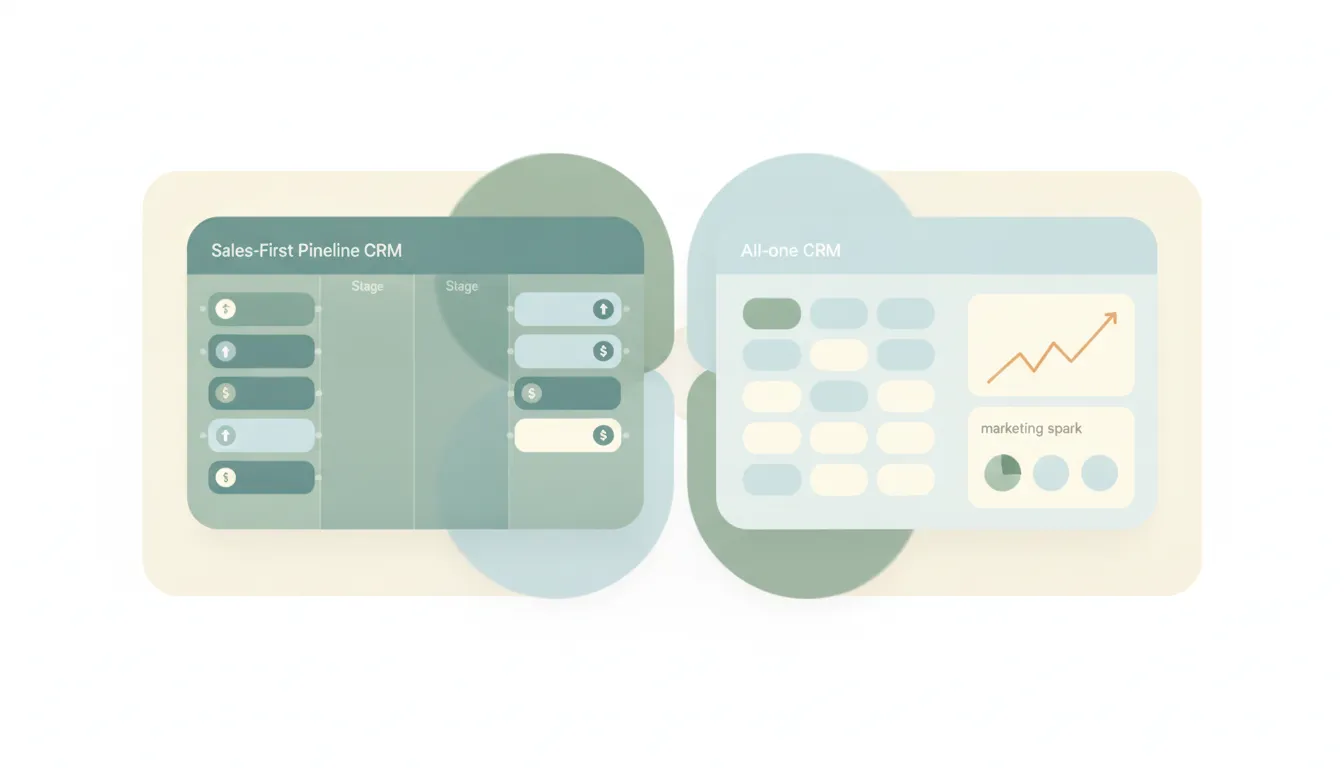
Pipedrive is a focused sales-pipeline CRM; HubSpot is an all-in-one marketing, sales, and service platform. Here's which to pick in 2026.
Pipedrive is the simple, affordable sales-team CRM; Salesforce is the customizable enterprise platform. Here's which to pick in 2026.
Poke lives in your text messages and reaches you anywhere; Town proactively acts across your email, calendar, and apps. Here's which to pick in 2026.
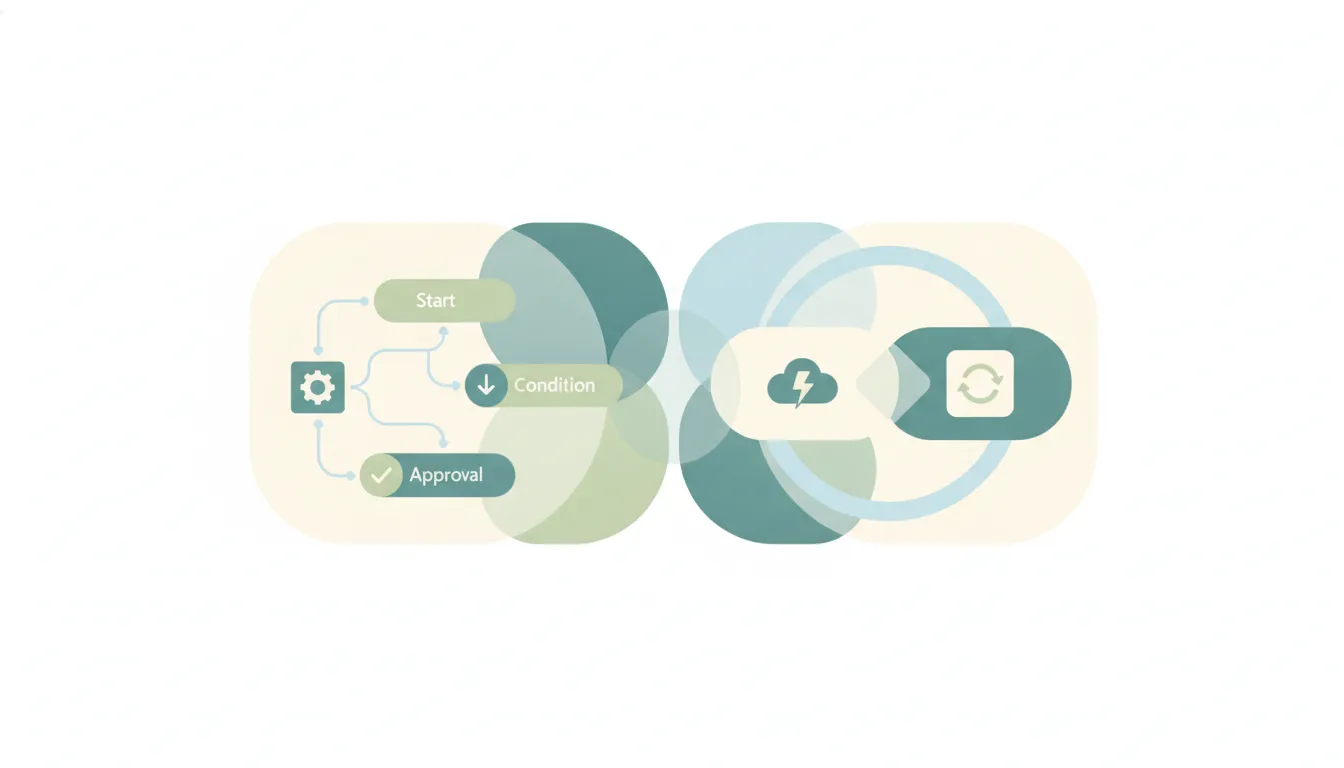
Power Automate is Microsoft's automation engine with desktop RPA; Zapier is the widest, easiest cross-app connector. Here's which to pick in 2026.
Reclaim is a polished, team-friendly auto-scheduler with habits and smart 1:1s; SkedPal is the veteran that schedules deep work with Time Maps. Here's which to pick in 2026.
Serif is a flat-rate inbox assistant that replies as you and asks when unsure; Jace is a credits-metered email EA that drafts and organizes Gmail. Here's which to pick in 2026.

Shortwave is an AI-native Gmail client with a built-in assistant; Superhuman is the fastest keyboard-first inbox, now Grammarly-owned. Here's which to pick in 2026.
SkedPal is a focused, affordable time-map auto-scheduler; Motion is a premium all-in-one work platform that bundles scheduling with project management. Here's which to pick in 2026.
Slack is business team messaging with deep integrations and compliance; Discord is community-first with always-on voice. Here's which to pick.
Smartsheet is a spreadsheet-grid work platform built for rigor at scale; monday.com is a colorful, visual Work OS built for approachable boards. Here's which to pick in 2026.
Spark is a collaborative smart-inbox email client with cloud AI; Canary Mail is a privacy-first client with on-device AI and encryption. Here's which to pick in 2026.
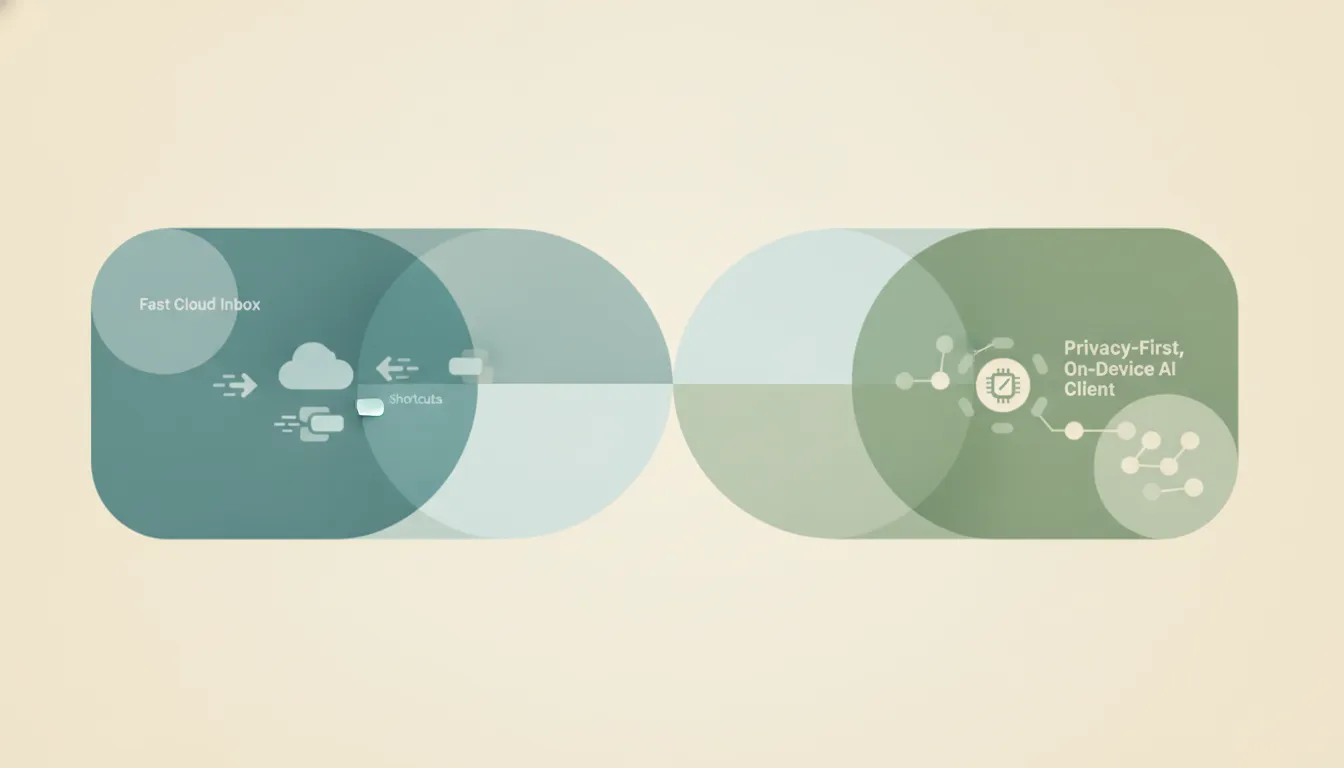
Superhuman is the fast, cloud-polished keyboard client; Canary Mail is the privacy-first client with on-device AI on every platform. Here's which to pick in 2026.
Tabnine is a privacy-first, self-hostable AI coding assistant; GitHub Copilot is the mainstream GitHub-native one. Which to pick in 2026.
Tana is an AI-native outliner with supertags; Notion is a flexible all-in-one workspace. Here's which to pick in 2026.

Tasklet is a describe-the-goal autonomous AI agent; Bardeen is a Chrome-first browser-automation and scraping tool. Here's which to pick in 2026.
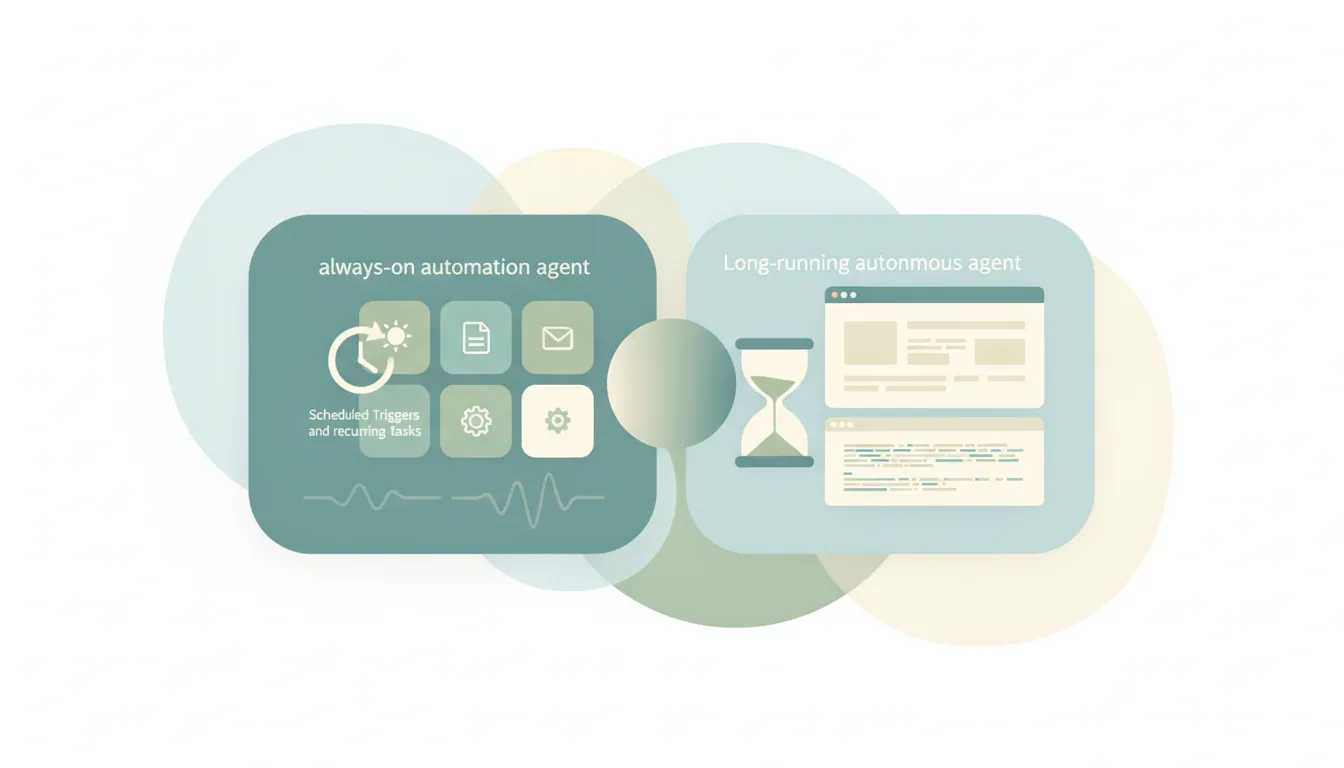
Tasklet runs always-on plain-English automations across thousands of apps; Manus is a fully autonomous agent for one-off long-running jobs. Here's which to pick in 2026.

Tasklet is a hosted AI agent you describe a job to and it figures out the steps; n8n is an open-source visual builder where you wire deterministic nodes. Here's which to pick in 2026.
Tasklet runs plain-English autonomous agents that figure out execution; Zapier builds deterministic trigger-action automations across the biggest app catalog. Here's which to pick in 2026.
Thunderbird is a free, open-source, multi-account desktop email client; Outlook is a polished mail-and-calendar client built for the Microsoft ecosystem. Here's which to pick in 2026.
Tiimo is a neurodivergent-designed visual planner with executive-function scaffolding; Structured is an affordable general-purpose timeline day planner. Here's which to pick in 2026.

Tomo is a text-based AI accountability coach that keeps you on track; Martin is a personal AI assistant that runs your calendar and inbox. Here's which to pick in 2026.
Town is a proactive AI assistant that works across your apps; Cora is a focused AI assistant that tames just your Gmail inbox. Here's which to pick in 2026.
Town learns work across 50+ tools and runs custom routines; Martin is a voice-first calendar and inbox assistant. Compare actions, pricing, and fit.
Trello is simple visual Kanban boards for any team; Jira is structured agile issue tracking for software teams. Here's which to pick in 2026.

Trevor AI is a cheap, manual drag-to-calendar time-blocker; Motion is a premium AI that auto-schedules tasks and runs projects. Here's which to pick in 2026.
Vimcal is a fast, paid keyboard-first calendar with AI scheduling; Notion Calendar is a free, minimal keyboard-first calendar. Here's which to pick in 2026.
WhenIsGood vs Doodle compared head-to-head: how each collects availability, where the free tiers pinch, and which one to reach for depending on your group.
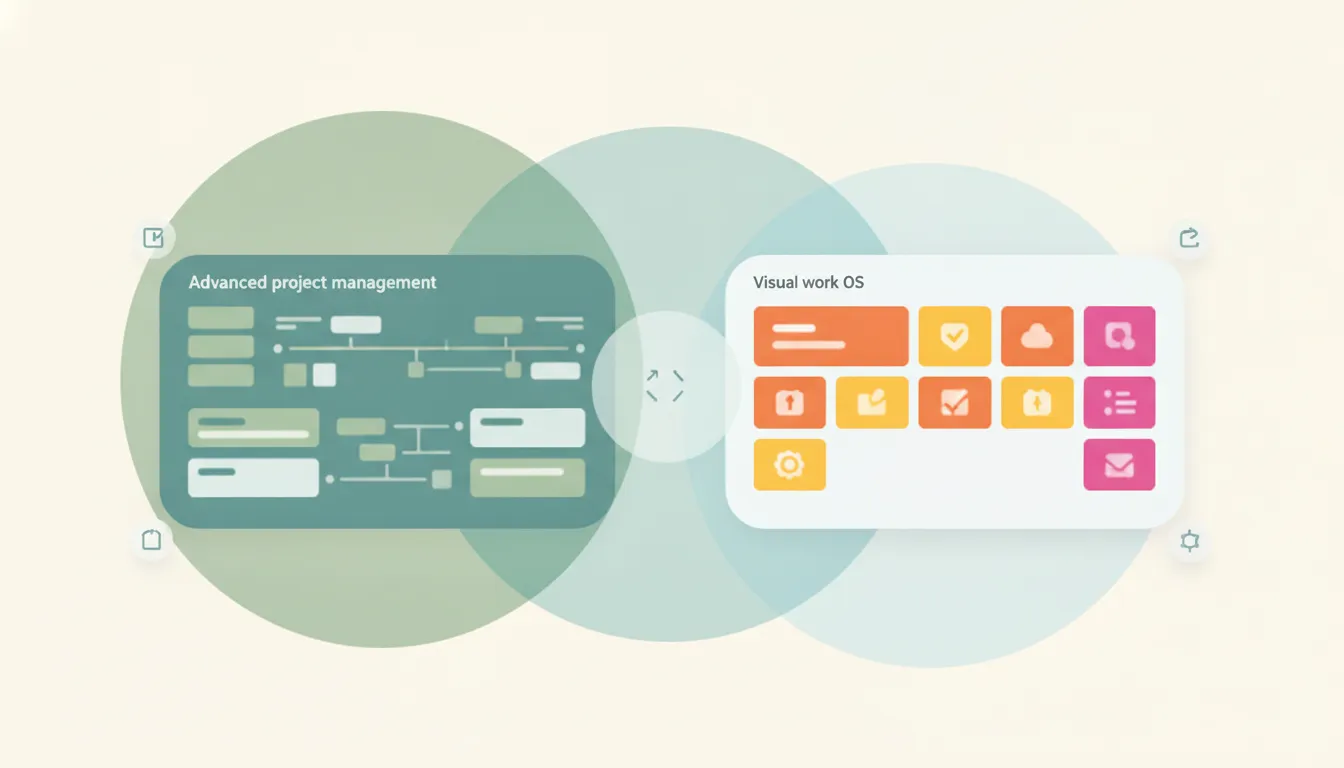
Wrike is structured project management with deep resource planning; monday.com is a flexible, visual Work OS. Here's which to pick in 2026.
Zendesk is structured omnichannel ticketing for scaled support ops; Intercom is messenger-first, AI-first support. Here's which to pick in 2026.

Zero (0.email) is an open-source AI email client you switch to; Inbox Zero (elie222) is an AI agent that automates the inbox you already have. Here's which to pick in 2026.
Carly reads inbound email, proposes times from your live calendar, and books the appointment for you. Here's exactly how it works, with a real email example.
Carly sends timed follow-ups over email, logs every reply to your CRM, and stops the moment a lead responds. Here's how it compares to sequencers.
Carly is the best AI agent for appointment setting: it books and confirms appointments over email and text, chases no-shows, and syncs Google and Outlook.
Carly triggers invoices through QuickBooks, Xero, or Stripe and chases unpaid ones over email until they clear. Here's the exact flow and the alternatives.
See how Carly, Gemini Spark, SaneBox, and Fyxer approach automatic inbox triage, drafting, and exception handling.
See how Carly connects meeting notes to CRM updates, follow-up email, tasks, and the next calendar event.
The best AI assistant that connects to Gmail and your CRM is Carly — it reads your inbox and updates HubSpot, Salesforce, Pipedrive, or Attio in one flow.
Carly is the AI assistant that runs your inbox and calendar as one job — it triages email, drafts and sends replies, and books meetings from the same threads.
The best AI agent for automating campaign management workflows is Carly — it runs campaign ops over email and connects to Google Ads, Mailchimp, Meta Ads, and HubSpot. Here's how.
The best AI chatbot for business in 2026, ranked. Some just answer questions. The best ones book meetings, update your CRM, and finish the work.
The best AI for marketing operations automation is Carly — it runs lead tracking, workflows, and coordination over email and connects to your social and martech tools.
The best proposal tracking for consulting firms pairs analytics tools like PandaDoc, Proposify, and DocSend with Carly, an AI assistant that follows up and updates your CRM.
The best AI tools for architects in 2026, ranked. Generate concepts, optimize site design, automate floor plans, and run client scheduling and project coordination on autopilot.
The best AI tools for authors in 2026, ranked. From drafting and editing to formatting and the business admin that steals your writing time.
The best AI tools for auto repair shops in 2026, ranked. Book more appointments, cut the phone tag, and keep the bays full — what actually works at the counter.
The best AI tools for churches 2026, ranked. Follow up with first-time guests, schedule volunteers, and run the office so staff focus on ministry.
The best AI tools for cleaning businesses in 2026, ranked. Book more jobs, cut no-shows, chase invoices, and win reviews for maid and janitorial companies.
The best AI for commercial real estate in 2026: data and comps, lease abstraction, underwriting, marketing, and the deal follow-up that closes.
The best AI tools for construction in 2026, ranked. Win more bids, coordinate subs and clients, and stop drowning in follow-up.
The best AI tools for contractors in 2026, ranked. Chase outstanding bids, confirm crews, answer clients, and run the office without hiring.
The best AI tools for electricians in 2026, ranked. Book more service calls, chase unpaid invoices, and estimate faster while you're up a ladder.
The best AI tools for engineers in 2026, ranked. Ship faster, debug smarter, and protect your flow state from meeting and inbox overhead. What's worth paying for.
The best AI tools for graphic designers in 2026, ranked. Generate, iterate, and ship client work faster — while an AI assistant handles scheduling, email, and invoicing.
The best AI tools for HVAC businesses in 2026, ranked. Book the seasonal call surge, dispatch techs, chase invoices, and win maintenance renewals.
The best AI tools for gyms 2026, ranked. Fill classes, cut no-shows, recover failed payments, win back lapsed members, and answer inquiries fast.
The best AI for landlords in 2026. Answer tenants, chase late rent, triage maintenance, screen applicants, and keep the books for DIY landlords.
The best AI tools for landscapers in 2026, ranked. Book more quote visits, survive the spring rush, chase unpaid invoices, and design faster.
The best AI tools for lead generation in 2026, ranked. Find, enrich, and actually follow up with leads on autopilot — from prospecting data to closing the loop over email.
The best AI tools for plumbers in 2026, ranked. Catch after-hours calls, book more jobs, chase unpaid invoices, and keep every tech on schedule.
The best AI tools for professors in 2026, ranked — literature review, writing, and note-taking, plus an AI that runs office-hours scheduling and student email for you.
The best AI for real estate developers in 2026: feasibility, pro formas, cost control, capital raises, and the investor follow-up that ties it together.
The best AI tools for real estate investors in 2026, ranked. Find deals, underwrite faster, and coordinate agents, contractors, and tenants without dropping the ball.
The best AI tools for realtors in 2026, ranked. Book showings, follow up with buyers and sellers, and keep your CRM current without dropping a lead.
The best AI tools for research in 2026: literature review, sourced answers, note synthesis, and reference management. What actually holds up to scrutiny, ranked.
The best AI tools for restaurants in 2026, ranked — from voice ordering and reservations to an AI that handles catering inquiries and private-event follow-ups for you.
The best AI tools for roofers in 2026, ranked. Respond to storm-season leads instantly, chase every estimate, and measure roofs from your desk.
The best AI tools for salons 2026, ranked. Fill the chair, cut no-shows, rebook clients, and win reviews for hair, nail, and beauty salons.
The best AI tools for spas 2026, ranked. Fill treatment rooms, cut no-shows, chase deposits, and rebook clients for day spas, massage, and med-spas.
The best AI tools for tax professionals in 2026, ranked. Research, client scheduling, document chasing, and practice admin, with data-security notes.
The best AI tools for teachers in 2026: lesson planning, differentiation, grading, and the admin work around teaching. What actually saves you time, ranked.
The best AI tools for writing in 2026: drafting, editing, long-form fiction, and marketing copy — plus the admin around a writing business. Ranked and honest.
Yes — Carly drafts and sends customer replies in your voice, escalates edge cases, and runs on guardrails you set. Here's how it works and where to be careful.
The best AI assistant that connects to QuickBooks is Carly — it links QuickBooks, Xero, and Stripe to automate invoicing, reminders, and billing email.
The best AI assistant for Outlook and a CRM is Carly — it works with Outlook and Microsoft 365 and updates your CRM, not just Gmail like most tools.
Carly schedules meetings for you by CC, forward, or text. Here's how it compares honestly to Reclaim, Clockwise, Calendly, and x.ai-style scheduling tools.
Bookings with me is a personal 1:1 booking page; Microsoft Bookings is a shared appointment system for teams and businesses. Here's which one you actually need.
No official Claude Addepar connector exists, and Addepar's API is partner-gated behind your Addepar contact. The honest guide — and running it on its own.
Affinity ships an official connector (an MCP server) that reads and writes, so Claude can query and update your CRM — inside the chat. The setup, the limits, and running it on its own.
AppFolio's Realm-X Connector lets Claude run jobs inside AppFolio, in beta. What it does, who can get it, and how to have AppFolio work run on its own.
No official Claude Applied Epic connector exists, and the API is license- and approval-gated. The honest guide — and how to run agency work on its own.
athenahealth has no official Claude connector. Its API is partner-gated, patient data needs HIPAA coverage, and Carly is limited to non-clinical admin.
No official Claude connector for Autodesk Construction Cloud — the Anthropic-listed Autodesk connector is Fusion (CAD). What actually works for ACC, in plain English.
Yes — Blackbaud built an official Claude connector for Raiser's Edge NXT, but it's read-only and Enterprise-gated. The honest guide, and running it on its own.
No official Claude BlackLine connector exists, and API access is sales-assisted for customers. The honest guide — and running your financial close on its own.
No official Claude Bloomerang connector exists — but Bloomerang's self-serve API and free Zapier app make a do-it-yourself connection realistic. The honest guide.
Yes — Bluebeam ships an official connector linking Revu to Claude. But it's local, desktop-only, and Max-gated. The honest limits, and running it on its own.
No official Claude BoldTrail connector exists, and the API is partner-gated to higher tiers. The honest guide — and running it on its own.
No official Claude Buildium connector exists. Buildium's API lets a developer wire one up, but nothing fires on its own when rent goes late.
Carta ships an official connector for Claude, so Claude can read cap tables and fund data. Here's what it does, the gates, and running Carta work on its own.
CompanyCam now has an official MCP server for Claude. Learn the two-minute setup, what Claude can read and change, beta limits, and event automation gap.
No official Claude DoorLoop connector exists. The API is self-serve but Premium-gated, and the realistic path runs through Zapier — here's the honest guide.
No official Claude DrChrono connector, but its API is self-serve and community connectors exist. The honest guide — plus the HIPAA wall and running it on its own.
There's no ready-made way to connect Claude to Entrata: its API is locked behind a signed partner agreement and approved IP addresses. The plain-English guide.
There's no ready-made way to connect Claude to EZLynx: API access is turned on commercially through EZLynx Web Services. The plain-English guide.
No official Claude Filevine connector exists, and API access is partner-gated for outside developers. The honest guide — plus running Filevine work on its own.
There's no official Claude Guesty connector, but Guesty's Open API is self-serve and there's a community-built connection. The plain-English guide.
No official Claude Hostaway connector exists, but Hostaway's API is open and self-serve. The honest guide to connecting them — and running it on its own.
No official Claude Jane connector exists, and Jane's developer program is partner-only with no open API. The honest, plain-English guide — and running it on its own.
Juniper Square's Headless GPX opens its fund platform to Claude through an official connector — but it's in limited beta. The honest guide, and running fund work on its own.
There's no official Claude Lawmatics connector, and API access has to be turned on by support first. The honest, plain-English guide — plus running intake on its own.
Lofty shipped an official MCP server in September 2026, and Claude can sign into it. How to connect them, and what still needs something watching.
There's no official Claude MyCase connector, and the API is approval-gated to the top tier. The honest, plain-English guide — plus running MyCase work on its own.
No official Claude Orion connector exists, and Orion's API is approval-gated to clients and partners. The plain-English guide — and running it on its own.
No official Claude Paylocity connector exists, but Paylocity has an open API. The plain-English guide to what's possible — and running payroll work on its own.
No official Claude Paycom connector — and Paycom has no public API for outside tools. The plain-English guide to your options, and running HR work on its own.
There's an official read-only PitchBook connector in Claude's directory, but it's gated to PitchBook licensees. The honest guide — and acting on the data.
No official Claude PracticePanther connector exists, and API access is approved case by case. The honest guide — plus running PracticePanther work on its own.
There's no official Claude RealPage connector, and RealPage's API is locked behind vendor approval and certification. The plain-English guide — and running it on its own.
No official Claude Redtail connector, but Redtail has an open API and a ready-made Zapier connector. The plain-English guide to connecting it — and running it on its own.
No official Claude Rent Manager connector exists, and API access is partner-approved, not self-serve. The plain-English guide to what's actually possible.
Sage shipped an official Intacct connector in late 2025 — the rare vendor-built one among finance tools. Here's the honest setup, the gates, and running it on its own.
No official Claude Concur connector exists, and the API is partner-gated with per-client opt-in. The plain-English guide — and running Concur work on its own.
There's no official Claude connector for Smokeball, and API access needs Prosper+ and a developer. What works today, plus Smokeball work that runs on its own.
No official Claude Tebra connector exists. Tebra's API key comes through a support case, and HIPAA limits what Claude should touch. What works in 2026.
There's no official Claude Tipalti connector, though Tipalti ships a real modern API and test environment, so a developer can wire one up. The plain-English guide, and running AP work on its own.
Yardi shipped an official Claude connector in June 2026, on Virtuoso Enterprise. What it does, what it doesn't, and how to automate Yardi without it.
A step-by-step guide to setting up your Microsoft Bookings with me personal booking page — meeting types, availability, public vs. private, and sharing your link.
Bookings with me is Microsoft 365's personal booking page — a Calendly-style link for 1:1 meetings that syncs with your Outlook calendar. Here's how it works, what it costs, and where it falls short.
Agiled has no official ChatGPT integration or MCP server. The honest routes for a chatgpt agiled integration in 2026 — and what runs on its own.
Bitbucket Cloud joined Atlassian's Rovo MCP server, but the auth story complicates ChatGPT. The real state of the chatgpt bitbucket integration.
BoldSign has an official MCP server, but it's local-only — ChatGPT can't connect to it. The real chatgpt boldsign integration options in 2026.
Bubble has no official ChatGPT app or MCP server. How a chatgpt bubble integration actually works via each app's Data API and Workflow API.
Capsule's official MCP is a Claude-only private beta — not ChatGPT-connectable yet. The real chatgpt capsule crm integration options in 2026.
CircleCI has an official MCP server, but it's local or self-hosted only — no hosted endpoint. The real chatgpt circleci integration options in 2026.
DealCloud's MCP server is in client preview — read-only, license-gated, no ChatGPT support stated. The real chatgpt dealcloud integration picture.
EmailOctopus has no official ChatGPT app or MCP server. The honest API and aggregator routes for a chatgpt emailoctopus integration in 2026.
Everhour has no official ChatGPT app or MCP server. The honest routes to a chatgpt everhour integration in 2026 — and where each one runs out.
folk runs an official remote MCP server with read-write access and ChatGPT support. How to set up the chatgpt folk integration in 2026.
FreeAgent has no official ChatGPT integration or MCP server. The honest routes to a chatgpt freeagent integration for UK small businesses in 2026.
Google Classroom isn't among ChatGPT's Google connectors. The honest routes to a chatgpt google classroom integration in 2026 — and their OAuth caveats.
There's no chatgpt google photos integration — and since March 2025, no third-party tool can read your photo library at all. What's actually possible.
Gumroad has no official ChatGPT app or MCP server — just an agent-friendly CLI. The honest routes to a chatgpt gumroad integration in 2026.
JobNimbus has no official ChatGPT app or MCP server. The honest routes to a chatgpt jobnimbus integration for roofing and contractor teams in 2026.
Lemon Squeezy has no official ChatGPT integration or MCP server. The real routes to a chatgpt lemon squeezy integration in 2026, post-Stripe.
Mem is listed in the ChatGPT store with an official MCP server behind it. What the chatgpt mem integration does with your notes — and what it can't.
Mixmax ships an official remote MCP server ChatGPT can connect to — but it's read-only. What the chatgpt mixmax integration covers in 2026.
Moosend has no official ChatGPT integration or MCP server. The real routes to a chatgpt moosend integration in 2026 under Constant Contact.
Mural's MCP server is early-access beta only — nothing ChatGPT can connect to yet. The honest chatgpt mural integration routes in 2026.
NetHunt CRM shipped an official MCP on July 7, 2026 with ChatGPT named as a client. What the chatgpt nethunt crm integration can do so far.
Nutshell's official MCP server connects ChatGPT to your CRM data on every plan — but it's read-only. What the chatgpt nutshell integration covers.
Every Outline workspace ships an official MCP server ChatGPT can connect to. How the chatgpt outline integration works, and what it can't do.
Salesflare runs an official MCP server ChatGPT can connect to, with read and write access to your CRM. How the chatgpt salesflare integration works.
Salesmate has no official ChatGPT app or MCP server — its AI connects the other way. The honest routes to a chatgpt salesmate integration in 2026.
Slite hosts an official MCP server at api.slite.com/mcp with documented ChatGPT setup. How the chatgpt slite integration works and where it stops.
Softr launched a hosted MCP server with explicit ChatGPT OAuth support in June 2026. How the chatgpt softr integration works and where it stops.
Twitch has no official ChatGPT integration or MCP server. The honest routes to a chatgpt twitch integration in 2026 — and where EventSub fits.
Typefully runs an official remote MCP server you can add to ChatGPT as a custom connector. How the chatgpt typefully integration actually works.
Wealthbox has no official ChatGPT integration or MCP server. The honest routes to a chatgpt wealthbox integration for financial advisors in 2026.
No official Claude 1Password connector exists. 1Password's official MCP server is a local dev-secrets tool that keeps secret values out of the model.
No official Claude Acuity connector exists. Acuity has a self-serve API, but only on the top plan. The honest claude acuity scheduling integration guide.
ADP has no Claude connector and no public MCP server, and its API takes a paid add-on. What works with Claude and ADP today, and how to automate around it.
Claude reads Apple Notes through a macOS desktop extension, not a web connector. Apple ships no API, so it's local-only — and nothing runs unless you ask.
Yes — Braze ships an official MCP server in Claude's directory. It's insights-first and locally installed. The honest claude braze integration guide.
Yes — Buffer shipped an official MCP server for Claude in 2026. Draft and schedule social posts inside a chat. The honest claude buffer guide.
Buildertrend's API is partner-gated, so no official Claude Buildertrend connector or MCP exists. What works today, and how to run the around-it work.
Yes — Calendly is an official Claude connector with a remote MCP at mcp.calendly.com. What the claude calendly integration can and can't do in 2026.
No official Canvas MCP exists — but community MCPs on the open Canvas REST API work with a personal token. The honest claude canvas lms guide.
No official Claude Clover connector exists, but Clover has a self-serve REST API. How to connect claude clover today — and the catch.
No official Claude Constant Contact connector exists. The real path is the v3 REST API via a community or aggregator MCP. The honest guide for 2026.
Yes — Descript has an official Claude connector in Anthropic's directory, plus a hosted MCP server. Edit video through conversation — what it does.
The claude digitalocean integration: an official token-auth MCP server for Claude Code, not a directory connector. Manage droplets and apps from a chat.
Yes — Claude has an official Docusign connector (beta) plus Docusign's own MCP server at mcp.docusign.com. What it does, setup, and where it stops.
Dubsado has no public API, so no official Claude Dubsado connector or MCP exists. What works today via webhooks and Zapier, and how to run it on its own.
eBay's official MCP server is a local developer tool, not a Claude connector — and eBay now bans AI buying agents. The honest claude ebay guide for sellers.
No official Claude Etsy integration exists — only community MCP servers on an app-approval-gated API. What sellers can actually automate in 2026.
Evernote's official MCP for Claude is waitlist-only — 'in development.' The API exists but key approval is manual and gated. The honest state.
No official Claude Ghost connector exists, but a well-maintained community MCP does. What claude Ghost CMS can do in 2026, and the BYO-key route.
GoDaddy's official Claude connector does domain search only. For DNS and domain management you bring your own API key. The honest claude godaddy guide.
There's no Claude Google Chat connector in Anthropic's directory. But Google ships a first-party Chat remote MCP you wire in as a custom connector.
No Google Forms connector for Claude — even the Drive connector skips Forms. The honest claude google forms integration paths that work in 2026.
There's no official Claude Google Keep connector, and no consumer Keep API to build one on. What actually works, and the security trade-off if you try.
The claude grafana integration: an official MCP server, not a directory connector. Query dashboards and datasources from a chat. What works, honestly.
The claude heroku integration: an official remote MCP server you add to Claude, not a directory connector. Manage apps and add-ons from a chat, honestly.
HoneyBook now has an official Claude connector. How to set it up, what it reads and does, and how to make HoneyBook follow-ups run on their own.
Yes — Hootsuite ships official OAuth MCP connectors for Claude, live since June 2026. What claude Hootsuite does in a chat, and what it can't run alone.
No official Claude Housecall Pro connector exists, and the API is MAX-plan only. What the integration really looks like — and running it on its own.
No directory connector, but Jenkins ships an official MCP Server plugin. How the claude jenkins integration works on a private instance — and its limits.
Jobber now has an official Claude connector. What it reads, what it won't change, and how to run Jobber work that happens without you in the chat.
No official Claude Kajabi connector exists. But Kajabi now has a real public API. Here's what claude Kajabi can actually do today — and what it can't.
No Claude Lightspeed connector exists. Whether claude lightspeed works depends on your product — Retail is self-serve, Restaurant isn't.
No Claude Looker Studio connector exists, and there's no MCP for it. Claude can't query your reports through any official channel. What works instead.
No Claude Loom connector exists — and Loom has no open API at all, per Atlassian's own docs. What's real, what's a hack, and what works around it.
Adobe ships an official Marketo MCP for Claude — but it's beta, request-access, and Desktop-only. The honest guide to claude Marketo in 2026.
No official Claude Mindbody connector exists, and the API is approval-gated and metered. The honest guide — and running it on its own.
Netlify is an official Claude connector with a full MCP server. Deploy and manage sites from a chat. The claude netlify integration, honestly explained.
Yes, an official Claude NetSuite connector exists, built by Oracle on the MCP-based AI Connector Service. The catch: setup is admin-gated. Honest guide.
Yes — New Relic ships an official remote MCP server for Claude. Query observability data in a chat. The honest claude new relic guide.
No official Claude Obsidian connector — but the MCP plugin, Obsidian's new CLI, and Claude Code make it one of the best Claude setups. The honest guide.
There's no Claude Okta connector. Okta ships an official self-hosted MCP server for admin work — and it's the identity layer behind Claude's connectors.
No Claude OneNote connector — even Anthropic's Microsoft 365 connector skips OneNote. Community Graph MCPs and the real Graph API options, honestly.
No official Claude OpenTable connector exists, and OpenTable has no self-serve API. What actually works today, and the honest way to automate around it.
Yes — Otter.ai has an official Claude connector and remote MCP server, on every Otter plan. What it does, plan gating on the API, and the honest limits.
No official Claude Patreon integration exists — just a community read-only MCP. What Patreon's API really allows, and how to automate patron work anyway.
No official Claude Paychex connector exists, and the Flex API is client-gated, not self-serve. The honest claude paychex integration guide.
Yes — Claude has an official PayPal connector plus PayPal's own remote MCP server at mcp.paypal.com. What it does, how to connect, and where it stops.
No Claude Pinterest connector exists — Pinterest's own MCP is an ads-only agency alpha. But API v5 is free and really automates pins. The honest guide.
Postman is an official Claude connector with a full MCP server. Run collections and generate code from a chat. The claude postman integration, honestly.
No official Claude Power Automate MCP server exists. What works: HTTP-trigger flows, a third-party MCP, and Claude inside Copilot Studio. The honest guide.
Microsoft ships an official remote Power BI MCP server Claude can connect to — public preview, admin-gated, query-only. The honest claude Power BI guide.
No official Claude Procore connector exists, and Procore's AI lives in-platform (Helix). What claude procore integration options work today.
Render has an official MCP server for Claude, so Claude can manage services and deploys from a chat. What it does, the limits, and setup.
RingCentral has an alpha App Connect MCP for CRM call logging, plus a full self-serve API you bring your own key for. The honest claude ringcentral guide.
No Claude Sage connector exists, but Sage Accounting has a self-serve OAuth API. What claude sage looks like in 2026 — and the token catch.
Yes, a ServiceNow connector is in Claude's directory — but it's instance-scoped and SKU-gated. What the claude servicenow integration really requires.
ServiceTitan has no official Claude connector. Compare community MCP setup with Carly's direct email-and-text access to jobs, schedules, and notes.
SimplePractice has no public API, so no real Claude integration exists. The honest guide to what's possible — and running the around-it work on its own.
Skool has no public API, so there's no official Claude Skool connector. What works, what's a cookie hack, and what actually runs on its own.
Yes — Snowflake is in Claude's connectors directory, backed by a $200M Anthropic partnership. The catch: an admin sets it up first. The honest guide.
Squarespace's official MCP only searches domains, and there's no content API. What a claude squarespace integration can actually automate.
No Claude Substack integration exists yet — Substack has no posting API, though its CEO says MCP is coming. What actually works for newsletter writers.
Yes — Tableau ships an official MCP server, including a hosted endpoint at mcp.tableau.com for Tableau Cloud. The honest claude tableau integration guide.
No official Claude Teachable connector or MCP exists. Teachable's API is real but plan-gated. What claude Teachable can do in 2026 — and what it can't.
No official Claude TikTok integration exists, and TikTok's posting API is audit-gated. What actually works: research, scripts, and cross-post prep.
No official Claude Toast connector exists. U.S. restaurants on RMS Essentials get read-only Toast API credentials; write access goes through your Toast rep.
Yes, there's an official Claude Twilio connector — but it searches docs, it doesn't send SMS. The honest guide to what actually sends.
Yes — X ships an official hosted MCP server Claude can use. The catch: it needs your own X developer app on pay-per-use pricing. The honest guide.
Vimeo ships an official remote MCP server you add to Claude as a custom connector — list videos, edit details, manage transcripts. What it does.
No official Claude Wave connector exists. Wave's GraphQL API is alive and self-serve — but plan-gated. What claude wave looks like in 2026.
Yes — WooCommerce ships native MCP in core (developer preview). How to connect Claude to your store, what it can do, and the honest limits in 2026.
Yes — WordPress.com is an official Claude connector, but it's read-only. Self-hosted sites need the MCP Adapter plugin. The honest claude WordPress guide.
No Claude Workday connector exists yet. Workday's Agent-Ready Tools (MCP) are early access, GA projected H2 2026. What's real now, what to use instead.
Yes — Zapier is an official Claude connector (8,000 apps via Zapier MCP), and Claude runs inside Zaps too. What the claude zapier integration really costs.
AI accounting software mapped by category — AI-native ledgers, close and AP automation, agents for firms, and incumbent AI — with real 2026 pricing.
The best AI for accounting depends on the job — general assistants, purpose-built ledgers, accounting AI agents, and trigger-based assistants, compared.
ActiveCampaign runs an official remote MCP server that plugs into ChatGPT. What the chatgpt activecampaign integration does with contacts, campaigns, and automations — and where it stops.
Ahrefs has an official app in ChatGPT plus a hosted MCP server. What the chatgpt ahrefs integration does, what it costs in API units, and where it stops.
Amplitude's MCP server became a native ChatGPT connector in December 2025. What the chatgpt amplitude integration does for product analytics and where it stops.
No Apify app in ChatGPT's directory, but Apify's official MCP server connects as a custom connector. What the chatgpt apify integration can do in 2026.
Apollo launched an official app in ChatGPT in April 2026, built on Apollo MCP. What the chatgpt apollo integration does for prospecting today and where it stops.
Ashby's official MCP server is in open beta and now connects from ChatGPT's app directory in a couple of clicks. What the chatgpt ashby integration does and where it stops.
Attio ships an official hosted MCP server that plugs into ChatGPT — around 40 tools, including SQL reporting. What the chatgpt attio integration does today.
BambooHR's ChatGPT connector is in closed beta on its own MCP server. How to get in, how to set it up, and what it still can't do without you in the chat.
37signals ships an official Basecamp MCP server, but it runs locally and there is no Basecamp app in ChatGPT. What works today, and where it stops.
beehiiv's official MCP server opened to all users on April 30, 2026. What the chatgpt beehiiv integration can do, its write limits, and setup steps.
There's no official BILL app in ChatGPT as of July 2026. What actually works — community MCP servers and the BILL API — and where each path stops.
Brevo has no official app in ChatGPT, but its hosted MCP server connects as a custom connector. What the chatgpt brevo integration really does today.
Brex has an official ChatGPT connector in early access, built on its beta MCP server. What the chatgpt brex integration does today and where it stops.
Bullhorn has no official ChatGPT integration — its AI lives in Amplify. The honest third-party routes for a chatgpt bullhorn integration in 2026.
Canny ships an official MCP server for ChatGPT, gated to Ideas-beta teams on Pro plans. What the chatgpt canny integration can and can't do in 2026.
Clio has no official ChatGPT app or MCP server, and its own AI stays inside Clio. What actually works for a ChatGPT Clio integration, and what to use instead.
Clockify has no official MCP server or ChatGPT app — the route is community servers on the Clockify API. What the chatgpt clockify integration really does in 2026.
Close ships an official ChatGPT app on its own MCP server, with read/write/destructive scopes. What the chatgpt close integration does today and where it stops.

There's no official Cloudflare app in ChatGPT, but Cloudflare's own MCP servers connect via Developer Mode. What the chatgpt cloudflare setup does and where it stops.
Coda (now Superhuman Docs) has an official ChatGPT plugin that reads and writes docs, pages, and tables. What the integration does today and where it stops.
Customer.io runs an official MCP server at mcp.customer.io with documented ChatGPT setup. What the chatgpt customer.io integration does today and where it stops.
Databricks managed MCP servers connect ChatGPT to Genie, Unity Catalog functions, and Vector Search. How the chatgpt databricks integration works.
Datadog ships an official ChatGPT app — query logs, metrics, traces, and incidents in chat. What the chatgpt datadog integration covers, and the alert gap it leaves.
Deel launched an official app in ChatGPT in April 2026, built on MCP. What the chatgpt deel integration does for global payroll and EOR — and where it stops.
Dialpad markets an MCP server, but there's no endpoint, repo, or ChatGPT app you can connect today. The real state of the chatgpt dialpad integration.

There's no official Docker app in ChatGPT, but Docker's MCP Toolkit connects via developer mode. What the chatgpt docker integration really does — and its limits.
Dropbox's official ChatGPT app and MCP server cover files only — not Dropbox Sign. What actually works for the chatgpt dropbox sign integration in 2026.
Microsoft ships official MCP servers for Dynamics 365 Sales, Business Central, and Commerce that ChatGPT can connect to. What works in 2026 — and where Copilot fits.
DocuSeal ships an official MCP server — hosted at mcp.docuseal.com — that ChatGPT can use. What the chatgpt docuseal integration does today and where it stops.
There's no official ElevenLabs app in ChatGPT, and the official MCP server is local-only. The honest routes for a chatgpt elevenlabs integration.
Eventbrite has no official ChatGPT app or vendor MCP server in 2026. The real ways to connect the chatgpt eventbrite integration, and where each one stops.
Expensify ships an official MCP server you can wire into ChatGPT — read-only by design. What the chatgpt expensify integration does today and where it stops.
Fathom has an official app in ChatGPT built on its MCP server. What the chatgpt fathom integration does with your meeting recordings — and where it stops.
Fireflies has an official ChatGPT connector built on its MCP server. What the chatgpt fireflies integration does with your meeting transcripts — and where it stops.
Follow Up Boss has no official ChatGPT app — the working path is the third-party Ace AI MCP server or the open FUB API. What each does and where they stop.
FreshBooks has no official app in ChatGPT and no vendor MCP server. The real paths for a chatgpt freshbooks integration in 2026 — and where each one stops.
Freshdesk has no official ChatGPT app, and its own MCP beta doesn't support ChatGPT yet. How the chatgpt freshdesk integration really works in 2026.
Freshservice has an official MCP server in beta, but ChatGPT isn't a documented client. What the chatgpt freshservice integration can really do.
Front runs an official MCP server (open beta since May 2026) that can read, draft, and even send. What the chatgpt front integration does today in ChatGPT.
HighLevel ships an official MCP server and documents a ChatGPT custom connector with OAuth. What the chatgpt gohighlevel integration does today and where it stops.
Gong ships an official ChatGPT plugin for account and deal questions. What the ChatGPT Gong integration does with your revenue data, and where it stops.
Google hasn't shipped an official Google Ads app in ChatGPT. What actually works today — third-party MCP connectors and the API — and where every path stops.
There's no official GA4 app or connector in ChatGPT. What people actually use — third-party connectors, exports, BigQuery — and where every option stops.
ChatGPT has native Gmail, Calendar, and Drive connectors — but Google Tasks isn't one of them. The honest routes that exist in 2026 and where they stop.
Gorgias ships a first-party MCP server, now in open beta, that plugs your helpdesk into ChatGPT. What the chatgpt gorgias integration does today and where it stops.
Greenhouse launched an official MCP in May 2026 that connects ChatGPT to your ATS. What the chatgpt greenhouse integration does for recruiting — and where it stops.
Gusto launched an official app in ChatGPT in January 2026 — payroll Q&A for everyone, payroll runs for select customers. What works today and where it stops.
Harvest ships an official MCP server at api.harvestapp.com/mcp that ChatGPT can connect to. What the chatgpt harvest integration does today and where it stops.
Help Scout runs an official MCP server you add to ChatGPT as a custom connector. What the chatgpt help scout integration really does, and where it stops.
Hugging Face has an official ChatGPT app and a hosted MCP server with Gradio Spaces as tools. What the chatgpt hugging face integration can and can't do.
Hunter has an official ChatGPT app built on its MCP server, with 30+ tools including lead and campaign writes. What the chatgpt hunter integration does.
Instantly runs an official MCP server at mcp.instantly.ai with 31 tools for campaigns, leads, and analytics. What the chatgpt instantly integration does today.
Intercom has an official MCP server that connects to ChatGPT — query conversations and customer context in chat. What the chatgpt intercom integration can't do.
Jotform runs an official MCP server at mcp.jotform.com that ChatGPT can connect to. What the chatgpt jotform integration does today and where it stops.
Keap has no official ChatGPT app or MCP server in 2026. The real paths — community MCP, Zapier MCP, and Keap's API with GPT Actions — and where each stops.
Kit (ex-ConvertKit) ships an official MCP server that connects to ChatGPT — reads analytics and takes real actions. What works today and where it stops.
Lemlist runs an official MCP server you can add to ChatGPT as a custom connector. What the chatgpt lemlist integration does today and where it stops.
There's no official Lever app in ChatGPT and no vendor MCP server. The real paths for a chatgpt lever integration in 2026 — and what each one can't do.
Loops has announced an official MCP server, but it's still coming soon. The honest chatgpt loops integration routes that work today, and what's ahead.

Mailchimp has an official app in ChatGPT that plans campaigns from your real data. Here's what the chatgpt mailchimp integration does — and where it stops.
MailerLite officially supports ChatGPT via its cloud MCP server — no API keys, OAuth login. What the chatgpt mailerlite integration does and where it stops.
MailerSend's official MCP connects to ChatGPT with OAuth and 90+ tools, including real email sending. What the chatgpt mailersend integration covers.
Make publishes an official MCP server you can add to ChatGPT as a custom app. What the chatgpt make integration runs today, how to wire it up, and where it stops.
Mercury shipped a hosted, read-only MCP server in March 2026 that connects to ChatGPT. What the chatgpt mercury integration does today and where it stops.
Meta launched official Ads AI Connectors in April 2026 — an MCP server ChatGPT can use. What the chatgpt meta ads integration does today and where it stops.
Missive has no ChatGPT app or MCP server — the official integration runs the other way, bringing OpenAI into Missive. What actually works in 2026.
Mixpanel's official MCP server went GA in March 2026 and connects to ChatGPT via OAuth. What the chatgpt mixpanel integration does with your product data — and where it stops.
Neon documents connecting ChatGPT to its hosted MCP server, with real read-write tools. How the chatgpt neon integration works and where it stops.
Omnisend launched an official app in ChatGPT in May 2026, built on its MCP server. What the chatgpt omnisend integration does today and where it stops.
PagerDuty runs an official hosted MCP server at mcp.pagerduty.com that ChatGPT can use as a custom connector. What works — and the trigger gap that doesn't.
PandaDoc runs an official MCP server that ChatGPT can use as a custom connector — with real write access. What the chatgpt pandadoc integration does and where it stops.

Pipedrive launched an official MCP server that connects to ChatGPT — read and write your CRM from chat. What the chatgpt pipedrive integration does and where it stops.
Postmark's official MCP server is local-only, so ChatGPT has no plug-and-play route. What actually works for the chatgpt postmark integration in 2026.
Productboard has no ChatGPT app and no official MCP server in 2026. The honest routes: community MCP servers over the REST API — and what each can do.
Ramp has an official plugin in ChatGPT, built on its MCP server, for cards, expenses and approvals. What the chatgpt ramp integration does today.
Recall.ai ships an official read-only MCP server that works as a ChatGPT connector. What the chatgpt recall.ai integration covers and where it stops.
Recruitee has no official ChatGPT integration or MCP server. The honest community and aggregator routes for a chatgpt recruitee integration in 2026.
Resend ships an official remote MCP server at mcp.resend.com that ChatGPT can use as a custom connector. What the chatgpt resend integration does today and where it stops.
Rippling's official MCP server connects ChatGPT to your HR data. How to set it up, what it can reach, and where a chat stops and triggers take over.
Twilio's MCP server indexes Segment's docs, not your workspace data — so connecting Segment to ChatGPT runs through other routes. What works today.
SendGrid has no official ChatGPT app or hosted MCP server. The real paths — community MCP servers and the v3 API — and what each one actually covers.
Sentry has no official app in ChatGPT, but its official MCP server connects via developer mode. What the chatgpt sentry integration does and where it stops.
Shortcut's official hosted MCP server works in ChatGPT as a custom connector, with full story writes. What the chatgpt shortcut integration can do.
Smartsheet's MCP Server added an official ChatGPT connection in June 2026. What the chatgpt smartsheet integration does today and where it stops.
Square runs an official MCP server covering 20+ APIs that ChatGPT can connect to. What the chatgpt square integration does today and where it stops.
Streak launched an official ChatGPT app in March 2026 plus an MCP server at api.streak.com/mcp. What the chatgpt streak integration does today and where it stops.
Supabase is an official ChatGPT app — run SQL, change schemas, and deploy edge functions from chat. What the chatgpt supabase integration does and where it stops.
SurveyMonkey has no official ChatGPT app or vendor MCP server. The real ways to connect the chatgpt surveymonkey integration in 2026, and where each stops.
Tally ships an official MCP server at api.tally.so/mcp that ChatGPT can use as a connector. What the chatgpt tally integration does today and where it stops.
TickTick runs an official MCP server at mcp.ticktick.com that ChatGPT can connect to. What the chatgpt ticktick integration does today and where it stops.
tl;dv ships an official MCP server that puts your meeting library in ChatGPT — with some hosting work. What the chatgpt tldv integration does in 2026.
Toggl has no official MCP server or ChatGPT app — the route is community servers on the Track API. What the chatgpt toggl integration really looks like in 2026.
Typeform ships an official MCP server and documents wiring it into ChatGPT yourself. What the chatgpt typeform integration does today and where it stops.
ChatGPT connects to Vercel's official MCP server at mcp.vercel.com via developer mode — read build logs, inspect deploys. What works, and what never fires alone.
There's no Webex app in ChatGPT, but Cisco hosts official MCP servers for Webex Meetings and Messaging. What the chatgpt webex integration does today.

Webflow shipped official ChatGPT support in March 2026 via its MCP server — edit CMS content and publish from chat. What the chatgpt webflow integration covers.

Wix has an official app in ChatGPT — build a production-ready Wix Harmony site and manage your business from chat. What the chatgpt wix integration covers.

ChatGPT Work is metered, task-based, and plan-gated. Here are 7 alternatives — from always-on assistants to agent builders — with honest limits and pricing.

ChatGPT Work meters every task against your plan allowance with no published rate card. The real limits: usage, approvals, connector gaps, and no event triggers.

ChatGPT Work ships docs across 1,400 connectors; Claude Cowork reaches your local files. How the two agents compare on autonomy, price, and output.
ChatGPT Work ships finished artifacts across 1,400 connectors; Microsoft Copilot lives inside M365 at $30/seat plus credits. Which 2026 agent fits your stack.

ChatGPT Work runs tasks for hours across 1,400 connectors; Gemini Spark works 24/7 but refuses work accounts. How the two agents differ on price and access.
Workable's official MCP server at mcp.workable.com connects ChatGPT to your ATS with 90+ tools. What the integration does today and where it stops.
Wrike launched an official app in ChatGPT in June 2026, powered by its MCP server — and it can write, not just read. What the chatgpt wrike integration does and where it stops.

There's no official Xero app in ChatGPT. Xero has an official MCP server, but connecting it takes work. What the chatgpt xero setup really does in 2026.
There's no official YNAB app in ChatGPT — but community MCP servers and the YNAB API get you there. What the chatgpt ynab integration looks like in 2026.
Zoho Books connects to ChatGPT via the official Zoho MCP hub — invoices, expenses, reconciliation included. How the chatgpt zoho books integration works.
Zoho Desk connects to ChatGPT via the official Zoho MCP hub — ticket search, replies, routing included. What the chatgpt zoho desk integration covers.
Zoho CRM has an official synced connector in ChatGPT that pulls leads, deals, and activities into chat. What the chatgpt zoho integration does today and where it stops.
Codex has no native Bitbucket support, but Atlassian's Rovo MCP server now covers Bitbucket Cloud. Here's how to wire it up and where it stops.
Yes, CircleCI's official MCP server works with Codex — build logs, flaky tests, pipeline reruns in-session. But nobody's watching CI when you log off.
Yes, Codex connects to Cloudflare's official remote MCP servers — Workers, DNS, the full API — but it works in sessions, not as an always-on ops layer.
Yes, OpenAI Codex can connect to Datadog through Datadog's official MCP server — great for debugging sessions, but it won't watch your monitors overnight.
Codex has no native GitLab integration — but GitLab's official MCP server connects it in minutes. What works, what doesn't, and where the gaps are.
Yes, Grafana's official MCP server connects to Codex — dashboards, Prometheus, Loki, alert rules in-session. The overnight watching is a different tool.
Yes, Postman's official MCP server lists Codex as a supported client: collections, specs, and environments in your session. Monitoring is another story.
Sentry ships an official MCP server that plugs straight into Codex — real stack traces in your debugging sessions. But Codex won't watch Sentry for you.
Supabase's official MCP server gives Codex 20+ tools — queries, migrations, Edge Functions, branches. Here's the setup and where the automation stops.
Vercel's official MCP server lists Codex CLI as a supported client — deployments, logs, and docs in your sessions. But Codex won't watch your deploys.

Gemini Spark is Google's 24/7 agent, personal accounts only; ChatGPT includes the ChatGPT Work agent on most paid plans. Here's who should pick which.

Gemini Spark needs a paid Google AI tier and refuses work and school accounts, and four markets are excluded. Six always-on alternatives without those walls.
OpenAI is winding down its Atlas browser after the July 9 desktop consolidation. The best alternatives — Comet, Dia, Chrome with Gemini, Edge — compared.
QuickBooks AI explained: Intuit Assist, every AI agent, which plan gets what, what bookkeepers actually report, and the gaps outside assistants fill.
How to automate QuickBooks: recurring transactions, bank rules, reminders, Workflows, the AI agents by plan, and what still needs an outside assistant.
What a QuickBooks virtual assistant costs in 2026 — $11–$60/hr freelance, $200–$700/mo for QuickBooks Live — what they do, and when AI does it for less.
ChatGPT Work is OpenAI's agent that takes an outcome, works for hours across your apps, and ships finished files. What it does, what it costs, where it stops.

Gemini Spark is Google's always-on agentic assistant on web, mobile and Mac. What it does, its integrations, the Pro or Ultra gate, and its real limits.
Will AI replace accountants? BLS projections, the AccountingBench results, Big 4 adoption, and the talent shortage — an evidence-based answer for 2026.
Adobe ships official Photoshop, Express, and Acrobat apps inside ChatGPT — free globally. What the chatgpt adobe integration does and where it stops.
Airtable shipped a native ChatGPT app that reads and updates your bases in chat. Here's what the chatgpt airtable integration does and where it stops.
Does ChatGPT work with Amazon? Shoppers can find products in ChatGPT, and sellers can draft listings — but there's no official Seller Central connector. The honest picture for 2026.
ChatGPT connects to Asana through an official app with sync — read projects, create and assign tasks in chat. Here's what works and where it stops.
ChatGPT has an official Box connector — search, read, and reason over your Box content in chat, permissions respected. Here's where it stops.
ChatGPT works with Canva as an official app-in-ChatGPT, so you can generate and edit on-brand designs in chat. Here's what the chatgpt canva integration does and where it stops.
ChatGPT connects to ClickUp through an official app on ClickUp's MCP server — search work, manage tasks, track time from chat. Here's where it stops.
ChatGPT connects to Confluence via Atlassian's Remote MCP Server — search, create, and update pages in chat. What the integration does and where it stops.
Does ChatGPT integrate with Discord? There's no official OpenAI connector — you add ChatGPT to a server via the API or a bot. Here's how people actually connect it, and the limits.
The ChatGPT Dropbox integration is real in 2026 — the app searches and reads your files for context. Here's what it does, and the trigger gap it can't close.
Does ChatGPT work with eBay? eBay uses ChatGPT tech inside its own listing tool, and you can draft copy in ChatGPT — but there's no official connector to run your eBay store. The honest picture for 2026.
Does ChatGPT work with Etsy? Shoppers can now find Etsy items inside ChatGPT, and sellers can draft listings and SEO — but there's no official shop-management connector. The honest picture for 2026.
ChatGPT for Excel is a real beta that builds and edits your workbook from a sidebar. Here's what the chatgpt excel integration does, its limits, and where it stops.
There's no official chatgpt facebook integration — ChatGPT drafts posts and ad copy, but publishing to a Page needs Meta's Graph API or a connector. Here's the honest picture.
Figma is an official Apps-in-ChatGPT partner, so ChatGPT can turn prompts into Figma and FigJam files. Here's what the chatgpt figma integration does and where it stops.
ChatGPT connects to GitHub with an official connector — read and analyze repos in chat, write code via Codex. What the integration does and where it stops.
ChatGPT's official GitLab link is a read-only GitLab Issues connector — it answers questions about issues and MRs but can't write back. The honest guide.
ChatGPT has an official Gmail connector that can search, summarize, draft — and now send. Here's what the chatgpt gmail integration does and where it stops.
ChatGPT's Google Calendar app reads your schedule and can now create events — but nothing books itself, because there are no event triggers. Where it stops.
ChatGPT reads, creates, updates and shares your Google Docs through its Google Drive plugin. What the chatgpt google docs integration does and where it stops.
ChatGPT has an official Google Drive connector that syncs and reads your files for context. Here's what the chatgpt google drive integration does and where it stops.
ChatGPT has no Google Maps connector. What it can do for places and itineraries anyway, how to wire in live Maps data, and when you need more.
There's no official ChatGPT Google Meet connector. Here's how people actually wire them together in 2026 — and what to use for meeting work that runs itself.
ChatGPT for Google Sheets is now spreadsheet-native — it reads your cells and edits the workbook. Here's what the chatgpt google sheets integration does and where it stops.
ChatGPT reads Google Slides through its Drive connector but can't edit a deck natively. What the integration really does in 2026 — and what runs on its own.
The ChatGPT HubSpot integration is real in 2026 — the connector reads and now edits your CRM. Here's what it does, and the trigger gap it can't close.
There's no official chatgpt instagram integration — ChatGPT drafts captions and DMs, but publishing needs the Instagram Graph API or a connector. Here's the honest breakdown.
Yes — Atlassian's Remote MCP Server connects Jira to ChatGPT: search issues, create and link epics, update work in chat. What it does and where it stops.
Klaviyo launched an official app in ChatGPT in January 2026, built on its MCP server. What the chatgpt klaviyo integration does today and where it stops.
ChatGPT connects to Linear through an official app on Linear's hosted MCP server — read, create, and update issues from chat. Here's where it stops.
ChatGPT has no official LinkedIn connector, but it's a strong drafting partner for posts and outreach. Here's what the chatgpt linkedin integration really does and where it stops.
ChatGPT's Teams app now reads and writes: it can send messages and replies once an Entra admin approves it. What it does and where it still stops.
There's no first-party Miro app in ChatGPT yet, but Miro's official MCP server closes most of the gap. How to connect ChatGPT to Miro, honestly.
Does ChatGPT work with monday.com? There's an official read-only connector, plus custom GPTs and Zapier for actions — but none of it acts on triggers. Here's the honest picture.
ChatGPT connects to Notion via a connector and Notion MCP to read and write your pages. Here's what the chatgpt notion integration does and where it stops.
ChatGPT connects to OneDrive through official Microsoft connectors, read and search only. What the integration does and where it stops.
ChatGPT's Outlook apps read your mailbox and now send from it, while your own calendar stays read-only. Here is the setup, and where it stops.
ChatGPT has no official Pinterest connector, but it's a fast writer for pin titles, descriptions, and SEO. Here's what the chatgpt pinterest integration really does and where it stops.
ChatGPT now has an official PowerPoint add-in that builds and edits real slides. Here's what the chatgpt powerpoint integration does, its limits, and where it stops.
Intuit's QuickBooks plugin in ChatGPT now creates invoices and payment links, not just reports. What it does, how to connect it, and where it stops.
There's no official chatgpt reddit integration — ChatGPT can search and cite Reddit, but posting or watching a subreddit needs the API or a connector. Here's the real picture.
The ChatGPT Salesforce integration is real in 2026 — Agentforce in ChatGPT reads and even updates your CRM. Here's what it does, and what it still can't.
Semrush launched an official app in ChatGPT in March 2026 with live SEO data in chat. What the chatgpt semrush integration does and where it stops.
ChatGPT has an official SharePoint connector: read-only search and Q&A over your sites. What the integration does and where it stops.
Shopify's official ChatGPT plugin edits products, inventory and discounts and reads orders. How to connect it, where it stops, and what runs on its own.
ChatGPT can chat inside Slack and search your workspace, but most actions are Enterprise-only. Here's what works and where Carly fits.
ChatGPT connects to Stripe's official MCP server for real read/write billing work in chat. What the chatgpt stripe integration does and where it stops.
There's no official ChatGPT Telegram integration in 2026 — it's all third-party bots. Here's how people connect ChatGPT to Telegram, and the limits that follow.
ChatGPT has no official TikTok connector, but it's a fast writer for scripts, captions, and hashtags. Here's what the chatgpt tiktok integration really does and where it stops.
ChatGPT connects to Todoist through an official app and Todoist's own MCP server — read, create, and update tasks from chat. Here's what it can't do.
There's no official Trello app in ChatGPT. Here's how people actually connect them in 2026 — Zapier, Power-Ups, the API — and what each can and can't do.
Looking for the ChatGPT WhatsApp integration? 1-800-ChatGPT was shut down Jan 15, 2026 after Meta banned third-party AI. Here's what's left, and what it never did.
ChatGPT works with Microsoft Word through an enterprise Office pane and add-ins, not one universal button. Here's what the chatgpt word integration does and where it stops.
There's no official chatgpt youtube integration — ChatGPT summarizes videos via transcripts or third-party GPTs, but can't run your channel. Here's the honest breakdown.
Zendesk now runs a first-party MCP server you add to ChatGPT as a custom connector. What the chatgpt zendesk integration really involves, and where it stops.
Zoom's meeting intelligence can flow into ChatGPT so you can question your recordings. Here's what the chatgpt zoom integration does and where it stops.
Yes, Apify has an official MCP server for Claude — run Actors and pull scraped web data inside a chat. The catch: nothing fires when the scraped data changes.
Yes, Claude works with Docker via Docker's MCP Toolkit and catalog — manage containers and images inside a chat. The catch: it only runs in a conversation you start.
Yes, Hunter has an MCP server for Claude — find and verify emails inside a chat. The catch: no triggers, so no lead gets enriched as it lands. The honest guide.
Yes, Neon has an official MCP server for Claude — query and manage your serverless Postgres in a chat. The catch: no new row or signup can start it.
Yes, OpenAI Codex integrates natively with GitHub — cloud tasks, @codex on PRs, and code review — but it's a developer tool, not a no-code ops assistant.
You can connect Jira to OpenAI Codex via the Atlassian MCP server so it reads tickets as context — but it's a developer config, not a no-code Jira assistant.
You can connect Linear to OpenAI Codex via its MCP server so it reads issues as context — but it's a developer config, not a no-code Linear assistant.
You can connect Notion to OpenAI Codex via an MCP server so it pulls docs as context — but it's a developer config, not a no-code Notion assistant.
The best AI tools for chiropractors in 2026 - faster SOAP notes, easier scheduling, patient reactivation, and reviews so you spend more time adjusting.
The best AI tools for dietitians in 2026 - streamline meal planning, client scheduling, notes, and billing so you focus on care, not admin.
AI tools that help interior designers win clients, render concepts faster, manage projects and procurement, and cut the admin that eats their week.
AI tools that help massage therapists fill their schedule, cut no-shows, handle SOAP notes and rebooking, and run a solo practice without a front desk.
AI tools that help med spas answer every lead, book more consults, run aesthetics-specific EMR and imaging, and stop losing high-value appointments.
The best AI tools for medical practices in 2026 - cut charting, scheduling, and front-desk admin so your team can spend more time with patients.
The best AI tools for personal trainers in 2026 - automate scheduling, program design, client check-ins, and content so you can coach more and admin less.
The best AI tools for podcasters in 2026 - record, edit, repurpose, and book guests faster so you can publish more and drown in less production admin.
AI tools that help tutors book students, cut no-shows, plan lessons, and chase payments - so more of your day goes to actual teaching.
With the Gmail or Outlook connector, ChatGPT can read, search, and draft email when you ask in a chat. But it doesn't run your inbox or act on triggers.
Gemini drafts email replies in Gmail with Help Me Write, but it drops them in the compose box for you to send. It doesn't reply on its own or on triggers.
Yes, Gemini can create events and suggest times inside Google Calendar when you ask, but it won't coordinate with outside people or schedule on triggers.
Ashby ships an official Claude MCP server, so Claude can search your pipeline. Here's the setup, and why it still won't move on a new applicant by itself.
There's no official FreeAgent Claude connector, only a community MCP. Here's how to connect it, and why Claude won't chase an overdue invoice by itself.
No official Lemon Squeezy Claude connector — only community MCP servers. Here's how to connect it, and why Claude won't react to a sale or a churned subscription.
No official Recruitee Claude connector exists — just a community MCP. Here's how to connect it, and why Claude still won't act on a new candidate on its own.
No official Softr Claude connector exists — just a community MCP. Here's how to connect it, and why Claude won't act when someone submits your Softr form.
Workable has an official Claude connector with 90+ tools. How to connect it, what it can do, and why Claude still won't act on a new applicant by itself.
NewMail AI drafts, sorts, and prioritizes your Gmail from inside your inbox. These 6 alternatives handle more of the work, including sending and acting on triggers.
Tasker AI is a free, general-purpose AI co-worker for email, calendar, and errands. These 6 alternatives go deeper on the jobs you actually want automated.
Yes. Microsoft 365 Copilot reads your Outlook mailbox with your permissions to summarize and draft in a session, but access isn't monitor-and-act. Explained.
Partly. Copilot schedules meetings and applies calendar rules in Outlook when you ask, but it doesn't run your calendar on triggers across tools. Compared.
Yes — Microsoft 365 Copilot reads and summarizes your Outlook mail when you ask. But it doesn't watch your inbox or triage what arrives on its own. Here's the real gap.
Yes and no — Microsoft 365 Copilot drafts replies in your voice in Outlook, but the send is always your click. There's no auto-reply on triggers. Here's the real gap.
Yes, in-session: Microsoft 365 Copilot finds times, books rooms, and sends invites when you ask in Outlook. But it won't negotiate over email or book on triggers.
Partly. Gemini adds, finds and edits Google Calendar events when you ask, across shared calendars too. It never touches your calendar on its own.
No. Microsoft Copilot writes email drafts in Outlook, but the send is your click and there are no triggers. What it does, what it doesn't, and the fix.
Adobe ships an official Claude connector and Acrobat has an AI Assistant, but neither fires on an event. What works, and how to run Adobe work on triggers.
Databricks ships official managed MCP servers, so Claude can query your lakehouse in plain English. What the Genie and Unity Catalog servers expose, and where they stop.
Dialpad advertises an MCP with 100+ actions, but there's no self-serve endpoint yet. How to actually connect Dialpad to Claude in 2026 — and what still won't run itself.
Claude reaches Google Photos only via a community MCP, and Google's API caps gut most of it. What actually works, and how to run photo workflows on triggers.
Mem has an official one-click Claude connector, so Claude can search and write your notes. What it does, and why it still won't act on a note until you ask.
Claude reaches Missive via a community MCP or the REST API, but a message landing at 2am triggers nothing. What works for shared inboxes, and how to run triage on triggers.
PagerDuty ships an official MCP, so Claude can create incidents and read on-call schedules — but it has no event triggers. When an incident fires, nothing happens.
Zoho Books is an official one-click Claude connector — create invoices and pull reports in a chat. But a paid invoice triggers nothing; only a clock can start it.
The beehiiv integrations worth setting up — Stripe, Shopify, Segment, Zapier, webhooks, and more — grouped by what they do.
The Bullhorn integrations worth setting up — LinkedIn Recruiter, DaXtra, Sense, TextUs, Bullhorn Automation, job boards, and more — grouped by what they do.
The DealCloud integrations worth setting up — Outlook, Microsoft 365, DocuSign, PitchBook, Preqin, S&P, and more — grouped by what they do.
The Expensify integrations worth setting up — QuickBooks, NetSuite, Xero, Sage Intacct, Gusto, Rippling, Uber, and more — grouped by what they do.
The Mercury integrations worth setting up — QuickBooks, Xero, NetSuite, Stripe, Shopify, Gusto, Ramp, and more — grouped by what they do.
The Streak integrations worth setting up — Gmail, Google Workspace, Slack, Calendly, Zapier, and the API — grouped by what they do.

Box gives free users 10 GB, Personal Pro 100 GB with a 5 GB file cap, and Business plans large or unlimited storage with file caps up to 150 GB.

Yes, via the connector ChatGPT can read your Google Calendar and help plan in chat, but it's read-only with no triggers. Here's the honest scope.
Yes. The Gmail connector lets ChatGPT read, search, and send one email at a time with approval. How to connect it, plus the caveats that matter.
Partly. With a connector ChatGPT can read your calendar and help plan, but it can't manage it autonomously and has no triggers. The honest scope.

Yes. With Gmail or Outlook connected, ChatGPT can read, search, and summarize email on request, but it has no inbox monitoring and no triggers.

Yes. ChatGPT can draft and send a reply one at a time with approval, but it doesn't triage or reply automatically on triggers. The honest scope.

Yes, with caveats: ChatGPT sends one email per prompt on paid plans, no attachments, per-send approval, blocked in the EU/UK. The full limits.

Yes. The Google Calendar connector gives Claude full read/write, and Cowork can run it on a schedule — but there are no event triggers. The details.

Claude can create a calendar event when you ask in chat, but it can't run booking back-and-forth, negotiate times, or act on triggers.

Yes. The Google Workspace connector lets Claude read, search, draft, send, reply and forward in Gmail, asking your approval first. Setup and real limits.

Partly. Claude can create and edit Google Calendar events in a chat, but it can't schedule autonomously and has no triggers. Every surface, compared.

Yes. Claude can read and summarize your Gmail and Outlook when you ask, or on a schedule. No inbox monitoring, no event triggers. Every surface.

Claude drafts replies well and sends from Gmail on approval. The Outlook add-in never sends, Microsoft 365 needs an admin, and nothing triggers on its own.
No. Microsoft 365 Copilot drafts replies in Outlook but sending is your click, and there are no triggers. What it does and doesn't do.
Yes. Gemini reads, searches and drafts in Gmail through the side panel and Connected Apps. It will not send, will not act on new mail, and holds one account.

Yes, on request. Gemini reads, searches and summarizes Gmail in the side panel and app. Why it looks like it is reading your mail, and what it never does.

No. Gemini drafts email in Gmail and the Gemini app, and the send is always your click. Every surface it writes in, why there are no triggers, and the fix.

The best ChiliCal alternatives for 2026. Free booking tools, group schedulers, and AI scheduling assistants compared for solo users and teams.
Clockwise shut down March 27, 2026 after Salesforce acquihired the team. Here are the best alternatives depending on what you actually used it for.
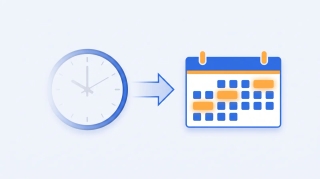
Clockwise shut down March 27, 2026 after Salesforce acquihired the team. A feature-by-feature migration guide: focus-time defense, smart meeting moves, more.

Discord caps messages at 2,000 characters (4,000 with Nitro), embed descriptions at 4,096, nicknames at 32, and channel names at 100. Full list of limits.

Dropbox has no file size limit for desktop, mobile, or API uploads. Web uploads cap at 50 GB per file. What limits your uploads and the workarounds.

HubSpot stores up to 1,000,000 contacts on the free CRM. You only pay for marketing contacts, sold in tiers; non-marketing contacts don't count.

iCloud gives 5 GB free. iCloud+ tiers run 50 GB to 12 TB. What counts toward the limit, what happens when it's full, and how to free space.

Instagram limits unsolicited DMs to roughly 50-100 per day, caps group DMs at 32 people, and throttles new accounts hard. Every unpublished range.
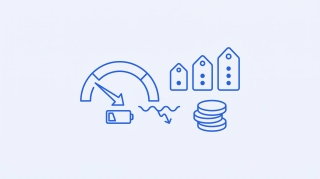
Lindy is Plus $29.99, Pro $99.99, Max $199.99, now with credit counts published: 3k, 15k and 35k per user. How the meter works and what it really costs.

LinkedIn caps you at 30,000 total connections and roughly 100-200 invitations per week. Pending invites and searches are throttled too.
The best free PollUnit alternatives for group scheduling and decisions in 2026. Meeting polls, availability grids, and calendar-connected tools compared.

Salesforce gives most editions a 10 GB data base plus 10 GB file base, with per-user increments on top. How data and file storage differ.

SharePoint gives each Microsoft 365 tenant 1 TB pooled storage plus 10 GB per licensed user. Site collections cap at 25 TB. How to add more.

The best SimplyMeet.me alternatives for 2026. Free booking tools, group schedulers, and AI scheduling assistants compared for solo users and teams.

Smartsheet caps each sheet at 20,000 rows and 500,000 cells, with up to 400 columns and ~30 MB attachments. How the limits interact.
The best free StrawPoll Meetings alternatives for group scheduling in 2026. Meeting polls, availability grids, and calendar-connected schedulers compared.

Telegram lets you send files up to 2 GB free and 4 GB with Premium. Bots are capped at 50 MB for uploads. Every file size limit explained.

Telegram basic groups hold 200 members, then auto-upgrade to supergroups of up to 200,000. Channels take unlimited subscribers. Full breakdown.
The best free Timeful (formerly Schej) alternatives for group scheduling in 2026. Calendar-connected availability grids and meeting polls compared.

Webex free meetings cap at 100 participants and 40 minutes. Paid plans scale to 200-1,000 participants; Webinars reach tens of thousands.

Lindy AI is an AI executive assistant that triages your inbox, drafts replies, and schedules meetings, operated by iMessage. How it works and what it costs.
The best free WhenAvailable alternatives for group scheduling in 2026. Availability polls, RSVP tools, and calendar-connected schedulers compared.

The best free WhenIsGood alternatives for group scheduling in 2026. Availability grids, meeting polls, and calendar-connected tools compared.

The best Zencal alternatives for 2026. Free booking tools, group schedulers, and AI scheduling assistants compared for solo users and teams.
The Bill.com integrations worth setting up — QuickBooks, NetSuite, Sage Intacct, Xero, Dynamics, and more — grouped by what they do.
The best Clio apps and integrations for law firms — QuickBooks, NetDocuments, LawPay, DocuSign, Outlook, and more — grouped by what they do.
The Deel integrations worth setting up — QuickBooks, NetSuite, BambooHR, Greenhouse, Slack, Okta, and more — grouped by what they do.
The GoHighLevel integrations worth setting up — Stripe, Twilio, Mailgun, QuickBooks, Zoom, Slack, and more — grouped by what they do.
The best Greenhouse integrations for recruiting teams — LinkedIn Recruiter, Checkr, HackerRank, Slack, Workday, and more — grouped by what they do.
The Gusto integrations worth setting up — QuickBooks, Xero, When I Work, Deputy, Expensify, Guideline, and more — grouped by what they do.
The Help Scout integrations worth setting up — HubSpot, Salesforce, Shopify, Jira, Aircall, Slack, and more — grouped by what they do.
The Ramp integrations worth setting up — NetSuite, QuickBooks, Sage Intacct, Gusto, Rippling, Slack, Okta, and more — grouped by what they do.
The Smartsheet integrations worth setting up — Slack, Teams, Jira, Salesforce, Power BI, and more — grouped by what they do.
The best Wealthbox integrations for financial advisors — MoneyGuidePro, eMoney, RightCapital, Orion, Nitrogen, Schwab, and more — grouped by what they do.
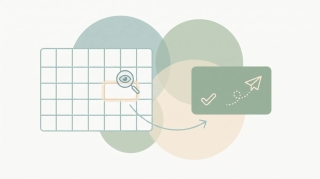
ChatGPT can read your calendar and suggest times, but it can't reliably book meetings on its own. What works, what fails, and what to use instead.
Claude can work with Agiled via an MCP server, but nothing fires when an invoice goes past due. What works, what doesn't, and how to run it on real triggers.
There's no Claude connector for beehiiv, but beehiiv has an API. Connect it to an AI agent with your own key and run it on real triggers.
There's no Claude connector for Bill.com, but Bill.com has an API. Connect it to an AI agent with your own key and run it on real triggers.
Claude can work with BoldSign via an MCP server, but nothing fires when a document is signed. What works, what doesn't, and how to run it on real triggers.
There's no Claude connector for Bullhorn, but Bullhorn has an API. Connect it to an AI agent with your own key and run it on real triggers.
Claude can work with Canny via an MCP server, but no vote or new-post event reaches it. What works, what doesn't, and how to run it on real triggers.
There's no Claude connector for Clio, but Clio has an API. Connect it to an AI agent in a few clicks and run it on real triggers.
Claude can work with Clockify via an MCP server, but only inside a chat you start. What works, what doesn't, and how to run it on real triggers.
There's no Claude connector for DealCloud, but DealCloud has an API. Connect it to an AI agent with your own key and run it on real triggers.
There's no Claude connector for Deel, but Deel has an API. Connect it to an AI agent with your own key and run it on real triggers.
DocuSeal now has an official Claude connector, but no signature event ever starts it. What it can do, its limits, and how to run it on real triggers.
Claude can work with EmailOctopus via an MCP server, but nothing ever fires on an event. What works, what doesn't, and how to run it on real triggers.
Claude can work with Everhour via an MCP server, but nothing ever fires when a budget blows out. What works, what doesn't, and how to run it on real triggers.
There's no Claude connector for Expensify, but Expensify has an API. Connect it to an AI agent with your own key and run it on real triggers.
Claude can work with Freshservice via an MCP server, but nothing ever fires when a ticket lands. What works, what doesn't, and how to run it on real triggers.
HighLevel ships an official MCP server for Claude. How to add it as a custom connector, what it does in a chat, and how to run GoHighLevel work on its own.
There's no Claude connector for Greenhouse, but Greenhouse has an API. Connect it to an AI agent with your own key and run it on real triggers.
Gusto ships an official Claude connector: payroll and people data in chat, payroll runs for eligible customers. How to set it up and where it stops.
There's no Claude connector for Help Scout, but Help Scout has an API. Connect it to an AI agent with your own key and run it on real triggers.
Claude can work with JobNimbus via a community MCP server, but no job or lead can trigger it. What works, what doesn't, and how to run it on real triggers.
Claude can work with Loops via an MCP server, but nothing fires when a contact churns or upgrades. What works, what doesn't, and how to run it on real triggers.
Claude works with MailerSend through an official MCP server, but no bounce or complaint webhook can reach it. What works, what doesn't, and how to run it on real triggers.
There's no Claude connector for Mercury, but Mercury has an API. Connect it to an AI agent with your own key and run it on real triggers.
Mixmax ships an official read-only MCP server for Claude, but a prospect replying at 9pm triggers nothing. What works, what doesn't, and how to run it on real triggers.
Claude reaches Moosend only through third-party API wrappers, and no send or signup can wake it. What works, what doesn't, and how to run it on real triggers.
Claude can work with Mural via a community MCP server, but it has no sense of your calendar. What works, what doesn't, and how to run it on real triggers.
Claude can work with NetHunt CRM via a third-party MCP server, but no stage change can summon it. What works, what doesn't, and how to run it on real triggers.
Claude works with Outline via an official MCP server — but nothing in the wiki can trigger it. What works, what doesn't, and how to run it on real triggers.
Claude works with Postmark via an official MCP server, but no bounce or complaint webhook can start it. What works, what doesn't, and how to run it on real triggers.
Ramp ships an official MCP server that approves and edits, not just reads — with one-click Claude install. What it won't do is watch your spend for you.
Claude has an official read-only Recall.ai MCP server, but it can't receive a webhook. What works, what doesn't, and how to run it on real triggers.
Claude connects to Resend through Resend's official MCP server, added as a custom connector. Not a one-click directory app, and chat-only. The honest guide.
Claude can work with Salesmate via an MCP server, but no stage change can start it. What works, what doesn't, and how to run it on real triggers.
Claude can work with Slite via an official MCP server, but nothing fires when a doc changes. What works, what doesn't, and how to run it on real triggers.
Smartsheet's official Claude connector reads and edits your sheets from a chat. How to set it up, what it covers, and how to run Smartsheet work on its own.
There's no Claude connector for Streak, but Streak has an API. Connect it to an AI agent with your own key and run it on real triggers.
Claude can build and edit Tally forms via an official MCP server, but nothing fires when a submission lands. What works and what doesn't.
tl;dv now has an official Claude connector, but nothing fires when a recording lands. What it can do, its limits, and how to run it on real triggers.
There's no Claude connector for Wealthbox, but Wealthbox has an API. Connect it to an AI agent with your own key and run it on real triggers.
Claude can work with Zoho Desk via an MCP server, but no ticket or SLA breach ever triggers it. What works, what doesn't, and how to run it on real triggers.
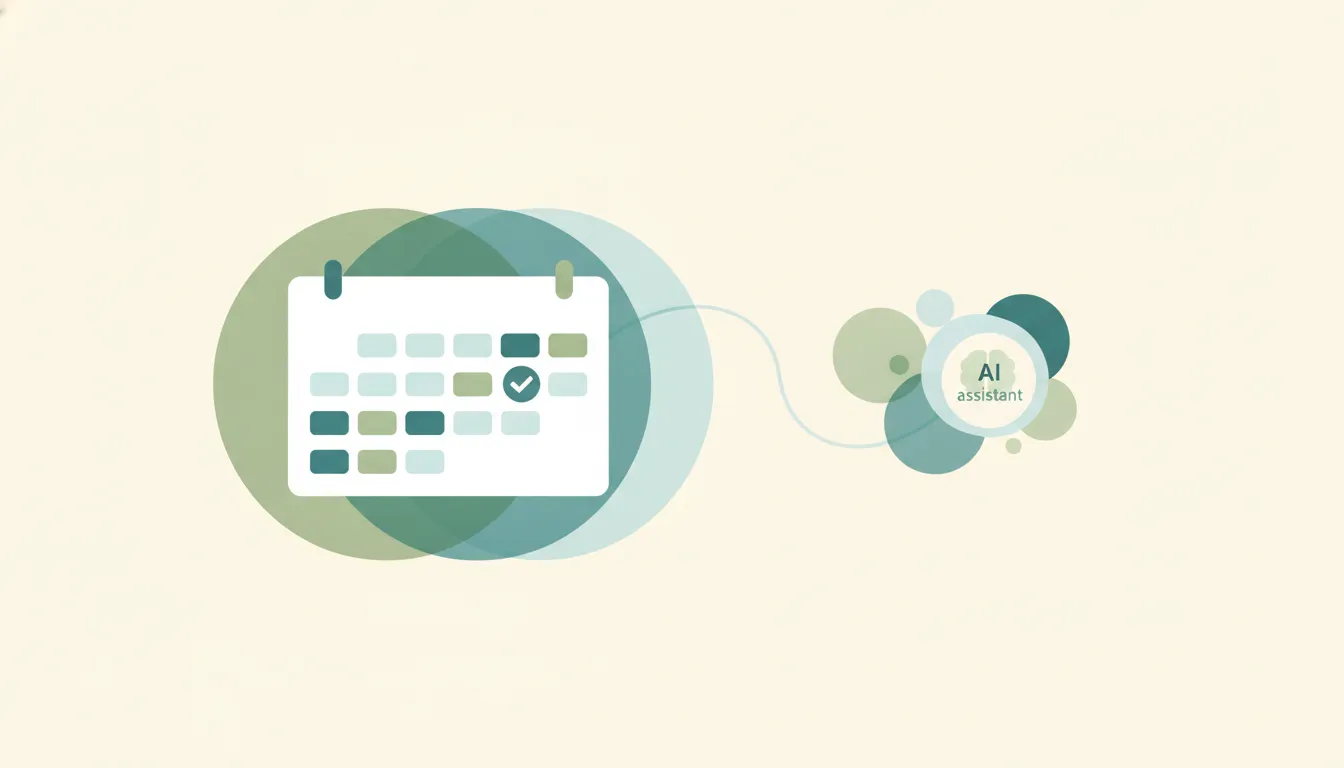
You can wire OpenAI Codex to Google Calendar through an MCP server, but it's a developer setup and Codex is a coding agent, not a scheduler.
Yes, and since August 2026 the plugin holds several Gmail accounts. Outlook has none at all. Connect every mailbox to Carly and reach all of them at once.
Codex has a first-party Outlook Calendar plugin that books and reschedules. Where free/busy runs out, and how Carly closes the loop on its own.

Codex has a first-party Outlook Email plugin. What it sends, the plain-text limit, and how one MCP server puts every Outlook and Gmail mailbox in reach.
Codex reaches Slack two ways: an app that launches coding tasks and a plugin that summarizes channels. Neither one runs Slack for you.
Ahrefs now has an official Claude connector, but nothing alerts you when a link drops. What it can do, its limits, and how to run Ahrefs work on real triggers.
Claude can work with Amazon via an MCP server, but nothing fires when an order lands or stock runs out. What works, what doesn't, and how to run it on real triggers.
Amplitude now has an official Claude connector, but nothing pings you when a metric drops. What it can do, its limits, and how to run it on real triggers.
Apollo now has an official Claude connector, but nothing fires when a prospect replies. What it can do, its limits, and how to run outbound on real triggers.
Claude can work with Bitbucket via an MCP server, but nothing fires when a PR opens. What works, what doesn't, and how to run it on real triggers.
Brex now has an official Claude connector, but no transaction ever reaches it. What it can do, its limits, and how to run it on real triggers.
Claude can work with Bubble via an MCP server, but it can't subscribe to your database. What works, what doesn't, and how to run it on real triggers.
Claude can work with Capsule CRM via an MCP server, but no deal change ever reaches it. What works, what doesn't, and how to run it on real triggers.
Claude can work with CircleCI via an MCP server, but a red build never reaches it. What works, what doesn't, and how to run it on real triggers.
Cloudflare now has an official Claude connector, but nothing it does fires on an event. What it can do, its limits, and how to run it on real triggers.
Claude can work with Customer.io via an MCP server, but only inside a chat you start. What works, what doesn't, and how to run it on real triggers.
Datadog now has an official Claude connector, but nothing in it reacts to a firing monitor. What it can do, its limits, and how to run it on real triggers.
Claude can work with Dropbox Sign via an MCP server, but only inside a chat you start. What works, what doesn't, and how to run it on real triggers.
Claude can work with Microsoft Dynamics 365 via an MCP server, but only inside a chat you start. What works, what doesn't, and how to run it on real triggers.
Claude can work with ElevenLabs via an MCP server, but nothing ever fires on an event. What works, what doesn't, and how to run it on real triggers.
folk ships its own hosted MCP server with OAuth, so setup is short. What it won't do is notice anything — nothing fires when a contact goes cold.
Claude can work with FreshBooks via an MCP server, but nothing ever fires when an invoice goes past due. What works, what doesn't, and how to run it on real triggers.
Claude can work with Google Ads via an MCP server, but it never fires on a campaign event. What works, what doesn't, and how to run it on real triggers.
Claude can work with Google Analytics via an MCP server, but it never fires on a traffic event. What works, what doesn't, and how to run it on real triggers.
Claude can work with Google Maps via an MCP server, but it never fires on an event. What works, what doesn't, and how to run it on real triggers.
Claude can work with Gorgias via an MCP server, but it never fires when a ticket arrives. What works, what doesn't, and how to run it on real triggers.
Claude can work with Gumroad via an MCP server, but it never fires when a sale lands. What works, what doesn't, and how to run it on real triggers.
Claude can work with Harvest via an MCP server, but it never fires on a Harvest event. What works, what doesn't, and how to run it on real triggers.
Hugging Face now has an official Claude connector, but nothing on the Hub can start it. What it can do, its limits, and how to run it on real triggers.
Claude can work with Instantly via an MCP server, but no reply or new lead can trigger it. What works, what doesn't, and how to run it on real triggers.
Claude can work with Keap via an MCP server, but it can't be a step in Keap's automation. What works, what doesn't, and how to run it on real triggers.
Claude can work with Kit via an official MCP server, but no new subscriber can trigger it. What works, what doesn't, and how to run it on real triggers.
Claude can work with lemlist via an MCP server, but no reply or bounce can trigger it. What works, what doesn't, and how to run it on real triggers.
Claude can work with Lever via an MCP server, but no application or stage change can trigger it. What works, what doesn't, and how to run it on real triggers.
Claude can work with MailerLite via a deep official MCP server, but a new subscriber never wakes it. What works, what doesn't, and how to run it on real triggers.
Make now has an official Claude connector, but no Make webhook can wake Claude up. What it can do, its limits, and how to run it on real triggers.
Meta's official Ads MCP server lets Claude read and write campaigns, but no spend spike can wake it. What works, what doesn't, and how to run it on real triggers.
Mixpanel now has an official Claude connector, but no metric crossing a threshold can wake it. What it can do, its limits, and how to run it on real triggers.
Nutshell ships a free official MCP server for Claude, but it is read-only and no stage change can reach it. What works, what doesn't, and how to run it on real triggers.
Omnisend runs an official MCP server for Claude, but no abandoned cart can reach it. What works, what doesn't, and how to run it on real triggers.
Claude can call GPT models through a community MCP server and your API key, but never on an event. What works, what doesn't, and how to run it on real triggers.
PandaDoc has an official Claude connector, but nothing in your document pipeline can trigger it. What it can do, its limits, and how to run it on real triggers.
Claude works with Productboard via a community MCP server, but no incoming note can trigger it. What works, what doesn't, and how to run it on real triggers.
Rippling's official MCP connects Claude to your HR data, but nothing in Rippling can start the work. How to set it up, and how to run it on real triggers.
Claude can work with Salesflare via an MCP server, but nothing in your pipeline can start the work. What works, what doesn't, and how to run it on real triggers.
Claude can work with Segment via an MCP server, but no Segment event can start it. What works, what doesn't, and how to run it on real triggers.
Semrush now has an official app in Claude's connector directory, built on its official MCP server. What the connection can do, and where the lack of triggers bites.
Claude can work with SendGrid via an MCP server, but no webhook event can reach it. What works, what doesn't, and how to run it on real triggers.
TickTick now has an official Claude connector, but nothing fires when an email lands or a task goes overdue. What it can do and where it stops.
Claude can work with Toggl via a community MCP server, but nothing fires when a timer runs long. What works, what doesn't, and how to run it on real triggers.
Vercel now has an official Claude connector, but no deploy failure ever triggers it. What it can do, its limits, and how to run it on real triggers.
Wix now has an official Claude connector, but no form submission or order ever triggers it. What it can do, its limits, and how to run it on real triggers.
Claude reaches YNAB through community MCP servers. Here's what works, what does not, and the simpler Carly path over email or text.
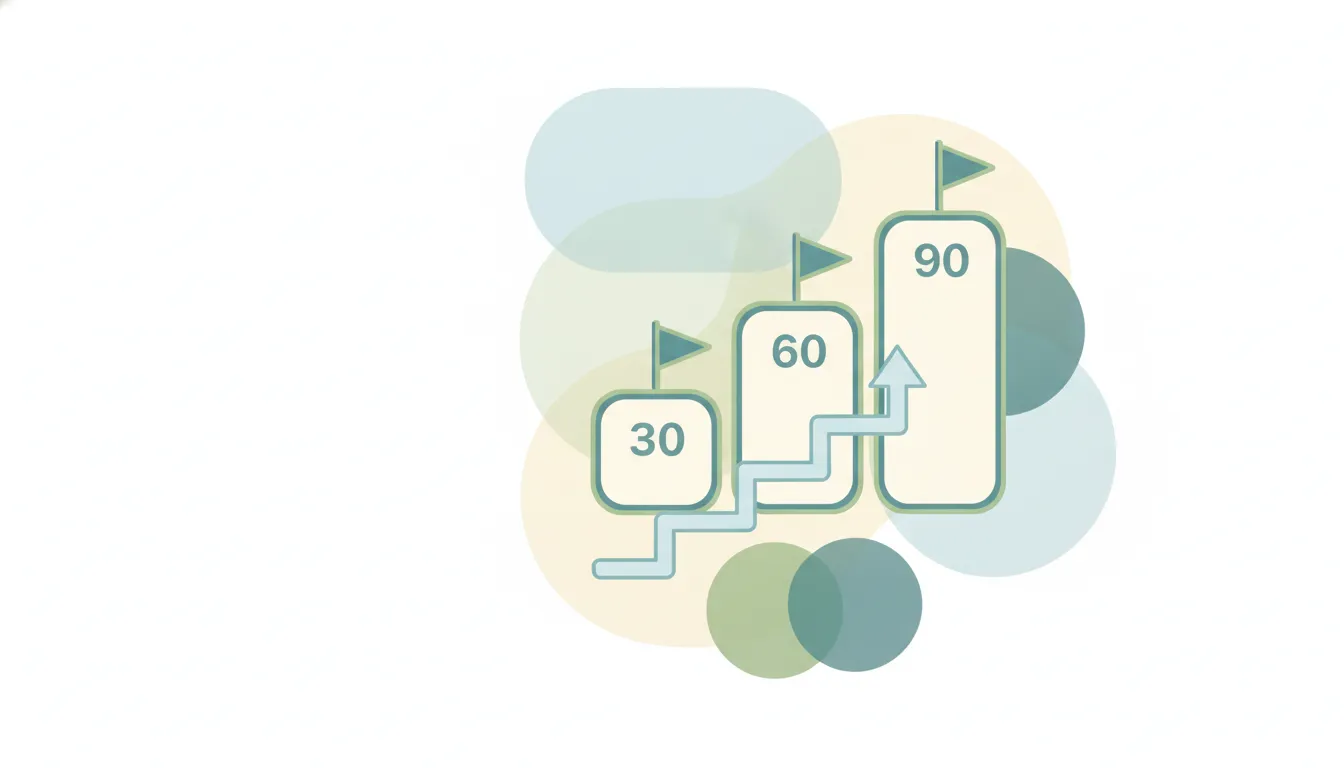
A 30-60-90 day plan structures your first three months in a new role. Learn the framework, see example plans for sales and management, and grab a template.
A research-backed guide to the all-hands (company town hall): why transparency earns the hour, the silence problem that quietly kills it, an agenda built from employees' real questions, remote and hybrid formats, real Q&A, and measurement that proves it's working.

The economics of fragmented attention: what task-switching actually costs, why Cal Newport's deep work idea holds up, the newer data on the interrupted workday, and the honest limits of the advice for collaborative jobs.

Eat the frog means tackling your hardest, most important task first thing each morning. Here's how the method works, how to find your frog, and a daily routine.
Learn how the Eisenhower Matrix sorts tasks by urgent vs important across four quadrants, with real work examples, the research on why we misjudge urgency, a step-by-step build, and common mistakes.

The real science of habit formation—why 21 days is a myth, how long it actually takes, and a step-by-step system built on cues, repetition, and environment design.
A practical guide to delegation: why managers under-delegate, what to hand off versus keep, a levels-of-delegation model, and a step-by-step handoff process.

What burnout actually is, what the research says drives it, and a measured, evidence-aligned approach to recovery — including psychological detachment, the six areas of worklife, and when to seek professional help.

A practical guide to running 1:1 meetings: cadence, who owns the agenda, a default structure, a bank of 1:1 questions, and how to follow up.

Saying no at work is hard, but every yes has a cost. Learn the psychology behind it and get copy-paste scripts to decline meetings, projects, and requests without burning bridges.

Procrastination is emotion regulation, not laziness. This guide organizes the science-backed fixes by the emotional lever each one pulls — so you can match the right tactic to what you're actually avoiding.
Learn how to write a meeting agenda that keeps meetings on track. Step-by-step guide plus 5 copy-paste templates for team, 1:1, kickoff, client, and board meetings.
Free meeting minutes templates for board, team, project, and 1:1 meetings, plus a step-by-step guide to taking, distributing, and tracking minutes.

What the 80/20 rule really is, where it came from (Pareto, Juran, Koch), why the numbers don't need to sum to 100, and how to find the vital 20% of your work.
A 2-D phrase bank by competency and rating level, self-evaluation examples, and the rater-bias science behind why vague reviews fail. Turn generic praise into specific, behavioral language.

Learn the Pomodoro Technique: the exact 25/5 timer steps, why it beats context-switching, how to adapt intervals, the best timers, and mistakes to avoid.

Learn what SMART goals are, where the framework came from, and how to write them. Includes before/after examples, a fill-in template, and common mistakes to avoid.
A research-backed guide to the daily stand-up: what the Scrum Guide actually says, the three-questions history, what studies find makes them useful vs wasteful, remote and async formats, and anti-patterns to avoid.

There are two 2-minute rules — David Allen's 'do it now' processing heuristic and James Clear's habit-starting trick. Here's what each says, when to use it, and where it backfires.

OKRs explained through the one rule generic guides skip: you're supposed to score 0.7, not 1.0. Committed vs. aspirational OKRs, the 0.0–1.0 scale, real examples, and the anti-patterns that turn OKRs into theater.
AI app builders (Replit, Base44, Lovable, Bolt, v0) build software. AI assistants (Carly) do ongoing work for you. A clear comparison and when you need which.
Base44 pricing explained: the Forever Free plan, paid tiers from about $16 to $160/month, how message and integration credits work, and whether it is worth it.
The AI agents every founder should deploy in 2026 — executive assistant, sales, support, and more — plus where app-building agents fit as a separate class.

The AI stack indie hackers actually run in 2026 — for building, marketing, and the ops nobody talks about. What earns its place when you are a team of one.
The AI toolkit for people building software by vibe coding — app builders to ship fast plus the assistant and ops tools to run the business around it.
You shipped an MVP with Lovable or Replit. Now come the inbox, demo scheduling, follow-ups, and invoicing. The unglamorous AI tools that run the startup.
Can Perplexity read, reply to, and manage your email and calendar? The honest answer for 2026 — what Perplexity does, what it does not, and what to use instead.
Can Replit Agent — or Base44, Lovable, Bolt, v0 — manage your inbox and calendar? No. Here is why app-building agents can not, and which AI agent actually can.
Devin's 2026 pricing runs from $20 to $500/month across Core, Team, and Enterprise, billed in ACUs. See real per-task costs and whether Devin is worth it.

A clear breakdown of Lovable pricing in 2026: Free, Pro, and Business plans, how message credits burn, real monthly cost, and whether it is worth it.

A clear breakdown of Perplexity pricing in 2026 — Free, Pro, Max, Education, and Enterprise plans, plus Comet Plus and the Sonar API, and whether it is worth it.
Replit Agent now uses effort-based pricing, so you learn a task's cost only after it runs. Here is how checkpoints work, why it caused backlash, and what to expect.

A clear breakdown of v0 by Vercel pricing in 2026: Free, Premium, Team, and Business plans, how token credits actually burn, and whether it is worth it.
Base44 turns a plain-English description into a working full-stack app: UI, database, auth, and hosting. Here is how it works, who bought it, and its limits.
Bolt.new is a browser-based IDE that builds full-stack apps with Claude in WebContainers. Here is what it does, its framework flexibility, limits, and who it is for.
Devin is Cognition's autonomous AI software engineer that plans, codes, tests, and opens PRs on its own. Learn how it works, Devin Desktop, and who it's for.
Lovable turns a prompt into a full app with auth and a database. Here is what it does, why non-technical founders love it, its limits, and who it is for.

Perplexity is an AI answer engine that searches the live web and replies with cited sources. Here is how it works, the models it uses, Comet, and who it is for.

Replit Agent builds full-stack apps from a prompt and shows you the code. Learn what it does, what Agent 3 added, and how the glass-box approach differs.
v0 by Vercel turns natural-language prompts into React and Next.js code. Here is what it does, where it shines, its limits, and who it is actually built for.
Vibe coding means building software by describing it to an AI in plain English. Learn where the term came from, the tools that do it, and its real pros and cons.
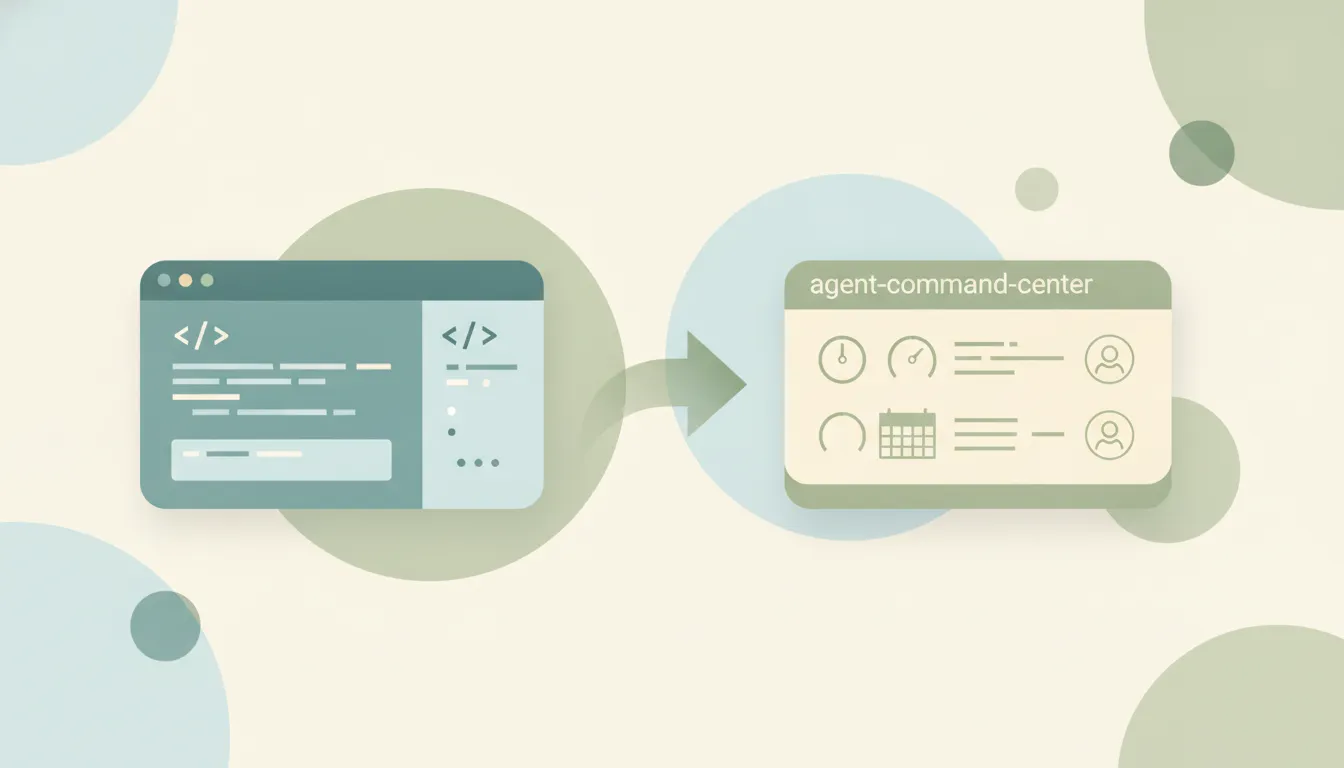
Cognition rebranded Windsurf as Devin Desktop on June 2, 2026. Cascade hits end-of-life July 1, replaced by Devin Local. Here's what changed and what to do.
Looking for an Amie alternative? These 5 tools cover calendar, tasks, and AI meeting notes — including options that work on Outlook and outside the Apple ecosystem.
Looking for an April alternative? These 5 AI executive assistants manage email and calendar — including options you control by text instead of voice, with Outlook support and group scheduling.
Calendly retired Essentials and Professional for new customers. Here is the current six-plan lineup, who kept their old plan, and what to do next.

Looking for a Consul alternative? These 5 AI executive assistants handle email triage, scheduling, and briefings — including options with Outlook support, group scheduling, and meeting recording.

If Evernote's plans look different, you're not imagining it. A November 2025 overhaul retired Personal and Professional, raised prices, added storage caps, and shrank the free tier. Here's what changed.
If Sunsama costs more than you remember, you're right. In early 2026 Sunsama raised prices for the first time in about five years. Here's the new pricing and what to use if it's too much.
If Trello suddenly looks unfamiliar, you're not imagining it. A May 2025 redesign changed the layout, fonts, and buttons and moved some features. Here's what changed and what to do.
Looking for a Fellow alternative? These 5 AI meeting tools cover agendas, transcripts, and action items — including one that acts on the follow-ups for you.
If you can't log into Clockwise anymore, you're not imagining it. Salesforce acquihired the team and shut the product down entirely in March 2026 — here's the timeline, what happened to your data, and what to use instead.

Worried Reclaim.ai is next after Clockwise got shut down? Good news: Reclaim is not shutting down. It's owned by Dropbox and still running. Here's the full picture and how to lower your acquisition risk.
Looking for a Lunacal alternative? These 5 scheduling tools cover booking pages, round-robin, and payments — plus an option that schedules over email with no booking link.

Mayday, the AI-assisted calendar, has shut down. Here are 5 alternatives that auto-suggest ideal times and handle scheduling — including one that runs over email and text.
Looking for a Mindy alternative? These 5 AI assistants handle email, calendar, and research — including options that work over text and cover Outlook, not just Gmail.

Looking for a Morgen alternative? These 5 tools unify calendars and tasks with AI planning — including an option that runs entirely over email and text.

If you can't find the standalone Notion AI add-on anymore, you're not imagining it. In May 2025 Notion folded full AI into its Business tier. Here's what changed and what each plan gets now.

Looking for a Simular alternative? These 5 AI assistants handle email, calendar, and tasks — including purpose-built executive assistants that skip the brittleness of computer-use agents.

Looking for a Stamp alternative? These 5 AI email and inbox tools draft in your voice and organize mail — including full executive assistants that also handle calendar, scheduling, and CRM.
Grammarly bought the AI email client Superhuman in July 2025, then renamed its parent company "Superhuman" that October. Here's what actually changed, whether the email app still works, and what to use instead.
If Amie feels like a different app than the calendar you fell for, you're not imagining it. In 2025 Amie shifted emphasis toward being an AI meeting notetaker. Here's what changed and what to use if you wanted the calendar.

If your Google Calendar reminders vanished, you're not imagining it. In late 2025 Google migrated reminders from Calendar, Assistant, and Keep into Google Tasks — here's what changed, what broke, and how to track reminders reliably again.
Add and remove collaborators in Asana, understand collaborators vs assignee, what collaborators get notified about, and project members vs task collaborators.
Alphabetize in Google Sheets: sort a single column, sort a range while keeping rows together, sort the whole sheet, use the SORT function, and handle headers.
Assign tasks in Asana with the assignee field, reassign work, multi-home tasks, the Tab+A shortcut, and the one-assignee workaround using subtasks.
Create a public or private channel in Slack, name it well, add people, choose the right channel type, and learn who can create channels in 2026.
How to create a dashboard in HubSpot from a template or from scratch: adding reports, filtering, sharing and permissions, and dashboard limits by plan tier.
Step-by-step guide to building a form in HubSpot: embedded, standalone, and pop-up types, fields, follow-up email, embedding code, and free-tier limits.
Create a project in Asana from scratch or a template, pick list, board, timeline, or calendar layout, set privacy, add it to a team, and invite members.
Create a shared link in Dropbox, set it to view or edit, add a password and expiration date on paid plans, and disable a link when you are done.
How to create a task in HubSpot from a record or the Tasks tool: task types (call, email, to-do), due dates, reminders, queues, and associating to contacts and deals.
Create sections in Asana in List and Board views, use the Tab+N shortcut, move tasks between sections, and understand how sections relate to board columns.
Delete a Slack account by deactivating it, understand member vs owner permissions, what happens to your data, and how to delete a whole workspace.
Duplicate a task in Asana, choose what to copy (assignee, dates, subtasks, attachments), duplicate a whole project, and when to use a template instead.
Highlight duplicates in Google Sheets with a COUNTIF conditional formatting rule: flag a single column, whole rows, find duplicates, then remove them.
Leave a Slack workspace on desktop, web, or mobile, understand leaving a channel vs a workspace, deactivating your account, and how to rejoin later.
How to log a call in HubSpot: record call activity on a contact or deal, set call outcomes, call from HubSpot vs logging manually, associate records, and add notes.
Make a graph in Google Sheets: select your data, insert a chart, pick the right chart type, customize colors and labels, and move the chart to its own sheet.
Merge cells in Google Sheets: merge all, merge horizontally, merge vertically, center text across columns, unmerge, plus the sorting caveats to know first.
Move files in Dropbox by drag or right-click Move, on web, desktop, and mobile, move vs copy, bulk move, and keep shared links and permissions intact.
Use Dropbox File Requests to collect files from anyone, set where uploads land, add a deadline, and let senders upload without a Dropbox account.
How to send email in HubSpot: 1:1 sales emails from a contact record with a connected inbox, plus the Marketing Email tool for bulk sends, templates, and free vs paid.
Set due dates in Asana, add due times and start dates, create recurring due dates, use natural-language date entry, and see how dependencies shift dates.
Set reminders in Slack with the /remind command, message reminders, recurring reminders, and Slackbot, plus how to view and delete them in 2026.
Share a Dropbox folder with specific people or a link, set edit vs view permissions, share with non-Dropbox users, and add a password or expiry on paid plans.
Upload files to Dropbox from the web, desktop sync folder, or mobile app, drag and drop, upload whole folders, and handle large files the right way.
Use COUNTIF in Google Sheets to count cells by condition: text, numbers, wildcards, and dates, plus COUNTIFS for multiple criteria, with copy-paste examples.
Learn how to use Google Sheets from scratch: create and share a sheet, enter data, write basic formulas, format cells, collaborate, and use the mobile app.
Start a Slack huddle in a channel or DM, switch between audio and video, share your screen, invite others, use the huddle thread, and check plan limits.
Learn how to use Slack from scratch: workspaces, channels, DMs, threads, mentions, search, notifications, huddles, and apps, explained for new users in 2026.
Use SUMIF in Google Sheets to total cells by condition: text, numbers, wildcards, and dates, plus SUMIFS for multiple criteria and the most common errors.
Wrap text in Google Sheets so long entries show in full: use the toolbar or Format menu, compare wrap, overflow, and clip, apply to a range, and on mobile.
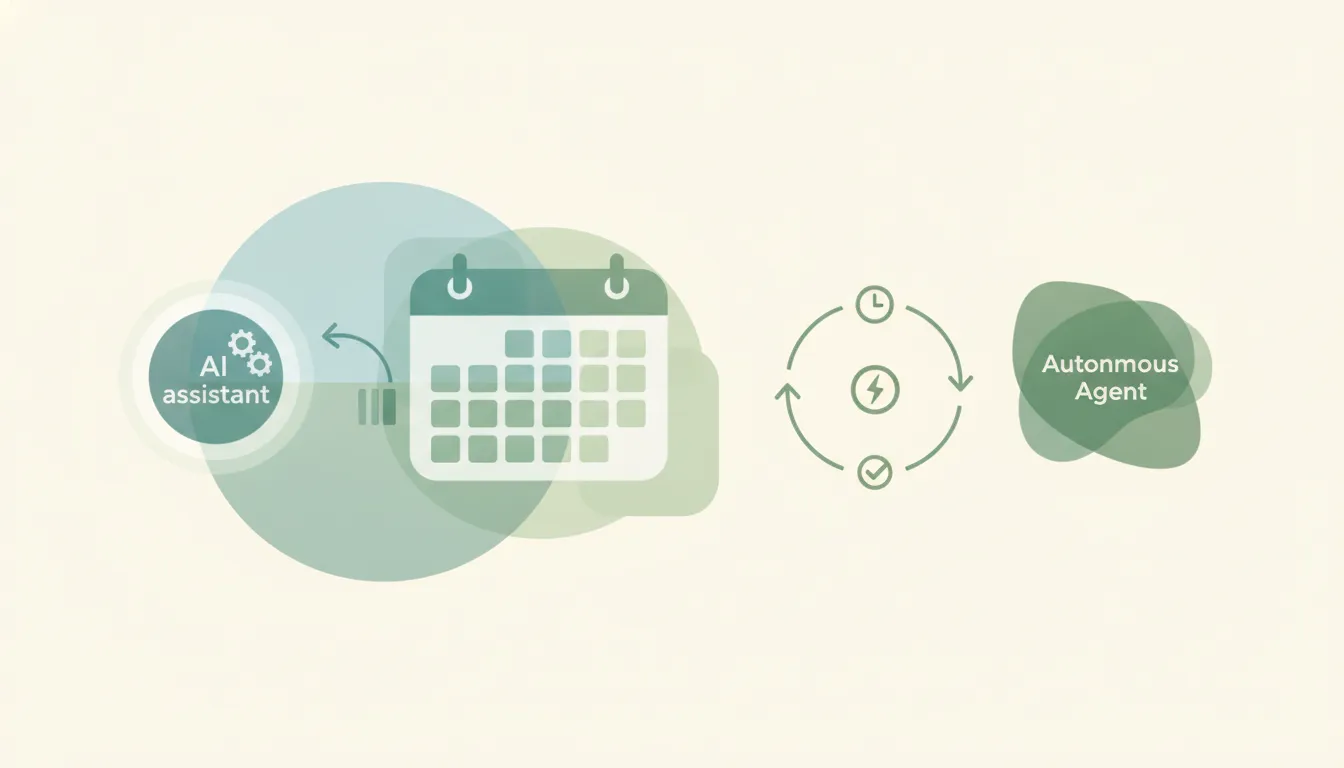
Claude can create a calendar event when you ask in chat — but it can't run a booking page, answer requests, or book on a trigger. Here's the honest breakdown, plus what does.
Claude explains and categorizes transactions you paste in chat, but it can't sync, reconcile, or post to your books on its own — no triggers. Here's where it stops and what does.
Claude writes excellent cold-email copy and personalization in chat, but it can't sequence or follow up on its own and every send waits on your click.
Claude is genuinely great at planning a content calendar — but it can't schedule posts, publish, or run the calendar on a trigger. Here's where it shines, where it stops, and what does the rest.
Claude is genuinely strong at reading and analyzing a contract you give it — but it can't intake contracts on a trigger, file them, or send redlines. The honest split.
Claude drafts great onboarding emails and checklists, but won't send unprompted or run a sequence on a trigger. The honest split, and what does onboard.
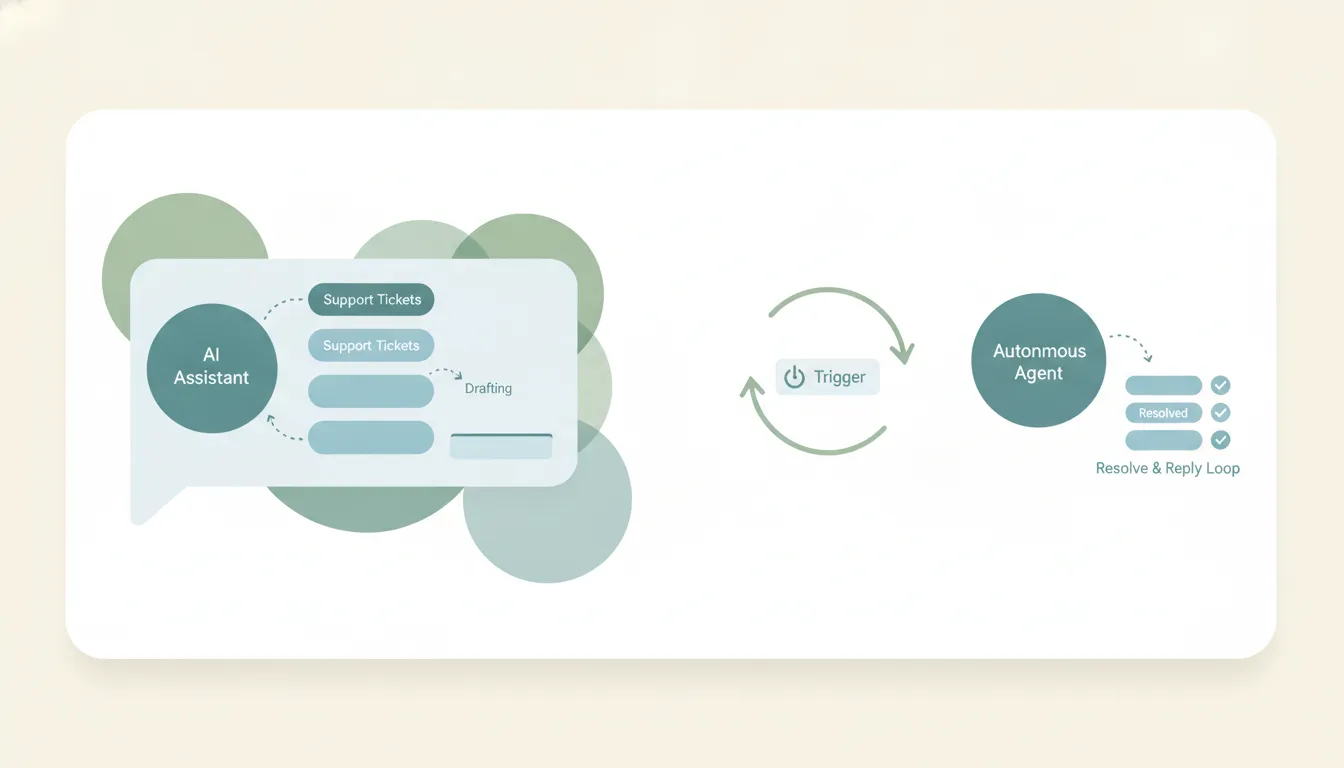
Claude reasons over a ticket and drafts a great support reply in chat — but it has no trigger to watch your queue, and support connectors are read-only. Here's what actually answers tickets.
Claude assembles a great briefing when you ask in chat — but it can't deliver one automatically on a schedule. Here's why, and what runs a real daily brief.
Claude can extract and format data when you paste it into a chat — but it can't watch a source and write to your systems on its own. Here's the honest line, and what does.
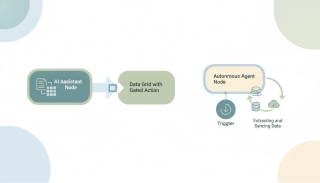
Claude extracts structured data from a document you paste in remarkably well, but it won't watch a folder or sync results into a sheet on its own. Here's the honest split — and what does.
Claude generates documents from a template beautifully, but it can't auto-fire them on a trigger, save them into your systems, or send them. Here's the honest split — and what does.
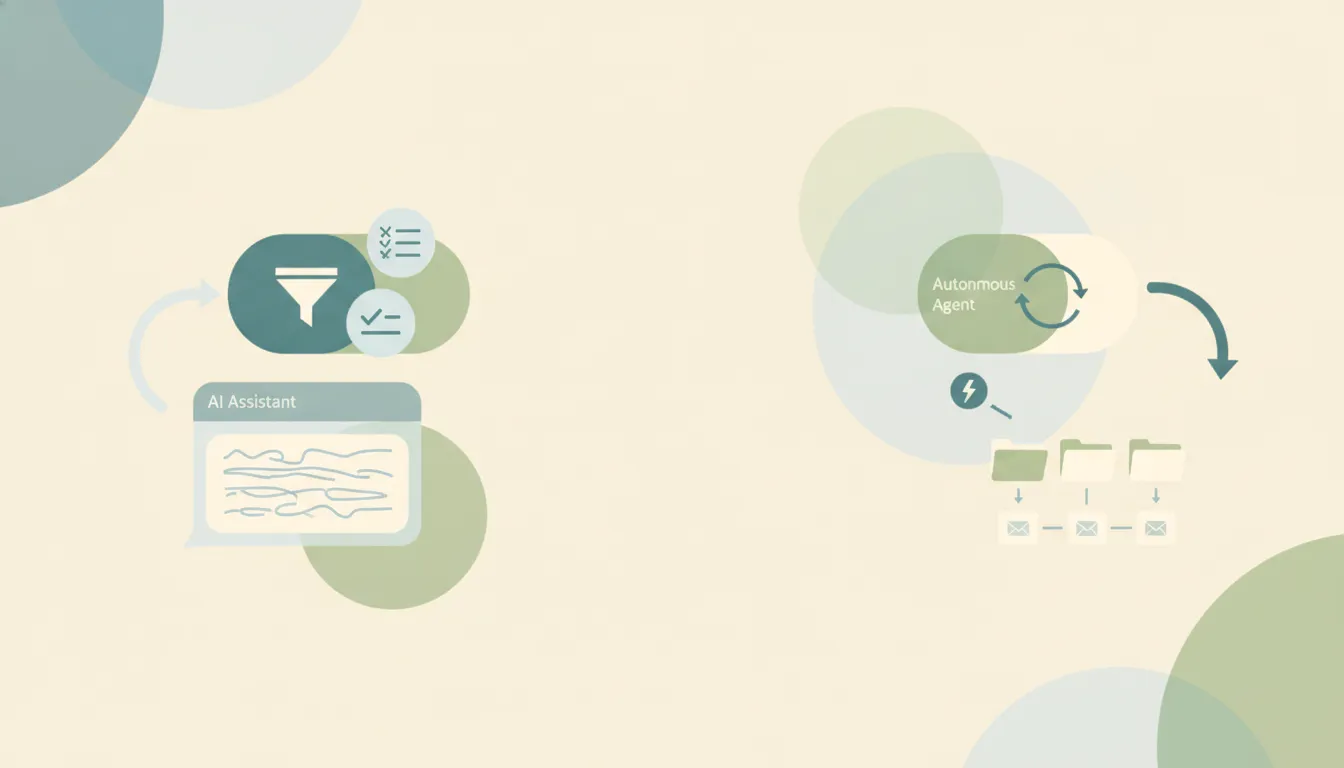
Claude can create Outlook inbox rules if an admin enabled write tools, but never a Gmail filter, and it never routes mail as it arrives. What actually does.
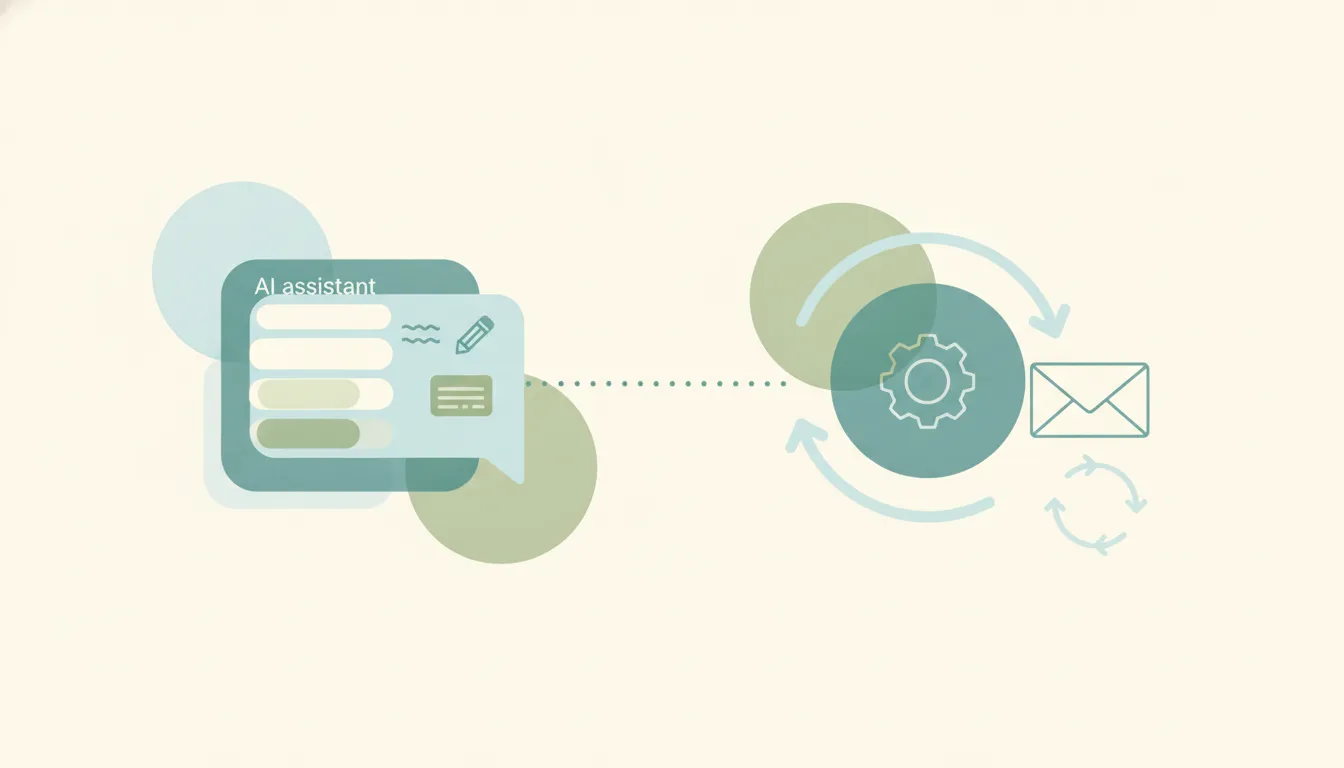
Claude is excellent at writing email templates — but it can't save them as reusable templates, insert them on send, or fire them on a trigger. Here's the honest breakdown and what does.
Claude can prep, summarize, and draft like a sharp chief of staff — but it can't triage your inbox, run your calendar, or follow up on its own. Here's exactly where it stops, and what does the EA job.
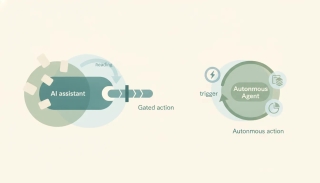
Claude reads receipts and tabulates an expense report from files you paste in chat, but it can't collect receipts from your inbox or file the report on its own. Here's the honest breakdown.
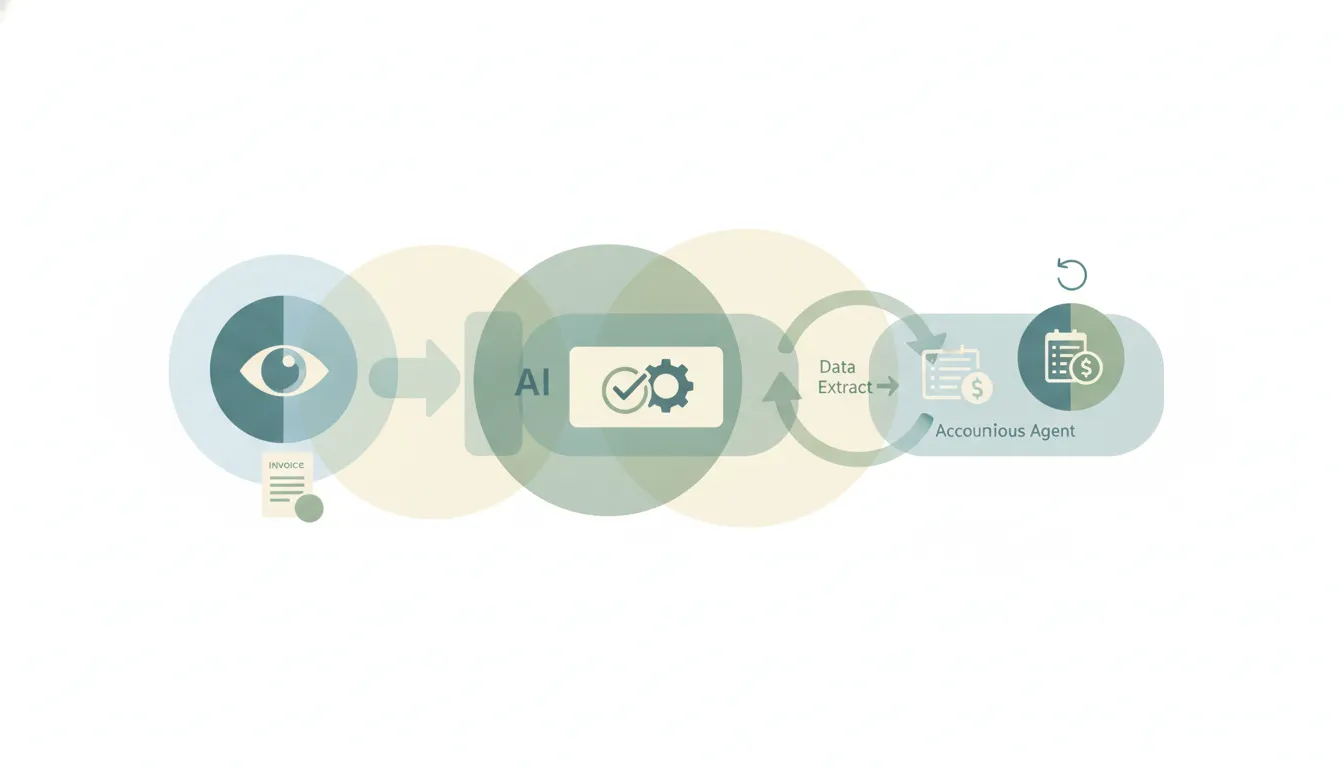
Claude extracts invoice fields beautifully from a doc you paste in chat — but it can't watch an inbox or post to your accounting system on its own. Here's the honest breakdown.
Claude answers brilliantly from docs you give it, but it can't keep a knowledge base updated on its own — no triggers, no autonomous saving. Here's the honest split, and what does.
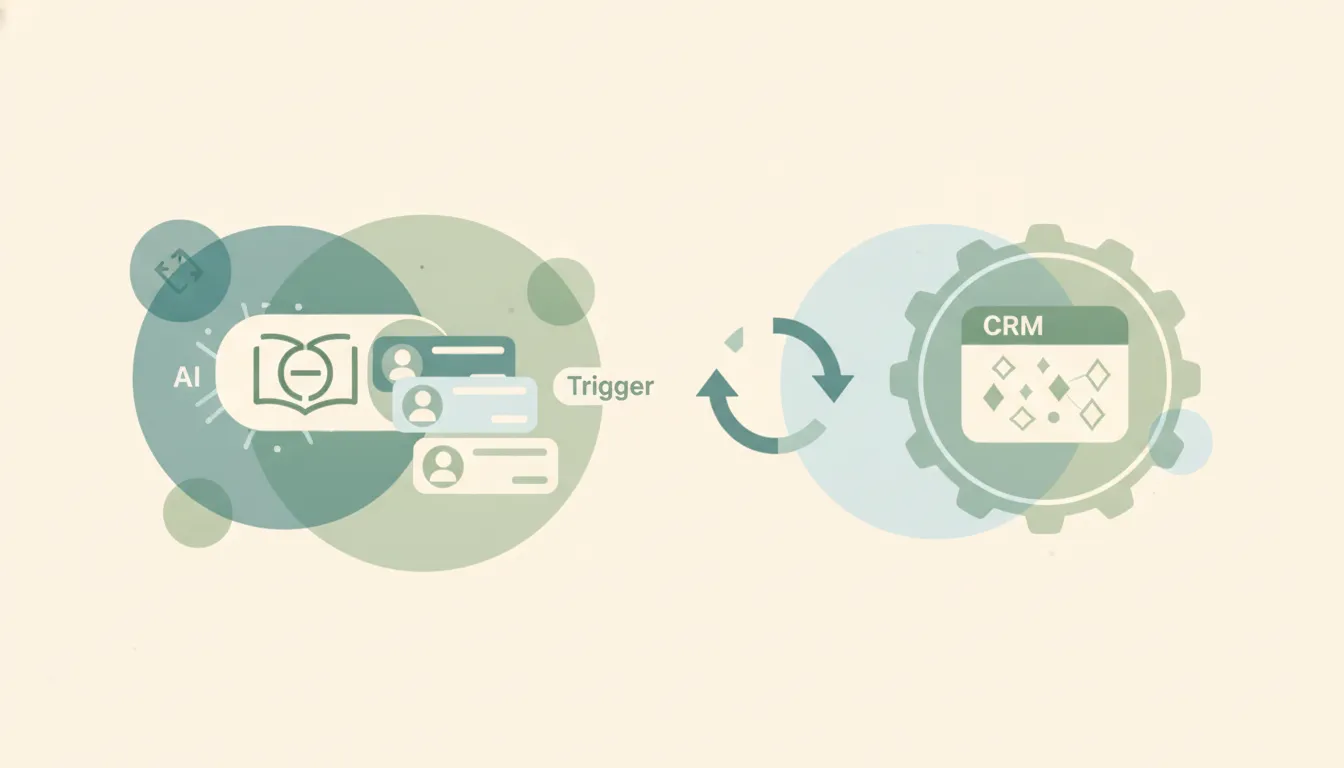
Claude can research and draft outreach to leads in chat — but it can't continuously source, enrich, or push leads into your CRM on its own. Here's what actually runs lead gen for you.
Claude drafts a strong newsletter in chat, but it can't send to a list, schedule an issue, or manage subscribers. Where it stops, and what mails your list.
Claude is excellent at cleaning up and organizing notes in chat, but it can't capture them live or file them on its own. Here's every surface — and what takes notes for you.

Claude can read an order email and draft a confirmation — but it can't catch orders on a trigger, update your systems, send the confirmation, or fulfill. The honest split.
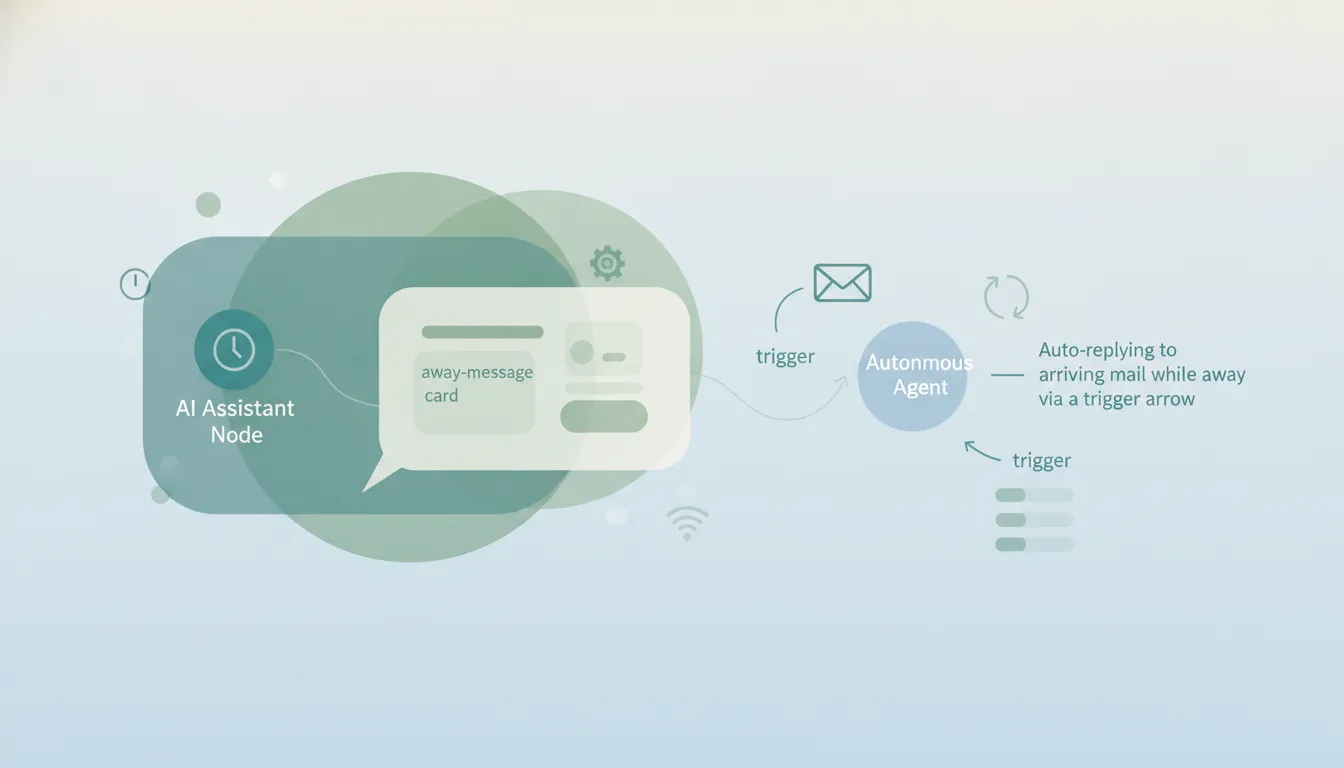
Claude can set an Outlook out-of-office if an admin enabled write tools, but it still can't auto-reply when mail arrives. What actually covers you.
Claude is a brilliant chat helper for life admin, but it drafts and reads only — no triggers, nothing fires on its own. Here's where it stops, and what actually runs your day.

Claude drafts plans and summarizes your board in chat, but it can't update tasks, change statuses, or chase owners on its own — no triggers. Here's the honest breakdown.
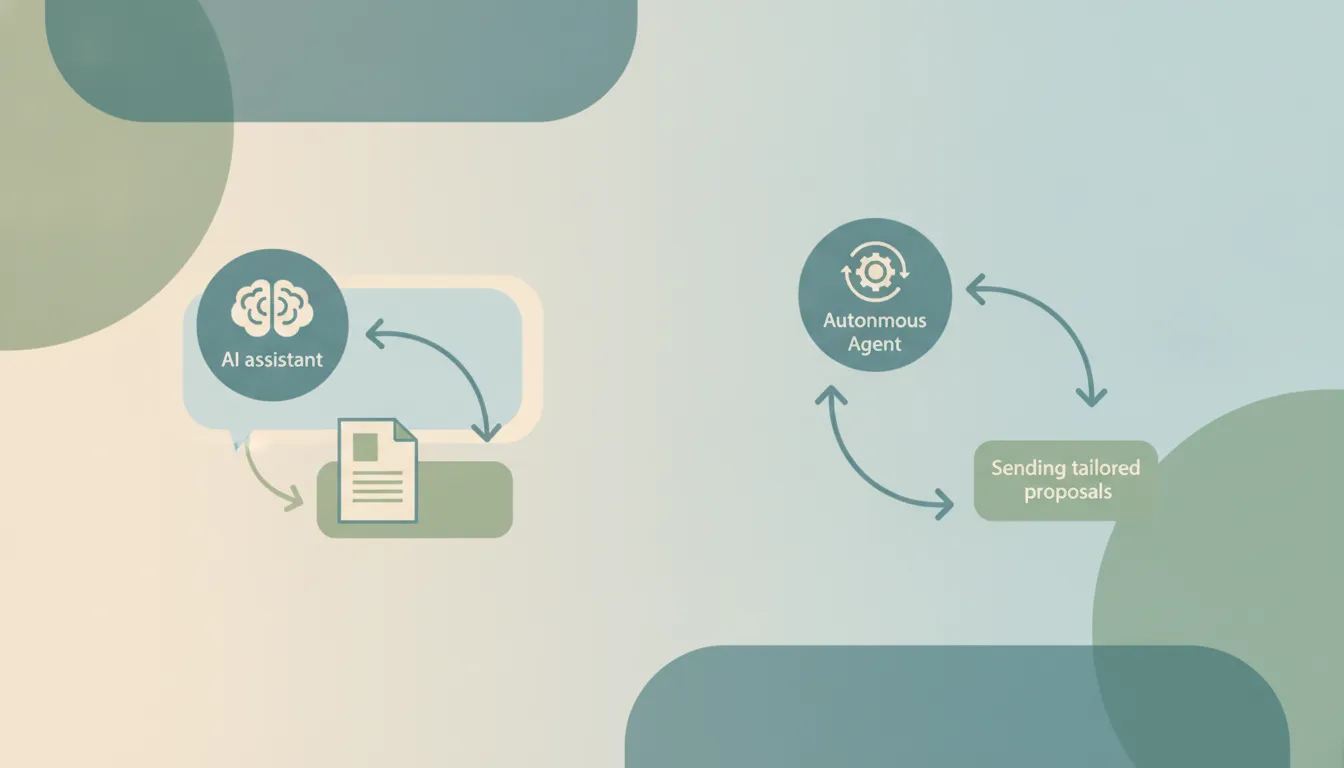
Claude writes a genuinely strong client proposal from your notes — but it can't pull the details together, attach it, send it, or follow up. Here's the honest line.
Claude is great at researching a prospect and drafting outreach, but it can't build a lead list on a trigger, enrich it, or send the sequence. Here's the honest split.
Claude calculates and drafts a clean price quote from your inputs — but it can't pull live pricing, attach the quote, send it, or log it. Here's the honest line.
Claude screens resumes and drafts outreach in chat, but it can't watch your ATS, move candidates, or schedule interviews on its own — no triggers. Here's the honest breakdown.
No — Claude has no native reminders that fire on their own. No timers, no triggers, and Cowork runs on a fixed clock, not on events. Here's the real picture, and what actually reminds you 24/7.
Claude synthesizes sources brilliantly and now gathers on a schedule — but it still can't monitor a topic or file the brief. Here's the honest line, and what does.
Claude can summarize feed content you bring it, but it can't subscribe to RSS, poll for new items, or send you a digest on a schedule. Here's the reality — and what does.
Claude writes great social posts and captions in chat — but it can't schedule or publish them, and social connectors are custom MCP with no triggers. Here's what actually posts for you.
Claude can write formulas and reason over a spreadsheet in chat — but the Excel connector can't edit cells and there are no triggers, so it can't update sheets on its own.
Claude writes a great status report when you feed it the inputs — but it can't gather the data, run on a schedule, or send the update on its own. Here's the breakdown and what actually does.
Yes — Claude summarizes documents you upload or point it to in chat, and it's excellent. But it can't summarize files on arrival or file them. Here's the honest line.
Claude analyzes survey results brilliantly when you paste them in, but it can't watch for new submissions, route them, or sync results on its own. Here's the honest split — and what does.
Claude can draft a to-do list and reason about priorities — but it can't create, track, or complete tasks on its own. No triggers, nothing persists. Here's the real picture, and what does manage tasks.

Claude can format timesheets and reason about your hours, but it can't track time, log entries, or run a timer. Here's every surface — and what actually logs your time.

Claude can build and prioritize a to-do list in chat, but it can't keep it, remind you, or act on it. Here's every surface — and what runs your task list for you.
Claude does a task brilliantly when you ask — but you can't hand it standing responsibilities. On its own it doesn't send, act on triggers, or work while you're offline. Here's what it can delegate, and what it can't.
Yes — with the Google Calendar connector Claude can create and edit events when you ask in chat. But there are no triggers, no autonomous booking, and no Outlook send. Here's the full picture.
Yes, Claude has an official ActiveCampaign connector — work with campaigns, lead scoring, and customer-journey data inside a chat. The catch: it only works in a conversation you start, with no triggers. The honest guide.
Claude has an official Airtable connector that reads and writes — bring your bases, tables, and records into a chat and update them. But nothing fires on an Airtable event. The honest guide.
Yes, Claude has an official Asana connector — read and update tasks and projects, with a live Asana UI inside chat. The catch: it only works in a conversation you start. The honest guide.
Yes, Claude has an official Attio connector — search and manage CRM data inside a chat. The catch: it only works in a conversation you start, with no triggers. The honest guide.
No — every Claude send waits on your approval and it has no triggers, so there is no true auto-reply. Here's why, and what real automatic email replies take.
Claude can run a repetitive task on a timer now — but not on a trigger, and not in response to what lands in your inbox. Here's where it stops, and what finishes the job.
Claude runs steps on request and on a schedule — but it has no event triggers, so nothing starts when work arrives. What Skills, connectors, and Cowork really do.
BambooHR now has an official Claude connector, in beta. How to turn it on, what Claude can do with your HR data, and how to act when a new hire is added.
Basecamp ships an official MCP server in its CLI for Claude Code and Claude Desktop, but still no directory connector. How to set it up, and where it stops.
Yes, Claude has an official Box connector — search, read, and manage your cloud files from a chat. The catch: nothing fires when a file lands. The honest guide.
Yes, Claude has an official Brevo connector — draft campaigns, segment audiences, and analyze sends inside a chat. The catch: no subscriber or campaign event reaches it. The honest guide.

Claude reads and writes your Google Calendar on request, but it has no triggers and no autonomous reshuffling. Here is the gap, and what closes it.
Yes, Claude has an official Canva connector — create, autofill, and export designs inside a chat. The catch: nothing fires when a campaign kicks off. The honest guide.
Yes, Claude has an official ClickUp connector — read and work with tasks, docs, and projects from a chat. The catch: it only works in a conversation you start. The honest guide.
Yes, Claude has an official Close connector — work with pipeline, activity, and sequence context inside a chat. The catch: it only works in a conversation you start, with no triggers. The honest guide.
Coda (now Superhuman Docs) has a native connector in Claude's directory that reads and edits docs and tables. How to set it up, and where it stops.
Yes, Claude connects to Confluence through the Atlassian (Rovo) connector — search and summarize wiki pages in a chat or on a schedule. The catch: no event triggers. The honest guide.
Claude can read and reason over CRM data in chat, but it can't log activity or update records on its own — no triggers, no autonomous writes. Here's the honest breakdown, plus what does.
Claude.ai reaches Discord only through a custom MCP connector, and Claude Code's Discord plugin runs only while your session is open. The honest guide.
Yes, Claude has an official Dropbox connector with read/write access — search, read, and organize files from a chat. But nothing fires when a file lands. The honest guide.
Claude is a great email writer in chat, but every send waits on you, it has no triggers, and it doesn't run your inbox. Where it stops, and the alternative.
Claude can draft email beautifully — but on its own it doesn't send, and it has no incoming-mail triggers, so it can't run your inbox. Here's exactly where it stops, and what automates email on arrival.
Claude can suggest labels and a folder scheme in chat, but it can't apply them to arriving mail or file attachments — no triggers. Here's where it stops and what auto-labeling takes.
Claude writes great sequence copy in chat, but it can't run or send the sequence — no triggers, no sending. Here's the honest breakdown, plus what actually runs multi-step drips.
There's no one-click Eventbrite app in Claude's directory — you'd build a custom MCP server on a paid Claude plan, and it still never fires when a ticket sells. The honest guide.
There's no one-click Facebook connector in Claude's directory — connecting takes a custom MCP server and a paid plan, and even then nothing fires when a comment lands. The honest guide.
Yes, Claude has an official Fathom connector — work with call recordings, summaries, and action items. The catch: nothing fires when a call gets recorded. The honest guide.
Claude's official Figma connector inspects designs, extracts tokens, and turns files into code in a chat. The catch: nothing fires when a file changes.
Yes, Claude has an official Fireflies connector — search transcripts and pull decisions and action items. The catch: nothing fires when a transcript lands. The honest guide.
Claude can connect to Follow Up Boss — but only through a custom/third-party MCP server, not a one-click directory app. And it never fires when a new lead comes in. The honest guide.

Claude writes an excellent follow-up but can't time it and won't send unprompted: no triggers, approval every send. What sends follow-ups on schedule.
Freshdesk isn't in Claude's connectors directory — you connect it only through a custom MCP server, which needs a paid Claude plan. And it never fires when a ticket lands. The honest guide.
Claude can connect to Front — but only through a custom MCP server on a paid plan, not a one-click directory app. And it never fires on an inbox event. The honest guide.
GitHub isn't a one-click app in Claude's directory, but GitHub publishes an official remote MCP server you add as a custom connector. It still never fires on a repo event. The honest guide.
Yes, Claude has an official GitLab connector — work with merge requests, issues, and CI/CD context inside a chat. The catch: it never fires on a GitLab event. The honest guide.
Claude reads, searches, drafts and now sends in Gmail through Anthropic's Workspace connector. Every send waits on you, and nothing starts when mail arrives.
Claude connects to Gong through Gong's official MCP server, added as a custom connector. What it answers, how to set it up, and why it never fires on a call.
There's no dedicated Google Docs connector. Claude reads, shares and moves docs through Drive and saves new files, but can't edit a doc that already exists.
There's no first-party Google Classroom connector in Claude's directory. The only path is a custom MCP server on a paid plan — and it never fires on a Classroom event. The honest guide.
Claude's Google Drive connector reads your files and can save new ones — but it can't edit anything already there, and nothing fires when a file lands.
There's no first-party Google Meet connector in Claude's directory. The only path is a custom MCP server on a paid plan — and it never fires on a Meet event. The honest guide.
No dedicated Google Sheets connector. Claude reads spreadsheets via Drive and can save new ones as .xlsx — but it can't edit the sheet you already keep.
There's no first-party Google Tasks connector in Claude's directory. The only path is a custom MCP server on a paid plan — and it never fires on an event. The honest guide.
No dedicated Google Slides connector. Claude reads decks via Drive and can build a new one as .pptx — but it can't edit a deck that already exists.
Yes, Claude has an official HubSpot connector — read and update contacts, deals, and companies from a chat. The catch: it only works in a conversation you start. The honest guide.
There's no one-click Instagram connector in Claude's directory — connecting takes a custom MCP server and a paid plan, and even then no comment or DM can trigger it.
Claude can read and draft in your inbox when you ask, but it can't triage mail on arrival, file it, or act on triggers. Here's where it stops and what real inbox management takes.
Claude has an official Intercom connector — but it's read-only. Claude can pull conversations and customer context into a chat, not reply or change tickets. The honest guide.
Yes, Claude connects to Jira through the Atlassian (Rovo) connector — search and summarize issues inside a chat. The catch: it only works in a conversation you start. The honest guide.
Yes, Claude has an official Jotform connector — build forms, manage submissions, and handle routing inside chat. The catch: it only works in a conversation you start. The honest guide.
Claude has an official Klaviyo connector that reads and writes — access real-time marketing data and work with campaigns and flows from a chat. But it only works inside a conversation you start. The honest guide.
Yes, Claude has an official Linear connector — read and create issues and triage the backlog from a chat. But no issue or status change can trigger it.
There's no one-click LinkedIn connector in Claude's directory — connecting takes a custom MCP server and a paid plan, and even then no comment or DM can trigger it.
No — Claude can't log emails or meetings to your CRM automatically. It has no triggers, so the best it does is a manual chat pull. Here's the honest breakdown, plus what logs activity for you.
Claude has an official Intuit Mailchimp connector that reads and writes — work with email campaigns and audience data from a chat. But it only works inside a conversation you start. The honest guide.
Claude writes great meeting notes from a transcript you paste or a connector retrieves — but it can't capture notes live or join the call. Here's every surface, and what does.

Claude writes excellent meeting summaries and minutes from a transcript you give it — but it won't summarize automatically after a call or send the recap. Here's every surface, and what does.
Claude reaches an Excel workbook through the Microsoft 365 connector — read-only by default; admin-enabled write tools can create and update the file, but not clearly edit cells. Either way nothing fires when your data changes. The honest guide.
Claude reaches Teams via the Microsoft 365 connector, but Teams stays read-only even after the July 2026 write tools. It can search, not post.
Yes, Claude has an official Miro connector — read and write boards, sticky notes, and mind maps inside a chat. The catch: it only works in a conversation you start. The honest guide.
Yes, Claude has an official Monday.com connector — read and update boards, items, and updates from a chat. The catch: it only works in a conversation you start. The honest guide.
Yes, Claude has an official Notion connector — read and update pages and databases, pull notes into a chat. The catch: it only runs inside a conversation you start. The honest guide.
Claude reaches OneDrive through the Microsoft 365 connector — read-only by default, but with admin-enabled write tools it can now create and update files. Either way nothing fires when a file lands. The honest guide.
Two routes in, and they are not equal. The add-in drafts but never sends. The Microsoft 365 connector sends once an admin enables write tools.
Pipedrive's connector is in Claude's directory: read deals, update contacts, add notes and create leads from a chat. How to add it and where it stops.
Intuit publishes an official QuickBooks connector in Claude that creates invoices and reads your books. What it does, how to add it, and where it stops.
There's no one-click Reddit connector in Claude's directory — connecting takes a custom MCP server and a paid plan, and even then nothing fires on a Reddit event. The honest guide.
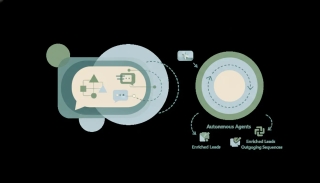
Claude is a strong sales copilot for research and drafting, but it's not an autonomous SDR — it can't send, has no triggers, and won't update your CRM on its own. Here's the honest breakdown.
Claude reaches Salesforce through its hosted MCP server as a custom connector, and nothing fires on a Salesforce event. What Claudeforce changes in September.
Yes, Claude has an official Sentry connector — monitor errors, analyze stack traces, and pull release-health context. The catch: nothing fires when an error spikes. The honest guide.
Claude reaches SharePoint via the Microsoft 365 connector: read-only by default, admin-enabled writes for files. Nothing fires on a SharePoint event.
Yes, Claude has an official Shopify connector — query products, analyze orders, and manage your store. The catch: nothing fires when an order lands. The honest guide.
Claude connects to Shortcut only through a custom MCP server on a paid plan, not a one-click app — and nothing fires on a Shortcut event. The honest guide.
Anthropic replaced Claude in Slack with Claude Tag — a taggable teammate with optional ambient monitoring. What it does, who gets it, where it stops.
Yes, Claude has an official Square connector — work with transaction, payment, and POS data inside a chat. The catch: nothing fires when a payment lands.
Yes, Claude has an official Stripe connector with read/write access — query payments, customers, and subscriptions from a chat. But nothing fires on a billing event. The honest guide.
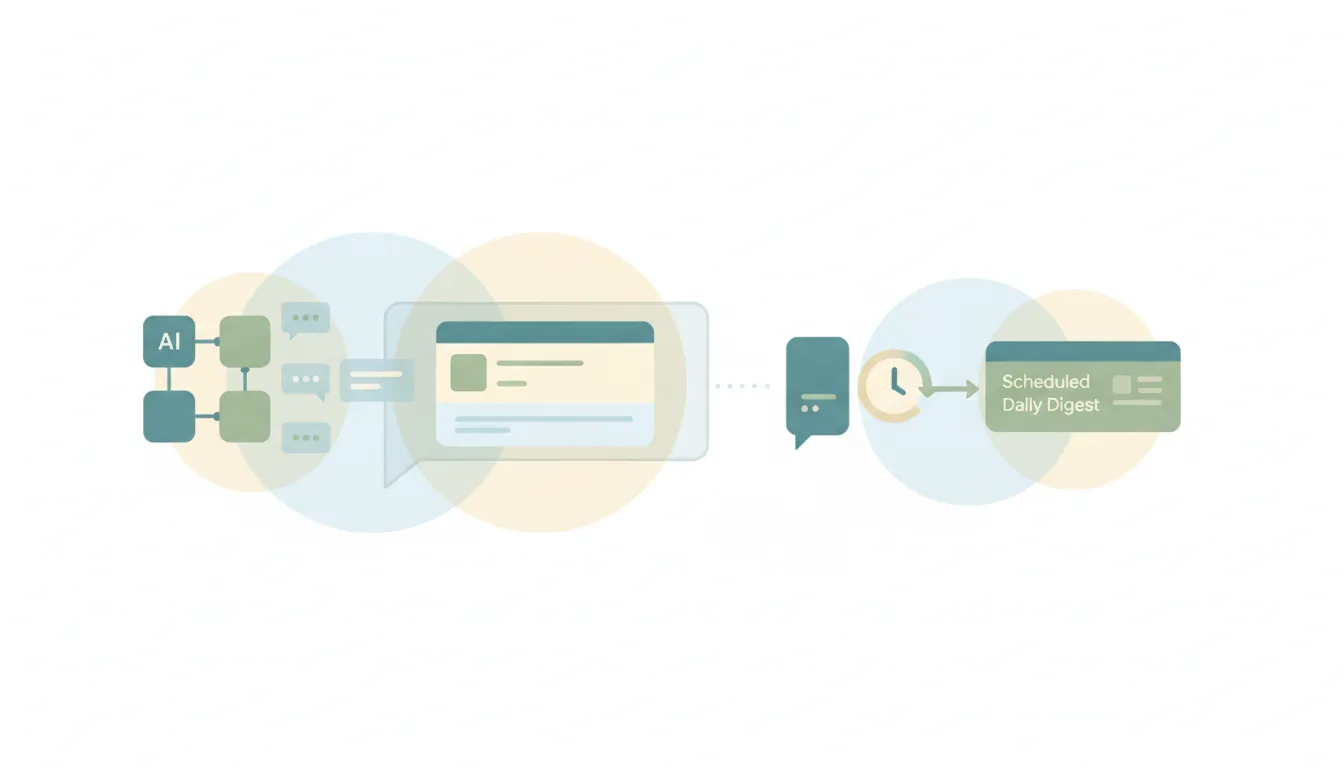
Yes — Claude summarizes email well when you ask in chat, but it can't deliver a scheduled, automatic digest because it has no triggers. Here's where it stops and what real briefings take.
Yes, Claude has an official Supabase connector — work with your Postgres database, auth, and storage inside a chat. The catch: nothing fires when a row lands.
Yes, Claude has an official SurveyMonkey connector — design surveys, collect responses, and analyze results inside chat. The catch: nothing fires when a response arrives.
Claude connects to Telegram only through a custom third-party MCP server on a paid plan — there's no one-click directory app, and nothing fires when a message arrives.
Claude has an official Todoist connector that reads and writes — manage tasks and projects from a chat. But nothing fires on an event. The honest guide.
No — Claude has no meeting recorder, transcriber, or bot that joins calls. It works on a transcript you already have. Here's every surface, and what actually records and transcribes.
Claude can work with Trello — but only via a third-party or custom MCP server, not a one-click directory app. And nothing fires when a card moves. The honest guide.
There's no one-click Twitch app in Claude's directory — you'd connect through a custom MCP server on the Twitch API, on a paid plan. And no stream event ever triggers it.
Claude can work with Typeform — but only through a custom MCP server on a paid plan, not a one-click directory app. And no new response ever triggers it. The honest guide.
Typefully ships an official MCP server, so there's nothing to build — but it's a custom connector on a paid plan, and nothing in your queue ever triggers it.

No — Claude can't act on your mailbox to unsubscribe or clean it up. Here's why, and the AI that actually does unsubscribe you and clears the junk automatically.
Yes, Claude has an official Webex connector — meeting summaries, key moments, and follow-ups inside chat. The catch: no meeting ending ever triggers it. The honest guide.
Yes, Claude has an official Webflow connector — manage CMS content and site work inside a chat. The catch: no form submission ever triggers it. The honest guide.
Claude connects to WhatsApp only through a custom third-party MCP server on a paid plan — there's no one-click directory app. And no incoming message triggers it.
Claude can design a workflow and run it on a schedule — but it has no event triggers, so nothing starts when a lead, email, or form actually arrives. The honest line, and what does.
Yes, Claude has an official Wrike connector — read and write tasks, projects, and teams inside a chat. The catch: it only works in a conversation you start. The honest guide.
Yes, Claude has an official Xero connector with read/write access — work with invoices, contacts, and reports from a chat. But no overdue invoice ever triggers it.
There's no one-click YouTube connector in Claude's directory — connecting takes a custom MCP server and a paid plan, and even then no upload or comment triggers it.
Claude has no one-click Zendesk connector in its directory — you reach Zendesk through a custom MCP server on a paid plan, and no incoming ticket ever triggers it.
Yes, Claude has official Zoho connectors across CRM, Books, Desk, and Projects — read/write inside a chat. The catch: they only work in a conversation you start, with no triggers. The honest guide.
Yes, Claude has an official Zoom connector — recap meetings, find key moments, and pull action items from calls. The catch: no call ending ever triggers it.
If your Doodle poll looks different, you're not imagining it. Here's exactly what changed — the account requirement, ads, paywalled voting, and fewer free slots — plus what to use instead.
Chili Piper vs Calendly compared for 2026: lead routing and qualification vs simple booking links, pricing, setup, and which scheduler fits your team.

Add emojis in Outlook the fast way — the Windows emoji keyboard (Win + .), the Insert > Emoji button, Mac shortcut, and emoji in the subject line.

Change, edit, or replace your Outlook email signature in New Outlook, Classic Windows, the web, and Mac — plus how to fix a signature that won't save.

Change your Outlook inbox view, fix it when it suddenly looks different, get the compact single-line look back, and reset a broken view — new Outlook, classic, web.

How to change your Outlook profile picture in new Outlook, the web, classic, and Mac — plus how it syncs to Teams and Office, removing it, and ideal image size.
How to delete an Outlook account: remove an email account from the Outlook app in new Outlook, classic, web, and mobile, or permanently close your Microsoft account.
Export Outlook contacts to a CSV or Excel file, back them up, and move them to an iPhone — from new Outlook, Outlook on the web, classic Windows, and Mac.

Outlook folder disappeared? Fix a missing folder pane, a collapsed or dragged folder, recover a deleted folder, and resync — in new Outlook, classic, web, and Mac.
Outlook not receiving emails or the inbox not updating? Work through this diagnostic checklist — Work Offline, Send/Receive, Focused Inbox, rules, junk, quota, and more.

Outlook spell check not working? Turn on check-as-you-type, fix the proofing language, enable check-before-sending, and solve greyed-out spell check in every version.

Accidentally declined an Outlook meeting? Recover it from Deleted Items and re-accept, get a resend, or stop Outlook from auto-deleting invites.
Fix a corrupt Outlook data file with scanpst.exe, the Inbox Repair Tool: find its location by Office version, run it on your .pst or .ost, and handle New Outlook.

Send a calendar invite in Outlook across New, Classic, web, and Mac — add attendees and a Teams link, BCC people, and forward an existing invite.

Use Outlook conditional formatting to color-code your inbox — emails from your boss in red, external senders highlighted. Classic, New Outlook, web, and Mac.
Master Outlook search operators: from, subject, hasattachment, received by date, exact phrase, AND/OR/NOT and date ranges across New Outlook, classic, and web.
Use Outlook Quick Parts to save and reuse text snippets in emails. Classic Outlook steps, where they are stored, and the My Templates workaround for New Outlook.
Add Approve/Reject, Yes/No/Maybe, or custom voting buttons to an Outlook email and track the responses. Classic Outlook steps plus the New Outlook and web alternatives.

Outlook calendar permission levels from Owner to Free/Busy explained, plus how to set and change them in new Outlook, classic, and the web — and delegate access.
Outlook rules not running automatically? Fix client-only rules, rule order, the 256 KB quota limit, corrupted rules, and New Outlook gaps across every version.
Outlook calendar not syncing with your iPhone, Google Calendar, or showing new events? Work through these numbered fixes for every common cause in 2026.
Create a channel meeting in Microsoft Teams so the whole channel can see and join — schedule from the Calendar or from inside the channel, add required attendees, make it recurring, and understand standard vs private channel limits.
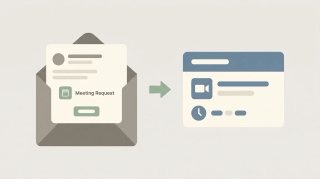
Gmail has no standalone meeting scheduler — you schedule through Google Calendar and Google Meet. Here's every path: create an event from an email, set up a time to meet, and add a Meet link.

Schedule a meeting in Outlook from new Outlook, classic desktop, the web, or mobile — add attendees, make it a Teams meeting, set recurrence, and use Scheduling Assistant to find free times.

Schedule a meeting for your manager or executive in Outlook and Teams — set up delegate access, create the event on their calendar so it's sent 'on behalf of' them, and route responses correctly.
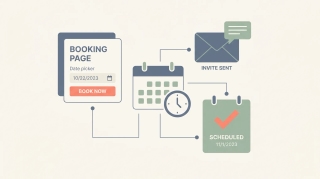
Schedule meetings online without Calendly — using Google Calendar appointment schedules, Microsoft Bookings, free booking tools, an in-email availability poll, or an AI assistant that handles the back-and-forth for you.
Set up a recurring Teams meeting from the Calendar — use the recurrence dropdown for daily, weekly, monthly, or custom, set an end date, edit one occurrence vs the series, and fix the channel-meeting and join-link snags.
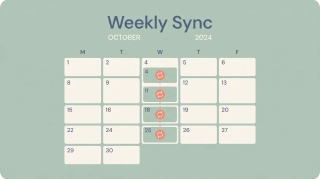
Set up a recurring meeting in Outlook — new Outlook, classic desktop, and the web. Pick daily, weekly, monthly, or custom patterns, set an end date, edit one occurrence vs the whole series, and make it a recurring Teams meeting.

The Bible never mentions artificial intelligence by name, but it speaks directly to the questions AI raises — about the image of God, wisdom, ambition, discernment, and truth.

Carly is the AI agent that answers Etsy messages in your specific voice — trained on your past replies. Here's how to set it up in 2026 so the answers sound like you.
Most AI tools live in a tab you have to open. A few work the other way: you email them like a coworker and the work comes back. Here's how an email-based AI assistant works and when it's the right fit.
Want an email agent that tracks emails, sends replies, and updates your CRM automatically? Carly does all three end-to-end from $35/month. Here's how, plus 5 alternatives.
How reliable is AI in 2026? A clear-eyed look at AI hallucinations, AI agent reliability, compounding error, and how to judge whether an agent can be trusted with real work.
The best AI agent for daily ad performance tracking — pulls spend, ROAS, and conversions from Google Ads and Meta Ads and emails the rollup before standup.
The best AI project management tools in 2026 — from AI-native boards to the agent that runs your existing one. Ranked by how much manual project work they actually remove.
Calendly's free plan gives 1 event type, unlimited meetings, and 1 calendar connection, but locks multiple event types, multi-calendar conflict checking, and reminders behind paid plans.

x.ai's Amy and Andrew scheduling assistants shut down in 2021. Here's how Calendly compares — and the email-native AI assistant that revived the CC-a-bot model x.ai pioneered.
Yes, from Gmail and Microsoft 365, but never unattended. Every send waits on your approval, the Outlook add-in cannot send, and no surface has triggers.
Canva's free plan includes 5 GB storage, unlimited folders, and 1 Brand Kit, but locks premium elements, Background Remover, and Magic Resize behind Pro. The full free-vs-Pro breakdown.
OpenAI removed ChatGPT agent mode in August 2026 and says use Work. Work can't do logged-in browser tasks. What replaced it, what's lost, how to migrate.
ChatGPT can write emails — and as of June 2026, even send them — but it's a prompt-by-prompt tool with real limits. Here's how to use it for email, and what an actual email assistant looks like.
ChatGPT makes a great research-and-drafting assistant — but it's reactive, gated, and capped. Here's how to use ChatGPT as a personal assistant, and where you need one that actually does the work.
ChatGPT Scheduled Tasks runs recurring and one-off prompts, reminders, and monitoring — then notifies you. Here's how it works, what it can't do, and where you need an agent that acts.
What Claude connectors are, the notable ones (Notion, Asana, Linear, Slack, Gmail), and the catch: they run on your prompt or a schedule, never on an event.
Yes, Claude works with Google Calendar, full read/write through the Workspace connector. But Gmail sends only on approval and nothing fires on an event.

A plain-English guide to the Claude model lineup in 2026 — Opus, Sonnet, Haiku, and Fable 5 — with a full comparison table and how to pick the right one.
ClickUp's Free Forever plan gives unlimited tasks and members but caps storage at 60 MB, automations at 100/month, and Gantt and Dashboard use. Here's every limit.
Fireflies.ai is a meeting bot built around search and analytics; tl;dv is recording-first with a generous free plan, video clips, and strong multilingual notes. Here's which to pick.
Google Forms has no fixed cap on the number of responses, but the linked Sheet's 10-million-cell limit and file-upload storage create real ceilings. Here's how it works.

Upload a background/cover photo to your LinkedIn profile, hit the right 1584x396 dimensions, and avoid the blurry or cropped banner problem.

Add a tab to a Microsoft Teams channel or chat — pin an app, a file, a website, or a Planner board across the top so your team can reach it in one click.

Turn on the Open to Work signal, choose the recruiters-only or public #OpenToWork frame, set roles and locations, and edit or remove it later.

React to a message in Microsoft Teams chats and channels, and send live emoji reactions during a meeting — like, heart, applaud, laugh, and more.

Add skills to your LinkedIn profile, pin your top skills, link skills to your experience, and reorder them so the right ones rank first.

Block someone on LinkedIn from their profile, understand exactly what happens after, and unblock them later — on desktop and mobile.

Edit your LinkedIn headline on desktop and mobile, use all 220 characters, and write a headline that gets you found in search.

Check newsletter eligibility, create a newsletter from the article editor, set title, cadence, and logo, and publish your first edition.

Edit a message you've already sent in Microsoft Teams, delete a message, and learn what others can see after you change or remove it.

Endorse a connection's skills on desktop and mobile, endorse from a notification, and remove or hide endorsements you've given or received.

Assign the presenter role in Microsoft Teams — before the meeting from Meeting options, or live during the meeting — and learn what organizers, presenters, and attendees can each do.

Pin a message to the top of a Microsoft Teams chat or channel so everyone can find it, replace it with a new pin, and unpin it when you're done.

Use LinkedIn's native scheduler (the clock icon) to schedule a post, find and edit scheduled posts, and work around the timing limits.
View and download the attendance report for a Microsoft Teams meeting — during the meeting and afterward from the chat — plus how to turn the report on.

Spotlight a video for everyone in a Microsoft Teams meeting, spotlight several people at once, and understand how spotlight differs from pin.
Hide the green active dot on LinkedIn, choose who can see when you're online, and turn off read receipts and typing indicators.
HubSpot's free CRM caps marketing emails at 2,000/month, custom properties at 10, and users at 2. Here's every free-plan limit and how the contact cap really works.
Make renamed its billing unit from operations to credits in 2026 — here's what that means, every plan and price, how credits actually get consumed, and how it compares to Zapier.
Microsoft Forms caps work and school accounts at 50,000 responses per form and 200 questions per form. Personal accounts stop at 200 responses. Here's every limit.
monday.com's free plan caps you at 2 seats, 3 boards, and 200 items total — with no automations or integrations. Here's every limit and when you'll outgrow it.

OneDrive allows single files up to 250 GB on personal and business plans. Plus the 400-character path limit, 255-character name limit, and invalid characters to avoid.
OneDrive gives 5 GB free; Microsoft 365 Personal includes 1 TB and Family up to 6 TB. Business plans default to 1 TB. How the limits work and what happens when you hit them.

Outlook.com free accounts send to ~300 recipients/day; Microsoft 365 / Exchange Online allows 10,000 recipients/day and 500 per message. How the caps work and how to stay under them.
PowerPoint has no practical .pptx size cap, but the web app opens files up to 2 GB and email/OneDrive limits bite first. Here's where the real ceilings are and how to shrink files.
The state of AI in 2026: frontier models, the agent shift, enterprise adoption, the bubble debate, jobs, and regulation — with real, cited numbers.

What is a second brain? A complete 2026 guide to the concept, the CODE and PARA methods, the best tools, and the shift to AI second brains that act.
An AI agent reasons, plans, and acts toward a goal — instead of following fixed rules. Here's how AI agents differ from traditional automation like Zapier and Make, and where each actually wins.
WhatsApp caps inline videos at 16 MB and compresses photos, but documents go up to 2 GB. Send media as a document for full quality. All limits explained.
The best AI automation tools for Airtable, ranked by how much real work they take off your plate. Connect Airtable to email, Slack, and 200+ tools without building automations.
The best AI automation tools for Asana, ranked by how much real work they take off your plate. Connect Asana to email, Slack, and 200+ tools without building rules.
The best AI automation tools for ClickUp, ranked by how much real work they take off your plate. Connect ClickUp to email, Slack, and 200+ tools without building workflows.
The best AI automation tools for Gmail. Triage, label, draft, and send across Gmail and 200+ tools without building workflows or writing filters.
The best AI automation tools for Google Tasks. Auto-create, complete, and sync tasks from your email and calendar without building workflows.
The best AI automation tools for HubSpot, ranked by how much real work they take off your plate. Connect HubSpot to email, Slack, and 200+ tools without building workflows.
The best AI automation tools for monday.com, ranked by how much real work they take off your plate. Connect monday to email, Slack, and 200+ tools without building recipes.
The best AI automation tools for Notion, ranked by how much real work they take off your plate. Connect Notion to email, Slack, and 200+ tools without building workflows.
The best AI automation tools for Outlook. Connect Outlook email and calendar to 200+ tools without building rules, Quick Steps, or Power Automate flows.
The best AI automation tools for Pipedrive, ranked by how much real work they take off your plate. Connect Pipedrive to email, Slack, and 200+ tools without building workflows.
The best AI automation tools for Salesforce, ranked by how much real work they take off your plate. Connect Salesforce to email, Slack, and 200+ tools without building flows.
The best AI automation tools for Slack, ranked by how much real work they take off your plate. Connect Slack to email, calendar, and 200+ tools without building workflows.
The best AI automation tools for Todoist, ranked by how much real work they take off your plate. Connect Todoist to email, calendar, and 200+ tools without building flowcharts.
The best AI automation tools for Trello, ranked by how much real work they take off your plate. Connect Trello to email, Slack, and 200+ tools without building rules.
Add branching logic in Microsoft Forms so answers route respondents to different questions or sections, skip irrelevant items, or end the form early.

Make a graded quiz in Microsoft Forms: add scored questions, set correct answers and points, show feedback, and review auto-graded student results.
Build a sign-up sheet in Microsoft Forms with choice slots, a response limit per option, name capture, and a shareable link to fill the spots.
Build a survey in Microsoft Forms: add and reorder questions, set required fields, pick question types, customize the theme, and share to collect responses.
Export Microsoft Forms responses to Excel: open results as a workbook, get a live OneDrive copy that refreshes, and fix export and download issues.

Collect anonymous responses in Microsoft Forms by turning off name recording and allowing anyone to respond, so submissions aren't tied to identities.
View Microsoft Forms responses: read the summary charts, open individual submissions, filter results, and find responses that aren't showing up.
Share a Microsoft Form by link, QR code, embed, or email. Set who can respond, allow external respondents, and share to collaborate or co-author.

Getting started with Microsoft Forms: create a form, add question types, theme it, share a link, and view responses — the full beginner workflow.
Airtable caps records per base: Free 1,000, Team 50,000, Business 125,000, Enterprise Scale ~500,000. Plus attachment storage and API rate limits by plan.
Asana's free Personal plan caps you at 2 users, no custom fields, rules, or timeline view, and 100MB per file. Here's everything the free tier limits in 2026.

Discord's file upload limit is 10 MB free, 50 MB at Boost Level 2, 100 MB at Level 3, and 500 MB on Nitro. Full breakdown plus workarounds.
Dropbox gives 2 GB free, 2 TB on Plus, and 3 TB+ on team plans. Single files max out at 2 TB, with 375 GB the safe ceiling for web uploads.
Excel worksheets hold 1,048,576 rows by 16,384 columns (column XFD) — about 17.2 billion cells. Here are the real limits and what to do with bigger data.
Free Gmail caps you at 500 recipients/day; Google Workspace allows 2,000 messages and 10,000 recipients/day, max 2,000 recipients per message. Full breakdown.

Gmail shares one 15 GB free quota with Google Drive and Photos. See what counts, Google One tiers, and what happens when you hit the cap.

Google Calendar lets you invite up to 200 guests directly (100,000 via Groups). Guest lists hide above 50. See all caps, Meet limits, and how to invite more.
Google Drive's free 15 GB is shared with Gmail and Photos. See Google One tiers (100 GB–5 TB), Workspace pooled storage, the 5 TB file cap and 750 GB/day limit.

Google Sheets caps spreadsheets at 10 million cells total across all tabs and 18,278 columns (column ZZZ). See the rows, import and per-cell limits for 2026.
The 1,000-block limit is gone for individuals on Notion's free plan. The real caps are 5 MB file uploads, 10 guests, and 7-day page history. Full breakdown.

Outlook.com free mailboxes hold 15 GB; Microsoft 365 gives 100 GB; Exchange Online business plans are 50-100 GB. Full storage limits and how to free up space.
Exchange Online allows 10,000 recipients/day and 500 (up to 1,000) per message. Outlook.com subscribers get 5,000/day. How the limits work.
Slack's free plan caps you at 90 days of message history, 10 apps, and 1:1 huddles. Here's exactly what's included, what's capped, and how to work around it.

Slack caps uploads at 1 GB per file on every plan. Here are the free-plan 90-day history limit, paid storage, clip length, and how to share bigger files.
Microsoft Teams caps each team at 1,000 channels (max 30 private), 25,000 members, and 100 owners. Here are the current channel, team, and member limits.

Microsoft Teams lets you upload files up to 250 GB each, since it stores them in SharePoint or OneDrive. Limits, storage caps, and workarounds.
Todoist's free Beginner plan caps you at 5 personal projects, 5 collaborators, 3 filters, 1 week of activity history, 5 MB uploads, and 300 tasks per project.
Trello's free plan caps you at 10 boards per Workspace, 10 collaborators, 250 automation runs/month, and 10 MB per file. Cards and Power-Ups stay unlimited.
How many people can join a Zoom meeting: 100 on Basic and Pro, 300 on Business, 500 on Enterprise, and up to 1,000 with the Large Meeting add-on.
52% of U.S. workers now use AI at work and 15% use it daily. 2026 stats on adoption by industry, role and age, time saved, and the future of work.
![20 Best AI Tools for Bookkeepers [2026]](/_vercel/image?url=_astro%2Fbest-ai-tools-bookkeepers.DrC9sGC3.webp&w=320&q=100)
The AI tools bookkeepers actually use in 2026 — for categorization, reconciliation, receipt capture, bill pay, close, and chasing clients for documents.
The AI tools event planners actually use in 2026 — for client coordination, proposals, timelines, design, payments, seating, and endless vendor email.
![20 Best AI Tools for HR Teams [2026]](/_vercel/image?url=_astro%2Fbest-ai-tools-hr-teams.CzJ9i1ke.webp&w=320&q=100)
The AI tools HR teams actually use in 2026 — for hiring, interview scheduling, onboarding, engagement, and the candidate and employee email that never stops.
The AI tools small and midsize law firms actually use in 2026 — for research, contracts, intake, docketing, billing, and non-billable admin.
![19 Best AI Tools for Sales Managers [2026]](/_vercel/image?url=_astro%2Fbest-ai-tools-sales-managers.prgcoJSg.webp&w=320&q=100)
AI tools that help sales managers coach reps, forecast accurately, and see pipeline risk early — plus the admin layer that frees managers from CRM babysitting.

How often we switch apps, how long it takes to refocus, how far attention spans have fallen, and what it costs: key context-switching stats for 2026, sourced.

How many emails are sent per day (392.5 billion in 2026), how many people use email (4.73 billion), and how much time the inbox takes, each sourced.

Get Google Calendar on your Windows desktop and taskbar — sync it to the Windows Calendar app, pin a Chrome or Edge shortcut, or use a desktop client.

How to add a Google Meet link to any calendar event, make Meet links appear automatically, or remove them — on the web, Android, and iPhone.

How to block focus time in Outlook — create busy or out-of-office appointments, set recurring focus blocks, and use automatic focus time with Viva Insights.

Change the name recipients see on your sent Outlook email — the account display name, Microsoft account name, and per-account settings, every version.

How to change the display language in Outlook on the web, new Outlook, and classic Outlook — plus region, date format, and spell-check settings.

How to change your primary time zone in Google Calendar, add a secondary zone, and set per-event time zones — on desktop web and the mobile apps.

How to change your Outlook calendar time zone on the web, new Outlook, and classic Outlook — plus updating it when you travel and showing a second zone.

How to create a shared group or team calendar in Outlook. Use a Microsoft 365 Group or shared calendar, add members, and view it on web and desktop.

How to export your Outlook calendar to an .ics or .csv file — covering Outlook on the web, new Outlook, and classic Outlook, plus date ranges and sharing.

Find and sort the biggest messages in Outlook to free up mailbox space — using size sort, message size search, and built-in cleanup tools, every version.
How to import an .ics, .ical, or .csv file into Outlook and subscribe to a calendar URL — on Outlook on the web, new Outlook, and classic Outlook.

Set High or Low importance on outgoing mail, mark incoming messages as important, and see how priority differs from flagging — every Outlook version.
How to open a calendar someone shared with you in Outlook — accept a sharing invite and add a calendar from the directory or address book.

How to create a Google Calendar booking page so people can book time with you — set availability, customize the form, and see which plans add features.
How to keep declined meetings visible on your Outlook calendar — turn on Show declined events in new Outlook, web, and mobile, and why classic hides them.

How to enable ISO week numbers in Google Calendar on desktop web, where they appear in each view, and why the option is missing on mobile.
Sort your Outlook inbox by date, sender, size, subject, importance, or unread — with ascending/descending order, across web, new, and classic Outlook.
How to sync Google Calendar into Apple Calendar on iPhone, iPad, and Mac — add your account, choose which calendars show, and fix sync problems.

Stop Google Calendar from pinging you — disable or adjust event notifications, email reminders, and browser alerts on the web, Android, and iPhone or iPad.

Add senders to your Outlook Safe Senders list so their mail never goes to Junk — individual addresses, whole domains, and Never Block, every version.

How many hours people spend in meetings, how many meetings are unproductive, and what they cost: 2026 meeting statistics, each sourced inline.

U.S. labor productivity growth, how much of the day goes to real work, how often workers are interrupted, and what AI has changed so far. Sourced inline.

How many people work remotely or hybrid in 2026, how many days a week they work from home, and what return-to-office mandates did. Sourced inline.

How many small businesses use AI, what for, the time and revenue impact, and how fast they're catching up to big companies: key 2026 stats, sourced inline.

How long people work, how much of the day is busywork, how few use a time management system, and whether time management works. Sourced inline.

What virtual assistants charge per hour in the U.S. and offshore, how many assistants there are, executive assistant pay, and the job outlook. Sourced.

How many companies use workflow automation, how much work is automatable, what it saves, ROI, payback, and why projects stall. 2026 stats, sourced inline.
The best AI automation tools for Zoho CRM, ranked by how much real work they take off your plate. Connect Zoho to email, Slack, and 200+ tools without building flowcharts.
Add clickable to-do checkboxes in Microsoft OneNote with the To Do tag, a keyboard shortcut, and find all your checkboxes in one place.

Add a contact in Outlook from scratch or straight from an email, edit details, and save to People — in new Outlook, classic Outlook, the web, and mobile.

Add a footer in PowerPoint with text, date, and slide number, skip the title slide, and edit it on the slide master — on Windows, Mac, and the web.

Add an animated GIF to PowerPoint, insert it from your PC or online, set it to loop, resize it, and make sure it animates in the show — Windows, Mac, web.

Add a hyperlink in an Outlook email, turn text into a clickable link, link an image, or edit and remove a link — in new Outlook, classic, and on the web.

Add a hyperlink in PowerPoint to a webpage, another slide, a file, or an email, edit or remove it, and set a ScreenTip — on Windows, Mac, and the web.

Animate text and objects in PowerPoint, set entrance and exit effects, reorder them in the Animation Pane, and trigger on click — Windows, Mac, and web.

Add audio to PowerPoint, record narration, set music to play across slides, loop it, and hide the icon during the show — on Windows, Mac, and the web.

Add slide numbers in PowerPoint, skip the title slide, start numbering at a chosen value, and reposition the number — on Windows, Mac, and the web.

Add speaker notes in PowerPoint, view them in the Notes pane and Notes Page, read them in Presenter View, and print them — on Windows, Mac, and web.

Add slide transitions in PowerPoint, set duration and direction, apply to all slides, and trigger them automatically — on Windows, Mac, and the web.

Attach an email to another email in Outlook by dragging it or using Attach Item, and forward as an attachment — new Outlook, classic, web, and mobile.

Change slide size in PowerPoint between 16:9 and 4:3, set a custom dimension, and choose Maximize or Ensure Fit when scaling — on Windows, Mac, and web.

Change the default font, size, and color for new notes in Microsoft OneNote on Windows, and set font defaults on Mac and the web.

Move the Outlook reading pane to the right, bottom, or off, and adjust preview and mark-as-read behavior — in new Outlook, classic Outlook, web, and mobile.

Compress images in PowerPoint to shrink the file size, choose a resolution, delete cropped areas, and compress all pictures at once — Windows and Mac.

Convert a PowerPoint to video (MP4), keep narration and timings, choose a resolution, and export from Windows or Mac for sharing anywhere.

Create a Search Folder in Outlook to auto-collect unread, flagged, or large emails, or build a custom one — plus what to use in new Outlook and on the web.

Crop an image in PowerPoint, crop to a shape or aspect ratio, fill or fit a placeholder, and reset the crop — on Windows, Mac, and the web.

Curve text in PowerPoint with WordArt and Transform effects, bend text into a circle or arc, and adjust the curve — on Windows, Mac, and the web.

Decline a meeting in Outlook, add a note, decline without sending a response, or decline a whole recurring series — in new Outlook, classic, and on the web.

Embed a video file or online video in PowerPoint, set it to play automatically, trim it, and add a poster frame — on Windows, Mac, and the web.
Embed fonts in PowerPoint so your slides keep their design on any computer, choose to embed all or used characters only, and manage file size — Windows and Mac.
Empty the Deleted Items folder in Outlook, clear it on exit automatically, and recover emails before they're gone — new Outlook, classic, web, and mobile.
Export a OneNote page, section, or whole notebook to PDF on Windows, Mac, web, and mobile — plus how to keep links and page breaks clean.

Find archived emails in Outlook by opening the Archive folder, searching all folders, or locating a .pst file — in new Outlook, classic, web, and mobile.

Group objects in PowerPoint to move and resize them together, ungroup to edit, regroup, and align before grouping — on Windows, Mac, and the web.
Insert a PDF into Microsoft OneNote as a printout you can annotate, or as a file attachment — on Windows, Mac, and the web.

Insert a table in Microsoft OneNote, add and delete rows or columns, shade cells, and convert a table to Excel — on Windows, Mac, and the web.

Insert a table in an Outlook email, set rows and columns, paste one from Excel, and format it — in new Outlook, classic Outlook, and on the web.
Insert a table in PowerPoint, set rows and columns, style it, add or delete rows, and paste a table from Excel — on Windows, Mac, and the web.
Create links between pages in Microsoft OneNote, copy a link to a page or paragraph, and use wiki-style [[ ]] links to connect your notes.

Loop a PowerPoint continuously for a kiosk or display, set automatic slide timings, and run it unattended — on Windows, Mac, and the web.

Make a timeline in PowerPoint using SmartArt or shapes, add milestones and dates, style it, and animate each step — on Windows, Mac, and the web.

Lock a OneNote section with a password to encrypt your notes, set how soon it auto-locks, and remove protection — on Windows, Mac, and mobile.

Propose a new time for a meeting in Outlook, check the organizer's free/busy, and respond to a proposed time — in new Outlook, classic Outlook, and on the web.

Record a PowerPoint presentation with narration, slide timings, and webcam video, then export it as a movie — on Windows, Mac, and the web.
Record audio notes in Microsoft OneNote, link the recording to your typed notes, and play back exactly what was said as you wrote each line.

Recover deleted pages and sections in Microsoft OneNote from the notebook recycle bin, restore page versions, and find lost notes.

Share a Microsoft OneNote notebook with view or edit access, get a share link, and stop sharing — on Windows, Mac, web, and mobile.

Turn on week numbers in the Outlook calendar and set which week the year starts on — in new Outlook, classic Outlook, Outlook on the web, and mobile.

Stop real emails landing in Junk in Outlook by marking Not Junk, adding safe senders, and lowering the filter level — new Outlook, classic, web, and mobile.

Force a manual sync in Microsoft OneNote, check sync status, fix stuck or failed syncs, and keep notebooks current across Windows, Mac, and mobile.

Sync Outlook email, calendar, and contacts with Android using the Outlook app or the built-in Gmail/Calendar apps, and fix sync that stops working.

Turn off Outlook email and calendar notifications, mute desktop and banner alerts, and silence mobile push — in new Outlook, classic Outlook, web, and mobile.

Enable dark mode in Microsoft OneNote on Windows, Mac, web, and mobile — and keep your note pages light while the app stays dark.

Use the Morph transition in PowerPoint to animate objects between slides, duplicate and reposition elements, and morph text and shapes — Windows, Mac, web.

Use Presenter View in PowerPoint to see notes, the next slide, and a timer while your audience sees only the slides — on Windows, Mac, and the web.

Tag notes in Microsoft OneNote with To Do, Important, and Question marks, create custom tags, and round them all up with Find Tags.

Apply built-in page templates in Microsoft OneNote, save your own as a custom template, and set a default template for new pages.

Automate Dropbox with built-in folder rules that sort, rename, convert, and tag files — plus how to auto-file email attachments without lifting a finger.
Set up Dropbox Backup to automatically protect your Desktop, Documents, and Downloads folders — and how backup differs from regular Dropbox sync.

Clear the Dropbox cache on Windows, Mac, and mobile to fix sync problems and reclaim disk space by deleting the hidden .dropbox.cache folder safely.

Organize Dropbox with a clean folder structure, naming conventions, starred files, and automated folder rules that sort new files for you.

Password protect Dropbox files and folders by adding a password to shared links, plus set expirations and disable downloads to control access.

How to create milestones in Asana, convert an existing task into a milestone, see them as diamonds on the Timeline, and use them to track key project dates.
How to build an intake form in Asana — map form fields to task fields, add branching logic, share the link, and route every submission into the right project.

How to build a Gantt chart in Asana using Timeline view — set start and due dates, link dependencies, drag to reschedule, and share a roadmap with your team.

How to mark tasks as waiting on or blocking others in Asana, see dependencies on Timeline, get notified when you're unblocked, and fix the most common issues.

How to track time in Asana — native time tracking with estimated and actual time on the Advanced plan, plus Harvest, Clockify, and Everhour options on any plan.
Three ways to create Asana tasks from email — forward to x@mail.asana.com, use the Gmail or Outlook add-in, or automate it so every request becomes a task.

How to use Asana's Board (Kanban) view — add columns, drag tasks between stages, set a default view, and customize cards for a clean visual workflow.

How to use Asana's Calendar view — see tasks by due date, drag to reschedule, color-code by field, view My Tasks on a calendar, and sync to Google or Outlook.

How to add and use custom fields in Asana — dropdowns, numbers, dates, and people fields for priority, status, and cost — plus sorting, filtering, and the field library.

How to add, assign, and organize subtasks in Asana — including nesting, multi-homing into projects, promoting a subtask to a task, and common gotchas.

Upload your own fonts to Canva with Brand Kit, use them in any design, and set brand fonts — plus what to do without Canva Pro.

Add a new title at your current company on LinkedIn without creating a duplicate job — and control whether your network gets notified.

Add a video to Canva — upload your own, use stock footage, trim and set timing, and add it as a page background.

Add music or a voiceover to your Canva design — upload your own track or use the audio library, then trim, fade, and adjust volume.

Add licenses and certifications to your LinkedIn profile, link the issuing organization and credential ID, and showcase them in Featured.

Get the Dropbox folder into Windows File Explorer (or Mac Finder) by installing the desktop app, plus how to fix a missing Dropbox sidebar entry.

Turn on the Featured section and pin posts, links, media, and documents to the top of your LinkedIn profile — on desktop and mobile.

Customize your LinkedIn public profile URL to a clean, professional handle in under a minute — on desktop and mobile.

Create a LinkedIn company page step by step — requirements, the setup flow, and how to optimize it so it actually gets followers.
Curve text into an arc or full circle in Canva with the Curve effect, control the curve amount, and fix common spacing issues.
Temporarily deactivate (hibernate) your LinkedIn account or permanently close it — what each option hides, and how to reactivate.

Delete files and folders from Dropbox on the web, desktop, and mobile — and permanently delete them to actually free up space.
Export your Canva design as a PDF — Standard vs. Print, crop marks and bleed, flatten, and how to shrink a too-large PDF file.
Save your LinkedIn profile as a PDF resume in two clicks, or build a tailored one with the Resume Builder — plus how to fix formatting.
Export your LinkedIn connections to a CSV — with names, companies, and the emails connections chose to share — via the data export tool.

Free up Dropbox storage by permanently deleting files, emptying old versions, and free up hard-drive space with online-only Smart Sync.

Group and ungroup elements in Canva to move, resize, and align them together — with keyboard shortcuts for Windows and Mac.

Make a photo collage in Canva using grids, frames, or a template — add photos, adjust spacing and corners, and download to share.
Add a free, customizable QR code to any Canva design — link it to a URL, change its colors, and download for print or screen.

Reach a recruiter on LinkedIn the right way — connection note, InMail, or Open Profile — plus a template that actually gets replies.

Add an outline to text in Canva — the simple split-pair method and the cleanest add-ons — to make titles pop on busy backgrounds.

Restore deleted files and folders in Dropbox, recover older versions, and understand the 30-day window (and longer on paid plans).

Remove an image background in Canva with one click using the Background Remover, refine the edges, and what to do on the free plan.

Find who viewed your LinkedIn profile, what free vs. Premium shows, and how to switch your own viewing mode to private or anonymous.
Unfollow a person, page, or hashtag on LinkedIn to clean up your feed — while staying connected. Also how to unfollow everyone at once.

Unlink a computer or device from your Dropbox account — from the app or the web security page — and what happens to your local files.
Give a LinkedIn recommendation that actually lands — where to find the option, what to write, and a simple structure with an example.
Airtable is a powerful relational database; Notion is a flexible workspace of docs, wikis, and lightweight databases. Here's which to pick in 2026.
Akiflow consolidates tasks from every tool via a fast command bar; Sunsama is a mindful daily planning ritual. Which to pick in 2026.

Apple Calendar is clean, offline-friendly, and tied to iCloud; Google Calendar is cross-platform with strong sharing. Here's which calendar to pick in 2026.
Asana offers task and workflow clarity with strong timelines; monday.com is a colorful, customizable Work OS. Here's which to pick in 2026.
Asana is full project management with timelines and dependencies; Trello is a simple, lightweight Kanban board. Here's which to pick in 2026.
ClickUp is a cheaper everything-app with many views; Asana is clean and mature with polished workflows. Here's which to pick in 2026.
ClickUp is a project-management powerhouse with views and automations; Notion is a flexible docs-and-databases workspace. Here's which to pick in 2026.
Fathom is a free-tier AI notetaker with instant summaries and CRM sync; Otter.ai leads on live transcription and Otter Chat. Here's which to pick in 2026.

Fireflies.ai is a meeting bot with transcription, search, and analytics; Otter.ai leads on live captions and Otter Chat. Here's which to pick in 2026.
Google Keep is free, instant sticky-note capture; Notion is a structured workspace with databases. Here's which note app to pick in 2026.
monday.com is visual and easy to set up; ClickUp is a feature-dense all-in-one. Here's which project management tool to pick in 2026.
Motion is an AI calendar plus project and task manager; Reclaim auto-defends time for tasks and habits on Google Calendar. Here's which to pick in 2026.

Motion auto-plans your day with AI; Sunsama is a calm, manual daily planning ritual built for intention. Here's which daily planner to pick in 2026.
Notion is a structured workspace with databases and wikis; Google Docs is simple, ubiquitous, real-time documents. Here's which to pick in 2026.
Notion is a cloud workspace with databases and collaboration; Obsidian is local-first markdown with a knowledge graph. Here's which to pick in 2026.

Outlook Calendar is built for Microsoft 365 and Teams; Google Calendar is built for Workspace, sharing, and simplicity. Here's which calendar to pick in 2026.
Proton Mail offers end-to-end encryption and Swiss privacy; Gmail offers features, integration, and search. Here's which email service to pick in 2026.
Clockwise shut down on March 27, 2026. Reclaim is the surviving auto-scheduler that blocks your tasks, habits, and routines. Here's what former Clockwise users should do.
Spark is a free-tier, cross-platform smart inbox with team email; Superhuman is a premium, keyboard-first speed client. Which to pick in 2026.
Superhuman is a fast, keyboard-first paid email client; Gmail is free and great at search. Here's which to pick and when speed is worth it.

Things 3 is a calm, pay-once Apple-only task app; Todoist is cross-platform with powerful filters and collaboration. Here's which to pick in 2026.
Todoist is a fast, ready-made task manager; Notion is an all-in-one workspace where tasks live with docs and databases. Here's which to pick in 2026.
Trello is simple Kanban boards and cards; Notion is an all-in-one workspace of docs and databases. Here's which to pick in 2026.

Gmail sends attachments up to 25 MB and receives up to 50 MB; larger files go to Google Drive automatically. Here's how to send big files.

How many people can join a Google Meet — 100 on free accounts, up to 1,000 on Enterprise, and 100,000 view-only via livestream. Full breakdown by Workspace plan.

Google Meet runs in the browser and lives inside Google Workspace; Zoom is a standalone app with deeper meeting features. Here's when each one wins in 2026.

Google Tasks is free and baked into Gmail and Calendar; Todoist is a full-featured cross-platform task manager. Here's which one to use in 2026.

Make a reusable group in Gmail with Google Contacts labels, then email everyone by typing the label name. Plus Bcc for privacy and Google Groups.
Google has no one-click merge for two Gmail accounts. Five ways to consolidate instead — import old mail, forward, fetch by POP, move contacts, and Takeout.

Schedule a meeting in Microsoft Teams from the Calendar, Outlook, or a channel — add attendees, invite guests, make it recurring, or start an instant Meet now.

Share a file in Microsoft Teams — attach in a chat, upload to a channel, share a link with permission control, or co-edit in real time, on desktop and mobile.

Use Copilot in Microsoft Teams to summarize meetings, list action items, catch up on chats, and get a meeting recap — what you need and how to turn it on.

Use Microsoft Whiteboard in a Teams meeting — open it from the Share tray, draw, add sticky notes and templates, collaborate live, and find the board afterward.
Evernote excels at capturing and finding notes; Notion is an all-in-one workspace of blocks, databases, and wikis. Here's which note app to pick in 2026.

OneNote is a freeform digital notebook with handwriting; Notion is a structured workspace of blocks and databases. Here's which note app fits you in 2026.

Outlook.com caps attachments at 34 MB; desktop Outlook defaults to 20 MB, Microsoft 365 up to ~150 MB. How the limits work and how to send bigger files.

Outlook organizes with folders and a built-in calendar; Gmail leans on labels, tabs, and search. Here's how they compare and which to pick in 2026.
Slack is best-in-class chat with a huge app directory; Teams bundles chat, meetings, and files with Microsoft 365. Here's how they compare and which to pick.
How long a Microsoft Teams meeting can run and how many people can join — the 60-minute free cap, the 30-hour paid limit, and participant ceilings by license.

Teams is a full collaboration suite bundled with Microsoft 365; Zoom is a meeting-first tool with best-in-class video. Here's when to pick each in 2026.

TickTick bundles a calendar, habit tracker, and Pomodoro timer; Todoist stays clean with strong natural-language input. Here's which to-do app to pick.

How long a Zoom meeting can run on free and paid plans — the 40-minute cap on Basic accounts, the 30-hour paid limit, and how to get around it.
From the built-in To Do and Planner to Todoist, Asana, and an assistant that writes tasks into To Do and Planner for you. What genuinely works with Outlook.

Accept all tracked changes in Microsoft Word at once, accept them one at a time, accept a single reviewer's edits, and stop tracking afterward.

Add citations and a bibliography in Microsoft Word with the built-in source manager, switch styles like APA and MLA, and insert a works-cited list.
Add a drop-down list to a Microsoft Word form with the Developer tab, set the choices, and protect the form so users can only pick options.

Insert an automatic table of contents in Microsoft Word from heading styles, update it as your document changes, and customize the levels.

Add a watermark in Microsoft Word — a built-in Confidential or Draft stamp, custom text, or a picture — apply it to one page, and remove it.

Split text into columns in Microsoft Word, apply columns to part of a document, add a line between them, and force a column break.

Add, reply to, resolve, and delete comments in Microsoft Word, and @mention collaborators — on Windows, Mac, and the web.
Add page numbers in Microsoft Word, skip the title page, start numbering on a later page, and restart at 1 — on Windows, Mac, and the web.
Format text as superscript or subscript in Microsoft Word using buttons, keyboard shortcuts, or the Font dialog — for exponents and footnote markers.
Outlook has no native travel-time feature like Apple or Google Calendar. Here's how to block travel time before and after events — manual buffers, color categories, recurring commute blocks, Bookings buffer time, and automation.
Compare two versions of a Microsoft Word document to see every difference as tracked changes, and combine edits from multiple reviewers.
Build a flowchart in Microsoft Word with SmartArt or shapes, connect boxes with arrows that stay attached, and align everything cleanly.
Insert a table in Microsoft Word, add and delete rows and columns, merge cells, apply a table style, and convert text to a table — on Windows, Mac, and the web.

Delete a page in Microsoft Word — a content page, a stubborn blank page at the end, or one caused by a page break — on Windows, Mac, and the web.
Create a hanging indent in Microsoft Word for bibliographies and works-cited lists — using the Paragraph dialog, the ruler, or a shortcut.
Run a mail merge in Microsoft Word to create personalized letters, emails, envelopes, and labels from an Excel list — step by step.

Double space text in Microsoft Word for the whole document or a selection, remove extra space between paragraphs, and set it as your default.
Insert a check mark (✓) in Microsoft Word using the Symbol menu, the Wingdings font, a character code, or an AutoCorrect shortcut.
Add checkboxes in Microsoft Word two ways — a clickable Developer-tab control for digital forms, and a checkbox bullet for printed lists.

Insert footnotes and endnotes in Microsoft Word, jump between them, change the number format, convert footnotes to endnotes, and delete them.

Add a signature in Microsoft Word — a scanned handwritten image, a reusable signature block, or a digital signature line — on Windows, Mac, and the web.

Insert a text box in Microsoft Word, draw a custom one, link boxes so text flows between them, style the border, and wrap text around it.
Recover an unsaved or lost Microsoft Word document using AutoRecover, the Recover Unsaved Documents command, temp files, and version history.

Find and delete manual page breaks and section breaks in Microsoft Word, clear breaks in bulk, and stop automatic breaks from splitting paragraphs.
Outlook only allows one reminder per calendar event. Here's how to get multiple staggered notifications — second events, a Power Automate flow, linked To Do tasks, and automation that nudges you at every interval you want.
Turn on Track Changes in Microsoft Word, choose how markup displays, lock tracking with a password, and review edits — on Windows, Mac, and the web.
Inbox Zero isn't about an empty inbox — it's a processing system. Here's the 4-D method adapted to Outlook's tools: Focused Inbox, a two-folder setup, Sweep and Rules, and a daily routine that keeps it at zero.
Walk into every meeting prepared. Here's how to auto-generate pre-meeting briefings in Outlook — Copilot meeting prep, a OneNote briefing template, pulling attendee context from past threads, and an assistant that builds the brief for you.
The best workflow automation software in 2026, from AI agents to no-code connectors and enterprise iPaaS — compare what each tool automates and what it costs.
Add an external guest to a Microsoft Teams team, invite a guest to a single meeting, and fix guest access when invites aren't working or the option is missing.

Change or remove your Microsoft Teams profile picture on desktop and mobile, and fix it when the photo option is greyed out or the new picture won't update.

Set your Microsoft Teams status manually, pin a status message, reset it when it's stuck, and stop Teams from changing it back to Away automatically.

Create a standard, private, or shared channel in Microsoft Teams, add members, and fix it when the Add channel option is missing or you've hit the channel limit.

Create a team in Microsoft Teams from scratch or a template, add members, set it public or private, and fix it when the 'Join or create a team' button is missing.
Start a live transcript in a Microsoft Teams meeting, find and download the transcript afterward, and fix transcription when the option is greyed out.

Mute Microsoft Teams notifications — a noisy chat, a busy channel, or everything at once with Do not disturb and quiet hours — on desktop and mobile.

Schedule a chat message to send later in Microsoft Teams, edit or reschedule a queued message, and fix it when the schedule send option is missing.

Set an out-of-office message and auto-reply in Microsoft Teams, schedule the dates, and sync it with Outlook so your status shows you're away.
How to subscribe to an RSS feed: find a site's feed URL, pick a reader, add the feed, and organize your subscriptions, plus how to follow sites that hide it.

Turn on live captions in Microsoft Teams on desktop, web, and mobile, change the caption language, and fix captions when they won't show up.

Switch Microsoft Teams to dark mode on desktop, web, and mobile, and fix it when the theme won't change or dark mode is missing from settings.
A prompt is the instruction you give an AI to tell it what you want. What a prompt actually is, the parts of a good one, and techniques for far better results.

Token maxxing: the trend of maximizing how many AI tokens you burn, tracked on leaderboards at Meta, Microsoft, and Salesforce. What it means and the backlash.
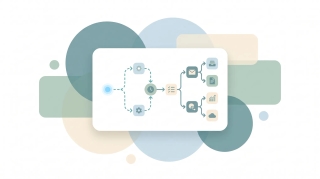
Workflow automation uses software to run multi-step processes — triggers, actions, and rules — with no manual effort. How it works and how AI is changing it.

The best AI assistants for busy professionals in 2026, to reclaim hours from email, scheduling, meetings, and admin. Ranked, compared, and matched to the job.
The best AI assistants for customer success teams in 2026: for renewals, health tracking, support replies, and QBR prep. Ranked and matched to the job.

The best AI assistants for ecommerce in 2026: for customer support, marketing, product content, and the operations behind an online store. Ranked and compared.
The best AI assistants for engineering managers in 2026: for 1:1s, status updates, meeting load, and the people-and-process work between the code. Ranked.

Siri AI, ChatGPT, Claude, Raycast and more, ranked for Mac. Which ones answer questions, and which one runs your email and calendar with the lid closed.
The best AI assistants for nonprofits in 2026: for donor communication, grant writing, scheduling, and stretching a small team's time. Ranked and compared.
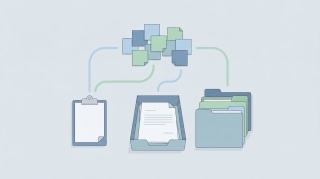
The best AI assistants for operations managers in 2026: process automation, vendor coordination, reporting, and the busywork that runs a company. Ranked.

The best AI assistants for startups in 2026: tools that help tiny teams handle email, scheduling, sales, and ops without hiring. Ranked and compared.
The best AI assistants for students in 2026: for research, notes, writing, and staying on top of deadlines and a busy schedule. Ranked and compared.
The best AI assistants for Windows in 2026: from Copilot and the new Microsoft Scout to an AI agent that runs your email and calendar. Ranked and compared.

The best AI assistants for writers in 2026: drafting, editing, research, and the business side like pitches, invoices, and scheduling. Ranked and compared.
Add and manage labels in Todoist to tag tasks by context: create labels with @, apply them across projects, organize with favorites, and filter your task list by label.
Connect Todoist to Google Calendar for two-way sync: set it up in Integrations, control which tasks sync, and fix tasks that aren't showing on your calendar.

Create subtasks in Todoist by indenting tasks under a parent: add them with Tab, drag to nest, collapse and expand, and understand how completing parents and subtasks works.

Set recurring tasks in Todoist using natural language: daily, weekly, weekday, monthly, and 'every!' completion-based repeats — plus how to edit, skip, and end a recurrence.

Set time-based and location-based reminders in Todoist, turn on automatic reminders for timed tasks, choose notification channels, and fix reminders that aren't firing.

Build custom filters in Todoist with query syntax: combine labels, dates, projects, and priorities using &, |, and ! operators — with ready-to-copy filter examples.

Use Todoist's natural language Quick Add to set dates, times, projects, labels, priorities, and assignees as you type — with the full symbol cheat sheet and examples.
Use sections in Todoist to group tasks within a project: add and rename sections, reorder and move tasks between them, and turn sections into board columns.
Use Todoist templates to spin up ready-made projects: browse the template gallery, import a template into a project, and export your own as a file or shareable link.
A complete guide to using Todoist: capturing tasks with Quick Add, organizing with projects and sections, labels, filters, priorities, recurring tasks, and a simple daily workflow.
Combine text from multiple cells in Excel: the & operator, the CONCAT and TEXTJOIN functions, adding spaces and commas, and joining a whole range with a delimiter.

Add a drop-down list in Excel with Data Validation: build one from a typed list or a cell range, show an input message, allow blanks, and edit or remove the list.

Add checkboxes in Excel two ways: the new built-in Checkbox button in Microsoft 365, and the classic Developer-tab form control — plus how to link a checkbox to a cell and copy it down.

Lock specific cells in Excel so they can't be edited: why locking needs sheet protection, how to unlock the cells people should still fill in, and how to protect and unprotect the sheet.

Merge cells in Excel with Merge & Center, Merge Across, and Merge Cells — plus how to unmerge, keep all your data, and use Center Across Selection as a safer alternative.

Password protect an Excel file with Encrypt with Password, set a separate password to open vs. modify, protect the workbook structure or a single sheet, and remove a password you no longer need.
Delete blank rows in Excel the safe way: use Go To Special to select blanks, filter them out, or sort them to the bottom — without deleting rows that only look empty.

Remove duplicate rows in Excel with the Remove Duplicates tool, find them first with conditional formatting, dedupe by specific columns, or extract a unique list with the UNIQUE function.
Unhide columns in Excel by right-clicking, unhide column A with the Name Box, unhide all columns at once, and fix columns that won't reappear because their width is zero.
Use conditional formatting in Excel to highlight cells by rule: highlight values, top/bottom items, data bars and color scales, formula-based rules, and how to manage or clear them.

Learn INDEX MATCH in Excel: how the two functions work together, why it beats VLOOKUP, looking left, a two-way lookup with two MATCH functions, and error fixes.
Learn SUMIF in Excel: the syntax, text and number criteria, comparison operators, wildcards, summing a different column, and SUMIFS for multiple conditions.
Learn the IF function in Excel: the syntax, text and number tests, nested IFs, the IFS function, combining IF with AND and OR, and how to fix common errors.
Learn VLOOKUP in Excel step by step: the syntax, exact vs. approximate match, looking up data from another sheet, anchoring the range, and how to fix #N/A and #REF errors.
Learn XLOOKUP in Excel: the syntax, exact and approximate match, looking left, returning multiple columns, the built-in if_not_found argument, and how it beats VLOOKUP.
Wrap text in Excel so long entries show on multiple lines inside one cell: the Wrap Text button, manual line breaks with Alt+Enter, adjusting row height, and common fixes.

How long a Google Meet can run on free and paid accounts — the 60-minute group-call cap, the 24-hour limits, and how to get around them.

Blur your background in Microsoft Teams before or during a meeting on desktop and mobile — plus what to do when the blur or background-effects option is missing.

Blur your background, add a virtual background, or apply a filter in Google Meet — before you join or mid-call, on desktop and mobile.

Change your background in Microsoft Teams — pick a built-in image, upload your own custom background, or blur it — before or during a meeting, on desktop and mobile.

Change your display name in Microsoft Teams — set a name when joining as a guest, edit it on a personal account, or get a work-account name changed through your admin.

Create a poll in Microsoft Teams — live in a meeting with the Polls app or ahead of time in a chat — launch it, share results, and fix a missing poll option.

Turn on transcription in Google Meet to save a Google Doc of who said what, where the transcript saves in Drive, and how it differs from live captions.

Mute and unmute yourself in Microsoft Teams, use the keyboard shortcut and push-to-talk, and — as an organizer — mute other participants or stop them from unmuting.

Pin a participant's video in Microsoft Teams so they stay on your screen, understand pin vs. spotlight, and do it on desktop and mobile — plus how to unpin.

Raise your hand in a Microsoft Teams meeting on desktop, mobile, and with a keyboard shortcut — plus how to lower it and see who else has raised theirs.
Record a Google Meet to Drive — who's allowed, how to start and stop, where the recording saves, and why the Record option is sometimes greyed out.

Record a Microsoft Teams meeting on desktop or mobile, find where the recording saves in OneDrive or SharePoint, and fix it when the Record option is greyed out.
Turn on Google Meet's noise cancellation to filter out typing, barking, and chatter — on desktop and mobile — plus what to do when the toggle is missing.

Schedule a Google Meet from Google Calendar, Gmail, or the Meet app — add guests, set it to repeat, and share the link so everyone joins the right call.
Share your screen, a single window, or a PowerPoint in Microsoft Teams on desktop and mobile — including how to share computer sound and give control to someone else.

Present your whole screen, a single window, or a Chrome tab in Google Meet — on desktop and mobile — plus how to share with sound and fix a black screen.

Turn off your camera in Microsoft Teams before or during a meeting, use the keyboard shortcut, and join with video off by default — on desktop and mobile.

Turn on live captions in Google Meet on desktop and mobile, change the caption language, use translated captions, and fix captions that won't show up.

Split a Google Meet into breakout rooms: create and assign rooms, set a timer, move between them, and broadcast a message to every group.

Create and run breakout rooms in Microsoft Teams — split a meeting into groups, assign people, set a timer, send announcements, and bring everyone back.

Use Google Meet's host controls to make guests knock before they join, admit or deny people, and keep meetings secure — the Meet version of a waiting room.
Make someone else the host on Zoom, assign a co-host, reclaim host, leave a meeting without ending it, and set an alternative host in advance — on desktop and mobile.

Add or change a Zoom virtual background — blur it, use a built-in image, upload your own, or set a video background — on desktop and mobile, even without a green screen.
Change your display name on Zoom before or during a meeting, on desktop, mobile, or the web — including how to add pronouns and what to do when renaming is locked by the host.
Pin a participant's video on Zoom so they stay on your screen, pin multiple people, and use Spotlight to pin a speaker for everyone — on desktop and mobile, plus why pin is greyed out.

Raise your hand in a Zoom meeting on desktop, mobile, or by phone using the Reactions menu and keyboard shortcut — plus how the host sees raised hands and lowers them.

Record a Zoom meeting to your computer or the cloud — as a host or a participant. Where the files save, how to grant recording permission, and how to record when it's greyed out.

Schedule a Zoom meeting from the desktop app, web portal, or your calendar — set the time, passcode, waiting room, and recurring options, then send the invite so everyone gets the link.
Share your screen on Zoom from desktop or mobile — a single window, your whole screen, a whiteboard, or just audio. How to share with sound, give others control, and fix 'screen share blocked'.

Turn your camera off on Zoom before or during a meeting, always join with video off, mute audio and video together, and fix a camera that won't turn back on — on desktop and mobile.

Update the Zoom app to the latest version on Windows, Mac, iPhone, and Android — check your current version, update manually, enable automatic updates, and fix updates that won't install.
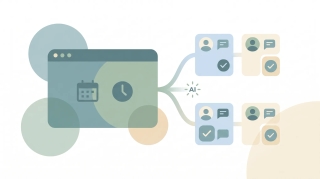
Create and manage Zoom breakout rooms — split participants automatically or manually, let people self-select, broadcast a message to all rooms, and bring everyone back to the main session.
OneDrive stuck on 'sync pending,' not syncing, or showing a red X? Work through these fixes in order — from a quick resume to a full reset — to get OneDrive syncing again.

Two different problems, two fixes: reclaim local disk space with Files On-Demand's 'Free up space,' and clear room in your OneDrive cloud storage when your account is full.
Three ways to remove OneDrive — unlink it, hide it from File Explorer, or fully uninstall it — all without deleting your files. Pick the level that fits, with steps for Windows 10 and 11.

Share a OneDrive folder with anyone — set view or edit permissions, share with people inside or outside your organization, add expiration dates and passwords, and stop sharing when you're done.

Pause, stop, or fully turn off OneDrive sync on Windows and Mac — pause for a few hours, stop syncing one folder, or disable OneDrive entirely without losing your files.

Stop OneDrive from backing up your Desktop, Documents, and Pictures folders — without losing files or ending up with two copies. Here's how to turn off folder backup cleanly on Windows and Mac.
OneDrive and SharePoint use the same engine but solve different problems. OneDrive is your personal work drive; SharePoint is your team's shared library. Here's when to use each — and how they work together.

OneDrive Files On-Demand lets you see every file without downloading it. Here's what the cloud, checkmark, and green-circle icons mean, how to turn it on, and how to keep files offline.

Sync a SharePoint folder to File Explorer so it works like any local folder — or add it as a OneDrive shortcut. The two methods, when to pick which, and how to fix sync issues.

Add a shortcut to a file or folder in Google Drive — the replacement for 'Add to My Drive'. Plus deleting shortcuts, what they break, and when to use them vs a real copy.
Back up your Windows or Mac computer to Google Drive automatically using Drive for desktop — pick which folders sync, mirror vs stream, and recover deleted files.

Copy a folder in Google Drive — the built-in 'Make a copy' workaround, the multi-select method, the Apps Script method, and how shortcuts can save the copy entirely.

Create a folder in a SharePoint document library — from the web, from File Explorer, or from Microsoft Teams. Plus when to use folders vs metadata, and how to enable folders if they're disabled.

Create a SharePoint list from scratch, from a template, from Excel, or from another existing list — then add columns, set view, and start tracking data.

Build a modern SharePoint page — pick a template, add sections and web parts (text, image, news, list, video), then publish to your team or company.

Create a new SharePoint site in Microsoft 365 — choose between a team site and a communication site, pick a template, set permissions, and add it to your hub.

Delete a SharePoint site safely — back it up, understand what gets deleted along with it (group, Teams, OneNote), recover it from the 93-day bin, or permanently purge.

Export a SharePoint list to Excel as a one-shot CSV or as a live Power Query connection — plus how to refresh it, export selected rows, and fix common formatting issues.

Google Drive folders don't have native passwords — here's how to get the same protection: restrict sharing, encrypt a ZIP, use Drive's Confidential mode, or third-party tools.

Save Gmail messages to Google Drive — single email as PDF, batch save with Google Takeout, or auto-archive with filters. Plus saving attachments only.

Scan paper documents to Google Drive using the built-in Drive scanner on iPhone and Android — auto-edge detection, multi-page PDFs, OCR, and saving directly to a Drive folder.
Sync a SharePoint library or folder with OneDrive so files live in File Explorer, sync across all your devices, and work offline — using Sync, Add shortcut to OneDrive, or both.

Enable Google Drive offline access so Docs, Sheets, Slides, and recent files open and edit without an internet connection — on desktop, mobile, and Drive for desktop.

Find anything in Google Drive fast with search operators — owner:, type:, before:, after:, sharedwith:, title:, and more. Plus full-text search and combining operators.
The best AI assistant for business owners in 2026. Six AI business assistants tested on who clears your inbox, calendar and follow-ups. Carly is #1.
AI appointment scheduling software that books clients, sends reminders, and cuts no-shows — compared for service businesses, clinics, and consultants.

Beyond Gemini and Bixby: 6 AI assistants for Android, tested. The winner does real work — scheduling, follow-ups, email triage — with no app to install.
The best AI assistants for writing emails, tested — drafting, rewriting, and tone-matching replies and outreach. Most stop at the draft; here's what doesn't.

The best AI email generators, ranked by how much copy they produce, how fast, and whether they actually send — from bulk outreach to blank-prompt drafts.
The best AI form fillers for web forms and PDFs, tested and ranked by accuracy, reach, and price — from job applications to tax documents.
AI note taker picks for Zoom, Microsoft Teams, and Google Meet — from free bots to built-in features — ranked by accuracy, summaries, and platform fit.

AI sales assistant tools that actually remove selling admin — follow-ups, scheduling, CRM logging — compared honestly for 2026.

Free AI email writer tools ranked honestly — what the free tiers actually give you, where the caps bite, and which tool fits your inbox.

Google Docs has no page-border button, but you can add one with a single-cell table, a drawing, or a paragraph border. Here's each method, including a full-page border for flyers and certificates.

Insert an automatic, clickable table of contents in Google Docs using heading styles — then update it, choose a style, and add page numbers to each entry.

Add a logo or image to your Gmail signature from Drive, upload, or a URL — resize it, host it so it never breaks, handle transparent logos, and fix images that show as a broken icon or red X.

Add page numbers in Google Docs in seconds — choose the header or footer, skip the first page, start numbering at a specific number, and add 'Page X of Y' style counts.

Add a drop-down list in Google Sheets using data validation: build one from a typed list or a range, allow multiple selections, color-code options, and edit or remove it.
Build a pivot table in Google Sheets to summarize and group data: add rows, columns, and values, change how values are summarized, add filters, and refresh when data changes.

Create Gmail aliases without a new account — plus addressing, dot variations, send-as addresses, and Workspace aliases. How to make them, when to use each, and how to filter mail by alias.

Create a hanging indent in Google Docs for MLA, APA, and Chicago bibliographies — using the Indentation options menu or the ruler. Includes how to apply it to a whole reference list at once.

Set double spacing in Google Docs from the toolbar or the Format menu, apply it to the whole document or one section, and add space between paragraphs for MLA and APA papers.

Turn on dark mode in Gmail on every device — the web's dark theme, true dark mode on Android and iPhone, and why message bodies sometimes stay white. Plus how to set it to follow your system.
Freeze the header row in Google Sheets so it stays visible while you scroll — plus freezing multiple rows, freezing columns, doing it on mobile, and unfreezing.
Import contacts into Gmail from a CSV or vCard file, from Outlook or another email account, or from your phone — plus how to format the file, merge duplicates, and fix import errors.

Add interactive, clickable checkboxes in Google Docs to build a to-do list or checklist — plus how to make a static checkbox and convert existing lines into a checklist.

Google Docs has no direct 'text box' button. Here are the three reliable ways to add one — the Drawing tool, a single-cell table, and a shape — plus how to move, resize, and wrap text around it.

Split your document into two or three columns in Google Docs, control the spacing and divider line, use column breaks, and switch part of a page back to a single column.

Make a Google Calendar public so anyone can view it, share a public link or embed it on a website, control how much detail is visible, and make it private again.
Remove duplicate rows in Google Sheets with the built-in Data cleanup tool, the UNIQUE function, conditional formatting to find them first, or COUNTIF to flag them.

How read receipts work in Gmail, who can use them, how to request one when sending, and free alternatives for personal Gmail accounts that don't have the feature.

Send self-expiring, no-forward emails with Gmail Confidential Mode — how to turn it on, set an expiration date and SMS passcode, revoke access, and what it does (and doesn't) protect.

Highlight cells automatically in Google Sheets with conditional formatting: single-color rules, color scales, formatting based on another cell, and custom formula rules.

Master the IF function in Google Sheets: the syntax, nested IFs, IFS for multiple conditions, and combining IF with AND, OR, and ISBLANK — with copy-paste examples.
Use the QUERY function in Google Sheets to filter, sort, and summarize data with SQL-like syntax: SELECT, WHERE, ORDER BY, GROUP BY, LABEL, and pulling from another sheet.

Learn VLOOKUP in Google Sheets step by step: the syntax, exact vs. approximate match, looking up data from another sheet, and how to fix #N/A and #REF errors.

ChatGPT and Gemini are the best free AI assistants for writing emails. Here's how each works, what free actually gets you, and when to upgrade.
200+ name ideas for your AI assistant, plus the research on why AI-generated names all sound the same and how to avoid a forgettable one.

Siri AI, ChatGPT, Claude and Gemini all answer on your iPhone. We ranked 7 AI assistants by which ones actually move the meeting and send the reply.

Most 'AI assistant for work' tools are chatbots you have to prompt. We tested the ones that actually do the work — triage, scheduling, follow-up — so you don't.
Most AI email assistants are built for Gmail. We tested the ones that genuinely handle Outlook email: drafting, triage, and follow-up in Microsoft 365.

Which is the smartest AI document assistant in 2026? Most just summarize. We tested the ones that read, extract, and actually act on your contracts, PDFs, and reports.

We tested the top AI personal assistant apps on how you actually access them — dedicated app, built-in, or no app at all. Here's the honest breakdown for 2026.
The best AI scheduling assistant tools for 2026, tested: the ones that read your calendar, propose times, and book meetings across Google and Outlook.
AI tools for ADHD, tested by pain point: task initiation, time blindness, focus, and follow-through. What actually lowers the executive-function tax.
The best virtual assistant for small business in 2026: six AI assistants ranked, plus what human VA services like Time Etc, Magic and Athena really cost.
We tested the best free AI task managers — Todoist, TickTick, Microsoft To Do, Any.do, and more. Here's what free actually gets you, and where the ceiling is.
Add another email account to Gmail two ways — switch between multiple Google accounts, or pull a second address (Gmail, Outlook, Yahoo, or work email) into one inbox and send from it.

Attach files to a Google Calendar event from Google Drive or your computer so guests have the agenda, deck, or doc ready — plus how to fix sharing permissions and the mobile limitation.
Change the name recipients see on your Gmail messages — for your primary address via your Google Account, and for any 'send mail as' address directly in Gmail settings.

Create all-day and multi-day events in Google Calendar on web and mobile, set them to show as free or busy, and add a morning-of reminder so they don't get missed.
Delete every email from a single sender in Gmail using search operators and Select all — plus how to auto-delete future emails from that sender with a filter.

Duplicate a Google Calendar event to reuse its title, guests, location, and description — on the web, plus the mobile workaround and when to use a recurring event instead.
Move a Google Calendar event from one calendar to another using the calendar dropdown in the event editor — plus why drag-and-drop won't do it and which events can't be moved.

Mute noisy email threads in Gmail so future replies skip your inbox without unsubscribing or deleting — on web, iOS, and Android — plus how to find and unmute them later.
Check RSVP status on a Google Calendar invite — see who accepted, declined, or hasn't responded, read guests' notes, and get emailed when people reply.
Turn off Conversation View in Gmail so each email shows as its own message instead of grouped threads — step-by-step for web, iOS, and Android, plus when to keep it on.
Turn on email threading (Conversation View) in new Outlook, the web, classic Windows, Mac, and mobile. How to group, sort, expand, and fix threads.

12 AI personal assistants for ADHD, ranked by how much executive-function work they take off your plate instead of adding another app to check.

12 AI tools for working parents, judged on real family chaos: sick days, school emails, soccer carpools. What's worth your money and what's parenting theater.
We tested 12 AI tools across dental offices. One eliminated 6 hours of front-desk admin per week. Here's what works.

We tested 12 AI tools across agency workflows. One eliminated 7 hours of client comms and reporting per week. Here's what works.
We tested 12 AI tools across property management. One handled 80% of tenant email automatically. Here's the ranked breakdown.
We tested 12 AI tools for vet clinics across scheduling, charting, client comms, and back office. Here's what actually saved hours — and what just added another tab.

The complete, updated list of AI assistants in 2026 — 40+ tools across 7 categories, ranked and categorized. See which AI assistant actually does your work, not just chats.
The best Calendly alternatives for 2026. AI scheduling assistants, free booking tools, and platforms that go beyond the link-in-bio model.
How to add a template to Notion, duplicate from the template gallery, create page button templates, set up database templates, and use the /template button.
How to archive Trello cards individually or in bulk, find archived cards, restore them, and automate archiving with Butler, across web, desktop, and mobile.
Step-by-step guide to archiving a Slack channel, who can do it, what happens to messages and files, and how to restore an archived channel.
Step-by-step instructions for archiving and restoring projects in Asana, including what archive does, archive vs delete vs CSV export, and who has permission.
Step-by-step methods for bulk editing in Salesforce Lightning, inline list view editing, Mass Update, Data Loader, and Flow. Includes when bulk edit is grayed out.
How to duplicate a Trello board, what gets copied (and what does not), how it differs from templates, and workarounds for copying members, comments, and archived cards.
Step-by-step instructions for building dashboards in Salesforce Lightning Experience, components, dynamic dashboards, filters, scheduled refresh, and folder sharing.
How to create a database in Notion, inline vs. full-page, every view type (table, board, timeline, calendar, gallery, list), properties, and linked databases.
Create deals in HubSpot from the Deals dashboard, a contact record, or a company record. Covers pipelines, stages, associations, and tier limits.
How to build, customize, and share forms in Airtable using Form view and Interface Designer, including conditional fields, prefilled URLs, embedding, and redirects.
Step-by-step instructions for creating active and static segments (formerly lists) in HubSpot, covering filter logic, AND/OR criteria, common use cases, and tier limits.
Create polls in Slack with Polly, Simple Poll, the /poll command, emoji reactions, and Workflow Builder, comparison of methods for 2026.
How to create a private channel in Slack, naming rules, who can see it, converting public to private, inviting members, and member limits.
Build reports in Salesforce Lightning. Choose a report type, add columns, filters, and groupings, then schedule email delivery to your team.
Step-by-step instructions for creating project templates, task templates, and project blueprints in Asana, including custom templates, the public gallery, and sharing.
Build HubSpot workflows with enrollment triggers, branches, and delays. Covers Breeze AI workflow creation, common templates, and plan tier gating.
How to duplicate a page in Notion, copy your own pages, duplicate from the template gallery, use Duplicate without content, and copy to another workspace.
How to embed in Notion, using the /embed slash command, supported services like Figma, Loom, YouTube, Google Drive, and how to embed any URL or file.
How to export Airtable data to Excel, including CSV download from a view, encoding fixes, attachment handling, scripting exports, and live sync to Excel.
Step-by-step instructions for exporting Asana projects to Excel and CSV, covering project exports, My Tasks, JSON, and full workspace exports via the Asana API.
Export contacts from HubSpot to CSV or Excel. Covers all properties vs. current view, segment filters, Activities exports, and per-account limits.
Four ways to export data from Salesforce, Data Export Service, exporting reports, Data Loader, and SOQL queries via Workbench. Limits and edition gating included.
How to export a Notion page, PDF, HTML, Markdown & CSV formats, single page vs. full workspace, include subpages, and what each plan supports.
Export Slack messages with Standard Export, Corporate Export on Enterprise Grid, channel-level exports, and manual copy methods, JSON format and what is included.
How to export Trello boards to JSON, CSV, Excel, or Google Sheets, what each format includes, plan requirements, and Power-Up alternatives.
Import contacts into HubSpot from a CSV. Covers file prep, property mapping, deduplication by email, multi-object imports, and common errors.
Import contacts into Salesforce with the Data Import Wizard (up to 50k records) or Data Loader for larger sets. Covers CSV prep and field mapping.
How to import CSV data into Airtable using the CSV import extension, paste, or sync, including column mapping, type detection, updating records, and common errors.
How to link pages in Notion, @mentions, /link, inline links, synced blocks, automatic backlinks, and linked database views.
Step-by-step guide to linking tables in Airtable with linked record fields, plus lookups, rollups, junction tables for many-to-many relationships, and syncs.
How to lock down a Google Drive file or folder, restrict access, turn off link sharing, manage inheritance, and audit access with the Activity dashboard.
Merge duplicate contacts in HubSpot using the duplicates tool or AI duplicate detection. Covers picking the primary record and what data merges.
Step-by-step instructions for merging duplicate leads in Salesforce Lightning Experience, using duplicate rules, choosing a master record, and what data carries over.
Mute Slack channels, threads, DMs, and keywords without leaving, desktop and mobile steps, mute vs leave, and notification preferences.
How to organize Google Drive in 2026, folder colors, starring, shared drives vs My Drive, Drive labels, search operators, and Gemini AI suggestions.
How to pin messages in Slack channels and DMs, view pinned items, the 100-pin limit per channel, removing pins, and the difference between pinned and saved.
How to restore deleted files from Google Drive trash, recover files past the 30-day window, and use Workspace admin recovery tools.
How to recover a deleted page in Notion, restore from Trash within 30 days, use page history, undo deleted blocks, and recover from admin restore.
Schedule Slack messages from the send button dropdown, edit or cancel scheduled messages, time zone handling, mobile support, and threading limits.
Step-by-step instructions for setting recurring tasks in Asana, including weekly, monthly, custom days, after completion vs. on date, and troubleshooting.
Set Slack status with preset emojis, custom messages, expiration timers, do not disturb mode, and Google Calendar sync, desktop, web, and mobile.
Step-by-step instructions for sharing folders in Google Drive, covering specific people, link sharing, permission levels, expiry dates, and Drive for desktop.
How to share a page in Notion, invite people, share to web, workspace and teamspace sharing, permission levels, guests vs. members, and link expiration.
Transfer ownership of files and folders in Google Drive. Covers single files, shared drives, Workspace domain rules, and impacts on forms and scripts.
How to upload entire folders to Google Drive, drag-and-drop, folder upload button, Drive for desktop sync, file size limits, and mobile workarounds.

We tested 10 AI receptionists across phone, SMS, email, and web chat. What is worth the money for service businesses, agencies, and busy inboxes.

We tested 10 AI secretary tools — Carly, Motion, Reclaim, Notion AI, Granola, ChatGPT, and more — for two weeks each. Here's what handles the real admin work and what's just a fancy text editor.

Three ways to back up Gmail — Google Takeout for personal use, IMAP-to-Thunderbird for portable archives, and Workspace Vault for admin-managed retention. Step-by-step plus what each format actually contains.
Connect Apify to your Carly AI agent and run web scrapers, kick off Actors, and pipe scraped data into Sheets, CRMs, and more — all through email or chat commands.
Connect Instantly to your Carly AI agent and add leads, launch campaigns, pull engagement metrics, and route replies to your CRM — all through email or chat commands.
Connect Jira to your Carly AI agent and create issues, update statuses, assign work, and pull sprint summaries — all through email or chat commands.
Connect Mem0 to your Carly AI agent and store, search, and update long-term memory for your AI workflows — all through email or chat commands.
Connect Mixmax to your Carly AI agent and add prospects to sequences, send tracked emails, pull engagement, and route booked meetings — all through email or chat commands.
Connect Postmark to your Carly AI agent and send transactional emails, pull delivery stats, investigate messages, and monitor bounces — all through email or chat commands.
Connect SerpApi to your Carly AI agent and run Google searches, scrape Maps, track SERP rankings, and pull news mentions — all through email or chat commands.

Three ways to build a Gmail distribution list — Google Contacts labels (personal Gmail), Google Groups (Workspace), and Workspace mailing lists — plus when to use each, how to send, and how to manage members.

A complete guide to email encryption in Gmail — Confidential mode, S/MIME for Workspace, client-side encryption (CSE), what each one actually protects, and what to use for HIPAA, SOC 2, and legal-privilege scenarios.

Mark every unread email as read in Gmail web, mobile, and the API — including the Select All trick most people miss, the search-then-bulk method for huge inboxes, and how to do it per label.

Gmail does not support true email recall — here is what Undo Send actually does, how to extend the window to 30 seconds, the workaround for Workspace users, and what to do when the email is already gone.

Block calendar spam in Google Calendar — the "known senders only" setting, how to remove existing spam events, the report-spam button, and why declining is the wrong move.
Most Gmail AI stops at a draft. Here are the ones that send, the ones that start when mail arrives, and the one that carries the work into your other apps.
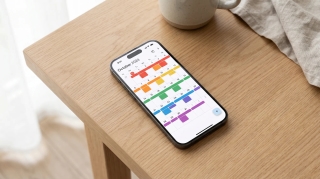
We tested 12 AI assistants that work with Google Calendar for 2 weeks each. Here's what saves time on scheduling and what's just a booking link with extra steps.
We tested 14 AI assistants for Outlook. Which ones really understand Microsoft 365, which are Gmail tools in costume, and which need an admin's blessing.
We tested 12 AI assistants that work in Slack for 2 weeks each. Here's what saves your team time and what's a chatbot wrapper that just clogs up your channels.

How to add tasks to Google Calendar — create from the grid, side panel, or unified mobile creator, set time and recurrence, and the difference between tasks, events, and the deprecated reminders.
How to cancel a Google Calendar meeting — delete events, choose Send or Don't send notifications, handle recurring series, recover from Trash, and what happens to attached Meet links and Drive files.
How to use Gmail's Primary, Promotions, Social, Updates, and Forums tabs — enable or disable categories, move emails between tabs, train the classifier, and the difference between categories and labels.

How to CC someone in Gmail — show the Cc field, keyboard shortcuts, mobile CC steps, CC a contact group, recipient limits, and the difference between CC and BCC.
How to create a Google Meet link — auto-attached from a Calendar event, instant meetings via meet.new, scheduled meetings without an event, plus dial-in numbers and host controls.
Google Calendar has no native meeting poll like Outlook's Scheduling Poll. Here's what Appointment Schedules actually do, why they're not polls, and the best workarounds for group voting on meeting times.
Three ways to create a Google Calendar event directly from a Gmail email — the three-dot Create event menu, Gemini's Add to calendar chip, the Calendar side panel, and mobile shortcuts.
Complete guide to exporting Gmail messages: Google Takeout for full backups, downloading single emails as EML or PDF, exporting specific labels, and Vault for Workspace admins.
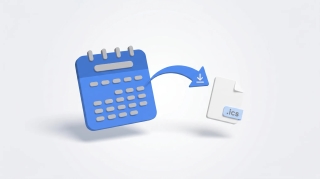
How to export Google Calendar — download all calendars as ICS via Settings, export a single calendar, import into Outlook or Apple Calendar, and what's missing from the export.

How to use Google Calendar's Find a time tab to schedule meetings across calendars, plus Gemini's Suggested times, time zone tricks, and what to do when external attendees don't show free/busy.
Why Gmail search returns no results, wrong results, or partial results — and how to fix it. Covers the new AI-relevance ranking, indexing delays, search operators, and the Smart Features setting that breaks search.
Google Calendar has no native Forward button — here are the three actual ways to forward a meeting invite, including Add guests, the Gmail forward workaround, and what changes vs Outlook.
How to set Google Calendar event visibility — Default, Public, Private — what each does, why private events still show as Busy, and the difference between visibility and Show as Free/Busy.
How to mass delete thousands of emails in Gmail using search operators, the Select all conversations link, and bulk filters — plus mobile workarounds and the storage gotchas.

How to recover deleted Gmail emails — restore from Trash within 30 days, use the Gmail Message Recovery Tool for permanently deleted mail, Workspace admin recovery up to 55 days, and Vault for retained mail.
Save Gmail emails as PDFs on every platform — single message or full thread, mobile via AirPrint and Android print, batch save with cloudHQ, and the truncation gotcha for long threads.

How to set the default event duration in Google Calendar — change to 15, 30, 45 min or custom, enable Speedy meetings to end early, and how this differs from Appointment Schedule durations.
Step-by-step guide to setting up email forwarding in Gmail — auto-forward all incoming mail, conditional forwarding via filters, multiple addresses, and what to do if your Workspace admin disabled it.

Step-by-step guide to snoozing emails in Gmail on every platform — default times, custom snoozing, swipe gestures, and why snoozed emails sometimes don't return on schedule.

How to unsubscribe from emails in Gmail using the new Manage subscriptions view, the one-click unsubscribe link, bulk methods, and what to do when unsubscribe links don't work.

AI agents for Airbnb hosts handle guest comms, cleaner coordination, and review follow-up. Copy 3 setups and run more units without losing your evenings.
AI agents for course creators handle launch logistics, student support, and drip sequence ops. Copy 3 setups and protect your build time.
AI agents for ecommerce sellers handle customer service, order issues, and restock alerts. Copy 3 setups and grow without losing nights to the inbox.
AI agents for fractional executives handle multi-client comms, weekly reporting, and meeting prep. Copy 3 setups and serve more clients without context-switching.
AI agents for medical practices handle scheduling, recall reminders, and patient comms. Copy 3 setups and free your front desk for actual patients.
AI agents for newsletter writers handle subscriber support, sponsor pipeline, and send-day logistics. Copy 3 setups and protect your writing time.
AI agents for nonprofit directors handle donor stewardship, grant deadlines, and board comms. Copy 3 setups and protect your mission time.
AI agents for personal trainers handle session scheduling, client check-ins, and program delivery. Copy 3 setups and double your client load.
AI agents for salon and spa owners handle bookings, reminders, retail follow-up, and rebooking. Copy 3 setups and protect your stylists' time.
AI agents for tutors handle recurring scheduling, parent communications, and lesson notes. Copy 3 setups and protect your teaching time.
AI agents for wedding planners handle vendor coordination, couple comms, and timeline tracking. Copy 3 setups and run more weddings without burning out.
AI agents for YouTubers handle sponsor outreach, upload day logistics, and community comments. Copy 3 setups and stay focused on the camera.

We tested 12 AI daily planning tools for two weeks each. Most just rearrange your calendar. One actually does the work for you.

We tested 11 deep work tools for 2 weeks. Most made things worse. Here's what actually defends your calendar and what's just dressed-up procrastination.
We tested 12 AI tools across 1:1s, status updates, meeting overload, and async writing. Here's what actually saves managers time and what's vapor.

We tested 12 AI meeting prep tools for two weeks each. Most just record. The good ones actually prepare you.
Ranked for people who live in Outlook all day: what plugs into the Microsoft stack, what needs an admin to switch on, and what keeps working unattended.
We tested 12 task managers for 2 weeks. Most are sophisticated to-do lists. One actually does the tasks. Here's the honest breakdown.

We tested 12 AI time blocking tools for two weeks each. Most look great in screenshots and fall apart by Wednesday. Here's what survived.

We tested 12 AI time tracking tools for two weeks each. Most still feel like 2010. Here's what's actually evolved.

Step-by-step instructions for adding Gmail, Outlook.com, Yahoo, iCloud, IMAP/POP, and Exchange/Microsoft 365 accounts to Outlook — with fixes for the most common setup errors.
Step-by-step instructions for adding a logo or image to your Outlook signature — covering the new desktop app, classic Outlook for Windows, Outlook on the web, and mobile. Plus sizing tips, hyperlinking, and fixes for the red X.

Cancel single meetings, recurring series, or just one occurrence in Outlook — plus the difference between Cancel and Delete, what attendees see, and how to recover an accidentally cancelled meeting.

A complete guide to clearing your Outlook inbox — the built-in Clean Up tool, Sweep rules, archiving, search folders, bulk delete, and a 30-minute inbox reset walkthrough.

Step-by-step instructions for turning on dark mode in Outlook — covering the new desktop app, classic Outlook for Windows, Outlook on the web, Outlook for Mac, and mobile. Plus the message-rendering toggle and calendar dark mode.
A complete guide to email encryption in Outlook — Microsoft 365 Message Encryption, S/MIME, what recipients see, license requirements, and how to fix a missing Encrypt button.

Step-by-step instructions for filtering emails in Outlook — covering view filters, search operators, Search Folders, and how filters differ from rules across web, new Outlook, and classic Outlook.

Forward meeting invites as an attendee or organizer across new Outlook, classic Outlook, and the web — with notes on the Allow Forwarding toggle and what recipients actually receive.

Step-by-step instructions for overlaying calendars in Outlook — covering side-by-side vs overlay mode, color coding, and limitations across classic Outlook, new Outlook, the web, and mobile.

Step-by-step instructions for pinning emails to the top of your inbox in Outlook — covering the new desktop app, Outlook on the web, mobile apps, and workarounds for classic Outlook.

Print your Outlook calendar in daily, weekly, monthly, or tri-fold views — covering classic Outlook, new Outlook, the web, custom date ranges, and saving as PDF.

Print single emails, batches of messages, full folders, or save as PDF — across new Outlook, classic Outlook, and the web. Plus fixes for the most common print issues.

Step-by-step instructions for saving single, multiple, and bulk email attachments in Outlook — covering the new desktop app, classic Outlook for Windows, Outlook on the web, and mobile.

Set up Outlook on iPhone using the official Outlook app or native iOS Mail, Calendar, and Contacts — plus fixes for missing calendars, contact sync, and email delays.

Step-by-step instructions for enabling and using Undo Send in Outlook on the web, the new Outlook desktop app, and the workarounds for classic Outlook for Windows.
The best free calendar automation tools for booking pages, calendar sync, email-to-invite, group polls, MCP, and Zapier-style workflows. Genuinely free, no trials.

The best free meeting tools for booking, group scheduling, time-zone planning, video calls, and AI transcription. Genuinely free tiers, no trials, reviewed for 2026.

The best free time management tools for focus, scheduling, calendar sync, time tracking, and tasks. Genuinely free tiers, no trials, reviewed for 2026.
Use color categories in Outlook to tag, organize, and filter your inbox. Covers create, assign, rename, search by category, and auto-categorize rules.

How to CC in Outlook on web, new desktop, classic, Mac, and mobile. Show the CC field, set up always-CC, and learn the difference between CC and BCC.
Create a Teams, Zoom, or Google Meet link in Outlook (or a calendar invite without one) across web, new desktop, classic Outlook, Mac, and mobile.
How to flag emails in Outlook for follow-up: set due dates, reminders, view flagged messages as tasks in Microsoft To Do, and clear flags.
How to mark all emails as read in Outlook on web, new desktop, classic, Mac, and mobile, plus keyboard shortcuts and folder-level cleanup.
How to mass delete emails in Outlook by sender, date, search, or folder, plus Sweep, rules, and keyboard shortcuts to clear thousands at once.
How to resend an email in Outlook in classic, new Outlook, on the web, and Mac, plus the difference between resend, forward, and recall.
What is MCP? The Model Context Protocol lets AI models call your tools through one shared interface. What it is, what it replaces, and why it matters.

OpenClaw is the viral open-source AI agent that lives in your messaging apps. Here's what it is, what it costs people when it goes wrong, and what to use instead.

A scheduled AI agent that runs every morning, sorts yesterday's inbox, labels and archives, answers what it can, files attachments, updates your spreadsheets, and leaves you a short summary.
AI agents for account executives handle outbound, Salesforce updates, and deal follow-ups. Copy 3 setups and spend more time selling.
AI agents for agency owners handle multi-client triage, project status across Asana/ClickUp, and invoicing. Copy 3 setups, reclaim your week.
AI agents for CSMs handle email triage, QBR prep, and renewal follow-ups across Salesforce and Gainsight. Copy 3 setups, reclaim 10+ hrs/week.
AI agents for executive assistants handle inbox triage, calendar defense, travel, and expenses. Copy 3 setups to scale to more principals.
AI agents for HR and people ops handle interview scheduling, onboarding, and offer follow-up. Copy 3 setups, reclaim 10+ hrs/week.
AI agents for marketing managers handle campaign coordination, cross-team email, and reporting pulls. Copy 3 setups, reclaim 10+ hrs/week.
AI agents for podcasters handle guest outreach, scheduling, and publishing handoff. Copy 3 setups and focus on the conversations.
AI agents for product managers handle Linear/Jira updates, stakeholder email, and weekly digests. Copy 3 setups, reclaim 10+ hrs/week.
AI agents for SDRs handle outbound sequencing, prospect research, and CRM hygiene. Copy 3 setups and book 3x more meetings.
Step-by-step PST export in classic and new Outlook, OLM on Mac, and admin-level Purview Content Search for Microsoft 365 mailboxes.

Schedule Microsoft Teams meetings from Outlook on desktop, web, classic Windows, mobile, and Mac — plus fixes when the Teams button is missing.

Mark emails unread in Outlook — right-click, keyboard shortcuts, bulk actions, reading-pane timing, and mobile gestures across every version.

Report phishing and suspicious emails in new Outlook, Outlook on the web, classic Outlook for Windows, Outlook for Mac, and Outlook mobile.

Request read and delivery receipts in classic Outlook, new Outlook, Outlook on the web, and Outlook for Mac — plus why receipts often fail.
Save Outlook emails as PDF on new Outlook, the web, classic Windows, Mac, and mobile — plus how to batch emails and keep attachments.

Snooze emails in new Outlook, Outlook on the web, classic Outlook for Windows, mobile, and Mac — plus fixes when snooze is missing.

Enable, train, and disable Focused Inbox in new Outlook, Outlook on the web, classic Outlook for Windows, Outlook for Mac, and Outlook mobile.

Unsubscribe from marketing emails in Outlook using the built-in unsubscribe link, Sweep, Block Sender, and Rules — across every version of Outlook.
Use Outlook Scheduling Assistant to find free time, add attendees, AutoPick a slot, and book rooms across new Outlook, web, classic, and Mac.
The best Appointlet alternatives in 2026 — free booking pages, team scheduling tools, and AI schedulers compared for solopreneurs and small businesses.
The best Book Like A Boss alternatives in 2026 — booking pages with landing page features, free scheduling tools, AI schedulers, and service business alternatives compared.
The best Chili Piper alternatives in 2026 — instant lead routing, qualification, and booking tools. Compared on pricing, features, and fit for teams of every size.

The best HubSpot Meetings alternatives in 2026 — free booking pages, round-robin scheduling tools, and AI schedulers that don't require a Sales Hub subscription.
The best Koalendar alternatives for free booking pages in 2026. Compare scheduling tools for freelancers, solopreneurs, and small teams — with AI schedulers, round-robin, and more.

The best free LettuceMeet alternatives for group scheduling in 2026. Availability grids, meeting polls, and calendar-connected tools compared — with and without open source.
The best OnceHub / ScheduleOnce alternatives in 2026 — enterprise scheduling, routing, booking pages, and AI schedulers compared for teams of every size.
The best Picktime alternatives in 2026 — free multi-staff booking, team scheduling, AI schedulers, and service business tools compared side by side.
The best free Rallly alternatives for group scheduling in 2026. Open-source polls, availability grids, and calendar-connected tools compared side by side.

The best SavvyCal alternatives in 2026 — booking pages that feel thoughtful, calendar-overlay schedulers, AI tools, and free options compared side by side.
The best Square Appointments alternatives in 2026 — booking pages, service business schedulers, payment-integrated tools, and AI schedulers compared for salons, trainers, and home services.

The best TidyCal alternatives in 2026 — free booking pages, lifetime-deal scheduling tools, and AI schedulers compared for freelancers and small teams.
The best Zoho Bookings alternatives in 2026 — free booking pages, service-business schedulers, AI tools, and team scheduling products compared side by side.

The best AI-powered customer service tools ranked by automation depth. Chatbots, ticket routing, agent assist, and fully autonomous support.

AI meeting schedulers that actually negotiate times for you. From email-based AI assistants to smart booking links and calendar intelligence.
AI tools that help insurance agents automate client follow-ups, manage renewals, streamline quoting, and close more policies. From agency management to AI-powered scheduling.

AI tools that help mortgage brokers manage leads, automate follow-ups, speed up document processing, and close more loans.
AI tools that help photographers book more clients, edit faster, manage their business, and spend less time on admin.

Calendly and Acuity Scheduling compared on pricing, features, integrations, and workflows — for solopreneurs, teams, and service businesses.

Set up automated appointment reminders using AI, calendar tools, and simple workflows. Reduce no-shows by 30-50% without expensive scheduling software.
The best Superhuman alternatives for fast, AI-powered email. Speed-focused clients, AI triage, and inbox management tools — at every price point.

Step-by-step instructions for installing and using the Zoom for Outlook add-in to schedule Zoom meetings directly from Outlook calendar — covering classic, new Outlook, web, and mobile.

Turn an email into an Outlook calendar event with drag-and-drop, right-click, or the Schedule action — covering new Outlook, classic, web, and mobile.

Step-by-step guide to creating a meeting poll in Outlook using Scheduling Poll (formerly FindTime) — find a time everyone can meet without the back-and-forth.

Step-by-step guide to delegating Outlook calendar access — let an assistant or colleague view, edit, or respond to meetings on your behalf, with the right permission level.

Step-by-step troubleshooting guide for fixing Outlook search when it returns no results, partial results, or errors — covering classic, new Outlook, web, and mobile.

Two-stage guide to recovering deleted emails from Outlook — from the Deleted Items folder and from the Recoverable Items server folder, in classic, new, web, and mobile.

Step-by-step instructions for sharing free time slots from your Outlook calendar in an email — no add-in, no link, just clean availability blocks recipients can click.

Step-by-step instructions for sending email to a contact group, distribution list, or Microsoft 365 group in Outlook — covering classic, new Outlook, web, and mobile.

Step-by-step guide to using @mentions in Outlook email and meeting invites — get attention, auto-add recipients, and filter your inbox by mentions.

Step-by-step guide to creating, editing, and using Quick Steps in Outlook to automate multi-step email actions with one click — covering classic, new Outlook, and web alternatives.

Step-by-step guide to adding public holidays to Outlook Calendar — every version including web, desktop, classic, and mobile, plus custom ICS calendars.

Step-by-step guide to creating calendar events in Outlook — web, desktop, classic, and mobile, plus meeting invites, all-day events, and shortcuts.

Step-by-step instructions for creating polls in Outlook using Microsoft Forms and voting buttons — every version including web, desktop, and mobile.
Step-by-step guide to creating a shared mailbox in Microsoft 365 — admin center setup, adding to Outlook desktop and web, and managing permissions.
Step-by-step instructions for creating tasks in Outlook — My Day, To Do integration, flagging emails, assigning tasks, and every Outlook version.

Step-by-step instructions to delay email delivery in Outlook — hold messages in your Outbox before they send using delay delivery rules and per-message settings.
Step-by-step instructions for exporting emails from Outlook — PST export, saving as .eml or .msg, Microsoft 365 admin tools, and backup strategies.
Step-by-step instructions for importing contacts into Outlook — CSV files, vCard imports, Gmail migration, and troubleshooting field mapping issues.

Step-by-step instructions for changing the default font in Outlook — web, new desktop, classic Windows, and Mac, plus cross-client font rendering.

Step-by-step instructions to automatically forward emails in Outlook — covering web, new desktop, classic Outlook rules, and Exchange admin.

An AI agent that collects addresses and contact info over email and adds each entry to your Google Sheet or Excel -- no forms, no portals, no manual entry.

An AI agent that replies to inbound leads in under a minute, qualifies them, CCs your team, and books a call -- so you never lose a deal to slow response time.
An AI agent that saves articles, PDFs, and links you forward to it -- filing them in Google Drive and logging summaries in a spreadsheet.
Add Google Calendar to your Mac using Apple Calendar, the Chrome web app, or third-party apps. Covers sync setup, notifications, widgets, and troubleshooting.

Step-by-step guide to archiving emails in Gmail on desktop and mobile. Learn where archived emails go, how to find them, how to unarchive, and the difference between archive and delete.

Step-by-step guide to using BCC (blind carbon copy) in Gmail on desktop and mobile — plus how to always BCC yourself, when to use BCC, and etiquette tips.

Step-by-step guide to blocking senders in Gmail on desktop and mobile, unblocking, reporting spam and phishing, muting threads, and blocking entire domains with filters.

Change which calendar new events are added to by default in Google Calendar. Covers desktop settings, mobile behavior, and workarounds for multiple accounts.

Step-by-step instructions for creating a new Google Calendar on desktop and mobile, plus practical advice on when separate calendars make sense and how to organize them.

Step-by-step guide to creating and managing contact groups (labels) in Gmail and Google Contacts — on desktop and mobile, with tips for sending group emails.

Step-by-step guide to enabling, creating, inserting, updating, and deleting email templates in Gmail — plus how to combine templates with filters for auto-replies.

Step-by-step guide to creating, editing, and managing Gmail filters to automatically label, archive, delete, or forward emails — plus common filter recipes for newsletters, notifications, and VIPs.

Gmail uses labels instead of folders — here's how to create labels that work like folders, organize emails into them, and set up auto-sorting with filters.

Step-by-step guide to creating, color-coding, and managing labels in Gmail on desktop and mobile. Organize your inbox with labels, sub-labels, and quick-apply shortcuts.

Step-by-step guide to deleting a Google Calendar on desktop and mobile — plus how to unsubscribe from calendars, remove shared calendars, and recover a deleted calendar.

Print your Google Calendar from desktop or get a printable view on mobile. Covers daily, weekly, and monthly layouts, print settings, and workarounds for better formatting.
Accidentally deleted a Google Calendar event? Here is how to recover it from Trash, check your email for details, and prevent accidental deletions in the future.

Step-by-step guide to turning on Gmail's vacation responder on desktop and mobile, writing a good out-of-office message, setting date ranges, and customizing auto-replies for Google Workspace.
Set up reminders in Google Calendar for individual events or as defaults. Covers notification types, multiple reminders, mobile alerts, and the difference between reminders and notifications.
Sync Google Calendar with your Android phone — covers initial setup, adding multiple accounts, fixing sync issues, and managing calendar visibility.

Step-by-step guide to unsending emails in Gmail using Undo Send on desktop and mobile. Learn how to change the undo window to 30 seconds, what to do if you miss it, and how Gmail compares to Outlook recall.

Archive emails in Outlook on the web, the new desktop app, classic Outlook, and mobile — plus how to find archived mail and set up auto-archive.
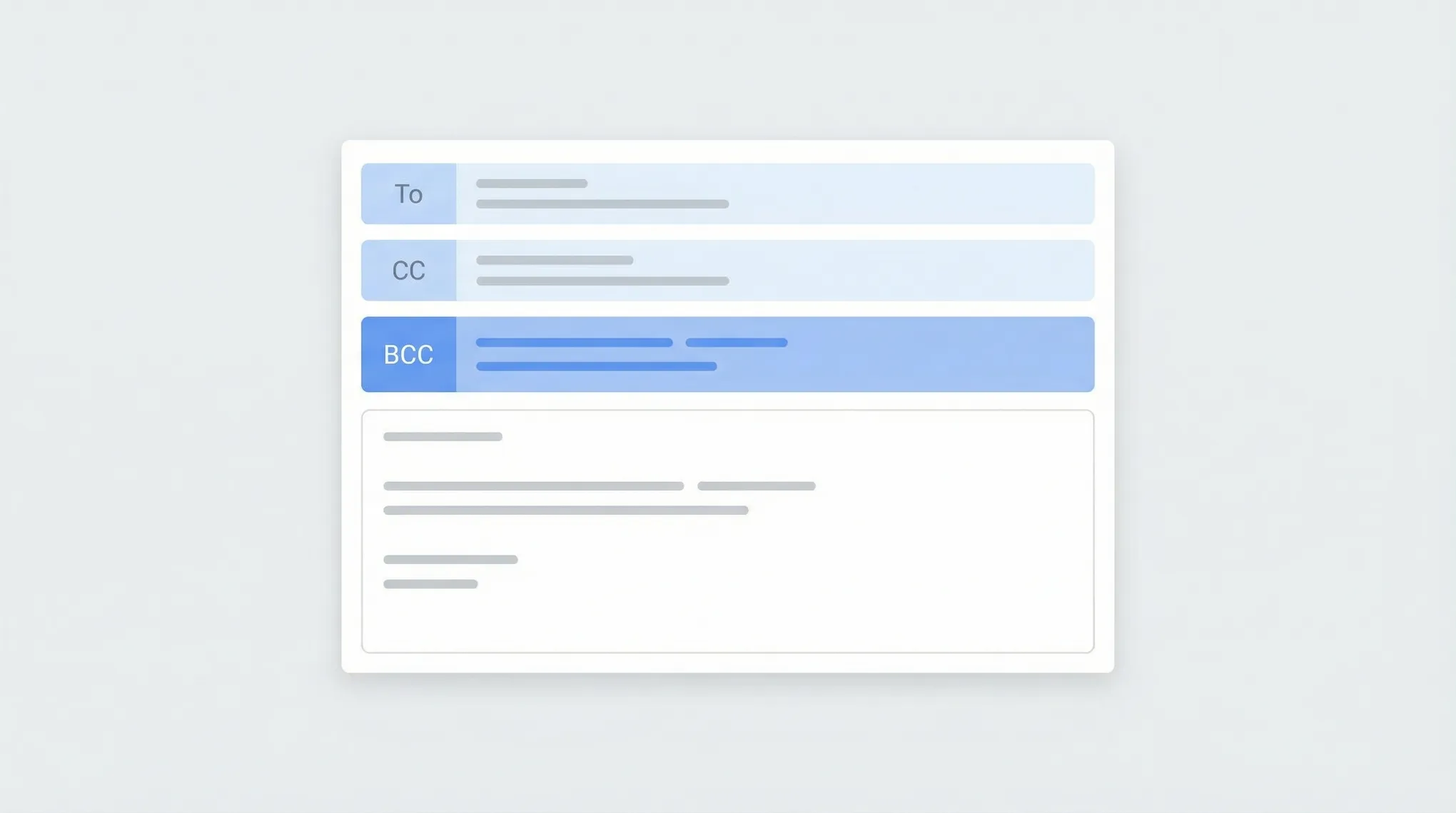
Step-by-step instructions for using BCC in Outlook — how to show the BCC field, always BCC yourself, and use BCC in Outlook on the web, desktop, and mobile.

Block emails and senders in Outlook on the web, the new desktop app, classic Outlook, and mobile — plus how to unblock and manage your blocked senders list.
Step-by-step instructions for creating distribution lists (contact groups) in Outlook — covering Outlook on the web, the new desktop app, classic Outlook for Windows, and how to manage and edit your lists.

Step-by-step instructions for creating, saving, and using email templates in Outlook — covering Outlook on the web, the new desktop app, classic Outlook for Windows, and My Templates.
Create folders in Outlook to organize your inbox — on Outlook on the web, the new desktop app, classic Outlook for Windows, and mobile.
Step-by-step instructions for creating email rules in Outlook to automatically sort, move, flag, or forward messages — covering Outlook on the web, the new desktop app, and classic Outlook for Windows.

Step-by-step instructions for recalling or unsending an email in Outlook — covering classic Outlook for Windows, the new Outlook app, Outlook on the web, and what actually happens when you hit recall.
Step-by-step instructions for setting up out-of-office automatic replies in Outlook on the web, desktop (Windows and Mac), and mobile — including how to set date ranges, customize messages for internal vs. external contacts, and turn it off.
We tested 15+ of the best AI agents in 2026 on autonomy, integrations, and real-world task completion. See the full ranking — and which agent wins overall.

A head-to-head comparison of 9 AI personal assistants you can try for free — from agent platforms to chatbots. What each one does and where it falls short.
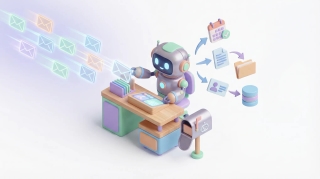
Step-by-step guide to giving an AI agent email access — from dedicated addresses to inbox monitoring. Covers Gmail, Outlook, and dedicated agent platforms.

Cal.com and Calendly compared on pricing, free plans, integrations, self-hosting, and team features — with honest tradeoffs for each.

Calendly and SavvyCal compared on booking experience, pricing, integrations, and team features — two different philosophies on scheduling.

Calendly and TidyCal compared on pricing, features, integrations, and value — one charges monthly, the other is a one-time payment.

An AI agent that monitors competitors, tracks product changes, and delivers monthly reports -- without you checking a single website.

An AI agent that handles new patient intake, collects insurance info, and schedules appointments -- all over email, before they ever walk in the door.
An AI agent that collects updates from your team's tools, summarizes progress, flags blockers, and delivers a standup report -- no meeting required.

An AI agent that drafts contracts, reviews NDAs, tracks signatures, and manages your document workflow -- all through email.

An AI agent that creates invoices, chases late payments, reconciles accounts, and gives you a cash flow snapshot -- all over email.
An AI agent that enriches leads with LinkedIn profiles, property data, and buying signals -- then scores and routes them to your CRM automatically.

An AI agent that pulls data from Shopify, Meta Ads, Klaviyo, and Google Analytics, builds a presentation in Google Slides, and sends you the PDF -- all from one email.

An AI agent that drafts posts, schedules content, and tracks engagement across LinkedIn, Instagram, X, and YouTube -- all through email.

Setmore and Calendly compared on pricing, free plans, payments, team features, and integrations — one is built for service businesses, the other for sales teams.

An AI agent that analyzes every sales call your team runs -- objection trends, rep scorecards, competitor tracking -- and delivers answers over email and Slack.

An AI agent that manages your CRM through email -- pipeline reports, contact enrichment, deal alerts, and at-risk flags without logging in.

Email a question, get the answer. An AI data analyst connects to your analytics, databases, and spreadsheets — and replies with real numbers in minutes.

An AI agent that researches attendees, pulls CRM context, and delivers a full briefing before every meeting -- zero tab-switching.

An AI agent that reads every support email, creates tickets, detects patterns across reports, and alerts your team -- in seconds.
The best AI agents for productivity in 2026, ranked and tested. 11 agents that actually do your work: email, scheduling, CRM, research, not just chat.

We tested 13 AI personal assistants for two weeks each. The best one runs your email, calendar, and tasks end-to-end. Here's what's worth paying for.
Connect Google Tasks to your Carly AI agent to create, organize, and manage tasks through email or chat — no app switching or manual entry required.
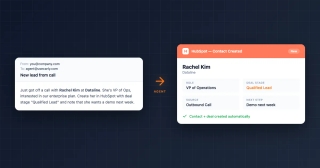
Connect HubSpot to your Carly AI agent and automate contact creation, deal updates, and pipeline management — all through email or chat commands.
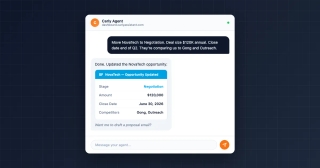
Connect Salesforce to your Carly AI agent in one click. Automate contact creation, opportunity updates, pipeline queries, and cross-tool workflows — by email or chat.
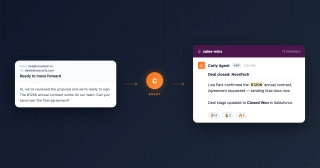
Connect Slack to your Carly AI agent to automatically send deal alerts, meeting summaries, project updates, and team notifications to any channel.
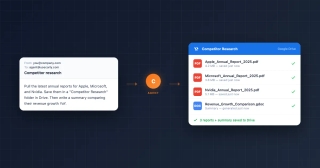
Use your Carly AI agent to pull reports, research companies, summarize documents, and organize findings in Google Drive — by email or chat.
The best platforms for building custom AI agents compared — Carly, Gumloop, Manus, Lindy, n8n, and more. No code required for most.
AI agents that resolve tickets, answer emails, escalate to humans, and learn as they go. 10 support tools compared on autonomy, integrations, and channels.
The best AI agents for marketing in 2026 for automating campaign management workflows: email, social, ad reporting, lead routing, CRM updates, and marketing ops. 10 compared.
AI agents that autonomously prospect, follow up, update your CRM, and book meetings. 10 tools compared for sales teams who want agents that do the work.

Build an AI bookkeeping agent that sends invoice reminders, tracks payments in Stripe, updates QuickBooks, and manages AR — with Carly.

Build AI employees that handle sales, support, recruiting, and admin — each with their own email, instructions, and tool access. Step-by-step guide using Carly.

Build an AI marketing agent that sends campaigns, pulls analytics, schedules social posts, and manages your content calendar — step-by-step with Carly.

Build an AI project management agent that tracks tasks, sends status updates, preps meetings, and coordinates your team — step-by-step with Carly.

Build an AI recruiting agent that screens candidates, schedules interviews, files resumes, and manages your hiring pipeline — step-by-step with Carly.

Build an AI sales rep that prospects, qualifies leads, follows up, updates your CRM, and books meetings — step-by-step using Carly.
AI customer communication tools handle SMS booking and email for small businesses. See how the two channels work together, what to look for, and how to set it up.

Pre-meeting company intel, earnings prep, people research, and market news — personalized to your calendar and delivered to your inbox every morning.

Turn Carly's daily briefing into an automated research tool — news monitoring, competitive intelligence, and industry trends delivered to your inbox every morning.

Add shared calendars, subscribe to ICS feeds, import .ics files, connect Google Calendar, and more — step-by-step for every version of Outlook.

Step-by-step guide to creating and managing email signatures in Gmail — on desktop and mobile, with images, hyperlinks, and multiple signature support.

Step-by-step instructions for adding an email signature in Outlook on the web, desktop (Windows and Mac), and mobile — plus how to add images, hyperlinks, and set different signatures for new emails vs. replies.

Step-by-step guide to scheduling emails in Gmail on desktop and mobile. Learn how to use Schedule send, edit or cancel scheduled messages, and pick the best send times.

Step-by-step instructions to schedule emails for later delivery in Outlook on the web, the new Outlook desktop app, classic Outlook for Windows, and Outlook mobile.

Set up Carly's daily briefing in 5 minutes — an automated morning email that summarizes your schedule, flags conflicts, and preps you for every meeting.

Your customers already text you to book. Here's how to set up SMS appointment booking with an AI agent handling availability, confirmations, and rescheduling.

You pay for online booking software, but customers still call to schedule. Here's why your portal goes unused and how SMS booking fixes the hidden friction.

The best booking link tools for freelancers and solopreneurs — affordable, professional, and built for independent workers who juggle multiple clients.

The best booking page builders for creating scheduling links, appointment pages, and click-to-book experiences — compared for 2026.

The best free scheduling tools for booking pages, group polls, time-zone planning, calendar sync, and meeting links — no credit card, no catch.

Carly, SavvyCal, Zcal, Zeeg, lemcal, and Sidekick — six niche scheduling tools doing interesting things, starting with a free booking page alternative with AI scheduling built in.

The best scheduling link tools for sharing your availability and letting people book time with you — compared and reviewed for 2026.

The best Cal.com alternatives for scheduling pages, booking links, and appointment management. Simpler options that work without self-hosting.

How to set up a booking link using Google Calendar appointment scheduling — step-by-step setup, limitations, and better alternatives when you need more.

Step-by-step guide to creating a booking page using Calendly, Cal.com, Google Calendar, or AI scheduling tools — no website required.

Step-by-step guide to embedding a booking widget on your website using Calendly, Cal.com, Acuity, or any scheduling tool — for WordPress, Squarespace, Wix, and more.

The best Microsoft Bookings alternatives for appointment scheduling, booking pages, and team coordination — without being locked into the M365 ecosystem.

The best YouCanBookMe alternatives for booking pages, scheduling links, and appointment management — modern tools with better pricing and features.
The best AI assistant apps ranked by what they can actually do — not just chat. Scheduling, email, research, browsing, and custom agents that take action.
The best AI CRM tools in 2026, ranked by how much they actually automate — auto-logging email and calls, enriching contacts, and updating deals without you.
The best AI tools for managing your inbox: auto-triage, smart categorization, and custom email agents that reduce volume instead of just filing it.

The best AI tools for remote workers: async communication, timezone scheduling, meeting management, and agents that coordinate while you do deep work.
The best AI workflow automation tools ranked by how much they actually automate — custom agents, email-based workflows, and no-code builders.

The best email management software in 2026, ranked. Shared team inboxes, individual triage, bulk cleanup — what each costs, who it fits, and what to skip.

The best free AI tools for productivity — scheduling, email, writing, research, and automation. No trials, no paywalls, genuinely free tiers that are actually useful.

The best Notion Calendar alternatives for scheduling and time blocking: AI-powered options, cross-platform tools and calendars that do more than show events.
The best When2Meet alternatives for group scheduling. Modern availability grids, calendar-connected polls, and AI schedulers that book the meeting for you.
AI agents for financial advisors handle prospect intake, review scheduling, and client follow-ups autonomously. Copy these agent setups and reclaim 10+ hours per week.
AI agents for law firms handle client intake, deadline tracking, and follow-ups autonomously. Copy these agent setups and recover 8+ billable hours per week.
AI agents for operations handle vendor coordination, internal scheduling, and status reporting autonomously. Copy these agent setups and free up 10+ hours per week.
AI agents for real estate handle lead follow-up, showing coordination, and transaction management autonomously. Copy these agent setups and reclaim 12+ hours per week.
AI agents for consultants handle client intake, follow-ups, and CRM updates autonomously. Copy these agent setups and reclaim 9+ hours per week.
AI agents for recruiters automate screening, interview scheduling, and follow-ups. See how talent teams fill roles 3x faster.
AI email agents help small businesses automate sales follow-ups, client intake, recruiting, and filing. Copy-paste setup instructions for 5 agents.

The best AI calendar tools for managing your schedule, automating meeting coordination, and protecting focus time — reviewed and compared for 2026.

Your first 30 days with an AI agent, week by week. A practical AI agent onboarding guide covering setup, trust-building, and full autonomy.
How to choose an AI agent name, email address, and personality instructions that match your brand voice and build client trust.

Step-by-step guide to creating your own custom AI email agent with 60+ integrations. Set up autonomous email workflows across CRM, project management, accounting, and more.

Three ways to use Carly: email her directly, set up workflows that run on a trigger, or give a recurring job its own address. When to use each.
Google Meet works fine until it doesn't. Here are the best alternatives for video calls, async video, and meeting scheduling in 2026.

Show a second or third time zone in Outlook Calendar on web, Windows, and Mac — plus tips for labeling zones and scheduling across regions.

Step-by-step guide to installing the Zoom add-on for Google Calendar, auto-generating meeting links, and setting Zoom as your default conferencing option.

How to use categories, conditional formatting, and calendar colors in Outlook to build a visual scheduling system that makes your week readable at a glance.

How to say no to meeting requests without guilt or awkwardness — templates for declining, redirecting, and handling recurring invites.

Step-by-step guide to creating and managing recurring meetings in Outlook on the web and desktop, including recurrence patterns, edits, and common fixes.

Set working hours in Outlook to signal your availability, trigger outside-hours warnings for colleagues, and automatically reply when you're off the clock.

Step-by-step guide to connecting Google Calendar with Slack for auto-status updates, meeting reminders, availability sharing, and more.
Tired of Zoom? Here are the best video conferencing alternatives in 2026 — for meetings, async video, webinars, and team chat.

Add a scheduling link to your email signature in Gmail, Outlook, and Apple Mail. Step-by-step instructions with examples for Calendly, Cal.com, and Carly.

Scripts, email templates, and etiquette for canceling or rescheduling meetings without damaging relationships. Includes last-minute, recurring, and client meeting scenarios.

Step-by-step guide to delegating calendar access in Google Calendar. Sharing permissions, Workspace delegation, and AI scheduling assistants.

Three ways to merge Google Calendars: import/export, sharing, and syncing tools. Step-by-step instructions for combining personal and work calendars.

Practical strategies for scheduling meetings across time zones. Covers tools, etiquette, overlap windows, and templates for coordinating global teams.

Set up out of office in Google Calendar to auto-decline meetings, block your schedule, and notify colleagues. Covers desktop, mobile, and Workspace settings.
The best Acuity Scheduling alternatives for appointment booking — from AI-powered schedulers to simpler booking pages, with pricing comparisons and honest tradeoffs.

Which AI assistants are actually free with no subscription? A honest breakdown of what works for scheduling, email, and general tasks — no credit card required.

The best AI scheduling tools for finding meeting times automatically, managing calendars and cutting the back-and-forth, reviewed and compared for 2026.
The best calendar apps in 2026 — reviewed by features, platform support, AI capabilities, and price. From Google Calendar and Fantastical to AI assistants like Carly.

The best meeting scheduling apps in 2026 — booking links, AI schedulers, group scheduling tools, and team coordination software, with pricing and honest comparisons.
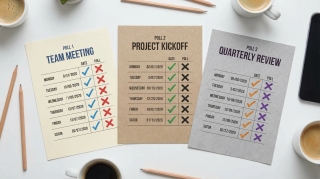
Doodle, When2Meet, and WhenIsGood compared head-to-head. What each one is actually good for, where they fall short, and which free options beat all three.

The best Fantastical alternatives for Mac and iOS — natural language calendar apps, AI scheduling tools, and cross-platform options without the $5/month subscription.

Google Calendar's AI features in 2026 — smart event creation, focus time, Gemini integration, and what they can and can't do. Honest breakdown.

Google Calendar refreshes subscribed ICS calendars roughly every 12–24 hours. Here's what that means in practice, why you can't force a refresh.

Every Google Calendar keyboard shortcut for navigation, creating events, switching views, and managing your schedule — including how to enable shortcuts first.

Yes — Google Calendar still supports natural language event creation in 2026. Here's exactly how it works on desktop, mobile, and what it can and can't parse.

Google Calendar can show multiple calendars in separate side-by-side columns in Day view. Here is how to enable it and when it is useful.
A practical guide to time blocking in Google Calendar — setting it up, maintaining it, and using the right features to protect your focused work time.

The actual limit on Google Calendars per account, how to manage multiple calendars without losing your mind, and when to split vs combine.
Add Google Calendar to iPhone using the Google Calendar app or the native Apple Calendar app — with sync settings, widget setup, and troubleshooting common issues.
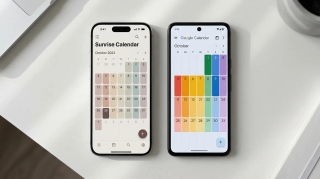
Three ways to view your Google Calendar inside Outlook — ICS subscription, CalDAV sync, and third-party tools. What each does, what it costs, and which to use.

If you're manually entering 10-15 names every time you schedule a recurring event, there's a better way. Google Groups works. Carly's Chat with Cal is even easier.

Display multiple time zones in Google Calendar — including a world clock sidebar, secondary time zones, and tips for scheduling across time zones without confusion.
Four ways to automatically copy or mirror events from one Google Calendar to another, starting with a free rule-based tool and no code.
The email ping-pong when scheduling meetings is fixable. Here are 7 methods ranked by how much back-and-forth they actually eliminate, with free options for each.

A complete guide to color coding Google Calendar — apply colors to individual events, entire calendars, and build a visual system that makes your week readable at a glance.
Step-by-step guide to creating calendar invites in Google Calendar on desktop and mobile — adding guests, setting reminders, attaching video links, and managing RSVPs.

How to build a link that opens Google Calendar pre-filled with your event. Works in emails, websites, and landing pages. Includes URL format and a generator.

Embed a Google Calendar on any website using the built-in embed code — with options for display size, view type, showing multiple calendars, and styling tips.

How to find your Google Calendar's ICS link so others can subscribe to it. Covers public calendars, private address, and what each URL type does.
How to find and publish your Outlook calendar's ICS link so others can subscribe to it. Covers Outlook on the web, desktop, and what the URL format looks like.

Concrete ways to cut meeting time without killing collaboration — shorter defaults, async alternatives, no-meeting blocks, and how to get your team on board.

How to schedule team meetings without the chaos — finding times that work, cutting unnecessary meetings, running them efficiently, and tools that actually help.

The right way to schedule meetings over email — what to include, how to propose times, how to handle back-and-forth, and when to use a scheduling tool instead.

How to write an availability email that gets a meeting confirmed in one round — formats, examples, and when to use a scheduling tool instead.

Step-by-step: set up a recurring Google Meet with the same link every time. Works for daily standups, weekly team syncs, and any repeating meeting.

Set working hours in Google Calendar to show your availability, automatically decline outside-hours invites, and help colleagues schedule meetings at the right time.

A practical guide to using ChatGPT for real work tasks — writing, scheduling, email, research, and more. What actually works, what wastes time, and how to build a routine around it.
The best Motion alternatives for AI task scheduling: lighter tools, focused calendar assistants and full AI schedulers, with honest pricing comparisons.

The five most popular AI meeting notetakers compared head-to-head. Accuracy, bot behavior, pricing, and which one to use for Zoom, Meet, and Teams.
The best Reclaim alternatives for AI calendar optimization: smart scheduling, time blocking and AI assistants that protect focus time and cut meeting load.

The complete guide to showing Google Calendar in Outlook and Teams — covering ICS subscriptions, Calendar Interop, free and paid sync tools.

TripIt vs Wanderlog vs Google Trips and 5 more travel planning apps compared. What each does well, what the free tiers include, and which to use.

94% of firms offer advisory services. But is advisory work actually showing up on the calendar, or just on the slide deck? The off-season schedule tells the real story.

A 6-point drop in utilization across a 50-person firm costs $1.3 million. The calendar shows that gap in real time, weeks before the financials catch up.

Average revenue per dental chair is $231,721 a year. Efficient scheduling alone increases daily production by 15-25%. The calendar is the practice's most important financial instrument.

Revenue per household explains 90% of the variation in advisory firm revenue. And revenue per household tracks directly to how often you meet with clients.
A trainer at $80 per session with 25 clients a week earns $104K a year. Lose just 15% to cancellations and that's $15,600 gone. The calendar is the entire revenue model.
Patient no-shows cost the US healthcare system $150 billion a year. For medical practices, the calendar isn't a scheduling tool — it's the P&L statement in real time.
It costs $200-300 just to dispatch a technician. A no-show doesn't just lose the job revenue — it burns the dispatch cost too. The calendar is where profit is won or lost.
Lawyers bill 2.6 hours of an 8-hour day. Nearly 1 in 5 billable hours never get recorded. The calendar isn't just where the work is scheduled — it's where revenue is made or lost.
A home needs 10-25 showings before an offer. After 10 with no bites, something is wrong. The calendar tells you before the listing expires.

When a client asks what you've been doing on their search, the answer is on your calendar. Screens scheduled, interviews coordinated, meetings held — the calendar is the recruiter's scorecard.

Pipeline reports lag. CRM data decays. But the calendar shows exactly how many meetings your team is booking, holding, and losing to no-shows — and that's the real forecast.
77% of barbershop appointments are booked online. 46% happen after hours. The calendar runs the business even when the owner is asleep.
A therapist's revenue is their session count times their rate. That's it. The calendar doesn't reflect the business — it is the business.

For dozens of professions, the calendar isn't just a scheduling tool. It's the single most accurate record of what's actually happening in the business.
AI tools that help accountants automate bookkeeping, streamline tax prep, and manage clients more efficiently. From data extraction to client communication.
AI tools that help life coaches, business coaches, and executive coaches scale their practice, automate admin, and deliver more value to clients.
![20 Best AI Tools for Financial Advisors [2026]](/_vercel/image?url=_astro%2Fbest-ai-tools-financial-advisors.DP5-FXcX.webp&w=320&q=100)
AI tools that help financial advisors streamline client management, automate compliance workflows, and deliver better financial plans. From portfolio analysis to client communication.
AI tools that help startup founders move faster, hire smarter, and scale without bloating headcount. From fundraising prep to product development to go-to-market.
![20 Best AI Tools for Project Managers [2026]](/_vercel/image?url=_astro%2Fbest-ai-tools-project-managers.2YosKgcH.webp&w=320&q=100)
AI tools that help project managers plan better, communicate faster, and keep teams on track. From automated status updates to intelligent resource planning.
![20 Best AI Tools for Sales Reps [2026]](/_vercel/image?url=_astro%2Fbest-ai-tools-sales-reps.ELN8dDtn.webp&w=320&q=100)
AI tools that help sales reps prospect smarter, close faster, and crush quota. From lead enrichment to call coaching to automated follow-ups.
AI tools that help therapists manage their private practice, streamline documentation, and reduce administrative burden - so you can focus on your clients.
![20 Best AI Tools for Virtual Assistants [2026]](/_vercel/image?url=_astro%2Fbest-ai-tools-virtual-assistants.CnEKtwjR.webp&w=320&q=100)
AI tools that help virtual assistants handle more clients, deliver higher-quality work, and automate repetitive tasks. From inbox management to content creation.
The best free Doodle alternatives for group scheduling in 2026: modern polling tools, availability grids, and AI schedulers, without the ads or paywalls.

Learn how to add holidays from any country to Google Calendar, manage multiple holiday calendars, and customize which holidays appear on your schedule.

Learn how to use time blocking in Google Calendar to protect focus time, manage your schedule, and boost productivity with step-by-step instructions.

Learn how to organize, color-code, and manage multiple Google Calendars effectively. Covers creating calendars, toggling visibility, and cross-account management.
Learn how to create, edit, and manage recurring meetings in Google Calendar. Covers custom repeat patterns, exceptions, and best practices.

Learn how to create and manage a shared team calendar in Google Calendar. Covers setup, permissions, best practices, and tools for team coordination.
ICS subscription, connected accounts, and a free sync tool — the real options for syncing Google Calendar and Outlook.
How to schedule a meeting with multiple people without endless email threads. Polls, availability grids, calendar tools, and AI — step by step.

Copy events between Google Calendars in seconds — no manual re-entry, no third-party syncing tools. Here's how to do it for free with Carly.
Step-by-step guide to subscribing to any calendar URL or .ics feed in Google Calendar. Works for sunrise/sunset calendars, sports schedules, holidays, and more.
Step-by-step guide to subscribing to any calendar URL or .ics feed in Outlook. Works for sunrise/sunset calendars, sports schedules, holidays, and more.

A step-by-step guide for executive assistants: check your boss's schedule, move meetings, place holds, find availability, and convert time zones — all by chatting with Carly.
Stop going back and forth to find meeting times. CC Carly on any email thread and she handles the scheduling for you. See real email examples.
Carly can start email conversations on your behalf, handle the back-and-forth, and update you when meetings are booked. See how delegated outreach works.
Every method for finding a meeting time that works for a group — polls, scheduling assistants, shared calendars, and AI — with step-by-step instructions for each.
Add contacts, save relationships, and create groups in Carly so scheduling with your regular people is instant. Step-by-step guide with examples.
Scheduling a meeting with 5+ people is painful. Carly's availability polls make it easy — see exactly how it works with real email examples.
Learn how to schedule meetings instantly by emailing Carly. Step-by-step walkthrough with real email examples showing the full scheduling flow.
Copy-paste email templates for sending your availability, plus step-by-step instructions for Outlook, Gmail, and the tools that eliminate the back-and-forth entirely.
Make your meeting proposals clickable. Learn how to set up Carly's click-to-book links so recipients can book meetings with literally one click.
Get an evening email previewing your next day's schedule. Learn how to turn on Carly's daily briefing from your dashboard.
Step-by-step instructions for sharing your calendar on every major platform — Google Calendar, Outlook, and iPhone — plus a smarter way to share just your availability.
See your calendar, check availability, and add Carly to emails — all without leaving Gmail. Here's how to set up and use Carly's Chrome extension.
Track contacts, add custom fields, and set up Skills to automatically update information. Here's how to use Carly as a simple CRM.
Manage your calendar from your phone with a text message. Learn how to schedule, cancel, and check your day using Carly's SMS feature.

Find the best virtual assistant for real estate. We compare top real estate VA companies, pricing, tasks they handle, and how AI tools are changing the game.

Virtual assistant pricing broken down by company, location, and role — with real numbers and tips to cut costs.

AI slop — Merriam-Webster's 2025 word of the year — refers to low-quality, mass-produced AI content. Here's where the term came from, what it actually means, and why the line between slop and useful AI content is blurrier than people think.

Step-by-step instructions for exporting your contacts as CSV or Excel files from Salesforce, HubSpot, Zoho, Pipedrive, Attio, Monday.com, Freshsales, Oracle, Copper, and Close.
Skills are plain-English instructions that teach an AI to handle tasks your way. What they are, why vendors agreed on one format, and how people use them.

Every group scheduling tool worth using in 2026, ranked. Availability grids, polling tools, and AI schedulers — free options, no forced sign-ups, honest comparisons.
The 10 best to-do list apps for 2026. From AI-powered task managers to minimalist checklists, find the right app to stay organized.
AI tools that help lawyers research faster, draft better, and manage clients more efficiently. From contract review to case management to billing.
AI tools that help small business owners automate operations, market smarter, and grow without hiring. From bookkeeping to customer service to marketing.
AI tools that help consultants win engagements, deliver insights faster, and scale their practice. From research to deliverables to client management.
The AI tools busy executives actually use to save 10+ hours a week, from inbox management to meeting prep to strategic analysis. Tested picks for founders.
![22 Best AI Tools for Freelancers [2026]](/_vercel/image?url=_astro%2Fbest-ai-tools-freelancers.DouLsRdg.webp&w=320&q=100)
AI tools that help freelancers win more clients, deliver faster, and reclaim their time. From proposals to invoicing to actual client work. Free and affordable options included.
AI tools that help real estate agents generate leads, create stunning listings, and close more deals. From property marketing to client communication to market analysis.
AI tools that help recruiters source faster, screen smarter, and fill roles in half the time. From candidate sourcing to interview scheduling to offer management.

The best AI tools for solopreneurs in 2026, ranked. Run marketing, sales, support and ops like a full team, without hiring. What's actually worth paying for.
The 50 best AI productivity tools for getting more done in 2026 — from coding agents and smart inboxes to autonomous research and workflow automation.
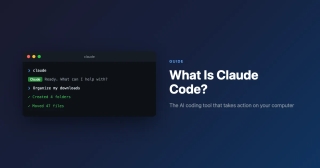
Claude Code is an AI assistant that takes action on your computer. Learn what it is, how non-technical people use it, and why it's changing productivity.

Learn what Clawdbot is: the open-source AI assistant you run yourself. Discover features, setup, costs, and how it compares to Siri and ChatGPT in 2026.

Learn how busy professionals save 10+ hours/week with AI and turn it into real income. The complete AI productivity stack for 2026. Start with your calendar.

If your business revenue has stalled, the answer might be in your calendar. Learn how to audit your time and identify the patterns killing your growth.
Discover 100 proven productivity hacks for busy professionals. From time-blocking to AI automation, reclaim hours every week. Get more done today.
Otter.ai, Fireflies, Fathom, MeetGeek, tl;dv, and 9 more — ranked by accuracy, bot behavior, pricing, and whether they actually save you time in meetings.
Google just launched CC. Copilot is in Outlook. Gemini is in Calendar. Compare what each AI can actually do for scheduling heading into 2026 - and what they still can't handle.

The ultimate meeting guide for 2026. Learn how to run productive meetings, create effective agendas, and eliminate scheduling overhead. Save hours weekly.

Land a non-technical job at a tech startup in 2026. Learn which roles startups hire first, how equity works, and what founders look for. No coding required.

TripIt is the gold standard for travel organization. Learn how to use its best features, plus discover alternatives for when you need something different.

Each interruption costs 23 minutes to recover. Time blocking protects your focus. Step-by-step guide with 5 methods, examples, and AI tips to make it stick.
A practical 2026 guide to AI employees—what they are, real examples, latest adoption stats, and how to deploy your first digital worker.
Discover what productivity research actually says about working smarter. 12 evidence-based findings on meetings, focus time, and AI tools. Data-driven insights.

Discover the best AI tools in 2026 for busy professionals. Curated guide covering AI scheduling, writing, research, and productivity tools that save real time.
Tired of copying events from email to calendar? Discover 6 methods to forward emails to your calendar automatically. Works with Gmail, Outlook & more.
![How to Schedule Meetings Without the Back-and-Forth [2026]](/_vercel/image?url=_astro%2Fschedule-meetings-hero.BFNkYM6c.webp&w=320&q=100)
Tired of endless email chains to schedule meetings? Learn 7 proven methods to eliminate back-and-forth and book meetings faster. AI solutions included.

Skip the complex Zaps. Carly is the simpler Zapier alternative for calendar scheduling. Forward emails, text commands, done. Try free today.
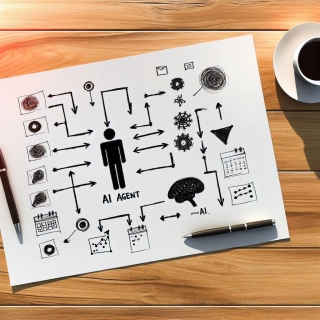
Learn what AI agents are and how they work. Discover how autonomous AI assistants save time on scheduling, emails, and more. Simple guide for beginners.
Google CC can't schedule meetings. Discover Carly - the AI assistant that actually manages your calendar via email and text. No app, no learning curve.

Reclaim, Motion, Clockwise, Carly, and 6 more — ranked by how much time they actually save. Covers auto-scheduling, focus time, and email-based coordination.

Learn how to share your Google Calendar step-by-step. This guide covers desktop, mobile, embedding, permissions, delegation, and troubleshooting.

Learn how to share your Outlook calendar across web, desktop, and mobile platforms, including links, ICS subscriptions, delegate access, and permission levels.