Carly CLI: Manage Your Booking Pages From the Terminal
Carly’s booking pages now have a command line. Spin up a booking link, tighten its availability rules, and read who has booked it, without opening the dashboard.
npm install -g carly-ai
carly login
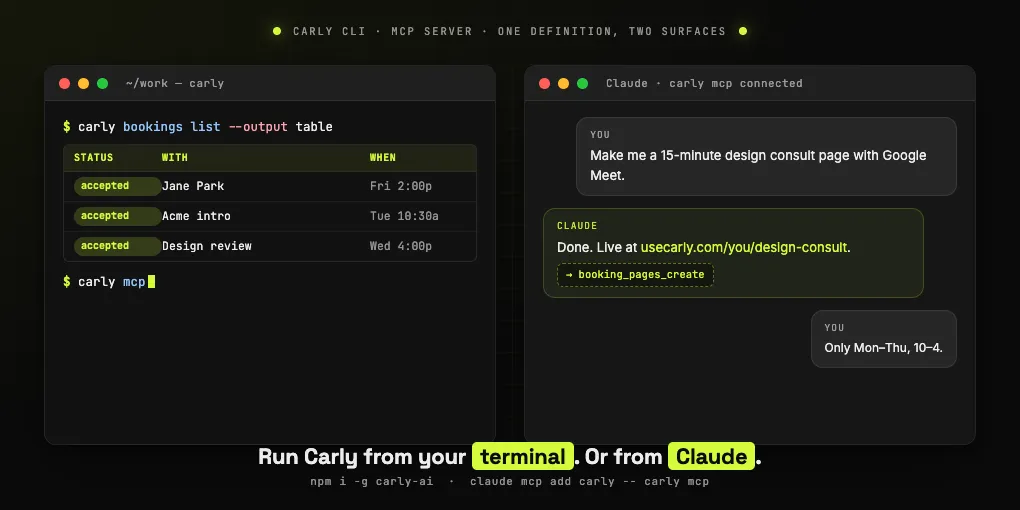
carly bookings list --output table
That’s the whole onboarding. Three commands and your booking pages, their event types, and every confirmed booking are queryable from the shell.
What this is, and what it isn’t. The CLI is a focused developer tool for the scheduling side of Carly. It manages booking pages, event types, slots, and bookings, and nothing else. It is not the way to reach Carly’s email, workflows, CRM, files, or notes from an AI client. That is the hosted Carly MCP server, a separate thing you connect once in Claude or ChatGPT with no install. If you want your agent to run your whole day, start there. If you want to script your booking pages, you’re in the right place.
The package does ship its own small MCP server (carly mcp) covering exactly the booking-page commands below, so the same scheduling tools work whether a human types them or an agent calls them.
One Definition, Two Surfaces
Most “CLI + AI integration” stories end with a wrapper that drifts out of sync the moment a real engineer touches it. Carly CLI is built differently. Each command is a single CommandDefinition — name, Zod schema, HTTP endpoint, output columns — and both the CLI parser and the MCP server register from the same registry. Add a flag to carly booking-pages update and Claude sees the new parameter on its next launch. No drift. No second codebase.
That gives you 11 tools across 5 resource groups (booking pages, event types, calendars, slots, bookings), and they behave identically whether a human types them or an agent calls them.
What It Looks Like in Practice
Open Claude Code, point it at Carly via claude mcp add carly -- carly mcp, and the conversation gets very direct.
You: Make me a 15-minute design consult page with Google Meet.
Claude (calls
booking_pages_create): Done. The page is live atusecarly.com/your-username/design-consult. Bookers get a Google Meet link the moment they confirm.
Or:
You: Only let people book Mon–Thu between 10 and 4.
Claude (calls
booking_pages_update): Updated. Bookers will only see slots Monday through Thursday, 10–4. Fridays are off-limits now.
Or, the one nobody wants to do by hand at 8pm on a Sunday:
You: Before anyone books my intro, ask them for their company and what they want to discuss.
Claude (calls
booking_pages_updatewith custom questions): Done. Bookers now have to fill in company name + agenda before the slot is confirmed.
You can do all of this from the shell too — but the point is that you don’t have to. The same commands work whichever interface fits the moment.
Pure Shell Workflows
For the “I prefer the keyboard” crowd, Carly CLI plays nicely with the rest of your toolchain. Every data-returning command supports --output json, --output pretty, or --output table, plus --fields to narrow columns and --quiet to suppress output entirely.
# What's on my calendar this week, terminal-friendly
carly bookings list --output table --fields uid,status,start_time

# Pipe it into jq for a quick stat
carly bookings list --status accepted | jq 'length'

# Pause every active booking page (focus week)
for id in $(carly booking-pages list --fields id --output json | jq '.items[].id'); do
  carly booking-pages update $id --is-active false
done
The output formatter automatically flattens Carly’s {items: [...]} envelope and the {slots: {date: [...]}} map, so you don’t have to fight the response shape.
Setup in Under a Minute
Brand-new user? The CLI handles the OAuth dance for you:
carly signup                      # opens Google OAuth in your browser
                                  # add --with microsoft for Outlook
carly login                       # paste the API key minted at /booking-pages
Already on Carly?
carly login
carly profile whoami --pretty     # confirm the key resolves
API keys are scoped server-side (booking_pages:read, booking_pages:write, bookings:read) and stored at ~/.carly-cli/config.json with mode 0600. You can also override per-call with --api-key or globally with CARLY_API_KEY for CI workflows.
Wiring It Into Claude Code
claude mcp add carly -- carly mcpThat’s it. Claude gets every booking-page tool the next time you start a session, with no JSON config and no token shuffle. (For Carly’s email, calendar, workflows, and files, connect the hosted MCP server instead.)
For Claude Desktop or Cursor, drop the standard MCP block into your config:
{
  "mcpServers": {
    "carly": {
      "command": "carly",
      "args": ["mcp"],
      "env": { "CARLY_API_KEY": "carly_live_xxxx" }
    }
  }
}
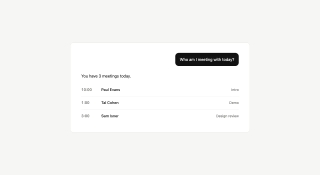
Now ask the agent to “find me 30 minutes free next week for an intro,” “make my 30-minute intro 45 minutes,” or “who am I meeting with tomorrow?” — and it answers by hitting Carly’s actual API, not by guessing from your calendar provider.
What’s Read vs. What’s Write
The CLI exposes everything you’d expect for managing your scheduling layer: list / get / create / update / delete on booking pages, list event types, query slots (your own or a public profile’s), and read bookings. What it deliberately does not expose is bookings:write — creating, cancelling, and rescheduling bookings is intentionally kept inside the dashboard for now. Agents can read your meeting state and reshape your booking pages all day; they can’t silently move a customer’s confirmed time slot.
That asymmetry isn’t a limitation we forgot to fix. It’s the safety boundary we drew on purpose, and it’s the same boundary on both the human CLI and the MCP surface.
Where to Go Next
Install it: npm install -g carly-ai. Mint a key from your dashboard’s Booking Pages page (expand the “Generate API key” section under Use Carly from your terminal or AI agent), run carly login, and you’re in.
Source and full command reference live on GitHub. If you build something interesting on top — a CI bot that pauses your booking pages during a release, an agent that auto-tunes availability based on focus blocks, a Slack /availability command — we want to see it.
Ready to automate your busywork?
Carly schedules, researches, and briefs you—so you can focus on what matters.
See what people say
"Before Carly, I relied on a Calendly link, but the whole process felt impersonal and not very professional. Carly changed that by handling all the back-and-forth, so I'm no longer stuck in endless email threads trying to line up schedules.
Now Carly reaches out to candidates, shares my real-time availability, lets them pick a slot, then sends a Zoom link and drops it straight into my calendar. She sends reminders to both of us before each call, which has significantly reduced no-shows and last-minute confusion.
On top of scheduling, Carly acts like a full executive assistant, sending me my schedule the night before so I can prepare for each call. It reminds me of the old x.ai assistant, but Carly is noticeably smarter, faster, and better suited to my healthcare recruitment business."