How to Sync Google Calendar with Outlook (Step-by-Step)
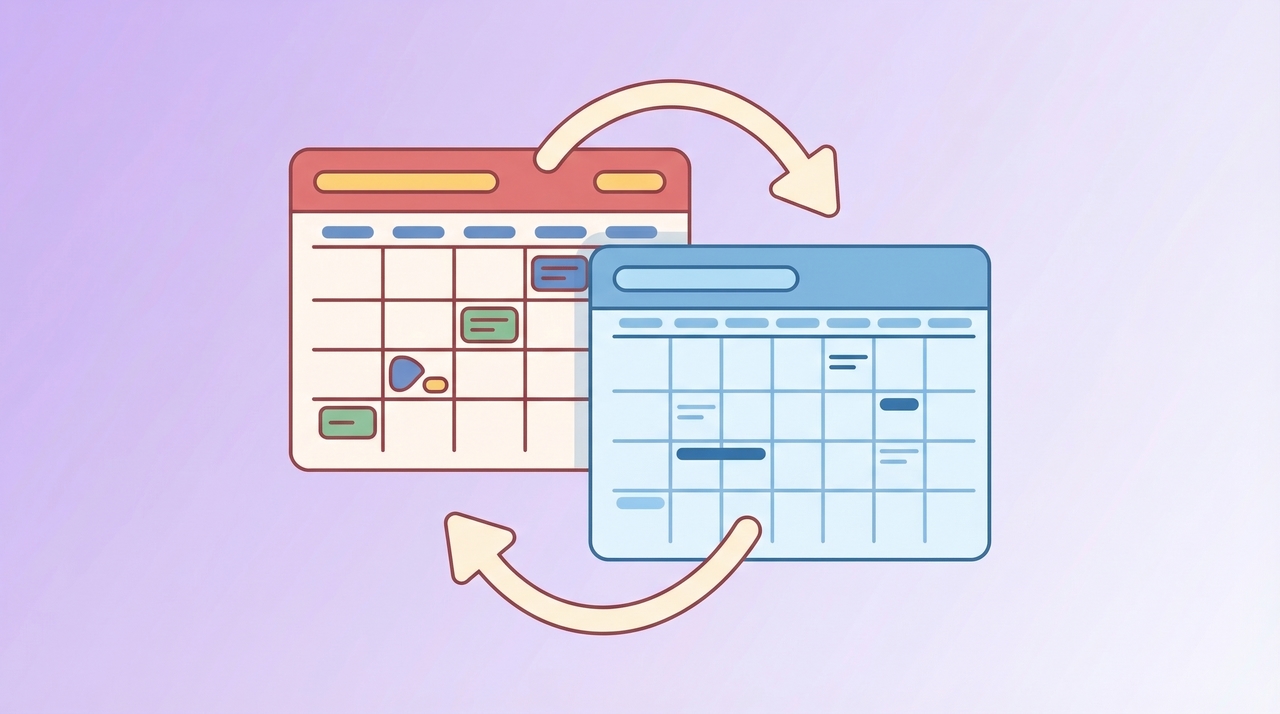
Using both Google Calendar and Outlook is common — maybe your workplace runs on Microsoft 365 while you keep personal events in Google, or you collaborate with people on different platforms. Whatever the reason, syncing the two prevents double-bookings and keeps your schedule in one view.
Here are the best ways to connect them, from simple one-way subscriptions to full two-way sync.
1. Subscribe to Google Calendar in Outlook (ICS Link)
This method creates a one-way, read-only subscription in Outlook that pulls events from Google Calendar. Changes you make in Google will appear in Outlook, but not the other way around.
- Open Google Calendar and sign in.
- In the left panel, hover over the calendar you want to sync and click the three vertical dots (⋮) → Settings and sharing.
- Scroll down to Integrate calendar and copy the Secret address in iCal format. (Use the secret address, not the public one, so private events are included.)
- Open Outlook on the web or the Outlook desktop app.
- Click Add calendar → Subscribe from web (or From Internet on desktop).
- Paste the iCal URL and give the calendar a name (e.g., “Google – Personal”).
- Click Import or OK.
Your Google Calendar events will now appear in Outlook. Updates typically sync every 3 to 12 hours — Outlook controls the refresh interval and there is no way to force it.
2. Subscribe to Outlook Calendar in Google Calendar
This is the reverse: a one-way subscription that displays your Outlook events inside Google Calendar.
- Open Outlook on the web and sign in.
- Click the gear icon → View all Outlook settings → Calendar → Shared calendars.
- Under Publish a calendar, select the calendar and choose Can view all details.
- Click Publish and copy the ICS link.
- Open Google Calendar.
- In the left panel, click the ”+” next to Other calendars → From URL.
- Paste the ICS link and click Add calendar.
Google Calendar refreshes ICS subscriptions roughly every 12 to 24 hours. You can force a faster update by removing and re-adding the subscription, but this is not practical for daily use.
3. Use Microsoft’s Connected Accounts Feature
If you use Outlook.com (the free web version), you can connect your Google account directly. This pulls Google Calendar events into Outlook without needing an ICS link.
- Go to Outlook.com and sign in.
- Click the gear icon → View all Outlook settings → Mail → Sync email.
- Under Connected accounts, click Google.
- Sign in with your Google account and grant Outlook permission to access your calendar.
- Your Google Calendar events will appear alongside your Outlook events.
Note: This feature is available for personal Microsoft accounts, not Microsoft 365 work or school accounts. It syncs email and calendar together — you cannot connect calendar only.
4. Two-Way Sync With Third-Party Tools
The methods above are all one-way: changes only flow in one direction. If you need events to stay in sync on both platforms — where creating, editing, or deleting an event in one calendar updates the other — you need a two-way sync tool.
Several options exist:
- Carly AI: Connects Google Calendar and Outlook (along with iCloud and other providers) into a single unified view. Carly AI reads from all your calendars simultaneously, so you can check availability, schedule events, and manage conflicts across platforms without worrying about which account an event lives in. It handles the cross-platform coordination automatically.
- CalendarBridge: Copies events between calendars with customizable privacy settings. Runs in the background and keeps calendars mirrored.
- SyncGene: Syncs calendars, contacts, and tasks between Google, Outlook, and iCloud. Offers a free tier with limited sync frequency.
- IFTTT / Zapier / Power Automate: Automation platforms that can create events in one calendar when events are created in another. Flexible but require setup and may not handle edits or deletions cleanly.
For most people who juggle multiple calendar platforms daily, a purpose-built tool like Carly AI is the simplest path — it eliminates the need to manually configure sync rules or worry about delays.
5. Sync on Mobile (iOS and Android)
iOS
Apple’s built-in Calendar app can display both Google Calendar and Outlook events natively:
- Go to Settings → Calendar → Accounts.
- Add your Google account (tap Add Account → Google → sign in).
- Add your Outlook account (tap Add Account → Outlook.com or Microsoft Exchange → sign in).
- Make sure Calendars is toggled on for both accounts.
Both calendars now appear in the Apple Calendar app side by side. This is a display-level sync — events stay in their respective platforms but you see everything in one place.
Android
- Most Android phones have Google Calendar pre-installed. To add Outlook events, install the Microsoft Outlook app from the Play Store.
- Alternatively, add your Outlook account to Google Calendar: open the Google Calendar app → tap your profile picture → Add another account → sign in with your Microsoft account.
- For a unified view without switching apps, you can also add your Google account to the Outlook mobile app under Settings → Add Account.
Both approaches show events from both platforms in one app but do not create a true two-way sync between the underlying calendars.
6. Troubleshooting Common Sync Issues
| Issue | Cause | Fix |
|---|---|---|
| Events not appearing after subscribing | ICS sync delay (up to 24 hours) | Wait for the next refresh cycle, or remove and re-add the subscription |
| Duplicate events showing up | Calendar added via both ICS and connected account | Remove one of the two connections |
| Changes in one calendar not reflected in the other | Using a one-way ICS subscription | Switch to a two-way sync tool |
| ”Cannot connect account” error in Outlook | Google security settings blocking access | Enable “Less secure apps” or use an App Password if 2FA is enabled |
| Outlook connected account not syncing calendar | Feature limited to personal Microsoft accounts | Use the ICS method or a third-party sync tool for work accounts |
| Events appear at wrong times | Time zone mismatch between platforms | Verify time zone settings in both Google Calendar and Outlook |
| Subscribed calendar missing private events | Used the public iCal address instead of the secret address | Copy the Secret address in iCal format from Google Calendar settings |
7. Best Practices for Cross-Platform Calendar Management
- Pick one calendar as your primary. Create new events there and let sync push them to the other platform. This reduces conflicts and duplicates.
- Color-code by source. Assign distinct colors to your Google and Outlook calendars so you can instantly tell where an event originated.
- Name subscriptions clearly. Use labels like “Google – Work” or “Outlook – Personal” so you do not confuse synced calendars with native ones.
- Check time zones. Before syncing, confirm both Google Calendar and Outlook are set to the same time zone (or the correct ones if you work across zones).
- Audit sync connections periodically. Remove old subscriptions or connected accounts you no longer need. Stale connections can cause phantom events or clutter.
- Use a unified tool for multiple calendars. If you manage more than two calendars across platforms, tools like Carly AI consolidate everything so you do not need to maintain individual sync connections between each pair.
- Do not edit synced read-only events. One-way subscriptions are read-only in the receiving calendar. If you need to change an event, go to the source calendar.
Conclusion
Syncing Google Calendar with Outlook ranges from a quick ICS subscription (good enough for a read-only view) to full two-way sync with dedicated tools. The right approach depends on how actively you use both platforms and whether you need changes to flow in both directions. Start with the simplest method that meets your needs — and if you find yourself constantly switching between apps, a cross-platform tool that unifies your calendars will save more time than any manual sync setup.
Ready to automate your busywork?
Carly schedules, researches, and briefs you—so you can focus on what matters.
Get Carly Today →Or try our Free Group Scheduling Tool