Introducing Workflows: Carly Builds Reliable Automations For You
Today we’re shipping Workflows — triggers, actions, branches, the whole automation stack you’d expect, with 200+ app integrations. If you’ve been looking for a Zapier alternative that actually works, this is it. Yes, Zapier has AI agents now too. The thing we keep hearing from users who try them: they’re flaky. They hallucinate, they invent fields, they quietly stop firing.
We built Workflows the other way around. The agent isn’t a step you add to an automation — the agent is what builds the automation in the first place, and then steps out of the way. You describe the outcome. Carly drafts the workflow, tests it against real data from your account, and saves a deterministic graph that runs the same way every time.
“When I get a Gmail with an invoice attached, save the PDF to the Drive folder for that client and label the email ‘Receipts/Filed.’”
“When someone fills out the Typeform on my site, post the lead in #sales and create a HubSpot contact.”
“If a Stripe charge fails, DM me on Slack with the customer’s email and the amount.”
You spin those up by emailing Carly. She picks the trigger, wires the steps, runs a dry-run with a real recent event from your account, and asks you to confirm before going live.
What you can trigger on
- Gmail or Outlook — new email, new attachment, new label, message from a specific sender, match a search query.
- Calendar events — Google or Outlook, fires when an event is created, updated, or deleted.
- Any of 200+ apps Carly already connects to — HubSpot, Salesforce, Pipedrive, Notion, Linear, Slack, Stripe, Shopify, Typeform, Calendly, Airtable, GitHub, and so on. See the full integrations page.
- Schedule — any cron expression in your timezone.
- Webhook — Carly mints you a URL. Anything that can POST JSON can drive a workflow.
- RSS or JSON feed — point at a URL, Carly polls and dedupes.
- Manual — press a button.
What you can do in between
- Send email, create events, update CRM contacts, draft replies — anything Carly can already do is a step.
- Call any app’s API — every action in the 200+ connected apps is a step too.
- HTTP request — call any endpoint, with retries and JSON parsing.
- LLM call — drop a Claude or GPT call mid-workflow. Summarize a thread. Classify a ticket. Draft a response.
- Branches —
if/elseandmatchon whatever fields you want. - For-each loops — iterate over an array.
- Filter — stop the run if a condition isn’t met.
- Fallback steps — when a step fails, route to a recovery step instead of failing the whole run.
Why this one works
Carly previews against your actual data before saving. She pulls real recent events from the connected app — your actual Gmail messages, your actual Stripe charges — and renders what each step would output. If a field reference is wrong, you see it in red before the workflow ever runs live.
The graph is deterministic. The AI’s job is to author the workflow, not to execute it. Once it’s saved, every run follows the same explicit steps. No agent loop deciding what to do each time. No token cost per run.
Deterministic workflows — anything without an AI step — run free. A workflow that watches a sheet, filters rows, routes a lead to HubSpot, or posts to Slack has no AI step, so it runs free, no matter how often it fires. You only pay when a step uses AI to write, summarize, or decide — and those AI agent features start at $35/month.
Runs are inspectable. Every workflow run logs every step’s input and output. If something breaks at 3am, you can open the run, see exactly which step failed, see the exact payload, and tell Carly to fix it.
When you actually need an LLM in the middle
Some automations have one step that genuinely needs intelligence — classifying a ticket, deciding whether an email needs a human, extracting structured data from a freeform message. So you can drop an llm.call step anywhere in a workflow. Carly handles the model call, parses the response, and feeds it to the next step.
Some places this lights up:
- Auto-reply with the right link: when a customer emails asking a question, classify what they’re asking about — pricing, integrations, cancellations, a bug — and send back the matching help-doc link automatically.
- Extract: pull the meeting time, attendees, and topic out of a freeform email and turn them into a calendar event.
- Decide: read an inbound lead and decide whether they’re high-priority enough to page the on-call rep.
The LLM runs the one step where fuzzy reasoning is actually doing work. The rest of the graph runs deterministically around it.
Example workflows
Auto-file vendor attachments
“When I get a Gmail with an attachment from anyone at @walmart.com, save the file to my Walmart folder in Drive and label the email ‘Walmart/Filed.’”
Gmail trigger filtered on sender domain → Drive upload to a specific folder → Gmail label apply.
Receipt forwarding
“When I get an email with ‘receipt’ or ‘invoice’ in the subject, forward it to my bookkeeper and add a ‘Bookkeeping’ label.”
Gmail trigger with subject filter → forward step → label step.
Lead intake
“When a Typeform on usecarly.com is submitted, post the lead in #sales-leads on Slack, add them to HubSpot, and reply with my Calendly link.”
Typeform trigger → Slack message → HubSpot create contact → Gmail reply.
Failed payment alert
“When a Stripe charge fails, DM me on Slack with the customer’s name, email, and the amount.”
Stripe trigger → Slack DM with templated message.
External calendar invites get flagged
“If someone adds an event to my calendar that I didn’t create, color it tangerine and add a note in the description.”
Native calendar trigger → if branch on event.is_external → update_event.
Auto-reply to customer questions with the right link
“When a customer emails support@, figure out if they’re asking about pricing, integrations, cancellations, or a bug. Reply with the matching help-doc link. CC me if it’s a bug.”
Gmail trigger on support@ → llm.call to classify → match branch on the category → templated reply with the right link per case.
Morning news digest
“Every morning at 7am, pull the latest headlines from the New York Times, BBC, and NPR and email me a digest with the title, summary, and link for each story.”
Cron trigger → for-each RSS feed → send email with the formatted items.
The visual builder
A full editor lives in your dashboard’s Workflows tab — a vertical stack of steps with a live preview pane. Click “Load recent events” on the trigger to test against a real Stripe charge, real Gmail message, real calendar event from your account. Once live, every run gets logged step-by-step so you can replay, inspect, and route around failures.
Get started
Email Carly with what you want:
carly@usecarly.com — “When I get an email with a PDF attachment from anyone at @walmart.com, save it to my Walmart folder in Drive.”
She’ll draft it, preview it against your actual inbox, and ask you to confirm.
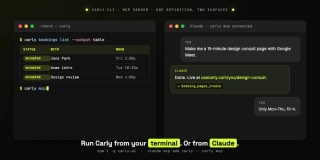
If you want to see what else Carly can do on her own, Carly already manages your to-dos and runs from the terminal as an MCP server too.
Ready to automate your busywork?
Carly schedules, researches, and briefs you—so you can focus on what matters.
See what people say
"Before Carly, I relied on a Calendly link, but the whole process felt impersonal and not very professional. Carly changed that by handling all the back-and-forth, so I'm no longer stuck in endless email threads trying to line up schedules.
Now Carly reaches out to candidates, shares my real-time availability, lets them pick a slot, then sends a Zoom link and drops it straight into my calendar. She sends reminders to both of us before each call, which has significantly reduced no-shows and last-minute confusion.
On top of scheduling, Carly acts like a full executive assistant, sending me my schedule the night before so I can prepare for each call. It reminds me of the old x.ai assistant, but Carly is noticeably smarter, faster, and better suited to my healthcare recruitment business."