How to Set Up Recurring Meetings in Google Calendar
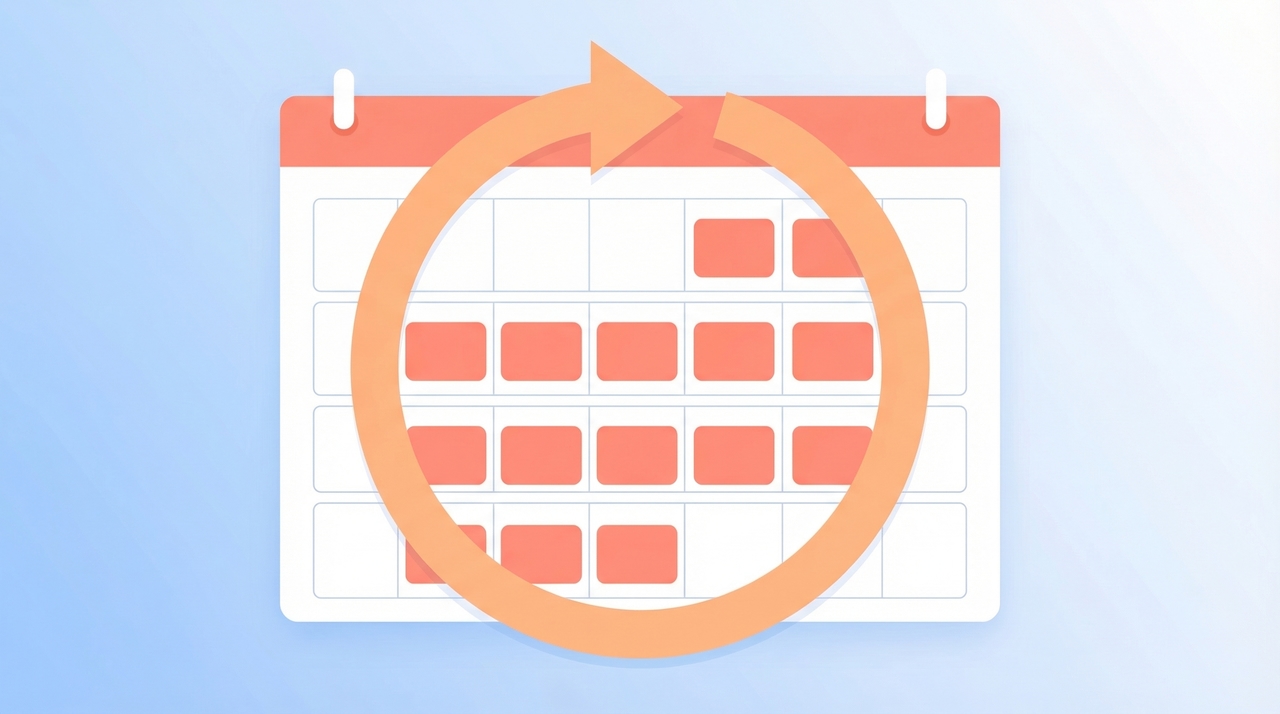
Recurring meetings keep teams aligned without the hassle of creating a new event every week. Google Calendar makes it straightforward to set up repeating events with flexible patterns, but there are a few nuances worth understanding — especially when you need to edit just one instance, manage guest lists, or handle exceptions. This guide walks through everything from basic setup to advanced configurations.
1. Create a Basic Recurring Meeting on Desktop
- Go to calendar.google.com and sign in.
- Click the ”+” button or click directly on the date and time slot where you want the meeting to start.
- Enter the event title (e.g., “Weekly Team Standup”).
- Click More options to open the full event editor.
- Find the “Does not repeat” dropdown below the date and time fields.
- Select a preset frequency:
- Daily
- Weekly on [day]
- Monthly on the [ordinal] [day] (e.g., “Monthly on the first Tuesday”)
- Annually on [date]
- Every weekday (Monday to Friday)
- Set your start and end times, then click Save.
Your recurring meeting now appears on every matching date in the calendar. Google Calendar will continue generating future instances indefinitely unless you set an end date.
2. Custom Repeat Patterns
The presets cover common scenarios, but many teams need something more specific — like a meeting every two weeks or on the first Monday of each month.
- In the event editor, click the “Does not repeat” dropdown and select Custom.
- In the dialog that appears, configure:
- Repeat every: Set the number and unit (days, weeks, months, or years). For example, “Repeat every 2 weeks.”
- Repeat on: When using weeks, select which days. You can pick multiple days (e.g., Monday and Thursday for a twice-weekly sync).
- Ends: Choose Never, On a specific date, or After a set number of occurrences.
- Click Done, then Save the event.
Examples of custom patterns:
- Biweekly 1:1: Repeat every 2 weeks on Wednesday.
- First Monday of each month: Repeat every 1 month on the first Monday.
- Quarterly review: Repeat every 3 months on a specific date.
- MWF check-in: Repeat every 1 week on Monday, Wednesday, and Friday.
If you manage several recurring meetings across multiple calendars, tools like Carly AI can help you spot conflicts and keep everything coordinated — especially when patterns overlap in non-obvious ways.
3. Edit a Single Instance vs. All Future Events vs. All Events
One of the most important things to understand about recurring meetings is how edits propagate. When you click on a recurring event and make changes, Google Calendar asks what you want to modify:
- This event: Changes only the selected occurrence. The rest of the series stays the same. Use this for one-off time changes, room swaps, or cancellations.
- This and following events: Updates the selected occurrence and every future one. The past instances remain untouched. This is useful when a meeting permanently moves to a new time.
- All events: Applies changes to every instance in the series — past and future. Use with caution, as it rewrites the entire history.
Tip: If you change the time for “this and following events,” Google Calendar actually splits the series into two. The original series ends before the change, and a new series begins with the updated details.
4. Add Guests and Configure Meeting Rooms
Recurring events support guest management and room bookings just like single events.
- Open the recurring event and click Edit event (pencil icon).
- Choose whether to edit This event, This and following events, or All events.
- Under Add guests, type email addresses. All guests receive an invitation for every occurrence in the series.
- To book a room, click Rooms (or Add rooms, etc.) and select an available meeting room from your organization’s directory.
Key details to keep in mind:
- Guests added to “all events” get invites for the entire series. Guests added to “this event” only get that single occurrence.
- Room availability is checked per occurrence. If a room is taken for one date, Google Calendar flags the conflict but keeps the room for the other dates.
- When a new team member joins, edit the series and add them — they will receive invites for all future instances automatically.
5. Set Up Recurring Meetings on Mobile
Android
- Open the Google Calendar app.
- Tap the ”+” button in the bottom-right corner, then tap Event.
- Enter the event title, date, and time.
- Tap More options → tap Does not repeat.
- Choose a preset or tap Custom to configure a specific pattern.
- Add guests, set a location, and tap Save.
iPhone or iPad
- Open the Google Calendar app.
- Tap the ”+” button → Event.
- Fill in the event details.
- Tap Does not repeat and select your recurrence pattern.
- The custom repeat options on iOS match the desktop version — you can set interval, days, and end conditions.
- Tap Save.
Both mobile apps support editing single instances or the full series. When you tap a recurring event, you will see the same “This event,” “This and following events,” and “All events” options.
6. Cancel or Delete Recurring Meetings
Deleting a recurring meeting follows the same pattern as editing — you choose the scope of the deletion.
- Click or tap the recurring event.
- Click the trash can icon (or tap Delete on mobile).
- Choose one of:
- This event: Removes only that single occurrence. A strikethrough or gap appears in the series.
- This and following events: Ends the series from that date forward. Past instances remain on the calendar.
- All events: Deletes the entire series, including past occurrences.
If guests are attached, Google Calendar asks whether to send a cancellation notification. Always send it — guests should know when a meeting is removed from their schedule.
7. Recurring Meetings With Google Meet Links
Google Calendar can automatically attach a Google Meet video link to every instance of a recurring meeting.
- In the event editor, click Add Google Meet video conferencing (or it may be added by default if your Workspace admin has enabled it).
- The same Meet link is reused across all occurrences of the series, so attendees can bookmark it.
- Save the event.
Things to note:
- The Meet link stays consistent even if you edit individual occurrences — unless you explicitly remove and re-add it.
- If you use “This and following events” to split the series, the new series gets a fresh Meet link. Share the updated link with attendees.
- For teams that use Carly AI to manage scheduling, recurring meetings with persistent Meet links make it easy to join without hunting for a new URL each week.
8. Troubleshooting Recurring Meeting Issues
| Issue | Cause | Fix |
|---|---|---|
| Recurring event not appearing on some dates | Custom pattern misconfigured | Open the event, check the repeat settings, and verify the end date or occurrence count |
| Guests didn’t receive updated invite | Edited only “this event” instead of the series | Edit again and choose “All events” or “This and following events” |
| Room booking conflict on one occurrence | Room unavailable for that specific date | Edit that single instance and select a different room |
| Google Meet link changed unexpectedly | Series was split via “This and following events” | Share the new Meet link with attendees |
| Deleted occurrence still showing for guests | Cancellation email wasn’t sent | Resend the cancellation or ask guests to refresh their calendar |
| Recurring event duplicated | Created a new event instead of editing the existing series | Delete the duplicate and edit the original series |
| Changes not syncing to mobile | Calendar app cache is stale | Pull to refresh or force-sync the calendar app |
9. Recurring Meeting Scheduling Habits That Work
- Set an end date. Open-ended recurring meetings accumulate and clutter calendars. Add an end date and renew deliberately when the meeting is still valuable.
- Use descriptive titles. “Weekly Sync” is vague. “Product Team Weekly Sync — Sprint Review” tells attendees exactly what to expect.
- Include an agenda link in the description. Paste a link to a shared doc so every occurrence has a running agenda and notes.
- Audit quarterly. Review your recurring meetings every few months. Cancel any that have outlived their purpose. Tools like Carly AI can surface how much of your week is consumed by recurring commitments, making it easier to reclaim time.
- Stagger recurring meetings. Avoid scheduling all recurring meetings on the same day. Spread them across the week to protect blocks of focus time.
- Book rooms for the entire series. If you add a room to a single instance, future instances won’t have it. Always add rooms at the series level.
- Communicate changes. When you move or cancel a recurring meeting, ensure the notification is sent to all guests. Silent changes lead to confusion.
Conclusion
Recurring meetings in Google Calendar are powerful once you understand how repeat patterns, edit scopes, and guest management interact. Start with the right frequency, use custom patterns when presets fall short, and pay attention to whether you are editing one instance or the entire series. Pair these habits with a scheduling tool like Carly AI to stay on top of conflicts and keep your calendar under control as recurring commitments grow.
Ready to automate your busywork?
Carly schedules, researches, and briefs you—so you can focus on what matters.
Get Carly Today →Or try our Free Group Scheduling Tool