Grok for Outlook: What the Add-In Actually Does
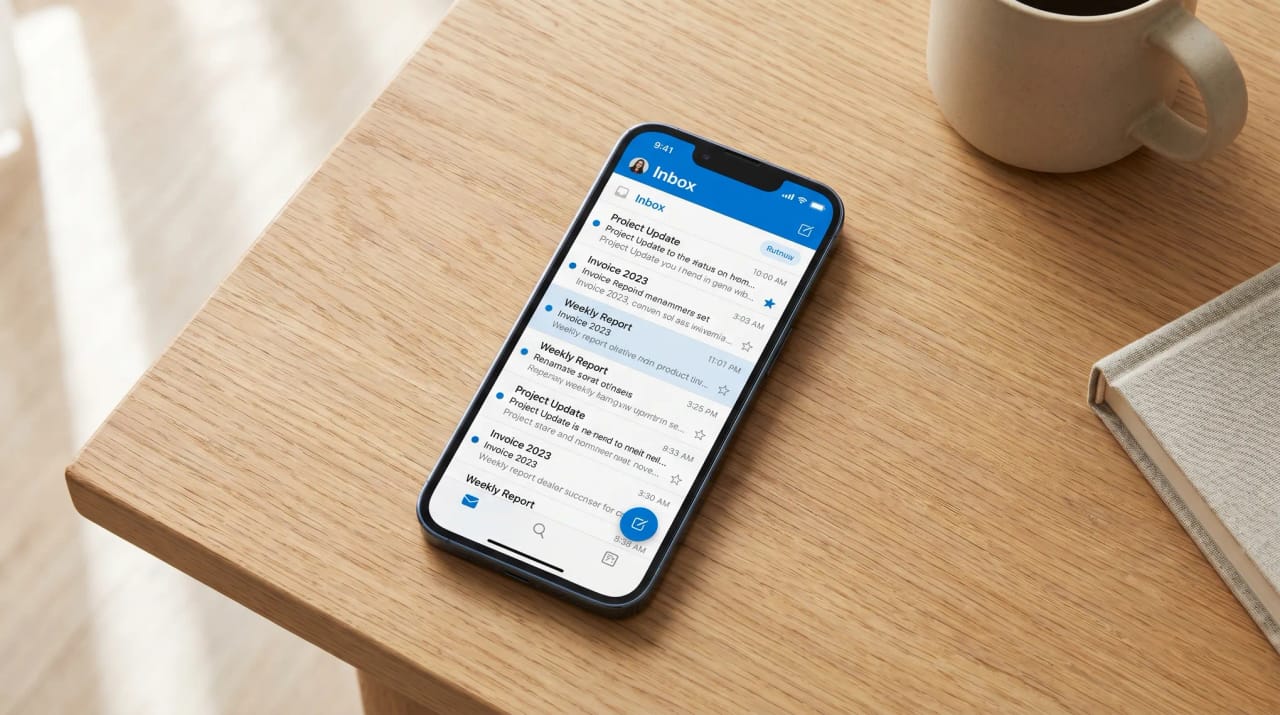
Grok for Outlook shipped on July 21, 2026: a Microsoft 365 add-in that docks Grok beside your inbox to summarize threads, draft replies in your voice, and sweep the backlog. It’s available to all paid X and SuperGrok subscribers through the Microsoft Marketplace, at no separate fee.
That “paid” detail is worth pausing on, because it’s the one thing the coverage keeps getting wrong. Grok for Excel, Word, and PowerPoint are free Microsoft 365 add-ins. Outlook is not. xAI’s own announcement says it’s “available today to all paid X and SuperGrok users”, so a subscription you already have covers it, but a free account doesn’t.
What it does in the inbox
Three jobs, and they map to how people actually lose time in email.
Catching up on a thread. Open a conversation that ran all week and ask what happened. Grok comes back with the decisions, who owns what, and what’s still waiting on you. This is the highest-value thing in the add-in: the twelve-message vendor renewal thread where legal, finance, and security each weighed in and nobody said what got decided.
Clearing the backlog. It can sweep recent mail in one pass: archiving finished conversations, junking noise, and flagging messages that need a reply. Multiple messages at a time, not one at a time.
Drafting. A few rough words is enough. Grok expands them into a reply matching how you write, or composes from scratch. You can iterate from there: tighter subject, different recipients, warmer tone.
It also reads attachments and searches the web and X without leaving Outlook, which is the part that saves the alt-tab loop when a thread references something you have to go look up.
Nothing sends until you hit send. xAI is explicit about that in the add-in. Grok produces the draft; the send is yours.
The add-in and the connector are two different products
This trips people up, so it’s worth being precise. There are two ways Grok touches Outlook, with different capabilities and different rules.
The add-in lives inside Outlook. It’s a panel next to your mail, it works on what you’re looking at, and it drafts rather than sends.
The Outlook Mail & Calendar connector lives on grok.com. It links your Microsoft account to Grok’s chat interface, and it is considerably more powerful: the documented permission set is Mail.ReadWrite and Mail.Send, so Grok can genuinely send, reply-all, and forward from your mailbox. It can also move messages between folders, create folders, run batch operations, and attach files it generated directly to a draft.
The calendar connector is separate again, with its own OAuth sign-in and Calendars.ReadWrite, and it creates and updates events with attendees, location, recurrence, and reminders, checks availability across multiple attendees, and RSVPs with optional comments.
So: the add-in is where you work, the connector is what Grok can reach. If you install only the add-in, you get an assistant in the reading pane. If you connect the account on grok.com too, Grok can act on your mailbox from a chat window as well.
Two setup notes on the connector. It expects a Microsoft work or school account, and some tenants require an Azure AD administrator to grant consent for the xAI Grok application under Enterprise applications before anyone can connect.
How it compares to Copilot in Outlook
The obvious rival is Microsoft’s own. The functional overlap is real (summarize, draft, triage) and the honest differences are these.
Grok reaches outside Microsoft. It searches the web and X mid-thread, and through connectors it can pull from Google Drive or SharePoint while drafting, which Copilot doesn’t do across that boundary. Copilot, in exchange, is native to the tenant and inherits the compliance posture the IT department already signed off on.
The pricing shape differs too: Copilot in Outlook is a per-seat add-on to your Microsoft licensing. Grok for Outlook rides on a consumer X or SuperGrok subscription you might already be paying for personally, which makes it cheap for an individual and awkward for a company standardizing on something.
What it still doesn’t do
The add-in assists while you’re in Outlook. It doesn’t work when the app is closed, and it doesn’t work on anything you’re not looking at.
The gap that matters more is what starts the work. On July 16, 2026, xAI shipped Automations, which changed the picture partway.
Grok closed part of the event gap in July 2026. Scheduled automations are open to everyone and email triggers come with SuperGrok, matching on sender, recipient, or subject. The limit is that the inbox is the only thing it watches, so anything happening in another app still has to be noticed by a person first. Carly notices instead, across thousands of apps.
That’s genuinely useful for inbox rules — “when something from our biggest client lands, summarize it and tell me.” It’s also the ceiling. The Outlook connector itself fires on nothing; it waits to be asked. So Grok can react to an email arriving, and cannot react to the invoice going overdue, the deal stage changing, the form being submitted, or the meeting being moved, which are the events that generate the email in the first place.
Most email work isn’t really email work. It’s an app doing something, and a person finding out by mail hours later.
If the inbox is the symptom
Carly is shaped around that observation. Each agent gets its own name and email address, so you brief it the way you’d brief a colleague (forward it a thread, cc it on a request) and it fires on events across 200+ integrations rather than only on mail arriving. When the CRM record changes, it acts then, instead of waiting for the notification email and reacting to that. Anything with a public API that isn’t already native connects with your own key. Free Zapier-style workflows; AI agents from $35/month.
The two coexist fine, and they coexist in the same window if you want. Carly runs a hosted MCP server, so at grok.com/connectors you click New Connector, select Custom, and enter https://carlyassistant.com/mcp/. Grok can then hand Carly the mailbox work, including Gmail and Outlook in the same question, while the add-in keeps doing the reading and drafting beside your inbox.
Grok for Outlook makes the hour you spend in your inbox shorter. A trigger-driven agent is aimed at the reason the mail arrived.
FAQ
Is Grok for Outlook free?
No. Unlike the Excel, Word, and PowerPoint add-ins, which are free, Grok for Outlook requires a paid X or SuperGrok subscription. There’s no separate charge on top of that subscription.
How do I install it?
Add it from the Microsoft Marketplace as a Microsoft 365 add-in, then sign in with your X or SuperGrok account. It appears under Add-ins in the Outlook ribbon.
Can Grok send email from Outlook?
The add-in drafts and leaves the send to you. The separate Outlook Mail connector on grok.com does hold Mail.Send and can send, reply-all, and forward on your behalf.
Does it work with a personal Outlook.com account?
The add-in is distributed for Microsoft 365. The Outlook connector’s documented sign-in path is a Microsoft work or school account, so a personal-only setup is the weaker case of the two.
Does xAI train on my email?
xAI states it does not use Outlook mail or calendar data for model training, and that connector conversations don’t result in that data being stored on its servers. Permissions are delegated to the signed-in user, so Grok reaches only your own mailbox.
Ready to automate your busywork?
Carly schedules, researches, and briefs you—so you can focus on what matters.
See what people say
"Before Carly, I relied on a Calendly link, but the whole process felt impersonal and not very professional. Carly changed that by handling all the back-and-forth, so I'm no longer stuck in endless email threads trying to line up schedules.
Now Carly reaches out to candidates, shares my real-time availability, lets them pick a slot, then sends a Zoom link and drops it straight into my calendar. She sends reminders to both of us before each call, which has significantly reduced no-shows and last-minute confusion.
On top of scheduling, Carly acts like a full executive assistant, sending me my schedule the night before so I can prepare for each call. It reminds me of the old x.ai assistant, but Carly is noticeably smarter, faster, and better suited to my healthcare recruitment business."