How to Set Out of Office in Teams (2026)
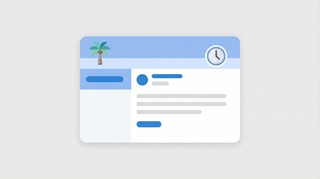
Out of office in Teams sets an automatic reply for chats and emails and marks your status so people know you’re away. Because Teams and Outlook share the same out-of-office setting, scheduling it in one place covers both. Here’s how to set it up.
Set Out of Office on Desktop
- Click your profile picture in the top-right corner.
- Click Set status message.
- At the bottom of the panel, click Schedule out of office.
- Toggle Turn on automatic replies and type your message.
- (Optional) Tick Send replies outside my organization and write a separate external message.
- Toggle Send replies only during a time period, set the start and end date/time, and click Save.
During that window, your status shows Out of Office, and anyone who messages or emails you gets the auto-reply.
It Syncs with Outlook
The Teams out-of-office setting is the Outlook automatic-replies setting — they’re the same thing. So you can set it from either app:
- In Outlook: File > Automatic Replies (Out of Office) (desktop), or Settings > Accounts > Automatic replies (new Outlook/web).
Whatever you set in one place shows up in the other.
Set It on Mobile (iOS/Android)
- Tap your profile picture (top-left).
- Tap your current status > Set status message.
- Tap Schedule out of office, write your reply, set the dates, and tap the checkmark to save.
Troubleshooting
There’s no “Schedule out of office” link
Make sure you clicked Set status message first — the link sits at the bottom of that panel. If your account has no Exchange/Outlook mailbox attached, the feature won’t appear, because it relies on Outlook automatic replies.
My auto-reply isn’t sending
Confirm automatic replies are turned on and that the current date falls inside your scheduled time period. If you set a time window but it hasn’t started yet, nothing sends until then.
My status doesn’t show Out of Office
Presence can take a few minutes to update. If you set a future date range, the Out of Office status only appears once that window begins.
People outside my company don’t get a reply
External replies are a separate toggle. Tick Send replies outside my organization and write that message — otherwise only internal contacts get one.
I came back early and want to stop it
Open Schedule out of office again and toggle automatic replies off, or change the end time to now.
Quick Reference
| Goal | What to do |
|---|---|
| Set out of office | Profile picture > Set status message > Schedule out of office |
| Turn on auto-reply | Toggle Turn on automatic replies + type message |
| Schedule dates | Toggle Send replies only during a time period + set start/end |
| Reply to external contacts | Tick Send replies outside my organization |
| Turn it off | Schedule out of office > toggle replies off |
Related Teams guides: How to change your status in Teams · How to mute notifications in Teams · How to schedule a message in Teams · How to create a Teams meeting in Outlook · How to change your profile picture in Teams
Ready to automate your busywork?
Carly schedules, researches, and briefs you—so you can focus on what matters.
See what people say
"Before Carly, I relied on a Calendly link, but the whole process felt impersonal and not very professional. Carly changed that by handling all the back-and-forth, so I'm no longer stuck in endless email threads trying to line up schedules.
Now Carly reaches out to candidates, shares my real-time availability, lets them pick a slot, then sends a Zoom link and drops it straight into my calendar. She sends reminders to both of us before each call, which has significantly reduced no-shows and last-minute confusion.
On top of scheduling, Carly acts like a full executive assistant, sending me my schedule the night before so I can prepare for each call. It reminds me of the old x.ai assistant, but Carly is noticeably smarter, faster, and better suited to my healthcare recruitment business."