
Slack Statistics 2026: Users, Revenue & Slack vs Teams
How many people use Slack, where the 32 million figure comes from, Slack revenue under Salesforce, and Slack vs Teams users. 2026 stats, sourced inline.
59 posts
How many people use Slack, where the 32 million figure comes from, Slack revenue under Salesforce, and Slack vs Teams users. 2026 stats, sourced inline.

How many people use Zoom, where the 300 million daily users figure came from, 2026 revenue, customer counts and Zoom vs Teams. Sourced inline.
Claude Code's Microsoft 365 connector carries one tenant, and in the terminal it loads zero tools. Add every Teams account to Carly and read them together.

The best AI automation tools for Microsoft Teams. Automate messages, approvals, and scheduling across Teams and the rest of your stack without building flows.

We checked 6 AI assistants against two or more Microsoft Teams organizations. Which reach all of them, which are read-only, and which stop at one tenant.
ChatGPT Work holds one Microsoft work account. Connect all your Teams accounts to Carly, add Carly to ChatGPT Work once, and one run covers all of them.
Cowork is the one assistant that works your Teams while you sleep, and reading is all it can do there. How to give it more than one organization.

Claude's whole Teams surface is one read-only search tool, and personal Microsoft accounts are refused. What a second organization actually needs.
Codex has no Teams connector, and channel reads need an Entra admin. Connect all your Teams accounts to Carly, register one MCP server, and ask across them.
The Gemini app has no Teams connector at all, and Gemini Enterprise binds to one tenant. Connect all your organizations to Carly and one chat covers both.
Grok Bot has no Teams plugin, so it signs in through its browser. Every Bot on your account then shares that session. Why that is the real problem.

Perplexity has two Teams surfaces and both bind to one Microsoft account. Its Teams connector also asks for all your files and calendars.
ChatGPT's Teams app holds one Microsoft account and needs an Entra admin's consent. Connect all your Teams accounts to Carly, add Carly once, and reach both.
Copilot is licensed and grounded per tenant, so a second Teams org means a second licence. Connect all your Microsoft accounts to Carly and ask across both.
Grok's Teams connector is free and self-serve, and three of its permissions need an Entra admin. A second tenant is undocumented. What works instead.
ChatGPT can post in Teams now, Claude still cannot, and Copilot only drafts. What each assistant does in Teams, and which one replies without you.
Microsoft's official Teams MCP server, Work IQ Teams, is a preview gated behind a Copilot license and an IT admin. What it does and where it stops.
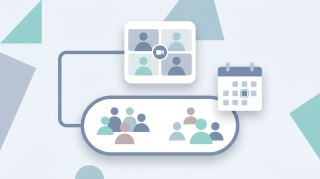
Create a channel meeting in Microsoft Teams so the whole channel can see and join — schedule from the Calendar or from inside the channel, add required attendees, make it recurring, and understand standard vs private channel limits.
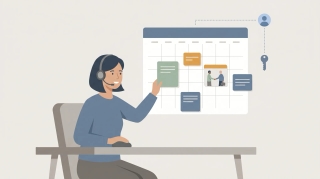
Schedule a meeting for your manager or executive in Outlook and Teams — set up delegate access, create the event on their calendar so it's sent 'on behalf of' them, and route responses correctly.
Set up a recurring Teams meeting from the Calendar — use the recurrence dropdown for daily, weekly, monthly, or custom, set an end date, edit one occurrence vs the series, and fix the channel-meeting and join-link snags.
Add a tab to a Microsoft Teams channel or chat — pin an app, a file, a website, or a Planner board across the top so your team can reach it in one click.

React to a message in Microsoft Teams chats and channels, and send live emoji reactions during a meeting — like, heart, applaud, laugh, and more.

Edit a message you've already sent in Microsoft Teams, delete a message, and learn what others can see after you change or remove it.
Assign the presenter role in Microsoft Teams — before the meeting from Meeting options, or live during the meeting — and learn what organizers, presenters, and attendees can each do.

Pin a message to the top of a Microsoft Teams chat or channel so everyone can find it, replace it with a new pin, and unpin it when you're done.
View and download the attendance report for a Microsoft Teams meeting — during the meeting and afterward from the chat — plus how to turn the report on.

Spotlight a video for everyone in a Microsoft Teams meeting, spotlight several people at once, and understand how spotlight differs from pin.
Microsoft Teams caps each team at 1,000 channels (max 30 private), 25,000 members, and 100 owners. Here are the current channel, team, and member limits.

Microsoft Teams lets you upload files up to 250 GB each, since it stores them in SharePoint or OneDrive. Limits, storage caps, and workarounds.

Schedule a meeting in Microsoft Teams from the Calendar, Outlook, or a channel — add attendees, invite guests, make it recurring, or start an instant Meet now.

Share a file in Microsoft Teams — attach in a chat, upload to a channel, share a link with permission control, or co-edit in real time, on desktop and mobile.

Use Copilot in Microsoft Teams to summarize meetings, list action items, catch up on chats, and get a meeting recap — what you need and how to turn it on.
Use Microsoft Whiteboard in a Teams meeting — open it from the Share tray, draw, add sticky notes and templates, collaborate live, and find the board afterward.
Slack is best-in-class chat with a huge app directory; Teams bundles chat, meetings, and files with Microsoft 365. Here's how they compare and which to pick.
How long a Microsoft Teams meeting can run and how many people can join — the 60-minute free cap, the 30-hour paid limit, and participant ceilings by license.

Teams is a full collaboration suite bundled with Microsoft 365; Zoom is a meeting-first tool with best-in-class video. Here's when to pick each in 2026.
Add an external guest to a Microsoft Teams team, invite a guest to a single meeting, and fix guest access when invites aren't working or the option is missing.

Change or remove your Microsoft Teams profile picture on desktop and mobile, and fix it when the photo option is greyed out or the new picture won't update.

Set your Microsoft Teams status manually, pin a status message, reset it when it's stuck, and stop Teams from changing it back to Away automatically.
Create a standard, private, or shared channel in Microsoft Teams, add members, and fix it when the Add channel option is missing or you've hit the channel limit.
Create a team in Microsoft Teams from scratch or a template, add members, set it public or private, and fix it when the 'Join or create a team' button is missing.
Start a live transcript in a Microsoft Teams meeting, find and download the transcript afterward, and fix transcription when the option is greyed out.

Mute Microsoft Teams notifications — a noisy chat, a busy channel, or everything at once with Do not disturb and quiet hours — on desktop and mobile.

Schedule a chat message to send later in Microsoft Teams, edit or reschedule a queued message, and fix it when the schedule send option is missing.

Set an out-of-office message and auto-reply in Microsoft Teams, schedule the dates, and sync it with Outlook so your status shows you're away.

Turn on live captions in Microsoft Teams on desktop, web, and mobile, change the caption language, and fix captions when they won't show up.

Switch Microsoft Teams to dark mode on desktop, web, and mobile, and fix it when the theme won't change or dark mode is missing from settings.

Blur your background in Microsoft Teams before or during a meeting on desktop and mobile — plus what to do when the blur or background-effects option is missing.

Change your background in Microsoft Teams — pick a built-in image, upload your own custom background, or blur it — before or during a meeting, on desktop and mobile.

Change your display name in Microsoft Teams — set a name when joining as a guest, edit it on a personal account, or get a work-account name changed through your admin.

Create a poll in Microsoft Teams — live in a meeting with the Polls app or ahead of time in a chat — launch it, share results, and fix a missing poll option.
Mute and unmute yourself in Microsoft Teams, use the keyboard shortcut and push-to-talk, and — as an organizer — mute other participants or stop them from unmuting.

Pin a participant's video in Microsoft Teams so they stay on your screen, understand pin vs. spotlight, and do it on desktop and mobile — plus how to unpin.

Raise your hand in a Microsoft Teams meeting on desktop, mobile, and with a keyboard shortcut — plus how to lower it and see who else has raised theirs.
Record a Microsoft Teams meeting on desktop or mobile, find where the recording saves in OneDrive or SharePoint, and fix it when the Record option is greyed out.
Share your screen, a single window, or a PowerPoint in Microsoft Teams on desktop and mobile — including how to share computer sound and give control to someone else.

Turn off your camera in Microsoft Teams before or during a meeting, use the keyboard shortcut, and join with video off by default — on desktop and mobile.

Create and run breakout rooms in Microsoft Teams — split a meeting into groups, assign people, set a timer, send announcements, and bring everyone back.
Schedule Microsoft Teams meetings from Outlook on desktop, web, classic Windows, mobile, and Mac — plus fixes when the Teams button is missing.