Canva MCP: The Official Server and What It Can Do
Yes — Canva has an official MCP server. The remote design MCP server (mcp.canva.com/mcp) lets any MCP-compatible AI tool generate, edit, search, and export your Canva designs. A separate developer MCP server helps engineers build Canva Apps and integrations against canva.dev. So if you’re searching “Canva MCP,” the connection you want already exists.
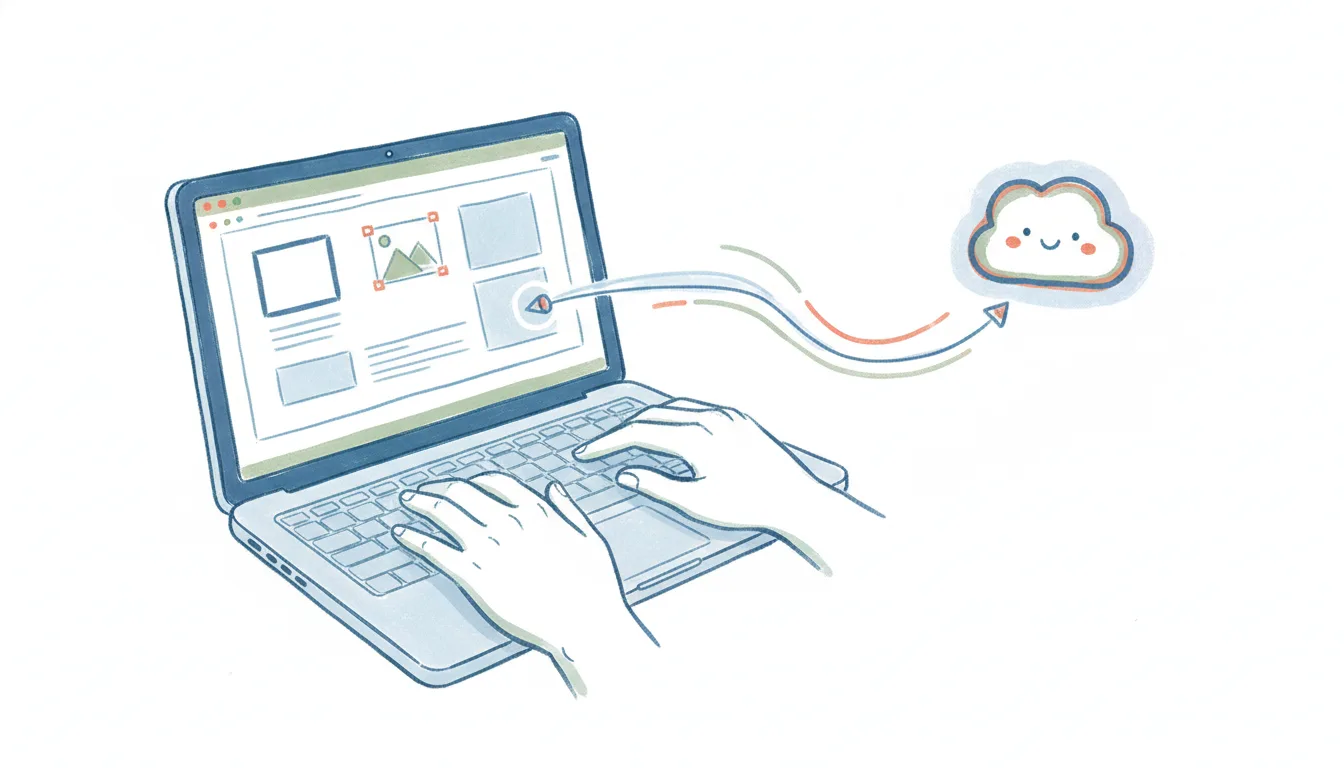
The thing worth knowing before you set it up: an MCP server hands your design library to an AI inside a conversation you start. It’s a doorway, not a worker. Nothing watches your brand kit for you, nothing fires when a new product ships, and nothing runs while the chat is closed. Here’s exactly what the Canva MCP does, how to turn it on, where it stops — and what to use when you want Canva work that runs on its own.
For the wider picture, every app with an MCP server is listed by category.
What the Canva MCP server does
Model Context Protocol (MCP) is the open standard that lets an AI client — Claude, ChatGPT, Gemini, Cursor, VS Code, and others — talk to an outside app through a shared interface. Canva maintains two official servers:
- Design MCP (
mcp.canva.com/mcp, remote) — gives an MCP-compatible AI access to your actual Canva account: designs, brand kit assets, and templates. - Dev MCP (
canva.dev) — built for developers creating Canva Apps and Connect API integrations through agentic tools like Claude Code, Cursor, and other coding assistants.
For most people the first one is what “Canva MCP” means. With it connected, an AI client can:
- Generate designs — turn a text description into a new Canva design without opening the editor.
- Edit existing designs — swap copy, colors, or images on a design you already have open.
- Search your library — find a template or past design by describing it instead of scrolling.
- Pull brand assets — reach into your Brand Kit for the right logo, font, or color palette.
- Export in multiple formats — PDF, PNG, JPG, PPTX, or MP4, ready to hand off.
- Add comments — leave feedback on a design as part of a review conversation.
It’s genuinely useful for ad-hoc work: describe a graphic, get a draft, tweak it, export it — all from a chat.
How to set up the Canva MCP server
The remote design server is the quick path — no code, no hosting:
- In your AI client’s connector settings, add a remote MCP server pointing at
mcp.canva.com/mcp(Claude, ChatGPT, and Gemini all have documented setup steps for this). - Authorize it against your Canva account through the OAuth prompt — you’re granting the AI the same design and brand access your login has.
- Confirm the Canva tools appear in the client, then start a chat and ask it to generate, edit, or export a design.
The Dev MCP server runs differently — you add canva.dev to your coding assistant’s MCP config to get contextual help building Canva Apps and Connect API integrations. That one’s for developers, not the person who just wants a social graphic made.
Where the Canva MCP stops
None of this is a knock on MCP — it’s just the shape of the protocol. Four limits show up the moment you want more than a conversation:
- It only works inside a chat you start. Close the window and nothing happens. The AI doesn’t watch Canva; it waits for you to ask.
- No triggers. A new product added to your catalog, a blog post going live, a lead closing — none of these can start anything through MCP. There’s no “when this happens, generate a graphic.”
- It’s one app at a time. The Canva MCP knows Canva. Getting a finished export into Slack, Drive, and your social scheduler means wiring up (and authing) a separate MCP server for each, then hoping your client can juggle them in one turn.
- You own the plumbing and the scopes. OAuth tokens, refresh, and the blast radius of an AI having write access to your brand kit are all on you.
So the Canva MCP is a great way to ask Canva for a design and make one-off edits. It is not a way to make Canva run — to have graphics get generated on a schedule or in reaction to an event, then land in the other tools your team actually uses.
Running Canva work that doesn’t need a chat open
That “run on its own, across apps” gap is exactly where Carly fits. Carly connects to Canva natively — no MCP server to host, no OAuth plumbing to maintain — and to the ~260 other apps it supports, plus anything with a public API through your own key. The difference from MCP is the important part: Carly’s workflows are triggered and scheduled, so Canva work happens whether or not anyone has a chat window open.
A few things that MCP can’t do but a Carly workflow can:
- When a new product is added to your catalog → generate a Canva promo graphic from the product name and image, then schedule it across your social accounts — automatically.
- Every Monday morning → pull the week’s blog post titles, generate matching Canva social cards, and drop them into a shared Drive folder for review.
- When a client approves a proposal in your CRM → generate a branded welcome graphic from your Canva templates and attach it to the onboarding email, no design request needed.
The non-AI steps — the moving, matching, and routing between apps — are free, the Zapier-style backbone of the workflow. The AI steps (drafting, summarizing, deciding what a design should say) start at $35/month. You describe the outcome in plain language and Carly wires up the Canva connection and everything downstream.
If you just want to generate or tweak a design from a chat, Canva’s official MCP server is the right tool and it’s free to connect. If you want Canva to actually produce things — on a trigger, on a schedule, across every app a finished design touches — that’s the job MCP wasn’t built for, and it’s the one Carly was.
FAQ
Does Canva have an official MCP server?
Yes. The remote design MCP server at mcp.canva.com/mcp gives MCP-compatible AI tools access to generate, edit, search, and export your Canva designs, and a separate developer MCP server at canva.dev supports building Canva Apps and Connect API integrations.
Is the Canva MCP server free? Connecting the remote design MCP is free; you’re authorizing an AI client against your existing Canva account. You still need whatever Canva plan your designs and brand assets live on.
Can the Canva MCP trigger automations? No. MCP is request/response inside an AI chat — it has no triggers and nothing runs when the conversation is closed. For event- or schedule-driven Canva work across apps, you need a workflow tool like Carly rather than an MCP server.
What AI tools can connect to Canva over MCP?
Documented setups exist for Claude, ChatGPT, Gemini, Cursor, and VS Code, and any MCP-compatible client can connect to mcp.canva.com/mcp in principle.
Can I connect Canva to AI without coding or hosting a server? Yes. You don’t have to touch MCP at all. Carly connects to Canva for you and lets you build the automation in plain language — describe what you want to happen and it wires up Canva and the other apps involved, with no server to host and no code to write.
Ready to automate your busywork?
Carly schedules, researches, and briefs you—so you can focus on what matters.
See what people say
"Before Carly, I relied on a Calendly link, but the whole process felt impersonal and not very professional. Carly changed that by handling all the back-and-forth, so I'm no longer stuck in endless email threads trying to line up schedules.
Now Carly reaches out to candidates, shares my real-time availability, lets them pick a slot, then sends a Zoom link and drops it straight into my calendar. She sends reminders to both of us before each call, which has significantly reduced no-shows and last-minute confusion.
On top of scheduling, Carly acts like a full executive assistant, sending me my schedule the night before so I can prepare for each call. It reminds me of the old x.ai assistant, but Carly is noticeably smarter, faster, and better suited to my healthcare recruitment business."