How to Automate Work with AI Agents: A 2026 Playbook
Automating work with AI agents is the difference between using AI as a tool and using AI as a teammate. A tool helps when you ask. An agent does the work whether you’re paying attention or not. Below: what to automate, how to set it up, and what to avoid.
What an AI Agent Actually Does
An AI agent is software that:
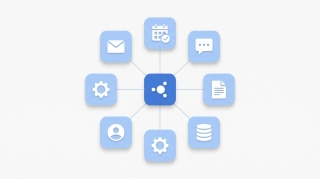
- Reads context from your apps (emails, calendar events, CRM records, Slack messages, sheets).
- Decides what to do based on rules, prompts, or natural-language instructions.
- Takes action by calling those same apps — sending emails, creating events, updating records, posting messages.
- Loops back: reads the result, adjusts, runs the next step.
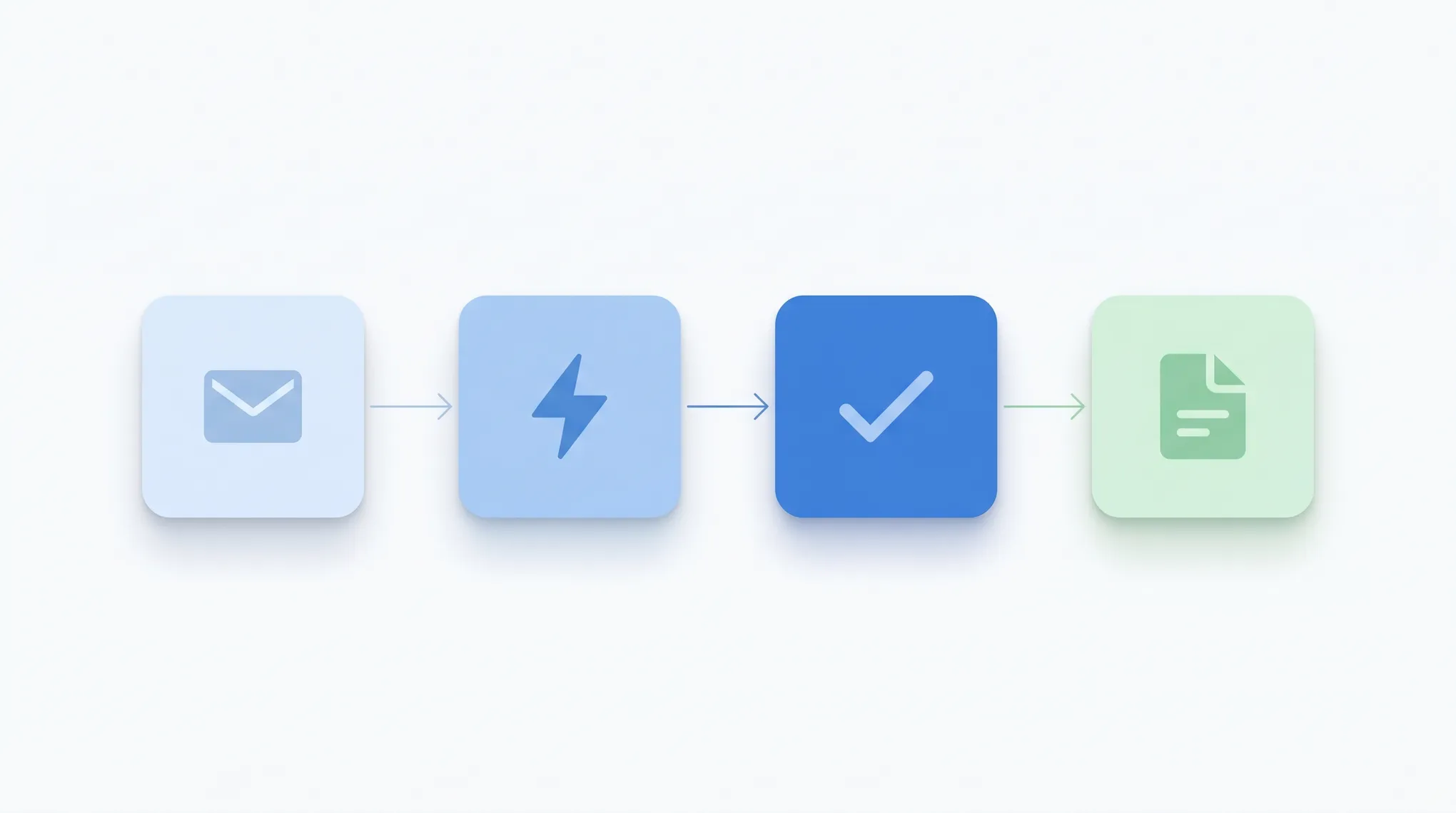
The “agent” part is the loop. A chatbot generates one response and stops. An agent generates a response, takes action, observes what happened, and continues.
For example, “follow up on every quote that hasn’t been signed in 5 days”:
- Pull every quote from your CRM where status = sent and age > 5 days.
- Read the original quote and any subsequent emails.
- Draft a follow-up tailored to that thread.
- Either send (if rules say auto-send) or queue for review.
- Update the CRM with the activity.
That’s an agent workflow. The same task done with a chatbot would require you to do steps 1, 4, and 5 yourself.
Workflows Worth Automating First
Not all work is agent-ready. Pick workflows that are:
- Repetitive in shape. The steps are the same; only the data changes.
- Rules-based or pattern-based. “If sender is in CRM, do X. If not, do Y.”
- Recoverable. A wrong step doesn’t blow up a customer relationship.
- High frequency. You do it weekly or daily — automation pays back fast.
Strong starters by role:
For founders and operators
- Inbox triage: sort, label, archive, and draft replies based on sender and subject.
- Meeting prep: auto-generate a one-pager 30 minutes before every external meeting (last emails, CRM notes, open issues).
- Weekly digest: every Friday, pull from calendar, Slack, GitHub/Linear, and post a summary.
- Investor updates: assemble metrics from your dashboards, draft the narrative, queue for review.
For sales and customer-facing roles
- Lead enrichment: when a new lead arrives, look them up in People Data Labs or Apollo, populate the CRM, and route to the right rep.
- Follow-up cadence: track sent emails and re-engage at 3, 7, and 14 days with context-aware follow-ups.
- Call notes to CRM: transcribe the call (via Fathom, Fireflies, or Recall.ai), summarize, and update the deal.
- Quote and proposal follow-up: chase unsigned proposals automatically.
For support and ops
- Ticket triage: classify incoming tickets, route to the right team, draft a first reply.
- Knowledge-base lookups: pull the relevant article from Notion or Confluence and quote it in the draft reply.
- Bug-report formatting: turn customer messages into structured tickets in Linear or Jira.
- Onboarding emails: trigger welcome sequences based on signup events.
For finance and HR
- Expense categorization: OCR receipts, categorize, sync to QuickBooks or Xero.
- Invoice chasing: track unpaid invoices and send polite reminders on schedule.
- Recruiting pipeline: pull candidates from Ashby or Lever, enrich, and schedule first calls.
Chat Agents vs. Background Agents
Two patterns dominate. Pick the one that matches the work.
Chat agents
You initiate. The agent acts.
Examples:
- “Find me 30 minutes with Sam next week, prefer afternoons.”
- “Summarize this email thread and draft a reply that pushes the call to next Tuesday.”
- “Look up [contact] in HubSpot and tell me where the deal is.”
Best for: ad-hoc requests, anything that doesn’t follow a schedule, novel tasks.
Background agents
The agent runs on a schedule or trigger. You don’t prompt it.
Examples:
- Every morning at 7:30 AM, sweep the inbox, archive newsletters, and surface 5 emails that need a reply.
- Whenever a new lead arrives in HubSpot, enrich the record and assign the right rep.
- Every Friday, post a status update in the team Slack channel based on the week’s calendar and tickets.
Best for: recurring workflows, anything time-sensitive, anything where remembering to ask is the bottleneck.
A serious AI agent platform supports both — chat for the unpredictable stuff, background runs for the predictable stuff.
How to Wire It Up
The setup arc is the same regardless of platform.
1. Connect your apps
The agent needs OAuth-level access to the tools you want it to act in. Common ones:
- Email: Gmail, Outlook.
- Calendar: Google Calendar, Outlook Calendar.
- CRM: HubSpot, Salesforce, Attio, Pipedrive.
- Messaging: Slack, Teams, Discord.
- Project management: Linear, Asana, Trello, Jira.
- Storage and docs: Google Drive, Notion, Dropbox.
- Data: Google Sheets, Airtable, BigQuery.
The more it can see, the more it can do.
2. Define the workflow
Most agent platforms let you describe the workflow in natural language. A good description includes:
- Trigger: “When a new email arrives in my inbox…” / “Every Monday at 9 AM…” / “When a deal moves to stage ‘Closed Won’…”
- Steps: “…read the sender’s CRM record, check the last 30 days of activity, and draft a personalized follow-up…”
- Output: “…post the draft to Slack #ops for review.”
Avoid vague instructions. “Be helpful” is not a workflow. “When a customer emails about a refund, look up their order in Stripe, calculate the prorated amount, and draft a reply with the refund policy quoted from Notion” is.
3. Set guardrails
Tell the agent what it can and can’t do. Common guardrails:
- “Always send to a draft for review — don’t auto-send.”
- “Never email anyone outside our @company.com domain without my approval.”
- “If the deal value is over $10,000, escalate to me before any reply goes out.”
- “Don’t create or update CRM records — only read.”
Guardrails are how you sleep at night while the agent runs.
How to Keep Agents on the Rails
The fear with AI automation is “what if it screws something up?” Five practices that keep that risk low:
- Review-first rollout. First two weeks, every action goes to a queue. You approve or correct each one. This is your training data.
- Audit logs. A serious agent platform records every action it takes. Review the log weekly for the first month.
- Auto-pause on anomalies. If the agent’s behavior changes suddenly (sending 10x more emails than usual, taking actions outside its normal pattern), it should pause and ask.
- Scoped access. Give the agent the minimum permissions it needs. If it only writes to one folder in Drive, give it access to that folder, not the whole drive.
- Easy rollback. Most actions are reversible (delete the email, undo the CRM update). Make sure you know how to roll back any action the agent takes.
When AI Automation Doesn’t Work
Skip automation for:
- Sensitive customer escalations. A confused agent reply to an angry customer makes things worse.
- Strategic or creative decisions. Good for first drafts; bad for “what should our pricing be.”
- One-off tasks. Setting up automation for a once-a-year task is the kind of premature optimization that wastes more time than it saves.
- Anything legally or financially binding without a human approval step. Agents draft contracts; they don’t sign them.
The rule of thumb: automate the boring 80%, keep humans on the high-stakes 20%.
How to Tell If It’s Working
After 30 days, the answer should be obvious. Concrete signs:
- You stopped opening certain apps every day (the agent handles them).
- A workflow that took 30 minutes now takes 3 (review only).
- You catch yourself thinking “the agent will handle this” before you start a task.
- Your team starts asking how you’re shipping more.
If after 30 days you’re still spending the same time on a workflow, the automation isn’t working — either the workflow is wrong (too complex, too judgment-heavy) or the tool is wrong (missing integrations, weak agent loop). Cut it and try a different one.
If you want an AI agent that’s already connected to 200+ apps and ready to run inbox triage, scheduling, CRM updates, and follow-ups, Carly takes about ten minutes to set up. Describe what you want in plain English; it handles the integrations.
More on AI at work: How to integrate AI at work · How to introduce AI to your team · Best AI agents for productivity · Best AI workflow automation tools · Best AI personal assistants · How to build AI employees
Ready to automate your busywork?
Carly schedules, researches, and briefs you—so you can focus on what matters.
See what people say
"Before Carly, I relied on a Calendly link, but the whole process felt impersonal and not very professional. Carly changed that by handling all the back-and-forth, so I'm no longer stuck in endless email threads trying to line up schedules.
Now Carly reaches out to candidates, shares my real-time availability, lets them pick a slot, then sends a Zoom link and drops it straight into my calendar. She sends reminders to both of us before each call, which has significantly reduced no-shows and last-minute confusion.
On top of scheduling, Carly acts like a full executive assistant, sending me my schedule the night before so I can prepare for each call. It reminds me of the old x.ai assistant, but Carly is noticeably smarter, faster, and better suited to my healthcare recruitment business."