How to Integrate AI at Work: A Practical 2026 Guide
AI at work has moved past “type a question into ChatGPT.” The 2026 stack is agents: software that connects to your email, calendar, CRM, and other tools and runs whole workflows end-to-end. But the leap from “I use ChatGPT sometimes” to “AI handles real work for me” is where most people get stuck.
Step 1: Audit What You Actually Do All Week
Before installing anything, list out your recurring work. The pattern that makes a task AI-friendly is:
- It happens regularly (weekly or daily).
- It follows a similar shape every time.
- The inputs are written or structured (emails, calendar events, form responses, spreadsheets, database rows).
- A bad output is recoverable, not catastrophic.
Strong candidates for most knowledge workers:
| Task | Why it’s AI-friendly |
|---|---|
| Email triage and replies | Same patterns daily, written inputs, drafts are easy to review |
| Meeting scheduling | Repetitive logistics, calendar context is structured |
| Meeting notes and action items | Audio → text → summary is a solved AI problem |
| Weekly status reports | Inputs come from tools you already use (PRs, tickets, calendar) |
| Lead enrichment & follow-up | CRM-driven, predictable structure |
| Expense reports & receipts | OCR + categorization is well within current AI |
| Customer support triage | Patterns repeat; routing and first-draft replies scale |
Write down 5–10 of these for yourself. The list itself is your AI roadmap.
Step 2: Pick the Right Tool Type for the Job
The biggest mistake people make: trying to do everything in a chat window.
Chat tools (ChatGPT, Claude, Gemini): great for one-off thinking — drafts, summaries, brainstorms, code explanations, research. You start a session, ask, and walk away.
AI agents (Carly, Lindy, Relay, and others): software that connects to your apps and runs tasks on a recurring or event-driven basis. An agent can read your email, look up the sender in your CRM, draft a reply that references their last invoice, and queue it for your review — without you opening anything.
AI features inside existing tools (Microsoft Copilot, Google Gemini in Workspace, Notion AI): live inside the tool you already use. Lower switching cost, narrower capability.
For a recurring workflow, you almost always want an agent. For a one-off, chat is faster.
Step 3: Pick One Starter Workflow
Don’t try to AI-ify your whole job at once. Pick one workflow that hits these criteria:
- High frequency. You do it at least weekly.
- Low stakes. A wrong output causes a redo, not a fired customer.
- Contained scope. It doesn’t span ten tools or three teams.
Strong starters:
- Inbox triage: sort, label, and draft replies for a single category of email (newsletters, internal updates, customer support, etc.).
- Meeting prep: before every external meeting, generate a one-pager with the attendee’s recent emails, last call notes, and any open items in the CRM.
- Weekly digest: every Friday, pull from your calendar, tickets, and Slack, and post a status update to your team.
The win here is time-to-value in days, not weeks. If your first AI integration takes a month to set up, you’ll abandon it before it pays off.
Step 4: Connect AI to the Apps You Already Use
An AI agent without access to your tools is just a chatbot.
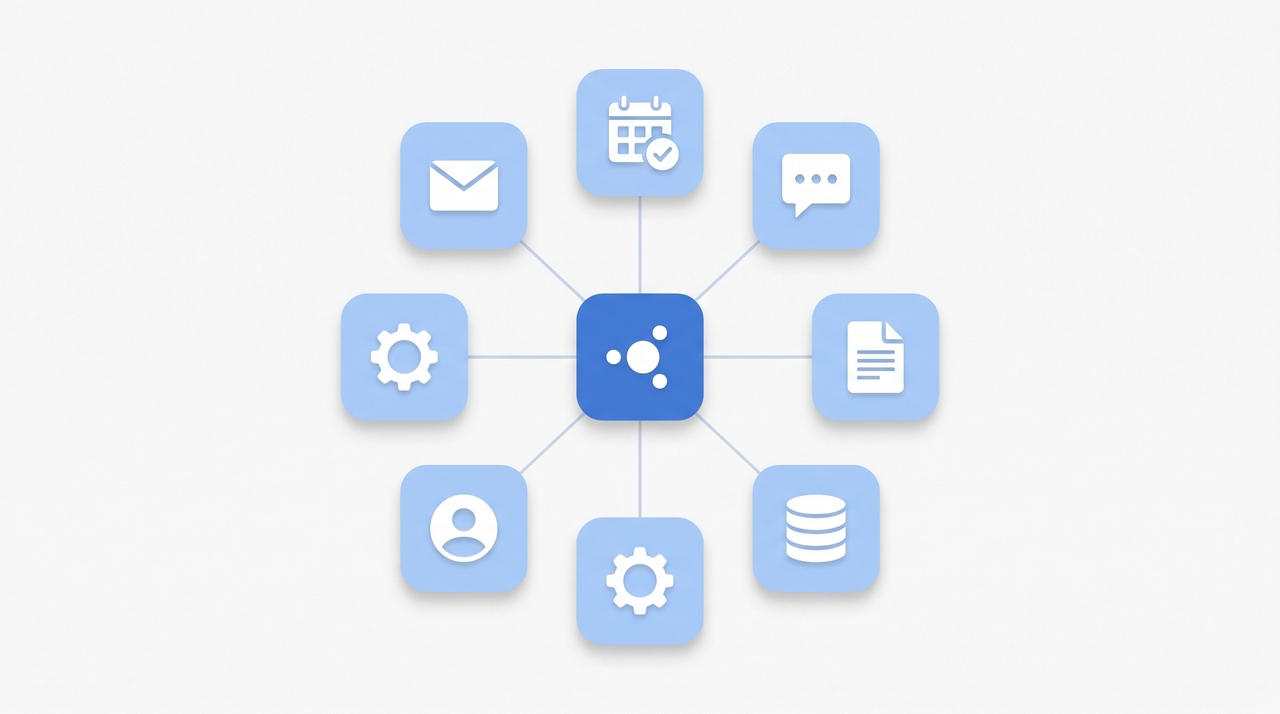
The integrations that matter most for typical knowledge work:
- Email: Gmail, Outlook, or whichever client you live in.
- Calendar: Google Calendar or Outlook Calendar.
- Messaging: Slack, Teams, or Discord.
- CRM: HubSpot, Salesforce, Attio, Pipedrive, etc.
- Tickets / project management: Linear, Jira, Asana, Trello.
- Documents and notes: Google Drive, Notion, Confluence.
- Data: Google Sheets, Airtable, BigQuery.
The more context the agent has, the more it can do without asking. An agent connected only to your inbox can draft replies; an agent connected to your inbox + calendar + CRM can draft replies that propose times and reference the customer’s last conversation and flag if the deal is at risk.
Step 5: Run It, Review It, Refine It
This is the step most teams skip — and it’s where AI integrations either land or fail.
Treat the first two weeks like onboarding a new hire:
- Run with review on. Have the agent draft, not send. Every output goes to a queue you review before it goes out.
- Track misses, not just hits. When the agent gets something wrong, write down why — wrong tone, missing context, bad assumption. Each note becomes a refinement.
- Tighten the prompts and rules. Most agents let you customize behavior with system instructions or playbooks. After the first week, you’ll know what to tell it.
- Graduate to autopilot for the easy cases. Once 80% of outputs are right on the first try for a category, let the agent send those automatically. Keep review on for the edge cases.
By week three, the workflow is humming. The hour-a-day savings show up.
Common Pitfalls
Trying to automate creative or judgment-heavy work too early. AI is great at first drafts and pattern-matching; it’s bad at strategic decisions, sensitive customer issues, and anything novel. Start with the boring stuff.
Letting the agent run blind. Without a review loop, you won’t catch errors until a customer points them out. Always start in draft/review mode.
Picking a tool that doesn’t connect to your stack. A beautiful AI agent that doesn’t integrate with your CRM is useless. Check the integration list before you commit.
Optimizing prompts forever. After a week of refinement, ship it. Diminishing returns kick in fast.
Hiding it from your team. If your output suddenly improves and no one knows AI is involved, you’ll create trust problems later. Be open about which workflows are AI-assisted.
A 30-Day AI-At-Work Plan
Week 1: Audit your recurring tasks. Pick one workflow. Choose a tool.
Week 2: Set up the integrations and run the workflow with review on. Take notes on misses.
Week 3: Refine prompts and rules. Move 80% of cases to autopilot. Pick a second workflow.
Week 4: Set up the second workflow. Compare hours saved against time invested. Decide what to automate next.
By day 30, you should have two recurring workflows running and a third in setup. That’s a real AI integration — not a chat tab you open once a week.
If you want an AI assistant that’s already wired up to 200+ apps and ready to start handling email, scheduling, CRM, and follow-ups, Carly takes about ten minutes to connect and starts saving time the same day.
More on AI at work: How to automate work with AI agents · How to introduce AI to your team · Best AI agents for productivity · Best AI personal assistants · Best AI workflow automation tools · How to use ChatGPT for productivity
Ready to automate your busywork?
Carly schedules, researches, and briefs you—so you can focus on what matters.
Get Carly Today →Or try our Free Group Scheduling Tool or Free Booking Page