How to BCC in Outlook (Every Version, 2026)
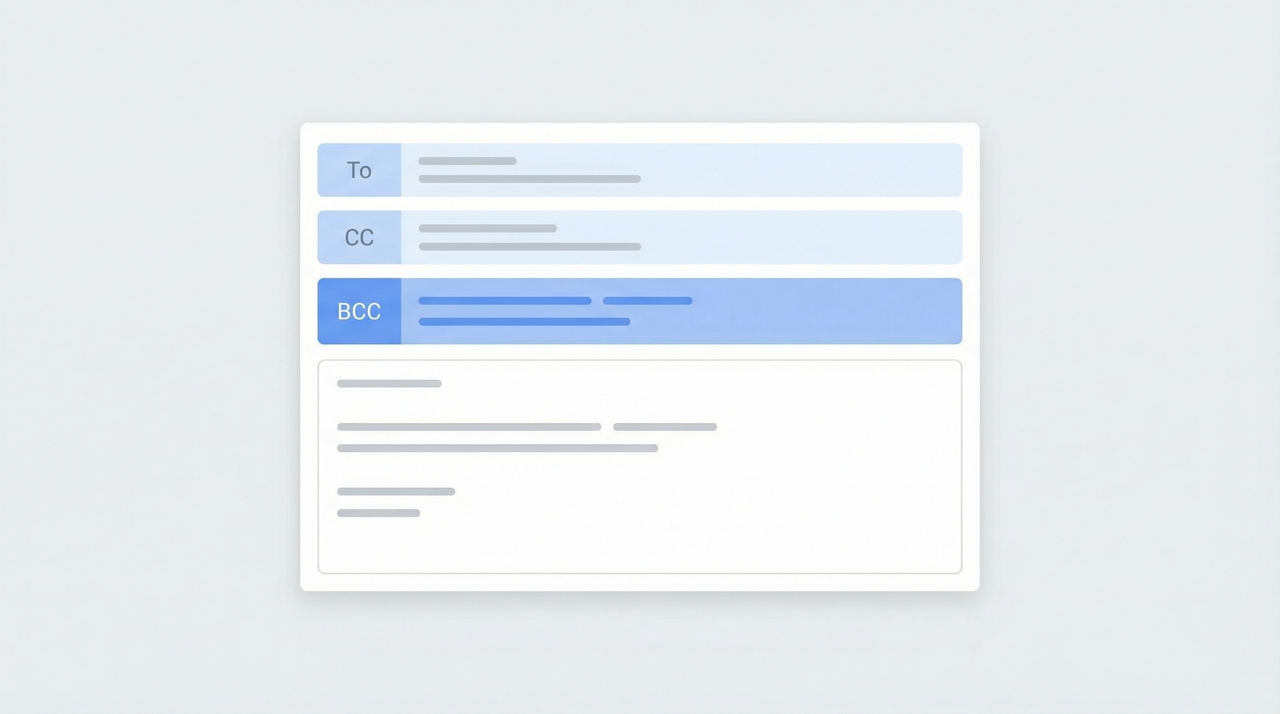
BCC (blind carbon copy) lets you send an email to someone without the other recipients knowing. It’s useful for mass emails, privacy-sensitive messages, and keeping a personal copy of outgoing mail. Outlook supports BCC across every version, but the field is hidden by default — you have to turn it on first. Here’s how to do it in each version of Outlook.
1. Outlook on the Web (Microsoft 365 / Outlook.com)
- Go to outlook.office.com and sign in.
- Click New mail.
- In the compose window, click BCC on the right side of the To line. The BCC field appears below CC.
- Type email addresses into the BCC field.
- Compose the rest of your email and click Send.
Recipients in BCC receive the email but don’t appear in the To or CC fields — they’re invisible to every other recipient.
To always show BCC: Click the gear icon (Settings) in the top right, then select Mail → Compose and reply. Under Message format, check Always show Bcc and click Save. The BCC field will now appear automatically every time you compose or reply.
2. New Outlook Desktop App (Windows & Mac)
The new Outlook app shares its codebase with Outlook on the web, so the steps are similar.
- Open the new Outlook desktop app and click New mail.
- In the message window, click the Options tab in the ribbon.
- Under Show Fields, click Show Bcc.
- The BCC field appears below the CC line. Type your BCC recipients.
- Compose and click Send.
Once you toggle BCC on, the field stays visible for all future messages until you turn it off.
To always show BCC via Settings: Go to Settings → Mail → Compose and reply. Under Message format, check Always show Bcc and click Save.
3. Classic Outlook for Windows
- Open classic Outlook and create a new email (Ctrl+N from the Inbox or Home → New Email).
- In the message window, click the Options tab in the ribbon.
- Click Bcc. A BCC field appears below the CC line.
- Type email addresses into the BCC field.
- Compose and click Send.
In classic Outlook, enabling the BCC field once keeps it visible on all new messages going forward. If the compose window opens inline in the Reading Pane instead of a separate window, you’ll find the Bcc button in the ribbon above the message.
4. Outlook for Mac
- Open Outlook for Mac and click New Email.
- In the compose window, click the BCC field label (next to the CC line) or go to Options in the ribbon and click Bcc.
- Type your BCC recipients.
- Compose and click Send.
To always show BCC: Go to the Outlook menu → Settings → Composing. Check Show BCC field by default. The field appears on every new message from now on.
5. Outlook Mobile (iOS & Android)
- Open the Outlook mobile app.
- Tap the compose button to start a new email.
- Tap the down arrow (or CC/BCC label) next to the To field to expand the additional recipient fields.
- Type addresses into the BCC field.
- Compose and tap Send.
There’s no setting to always show BCC on mobile — you’ll need to expand the field manually each time.
Quick Reference
| Version | How to show BCC | Always-show option? |
|---|---|---|
| Outlook on the web | Click BCC next to the To line | Yes — Settings → Mail → Compose and reply |
| New Outlook desktop | Options tab → Show Bcc | Yes — Settings → Mail → Compose and reply |
| Classic Outlook (Windows) | Options tab → Bcc | Stays visible once enabled |
| Outlook for Mac | Options → Bcc or click BCC label | Yes — Outlook → Settings → Composing |
| Outlook mobile (iOS/Android) | Tap down arrow next to To field | No — manual each time |
How to Automatically BCC Yourself on Every Email (Classic Outlook)
Classic Outlook lets you create a rule that automatically BCC’s your own address on every outgoing email. This is useful for keeping a copy in a separate inbox or feeding a CRM.
- In classic Outlook, go to File → Manage Rules & Alerts.
- Click New Rule.
- Under “Start from a blank rule,” select Apply rule on messages I send and click Next.
- On the conditions screen, leave everything unchecked (this applies the rule to all sent messages). Click Next. Outlook will warn you this applies to every message — click Yes.
- Check Bcc the message to people or public group.
- In the rule description at the bottom, click the underlined people or public group link.
- Select your own email address from the address book, or type it into the To field, and click OK.
- Click Next, then give the rule a name (e.g., “Auto BCC myself”).
- Click Finish, then Apply and OK.
Every outgoing email now automatically gets BCC’d to your address.
Limitation: This rule-based auto-BCC only works in classic Outlook for Windows. The new Outlook desktop app and Outlook on the web don’t currently support auto-BCC through rules. If you need auto-BCC in those versions, third-party add-ins like Sperry Software’s Always BCC or Ablebits Auto BCC can fill the gap.
When to Use BCC
- Mass emails to people who don’t know each other. Sending a newsletter or announcement to a list? Put recipients in BCC to keep their addresses private.
- Removing someone from a thread gracefully. Move them to BCC on one reply so they get the message but drop off future replies.
- Keeping a personal record. BCC your own address (or a CRM dropbox) to automatically log outgoing correspondence.
- Protecting recipient privacy. Any time sharing someone’s email address with other recipients could be a problem — job applicants, clients, event attendees — use BCC.
One thing to avoid: don’t use BCC to secretly monitor a conversation. If the BCC’d person accidentally replies-all, the original recipients will see them on the thread, creating an awkward situation.
If managing email is eating into your day, Carly is an AI assistant that handles inbox management, scheduling, and connects to 200+ apps — so you can focus on the work instead of the logistics.
More on Outlook: How to add a signature in Outlook · How to schedule an email in Outlook · How to share your Outlook calendar · How to set up recurring meetings · How to add a calendar to Outlook
Ready to automate your busywork?
Carly schedules, researches, and briefs you—so you can focus on what matters.
Get Carly Today →Or try our Free Group Scheduling Tool or Free Booking Page