How to Compare Two Word Documents (2026)
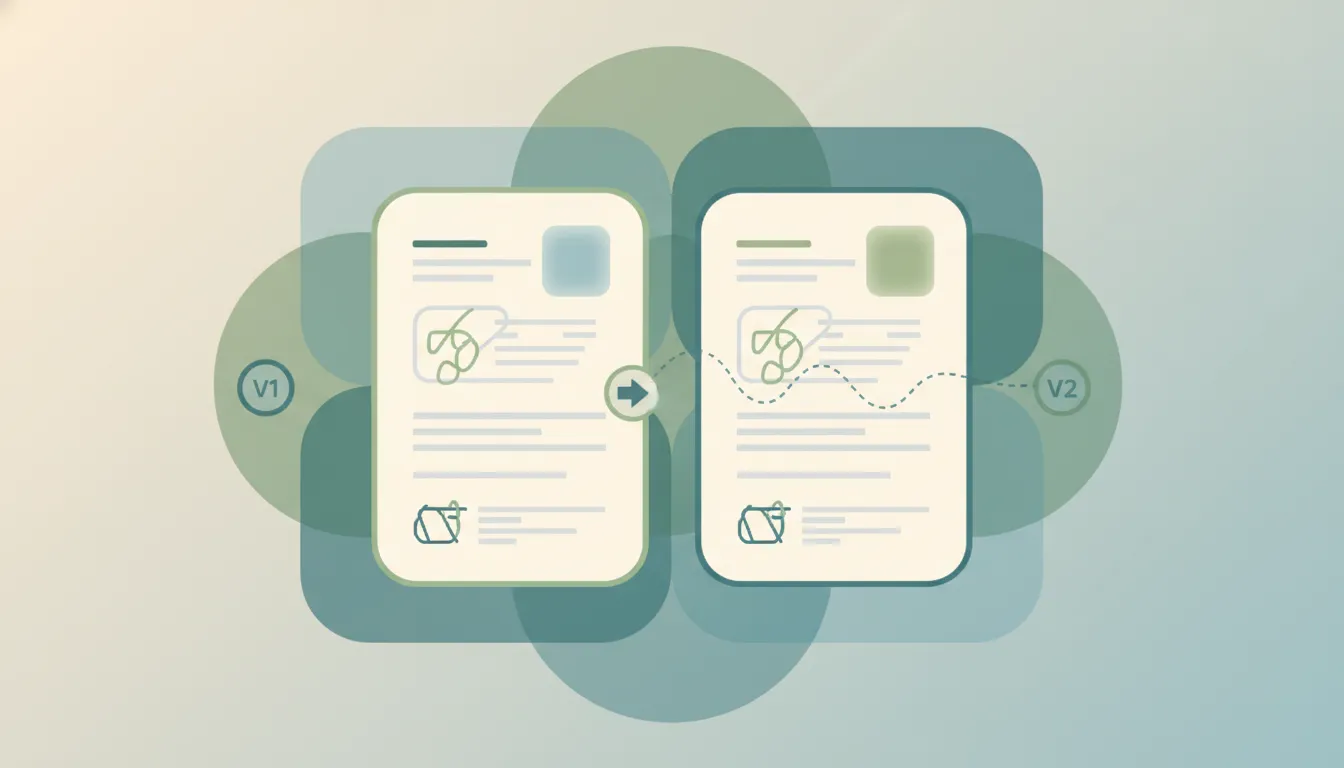
Word’s Compare tool puts two versions of a document side by side and shows every difference as tracked changes — far more reliable than reading both by eye. There’s also a Combine tool for merging edits from several reviewers. Here’s how to use both.
1. Compare Two Documents (Windows & Mac)
- Go to the Review tab.
- Click Compare > Compare.
- Under Original document, select the first version; under Revised document, select the second.
- Click More to choose what to compare (text, formatting, comments) and where to show changes.
- Click OK.
Word opens a new document showing all differences as tracked changes — your originals stay untouched.
2. Read the Compared Result
The result window has three panes:
- The center compared document with markup.
- A Revisions list of every change.
- The original and revised source documents stacked on the right.
Scroll any pane and the others follow. Accept or reject changes here just like normal tracked changes.
3. Combine Edits from Multiple Reviewers
When several people edited separate copies:
- Review > Compare > Combine.
- Pick the Original and one reviewer’s copy, then OK.
- Repeat Combine, choosing the combined file as the original and the next reviewer’s copy — until all are merged into one marked-up document.
4. Word for the Web
The web app doesn’t have the Compare tool. Open both files in the desktop app to compare, or use version history in OneDrive/SharePoint to see prior versions.
5. Troubleshooting
Compare is greyed out
You have unsaved changes or a protected document. Save both files first and remove editing restrictions.
The differences are overwhelming
Click More before comparing and limit the comparison to text only (uncheck formatting) to cut noise.
I can’t tell which change came from whom
In Combine, each reviewer’s edits are color-coded and labeled — hover a change to see the author, or set author names in File > Options > General.
My original document got changed
It shouldn’t — Compare writes to a new document. If you edited in the source by mistake, use version history or Ctrl+Z.
Related Word guides: How to track changes · How to accept all changes · How to add comments · How to recover an unsaved document · How to insert a signature
Ready to automate your busywork?
Carly schedules, researches, and briefs you—so you can focus on what matters.
See what people say
"Before Carly, I relied on a Calendly link, but the whole process felt impersonal and not very professional. Carly changed that by handling all the back-and-forth, so I'm no longer stuck in endless email threads trying to line up schedules.
Now Carly reaches out to candidates, shares my real-time availability, lets them pick a slot, then sends a Zoom link and drops it straight into my calendar. She sends reminders to both of us before each call, which has significantly reduced no-shows and last-minute confusion.
On top of scheduling, Carly acts like a full executive assistant, sending me my schedule the night before so I can prepare for each call. It reminds me of the old x.ai assistant, but Carly is noticeably smarter, faster, and better suited to my healthcare recruitment business."