How to Export Google Calendar (ICS Backup, Single Calendar, Takeout — 2026)
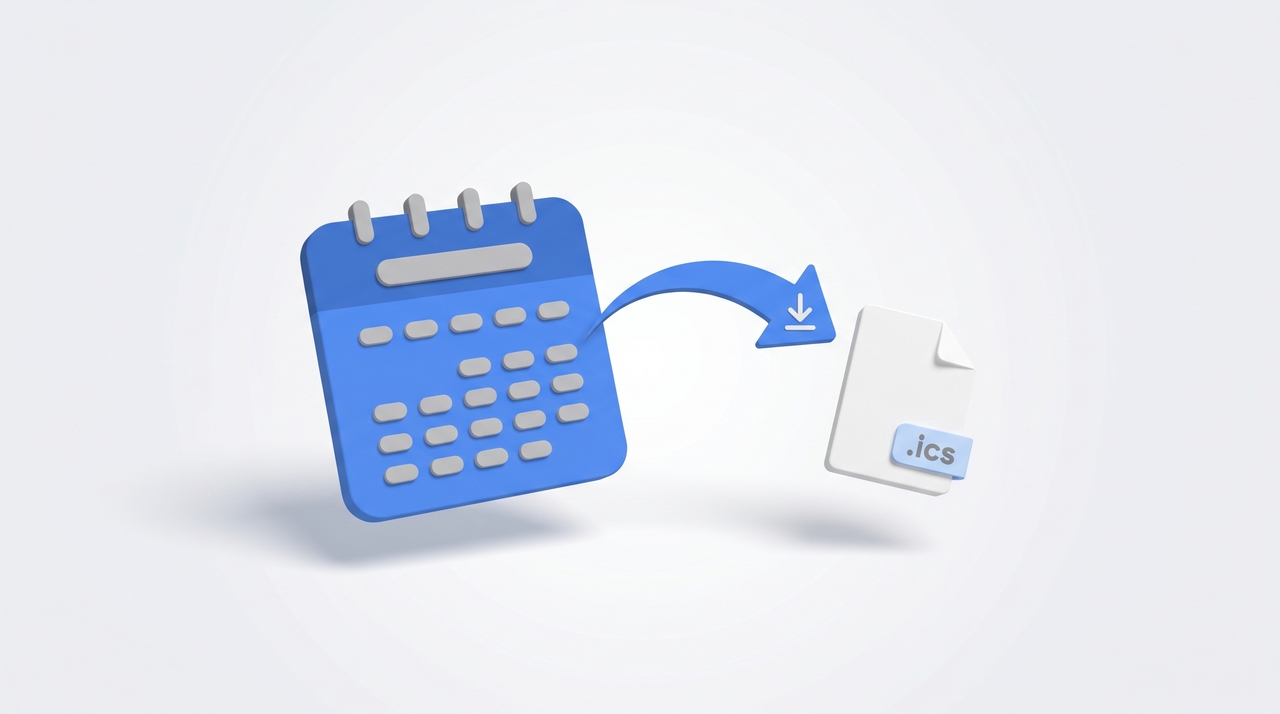
Google Calendar can export your data as ICS files — universally readable by Outlook, Apple Calendar, Thunderbird, and most other calendar tools. There’s no date-range filter and no automation built into Calendar itself, but Google Takeout fills that gap.
1. Export All Calendars You Own
The fast path. Web only.
- Open Google Calendar.
- Click the gear icon (top-right) → Settings.
- Left sidebar → Import & export.
- Under Export, click the Export button.
A file named <youraddress>@gmail.com.zip downloads. Inside: one .ics file per calendar you own (named after each calendar’s ID).
What’s not included: calendars where you only have read or write access, but not ownership. Those are read-only subscriptions and can’t be exported.
2. Export a Single Calendar
When you only need one calendar (e.g., a project calendar), don’t bother with the full ZIP.
- Calendar web → left sidebar → My calendars.
- Hover over the calendar you want.
- Click the three-dot Options menu.
- Choose Settings and sharing.
- Scroll to Calendar settings.
- Click the link Export calendar.
A single .ics file downloads.
3. What’s in the .ics File
The export includes:
- All past and future events on that calendar.
- Event titles, times, descriptions, locations, attendees, recurrence rules.
- Timezone information (IANA-format identifiers).
What survives a round-trip back into Google Calendar:
- Title, time, description, location, recurrence.
What’s lost on re-import:
- Guests (the RSVP list).
- Conference data (Google Meet links, dial-ins).
- Reminders specific to the original event.
- Attachments (referenced as Drive URLs but not embedded).
This means re-importing an export to recover from a deletion brings back events but not invitee lists. For truly safe backups of meetings with guests, use Google Takeout (section 6) and keep the source.
4. Import into Outlook
Both Outlook desktop and Outlook web accept .ics.
Outlook desktop:
- File → Open & Export → Import/Export.
- Choose Import an iCalendar (.ics) or vCalendar file (.vcs) → Next.
- Browse to the .ics file → Open.
- Choose Open as New or Import to merge with an existing calendar.
Outlook on the web:
- Click the calendar icon in the left sidebar.
- Click Add calendar → Upload from file.
- Browse to the .ics → choose target calendar → Import.
5. Import into Apple Calendar / iCloud
iCloud doesn’t accept .ics directly through the web UI. Import via macOS Apple Calendar — the events sync up to iCloud automatically.
- Open Apple Calendar on macOS.
- File → Import → select the .ics file.
- Choose the destination calendar (one of your iCloud calendars).
- Click OK.
The events appear immediately and sync to iPhone/iPad/web.iCloud within minutes.
6. Google Takeout (Scheduled Backups)
Native Calendar has no scheduled-export option. Google Takeout does.
- Go to takeout.google.com.
- Click Deselect all.
- Scroll to Calendar and tick the box.
- Click Next step.
- Pick a delivery method (download link, Drive, Dropbox, OneDrive, Box).
- Frequency: choose Export every 2 months for 1 year for six automated backups.
- File type: ZIP or TGZ.
- Click Create export.
Same ICS format. The advantage is the recurring schedule and the option to deliver into a backup destination automatically.
If you’re exporting because you want to keep two calendars in sync, free calendar sync does it continuously instead of as a one-shot export.
See how to export emails from Gmail for the equivalent Gmail flow.
7. Subscriptions and “Other Calendars”
Calendars added under Other calendars (holidays, public ICS subscriptions, someone else’s shared calendar) cannot be exported. The Export button only walks My calendars you own.
To back up a subscription:
- Find the original .ics URL (Other calendars → Settings and sharing → “Public address in iCal format”).
- Download the .ics file from that URL directly (curl, wget, or paste the URL into a browser).
8. Outlook → Google (the Reverse)
If you’re moving from Outlook to Google Calendar:
- In Outlook: File → Open & Export → Import/Export → Export to a file.
- Choose Comma Separated Values (CSV) for individual events, or save as .ics if available.
- In Google Calendar: Settings → Import & export → Import.
- Choose the file and target calendar.
- Import.
Google can also import .ics files and CSV exports from Outlook.
9. Backing Up Before Deleting a Calendar
If you’re about to delete a calendar (because it’s outdated or being replaced):
- Export it first (section 2).
- Verify the .ics file opens correctly in another tool.
- Then delete the calendar (Settings and sharing → Remove calendar → Delete).
Once deleted, the calendar is unrecoverable past ~30 days even via Workspace admin recovery.
10. Workspace Admin Restrictions
Admins can disable export via Admin Console → Apps → Google Workspace → Calendar → “Allow users to export calendars”.
When disabled, the Export button disappears from Settings. Users must request export through the admin or use Takeout (which the admin can also disable separately).
11. Date-Range Filtering
Google does not offer a date-range filter at export. The .ics contains everything. To extract a slice:
- Import the full .ics into Apple Calendar or Thunderbird.
- Use the client’s filter or selection tools to grab events in your date range.
- Export those events back out.
Or use a third-party tool like iCal Import Export to filter the .ics before import.
12. Common Gotchas
- Older Outlook installs trip on long IANA timezone IDs like
America/Argentina/.... Workaround: import into Apple Calendar first, then re-export and import into Outlook. - Recurrence rules sometimes mis-import if the source has unusual patterns (every 3rd Tuesday of the month, etc.).
- All-day events can shift by a day on import depending on the destination’s timezone handling.
- Drive attachments in event descriptions appear as URLs, not embedded files.
- The export file naming uses calendar IDs, not friendly names —
c_xx...@group.calendar.google.com.ics. Rename for clarity.
13. Quick Reference
| Goal | Path |
|---|---|
| Export all owned calendars | Settings → Import & export → Export |
| Export one calendar | Calendar settings and sharing → Export calendar |
| Scheduled backup | Google Takeout → Calendar → recurring |
| Import into Outlook | File → Import an iCalendar (.ics) |
| Import into Apple Calendar | File → Import |
| Back up a subscribed calendar | Save .ics URL externally |
| Filter by date | Import to Apple/Thunderbird, filter, re-export |
If you export Google Calendar because you don’t trust your scheduling history to one tool, Carly is an AI assistant that runs on top of Gmail and Calendar — keeping the data in Google but offloading the back-and-forth of scheduling, drafting, and follow-up.
More on Google Calendar: How to import calendar to Google Calendar · How to delete a Google Calendar · How to recover deleted events in Google Calendar · How to sync Google Calendar with Outlook · How to export emails from Gmail
Ready to automate your busywork?
Carly schedules, researches, and briefs you—so you can focus on what matters.
See what people say
"Before Carly, I relied on a Calendly link, but the whole process felt impersonal and not very professional. Carly changed that by handling all the back-and-forth, so I'm no longer stuck in endless email threads trying to line up schedules.
Now Carly reaches out to candidates, shares my real-time availability, lets them pick a slot, then sends a Zoom link and drops it straight into my calendar. She sends reminders to both of us before each call, which has significantly reduced no-shows and last-minute confusion.
On top of scheduling, Carly acts like a full executive assistant, sending me my schedule the night before so I can prepare for each call. It reminds me of the old x.ai assistant, but Carly is noticeably smarter, faster, and better suited to my healthcare recruitment business."