How to Add Google Calendar to Outlook (2026)
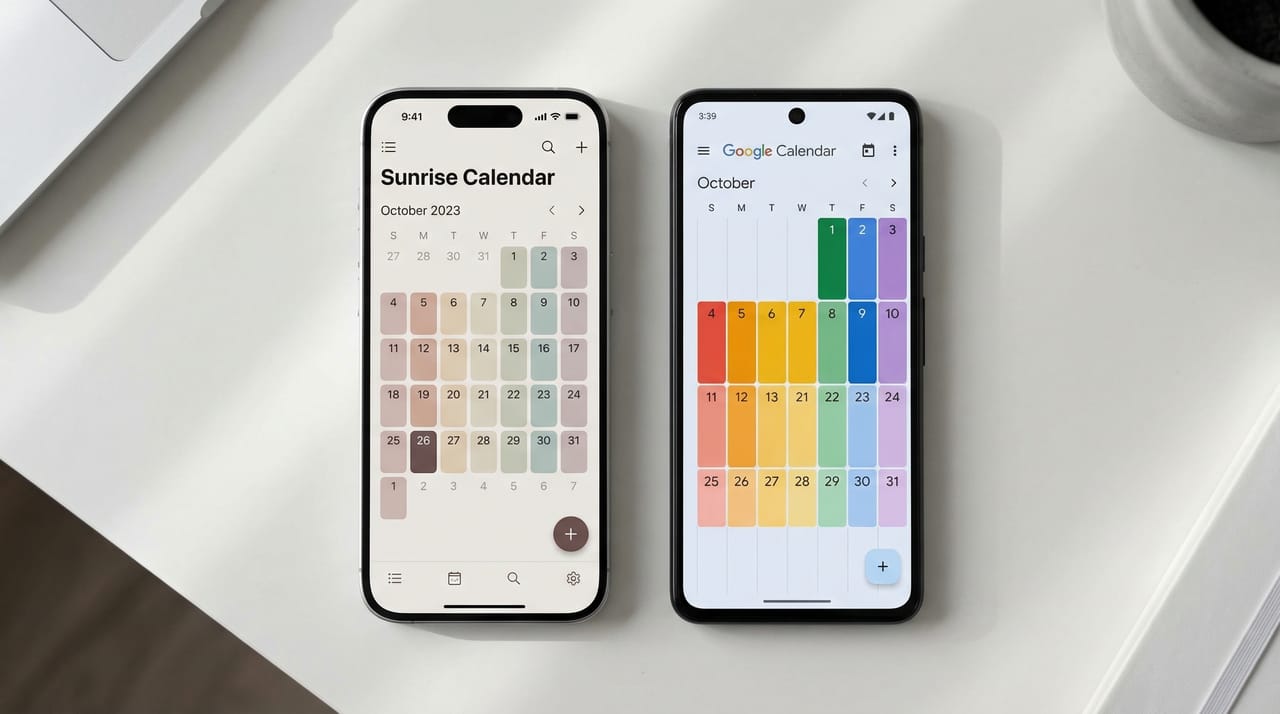
You can view your Google Calendar inside Outlook in a few different ways, depending on whether you want a read-only view or full two-way sync. Here are the three approaches.
Method 1: Subscribe via ICS URL (Read-Only, Free)
The simplest approach — subscribe to your Google Calendar from Outlook using the ICS link. Events from Google Calendar appear in Outlook, but changes made in Outlook don’t sync back to Google.
Best for: Seeing your Google Calendar events in Outlook without needing to edit them there.
Steps:
1. Get your Google Calendar ICS URL
- Open Google Calendar on desktop
- Click the three-dot menu next to the calendar you want to add
- Select Settings and sharing
- Scroll to Integrate calendar
- Copy the Secret address in iCal format (private link for personal use) or the public URL
See: How to get your Google Calendar ICS URL
2. Subscribe in Outlook
Outlook on the web:
- Go to Outlook Calendar → Add calendar → Subscribe from web
- Paste the ICS URL
- Click Import
Classic Outlook for Windows:
- Calendar view → Open Calendar in the ribbon → From Internet
- Paste the URL → OK
Refresh rate: Outlook checks for updates every few hours. Changes in Google Calendar appear in Outlook after a delay — not in real time.
Method 2: Full Two-Way Sync via CalDAV
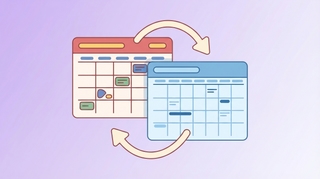
CalDAV is a protocol that allows full two-way sync — changes in either app update the other. This is more complex to set up but gives you a live connection.
Best for: Power users who actively use both Outlook and Google Calendar and need changes to sync both ways.
Steps (Classic Outlook for Windows):
Google Calendar supports CalDAV, but classic Outlook for Windows doesn’t have native CalDAV support. You need a plugin:
- gSyncit — paid, reliable, well-maintained
- CalendarBridge — purpose-built for Google ↔ Outlook sync
Steps (Outlook on the web / New Outlook):
Microsoft 365 / Outlook.com doesn’t currently support adding CalDAV calendars directly. Use CalendarBridge or a similar sync service.
Method 3: Calendar Sync (Free, Rule-Based Mirror)
Calendar Sync mirrors events from one calendar to the other with a rule layer you set once, and keeps the destination current as events are added, edited, and cancelled — for free, no signup to try it. Per event you can keep the title or rewrite it (“Busy,” or a template like [Personal] {title}), strip attendees, blank the description or location, and set the copy to show as Busy, Free, or Tentative — with conditions like visibility, attendee count, day, duration, or organizer. The source calendar is never touched.
Setup: Pick a source and destination calendar, choose a preset or build your own rules, done.
Cost: Free.
Best for: Keeping Outlook accurate from Google (or vice versa) while controlling exactly what detail crosses over — without paying for a sync subscription.
Method 4: CalendarBridge (Full Two-Way Sync)
CalendarBridge is a paid sync tool for Google Calendar and Outlook. It handles the CalDAV connection for you and adds useful features like showing “Busy” blocks without sharing event details.
Setup: Connect your Google and Outlook accounts, choose which calendars to sync, configure what details to show.
Cost: Free trial, then ~$4–8/month.
What it handles that ICS doesn’t:
- Two-way sync (changes in either calendar update the other)
- Deletion sync (delete in one, it deletes in the other)
- Privacy options (show “Busy” without sharing event titles)
Which Method to Use
| ICS Subscription | CalDAV / Plugin | CalendarBridge | |
|---|---|---|---|
| Cost | Free | Free/paid plugin | ~$4–8/mo |
| Setup difficulty | Easy | Moderate | Easy |
| Two-way sync | No | Yes | Yes |
| Deletion sync | No | Yes | Yes |
| Real-time | No (hours delay) | Near real-time | Near real-time |
If you just need to see your Google Calendar events in Outlook, Method 1 (ICS) is fine and free. If you want coworkers to see your busy time without the details, Calendar Sync does that free. If you need to edit events in both places and have changes sync both ways, use CalendarBridge.
The Other Direction: Adding Outlook to Google Calendar
If you want to go the other way — see your Outlook calendar inside Google Calendar — the same options apply. Subscribe using your Outlook ICS URL in Google Calendar, or use CalendarBridge for two-way sync.
See: How to sync Google Calendar with Outlook · How to get your Outlook calendar ICS URL
Related: How to sync Google Calendar with Outlook · How to get your Google Calendar ICS URL · Google Calendar ICS refresh rate
Ready to automate your busywork?
Carly schedules, researches, and briefs you—so you can focus on what matters.
See what people say
"Before Carly, I relied on a Calendly link, but the whole process felt impersonal and not very professional. Carly changed that by handling all the back-and-forth, so I'm no longer stuck in endless email threads trying to line up schedules.
Now Carly reaches out to candidates, shares my real-time availability, lets them pick a slot, then sends a Zoom link and drops it straight into my calendar. She sends reminders to both of us before each call, which has significantly reduced no-shows and last-minute confusion.
On top of scheduling, Carly acts like a full executive assistant, sending me my schedule the night before so I can prepare for each call. It reminds me of the old x.ai assistant, but Carly is noticeably smarter, faster, and better suited to my healthcare recruitment business."