
How to Rename CRM Objects in Carly
To rename a CRM object in Carly, open its ⋯ settings menu in the CRM sidebar, choose Rename, enter the new name, and click Save. For example, you can change Deals to Studio enquiries without moving or recreating its records.
Change the name shown in your CRM
- Open Carly’s CRM.
- Select the workspace you want to change. Personal and team workspaces have separate CRM settings.
- Find the object under Records or Custom and click its ⋯ settings button. On a narrow screen, open CRM menu first.
- Choose Rename Deals, or the equivalent option with your object’s current name.
- Enter the new Plural name. This is the name shown in the sidebar and object heading. You can also change the Singular name, used when referring to one record, or leave it as it is.
- Click Save. Check the sidebar and open the object to see its updated heading.
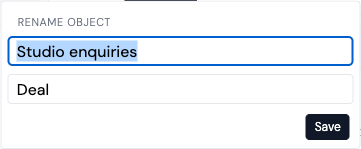
Screenshot from the actual Carly application using a test account.
What a rename changes
Renaming changes the object’s display name. Its existing records, field values, relationships, and saved views remain attached to the same object. Workflows that already reference that object retain their reference.
You do not need to create a second object, export your records, or import them again. The underlying identifier stays the same, so an integration may continue to refer to deals even when the sidebar shows your new name.
Renaming does not change where the object appears in the sidebar. Follow the separate guide to reorder your CRM sidebar if you want to move it above People.
Ask Carly to rename it
You can also ask Carly:
In our Studio workspace, rename the Deals object to Studio enquiries. Keep the existing records.
Use your actual workspace name. If you mean your personal CRM, say so. Carly needs permission to manage that workspace’s CRM.
Troubleshooting
Why can I see records but not change the name?
Viewing a team’s CRM and managing its settings are separate permissions. Ask a workspace owner to check your CRM access.
Why does another workspace still show Deals?
The rename applies to the workspace you selected. It does not rename a similarly named object in Personal or another team.
Can I change it back?
Yes. Open the same menu, choose Rename, and save the old display name. You do not need to restore or reimport any records.
Last verified: November 12, 2026.
Ready to automate your busywork?
Carly schedules, researches, and briefs you—so you can focus on what matters.
See what people say
"Before Carly, I relied on a Calendly link, but the whole process felt impersonal and not very professional. Carly changed that by handling all the back-and-forth, so I'm no longer stuck in endless email threads trying to line up schedules.
Now Carly reaches out to candidates, shares my real-time availability, lets them pick a slot, then sends a Zoom link and drops it straight into my calendar. She sends reminders to both of us before each call, which has significantly reduced no-shows and last-minute confusion.
On top of scheduling, Carly acts like a full executive assistant, sending me my schedule the night before so I can prepare for each call. It reminds me of the old x.ai assistant, but Carly is noticeably smarter, faster, and better suited to my healthcare recruitment business."