
How to Sort CRM Records and Save a View in Carly
Click Sort above a CRM table or board, choose a field and direction, then click Apply. To return to that arrangement later, save it as a view. On a board, the sort controls the order of records within each stage.
Choose a field and direction
- Open Carly’s CRM, select a workspace, and open the object you want to sort.
- Choose Table or Board. Board view requires a status field.
- Click Sort above the records. If a sort is already active, the button shows its field and an arrow.
- Choose a field under Sort by. For example, choose Amount to order by value or Created to order by when records were created in Carly.
- Choose Ascending for lower values or earlier dates first, or Descending for higher values or later dates first.
- Click Apply and inspect the result.
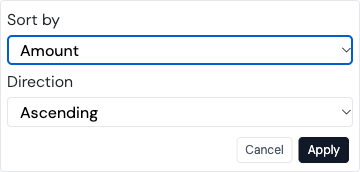
Screenshot from the actual Carly application using a test account.
For a numeric sequence field such as Received order, ascending order puts smaller sequence numbers first. That field must already exist and contain the values you want to sort by; Carly does not infer an original enquiry order from an empty field. Created means creation in Carly, which may differ from the original received date for imported records.
Save the arrangement as a view
- After applying the sort, click Save view beneath the toolbar.
- Give it a clear name, such as Lowest amount first, and click Save view in the prompt.
- The saved view appears beneath its object in the sidebar. Open it again to return to that sort and its saved filters and view type.
- Reload the page while that view is selected to check that the arrangement persists.
When editing an existing saved view, choose Update view to replace its saved settings or Save as new view to keep the original and create another. Saved views belong to the selected workspace. Managing a team’s saved views requires permission to manage its CRM.
Sorting records is separate from moving stages
Sorting a board does not move records into different stages or change their field values. It orders the cards within each stage. The column sequence is controlled by the object’s stage settings.
It also does not move the object above People in the sidebar. Use the sidebar ordering guide for that.
Troubleshooting
Why did my sort disappear when I returned?
Applying a sort changes the current view. Save a view, or update the selected saved view, to return to that arrangement later. Then reopen the saved view from the sidebar.
How do I remove an explicit sort?
Open Sort, choose Default order, and click Apply. Update the saved view if you want that change to persist there too.
Why can’t I find Received order?
The field list comes from the object’s actual fields. Use an existing date or number field that represents your intended order, or add and populate the appropriate field before sorting by it.
Last verified: November 12, 2026.
Ready to automate your busywork?
Carly schedules, researches, and briefs you—so you can focus on what matters.
See what people say
"Before Carly, I relied on a Calendly link, but the whole process felt impersonal and not very professional. Carly changed that by handling all the back-and-forth, so I'm no longer stuck in endless email threads trying to line up schedules.
Now Carly reaches out to candidates, shares my real-time availability, lets them pick a slot, then sends a Zoom link and drops it straight into my calendar. She sends reminders to both of us before each call, which has significantly reduced no-shows and last-minute confusion.
On top of scheduling, Carly acts like a full executive assistant, sending me my schedule the night before so I can prepare for each call. It reminds me of the old x.ai assistant, but Carly is noticeably smarter, faster, and better suited to my healthcare recruitment business."