How to Categorize Emails in Outlook (Every Version, 2026)
Categories in Outlook tag messages with a color and label so you can sort, filter, and visually scan your inbox by topic, project, or priority. They’re more flexible than folders: a single email can have multiple categories, and you can search across folders by category.
1. Outlook on the Web & New Outlook Desktop App
The new Outlook clients share the same category system, synced through your Microsoft 365 mailbox.
Create a category
- Right-click any email in the message list.
- Hover over Categorize to expand the submenu.
- Click New category (or Manage categories in some builds).
- Enter a Name for the category.
- Pick a Color from the palette.
- Click Save.
Assign a category to an email
- Right-click the email and hover over Categorize.
- Click an existing category from the list.
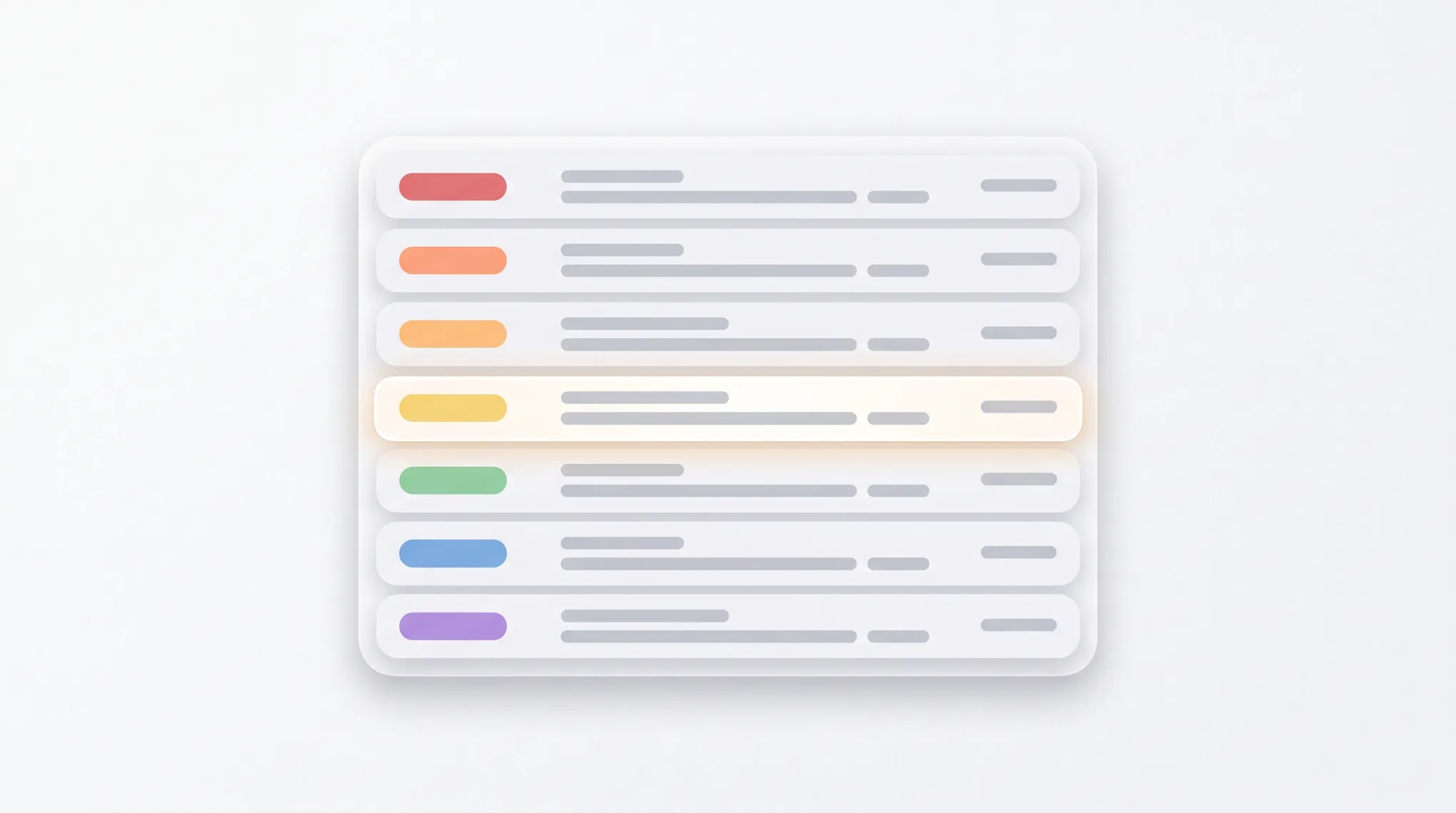
The color stripe and category name appear next to the message in the inbox view. To assign multiple categories, repeat the step — categories don’t replace each other.
Remove or change a category
- Right-click the email, hover over Categorize, and click the assigned category to remove it.
- To clear all categories, select Clear categories at the bottom of the menu.
Rename or delete a category
- Click Settings (gear icon) → General → Categories.
- Hover over a category and click the pencil to rename, or the trash to delete.
2. Classic Outlook for Windows
Classic Outlook has a more featureful category system with shortcut keys and a Master Category List.
Create a category
- Select an email or click into a folder.
- On the Home tab in the ribbon, click Categorize.
- Select All Categories.
- Click New in the Color Categories dialog.
- Enter a Name, choose a Color, and optionally set a Shortcut Key (Ctrl+F2 through Ctrl+F12).
- Click OK, then OK again.
Assign a category
- Method 1 (menu): Select the email, click Categorize on the Home tab, and pick a color. The first time you use a default color, Outlook will ask you to rename it.
- Method 2 (right-click): Right-click the email, hover over Categorize, and pick a category.
- Method 3 (shortcut): If you set a keyboard shortcut, select the email and press it.
Manage the Master Category List
- Click Categorize → All Categories.
- Use New, Rename, Delete, or Color to manage categories.
- Use Shortcut Key to assign a hotkey to any category.
Quick Click category
Classic Outlook lets you set a default “Quick Click” category — clicking the empty category column on any message in the list assigns this category instantly.
- Click Categorize → Set Quick Click.
- Select your default category and click OK.
Now you can click the column to the left of the subject line on any message to apply (or remove) the Quick Click category.
3. Outlook for Mac
- Select an email.
- On the Home tab in the ribbon, click Categorize.
- Pick an existing category, or click Edit Categories to create one.
- To add: click the + icon, name the category, and pick a color.
- Click OK.
To assign by right-click: control-click the message, hover over Categorize, and choose a category.
4. Outlook Mobile (iOS & Android)
- Open the Outlook mobile app.
- Tap and hold a message, or open it.
- Tap the three-dot menu in the message header.
- Select Categorize.
- Choose a category from the list.
You can’t create new categories from mobile — they sync from your desktop or web client. Set them up there first, then they’ll appear on mobile.
Search and Filter by Category
Search syntax (all versions): Type this in the Outlook search bar:
category:"Project Apollo"Wrap multi-word categories in quotes. Outlook returns every message tagged with that category, across all folders.
Filter view in classic Outlook:
- Go to the View tab in the ribbon.
- Click Categories under the Arrangement group.
- Outlook regroups your inbox by category, with collapsible sections for each.
Color category column:
- In any folder, right-click a column header.
- Select Field Chooser.
- Drag Categories into the column header row.
Auto-Categorize with Rules (Classic Outlook)
Rules can apply categories automatically based on sender, subject, or keywords.
- Go to File → Manage Rules & Alerts.
- Click New Rule → Apply rule on messages I receive.
- Click Next, then check conditions like from people or public group or with specific words in the subject.
- Click the underlined links to fill in the values, then click Next.
- On the actions screen, check assign it to the category.
- Click the underlined category link, pick the category, and click OK.
- Click Next, name the rule, and click Finish.
Now every incoming message that matches your conditions is automatically tagged with the category. You can stack multiple actions — categorize and move to a folder, for example.
How to Avoid Category Overload
- Cap it at five to seven categories. More than that and you’ll spend time deciding which to apply instead of working.
- Use categories for cross-cutting tags, folders for projects. A folder can hold an email; categories can describe it. Use categories for status (Waiting on, Follow-up, FYI) or topic, and folders for project archives.
- Combine with flags. A flag means “I need to act on this.” A category means “this is about X.” Together they stack — a flagged red-category email is “urgent and about Project X.”
- Sync caveat. Custom categories sync through Microsoft 365. If you switch to a new mailbox, export them via classic Outlook (Categorize → All Categories → Save) and re-import.
If sorting your inbox by hand has become a daily chore, Carly is an AI assistant that triages, categorizes, and drafts replies across 200+ connected apps.
More on Outlook: How to create folders in Outlook · How to create rules in Outlook · How to use Quick Steps in Outlook · How to flag emails in Outlook · How to turn on Focused Inbox in Outlook · How to archive emails in Outlook
Ready to automate your busywork?
Carly schedules, researches, and briefs you—so you can focus on what matters.
See what people say
"Before Carly, I relied on a Calendly link, but the whole process felt impersonal and not very professional. Carly changed that by handling all the back-and-forth, so I'm no longer stuck in endless email threads trying to line up schedules.
Now Carly reaches out to candidates, shares my real-time availability, lets them pick a slot, then sends a Zoom link and drops it straight into my calendar. She sends reminders to both of us before each call, which has significantly reduced no-shows and last-minute confusion.
On top of scheduling, Carly acts like a full executive assistant, sending me my schedule the night before so I can prepare for each call. It reminds me of the old x.ai assistant, but Carly is noticeably smarter, faster, and better suited to my healthcare recruitment business."