How to Archive Emails in Outlook (Every Version, 2026)
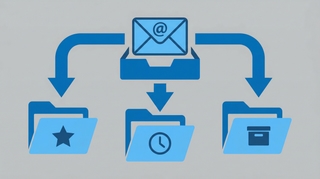
Archiving moves emails out of your inbox without deleting them. The message lands in an Archive folder where it stays searchable and accessible, but no longer clutters your main view. The exact steps vary depending on which Outlook client you use.
1. Outlook on the Web (Microsoft 365 / Outlook.com)
- Go to outlook.office.com and sign in.
- Select the email (or emails) you want to archive. To select multiple, hold Ctrl (Windows) or Cmd (Mac) and click each one.
- Click Archive in the toolbar at the top.
- The emails move to your Archive folder immediately.
Keyboard shortcut: Select a message and press Backspace to archive it instantly.
Right-click method: Right-click any message and choose Archive from the context menu.
2. New Outlook Desktop App (Windows & Mac)
The new Outlook app shares its interface with Outlook on the web, so archiving works the same way.
- Open the new Outlook desktop app.
- Select one or more emails.
- Click Archive in the ribbon, or press Backspace.
- The emails move to the Archive folder in your mailbox.
Note: AutoArchive (the classic automatic archiving feature) is not available in the new Outlook app. If you want to automate moving older messages, use Sweep rules instead: right-click a message, select Sweep, and set a rule like “Always move messages older than 10 days.”
3. Classic Outlook for Windows
Classic Outlook offers two different archiving methods: the Archive button (quick, moves to the Archive folder) and AutoArchive / manual archive (moves older items to a separate .pst file on your computer).
Archive Button (Quick Method)
- Select one or more emails in your inbox.
- Click Archive on the Home tab in the ribbon, or press Backspace.
- Emails move to the Archive folder within your mailbox.
This is identical in behavior to the web and new Outlook versions. The emails stay in your mailbox and remain searchable.
Manual Archive to .pst File (Bulk Method)
This method exports older emails to a separate Outlook Data File (.pst), which frees up mailbox space.
- Go to File > Info > Cleanup Tools > Archive.
- Select Archive this folder and all subfolders, then pick the folder you want to archive (e.g., Inbox).
- Set the Archive items older than date.
- Browse to choose a location for the .pst file, or leave the default (
Documents\Outlook Files\archive.pst). - Click OK.
Outlook moves all items in the selected folder that are older than the cutoff date into the archive .pst file. The archived items appear under Archives in your folder pane.
Set Up AutoArchive (Classic Outlook Only)
AutoArchive runs on a schedule and moves old items to a .pst file automatically.
- Go to File > Options > Advanced.
- Under AutoArchive, click AutoArchive Settings.
- Check Run AutoArchive every and set the frequency (e.g., 14 days).
- Configure your preferences:
- Prompt before AutoArchive runs — shows a notification before it starts.
- Delete expired items (e-mail folders only) — permanently removes items past their retention period.
- Archive or delete old items — enables the auto-archiving behavior.
- Show archive folder in folder list — makes the archive .pst visible in the navigation pane.
- Clean out items older than — set the age threshold (days, weeks, or months).
- Move old items to — specify the .pst file path.
- Click OK.
Per-folder settings: Right-click any folder, select Properties > AutoArchive tab, and override the default settings for that specific folder.
Important: AutoArchive requires classic Outlook to be open and running. It does not run in the background when Outlook is closed.
4. Outlook Mobile App (iOS & Android)
iOS
- Open the Outlook app.
- Swipe left on the email you want to archive.
- Tap the Archive icon (box with a downward arrow).
To archive multiple emails: tap Edit at the top of your inbox, select the emails, then tap Archive.
Android
- Open the Outlook app.
- Long-press on an email to select it. Tap additional emails to select more.
- Tap the Archive icon at the top of the screen.
Swipe gesture: You can configure swipe actions by going to Settings > Swipe Options and assigning Archive to the left or right swipe.
Archived emails move to the Archive folder within your mailbox.
Quick Reference
| Version | How to archive | Keyboard shortcut | AutoArchive available? | Where archived emails go |
|---|---|---|---|---|
| Outlook on the web | Archive button in toolbar or right-click | Backspace | No (use Sweep rules) | Archive folder |
| New Outlook desktop | Archive button in ribbon or right-click | Backspace | No (use Sweep rules) | Archive folder |
| Classic Outlook (Windows) | Archive button on Home tab | Backspace | Yes | Archive folder (button) or .pst file (AutoArchive) |
| Outlook mobile (iOS) | Swipe left or tap Archive | — | No | Archive folder |
| Outlook mobile (Android) | Long-press, then tap Archive | — | No | Archive folder |
How to Find Archived Emails
Where your archived emails live depends on how they were archived.
Archive folder (button/Backspace method): Look in your folder list on the left side of Outlook. The Archive folder is a default folder, listed alongside Inbox, Sent Items, and Deleted Items. If you don’t see it, check View > Folder Pane > Normal in classic Outlook, or scroll down in your folder list in the web and new Outlook apps.
Archive .pst file (AutoArchive/manual archive): The archived items appear under Archives in your folder pane. If the archive file isn’t visible, go to File > Open & Export > Open Outlook Data File and navigate to the .pst file (default location: C:\Users\YourName\Documents\Outlook Files\archive.pst).
Search works across both: By default, Outlook’s search bar searches all folders, including Archive. Type your search term in the search box and the results will include archived items.
How to Restore Archived Emails
Moving emails back from the Archive folder to your Inbox is straightforward.
From the Archive folder: Open the Archive folder, select the emails you want to restore, then drag them to your Inbox (or any other folder). You can also right-click, select Move, and choose the destination folder.
From a .pst file (classic Outlook): Open the .pst file via File > Open & Export > Open Outlook Data File. Navigate to the archived folder, select the items, and drag or move them back to your main mailbox.
Archive vs. Delete
| Archive | Delete | |
|---|---|---|
| Where it goes | Archive folder (stays in your mailbox) | Deleted Items folder |
| How long it stays | Indefinitely, until you delete it | 30 days by default, then permanently removed |
| Searchable? | Yes | Yes, until permanently deleted |
| Frees up mailbox space? | No (Archive folder is part of your mailbox) | Yes, after permanent deletion |
| Best for | Emails you don’t need right now but might need later | Emails you’ll never need again |
The Archive button is for decluttering your inbox while keeping emails accessible. If you need to reclaim mailbox storage, delete emails instead — or use the .pst archive method in classic Outlook, which moves items out of your mailbox entirely.
Online Archive (Microsoft 365 Enterprise)
If your organization uses Microsoft 365 with Exchange Online (E3, E5, or Exchange Online Archiving add-on), you may have access to an Online Archive mailbox. This is different from the regular Archive folder — it’s a separate mailbox with its own storage quota that lives in the cloud.
How It Works
- Your admin enables the Online Archive through the Exchange admin center (Recipients > Mailboxes > select user > enable archive).
- Once enabled, an Online Archive folder appears in your Outlook folder list, separate from your primary mailbox.
- By default, a retention policy automatically moves items older than two years to the Online Archive mailbox.
- The Online Archive provides 50 GB of additional storage by default (up to 1.5 TB with auto-expanding archive enabled).
Accessing Online Archive
- Classic Outlook and new Outlook desktop: The Online Archive appears as a separate mailbox in your folder pane, below your primary mailbox.
- Outlook on the web: The Online Archive shows up in the folder list on the left.
- Outlook mobile (iOS/Android): Tap your profile picture in the top left, and the Online Archive mailbox appears in the folder list.
Key Differences from the Archive Folder
- Online Archive is a separate mailbox — it does free up space in your primary mailbox.
- Items in the Online Archive are not included in Inbox searches by default. You need to search within the Online Archive specifically.
- Online Archive is an admin-provisioned feature, not something individual users can enable.
Troubleshooting
Archive button is missing: In classic Outlook, the Archive button requires Outlook 2016 or later and a Microsoft 365 or Outlook.com/Hotmail account. If you use POP or IMAP, the button may not appear. In the new Outlook app, it should be visible by default in the toolbar.
Backspace key doesn’t archive: The Backspace shortcut only works when viewing the email in the reading pane. If you have the message open in its own window, Backspace acts as a normal text key. Close the message window and use Backspace from the message list.
AutoArchive is greyed out: AutoArchive is only available in classic Outlook for Windows. If you’ve switched to the new Outlook app, use Sweep rules or manual archiving instead.
Emails going to Archive automatically: In the new Outlook app, check if a Sweep rule is moving messages to Archive. Go to Settings > Mail > Sweep and review or delete any unwanted rules.
If you spend time archiving and organizing emails so you can focus on what matters, Carly is an AI assistant that handles inbox management, scheduling, and integrates with 200+ apps — keeping your inbox lighter without the manual effort.
More on Outlook: How to add a signature in Outlook · How to schedule an email in Outlook · How to share your Outlook calendar · How to set up recurring meetings · How to export emails from Outlook · How to use Quick Steps in Outlook · How to recover deleted emails in Outlook · How to fix Outlook search not working
Lost track of them? See how to find archived emails in Outlook.
Ready to automate your busywork?
Carly schedules, researches, and briefs you—so you can focus on what matters.
See what people say
"Before Carly, I relied on a Calendly link, but the whole process felt impersonal and not very professional. Carly changed that by handling all the back-and-forth, so I'm no longer stuck in endless email threads trying to line up schedules.
Now Carly reaches out to candidates, shares my real-time availability, lets them pick a slot, then sends a Zoom link and drops it straight into my calendar. She sends reminders to both of us before each call, which has significantly reduced no-shows and last-minute confusion.
On top of scheduling, Carly acts like a full executive assistant, sending me my schedule the night before so I can prepare for each call. It reminds me of the old x.ai assistant, but Carly is noticeably smarter, faster, and better suited to my healthcare recruitment business."