How to Create Rules in Outlook (Every Version, 2026)
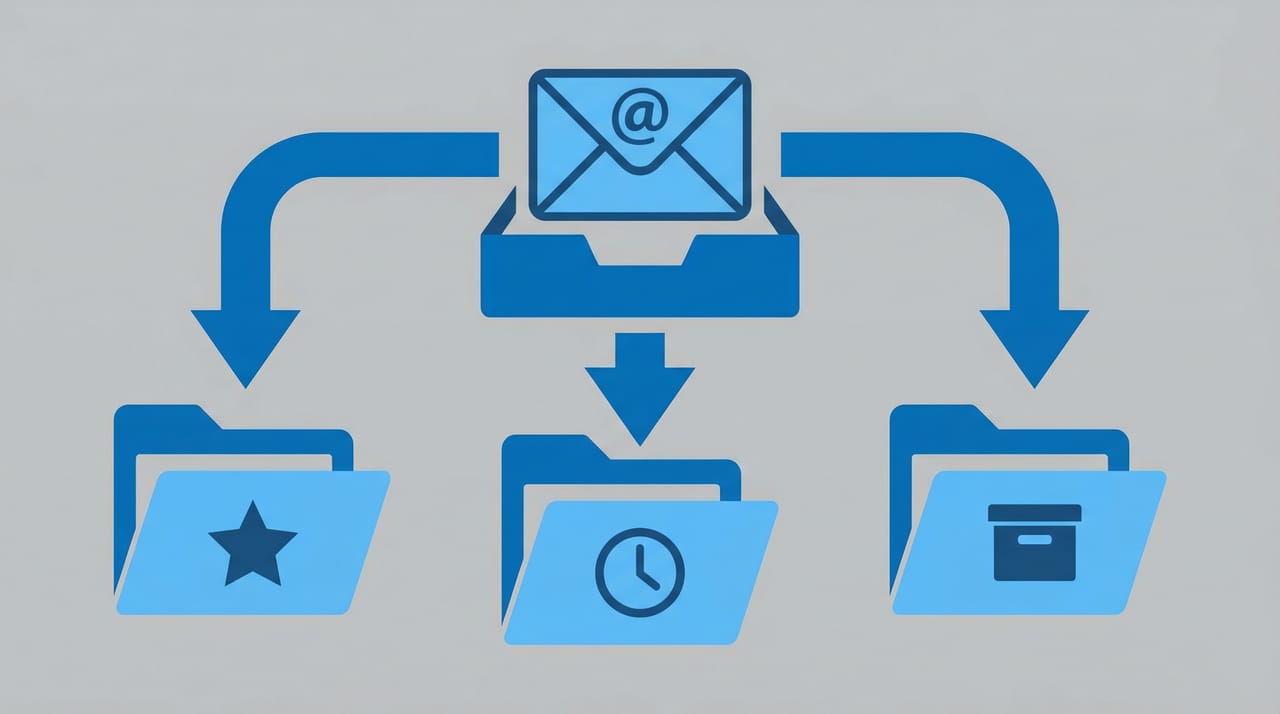
Outlook rules let you automatically sort, move, flag, forward, or delete incoming emails based on conditions you define. Instead of manually dragging newsletters into folders or flagging messages from your boss, you set it up once and Outlook handles it from there.
This guide covers every current version: Outlook on the web, the new Outlook for Windows and Mac, and classic Outlook for Windows.
1. Create a Rule from Scratch
This is the most flexible method — you pick the conditions, actions, and exceptions yourself.
Outlook on the web / New Outlook (Windows & Mac):
- Click the Settings gear icon (top right)
- Go to Mail → Rules
- Click Add new rule
- Enter a Name for the rule (e.g., “Move newsletters to Reading folder”)
- Under Add a condition, choose your trigger — such as From, Subject includes, or Has attachment
- Under Add an action, choose what Outlook should do — such as Move to, Forward to, or Mark as read
- Optionally, click Add an exception to exclude certain messages
- Optionally, check Stop processing more rules if you don’t want later rules to also act on the same message
- Click Save
The rule takes effect immediately on new incoming messages.
Classic Outlook for Windows:
- Go to the Home tab in the ribbon
- Click Rules → Manage Rules & Alerts
- Click New Rule
- The Rules Wizard opens — choose a template (e.g., “Move messages from someone to a folder”) or start from a blank rule
- Click Next and select your conditions
- Click Next and select your actions
- Click Next to add any exceptions
- Name the rule, and optionally check Run this rule now on messages already in “Inbox”
- Click Finish
2. Create a Rule from an Existing Email
This is the fastest way to set up a rule — Outlook pre-fills the conditions based on the email you select.
Outlook on the web / New Outlook:
- Right-click the email you want to base the rule on
- Select Rules → Create rule
- Outlook pre-fills the sender’s address and suggests moving those messages to a folder
- Choose a destination folder or click More options to customize conditions and actions
- Click OK or Save
Classic Outlook for Windows:
- Right-click the email in your inbox
- Select Rules → Create Rule
- In the dialog, check the conditions you want (sender, subject, sent to)
- Choose an action (move to folder, display alert, play a sound)
- For more control, click Advanced Options to open the full Rules Wizard
- Click OK
3. Common Rule Examples
Here are practical rules that handle the most common inbox problems.
Move all emails from a sender to a specific folder:
- Condition: From → (select sender or type email address)
- Action: Move to → (select or create folder)
- Use case: Route newsletters, vendor emails, or automated notifications out of your main inbox
Flag emails from your manager:
- Condition: From → (manager’s email)
- Action: Flag message → Flag for follow up
- Use case: Never miss a message from someone important
Forward emails with a keyword to a teammate:
- Condition: Subject includes → “invoice” (or any keyword)
- Action: Forward to → (teammate’s email)
- Use case: Route client invoices to your accountant or finance team automatically
Auto-delete social media notifications:
- Condition: From → (e.g., notification@facebook.com, noreply@linkedin.com)
- Action: Delete
- Use case: Keep social notifications from cluttering your work inbox
Categorize emails sent to a distribution list:
- Condition: Sent to → (distribution list or group address)
- Action: Categorize → (assign a color category)
- Use case: Visually distinguish team-wide emails from direct messages
4. Manage, Edit, and Delete Rules
Outlook on the web / New Outlook:
- Go to Settings → Mail → Rules
- You’ll see all your existing rules listed
- Click the pencil icon to edit a rule
- Click the trash icon to delete a rule
- Use the toggle switch next to a rule to temporarily turn it off without deleting it
- Click Save after making changes
Classic Outlook for Windows:
- Go to Home → Rules → Manage Rules & Alerts
- Select a rule and click Change Rule to edit it
- Select a rule and click Delete to remove it
- Uncheck the box next to a rule to disable it temporarily
- Click Apply → OK
5. Rule Order and “Stop Processing More Rules”
Rules run in the order they appear in your rules list, top to bottom. When an incoming message matches a rule, Outlook applies that rule’s action and then checks the next rule. This means a single email can trigger multiple rules.
Why order matters: If Rule 1 moves a newsletter to “Reading” and Rule 2 marks newsletters as read, both will apply — but only if the message still matches Rule 2’s conditions after Rule 1 runs. Put your most specific or highest-priority rules at the top.
How to reorder rules:
- Web / New Outlook: In Settings → Mail → Rules, use the up/down arrows next to each rule to change position
- Classic Outlook: In Manage Rules & Alerts, select a rule and click the Move Up or Move Down arrows
Stop processing more rules: Check this option on any rule where you want Outlook to stop evaluating further rules after a match. This is turned on by default in Outlook on the web and new Outlook. In classic Outlook, you can add it as the last action in the Rules Wizard.
6. Run a Rule on Existing Messages
New rules only apply to future incoming emails by default. If you have a backlog you want to sort, here’s how to retroactively apply a rule.
Classic Outlook for Windows:
- Go to Home → Rules → Manage Rules & Alerts
- Click Run Rules Now
- Check the rule(s) you want to run
- Click Browse to select the folder (defaults to Inbox)
- Click Run Now
Outlook on the web / New Outlook: There is no built-in way to manually run rules on existing messages. Rules only apply to new incoming mail. To sort older messages, you’ll need to use classic Outlook or move them manually.
Tip during rule creation (classic Outlook): When finishing the Rules Wizard, check the box labeled Run this rule now on messages already in “Inbox” to apply it immediately to your current messages.
7. Server-Side vs. Client-Side Rules
Not all rules are equal. Understanding the difference can save you debugging time.
Server-side rules run on the Microsoft 365 server and work whether or not Outlook is open. Rules created in Outlook on the web or new Outlook are always server-side. These rules support a subset of conditions and actions — things like move to folder, delete, forward, and categorize.
Client-side rules run only when classic Outlook for Windows is open on your computer. Rules that play a sound, display a desktop alert, or use conditions like “on this computer only” are client-side. If you see “(client-only)” next to a rule in Manage Rules & Alerts, it won’t run when Outlook is closed.
If a rule you created isn’t firing, check whether it’s client-side and your desktop app is closed.
Quick Reference
| What you want to do | Condition | Action |
|---|---|---|
| Sort newsletters into a folder | From → (sender) | Move to → (folder) |
| Flag emails from your boss | From → (boss) | Flag for follow up |
| Forward invoices to finance | Subject includes “invoice” | Forward to → (email) |
| Delete social notifications | From → (notification address) | Delete |
| Categorize team emails | Sent to → (group address) | Categorize → (color) |
| Mark low-priority mail as read | From → (sender) | Mark as read |
| Pin urgent emails | Subject includes “urgent” | Pin to top |
Limitations to Know About
- New Outlook and web don’t support rules on sent/outgoing mail — only incoming messages
- New Outlook and web can’t run rules on third-party accounts (Gmail, Yahoo, iCloud)
- New Outlook and web have no “Run Rules Now” option for existing messages
- Classic Outlook is being phased out by Microsoft — if you rely on client-side rules, test them in new Outlook before switching
- Rule size limits: Microsoft 365 accounts have a 256 KB limit for all rules combined. If you hit the limit, simplify conditions or consolidate rules
If you want to go beyond manual rules, Carly is an AI assistant that manages your inbox, handles scheduling, and connects to 200+ apps — automating the kind of email triage that rules alone can’t cover.
More on Outlook: How to add a signature in Outlook · How to schedule an email in Outlook · How to share your Outlook calendar · How to set up recurring meetings · How to set up email forwarding in Outlook · How to use Quick Steps in Outlook
Ready to automate your busywork?
Carly schedules, researches, and briefs you—so you can focus on what matters.
See what people say
"Before Carly, I relied on a Calendly link, but the whole process felt impersonal and not very professional. Carly changed that by handling all the back-and-forth, so I'm no longer stuck in endless email threads trying to line up schedules.
Now Carly reaches out to candidates, shares my real-time availability, lets them pick a slot, then sends a Zoom link and drops it straight into my calendar. She sends reminders to both of us before each call, which has significantly reduced no-shows and last-minute confusion.
On top of scheduling, Carly acts like a full executive assistant, sending me my schedule the night before so I can prepare for each call. It reminds me of the old x.ai assistant, but Carly is noticeably smarter, faster, and better suited to my healthcare recruitment business."