How to Flag Emails in Outlook (Every Version, 2026)
Flagging an email tells Outlook (and yourself) that this message needs follow-up. Flagged emails show up in your task list, can have due dates and reminders, and sync to Microsoft To Do across devices.
1. Outlook on the Web & New Outlook Desktop App
Flag an email with one click
- Hover over a message in the inbox.
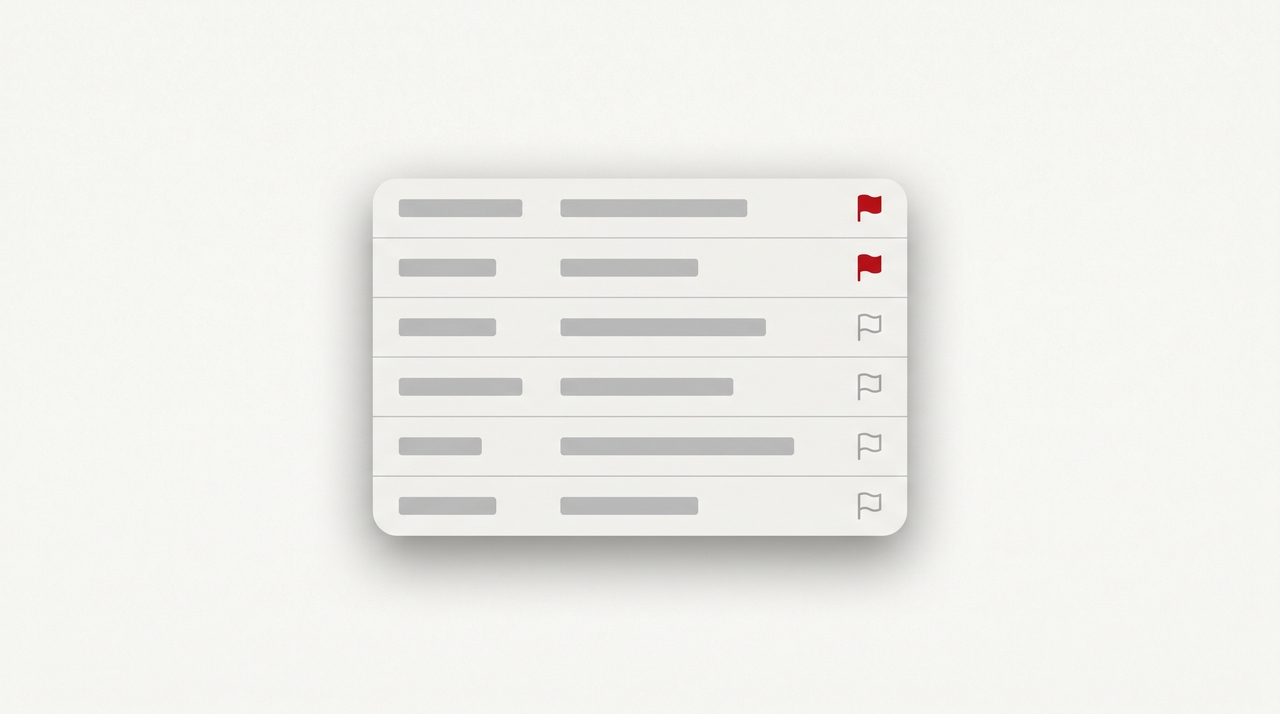
- A flag icon appears at the right edge of the message row.
- Click the flag. The email is flagged with the default due date of Today.
Choose a specific due date
- Right-click the message in the inbox.
- Hover over Flag.
- Pick: Today, Tomorrow, This Week, Next Week, No Date, or Custom.
For Custom, set a start date, due date, and (optionally) a reminder time, then click Save.
View flagged emails
- Click Filter at the top of the inbox and select Flagged.
- Or go to the Microsoft To Do integration in the right rail (or todo.microsoft.com) — flagged emails appear in the Flagged Email list automatically.
Mark complete or remove the flag
- Click the flag icon on the message — it turns into a checkmark, indicating the follow-up is complete.
- To clear the flag entirely (not mark complete), right-click and select Flag → Clear Flag.
2. Classic Outlook for Windows
Classic Outlook has the most flexible flag system, with reminders, custom dates, and the ability to flag messages you send.
Quick flag
- In any message list, click the flag column at the right edge of a message. It applies the default Quick Click flag (Today, by default).
Pick a date or set a reminder
- Right-click the flag on a message.
- Choose Today, Tomorrow, This Week, Next Week, No Date, or Custom.
- For Custom, you can set:
- Start date and Due date
- Reminder (date, time, and sound)
Change the default Quick Click flag
- Go to the Home tab in the ribbon.
- Click Follow Up → Set Quick Click.
- Pick a default (Today, Tomorrow, This Week, etc.) and click OK.
Now clicking the flag column applies your chosen default instead of “Today.”
Flag an email you’re sending
- While composing a message, click the Follow Up dropdown on the Message tab.
- Pick a flag type — this flags the message in your Sent Items.
- Or choose Flag for Recipients to flag the email in the recipient’s inbox (the recipient sees a flag and an optional reminder).
- Set the date and click OK.
Note: Flag for Recipients only works reliably if the recipient is also using Outlook with an Exchange or Microsoft 365 mailbox. It won’t work for most external recipients.
View flagged emails as tasks
- Click the Tasks icon (or To Do) in the bottom-left navigation pane.
- Flagged emails appear alongside Outlook tasks, sortable by due date or category.
- To see them grouped in your inbox, go to View → Arrange By → Flag: Due Date.
Clear or complete a flag
- Click the flag icon on the message to mark it complete (it becomes a checkmark).
- Right-click the flag → Clear Flag to remove it without marking complete.
3. Outlook for Mac
- Select a message.
- On the Home tab, click Follow Up.
- Pick a due date — Today, Tomorrow, This Week, Next Week, No Date, or Custom.
To clear: click Follow Up → Clear Flag, or click Mark Complete to mark it done.
Flagged messages on Mac sync to Microsoft To Do and appear in the same Flagged Email list.
4. Outlook Mobile (iOS & Android)
- Open the Outlook mobile app.
- Swipe right on a message in the inbox (if your swipe is set to flag — check Settings → Swipe options).
- Or open the message, tap the three-dot menu, and select Flag.
To set a custom due date, you’ll need to open the flagged email in Microsoft To Do (the Flagged Email list) — Outlook mobile flags default to “Today” with no further options.
To clear: swipe again or tap Unflag in the message menu.
Microsoft To Do: Flagged Emails as Tasks
Every flagged email automatically syncs to a list called Flagged Email in Microsoft To Do. This is useful because:
- You can add subtasks, notes, and steps to any flagged email.
- You can set custom reminders that don’t tie to Outlook’s reminder system.
- The list is available on iOS, Android, web (todo.microsoft.com), and inside Outlook’s My Day pane.
To enable it: open Microsoft To Do, go to Settings → Smart Lists, and toggle Flagged Email on.
Flag Colors and Categories
Outlook flags are red by default and can’t be changed to a different color in newer versions. To use multiple visual indicators, combine flags with categories:
- Flag = “I need to act on this”
- Category (color) = “this is about X”
Together, you can scan an inbox and see at a glance which emails are urgent, what topic they belong to, and what’s already done. See how to categorize emails in Outlook for the full setup.
Quick Reference
| Action | Outlook on the web / New Outlook | Classic Outlook | Mobile |
|---|---|---|---|
| Quick flag | Hover, click flag icon | Click flag column | Swipe right (configurable) |
| Custom date | Right-click → Flag → Custom | Right-click → Custom | — |
| Set reminder | Custom flag dialog | Custom flag dialog | Use Microsoft To Do |
| Flag for sending | Not supported | Message tab → Follow Up | Not supported |
| View flagged list | Filter → Flagged or Microsoft To Do | Tasks pane | Microsoft To Do |
| Mark complete | Click flag again (becomes checkmark) | Click flag → checkmark | Tap flag again |
Common Issues
Flag column is missing in classic Outlook. Right-click any column header in the message list, choose Field Chooser, and drag Flag Status into the headers.
Flagged email reminders aren’t firing. Check File → Options → Tasks and confirm the reminder time and sound. Reminders only fire if Outlook is open or running in the background.
Flagged emails on phone don’t show due dates. Mobile flags default to “Today.” To set a real due date, open the email in Microsoft To Do (or in Outlook on web/desktop) and edit the flag there.
If your flagged-email list has become a graveyard of follow-ups you’ll never get to, Carly is an AI assistant that drafts the follow-ups for you and connects to 200+ apps.
More on Outlook: How to categorize emails in Outlook · How to snooze emails in Outlook · How to use Quick Steps in Outlook · How to create rules in Outlook · How to create a task in Outlook · How to turn on Focused Inbox in Outlook
Ready to automate your busywork?
Carly schedules, researches, and briefs you—so you can focus on what matters.
See what people say
"Before Carly, I relied on a Calendly link, but the whole process felt impersonal and not very professional. Carly changed that by handling all the back-and-forth, so I'm no longer stuck in endless email threads trying to line up schedules.
Now Carly reaches out to candidates, shares my real-time availability, lets them pick a slot, then sends a Zoom link and drops it straight into my calendar. She sends reminders to both of us before each call, which has significantly reduced no-shows and last-minute confusion.
On top of scheduling, Carly acts like a full executive assistant, sending me my schedule the night before so I can prepare for each call. It reminds me of the old x.ai assistant, but Carly is noticeably smarter, faster, and better suited to my healthcare recruitment business."