How to Find a Time in Google Calendar (Find a Time, Suggested Times — 2026)
Google Calendar’s Find a time tab is the closest thing it has to Outlook’s Scheduling Assistant. It works well for internal teams whose calendars are shared, and falls apart when attendees are external. Here’s how to use it and what to do when it doesn’t work.
1. Open Find a Time
The Find a time tab is only in the full event editor — not the quick-create popover.
- Open Google Calendar.
- Click Create → Event.
- Click More options (or click the event title to open the full editor).
- Add guest emails in the right panel.
- Above the time picker, click the Find a time tab (next to Event details).
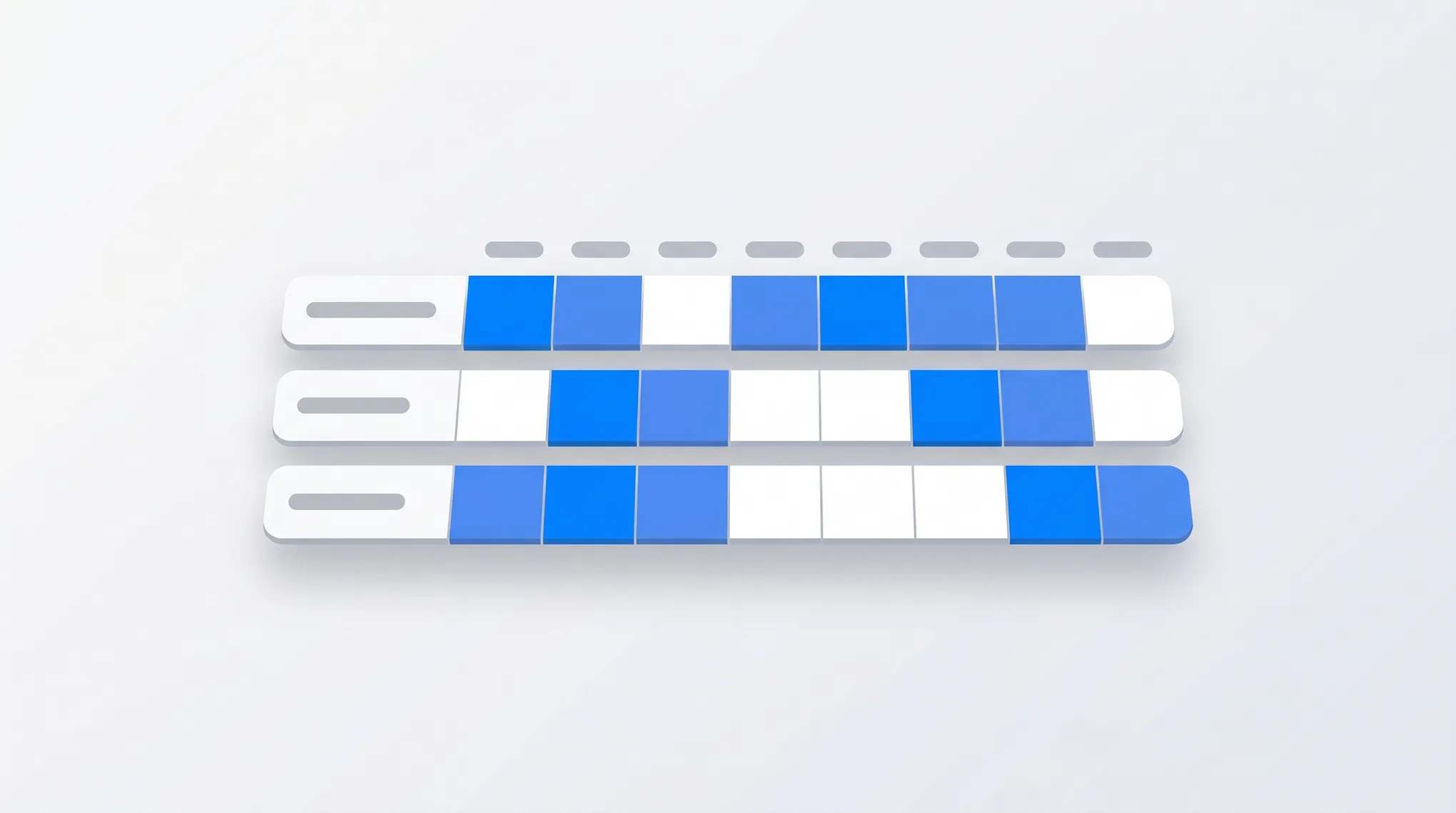
You’ll see a horizontal grid: each row is an attendee, columns are time slots, blue blocks = busy, white = free.
2. Drag the Event Block
The grid is interactive:
- Find a column where every row is white (everyone is free).
- Drag the event block to that column.
- The event time updates automatically.
- Click Save → Send to notify guests.
You can also click an empty time slot to set the event there directly.
3. Suggested Times (Gemini)
For AI-generated alternatives:
- Open the event editor.
- Add guests.
- Beneath the guest list, click Suggested times.
- Gemini lists open slots when everyone is free.
- Click More suggestions for additional options.
- Pick a time → Save.
Suggested times caps at:
- Meetings under 8 hours in length.
- Small attendee counts (typically under 15).
- Within a few weeks of the proposed date.
For longer or larger meetings, fall back to the manual Find a time grid.
4. Change the Displayed Time Zone
Critical for cross-region scheduling.
- In the Find a time grid, click the time-zone dropdown at the top.
- Choose any zone (the grid updates to show the schedule in that zone).
- Pick a slot that’s reasonable in everyone’s local hours.
Caveat: the grid shows everyone’s calendars in the selected zone — but each attendee’s local zone isn’t called out. A 9 AM PT slot might be 6 AM in San Francisco for someone showing as “free” but really sleeping. Cross-check before scheduling — or use the free time zone meeting planner to see working-hours overlap across cities at a glance.
5. Find a Time on Mobile
Limited support.
iOS Calendar:
- Tap + (Create) → Event.
- Tap Add people → tap View schedules.
- A vertical day-strip overlay shows attendees’ calendars.
- Tap a free slot.
Android Calendar:
- Tap + → Event → Add people → View schedules.
- Same vertical strip view.
Suggested times / Gemini suggestions are NOT available on iOS or Android as of 2026 — desktop only. The mobile path is manual.
6. The External-Attendee Problem
Find a time only works when attendees:
- Are in the same Workspace org as you, OR
- Have explicitly shared their calendar with you.
For external attendees, Find a time shows them with no availability info — just an empty row. You can still see your own and your org’s free/busy, but the external person is unreadable.
Workarounds:
- Send an Appointment Schedule booking link instead. They pick from your open slots — no free/busy access needed.
- Use a meeting poll tool like Doodle or Carly to vote on times.
- Email back-and-forth to propose times manually.
7. The Gmail Side Panel Preview
When composing or replying to an email with a guest in the same org:
- Open the Calendar side panel in Gmail (right-rail Calendar icon).
- The day view appears.
- It surfaces a lightweight Find a time preview against the recipient’s calendar.
This works only if the recipient’s free/busy is shared. External recipients show empty.
8. Add Other People’s Calendars First
If a colleague’s calendar isn’t showing in Find a time, you may need to subscribe to it:
- Calendar web → left sidebar → Other calendars → + → Subscribe to calendar.
- Enter the colleague’s email.
- If they’ve shared with you, their calendar appears under Other calendars.
- Reload Calendar — Find a time now sees their availability.
This must be done on desktop. The mobile apps don’t expose adding other calendars.
9. Why Suggested Times Returns Nothing
Common causes:
- Meeting longer than 8 hours.
- Too many attendees (typically over 15).
- All guests are external (Suggested times needs free/busy data).
- The proposed date range is too narrow (try expanding the start/end date).
- Past dates (Suggested times only looks forward).
10. Working Hours Matter
Find a time honors each attendee’s working hours (set in their Calendar Settings → General → Working hours and location). A time slot outside someone’s working hours appears with a faint shaded “outside working hours” pattern even if technically free.
To set yours:
- Calendar Settings → General → Working hours and location.
- Toggle Enable working hours.
- Set days and time ranges.
If teammates haven’t set working hours, the grid only shows hard busy/free — you might schedule into someone’s morning routine without realizing.
11. Out-of-Office Blocks
Calendar treats Out of office events as hard busy in Find a time. They show as solid red blocks and override “free” status. See how to set up out of office in Google Calendar.
This is helpful for vacation but trips up users who set OOO for “I’m out but reachable” — that mode blocks meeting scheduling entirely.
12. Workspace Tier Behavior
| Feature | Free Gmail | Workspace |
|---|---|---|
| Find a time grid | Yes (limited — no free/busy across non-shared accounts) | Yes (full org free/busy) |
| Suggested times | Yes (basic) | Yes (full Gemini, on eligible tiers) |
| External free/busy | No | No (unless shared) |
| Mobile Find a time | Limited | Limited |
Gemini Suggested times requires Business Standard or higher with Gemini access, or AI Pro/Ultra on consumer.
13. Quick Reference
| Goal | Path |
|---|---|
| Find time across team | Event editor → Find a time tab |
| AI-suggested time | Event editor → Suggested times |
| Different time zone view | Find a time → time-zone dropdown |
| External attendee | Appointment Schedule or Carly poll |
| Mobile scheduling | Add people → View schedules |
| Add a colleague’s calendar | Other calendars → + → Subscribe |
| Set working hours | Settings → General → Working hours |
If Find a time is failing because too many attendees are external, Carly is an AI assistant that schedules across organizations using Google-native polls — pulling availability where it can and asking when it can’t.
More on Google Calendar: How to create a meeting poll in Google Calendar · How to create an event from an email in Google Calendar · How to set working hours in Google Calendar · How to set up out of office in Google Calendar · Group scheduling tools
Ready to automate your busywork?
Carly schedules, researches, and briefs you—so you can focus on what matters.
See what people say
"Before Carly, I relied on a Calendly link, but the whole process felt impersonal and not very professional. Carly changed that by handling all the back-and-forth, so I'm no longer stuck in endless email threads trying to line up schedules.
Now Carly reaches out to candidates, shares my real-time availability, lets them pick a slot, then sends a Zoom link and drops it straight into my calendar. She sends reminders to both of us before each call, which has significantly reduced no-shows and last-minute confusion.
On top of scheduling, Carly acts like a full executive assistant, sending me my schedule the night before so I can prepare for each call. It reminds me of the old x.ai assistant, but Carly is noticeably smarter, faster, and better suited to my healthcare recruitment business."