How to Create an Event from an Email in Google Calendar (2026)
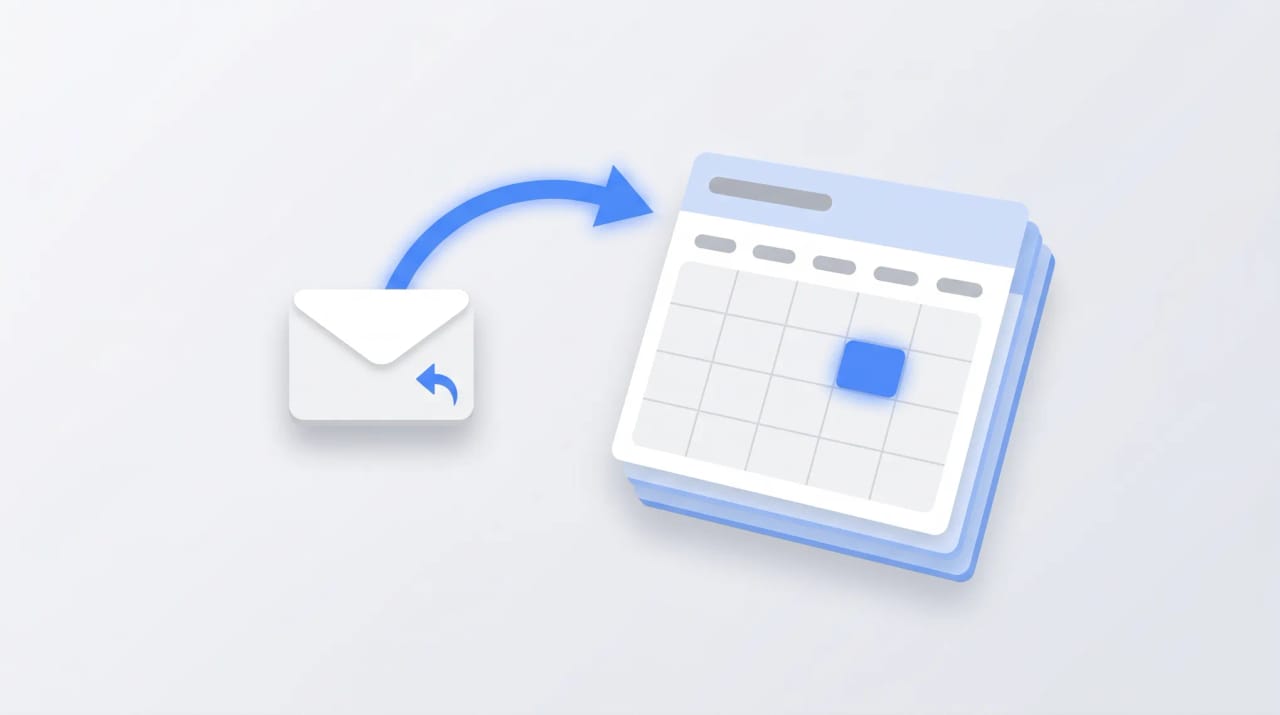
Gmail and Google Calendar share three ways to turn an email into an event, plus a fourth (auto-detection of flights, hotels, restaurants) that runs in the background. Each path serves a different use case. (Want to skip the click sequence entirely? Carly’s free email-to-calendar tool lets you forward any event description to add@usecarly.com and get back a clean .ics — no signup.)
1. The Three-Dot Create Event Menu (Works Everywhere)
The most reliable path — works for any email type, on every account tier.
- Open the email in Gmail.
- Click the More icon (three vertical dots) in the toolbar above the message body.
- Click Create event.
- A new tab opens with the Calendar event editor. Pre-filled:
- Title = email subject
- Description = first ~30 lines of email body
- Guests = email recipients (To and Cc)
- Adjust date, time, location.
- Click Save.
- Choose Send or Don’t send in the invitation prompt.
This works on free Gmail and every Workspace tier. The only requirement: you must be the owner of the email (it’s in your inbox).
2. The Gemini Add to Calendar Chip
The faster path when Gemini detects event content (a specific date, time, and location). Available on Workspace Business Standard+, Enterprise, Education with Gemini add-on, AI Pro, and AI Ultra.
- Open an email containing event details (e.g., “lunch Thursday at noon at Bistro Loup”).
- An Add to calendar chip appears at the top of the email body.
- Click the chip.
- A confirmation panel slides up from the bottom showing the proposed event.
- Confirm to save.
Gotcha: the Gemini chip does NOT auto-add attendees. Only title, date, and start time. You must add guests afterward by opening the event and editing it.
The chip doesn’t fire on emails Gmail already extracted (flights, hotels, restaurants) — those use the older auto-import path (section 5).
3. The Calendar Side Panel
For when you want to keep working in Gmail without losing context.
- In Gmail, open the right-side panel by clicking the Calendar icon (the colored Calendar logo). If the panel is collapsed, click the small arrow at the bottom-right of Gmail.
- The Calendar side panel opens showing today’s schedule.
- Drag the email from the inbox list onto a time slot in the side panel.
- The event creates with:
- Title = email subject
- Email auto-attached to the event
- No description copy (this path doesn’t copy the body)
Edit further in the side panel or click the event title to open the full editor.
4. Mobile (iOS and Android)
Both apps now expose the same Gemini detection rolled out August 2025.
Three-dot menu:
- Open the email in the Gmail app.
- Tap the three-dot menu (top-right).
- Tap Create event.
- The Calendar event editor opens with title, description, and guests pre-filled.
Gemini chip:
When Gemini detects event content, an Add to calendar suggestion chip appears above the message body. Tap it to confirm in a bottom sheet.
5. Auto-Imported Events from Gmail
Gmail still automatically extracts events from confirmation emails — flights, hotels, restaurant reservations, ticketed events. These appear on your calendar in a faint color and can be toggled off.
To control:
- Calendar Settings (gear icon in calendar.google.com) → Settings.
- Left sidebar → Google Workspace smart features.
- Tick or untick Show events from Gmail.
In the EU, UK, Switzerland, and Japan, this is off by default for new accounts. In the US it remains on by default.
The Calendar API distinguishes these as eventType: "fromGmail" (added May 2024) — useful if you’re scripting against Calendar.
6. Workspace Tier Restrictions
| Tier | Three-dot Create event | Gemini Add to calendar | Side panel | Auto-import |
|---|---|---|---|---|
| Free Gmail | Yes | No | Yes | Yes (US) |
| Business Starter | Yes | No | Yes | Yes |
| Business Standard | Yes | Yes (with Gemini) | Yes | Yes |
| Business Plus | Yes | Yes | Yes | Yes |
| Enterprise | Yes | Yes | Yes | Yes |
| Education + Gemini add-on | Yes | Yes | Yes | Yes |
| AI Pro / AI Ultra (consumer) | Yes | Yes | Yes | Yes |
7. Adding Attendees Properly
The Gemini chip and side panel paths both leave guest lists incomplete. To add the right people:
- After saving the event, click the event in your calendar.
- Click the pencil (Edit event).
- Guests field → type emails or pick contacts.
- Save → Send to notify them.
If you forwarded the original email to others, those forwards aren’t picked up — only the original To/Cc list.
8. Attaching the Original Email
The side panel path auto-attaches the email. The three-dot Create event path does not. To attach manually:
- Open the event.
- Click the paperclip icon (Add attachment).
- Upload or browse Drive.
- (For attaching the email itself) save the email as a PDF first (how to save email as PDF in Gmail) and upload that.
There’s no “attach Gmail message URL” feature — you have to convert it.
9. Recurring Events from Email
To create a recurring event from a single email:
- Use the three-dot Create event path.
- In the event editor, click the Does not repeat dropdown.
- Choose Daily, Weekly, Monthly, Annually, or Custom.
- Save.
Gemini’s chip only creates one-off events — recurrence requires a manual edit.
10. Common Gotchas
- Email-as-event creates the event on your primary calendar by default. To save to a different calendar, change the Calendar dropdown in the event editor.
- Time zone confusion: the event uses your Calendar’s primary time zone, not the email’s. Verify before sending invites if you’re traveling.
- Long descriptions get truncated: Gmail copies only the first ~30 lines into the event description. For longer context, add a Drive link or the original email as a PDF.
- Forwarded emails sometimes lose the original sender in the guest auto-fill. Add manually.
- The Gemini chip doesn’t appear if the email content is ambiguous about timing (“sometime next week”) or missing a clear location.
11. Mobile vs Desktop Differences
| Feature | Web | iOS | Android |
|---|---|---|---|
| Three-dot Create event | Yes | Yes | Yes |
| Gemini Add to calendar chip | Yes | Yes | Yes |
| Side panel drag-to-create | Yes | No | No |
| Auto-attach email | Side panel only | No | No |
| Add multiple attendees at once | Yes | Yes | Yes |
The side panel drag is desktop-only — it’s the most powerful but also the least mobile-friendly path.
12. Quick Reference
| Goal | Best path |
|---|---|
| Quick event with attendees | Three-dot menu → Create event |
| Email-detected meetings | Gemini Add to calendar chip |
| Keep email attached to event | Side panel drag |
| Mobile event creation | Three-dot → Create event |
| Recurring event | Three-dot → Create event → set recurrence |
| Auto-extracted travel | Show events from Gmail toggle |
If you turn emails into events all day long, Carly is an AI assistant that handles the back-and-forth in Gmail — proposing times, sending invites, and updating calendars without the manual hop between tabs.
More on Google Calendar: How to create a meeting poll in Google Calendar · How to find a time in Google Calendar · How to create a Google Meet link · Google Calendar AI features · Best AI personal assistants
Ready to automate your busywork?
Carly schedules, researches, and briefs you—so you can focus on what matters.
See what people say
"Before Carly, I relied on a Calendly link, but the whole process felt impersonal and not very professional. Carly changed that by handling all the back-and-forth, so I'm no longer stuck in endless email threads trying to line up schedules.
Now Carly reaches out to candidates, shares my real-time availability, lets them pick a slot, then sends a Zoom link and drops it straight into my calendar. She sends reminders to both of us before each call, which has significantly reduced no-shows and last-minute confusion.
On top of scheduling, Carly acts like a full executive assistant, sending me my schedule the night before so I can prepare for each call. It reminds me of the old x.ai assistant, but Carly is noticeably smarter, faster, and better suited to my healthcare recruitment business."