How to Save Email as PDF in Gmail (Desktop, iOS, Android — 2026)
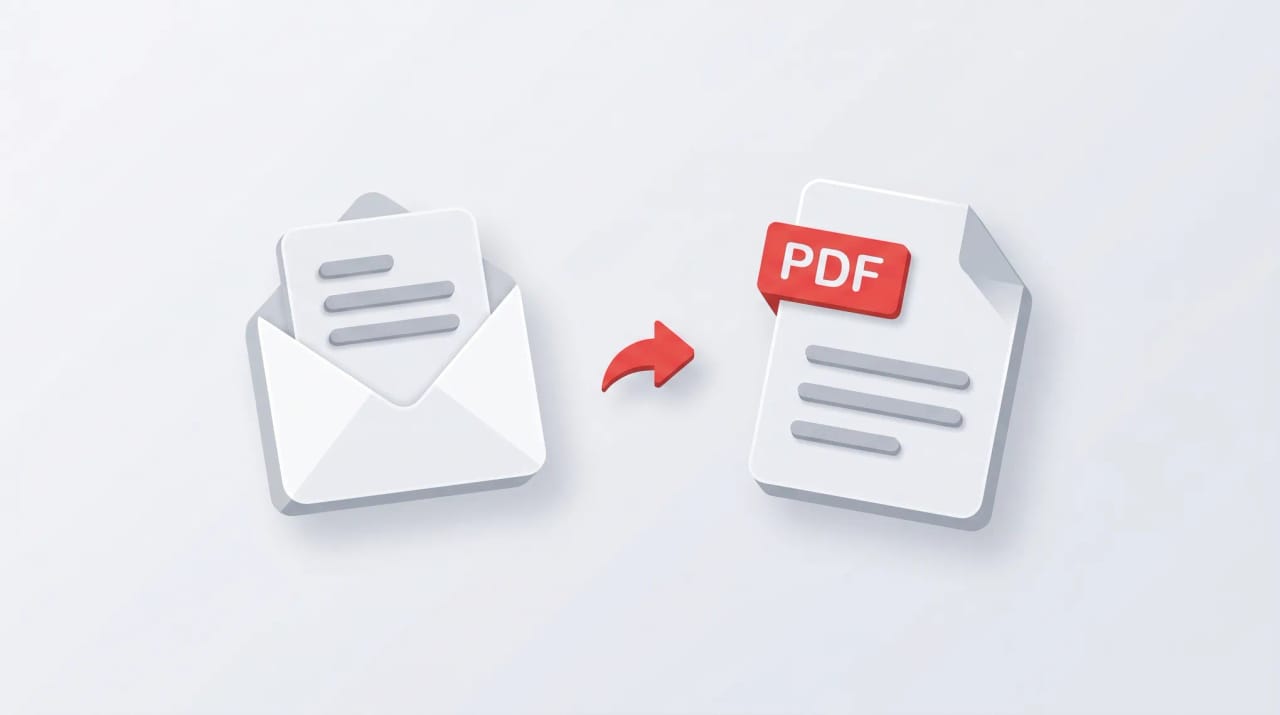
Gmail doesn’t have a native “Export as PDF” button, but every platform’s print-to-PDF flow works. The catch: long threads truncate unless you expand them first, and there’s no native batch export — you need a Chrome extension for that.
1. Save as PDF on Gmail Web
This is the standard method.
- Open the email or thread.
- Click the printer icon at the top-right of the message panel. This prints the entire conversation.
- The browser’s print dialog opens.
- Set Destination to:
- Save as PDF (Chrome, Edge new)
- Microsoft Print to PDF (Edge legacy)
- On Safari/Firefox, use the system print dialog (File → Export as PDF).
- Click Save.
- Choose a filename and folder.
Gmail proposes Gmail - <subject line>.pdf on Chrome. Long subjects get truncated at OS-specific path limits.
2. Save Just One Message (Not the Whole Thread)
The toolbar printer icon prints the entire conversation. To print just one message inside a long thread:
- Open the thread.
- Click the three-dot menu inside the specific message’s header (not the toolbar — the smaller menu inside the open message).
- Click Print.
- In the print dialog, set Destination to Save as PDF → Save.
Only that one message appears in the PDF.
3. Save as PDF on iOS
- Open the email in the Gmail app.
- Tap the three-dot menu (top right).
- Tap Print.
- The AirPrint preview opens.
- Tap the Share icon in the top-right corner.
- Pick Save to Files.
- Choose a location → Save.
On iOS 17 and later, this share-to-Files flow works directly from the print preview without needing the older “pinch-out” gesture.
4. Save as PDF on Android
- Open the email in the Gmail app.
- Tap the three-dot menu (top right).
- Tap Print.
- In the print dialog, tap the printer dropdown at the top.
- Choose Save as PDF.
- Tap the PDF icon (often the down-arrow or PDF logo).
- Choose a save location → Save.
The default filename is <subject>.pdf. Edit before saving if you need a specific name.
5. Expand Long Threads First
The single biggest gotcha: collapsed messages don’t expand for printing. A 30-message thread can save as a 4-page PDF with most messages missing.
Before clicking the printer icon:
- Click the double-chevron at the top-right of the conversation panel labeled Expand all.
- Verify all messages are expanded (each message should show its full body, not a snippet).
- Then click the printer icon.
If pagination still drops messages on threads with 30+ replies, save in two batches using the per-message three-dot Print on the older messages.
6. Batch Save (No Native Option)
Gmail has no built-in “save 50 messages as PDFs” feature. Three workarounds:
- Save Emails to PDF by cloudHQ (Chrome Web Store) — the most-used. Saves selected messages or full labels as separate PDFs or one merged PDF.
- ThreadPDF for Gmail — Chrome extension focused on threading whole conversations into one clean PDF.
- Google Takeout (takeout.google.com) → exports MBOX, not PDF — but you can convert MBOX to PDF afterward with Aid4Mail or Systools.
For Workspace admins, Google Vault can export to PST/MBOX (not PDF directly). Vault is for legal eDiscovery, not casual archiving.
7. Email + Attachments as One PDF
Gmail’s print does not include attachment contents. The PDF will reference attachments by filename but not embed them. To merge:
- Save the email as PDF (steps above).
- Open each attachment, save it as PDF (or use Print → Save as PDF).
- Combine in:
- Mac: Preview → drag PDFs onto each other → File → Export as PDF.
- Windows: PDF24, Adobe Acrobat, or Smallpdf.
- Web: combinepdf.com, Smallpdf, or iLovePDF.
8. Inline Images
Inline images print by default. Remote images don’t unless:
- You’ve already clicked Display images below at the top of the email when you opened it.
- Or Settings → General → Images → Always display external images is on.
CID-attached images (logos, signatures) always print regardless.
9. PDF Naming Conventions
| Platform | Default filename |
|---|---|
| Gmail web (Chrome) | Gmail - <subject>.pdf |
| Gmail iOS | <subject>.pdf |
| Gmail Android | <subject>.pdf |
Long subjects get truncated. Avoid this by editing the filename before clicking Save. macOS truncates at 255 characters; Windows at 260 in the full path.
10. Why Save as PDF Sometimes Truncates
- Collapsed messages — see section 5.
- Inline videos / smart-chips — Gmail’s “view in YouTube” cards render as placeholders in the PDF because Chrome’s print engine can’t rasterize iframes.
- Workspace IRM (Information Rights Management): orgs with rights-managed mail can block printing entirely. The printer icon disappears or is greyed out.
- DLP rules can also block print for confidential mail. If the icon is missing, ask your admin.
11. Save as PDF on Old Outlook / Apple Mail
If you’re saving Gmail emails from a desktop client connected via IMAP:
- Apple Mail: open the email → File → Export as PDF → choose location.
- Outlook (new): File → Save as → choose PDF as the file type.
- Outlook (classic): File → Print → set printer to Microsoft Print to PDF → Print.
- Thunderbird: File → Print → Save as PDF.
These give different outputs than Gmail web — Apple Mail in particular preserves images and styling more faithfully.
12. Quick Reference
| Goal | Steps |
|---|---|
| Save thread as PDF on web | Printer icon → Save as PDF |
| Save one message in a thread | Three-dot inside message → Print → Save as PDF |
| Save on iOS | Three-dot → Print → Share → Save to Files |
| Save on Android | Three-dot → Print → Save as PDF |
| Save 50+ emails | cloudHQ Save Emails to PDF extension |
| Combine email + attachments | Save each as PDF, merge in Preview/PDF24 |
| Long thread truncates | Click Expand all first |
If you save emails as PDFs to keep records of decisions and follow-ups, Carly is an AI assistant that captures the same context inside Gmail — drafting follow-ups, scheduling next steps, and remembering what was decided so you don’t have to file it manually.
More on Gmail: How to export emails from Gmail · How to archive emails in Gmail · How to create labels in Gmail · How to mass delete emails in Gmail · Best email management tools
Ready to automate your busywork?
Carly schedules, researches, and briefs you—so you can focus on what matters.
See what people say
"Before Carly, I relied on a Calendly link, but the whole process felt impersonal and not very professional. Carly changed that by handling all the back-and-forth, so I'm no longer stuck in endless email threads trying to line up schedules.
Now Carly reaches out to candidates, shares my real-time availability, lets them pick a slot, then sends a Zoom link and drops it straight into my calendar. She sends reminders to both of us before each call, which has significantly reduced no-shows and last-minute confusion.
On top of scheduling, Carly acts like a full executive assistant, sending me my schedule the night before so I can prepare for each call. It reminds me of the old x.ai assistant, but Carly is noticeably smarter, faster, and better suited to my healthcare recruitment business."