How to Create a Distribution List in Gmail (2026 Guide)
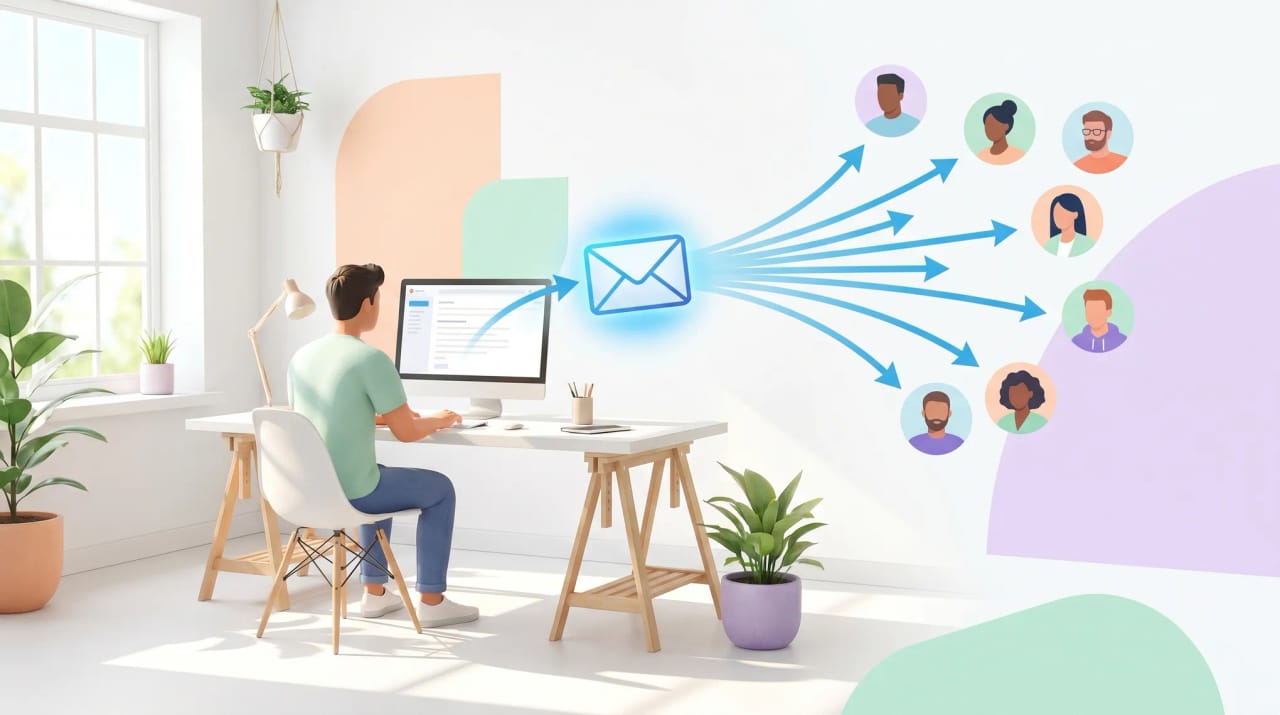
Gmail itself doesn’t have a built-in “distribution list” feature the way Outlook does. What it has are three different ways to send to multiple people at once, and you pick based on whether you’re on personal Gmail or Google Workspace, and whether the list needs to be shared with others.
The three options:
- Google Contacts labels — The Gmail equivalent of an Outlook contact group. Stored in your personal contacts; only you can see and use the label. Works on every Gmail account.
- Google Groups — A shared mailing list with its own email address (e.g.,
marketing@yourcompany.com). Available in Google Workspace. - Workspace mailing lists / shared inbox — A more advanced setup where the group address has its own inbox, archives, and access controls.
Most people want option 1 (personal lists) or option 2 (team lists). Here’s how to set up all three.
Quick Reference
| Option | Best for | Where it lives | Who can use it |
|---|---|---|---|
| Contacts label | Your own quick-send lists | Your Google Contacts | You only |
| Google Group | Team or org-wide lists | Google Workspace | Everyone in the group, plus anyone you allow |
| Shared inbox / Collaborative Inbox Group | Team handles incoming mail (e.g., support@) | Google Workspace | Group members with assigned roles |
1. Create a Contact Label (Personal Gmail or Workspace)
The fastest way to send the same email to the same group of people regularly. Anyone can do this — no admin help needed.
Create the label
- Go to contacts.google.com and sign in.
- In the left sidebar, scroll to Labels.
- Click Create label.
- Type a name (e.g., Marketing Team, Q3 Project, Family) and click Save.
Add contacts to the label
If the people you want are already in your contacts:
- Click Contacts in the left sidebar.
- Hover over each person you want to include and click the checkbox that appears next to their name.
- With everyone selected, click the Manage labels icon at the top (looks like a tag).
- Tick your label.
- Click Apply.
If they’re not in your contacts yet:
- In Google Contacts, click Create contact in the top-left.
- Add their name and email.
- Save.
- Apply the label using the steps above.
Add a new contact directly to the label
You can also work label-first:
- Click your label name in the left sidebar.
- Click Add contacts → Create contact.
- The new contact is automatically added to the label.
2. Send an Email Using a Contact Label
Once your label exists, sending to the whole group is fast.
- Open Gmail and click Compose.
- In the To field, start typing the label name.
- When the label appears in the autocomplete dropdown, select it.
- Gmail expands the label into individual email addresses — you’ll see each person’s address listed.
- Compose your message and click Send.
Tip: For privacy, put the label in Bcc instead of To. Recipients won’t see who else is on the list. Use this for newsletters, large groups, or any case where the recipients shouldn’t know about each other.
3. Edit and Manage Contact Labels
Add or remove members
- Go to contacts.google.com.
- Click the label name in the left sidebar.
- To add members: click any contact’s row, click the label icon, and tick or untick labels.
- To remove members: hover over the contact’s row, click the three-dot menu at the right, and select Remove from label (this removes them from the label, not from your contacts).
Rename a label
- In Google Contacts, hover over the label name in the left sidebar.
- Click the pencil icon that appears.
- Type the new name and press Enter.
Delete a label
- Hover over the label name in the left sidebar.
- Click the trash can icon.
- Confirm. The label is deleted, but the contacts inside it remain in your address book.
4. Create a Google Group (Workspace)
Google Groups are how teams typically handle shared distribution lists. Anyone in your Workspace org can create one (unless your admin has disabled this).
- Go to groups.google.com and sign in to your Workspace account.
- Click Create group in the top-left.
- Enter:
- Group name — Display name (e.g., “Marketing Team”).
- Group email — The email address of the group (e.g.,
marketing@yourcompany.com). Pick carefully — the email becomes the group’s permanent address. - Description — Optional but useful.
- Click Next.
- Configure privacy settings:
- Who can search for the group — Anyone in the org, group members only, etc.
- Who can join the group — Invited only, anyone in the org, anyone with the link, etc.
- Who can view conversations — Owners only, members, anyone in org.
- Who can post — Anyone, members only, owners only.
- Click Next.
- Add initial members by typing or pasting email addresses.
- Choose subscription settings (each digest, all email, no email).
- Click Create group.
The group is live immediately. Anyone in your org can email marketing@yourcompany.com and reach all members.
Send to a Google Group
- In Gmail, click Compose.
- In the To field, enter the group’s email address.
- Compose and Send.
Unlike a contacts label, the recipient list is managed by Google Groups — when someone is added or removed from the group, the change applies automatically to every future email.
5. Manage Google Group Members
As a group owner / manager
- Go to groups.google.com.
- Click the group name.
- Click Members in the left sidebar.
- To add: click Add members, paste email addresses, choose subscription settings, and click Add members.
- To remove: click the three-dot menu next to a member’s name, then Remove member.
- To change roles (Owner, Manager, Member): click the role next to a member’s name and pick the new role.
As a Workspace admin
If you manage the entire Workspace, you can also create and manage groups from the admin console:
- Sign in to admin.google.com.
- Go to Directory → Groups.
- Click Create group to make a new one, or click an existing group to edit settings, members, and permissions.
Admin-created groups can have additional features like security settings, restricted external membership, and audit logs.
6. Collaborative Inbox: When the Group Needs to Handle Incoming Mail
For email addresses like support@, sales@, or info@, you usually want more than a distribution list — you want a shared mailbox where multiple people can see and respond to incoming messages, assign threads, and track resolution.
Google Groups supports this via Collaborative Inbox:
- Create a group following the steps in section 4.
- After creation, go to the group → Group settings → General.
- Enable Collaborative Inbox.
- Save.
Collaborative Inbox features:
- Assign conversations to specific members.
- Mark conversations as resolved.
- Tag conversations with custom labels.
- All replies sent from the group address.
- Full message history searchable by all members.
This is the closest Google Workspace equivalent to a shared mailbox in Outlook. For team-wide use, it’s usually a better choice than handing everyone the same Gmail account.
7. Contact Label vs. Google Group: Which to Use
| Contact Label | Google Group | |
|---|---|---|
| Who manages it | Just you | Group owners and managers |
| Who can send to it | Just you (it’s in your contacts) | Anyone allowed by the group’s settings |
| Recipients see who else is on it | Yes (each address is in To) | No (just the group address) |
| Update propagation | Manual — you re-edit your label | Automatic — adds/removes apply to future emails |
| Available on personal Gmail | Yes | No |
| Workspace required | No | Yes |
| Has its own email address | No | Yes |
| Has a shared archive | No | Yes |
| Best for | Your personal “send the same thing to the same people” list | Team or org-wide list with shared management |
The rule of thumb: if multiple people need to send to or manage the list, use a Google Group. If it’s just for your own convenience, use a Contacts label.
8. Common Issues
The label doesn’t appear in Gmail’s To field autocomplete. Make sure you’ve actually saved contacts to the label. An empty label won’t autocomplete. Try refreshing Gmail or signing out and back in if you just created it.
Some addresses bounce when I send to a label. Open the label in Google Contacts and verify each address is correctly typed. Labels expand to literal addresses at send time, so a typo means a permanent bounce for that recipient.
Recipients are seeing each other’s email addresses (privacy concern). You put the label in To instead of Bcc. For privacy-sensitive lists, always use Bcc.
Created a Google Group but emails to it bounce. Check the group’s posting permissions in Group settings → Permissions → Posting permissions. If it’s set to “Owners only” or “Group members only,” external senders or non-member coworkers will bounce.
Can’t create a Google Group. Your Workspace admin may have restricted group creation. Ask your admin to either grant you the Groups Creator role or create the group on your behalf.
Group address isn’t recognized in Gmail autocomplete. Workspace directory sync can lag a few hours after group creation. Try entering the full address manually for the first few sends.
Importing 50+ members at once. For Contacts labels, prepare a CSV (Name, Given Name, Family Name, E-mail 1 - Value) and use Import in contacts.google.com, then apply the label. For Google Groups, paste up to 10 addresses at a time in Members → Add members, or have an admin use bulk-add at admin.google.com → Directory → Groups.
Stop Managing Group Email Manually
If you’re sending the same kinds of email to the same kinds of people on repeat — sales follow-ups, candidate outreach, customer onboarding — you might be ready for an AI agent instead of a distribution list. Carly is an AI assistant that connects to 200+ apps and handles personalized outreach, follow-ups, and inbox triage so you don’t have to maintain lists. Carly is $35/month.
More on Gmail: How to create a contact group in Gmail · How to schedule an email in Gmail · How to create email templates in Gmail · How to add a signature in Gmail · How to set up email forwarding in Gmail · How to create filters in Gmail
Ready to automate your busywork?
Carly schedules, researches, and briefs you—so you can focus on what matters.
See what people say
"Before Carly, I relied on a Calendly link, but the whole process felt impersonal and not very professional. Carly changed that by handling all the back-and-forth, so I'm no longer stuck in endless email threads trying to line up schedules.
Now Carly reaches out to candidates, shares my real-time availability, lets them pick a slot, then sends a Zoom link and drops it straight into my calendar. She sends reminders to both of us before each call, which has significantly reduced no-shows and last-minute confusion.
On top of scheduling, Carly acts like a full executive assistant, sending me my schedule the night before so I can prepare for each call. It reminds me of the old x.ai assistant, but Carly is noticeably smarter, faster, and better suited to my healthcare recruitment business."