How to Set Reminders in Todoist (2026 Guide)
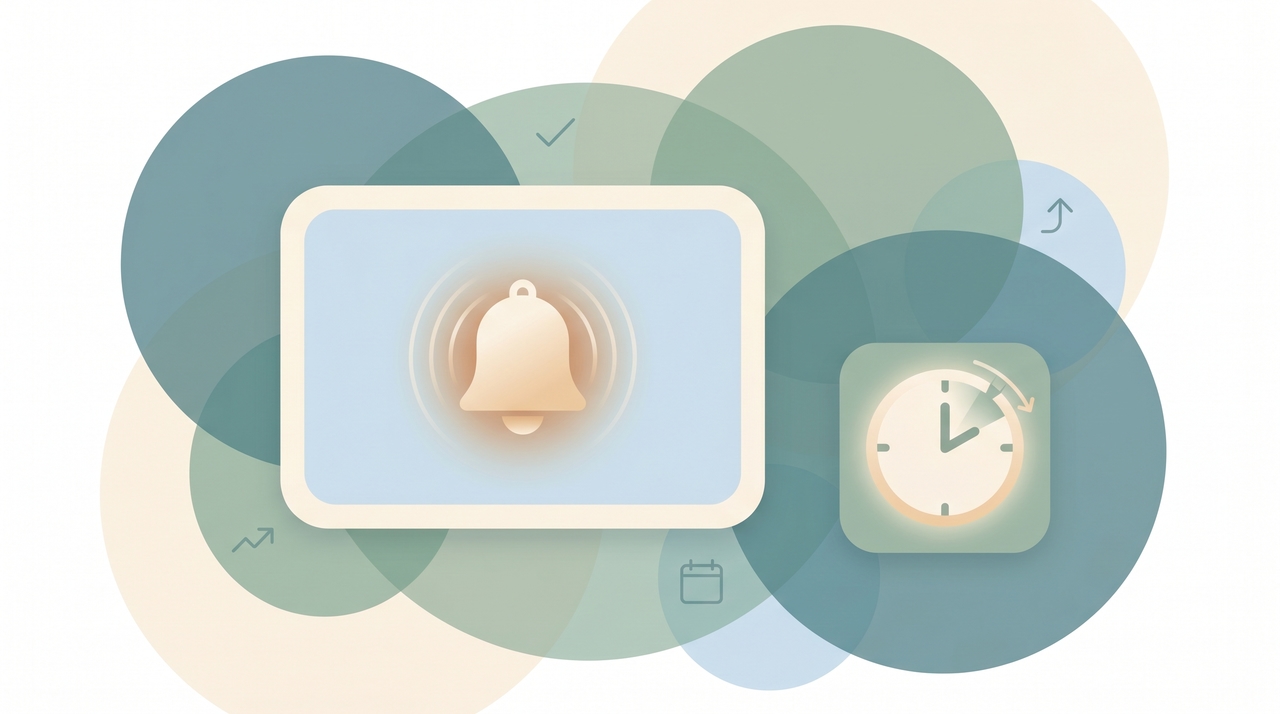
A due date tells you when a task is due. A reminder makes sure you actually notice. In Todoist, reminders are separate from due dates — you can be nudged 30 minutes before a meeting, at a fixed time, or when you arrive somewhere. Reminders are now available on every plan. Here’s how to set them up.
How to Add a Reminder to a Task
- Open the task.
- Click the reminder icon (bell/alarm clock).
- Choose the reminder type:
- Absolute time — a specific date and time (e.g. tomorrow at 8am).
- Relative time — an offset before the due time (e.g. 30 minutes before, 1 day before).
- Location — when you arrive at or leave a place (mobile only; see below).
- Save. A bell now shows on the task.
You can add multiple reminders to one task — say, 1 day before and 1 hour before for something important.
Time-Based Reminders
These are the workhorses. Two flavors:
| Type | Example | Use it for |
|---|---|---|
| Absolute | ”Remind me at 7:00 AM” | A nudge at a fixed wall-clock time |
| Relative | ”30 minutes before” | Lead time before a deadline or meeting |
Relative reminders require the task to have a due time (not just a date) — there’s nothing to count back from otherwise.
Automatic Reminders
Rather than adding a reminder to every task by hand, switch them on globally:
- Go to Settings → Reminders.
- Set a default automatic reminder time (e.g. 30 minutes before).
Now every task you give a due time gets that reminder automatically. This is the setting most people want and never find — turn it on once and stop thinking about it.
Location-Based Reminders
On the mobile apps, a reminder can trigger by place instead of time:
- Open the task on your phone → reminder icon.
- Choose Location.
- Search an address and pick Arriving or Leaving.
“Pick up dry cleaning” fires when you near the shop; “Email the team” fires when you leave the office. Location reminders need location permissions granted to the Todoist app.
Choosing How You’re Notified
Set your channels in Settings → Reminders / Notifications:
- Push (mobile) — the default, hard to miss
- Desktop — for the web and desktop apps while you’re working
- Email — a fallback if you live in your inbox
Pick the ones you’ll actually see, and turn off the rest to avoid notification fatigue.
Why Your Reminder Isn’t Firing
The task has a date but no time. Relative reminders (“30 min before”) need a due time. Add one.
Automatic reminders are off. If you expected every timed task to nudge you, enable automatic reminders in Settings — it’s not on by default for everyone.
Notifications are blocked at the OS level. Check your phone or computer’s system settings; Todoist can’t notify you if the OS has muted it. Grant notification permission to the app.
Location reminders never trigger. They need background location permission and a strong signal — battery-saver modes often suppress them.
Reminder fired at the wrong time. Check your account time zone in Settings. A mismatched zone shifts every reminder.
Reminders Nudge You — Carly Handles It
A reminder is a tap on the shoulder; you still have to stop and do the thing. For the tasks that are really send this, follow up, reschedule that, Carly is an AI assistant that connects to 200+ apps including Todoist and can act on them for you — so the nudge can turn into a done task instead of one more notification to dismiss.
More on Todoist: How to set recurring tasks in Todoist · How to connect Todoist to Google Calendar · How to use Todoist · Todoist alternatives · Best AI personal assistants
Ready to automate your busywork?
Carly schedules, researches, and briefs you—so you can focus on what matters.
Get Carly Today →See what people say
"Before Carly, I relied on a Calendly link, but the whole process felt impersonal and not very professional. Carly changed that by handling all the back-and-forth, so I'm no longer stuck in endless email threads trying to line up schedules.
Now Carly reaches out to candidates, shares my real-time availability, lets them pick a slot, then sends a Zoom link and drops it straight into my calendar. She sends reminders to both of us before each call, which has significantly reduced no-shows and last-minute confusion.
On top of scheduling, Carly acts like a full executive assistant, sending me my schedule the night before so I can prepare for each call. It reminds me of the old x.ai assistant, but Carly is noticeably smarter, faster, and better suited to my healthcare recruitment business."