How to Add Labels in Todoist (2026 Guide)
Projects answer where a task lives. Labels answer what kind of task it is — or what context you need to do it. @email, @phone, @quick, @waiting, @errands: tag tasks this way and you can pull “everything I can knock out by phone” out of every project at once. Here’s how to add and manage them.
How to Add a Label
The fast way — while typing:
In Quick Add (or any task name), type @ and start the label name:
Call the vendor about the invoice @phoneTodoist shows matching labels as you type. Pick an existing one, or keep typing a new name and choose Create label. The @phone is stripped from the task name and attached as a label.
On an existing task:
- Open the task.
- Click the label/tag icon (or type
@in the task field). - Select one or more labels.
A task can carry multiple labels — @quick @email is perfectly valid.
How to Manage Your Labels
All your labels live under Filters & Labels in the sidebar:
- Rename — right-click a label → Edit and change the name (it updates on every task at once).
- Color — give related labels matching colors so they’re scannable.
- Favorite — star a label to pin it to the top of your sidebar.
- Delete — remove a label; it’s stripped from all tasks but the tasks themselves stay.
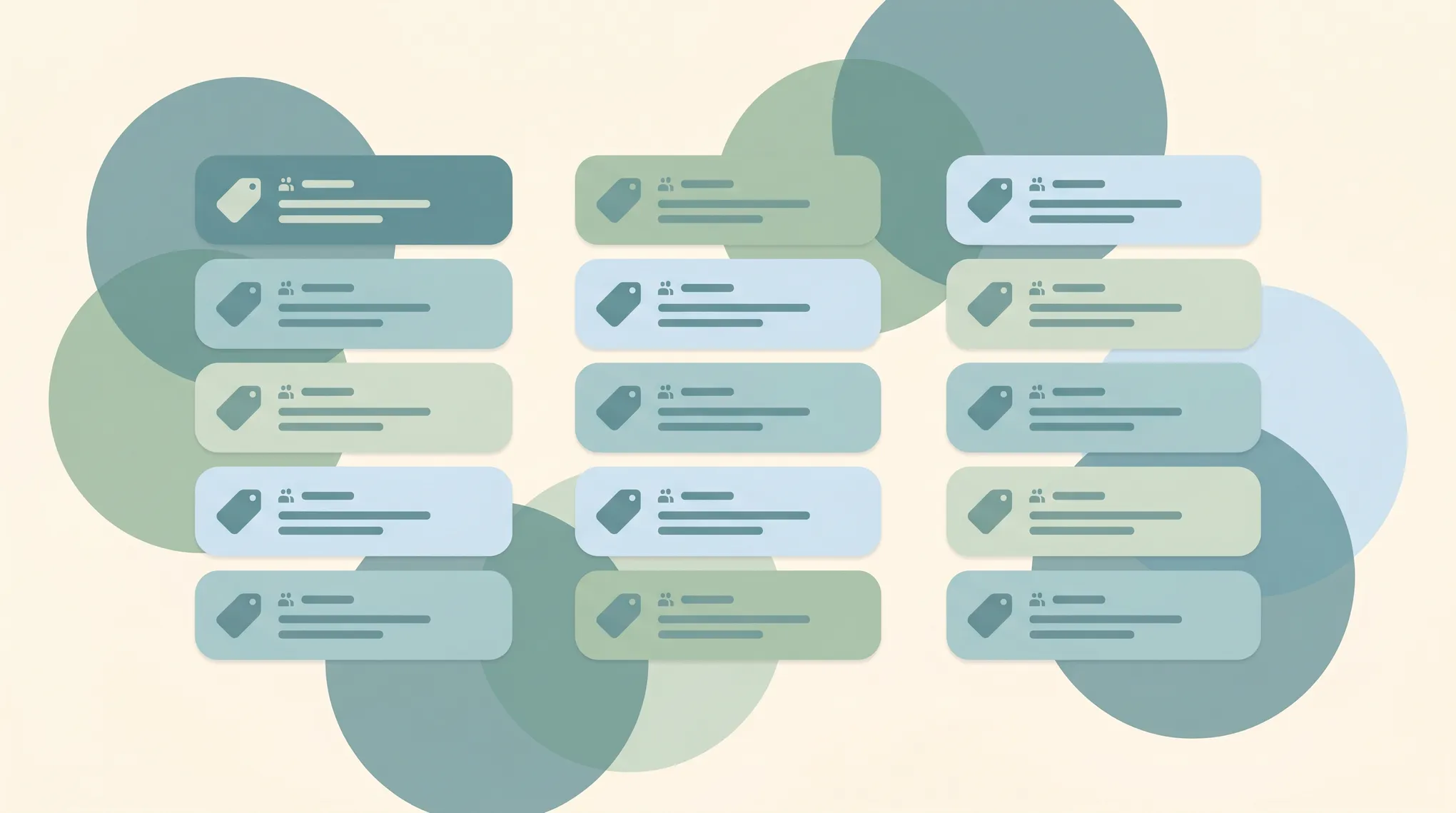
Click any label to open a view of every task that carries it, across all projects.
Labels vs. Projects vs. Filters
These three get confused constantly. Here’s the clean division of labor:
| Tool | Answers | Example |
|---|---|---|
| Project | Where does this belong? | #Work, #Home |
| Label | What type / what context? | @email, @quick |
| Filter | Which combination do I want to see? | @quick & today |
A task lives in one project but can have many labels. Filters then combine projects, labels, dates, and priorities into a saved view — see How to use filters in Todoist.
A Practical Labeling System
You don’t need many labels. A handful, used consistently, beats dozens you forget about:
- Context:
@email,@phone,@computer,@errands— what you need to do the task - Energy:
@quick(under 5 min),@deep(needs focus) - Status:
@waiting(blocked on someone else),@next(do soon)
Then @quick & 3 days surfaces fast wins for the week, and @waiting becomes your follow-up list.
Common Label Issues
Label didn’t attach. If @word stayed black in the task name instead of turning into a tag, it wasn’t recognized — usually a typo or an extra space inside the name. Labels can’t contain spaces; use @follow_up, not @follow up.
Too many one-off labels. If a label is on only one task, it’s probably not pulling its weight. Labels earn their keep when they group many tasks.
Can’t filter by label. Make sure you’re using @ in the filter query and that the label name matches exactly.
Labels Are Only Useful If Every Task Gets One
The catch with any tagging system is consistency — a label scheme only works if tasks actually get labeled as they come in, which is exactly the step people skip when they’re busy. Carly is an AI assistant that connects to 200+ apps including Todoist and can tag, sort, and organize tasks for you, so the context labels you’d use to focus are already there when you open the app.
More on Todoist: How to use filters in Todoist · How to use sections in Todoist · How to use Todoist · Todoist alternatives · Best AI assistant apps
Ready to automate your busywork?
Carly schedules, researches, and briefs you—so you can focus on what matters.
See what people say
"Before Carly, I relied on a Calendly link, but the whole process felt impersonal and not very professional. Carly changed that by handling all the back-and-forth, so I'm no longer stuck in endless email threads trying to line up schedules.
Now Carly reaches out to candidates, shares my real-time availability, lets them pick a slot, then sends a Zoom link and drops it straight into my calendar. She sends reminders to both of us before each call, which has significantly reduced no-shows and last-minute confusion.
On top of scheduling, Carly acts like a full executive assistant, sending me my schedule the night before so I can prepare for each call. It reminds me of the old x.ai assistant, but Carly is noticeably smarter, faster, and better suited to my healthcare recruitment business."