
How to Show a Field on CRM Board Cards in Carly
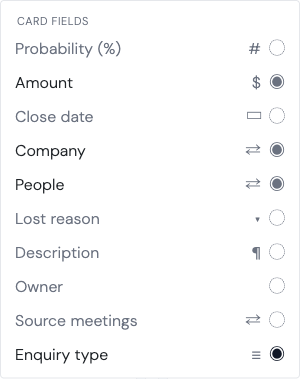
Open the board, click Card fields, and click the circle next to the field you want. Every card on that board now shows the field’s label and value.
Turn a field on
- Open Carly’s CRM and open the object, for example Deals.
- Click Board.
- Click Card fields above the board.
- Click the empty circle next to the field, for example Enquiry type. A filled circle means the field is on the cards.
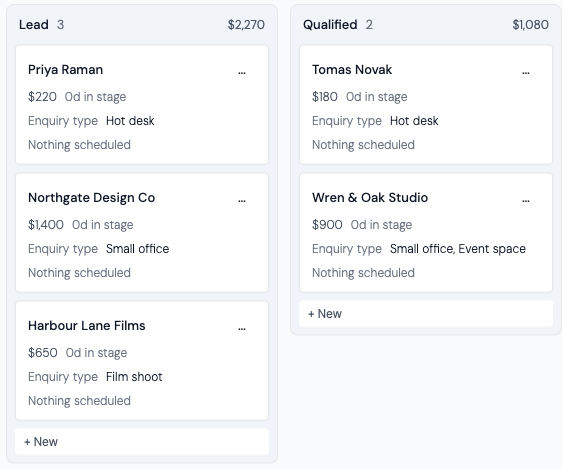
The change saves straight away and the board reloads with the field on every card:
To take a field off the cards, click its filled circle.
What to expect
- Until you change anything, cards show the amount, the company and the people.
- A multi-select field shows every chosen value on the card, separated by commas.
- A card leaves the field out when the record has no value for it.
- The setting belongs to the field, so it applies to every board and saved view of that object, for everyone in the workspace.
Troubleshooting
Why isn’t my field in the Card fields list?
The list leaves out the name and the stage, because the card’s title and its column already show them. Fields hidden from the object are left out too.
Can Carly turn on a card field for me?
Not yet. Use Card fields on the board. It takes one click.
Last verified: November 19, 2026.
Ready to automate your busywork?
Carly schedules, researches, and briefs you—so you can focus on what matters.
See what people say
"Before Carly, I relied on a Calendly link, but the whole process felt impersonal and not very professional. Carly changed that by handling all the back-and-forth, so I'm no longer stuck in endless email threads trying to line up schedules.
Now Carly reaches out to candidates, shares my real-time availability, lets them pick a slot, then sends a Zoom link and drops it straight into my calendar. She sends reminders to both of us before each call, which has significantly reduced no-shows and last-minute confusion.
On top of scheduling, Carly acts like a full executive assistant, sending me my schedule the night before so I can prepare for each call. It reminds me of the old x.ai assistant, but Carly is noticeably smarter, faster, and better suited to my healthcare recruitment business."