How to Subscribe to an RSS Feed (2026): A Step-by-Step Guide
RSS is the quiet backbone of the open web. It lets you follow any blog, news site, podcast, or YouTube channel without an algorithm deciding what you see, without an email list, and without checking each site one by one. You subscribe once, and every new post shows up in one place — in the order it was published, with nothing skipped.
This guide covers how to subscribe to an RSS feed from scratch: picking a reader, finding a feed URL, adding it, and following sites that try to hide their feed.
What “Subscribing” to RSS Actually Means
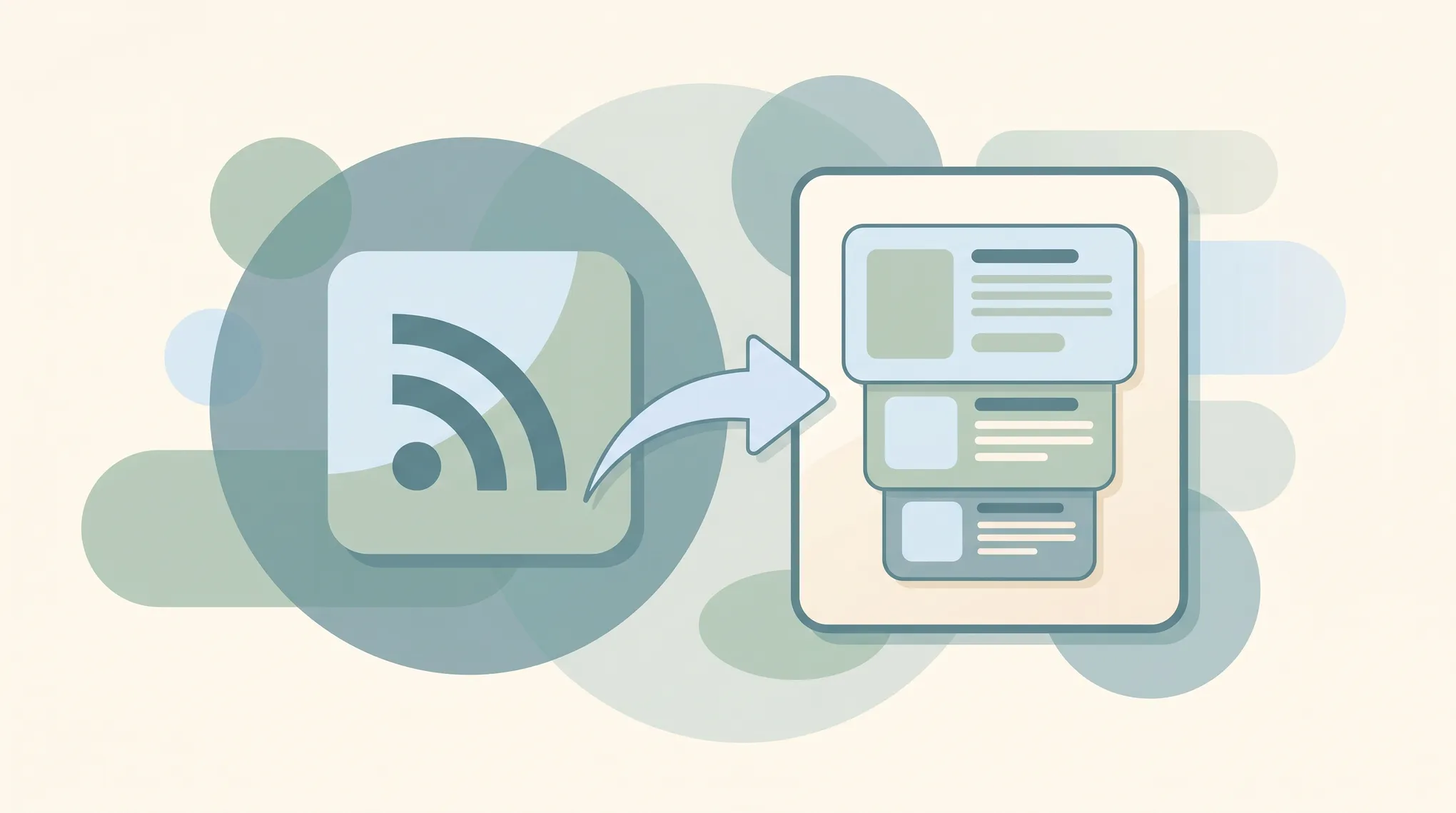
RSS stands for Really Simple Syndication. A feed is just a machine-readable file (usually ending in .xml) that a website updates every time it publishes something new. You don’t read that file directly — you point a feed reader at it, and the reader checks for updates and shows you new items in a clean, email-like inbox.
“Subscribing” means saving a feed’s address into your reader. After that, the reader does the polling for you. There’s no account to make with the website, no email handed over, and nothing the site can use to spam you. You can unsubscribe at any time and the site never knows.
Step 1: Choose a Feed Reader
You need a reader before you can subscribe to anything. The good ones sync across your phone and computer so your read/unread state follows you. Popular choices in 2026:
| Reader | Best for | Price |
|---|---|---|
| Feedly | Beginners; clean apps, AI summaries | Free / paid tiers |
| Inoreader | Power users; rules, filters, search | Free / paid tiers |
| NetNewsWire | Apple users who want fast and free | Free, open source |
| Feedbin | A simple, paid, no-nonsense web reader | Paid |
| The Old Reader | Google Reader nostalgics | Free / paid |
If you’re not sure, start with Feedly or NetNewsWire (on Apple devices). You can export your subscriptions as an OPML file later and move to any other reader without losing anything — RSS is an open standard, so you’re never locked in.
Step 2: Find the Feed URL
This is the part that trips people up, because feeds are often hidden in plain sight. Try these in order:
1. Look for the RSS icon or a “Subscribe” link. The classic orange icon (a dot with two arcs) or a footer link labeled RSS, Feed, or Subscribe usually points straight at the feed.
2. Just paste the homepage URL. Most modern readers — Feedly, Inoreader, NetNewsWire — will take a plain site address like example.com and automatically discover the feed behind it. This works the majority of the time, so try it first.
3. Guess the feed path. If a site is on a common platform, the feed usually lives at a predictable address. Add one of these to the end of the site’s URL:
/feed/rss/feed.xml/atom.xml/index.xml
For example, a WordPress site at example.com almost always has a feed at example.com/feed.
4. View the page source. As a last resort, open the page’s HTML source (right-click → View Page Source) and search for application/rss+xml or application/atom+xml. The href next to it is the feed URL.
Step 3: Add the Feed to Your Reader
Once you have the feed or site URL, adding it is the easy part. The wording differs slightly by app, but the flow is the same:
- In your reader, click Add content, Follow, +, or Subscribe.
- Paste the feed URL (or the homepage URL).
- The reader shows a preview of recent posts — confirm it’s the right site.
- Click Follow / Add / Subscribe.
That’s it. From now on, every new post from that site appears in your reader automatically, no checking required.
Step 4: Organize Your Subscriptions
A handful of feeds is fine as one list. A few dozen needs structure, or your reader becomes the same overwhelming firehose you were trying to escape.
- Use folders or tags to group feeds by topic: News, Industry, Blogs I love, Read later.
- Separate high-volume from low-volume. Put a site that posts 30 times a day in its own folder so it doesn’t bury the blog that posts once a month.
- Star or save the items worth coming back to, instead of leaving everything marked unread.
A clean habit: skim by folder, mark-all-as-read without guilt, and trust that anything important will keep showing up.
Subscribing to Things That Aren’t Obvious Blogs
RSS reaches further than most people realize:
- YouTube channels — add
https://www.youtube.com/feeds/videos.xml?channel_id=CHANNEL_ID(find the channel ID in the channel’s URL or page source) to get new uploads as a feed. - Podcasts — the show’s RSS feed is the podcast; paste it into a reader to follow show notes and episodes.
- Reddit — append
.rssto almost any subreddit or user URL, e.g.reddit.com/r/rss.rss. - Newsletters — services like Kill the Newsletter generate an RSS feed from any email newsletter, so you can read it in your feed reader instead of your inbox.
What to Do When a Site Hides Its Feed
Plenty of sites still publish a feed but don’t advertise it — and some platforms have quietly removed the visible link to push you toward email or an app. When the homepage-URL trick fails:
- Try the common feed paths from Step 2 anyway; they often still work even when unlinked.
- Use a feed-generator service (like RSS.app or Feedly’s built-in tools) that builds a feed from a page that doesn’t offer one.
- Check the site’s
/sitemap.xml— sometimes the feed is referenced there.
When Following Everything Becomes Its Own Job
RSS solves the delivery problem — every new post lands in one place, in order, untouched by an algorithm. But it doesn’t solve the attention problem. Subscribe to enough feeds and you’re back to a thousand unread items, skimming headlines and hoping you don’t miss the one that mattered.
That’s the gap Carly fills. Carly is an AI assistant that connects to 200+ apps and can monitor your feeds, summarize what’s new, and send you a short briefing of only the items worth your time — so you stay current without reading every post yourself. You handle the reading that matters; Carly handles the triage. Carly starts at $35/month.
More guides: What is workflow automation? · Best AI productivity tools · What is a prompt?
Ready to automate your busywork?
Carly schedules, researches, and briefs you—so you can focus on what matters.
See what people say
"Before Carly, I relied on a Calendly link, but the whole process felt impersonal and not very professional. Carly changed that by handling all the back-and-forth, so I'm no longer stuck in endless email threads trying to line up schedules.
Now Carly reaches out to candidates, shares my real-time availability, lets them pick a slot, then sends a Zoom link and drops it straight into my calendar. She sends reminders to both of us before each call, which has significantly reduced no-shows and last-minute confusion.
On top of scheduling, Carly acts like a full executive assistant, sending me my schedule the night before so I can prepare for each call. It reminds me of the old x.ai assistant, but Carly is noticeably smarter, faster, and better suited to my healthcare recruitment business."