How to Sync Google Calendar with Slack (Status, Reminders & Availability)
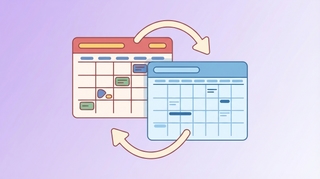
Slack and Google Calendar work better together than separately. Once connected, Slack can automatically flip your status to “In a meeting,” send you DM reminders before calls, and let teammates check your availability without leaving the app. Here’s how to set all of that up.
1. Connect Google Calendar to Slack
Slack has an official Google Calendar app that handles the core integration. Here’s how to install it:
- Open Slack and click Apps in the left sidebar (or go to the Slack App Directory in a browser).
- Search for Google Calendar and select the app published by Slack.
- Click Add to Slack.
- On the authorization screen, click Allow to give Slack access to your Google Calendar.
- You’ll be prompted to sign in to your Google account — choose the account whose calendar you want to connect.
- Once authorized, you’ll get a DM from the Google Calendar bot confirming the connection.
What the integration does by default:
- Sends you DM reminders before calendar events
- Updates your Slack status automatically when you’re in a meeting
- Lets you RSVP to Google Calendar invites directly from Slack
- Shares your availability with teammates via
/gcalcommands
If you’re on a managed Slack workspace and don’t see the option to add apps, ask your Slack admin to approve the Google Calendar app.
2. Set Up Auto-Status Updates
With the Google Calendar app installed, Slack can automatically change your status to “In a meeting” whenever you have an active calendar event — and clear it when the event ends.
- Click your profile photo in the top-right corner of Slack.
- Select Update your status.
- Scroll to the Google Calendar section and toggle on Update my status based on my calendar events.
- Optionally set whether to clear your status automatically when the event ends.
You can also configure this through the Google Calendar app’s settings:
- Open the Google Calendar app in Slack (find it in the Apps section of the sidebar).
- Click Home.
- Under Status Updates, toggle on automatic status sync.
Supported status text options vary but typically include “In a meeting” and “On a call.” You can customize the emoji if your workspace allows it.
3. Get Meeting Reminders in Slack
The Google Calendar app sends DM reminders before your events so you don’t have to keep an eye on the calendar tab. By default, you get a reminder 10 minutes before each event. To adjust this:
- Open the Google Calendar bot in Slack.
- Click Home.
- Under Notifications, adjust the reminder timing — options typically include 5, 10, 15, or 30 minutes before an event.
- You can also turn off reminders for events you’ve declined or tentatively accepted.
Each reminder includes the event name, time, attendees, and a link to join the video call (Google Meet, Zoom, etc.) if one is attached. You can RSVP directly from the reminder without leaving Slack.
4. Show Your Calendar Availability in Slack
The /gcal slash command lets you share your availability or upcoming schedule directly in a Slack message.
Useful commands:
/gcal— opens the Google Calendar app home/gcal today— shows your events for today/gcal tomorrow— shows tomorrow’s schedule/gcal next week— shows upcoming events for next week
To share your availability with a teammate, type /gcal in the message box of a DM or channel, select Share my availability, and it will post a summary of your open times. Teammates can see your free windows without you having to type them out manually.
If you’re scheduling a meeting and want to let someone pick from your actual open slots, tools like Carly handle this conversationally — you forward the scheduling request and it proposes times based on your Google Calendar, which then sync to Slack automatically once the event is booked.
5. Automate Slack Notifications from Calendar Events (Power Users)
For more control — like posting to a channel when a specific type of event starts, or notifying a team when a meeting is created — you can use Zapier or Make (formerly Integromat) to build custom automations.
Example Zapier setup:
- Create a new Zap.
- Set the Trigger to Google Calendar → Event Start (or “New Event Created”).
- Set the Action to Slack → Send Channel Message.
- Map the event name, time, and attendees to the Slack message body.
- Add filters if you only want to trigger on events with specific keywords (e.g., “Client Call” or events on a particular calendar).
This is useful for team calendars — for example, posting a daily standup reminder to a channel each morning, or alerting a team channel whenever a new client meeting is booked. Zapier’s free tier allows limited Zaps; most calendar-to-Slack automations fit within it.
6. Troubleshooting Common Issues
Status isn’t updating automatically
- Check that the Google Calendar app has permission to update your Slack status. Go to the app’s Home tab and verify the toggle is on.
- Make sure the Google account connected to Slack is the same one your calendar events are on.
- Events marked as “Free” in Google Calendar won’t trigger a status update — change the event’s busy/free setting if needed.
Not receiving reminders
- Confirm your Slack notification settings aren’t pausing DMs. If you have Do Not Disturb enabled, Slack won’t deliver the reminder until DND ends.
- Check the Google Calendar app’s notification settings to confirm reminders are turned on and the timing is set.
Can’t install the Google Calendar app
- Your Slack workspace may restrict app installations. Contact your Slack admin and ask them to approve the Google Calendar app in workspace settings under Settings & administration → Manage apps.
Events from a secondary calendar aren’t syncing
- The Google Calendar app connects to your primary Google Calendar by default. To include other calendars (shared team calendars, secondary accounts), you may need to grant additional permissions or check if your plan supports multi-calendar sync.
RSVP updates in Slack aren’t reflecting in Google Calendar
- Log out and re-authorize the Google Calendar app. Revoke and re-grant access by going to your Google account permissions, removing Slack’s access, then reconnecting through the Slack App Directory.
Ready to automate your busywork?
Carly schedules, researches, and briefs you—so you can focus on what matters.
Get Carly Today →Or try our Free Group Scheduling Tool