How to Use Board View in Asana (2026 Guide)
Board view turns an Asana project into a Kanban board: columns for each stage, cards you drag from one to the next as work moves. It’s available on every plan, and it reads the same tasks as your List view — just laid out visually. Here’s how to use it.
1. Switch to Board View
- Open the project.
- In the view tab bar, click Board.
- If there’s no Board tab, click the +, choose Board, and it’s added to the project.
List and Board show the same tasks. Switching views never moves or deletes anything — it’s just a different layout.
2. Set Up Your Columns
Columns in Board view are sections:
- Click Add section (the + beside the last column).
- Name each column for a stage of your workflow — for example, To do, In progress, In review, Done.
- Drag column headers left or right to reorder them.
Keep the number of stages small. Three to five columns is usually enough to see flow without scrolling sideways.
3. Move Work Across the Board
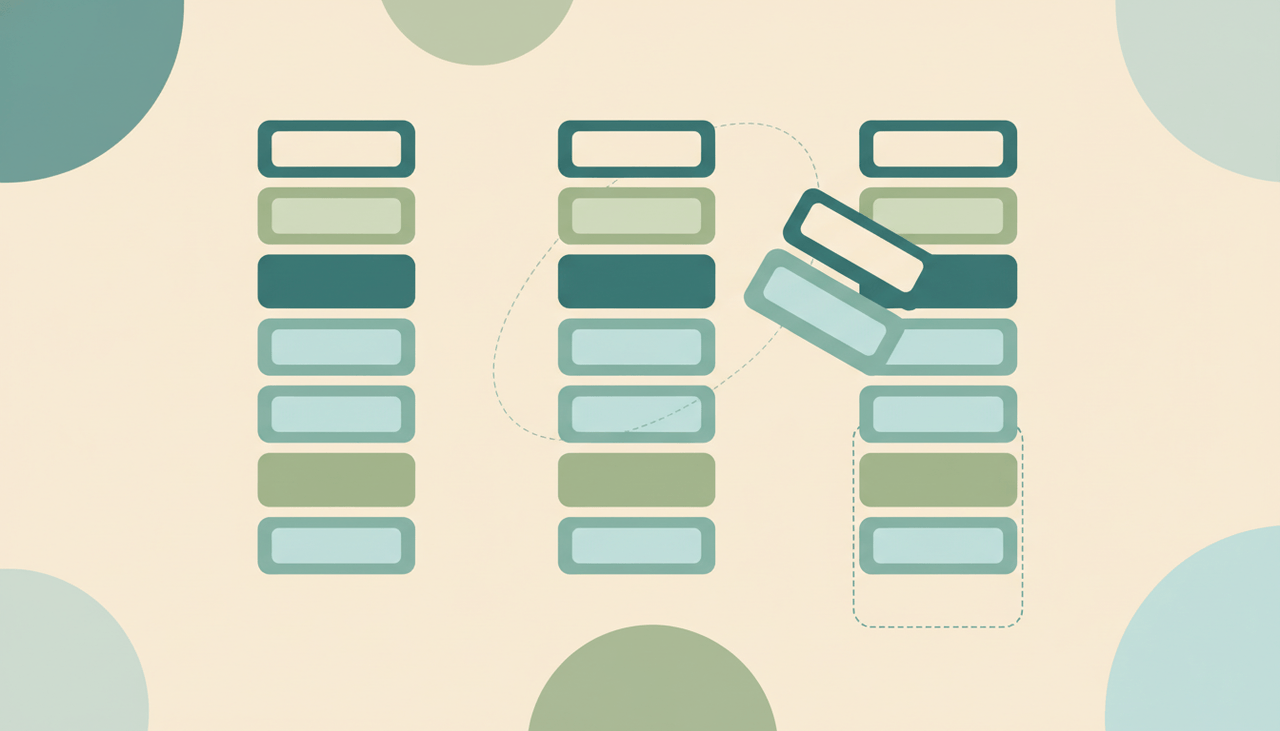
- Drag a card from one column to the next as it progresses.
- Add a task directly in a column with the + Add task at the top of it.
- Open a card to see and edit the full task — assignee, due date, subtasks, comments, custom fields — without leaving the board.
Moving a card to a new column just changes its section; all its other details stay intact.
4. Customize the Cards
Make the board readable at a glance:
- Show fields on cards: turn on due dates, assignees, and key custom fields so you don’t have to open each card.
- Color by: color cards by a custom field (e.g., priority) to spot what matters.
- Set covers: add image covers for design or content boards.
5. Sort, Filter, and Set a Default
- Filter to one assignee or field value when the board gets busy.
- Sort within columns by due date or priority.
- Set as default: click the view’s options and Set as default view so the project opens on Board for everyone.
6. Troubleshooting
There’s no Board tab
Click the + in the view bar and add Board. Any project can show both List and Board.
My sections look different in List view
Columns in Board are sections in List — the same thing shown two ways. Renaming or reordering in one updates the other.
Dragging a card didn’t stick
Usually a brief sync delay or a filter hiding the card in its new column. Refresh, and clear any active filter that excludes the card’s new section.
I want subtasks to show as cards
Subtasks don’t appear on the board unless you multi-home them into the project. See how to use subtasks in Asana.
Switching to Board lost my custom field columns
List columns and Board card fields are configured separately. Use Customize → Fields (or the card field toggles) to show the same fields on cards.
More on Asana: How to use calendar view in Asana · How to create a Gantt chart in Asana · How to use custom fields in Asana · How to use subtasks in Asana. To move cards across your board automatically as work happens elsewhere, see Carly’s Asana integration.
Ready to automate your busywork?
Carly schedules, researches, and briefs you—so you can focus on what matters.
See what people say
"Before Carly, I relied on a Calendly link, but the whole process felt impersonal and not very professional. Carly changed that by handling all the back-and-forth, so I'm no longer stuck in endless email threads trying to line up schedules.
Now Carly reaches out to candidates, shares my real-time availability, lets them pick a slot, then sends a Zoom link and drops it straight into my calendar. She sends reminders to both of us before each call, which has significantly reduced no-shows and last-minute confusion.
On top of scheduling, Carly acts like a full executive assistant, sending me my schedule the night before so I can prepare for each call. It reminds me of the old x.ai assistant, but Carly is noticeably smarter, faster, and better suited to my healthcare recruitment business."