How to Use Sections in Todoist (2026 Guide)
A project with thirty loose tasks is a wall of text. Sections break it into labeled groups — To Do / Doing / Done, or This Week / Next Week, or by workstream — so you can see structure at a glance. They also double as Kanban columns in Board view. Here’s how to set them up.
How to Add a Section
- Open the project.
- Hover in the space between two tasks (or at the top) until Add section appears, and click it. (You can also use the project’s three-dot menu → Add section.)
- Type the section name and press Enter.
Repeat to build out the structure. Tasks added below a section heading belong to that section.
Moving Tasks Into Sections
Two ways:
- Drag a task up or down into the section you want.
- Open the task’s menu, choose Move to, and pick the section.
When adding via Quick Add inside a project, you can also type the section reference (/SectionName) to drop the task straight into it.
List View vs. Board View
Sections look different depending on layout — toggle it from the project’s view options (top-right):
| Layout | How sections appear | Best for |
|---|---|---|
| List | Stacked, collapsible headings | Reading top-to-bottom, dense projects |
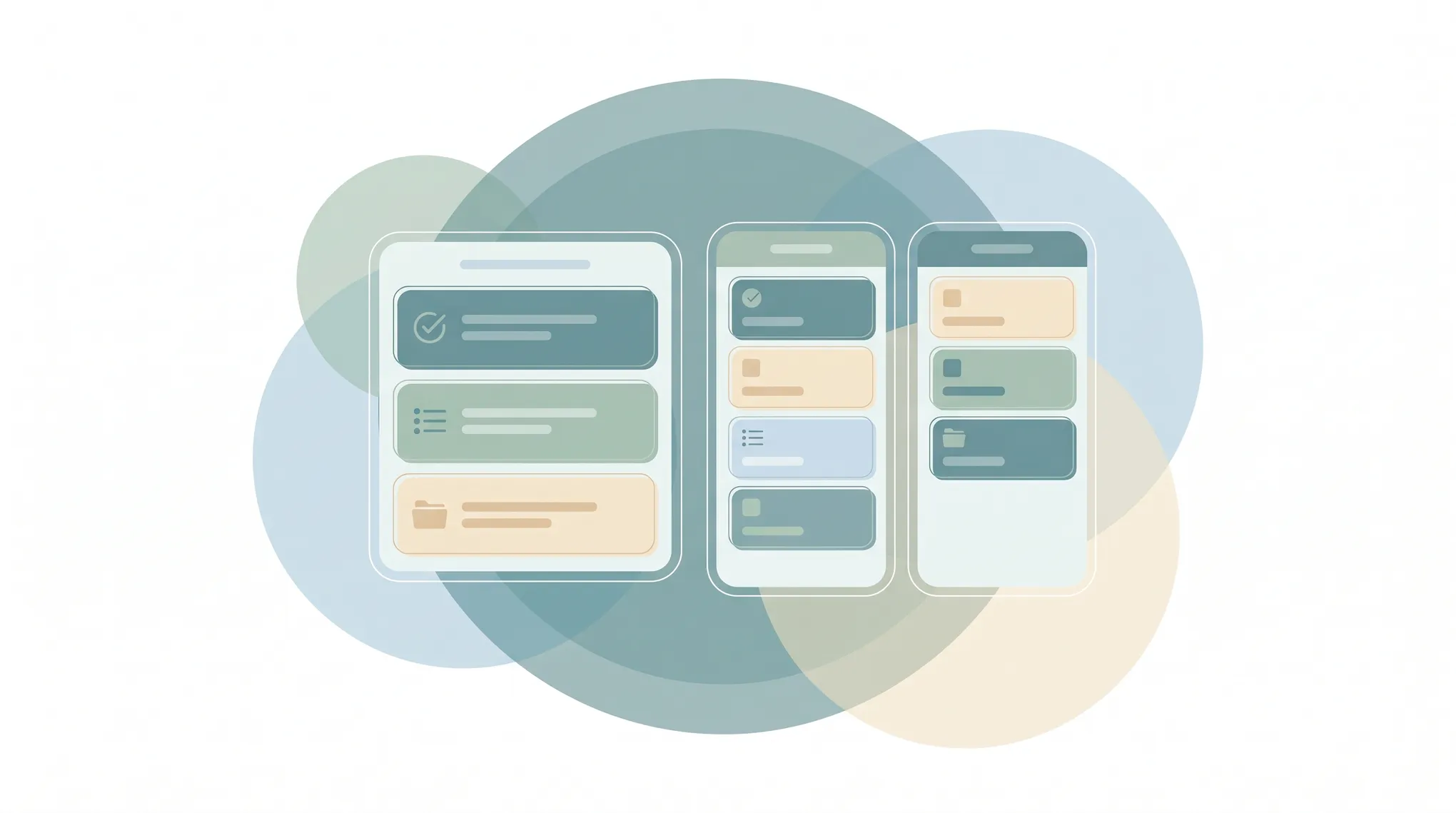
| Board | Side-by-side columns | Workflow stages you drag tasks across (To Do → Doing → Done) |
In Board view, dragging a task from one column to the next is moving it between sections — handy for tracking progress visually.
Reordering and Managing Sections
- Reorder: grab a section heading and drag it up or down; its tasks move with it.
- Rename: click the section’s three-dot menu → Edit.
- Collapse: click the arrow next to a section name to fold it away (it shows a task count). Keeps long projects scannable.
- Delete: section menu → Delete. You’ll be asked whether to delete the tasks inside or keep them (they move to the project with no section).
Good Section Structures
A few patterns that work:
- Workflow stages: To Do · In Progress · Review · Done (pairs perfectly with Board view)
- Time horizons: Today · This Week · This Month · Someday
- Workstreams: Design · Copy · Development · QA
- Recurring buckets: Daily · Weekly · Monthly for a routines project
Pick one axis and stick to it within a project — mixing “In Progress” with “This Week” in the same project muddies both.
Sections vs. Subtasks vs. Projects
Easy to conflate — here’s the distinction:
- Project — a whole area or initiative (#Website Redesign).
- Section — a group of tasks inside that project (Design, Dev).
- Subtask — the steps of a single task (see How to create subtasks in Todoist).
Sections group peers; subtasks break down one task.
Common Section Issues
Can’t find “Add section.” Hover precisely between tasks — the option only appears in the gap. Or use the project’s three-dot menu.
Deleted a section and lost tasks. When deleting, choose keep tasks if you only meant to remove the heading. If you deleted the tasks too, recover them from the project’s activity log or completed view.
Sections won’t show as columns. You’re in List layout — switch the project to Board in view options.
A Tidy Project Still Has to Move
Sections make a project easy to read, but the tasks inside each one still have to get done and shuffled along as work progresses. Carly is an AI assistant that connects to 200+ apps including Todoist and can organize projects, move work through its stages, and keep things current — so a well-structured board reflects real progress, not just a tidy starting point.
More on Todoist: How to create subtasks in Todoist · How to use Todoist templates · How to use Todoist · Todoist alternatives · Best to-do list apps
Ready to automate your busywork?
Carly schedules, researches, and briefs you—so you can focus on what matters.
See what people say
"Before Carly, I relied on a Calendly link, but the whole process felt impersonal and not very professional. Carly changed that by handling all the back-and-forth, so I'm no longer stuck in endless email threads trying to line up schedules.
Now Carly reaches out to candidates, shares my real-time availability, lets them pick a slot, then sends a Zoom link and drops it straight into my calendar. She sends reminders to both of us before each call, which has significantly reduced no-shows and last-minute confusion.
On top of scheduling, Carly acts like a full executive assistant, sending me my schedule the night before so I can prepare for each call. It reminds me of the old x.ai assistant, but Carly is noticeably smarter, faster, and better suited to my healthcare recruitment business."