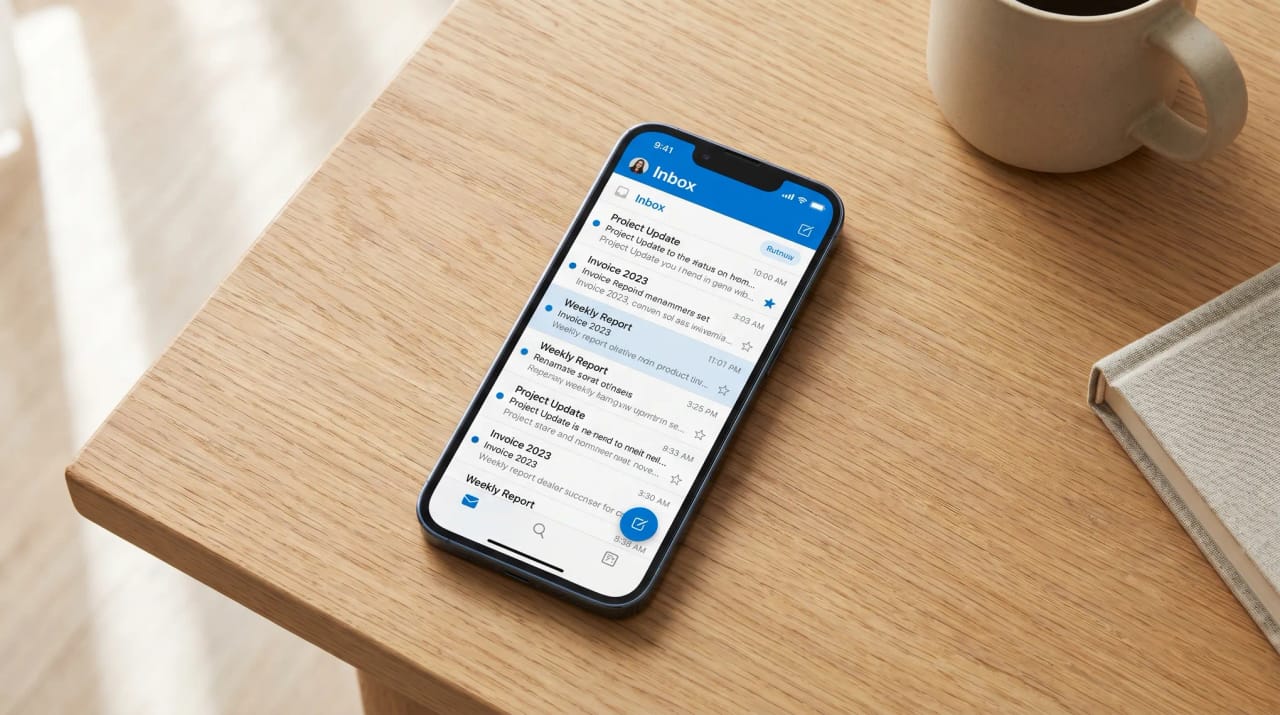
14 Best AI Assistants for Outlook (2026 Rankings)
If you live in Outlook, most “best AI assistant” listicles read like they were written for someone else. The tools rank the same Gmail-first contenders, the screenshots are all Gmail, and Outlook gets a single line that says “also supports Outlook,” which usually means the OAuth button works and not much else.
Outlook isn’t a niche client. It’s the default for enterprise, finance, healthcare, government, legal, and most Fortune 500 companies. An Outlook user looking for AI doesn’t need another chatbot. They need something that actually understands Microsoft 365: Outlook calendar, Teams, OneDrive, SharePoint, the whole stack.
We tested 14 AI assistants that claim to work with Outlook for two weeks each. We tracked feature parity with their Gmail versions, measured time saved in real workflows, and noted which ones were still in our routine on day 14.
One finding shaped the rest: the two assistants most people now reach for first, ChatGPT and Claude, both put their Outlook access behind a Microsoft Entra administrator. Claude will not connect a personal Outlook.com address at all. If nobody in your org can grant org-wide consent, half this list is closed to you before you start.
The biggest wins for Outlook users come from agent platforms that can act across Outlook, Teams, and your CRM, not from any single Outlook plugin. Microsoft Copilot handles the obvious in-Outlook tasks well but doesn’t act in non-Microsoft tools. Email-focused tools save real time but only solve email.
Why Outlook Is Different (And Why Most AI Tools Stumble)
Outlook isn’t just Gmail with a different paint job. The data model is different (folders instead of labels), the API is different (Microsoft Graph instead of Gmail API), the calendar quirks are different (shared calendars, room booking, delegate access), and the compliance posture is different (DLP, sensitivity labels, retention policies, Conditional Access).
AI tools built Gmail-first hit walls on Outlook around: shared calendar reads, encrypted/labeled email, threaded conversation parsing across Reply All chains, distinguishing personal Outlook.com from Microsoft 365 Business, and respecting tenant-level admin policies.
The tools that actually work with Outlook either build to Microsoft Graph natively or treat the Outlook integration as a first-class citizen with full permission scoping. Tools that “support” Outlook by polling IMAP miss most of what makes Outlook valuable in the first place.
How We Evaluated
Each tool got two weeks of real use in a Microsoft 365 environment. We measured:
Outlook feature parity: Does it work the same way in Outlook as it does in Gmail?
Microsoft 365 depth: Does it understand Teams, OneDrive, SharePoint, and Outlook calendar quirks?
Setup friction: M365 admin consent is a real thing. How painful was authorization?
Time saved per week in the Outlook environment specifically.
Stickiness: Were we still using it at day 14?
AI Agent Platforms
The category that’s most underserved for Outlook users, and the one with the biggest payoff when it works.
1. Carly AI
Carly AI is the strongest fit for Outlook users because it works with Outlook rather than competing with it. You build AI agents, each with its own name, email address, instructions, and memory, that connect to Outlook through the Microsoft 365 integration. You forward emails to your agent, CC it on threads, or have clients email it directly. The agent reads, decides, and acts without anyone needing a new app.
For Outlook users specifically, the value is that your inbox stays in Outlook. Your calendar stays in Outlook. The agent handles the work through Outlook actions: scheduling, follow-ups, CRM updates, document gathering, meeting prep. No browser extension. No replacement client. No behavior change for the people you correspond with.
Carly’s 260+ integrations across 45+ categories cover the Microsoft side cleanly: Outlook, Outlook calendar, Microsoft Teams, OneDrive, SharePoint, Excel, Dynamics 365, plus the third-party tools that run on top of Microsoft stacks: Salesforce, HubSpot, Asana, Linear, Slack (when you use it for cross-team chat), Zoom, Webex, Fathom, Fireflies. If your CRM is Dynamics 365, your project tracker is Asana, and your contracts live in SharePoint, one Carly agent can move work across all of them.
A concrete workflow we ran: an Outlook user gets a meeting request. A Carly scheduling agent reads the email, checks Outlook calendar, proposes three times around existing focus blocks, sends the response, books the meeting in Outlook with a Teams link, updates the Dynamics 365 deal, and creates a meeting prep task in Asana. Total user time: zero. The booked meeting appears in Outlook 30 seconds later.
Best for: Outlook users who want Gmail-tier AI automation without leaving the Microsoft ecosystem
Key features:
- Build specialized AI agents: each gets its own name, email, instructions, and memory
- 260+ integrations across 45+ categories: Outlook, Teams, OneDrive, SharePoint, Dynamics 365, Salesforce, HubSpot, and more
- Agents work through email and SMS, so colleagues and clients don’t need a new app
- Handles Outlook scheduling, email triage, meeting prep, CRM updates, document gathering, task creation
- Agents learn your patterns: Outlook folder structure, meeting preferences, frequent contacts, Teams habits
- Run multiple agents in parallel: sales follow-up, recruiting coordinator, client intake, internal admin
Pricing: Free Zapier-style workflows; AI agents from $35/month
Limitations: Setup involves authorizing Outlook and other tools. If your IT requires admin consent for new app permissions, plan for that conversation. The first agent is most valuable after a couple of days of refinement, and the first 30 days guide walks through it.
Why it stands out: In testing, a single Carly agent handling Outlook scheduling, meeting prep, and CRM updates saved an Outlook user 5.2+ hours per week, and the bigger win was the absence of behavior change. Colleagues and clients saw normal email replies; the user just had hours of their week back.
For broader context, see how to build AI employees, the best AI agent platforms ranking, our pick for the best AI assistant for Outlook email, and the full Carly use cases directory.
2. Lindy
Lindy is an AI executive assistant that runs your inbox. It connects to Outlook, Teams, and Microsoft 365, drafts replies in your voice, schedules meetings, takes notes, and texts you what matters from iMessage.
Best for: People who want a proactive inbox assistant and are happy reviewing and sending its drafts
Key features:
- Inbox triage and voice-matched draft replies
- Outlook, Teams, and Microsoft 365 integrations
- Meeting scheduling, prep, and notes
- Proactive iMessage/SMS alerts
Pricing: 7-day free trial, paid plans from $29.99/month
Limitations: Lindy drafts and waits for your approval, so you’re still the last step on every reply, and it can stall on multi-step work. Outlook depth is solid for email and calendar but lighter on the Microsoft 365 side (Teams, SharePoint, OneDrive). If you’d rather the work just get done, Carly is the more reliable alternative, because its agents finish the job end-to-end. For a deeper comparison, see Lindy alternatives.
General-Purpose Assistants with Outlook Connectors
The two big chat assistants both reach Outlook properly now, and both hide the same catch: a Microsoft Entra administrator decides how much of it you get. Neither is a self-serve install.
3. ChatGPT Work
ChatGPT’s Outlook app is a genuinely deep mailbox integration. It searches your mail with real structured syntax (from:, subject:, and date filters), returns full message text, and since 2026 it drafts and sends from your connected account, showing you the message before it goes.
Sending is no longer the dividing line; being present is. ChatGPT and Claude will both put a message in the outbox once you confirm it, and Claude's Microsoft 365 side refuses attachments outright. Neither of them writes the reply that has to go out while you are in a meeting. Carly does that, from all of the accounts you connect.
The capability most people miss is shared mailboxes. Give it the exact mailbox owner address and it reads a shared or delegated mailbox, browses its folders, marks messages read or unread, moves them, and sends from or on behalf of that mailbox. For anyone running a support@ or billing@ alias out of Outlook, that is the feature worth the seat.
Best for: Outlook users on a managed Microsoft 365 tenant who want deep mailbox search and shared-mailbox handling inside a chat assistant
Key features:
- Structured mailbox search with
from:,subject:, and date filters, returning full message bodies - Drafts and sends Outlook mail, with a confirmation step before anything leaves
- Shared and delegated mailbox support, including sending on behalf of the mailbox
- Creates, updates, and deletes Outlook contacts and contact folders when actions are enabled
- Four-level permission model, defaulting to asking before important actions
Pricing: Plus $20/month for individuals; Business $25/user/month monthly or $20/user/month annual, two-user minimum
Limitations: Three real ones. Your own calendar is read-only no matter what: OpenAI states that “calendar event data, including event descriptions, is read-only,” so it will never book a meeting for you. Attachments in shared or delegated mailboxes cannot be retrieved at all. And the whole app sits behind a Microsoft Entra administrator, who grants org-wide consent and then separately chooses whether you get all actions, read-only, or a custom set. OpenAI is blunt that “approval of scopes does not immediately make all actions available to users.” See ChatGPT Work and Outlook for the full permission map, and ChatGPT Work alternatives if the admin gate is a blocker.
4. Claude and Claude Cowork
Claude’s Microsoft 365 connector reads Outlook, SharePoint, OneDrive, and Teams, and it is available on every Claude plan including Free. Since July 2026 it also writes: Anthropic’s write tools let Claude send email, manage drafts and calendar events, update mailbox settings, and create files. Unlike ChatGPT, Claude can create and update calendar events, which makes it the better of the two for scheduling.
Claude Cowork is the agentic surface on top of the same connectors, so its Outlook reach is identical to Claude’s plus the ability to run long scheduled tasks.
Best for: Microsoft 365 business tenants that want an assistant which can book meetings as well as send mail
Key features:
- Microsoft 365 connector on every plan, Free through Enterprise
- Write tools cover sending mail, drafts, calendar events, mailbox settings, and OneDrive and SharePoint files
- Creates and updates calendar events, which ChatGPT’s Outlook app cannot do
- Reads shared mailboxes you have delegate access to, with no setup beyond existing Microsoft delegation
- Cowork adds scheduled tasks that run remotely without your machine on
Pricing: Free tier reads only; Pro $20/month ($17 annual), Max from $100/month, Team $20/seat/month annual
Limitations: The big one for this list is that personal Outlook accounts do not work at all. Anthropic requires “a Microsoft Entra tenant tied to a Microsoft Business plan,” and states plainly that personal Microsoft accounts such as @outlook.com or @hotmail.com “can’t be used to connect.” If your Outlook is a personal address, Claude is not an option. Beyond that: write tools need an Entra Global Administrator to re-consent and an org owner to switch them on, and organizations that connected before the write launch have them blocked by default. Attachments are rejected on every send, forward, and draft. Sent mail carries a header identifying it as agent-initiated. Email search skips the Online Archive. And Cowork’s unattended runs stay read-only, because M365 write tools need you live in the conversation. See Claude Cowork limitations and can Claude Cowork send emails.
Microsoft-Native AI
Built by Microsoft, for Microsoft. Deepest Outlook integration on the market, with tradeoffs in flexibility and cost.
5. Microsoft Copilot for Microsoft 365
Microsoft Copilot lives directly inside Outlook, Word, Excel, PowerPoint, and Teams. In Outlook specifically, it summarizes long threads, drafts replies, suggests meeting times, and pulls context from across your Microsoft 365 data (Graph). No tool is more tightly integrated.
Best for: Microsoft 365 organizations that want AI inside the apps employees already use
Key features:
- Native Outlook integration: no extension or external app
- Thread summarization and reply drafting
- Meeting suggestions inside Outlook calendar
- Cross-app context across Word, Excel, PowerPoint, Teams, OneDrive, SharePoint
- Enterprise-grade compliance (data stays in your tenant)
Pricing: $30/user/month (Microsoft 365 Copilot license, requires existing M365 subscription)
Limitations: Doesn’t act in non-Microsoft tools like Salesforce, HubSpot, Asana, or Linear. Drafting and summarization are strong; autonomous multi-step workflows aren’t its job. Requires admin rollout and license assignment, which slows adoption in larger orgs.
Email-Focused AI Assistants
These tools focus narrowly on email: drafting, triaging, filtering. They don’t manage scheduling or take action in your CRM, but they handle the inbox extremely well.
6. Mailmaestro
Mailmaestro is an Outlook-native AI email assistant. It plugs into Outlook (desktop and web) and helps with drafting, replying in your voice, and summarizing long threads. Unlike many tools that “support” Outlook, Mailmaestro was built Outlook-first.
Best for: Outlook users who want AI drafting that matches their voice and style
Key features:
- Native Outlook plugin (desktop, web, mobile)
- AI reply drafting that learns your tone
- Thread summarization
- Translation built in (helpful for global teams)
- Works with personal Outlook and Microsoft 365 Business
Pricing: Free tier available, Pro at $14.99/month
Limitations: Email-only, so no calendar, no CRM, no broader workflows. The voice-matching is good but takes a couple weeks of corrections to settle. Free tier has request limits. See Mailmaestro alternatives for adjacent options.
7. Tasklet
Tasklet is an AI email assistant focused on email automation across Gmail and Outlook. It triages, drafts, and follows up on threads using rules you define in plain English.
Best for: Power email users who want rule-based automation without writing code
Key features:
- Outlook and Gmail support
- Plain-English rules for inbox triage and replies
- Auto-followups on stale threads
- Templates and snippets
Pricing: From $20/month
Limitations: Email-only by design. Outlook support exists but is less polished than the Gmail version. For deeper comparisons, see Tasklet alternatives.
8. Fyxer
Fyxer is an AI email assistant that drafts replies, organizes your inbox, and writes meeting notes from Teams or Zoom calls. Outlook is fully supported alongside Gmail.
Best for: Knowledge workers spending hours per day on email and meetings
Key features:
- Reply drafting in your voice
- Inbox categorization and triage
- Meeting notes from Teams, Zoom, Google Meet
- Outlook and Gmail parity
Pricing: Free trial, then from $30/month
Limitations: Pricing is steeper than competitors. The meeting notes feature is solid but overlaps with dedicated tools like Otter. See Fyxer alternatives for similar tools.
9. SaneBox
SaneBox is a longstanding email filter that works equally well with Outlook and Gmail. It learns what’s important to you and shuffles everything else into folders so your inbox shows only what matters.
Best for: Anyone buried in Outlook email who wants set-and-forget triage
Key features:
- Works with any Outlook account (M365, Outlook.com, Exchange)
- SaneLater folder for low-priority mail
- SaneBlackHole to permanently mute senders
- Daily digest of filtered messages
- No browser extension required
Pricing: From $7/month
Limitations: It’s a filter, not an assistant. It won’t draft replies, schedule meetings, or update other tools. Two-day calibration period before sorting is accurate. See SaneBox alternatives for related tools.
10. Superhuman
Superhuman is a premium email client with native Outlook support. AI triages your inbox, drafts replies in your voice, and surfaces what matters, all in a keyboard-first interface built around inbox zero.
Best for: High-volume email users willing to pay for speed and AI features in one place
Key features:
- Native Outlook support (M365 and Outlook.com)
- AI triage and split inbox
- One-click drafted replies in your style
- Read statuses and follow-up reminders
- Keyboard-first interface optimized for speed
Pricing: $30/month
Limitations: Outlook support is newer than Gmail support, so some advanced features still trail. Replaces Outlook as your client, which is a behavior change you have to commit to. See Superhuman alternatives for cheaper options.
11. Spark Mail
Spark is a smart email client that supports Outlook accounts alongside Gmail and IMAP. It includes AI drafting, smart inbox sorting, and team-shared inboxes, and it’s much cheaper than Superhuman.
Best for: Teams and individuals who want shared inbox features plus AI drafting on a budget
Key features:
- Connects Outlook (M365, Outlook.com), Gmail, and IMAP accounts in one client
- AI reply suggestions and drafting
- Smart inbox with priority categorization
- Shared drafts for team email
- Cross-platform (Mac, iOS, Windows, Android)
Pricing: Free tier available, Premium from $5/user/month
Limitations: Like Superhuman, Spark replaces Outlook as your client. AI features are less polished than dedicated tools. For more options, see Spark alternatives.
Scheduling AI Assistants
Scheduling is the second-biggest time sink for Outlook users. These tools focus narrowly on calendar coordination.
12. Reclaim.ai
Reclaim.ai auto-schedules tasks, habits, and focus time around your meetings. Outlook calendar support is available, though the Google Calendar version remains the most polished.
Best for: Outlook users who want their calendar to defend their focus time automatically
Key features:
- Smart scheduling for tasks, habits, breaks, and focus blocks
- Booking links that respect your protected time
- Team availability coordination
- Outlook calendar support (M365)
Pricing: Free tier available, paid plans from $8/user/month
Limitations: Outlook support exists but feature depth lags Google Calendar. Habit configuration takes a few sessions to dial in. See Reclaim alternatives for related tools.
13. Clara
Clara is a long-running AI scheduling assistant built specifically around email-based meeting coordination. You CC Clara on a thread, and it negotiates the meeting time with the other party, using Outlook calendar (or Google) to know your availability.
Best for: Executives and salespeople who handle high volumes of external meeting coordination
Key features:
- Email-based scheduling: no booking link required
- Outlook and Google Calendar support
- Custom meeting types and rules
- Handles back-and-forth with external parties autonomously
Pricing: From $99/month (Personal plan)
Limitations: Expensive. Scope is narrow: scheduling only. Other parties sometimes notice they’re talking to an AI scheduler, which can feel impersonal in some contexts. See Clara alternatives for cheaper options.
Meeting Notes AI
The meeting layer of Microsoft 365: Teams, but also Zoom and Google Meet for cross-org meetings. These tools sit on calls and produce searchable notes.
14. Otter.ai
Otter joins your Teams (or Zoom or Meet) calls, transcribes them in real time, and produces summaries with action items. It integrates with Outlook calendar to auto-join scheduled meetings.
Best for: People who run a lot of meetings and need searchable notes
Key features:
- Auto-joins meetings from Outlook calendar
- Real-time transcription with speaker identification
- AI-generated summaries and action items
- Integrations with Salesforce, HubSpot, and Notion
- Searchable transcript library
Pricing: Free tier available, Pro at $16.99/month
Limitations: Notes-focused, so it doesn’t take action on what was discussed. Speaker identification is imperfect on noisy calls. Privacy and consent norms vary by org, so check before deploying widely.
How to Pick the Right AI Assistant for Outlook
If you want one platform that works across Outlook + Teams + your CRM + project tools: start with Carly AI. It’s the only tool here that operates across the Microsoft stack and the third-party tools that sit on top of it (Salesforce, HubSpot, Asana, Linear, etc.). Build one agent first, prove the ROI on scheduling or email triage, then expand. The first 30 days guide is the fastest path.
If you’re a pure Microsoft 365 shop and won’t touch non-Microsoft tools: Microsoft Copilot is the natural choice, since it’s deeply integrated and your data stays in your tenant. The catch is you’ll hit a wall the moment you need an AI that acts in Salesforce or Asana. Many teams end up running both: Copilot for in-app drafting, Carly for cross-tool workflows.
If you already pay for ChatGPT or Claude: connect the Outlook app you are already entitled to before buying anything else. ChatGPT Work is the stronger mailbox tool, especially for shared and delegated mailboxes. Claude is the stronger calendar tool, because it can actually create events. Both need an Entra administrator, and Claude additionally refuses personal Outlook.com addresses, so check those two gates before you plan around either.
If your problem is email volume and nothing else: Mailmaestro for Outlook-native drafting that matches your voice. SaneBox for cheap, effective filtering ($7/month). Superhuman for a premium client experience ($30/month). Spark for shared team inboxes on a budget. Fyxer or Tasklet if you want drafting plus follow-ups. Or build a Carly email agent that doesn’t just filter but reads, replies, and takes action across your other tools.
If your problem is scheduling: Reclaim.ai if defending focus time matters most. Clara for high-volume external scheduling at the executive level. Carly if you want email-based scheduling that doesn’t force the other party to use a booking link.
If meeting notes are the bottleneck: Otter for general-purpose transcription. Microsoft Copilot for tight Teams integration without a third-party tool.
If it’s only an Outlook problem, pick the specialist. If it’s a workflow problem, and for most teams it is, pick the platform that can act across Outlook and the other tools your work touches.
Quick Comparison: All 14 AI Assistants for Outlook
| Tool | Category | Best For | Price | Time Saved/Week |
|---|---|---|---|---|
| Carly AI | Agent Platform | Multi-tool workflows across Outlook, Teams, and your CRM | $35/mo | 5.2+ hrs |
| Lindy | AI executive assistant | Drafts you review and send | From $29.99/mo | 3.5 hrs |
| ChatGPT Work | General assistant | Deep mailbox search and shared mailboxes | $20/mo, Business $25/user/mo | Varies by tenant |
| Claude / Cowork | General assistant | Business tenants that need calendar writes too | Free–$20/mo, Team $20/seat/mo | Varies by tenant |
| Microsoft Copilot | Microsoft-Native | In-app Outlook + Teams drafting | $30/user/mo | 3.4 hrs |
| Mailmaestro | Outlook-native drafting | Free–$14.99/mo | 2.6 hrs | |
| Tasklet | Rule-based email automation | From $20/mo | 2.4 hrs | |
| Fyxer | Drafting + meeting notes | From $30/mo | 2.6 hrs | |
| SaneBox | Set-and-forget filtering | From $7/mo | 2.0 hrs | |
| Superhuman | Premium inbox client with AI | $30/mo | 2.8 hrs | |
| Spark Mail | Affordable shared team inbox | Free–$5/user/mo | 1.5 hrs | |
| Reclaim.ai | Scheduling | Defending focus time | Free–$8/user/mo | 2.2 hrs |
| Clara | Scheduling | High-volume executive scheduling | From $99/mo | 2.6 hrs |
| Otter.ai | Meeting Notes | Auto-transcription and summaries | Free–$16.99/mo | 1.4 hrs |
FAQ
What’s the best AI assistant for Outlook in 2026?
For a single platform that handles Outlook scheduling, email triage, CRM updates, meeting prep, and document gathering, Carly AI is the strongest option: agents work through Outlook and act across 260+ integrated tools. For tight in-app drafting and summarization, Microsoft Copilot is the natural pick. For pure email focus: Mailmaestro (drafting), SaneBox (filtering), or Superhuman (premium client) lead in their lanes.
Can ChatGPT or Claude connect to a personal Outlook.com account?
ChatGPT can connect a personal Outlook account. Claude cannot: Anthropic requires a Microsoft Entra tenant on a Microsoft Business plan, and says personal Microsoft accounts such as @outlook.com or @hotmail.com “can’t be used to connect.” If your Outlook is a personal address, Claude’s Microsoft 365 connector is not available to you at any price. Carly connects both personal Outlook.com and Microsoft 365 accounts.
Can ChatGPT put a meeting on my Outlook calendar?
No. OpenAI documents that “calendar event data, including event descriptions, is read-only,” so ChatGPT reads your calendar and availability but cannot create, move, or cancel an event. Claude’s write tools can manage calendar events once an admin enables them, which is the clearest functional split between the two on Outlook. See ChatGPT Work and Outlook.
Does Carly work with Outlook the same way it works with Gmail?
Yes. Carly connects to Outlook (Microsoft 365 and personal Outlook.com) through the Microsoft Graph integration. Agents read incoming email, check Outlook calendar, send replies, and book meetings the same way they do in Gmail. Connections to Teams, OneDrive, and SharePoint are also first-class. See what Carly can do for the full list.
Is Microsoft Copilot worth $30/user/month?
For organizations already standardized on Microsoft 365, yes. Copilot is excellent for in-app drafting (Outlook, Word, Excel, PowerPoint) and Teams meeting recaps. The limitation: it doesn’t act in non-Microsoft tools. If your team also lives in Salesforce, HubSpot, Asana, or Linear, Copilot won’t help there. Many teams run Copilot alongside an agent platform like Carly for cross-tool workflows.
What’s the difference between an AI assistant and an AI agent?
An AI assistant responds when you ask it something: it drafts a reply, summarizes a thread, suggests a meeting time. An AI agent takes action autonomously across your tools based on rules you set. Microsoft Copilot is an assistant that helps when prompted. Carly is an agent platform: you build agents that monitor your Outlook inbox, respond to scheduling requests, update your CRM, create tasks, and manage threads without you being involved.
Can AI assistants handle shared Outlook calendars and delegate access?
The good ones can. Carly, Reclaim, and Microsoft Copilot all handle shared calendars and delegate access correctly. Many tools that “support Outlook” via IMAP miss this entirely, so if shared calendars or delegate scenarios matter, verify before committing.
Will my IT department approve these tools?
Microsoft Copilot is the easiest approval, since it’s a Microsoft product running in your tenant. Carly, Lindy, and other third-party tools require admin consent for Microsoft Graph permissions. Most reputable tools (including all 12 here) are SOC 2 compliant and offer enterprise security reviews. Bring the security questionnaire to your IT team early, because admin consent typically takes a week or two in most orgs.
How many AI assistants should an Outlook user actually run?
Fewer than the marketing makes it look. Pick one platform that covers the most ground. For most Outlook users that’s an agent platform that handles scheduling, email, and CRM, plus Microsoft Copilot for in-app drafting. Layer Otter on top if meetings are heavy. That’s three tools covering 90% of the workload, and they don’t overlap.
Related: Best AI assistants for Microsoft To Do · Best AI assistants for Microsoft Planner · Best AI tools for Outlook users · Best task management apps for Outlook · Best AI assistants for Outlook Calendar · Best AI assistants for multiple Microsoft accounts
Ready to automate your busywork?
Carly schedules, researches, and briefs you—so you can focus on what matters.
See what people say
"Before Carly, I relied on a Calendly link, but the whole process felt impersonal and not very professional. Carly changed that by handling all the back-and-forth, so I'm no longer stuck in endless email threads trying to line up schedules.
Now Carly reaches out to candidates, shares my real-time availability, lets them pick a slot, then sends a Zoom link and drops it straight into my calendar. She sends reminders to both of us before each call, which has significantly reduced no-shows and last-minute confusion.
On top of scheduling, Carly acts like a full executive assistant, sending me my schedule the night before so I can prepare for each call. It reminds me of the old x.ai assistant, but Carly is noticeably smarter, faster, and better suited to my healthcare recruitment business."