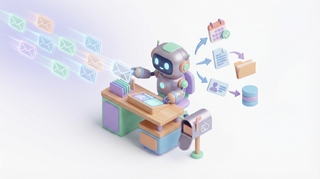
How to Create a Custom AI Email Agent in 5 Minutes
Knowledge workers spend 28% of their workweek on email — over 11 hours, most of it repetitive. Sorting. Routing. Drafting the same responses. Updating CRMs. Pulling calendar availability. A custom AI agent handles all of this autonomously.
This guide walks you through setting up your own AI agent using Carly — a full-service personal agent with access to 60+ integrations that handles far more than email. It manages your inbox, enriches leads, updates your CRM, creates tasks, responds on your behalf, and learns how you work over time.
What Is an AI Email Agent?
An AI email agent is an autonomous AI assistant that monitors an email inbox, processes incoming messages, and takes action without human intervention.
Unlike email filters or autoresponders, an AI email agent understands each email — reading context, making decisions, and executing multi-step workflows across your tools.
Email filter: “If subject contains ‘invoice,’ move to Invoices folder.”
AI email agent: “Read this invoice, extract the amount and due date, log it in QuickBooks, create an approval task in Asana, notify the finance channel in Slack, and reply confirming receipt with the payment timeline.”
Filters sort. Agents work.
Why Create a Custom AI Email Agent?
Generic email automation tools force you into rigid templates. A custom AI agent adapts to your workflows, your rules, and your integrations.
- Your rules, your logic. Write plain-English instructions that match exactly how you work.
- 60+ integrations, connected. CRM, project management, accounting, messaging, file storage, developer tools — whatever the workflow needs.
- Its own name, email, and domain. Give your agent a professional identity. It can send and receive email from its own address — or from yours.
- It learns. The agent writes its own skills and memories as it works with you, getting better over time without you re-instructing it.
- Autonomous execution. Once set up, the agent processes inbound emails and tasks 24/7 without you touching anything.
How to Set Up Your AI Agent (Step-by-Step)
Here’s the full walkthrough using Carly. The whole process takes about five minutes.
Carly is your point of contact for all your admin work — not just email. It connects to your inbox, calendar, CRM, project tools, file storage, and more. You email it at carly@usecarly.com, or go to dashboard.carlyassistant.com and chat with it directly.
Step 1: Go to the Agents Dashboard
Log into your Carly dashboard and navigate to the Agents tab. Your main agent is already there — ready to configure.
Step 2: Give Your Agent a Name and Email
Give your agent a name and its own email address. Every agent gets a dedicated @usecarly.com address. Stuck on what to call it? Our list of AI assistant names has plenty of ideas, and our guide on giving your AI agent a name, email, and personality covers the psychology and best practices.
Step 3: Connect Your Integrations
Head to dashboard.carlyassistant.com/integrations and connect the tools your agent needs. Carly supports 60+ integrations across every major category:
| Category | Integrations | What Your Agent Can Do |
|---|---|---|
| CRM | HubSpot, Salesforce, Attio, Dynamics 365, Zoho | Enrich leads, create contacts, update deals, track pipeline |
| Project Management | Asana, ClickUp, Monday, Linear, Wrike, Basecamp, Todoist, Productboard | Create tasks, update projects, coordinate handoffs |
| Messaging | Slack, Discord, Microsoft Teams, WhatsApp, Webex | Send notifications, route requests, alert your team |
| Accounting & Finance | QuickBooks, Xero, FreshBooks, Harvest, Square, YNAB, Zoho Books, Gumroad | Log invoices, track expenses, process payments |
| File Storage | Google Drive, Dropbox, Box, OneDrive, SharePoint | Upload documents, attach files, organize folders |
| Developer | GitLab, Bitbucket, Sentry, Supabase, Confluence | Track issues, monitor errors, update documentation |
| Design & Collaboration | Figma, Canva, Miro, Notion, Airtable | Manage databases, track content, coordinate design work |
| Marketing | Google Ads, Google Analytics, Mailchimp, LinkedIn, Facebook, Instagram, Reddit, YouTube | Pull campaign data, manage audiences, track performance |
| Support | Zendesk, Intercom, Gorgias, Zoho Desk | Create tickets, pull customer history, escalate issues |
| E-Commerce | Shopify, Eventbrite, Zoho Inventory, Square | Look up orders, check inventory, manage events |
| Email & Calendar | Gmail, Outlook Mail, Google Calendar, Outlook Calendar, Google Contacts, Outlook Contacts | Send from your address, schedule meetings, manage contacts |
| Video & Meetings | Zoom, Google Meet, Webex | Create meetings, send booking links |
| Other | Google BigQuery, Google Photos, Typeform, Webflow, Todoist, YNAB | Query data, pull form responses, manage sites, track budgets |
Every integration is individually authorized — you decide what each agent can access and can revoke it anytime.
Step 4: Chat or Email Your Agent
Your agent is ready. You can:
- Email it at carly@usecarly.com (or its custom address) with any request
- Chat with it directly at dashboard.carlyassistant.com
The agent helps you get set up as you go. It writes its own skills and memories over time, so it gets sharper the more you use it.
What Your Agent Can Actually Do
This isn’t just an email responder. Because the agent has access to all your connected tools, it can chain actions together in ways that email automation never could.
Find and enrich new leads. Tell your agent to pull prospect lists from tools like Wiza, enrich them with company and role data, add them to HubSpot or Salesforce, and send personalized outreach — all from a single instruction. You’re not waiting for leads to come to you. The agent goes and gets them.
Respond to emails for you. Connect your Gmail or Outlook and the agent reads, drafts, and sends replies as you. It understands the thread, matches your tone, and handles the back-and-forth. Handle scheduling end-to-end. Someone asks for a meeting. The agent checks your calendar, proposes times, sends the invite, and adds a Zoom link — across time zones, without back-and-forth.
Process documents. Invoices, contracts, and receipts arrive by email. The agent extracts key data, uploads originals to Drive or SharePoint, logs entries in your accounting tool, and creates approval tasks for your team.
Do research for you. Ask it to pull annual reports for 10 companies, save them in a specific folder in Google Drive, and write a research summary across all of them. It searches the web, downloads documents, organizes files, and delivers the finished report — without you opening a single tab.
Building Specialized Email Agents (AI Employees)
Your main agent handles everything for you. But you can also spin up specialized email agents — autonomous AI employees that interact directly with your customers, clients, or vendors.
Go to dashboard.carlyassistant.com and create a new agent with its own name, email address, instructions, and tool access. Each one operates independently.
Think of these as dedicated AI employees with specific jobs:
- Sales agent — responds to inbound inquiries, qualifies leads, books demos, follows up
- Recruiting agent — processes applications, schedules interviews, sends status updates
- Document collection agent — requests, receives, and organizes documents from clients
- Accounts receivable agent — sends invoices, follows up on late payments, logs everything in your accounting tool
- Support agent — handles customer questions, pulls order data from Shopify, creates tickets in Zendesk
Each agent gets its own email address. You control exactly which integrations each agent can access — a support agent doesn’t need your accounting tools, and a billing agent doesn’t need your project management system.
You can spin up an entire staff unbelievably fast. One person running a business can have a sales rep, a support agent, and a billing coordinator — all operating autonomously from their own inboxes. For step-by-step walkthroughs, see our guides on building an AI support agent, CRM agent, data analyst, meeting prep agent, and call analysis agent.
Tips for Writing Better Agent Instructions
Be sequential. Number your steps. Agents follow ordered instructions more reliably than paragraph-style prose.
Define boundaries. Tell the agent what not to do. “Do not reply to emails that appear to be spam.” “Never share my personal phone number.” “If unsure, forward the email to me instead of replying.”
Specify tone and sign-off. “Reply in a warm, professional tone. Sign off with ‘Best, The Carly Team.’” Small details prevent awkward interactions.
Name your tools explicitly. Don’t say “update the CRM.” Say “create a contact in HubSpot” or “add a row to the Pipeline base in Airtable.” Specificity prevents the agent from guessing which tool to use.
Handle edge cases. What happens when someone asks a question the agent can’t answer? What if two meetings conflict? What if a Shopify order isn’t found? Spell it out.
Iterate. Send test emails, review responses, and refine. The agent also learns on its own — it writes skills and memories as it works with you — but clear initial instructions give it the best starting point.
Custom AI Email Agent vs. Traditional Email Automation
| Feature | Traditional Automation | Custom AI Email Agent |
|---|---|---|
| Setup | Complex rule builders, flowcharts | Plain-English instructions |
| Logic | If/then rules only | Contextual understanding, judgment |
| Responses | Static templates | Dynamic, personalized replies |
| Integrations | Limited connectors, per-platform pricing | 60+ tools in one agent |
| Multi-step workflows | Limited chaining | Native multi-tool execution |
| Learning | None | Writes its own skills and memories over time |
| Setup time | Hours to days | Minutes |
Traditional automation still works for high-volume marketing sequences. But for workflows requiring reading comprehension, decision-making, and tool usage, AI agents are in a different league. See our roundup of the best AI email agents for a full comparison.
What About Security and Privacy?
You’re giving an AI agent access to your email, CRM, and project tools. Here’s what to look for:
- Granular permissions. Control exactly which integrations each agent can access. A scheduling agent shouldn’t touch your accounting tools.
- Separate inboxes. Each agent operates from its own email address, not inside your personal inbox.
- Account linking controls. Every integration is individually authorized. You decide which accounts to connect and can revoke access anytime.
- Transparent behavior. Review what the agent did, what it sent, and which tools it used in the Conversations tab.
Carly is built around these principles — scoped tool access, separate agent inboxes, and linked accounts you control. See the full list of what Carly can do.
Start with your main agent. Connect your email, calendar, and one or two other tools. Give it clear instructions for your most repetitive workflow — triaging your inbox, responding to leads, or processing invoices. Once it’s running, connect more tools, refine instructions, and spin up specialized agents for customer-facing work. If you’re a small business exploring AI email agents, this approach scales fast. For a week-by-week onboarding plan, see the first 30 days with an AI agent.
Set up your AI agent with Carly →
FAQ
How much does it cost to create an AI email agent?
Carly includes agent creation on personal, lifetime, and enterprise plans — including access to all 60+ integrations. You can create multiple specialized agents without per-agent fees.
Can the agent send emails on my behalf?
Yes. Connect your Gmail or Outlook and the agent sends from your actual email address — recipients see your name and domain. You can review everything it sends in the Conversations tab.
What happens if the agent gets an email it doesn’t know how to handle?
That depends on your instructions. Best practice: include a fallback rule like “If unsure, forward the email to my inbox with [NEEDS REVIEW] in the subject.” This prevents bad responses.
What’s the difference between the main agent and an email agent?
Your main agent is your personal, full-service AI assistant — it handles everything from email to CRM to scheduling across all your connected tools. Email agents are specialized agents you create for specific jobs (sales, support, billing) that interact directly with customers or vendors from their own email addresses.
Can I give an agent its own domain?
Yes. Agents can send and receive email from a custom domain, so they look like real members of your team. You can set this up in the Agents dashboard.
Do agents work with Microsoft tools?
Yes. Carly supports Outlook Mail, Outlook Calendar, Outlook Contacts, OneDrive, SharePoint, Microsoft Teams, and Dynamics 365. Microsoft-based workflows work just as well as Google-based ones.
What integrations are available?
Carly connects to 60+ tools including CRM (HubSpot, Salesforce, Attio), project management (Asana, Linear, Monday, ClickUp), messaging (Slack, Discord, Teams), accounting (QuickBooks, Xero, FreshBooks), file storage (Google Drive, Dropbox, Box), support (Zendesk, Intercom), e-commerce (Shopify), and many more. See the full list at dashboard.carlyassistant.com/integrations.
Does the agent learn over time?
Yes. The agent writes its own skills and memories as it works with you. It gets better at understanding your preferences, your contacts, and your workflows without you having to re-instruct it.
Ready to automate your busywork?
Carly schedules, researches, and briefs you—so you can focus on what matters.
See what people say
"Before Carly, I relied on a Calendly link, but the whole process felt impersonal and not very professional. Carly changed that by handling all the back-and-forth, so I'm no longer stuck in endless email threads trying to line up schedules.
Now Carly reaches out to candidates, shares my real-time availability, lets them pick a slot, then sends a Zoom link and drops it straight into my calendar. She sends reminders to both of us before each call, which has significantly reduced no-shows and last-minute confusion.
On top of scheduling, Carly acts like a full executive assistant, sending me my schedule the night before so I can prepare for each call. It reminds me of the old x.ai assistant, but Carly is noticeably smarter, faster, and better suited to my healthcare recruitment business."