How to Book Into a Shared Calendar in Carly
To put Carly bookings on a shared Google calendar, edit the booking page, open Calendars, and select it under Create events on. In Advanced, use Additional calendar invitees for people who should receive an invitation to each new occurrence. The booking-notification email address is a separate setting.
This guide covers a booking page that writes through one connected Google account to a shared calendar. A team page that assigns or rotates hosts has different calendar behavior: it uses the assigned host’s default calendar.
Decide who needs an invitation
For a studio tour, you might want one calendar event, a guest invitation, an invitation for your reception mailbox, and visibility for three staff members. Those are three different needs:
| Need | Setting |
|---|---|
| Keep the event on the studio’s calendar | Calendars → Create events on |
| Send the receptionist a calendar invitation | Advanced → Additional calendar invitees |
| Send the receptionist a booking-notification email | The notification address under Advanced → When someone books |
| Let staff see the schedule without inviting them to every tour | Share the calendar with them in Google Calendar |
| Check a person’s availability and assign them to the booking | Configure them as a host on an appropriate team booking page |
An additional calendar invitee is not a host. Carly does not check that person’s availability or assign work to them merely because their address appears in this field.
Give the connected account access to the shared calendar
The Google account connected to Carly needs permission to edit events on the destination calendar. Being able to see that calendar is not enough to create bookings there.
In Google Calendar, open the calendar’s Settings and sharing and review its sharing permissions. Give the connected account suitable event-editing access. Staff who only need visibility can receive a viewing permission. Google explains the available levels in its calendar-sharing instructions.
You do not need to make the calendar public. Calendar sharing also does not require adding every staff member to every event’s guest list.
Set the booking destination
- Open Booking pages in Carly.
- Find the page you want to change and click Edit.
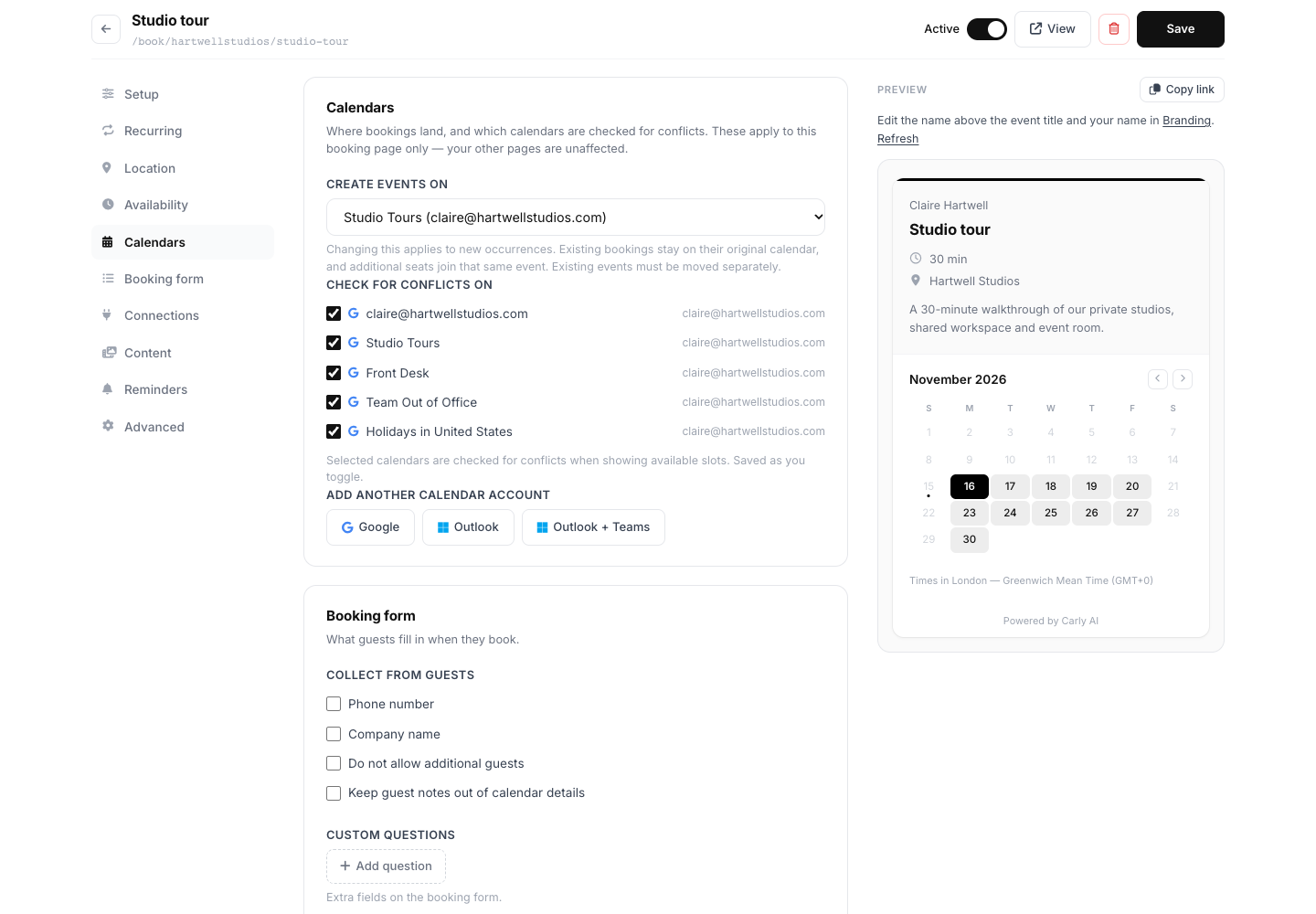
- Open Calendars in the editor’s navigation.
- Under Create events on, choose your shared calendar. The option includes the connected account’s email so you can distinguish calendars with similar names.
- Under Check for conflicts on, select the calendars whose busy events should prevent bookings. Include the shared calendar if its existing events should block those times.
- Click Save, then reload the editor to check the selected destination.
The destination and conflict calendars serve different purposes. A calendar can block a time without being the place where Carly creates the event.
Choose the notification address and extra invitees
Open Advanced. Under When someone books, enter the address that should receive the host’s booking-notification email. Leaving it blank uses the assigned host’s email.
Then enter any extra invitation recipients under Additional calendar invitees. Separate multiple addresses with commas or new lines. Click Save and reload to confirm the addresses were stored.
If your reception mailbox needs both messages, enter it in both places. Putting it only in the notification field does not give it a calendar invitation. Putting it only in Additional calendar invitees does not give it the host’s separate booking-notification email.
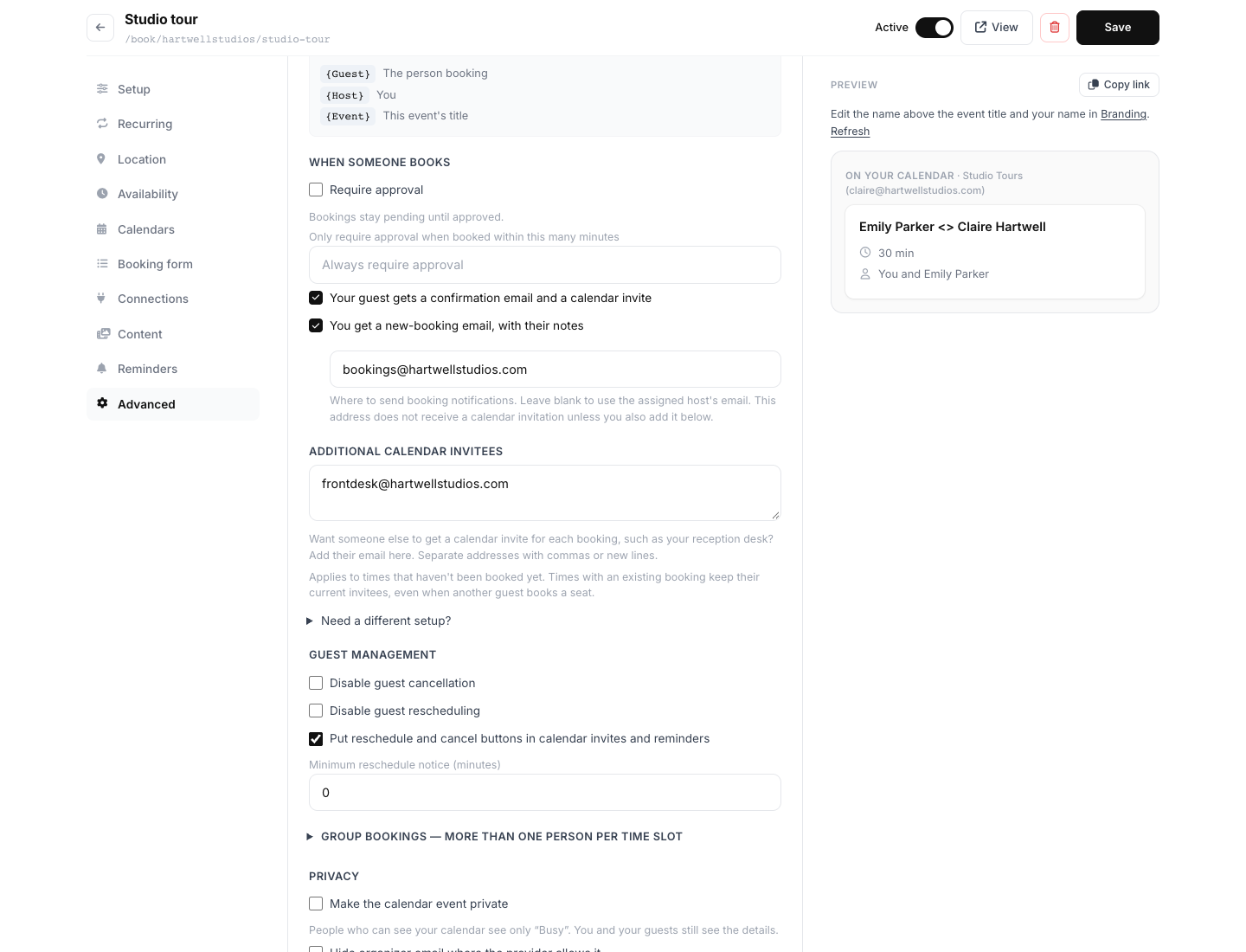
The guest still receives their booking confirmation and calendar invitation. Staff with access to the shared calendar can see the event there without being individually invited. The connected Google account is not automatically added as an extra guest by the booking flow.
What happens with two seats at the same time?
Under Advanced → Group bookings — more than one person per time slot, set the seat count for a group tour.
The first reservation creates the occurrence’s calendar event. A second reservation for the same start and end time joins that event rather than creating another one. Each guest retains their own booking-management link.
Cancelling one seat removes that guest’s reservation while preserving the event for remaining guests. Each occurrence also keeps the extra invitees saved for it, so a later settings change does not silently replace its participants.
Changing the page does not move existing events
A different Create events on selection applies to new occurrences. Existing bookings remain linked to their original calendar event. If someone takes a second seat in an existing occurrence, they join that original event, even after the page’s destination changes.
Additional-calendar-invitee changes follow the same rule: they apply to new occurrences. They do not retroactively invite someone to every existing booking.
If existing tours need to move too, contact support with the booking page and affected dates before recreating anything. The calendar events and Carly’s booking references need to stay aligned. Creating a second event can leave duplicate invitations or make later cancellations act on the wrong event.
A slot still fails after calendar access is fixed
Check whether its original event still exists. An accepted booking in Carly can need reconciliation if its event was separately cancelled in Google Calendar. Restoring or recreating it without checking can invite someone who already declined.
For a safe test, use a time with no existing reservation and an email address you control. Then reserve a second seat and verify that both reservations belong to one calendar event. If only an older occurrence fails, send support that occurrence’s date and time rather than repeatedly retrying it.
Ready to automate your busywork?
Carly schedules, researches, and briefs you—so you can focus on what matters.
See what people say
"Before Carly, I relied on a Calendly link, but the whole process felt impersonal and not very professional. Carly changed that by handling all the back-and-forth, so I'm no longer stuck in endless email threads trying to line up schedules.
Now Carly reaches out to candidates, shares my real-time availability, lets them pick a slot, then sends a Zoom link and drops it straight into my calendar. She sends reminders to both of us before each call, which has significantly reduced no-shows and last-minute confusion.
On top of scheduling, Carly acts like a full executive assistant, sending me my schedule the night before so I can prepare for each call. It reminds me of the old x.ai assistant, but Carly is noticeably smarter, faster, and better suited to my healthcare recruitment business."