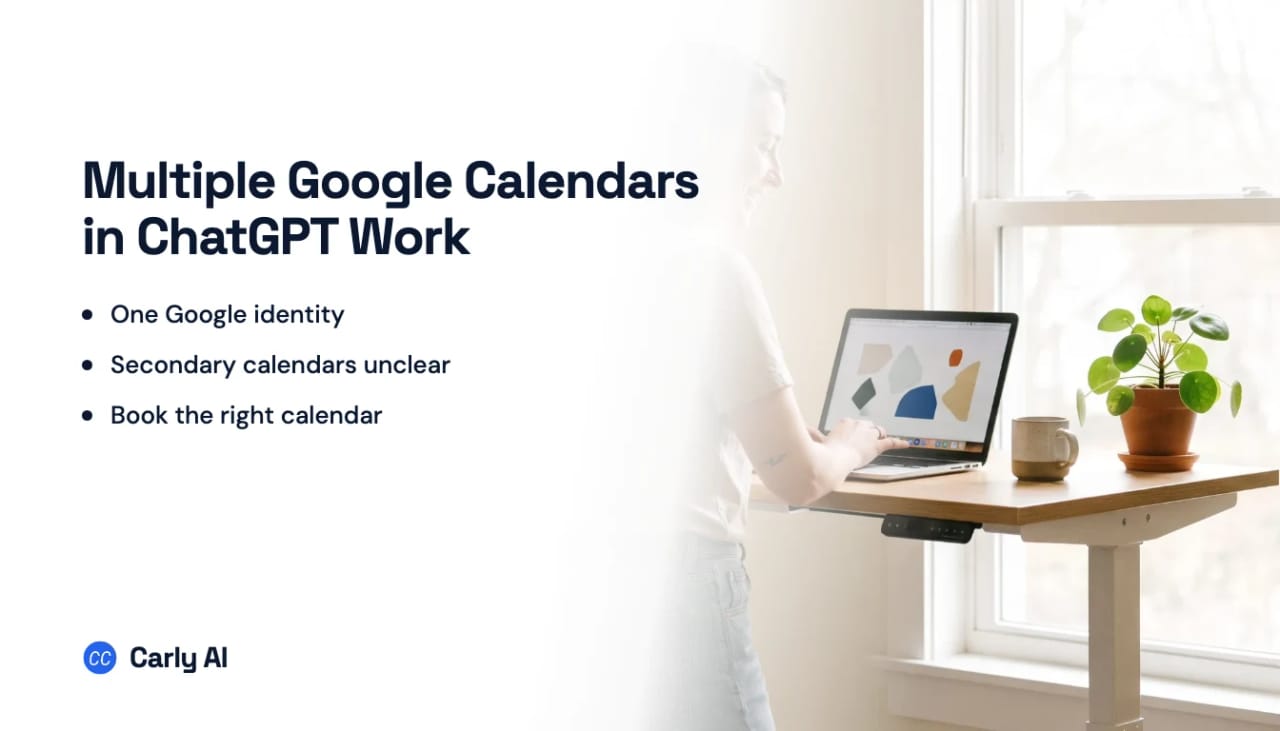
Multiple Google Calendars in ChatGPT Work
ChatGPT Work does not document a way to connect two Google accounts to its Google Calendar app, and it says nothing official about secondary calendars. Those are two different limits: one person may have work and personal Google identities, while a single identity may contain primary, team, family, and subscribed calendars. Carly connects the identities separately and preserves the calendar names, so Work can use the whole set through one connection. Carly holds your Outlook calendars and every mailbox on both sides in the same place, so this setup covers the rest of what you own.
This is the Work-specific cut of the same problem. The regular ChatGPT version is how to connect multiple Google Calendars to ChatGPT.
1. Add your Google calendars to Carly
- Sign in at carlyassistant.com.
- Open carlyassistant.com/integrations.
- Find Google Calendar, click Connect, and authorize the calendar.
- Click Connect again for the next one, and keep going for as many calendars as you want.
Carly calculates availability across Google Calendar and Outlook at the same time, while each event stays on its original calendar.
Carly connects to thousands of apps, so while you are on that page you can add your inboxes, files, CRM, and anything else you want ChatGPT Work to reach through the same connector.
2. Add Carly to ChatGPT Work
- Open Plugins in the ChatGPT sidebar.
- Click +.
- Enter
https://carlyassistant.com/mcp/. - Complete authorization.
- Sign in to the Carly workspace holding the calendar connections.
- Make Carly available to the Work task.
On July 9, 2026 OpenAI folded the app directory into a plugin directory shared across ChatGPT and Codex. A plugin bundles apps, skills, and app templates. The MCP connection underneath is unchanged, and the 1,600-plus already-approved apps were migrated automatically.
Custom remote MCP access varies by plan: Pro is documented for read and fetch, while full MCP including write actions is available on Business and Enterprise/Edu through developer mode. If + is unavailable, ask the workspace administrator to enable the connection.
First identify which kind of “multiple” you have
OpenAI’s Google app data-controls FAQ says ChatGPT can access content from “the Google account you choose to connect.” There is no published flow for adding a second Google identity to the same Calendar app.
| Your setup | What it means |
|---|---|
| Work and personal Google logins | Multiple Google accounts, each with its own authorization |
| Primary, team, and family calendars under one login | Multiple calendars inside one Google account |
| Calendar shared to your account | A separate calendar reached through your current identity |
| Subscribed ICS calendar | Usually read-only and owned elsewhere |
OpenAI documents meeting creation on Google Calendar as a workspace write action. An administrator has to turn it on under Workspace settings → Apps → Manage actions. Plus and Pro read the calendar and do not get that write switch.
ChatGPT Work Google Calendar next to Carly
| Need | Native Google Calendar app | Carly |
|---|---|---|
| Read a connected Google account | Yes | Yes |
| Keep two Google identities connected | Not documented | Yes |
| Reliably query secondary calendars | Not documented | Yes |
| Compare work and personal availability | Not in one native connection | Yes |
| Create a meeting | Workspace write action, admin-enabled | Yes |
| Move or delete an event | Not documented | Yes, with the calendar’s permissions |
Carly offers free Zapier-style workflows; AI agents start at $35/month.
Quick fixes
| Problem | Fix |
|---|---|
| A secondary calendar is missing | Name it explicitly; if Work still omits it, use Carly’s calendar connection |
| Second Google account replaced the context | Keep each identity connected in Carly instead of switching native sessions |
| Write action is unavailable | Ask the ChatGPT workspace admin to enable Calendar actions |
| Plugins + is disabled | Ask the workspace admin to enable the plugin |
| Event landed on the wrong calendar | Require both the full address and calendar name before approval |
Frequently asked questions
Can ChatGPT Work connect two Google Calendar accounts?
Yes, since August 2026. Open Plugins, click the gear on the Google Calendar connection, and add the next Google account. Secondary, team and subscribed calendars under those identities are still undocumented.
Can ChatGPT Work read secondary Google Calendars?
OpenAI does not say. One July 2026 community report said the app returned only the primary calendar. There is no official confirmation either way.
Can ChatGPT Work create Google Calendar events?
On Business and Enterprise, yes, if an administrator enables Calendar write actions. On Plus and Pro the Google Calendar app reads and does not write. ChatGPT asks before important appointment changes by default.
Can ChatGPT Work move or delete Google Calendar events?
Those user-facing actions are not documented. The OAuth scope permits event access, but that alone does not prove Work exposes move or delete.
Related: How to connect multiple Google Calendars to ChatGPT · ChatGPT Work and calendar · ChatGPT Work connectors · How to manage multiple Google Calendars · Carly’s Google Calendar integration
Ready to automate your busywork?
Carly schedules, researches, and briefs you—so you can focus on what matters.
See what people say
"Before Carly, I relied on a Calendly link, but the whole process felt impersonal and not very professional. Carly changed that by handling all the back-and-forth, so I'm no longer stuck in endless email threads trying to line up schedules.
Now Carly reaches out to candidates, shares my real-time availability, lets them pick a slot, then sends a Zoom link and drops it straight into my calendar. She sends reminders to both of us before each call, which has significantly reduced no-shows and last-minute confusion.
On top of scheduling, Carly acts like a full executive assistant, sending me my schedule the night before so I can prepare for each call. It reminds me of the old x.ai assistant, but Carly is noticeably smarter, faster, and better suited to my healthcare recruitment business."