How to Connect Multiple Google Calendars to Gemini Spark
Gemini Spark works from the single Google account you sign in with, and Carly is what puts a second account in the same session. Connect each account to Carly, add Carly to Spark as a custom app, and one conversation reaches every calendar you own or have been given. Carly holds your Outlook calendars and every mailbox on both sides in the same place, so this setup covers the rest of what you own.
1. Add your Google calendars to Carly
- Sign in at carlyassistant.com.
- Open carlyassistant.com/integrations.
- Find Google Calendar, click Connect, and authorize the calendar.
- Click Connect again for the next one, and keep going for as many calendars as you want.
Connected calendars are unlimited on the scheduling side, so the number of accounts does not change the price.
Carly connects to thousands of apps, so while you are on that page you can add your inboxes, files, CRM, and anything else you want Gemini Spark to reach through the same connector.
2. Add Carly to Spark as a custom app
- Go to gemini.google.com on a computer.
- Open Settings & help → Connected Apps.
- Under Custom apps for Spark, click Add a custom app.
- Enter
https://carlyassistant.com/mcp/. - If prompted, open Show more under Advanced features to enter credentials.
- Click Next and follow the on-screen instructions.
Two gate lists sit on top of each other here, and they get merged constantly. Spark itself needs a personal Google Account, since Google states the feature “isn’t available if you sign in with a work or school Google Account,” plus being 18 or over, a Google AI Pro or Ultra subscription, and Keep Activity on. Custom apps inside Spark add US-only and English-only on top. Custom app support has also rolled out unevenly across Spark’s surfaces and tiers, so if the option is missing, check your plan and platform against Google’s availability documentation rather than assuming the connector is at fault.
Google notes that it does not control or secure third-party MCP servers, so it asks you to understand what a server does first. Carly’s actions are the calendar operations you authorized per account, revocable at carlyassistant.com/integrations. If Spark’s gates rule you out, the same Carly setup runs on its own and in other assistants, which is the point of holding the accounts on your side rather than Google’s.
What one Spark session can do afterwards
- Check every connected calendar before proposing a time.
- Compare two Google accounts in one question.
- Book on the account that owns the meeting.
- Move or decline in the correct calendar.
- Add attendees, which Gemini’s own calendar connection will not do.
- Keep the work running when the session is closed.
What the native path covers
| Calendar | Account | Reachable in one Spark session |
|---|---|---|
| Your primary calendar | Your personal account | Yes |
| A secondary calendar you created | Your personal account | Yes |
| A calendar shared with you | Your personal account | Yes |
| A second personal Google account | Another account | Only through Carly |
| A work or school Google account | Another account | Only through Carly, since Spark refuses that account type |
Where Spark’s own calendar reach stops
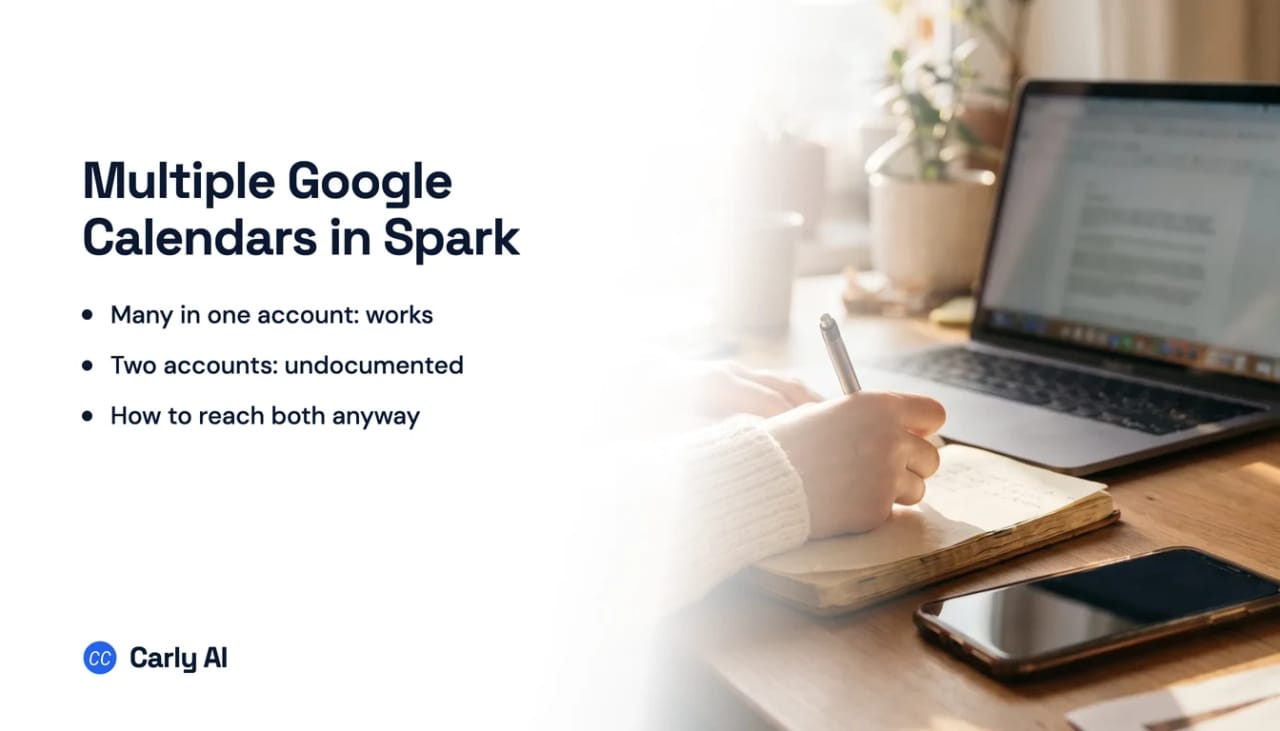
Spark reaches Calendar through the Google Workspace Connected App, not the custom apps channel, and inside one account it is good. Google’s Calendar help for Gemini Apps states you can create and manage events on your secondary and shared calendars, so a department calendar you own and a calendar a colleague shared with you are both in scope with no per-calendar setup.
Four limits define the edge of that:
- The account boundary. Google’s Spark documentation covers eligibility, task limits, connected apps and schedule types, and never addresses holding two Google accounts, connecting a second one, or switching between them. The nearest statement is an instruction to sign in to the same account you use with Google Workspace, which is guidance for one account rather than a ruling on two. Undocumented, and unusable either way.
- The write set. Gemini can create, find, reschedule and cancel events, and Google lists two things it cannot do: add or invite people to events, and add or update the location or description of an existing event. Asking Spark to set up the kickoff and add the Cisco team gives you an event with no guests and no error saying so.
- The default-calendar trap. Google states that Gemini creates events on your default calendar unless you specify a different one, so the target has to be named every time.
- No calendar trigger. Spark’s schedules come in exactly three types: time-based runs, Gmail monitors that fire on an email matching a filter, and topic monitors watching news, finance and sport. Calendar appears only as something a run looks through. A client at Adobe reschedules Thursday’s review to Friday at 4pm, your task is a daily 8am schedule, and the prep document goes out against the old time roughly sixteen hours later.
Sharing a second account’s calendar into the first is the one native bridge, and it moves a single calendar across a boundary rather than connecting an account. The mailbox, the files and every other calendar in account B stay behind, and subscribed ICS feeds are undocumented territory that Google never says behave like secondary calendars.
Native Gemini Spark versus Carly
| Need | Gemini Spark | Carly |
|---|---|---|
| Read many calendars in one account | Yes | Yes |
| Create and reschedule events | Yes | Yes |
| Add attendees to an event | No | Yes |
| Hold two Google accounts at once | Undocumented | Yes |
| Act the moment an event changes | No, clock and Gmail only | Yes |
| Work from a work or school Google account | No | Yes |
Carly holds several Google accounts at once, personal and work side by side, so a cross-account conflict check is one question rather than two sessions. It fires on the event rather than on a clock tick: the reschedule lands, and the prep document, the notice to the other attendees and the updated block on your second calendar all happen then, not at 8am tomorrow.
Free Zapier-style workflows; AI agents from $35/month. Connect it at carlyassistant.com/integrations, or start with Google Calendar.
Quick fixes
| Problem | Fix |
|---|---|
| Add a custom app is missing | It is US and English only, needs Keep Activity on, and needs Spark eligibility first |
| The second account’s calendar is invisible | Connect that account at carlyassistant.com/integrations |
| Spark refuses your account | Work and school Google accounts are not eligible for Spark |
| The event landed on the wrong calendar | Gemini uses your default calendar unless you name one, so name it |
| ”Add the team” quietly did nothing | Attendees are unsupported natively; book it through Carly instead |
| Nothing fires when a meeting moves | There is no calendar trigger, so put the recurring work in a Carly workflow |
Frequently asked questions
Can Gemini Spark connect two Google accounts?
Google does not document it either way. Its help pages describe signing in, signing out and switching accounts, and say nothing about holding two at the same time. Connecting each account to Carly and adding Carly as a custom app is what makes both reachable in one session.
Can Gemini Spark see more than one Google Calendar?
Yes, within one account. Google states that Gemini can create and manage events on your secondary and shared calendars, so anything you own or that has been shared with you is reachable once Google Workspace is connected.
Does Gemini Spark run a task when a calendar event changes?
No. Google’s scheduled task documentation lists three schedule types: time-based, Gmail monitors and topic monitors. Calendar is something a task reads on a run, so a 4pm reschedule surfaces at the next scheduled run rather than immediately.
Can Gemini add attendees to a Google Calendar event?
No. Google explicitly lists adding or inviting people to events as unsupported, alongside adding or updating the location or description of an existing event. Carly does both, on any of your calendars.
What do you need to use Gemini Spark at all?
A personal Google Account, being 18 or over, a Google AI Pro or Ultra subscription, and Keep Activity turned on. It is unavailable in the European Economic Area, Nigeria, Switzerland and the United Kingdom, and custom apps inside it are US and English only.
Related: Multiple Gmail accounts in Gemini Spark · Multiple Google Calendars in Gemini · Can Gemini manage your calendar · Gemini Spark alternatives · Google Calendar
Ready to automate your busywork?
Carly schedules, researches, and briefs you—so you can focus on what matters.
See what people say
"Before Carly, I relied on a Calendly link, but the whole process felt impersonal and not very professional. Carly changed that by handling all the back-and-forth, so I'm no longer stuck in endless email threads trying to line up schedules.
Now Carly reaches out to candidates, shares my real-time availability, lets them pick a slot, then sends a Zoom link and drops it straight into my calendar. She sends reminders to both of us before each call, which has significantly reduced no-shows and last-minute confusion.
On top of scheduling, Carly acts like a full executive assistant, sending me my schedule the night before so I can prepare for each call. It reminds me of the old x.ai assistant, but Carly is noticeably smarter, faster, and better suited to my healthcare recruitment business."