How to Create a Contact Group in Gmail
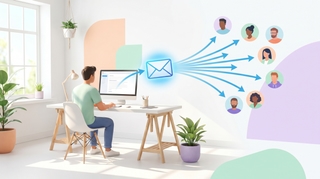
Gmail doesn’t have a built-in “contact groups” feature in the mail interface itself — instead, Google uses labels in Google Contacts to organize contacts into groups. These labels function exactly like distribution lists or mailing lists: create a label, add contacts to it, then type the label name in Gmail’s compose window to email everyone at once.
1. Create a Contact Label (Group) in Google Contacts
- Open Google Contacts in your browser.
- In the left sidebar, find the Labels section.
- Click + Create label.
- Type a name for the group (e.g., “Marketing Team,” “Book Club,” “Q2 Leads”).
- Click Save.
The label now appears in the left sidebar under Labels. It’s empty until you add contacts.
You can create as many labels as you need, and a single contact can belong to multiple labels.
2. Add Contacts to a Label (Group)
There are two ways to add contacts to a label.
Method 1 — Bulk select from the contacts list:
- In Google Contacts, hover over a contact and check the checkbox that appears on the left.
- Select all the contacts you want to add.
- Click the Manage labels icon (the label/tag icon) in the top toolbar.
- Check the label you want to add them to.
- Click Apply.
Method 2 — From a contact’s detail page:
- Click on a contact’s name to open their detail page.
- Click the three-dot menu (⋮) in the top right.
- Select the label you want to assign, or click Manage labels and check the appropriate label.
Method 1 is faster when you’re adding many contacts at once. Method 2 is useful when you’re already looking at a specific person’s details.
3. Send an Email to a Contact Group
Once you’ve created a label and added contacts, sending a group email in Gmail takes one step:
- Open Gmail and click Compose.
- In the To field, start typing the name of the contact label (e.g., “Marketing Team”).
- Gmail will auto-suggest the label as a group. Click the suggestion.
- All contacts in that label are added to the To field automatically.
- Write your email and click Send.
Each recipient sees all other email addresses in the To field unless you use BCC. If you want to hide recipients from each other, type the label name in the Bcc field instead. See how to BCC in Gmail for details.
4. Remove Contacts From a Group
- In Google Contacts, click the label name in the left sidebar to view its members.
- Select the contacts you want to remove (check the boxes).
- Click the three-dot menu (⋮) in the top toolbar.
- Select Remove from label.
The contacts are removed from the label but not deleted from your contacts. They still exist in your main contacts list and any other labels they belong to.
5. Delete a Contact Group (Label)
- In Google Contacts, find the label in the left sidebar.
- Hover over the label name — a trash can icon (or three-dot menu) appears.
- Click it and select Delete label.
- Google Contacts will ask whether to delete the label only or delete the label and the contacts in it. Choose Delete label only if you want to keep the contacts.
Deleting a label does not delete emails you’ve already sent to that group.
6. Manage Contact Groups on Mobile
The Google Contacts app (available on iOS and Android) supports labels.
To create a label on mobile:
- Open the Google Contacts app.
- Tap the hamburger menu (☰) or find the Labels section.
- Tap + Create label (Android) or Create (iOS).
- Name the label and tap Save or OK.
To add contacts to a label on mobile:
- Open a contact’s detail page.
- Tap Edit (pencil icon).
- Scroll to the Labels field and tap it.
- Select the label and save.
To send a group email from mobile:
- Open the Gmail app and tap Compose.
- Start typing the label name in the To field.
- Tap the group suggestion when it appears.
The mobile experience is functional but slower for bulk operations. If you need to add 20+ contacts to a label at once, use the desktop version of Google Contacts.
7. Contact Groups (Labels) vs. Google Groups
These are two different things and it’s worth knowing the distinction:
| Contact Labels | Google Groups | |
|---|---|---|
| What it is | Personal labels in your Google Contacts | Shared mailing lists with a dedicated email address |
| Who can see it | Only you | Anyone added to the group (or public) |
| Email address | No dedicated address — expands to individual contacts | Has its own address (e.g., team@googlegroups.com) |
| Where to manage | contacts.google.com | groups.google.com |
| Use case | Quickly emailing the same set of people | Shared team communication, public forums, mailing lists |
| Replies | Go to all recipients (standard email behavior) | Can be configured — reply to group, reply to sender, etc. |
Use contact labels when you want a personal shortcut to email a recurring set of people — your team, a client group, a friend circle. Use Google Groups when you need a shared, persistent mailing list that multiple people manage and where new members automatically get access to past conversations.
8. Quick Reference
| Action | How to do it |
|---|---|
| Create a contact group | Google Contacts → Labels → + Create label |
| Add contacts to a group | Select contacts → Manage labels icon → check label → Apply |
| Add one contact to a group | Open contact → ⋮ menu → select label |
| Email a group | Gmail Compose → type label name in To field → select suggestion |
| BCC a group | Type label name in Bcc field instead of To |
| Remove contacts from a group | Open label → select contacts → ⋮ → Remove from label |
| Delete a group | Hover over label in sidebar → trash icon → Delete label only |
| Create a group on mobile | Google Contacts app → Labels → + Create label |
If you regularly email the same groups of people, Carly can help manage your inbox and draft emails so you spend less time on repetitive communication and more time on work that matters.
More on Gmail: How to BCC in Gmail · How to create labels in Gmail · How to create filters in Gmail · How to schedule an email in Gmail · How to add a signature in Gmail
Ready to automate your busywork?
Carly schedules, researches, and briefs you—so you can focus on what matters.
See what people say
"Before Carly, I relied on a Calendly link, but the whole process felt impersonal and not very professional. Carly changed that by handling all the back-and-forth, so I'm no longer stuck in endless email threads trying to line up schedules.
Now Carly reaches out to candidates, shares my real-time availability, lets them pick a slot, then sends a Zoom link and drops it straight into my calendar. She sends reminders to both of us before each call, which has significantly reduced no-shows and last-minute confusion.
On top of scheduling, Carly acts like a full executive assistant, sending me my schedule the night before so I can prepare for each call. It reminds me of the old x.ai assistant, but Carly is noticeably smarter, faster, and better suited to my healthcare recruitment business."