How to Recall an Email in Gmail (2026 Guide)
Gmail does not have true “recall message” like Outlook does. What it has is Undo Send — a 5-to-30-second delay between clicking Send and the email actually leaving — and Confidential mode, which lets you revoke access to a sent message even after the recipient opens it. Here’s how to use both, and what to do once the window has passed.
Recall vs. Undo Send: What Gmail Actually Has
Outlook has Message Recall, which attempts to delete a sent message from the recipient’s inbox after delivery. Gmail does not have this feature for any account type — personal Gmail, Workspace Business, or Workspace Enterprise.
What Gmail has instead:
- Undo Send — A delay between clicking Send and the email actually leaving. Available on all Gmail accounts. Default is 5 seconds; can be extended to 30.
- Confidential mode — A permission system that lets you set expiration dates, require passcodes, and revoke access after sending. The recipient never gets a copy of the email itself — they get a link to view it on Google’s servers, which you can disable.
That’s the entire toolset. Anyone telling you Gmail has a “recall message” button is describing Undo Send.
1. Use Undo Send (the Default Option)
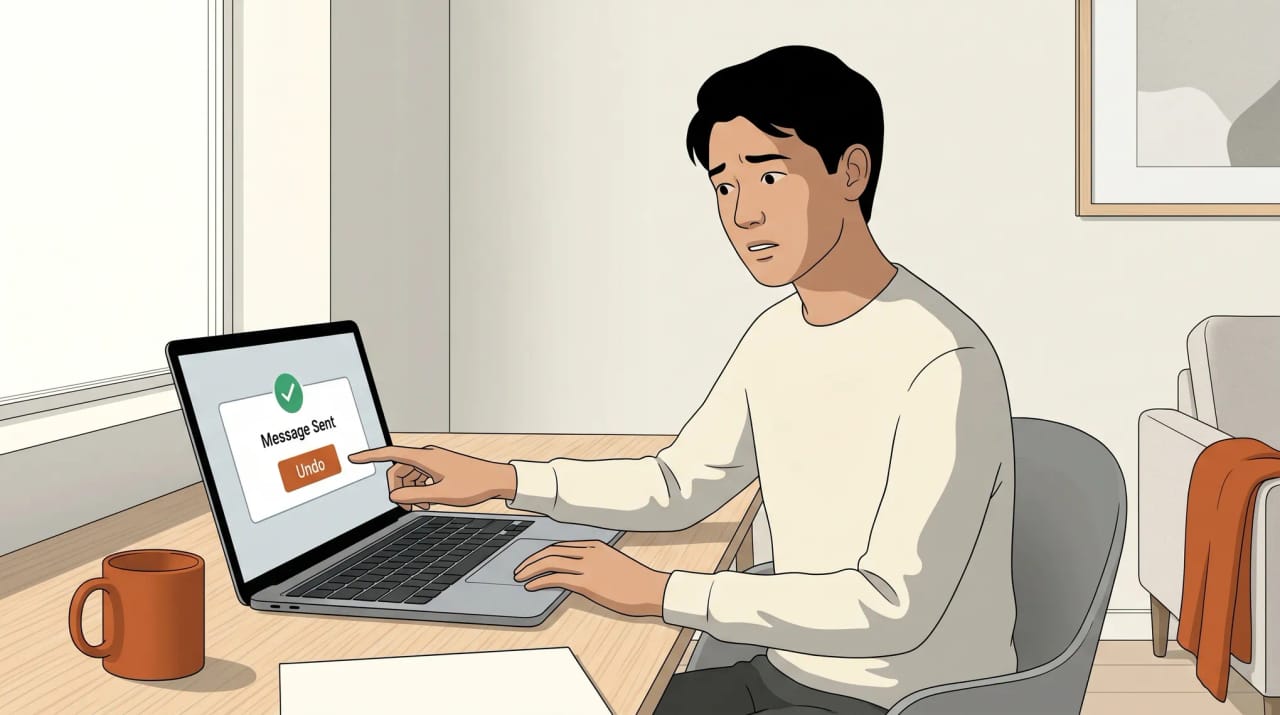
When you send an email in Gmail, a toast notification appears at the bottom-left of the screen for a few seconds. It says something like “Message sent” with an Undo button next to it.
- Click Undo before the toast disappears.
- Gmail pulls the email back into a draft window.
- Edit, fix the recipient list, or close the draft to delete it.
If the toast disappeared before you clicked, the email is gone. Undo Send doesn’t work retroactively.
On mobile (iOS / Android)
The Gmail mobile app shows the same Undo toast at the bottom of the screen after sending. Tap Undo quickly. The default window on mobile is also short (~5 seconds), and unlike the web client, you cannot extend it on mobile — the setting only exists on the web.
If you regularly send sensitive email from your phone and want a longer cancel window, change the setting on the web (next section). The mobile app respects the longer window once it’s set.
2. Extend the Undo Send Window
The default 5-second window is too short for most people. Bump it to 30 seconds — the maximum Gmail allows.
- Open Gmail on the web at mail.google.com.
- Click the gear icon in the top-right.
- Click See all settings.
- On the General tab (the first one), scroll to Undo Send.
- Set Send cancellation period to 5, 10, 20, or 30 seconds.
- Scroll to the bottom and click Save Changes.
The change applies across all Gmail clients tied to your account — web, mobile, third-party clients that use Google’s API.
Tradeoff: The longer the window, the more time you have to cancel — but also the longer it takes for emails to actually arrive. For time-sensitive replies (live calls, support escalations), 30 seconds can feel slow. Most people land on 20 seconds as a balance.
3. Confidential Mode (the Closest Thing to Recall)
Confidential mode is Google’s solution for sensitive email. When you send an email in Confidential mode, the recipient doesn’t actually receive the email — they receive a notification with a link to view the message on Google’s servers. You control access to that link.
Send a Confidential mode email
- Click Compose to start a new email.
- In the bottom toolbar of the compose window, click the lock-and-clock icon (Toggle confidential mode).
- In the dialog box, set:
- Expiration date — 1 day, 1 week, 1 month, 3 months, or 5 years.
- Passcode — choose No SMS passcode (recipient verifies via Google login) or SMS passcode (recipient gets a code by text; you must provide their phone number when you click Send).
- Click Save.
- Compose your message and Send.
The recipient gets an email containing only a link, not your content. They click it, sign in to Google (or enter the SMS passcode), and view the message in a browser.
Revoke access after sending (the “recall” move)
- Open your Sent folder.
- Click the Confidential mode email you want to revoke.
- Click Remove access (or Remove access early).
- Confirm.
The recipient can no longer view the message — even if they already opened it. Reopening the link shows a “This message has been removed” page.
Limitations of Confidential mode
- The recipient sees that you sent something — they just can’t read it.
- The link itself is not encrypted end-to-end. Google can still read the content.
- Recipients cannot forward, copy, print, or download Confidential mode messages — but a screenshot is impossible to prevent.
- Attachments are subject to the same rules as the body.
- Workspace admins can disable Confidential mode for an entire domain. If the icon doesn’t appear, that’s likely why.
For high-stakes communication you’d want to recall, Confidential mode is the strongest tool Gmail offers. The catch is you have to enable it before sending — there’s no way to retroactively put a sent email into Confidential mode.
4. What If the Undo Window Passed?
The email is delivered. There is no recall. Your options are:
Send a correction
The professional move is a follow-up — usually reply-all to the original thread within a few minutes:
“Quick correction on the previous email — [the contract amount/the meeting time/the data point] should have been [correct value]. Apologies for any confusion.”
This is faster than hoping for a magical undo and signals to recipients that you noticed the mistake. Most people appreciate a quick correction more than they would have noticed the original error.
If you sent it to the wrong person
Two-step recovery:
- Email the wrong recipient asking them to delete the message and confirm. Be brief; don’t beg.
- Send the corrected version to the actual intended recipient with a brief note that there was a delay due to a sending error.
If the email contained genuinely sensitive information (passwords, financial data, internal HR matters), follow up with whatever incident protocol your organization has. Wrong-recipient mistakes happen constantly; what matters is how quickly you respond.
If your account was hijacked
If “you” sent an email you didn’t actually send, the issue isn’t recall — your account is compromised. Change your password immediately, revoke all session tokens (Google Account → Security → Manage devices → sign out everything), enable 2-step verification, and review your filter rules and forwarding addresses for anything suspicious.
Quick Reference
| Method | What it does | Window | Available |
|---|---|---|---|
| Undo Send | Cancels the email before it actually leaves | Up to 30 seconds | All Gmail accounts |
| Confidential mode | Lets you revoke access after sending | Indefinite (until expiration date) | All Gmail accounts (admin can disable) |
| Schedule Send | Delays delivery so you can edit | Up to ~50 years | All Gmail accounts |
| True message recall | Pull back from recipient’s inbox | — | Not available in Gmail |
Common Issues
“I don’t see the Undo button after sending.” The toast disappears in 5 seconds by default. Extend the Undo Send window to 30 seconds in Settings. If it’s still not appearing, check that you don’t have a third-party Gmail extension blocking the toast.
“The Confidential mode icon is missing.” Workspace admins can disable Confidential mode at the domain level. If you’re on a personal Gmail account, the icon should always be there in the compose window’s bottom toolbar — try refreshing or signing out and back in.
“I revoked access in Confidential mode but the recipient says they still see the email.” They likely have the notification email open (the one with the link), not the actual message content. The notification email isn’t recallable, but clicking the link will now show “Access removed.”
“Schedule Send didn’t actually delay the email.” If the recipient is on the same Workspace domain, Schedule Send still respects the time you set. If you scheduled for the past (e.g., set the time wrong), Gmail sends immediately.
Stop Sending Wrong Emails in the First Place
The best recall feature is not needing recall. Carly is an AI assistant that drafts emails, handles your inbox triage, and routes replies through your CRM and contact data — so you’re less likely to send the wrong thing to the wrong person to begin with. Carly is $35/month.
More on Gmail: How to schedule an email in Gmail · How to unsend an email in Gmail · How to set out of office in Gmail · How to add a signature in Gmail · How to create email templates in Gmail · How to block emails in Gmail
Ready to automate your busywork?
Carly schedules, researches, and briefs you—so you can focus on what matters.
See what people say
"Before Carly, I relied on a Calendly link, but the whole process felt impersonal and not very professional. Carly changed that by handling all the back-and-forth, so I'm no longer stuck in endless email threads trying to line up schedules.
Now Carly reaches out to candidates, shares my real-time availability, lets them pick a slot, then sends a Zoom link and drops it straight into my calendar. She sends reminders to both of us before each call, which has significantly reduced no-shows and last-minute confusion.
On top of scheduling, Carly acts like a full executive assistant, sending me my schedule the night before so I can prepare for each call. It reminds me of the old x.ai assistant, but Carly is noticeably smarter, faster, and better suited to my healthcare recruitment business."