How to Unsend an Email in Gmail (Undo Send Guide)
Gmail’s Undo Send feature lets you pull back an email within a few seconds of hitting Send. It works by holding the message in a local buffer before actually delivering it — giving you a brief window to cancel. Once that window closes, the email is delivered and cannot be recalled. There is no true recall in Gmail after the message leaves.
1. How Undo Send Works
When you click Send in Gmail, the email doesn’t leave immediately. Gmail holds it for a short cancellation period (5 to 30 seconds, depending on your settings). During this window:
- The email has not been delivered to the recipient.
- A notification bar appears with an Undo option.
- If you click Undo, the message is pulled back and reopened in the compose window.
- If you do nothing, the email is delivered when the timer expires.
This is fundamentally different from Outlook’s recall feature (covered in section 6). Gmail’s approach is simpler and more reliable because the email never actually leaves your account until the timer runs out.
2. Unsend an Email on Desktop
- Compose and send your email as usual by clicking Send.
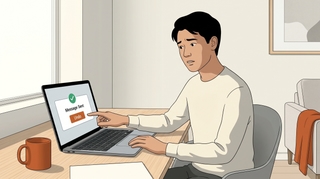
- A notification bar appears at the bottom left of the Gmail window. It says “Message sent” alongside two links: Undo and View message.
- Click Undo before the timer runs out.
- The email reopens in the compose window. You can edit the recipients, subject, or body and send again — or close the window to move it to Drafts.
Keyboard shortcut: Press z immediately after sending to trigger Undo (this works as long as the notification bar is still visible).
If you don’t see the notification bar, the cancellation window already closed and the email has been delivered.
3. Unsend an Email on Mobile
iOS
- Send your email by tapping Send (the arrow icon).
- A toast notification appears at the bottom of the screen saying “Sent” with an Undo button.
- Tap Undo before it disappears.
- The email reopens in the compose window for editing.
Android
- Send your email by tapping Send.
- A toast notification appears at the bottom of the screen with an Undo option.
- Tap Undo before the notification disappears.
- The message returns to the compose window.
On mobile, the toast notification disappears quickly — usually matching whatever cancellation period you’ve set in Gmail settings. If you miss it, the email is sent.
4. Change the Undo Send Time Window
By default, Gmail gives you 5 seconds to undo a sent email. You can extend this to 30 seconds — and you should.
Desktop (the only place you can change this setting):
- Open Gmail and click the gear icon in the top right.
- Click See all settings.
- On the General tab, find the Undo Send section (near the top).
- Use the dropdown to select your cancellation period: 5, 10, 20, or 30 seconds.
- Scroll to the bottom and click Save Changes.
This setting applies across all devices. Once you change it on desktop, your mobile Gmail app will also use the new time window.
Set it to 30 seconds. There’s no downside — your emails are delayed by half a minute at most, and you get the maximum safety net. The 5-second default is barely enough time to notice a typo, let alone a wrong recipient.
| Setting | Time to undo | Delivery delay |
|---|---|---|
| 5 seconds (default) | 5 seconds | 5 seconds |
| 10 seconds | 10 seconds | 10 seconds |
| 20 seconds | 20 seconds | 20 seconds |
| 30 seconds (recommended) | 30 seconds | 30 seconds |
5. What to Do If You Missed the Undo Window
Once the cancellation period expires, the email is delivered. Gmail has no recall mechanism after this point. Here’s what you can do:
Send a follow-up correction:
Reply to your own email (or send a new one to the same recipients) with the correction. Be direct — something like: “Correction to my previous email: the meeting is Thursday at 3 PM, not Tuesday.” Most people understand; everyone has sent an email with an error.
If you sent to the wrong person:
Send a brief message to the unintended recipient asking them to disregard and delete the email. Then send the correct version to the right person. If the email contained sensitive or confidential information, escalate to your IT or security team.
Use Confidential Mode for future sensitive emails:
Gmail’s Confidential Mode lets you set an expiration date and revoke access after sending. It doesn’t let you unsend, but it does let you cut off access to the content.
- In the compose window, click the lock icon with a clock (Confidential Mode) in the bottom toolbar.
- Set an expiration date (1 day, 1 week, 1 month, 3 months, or 5 years).
- Optionally require an SMS passcode for the recipient to open the email.
- Click Save and then Send.
If you realize after sending that you shouldn’t have sent it, you can revoke access by going to your Sent folder, opening the Confidential Mode email, and clicking Remove access. The recipient will no longer be able to view the content.
6. Gmail Undo Send vs. Outlook Recall
Gmail and Outlook handle “unsending” in fundamentally different ways.
| Gmail Undo Send | Outlook Recall | |
|---|---|---|
| How it works | Holds email in a buffer before sending | Sends the email, then sends a recall request after the fact |
| Time window | 5–30 seconds (configurable) | No time limit to attempt recall |
| Reliability | 100% if you click Undo in time | Unreliable — only works if the recipient uses Outlook/Exchange, hasn’t read the email, and both accounts are on the same Exchange server or Microsoft 365 |
| Works across email providers | N/A (email was never sent) | No — fails if recipient uses Gmail, Apple Mail, or any non-Outlook client |
| Notification to recipient | None (they never received it) | Recipient may see the recall attempt, which draws attention to the original email |
| Available on mobile | Yes | Limited |
Gmail’s approach is more reliable because the email never leaves your account during the Undo window. Outlook’s recall is an after-the-fact request that frequently fails and can actually make things worse by alerting the recipient that you tried to retract something.
If you use both Gmail and Outlook, see how to recall an email in Outlook for the full walkthrough on that side.
7. Quick Reference
| Action | Desktop | Mobile |
|---|---|---|
| Undo a sent email | Click Undo in bottom-left notification bar (or press z) | Tap Undo in the toast notification |
| Time window | 5–30 seconds (configurable) | Same as desktop setting |
| Change undo time | Settings → General → Undo Send dropdown | Must be changed on desktop (applies to mobile) |
| After window closes | Email is delivered — cannot be recalled | Email is delivered — cannot be recalled |
| Revoke Confidential Mode email | Sent → open email → Remove access | Sent → open email → Remove access |
If you want an extra layer of protection before emails go out, Carly is an AI assistant that helps manage your inbox and draft emails — catching mistakes before you hit Send in the first place.
More on Gmail: How to schedule an email in Gmail · How to create email templates in Gmail · How to add a signature in Gmail · How to archive emails in Gmail · Best AI email tools
Ready to automate your busywork?
Carly schedules, researches, and briefs you—so you can focus on what matters.
See what people say
"Before Carly, I relied on a Calendly link, but the whole process felt impersonal and not very professional. Carly changed that by handling all the back-and-forth, so I'm no longer stuck in endless email threads trying to line up schedules.
Now Carly reaches out to candidates, shares my real-time availability, lets them pick a slot, then sends a Zoom link and drops it straight into my calendar. She sends reminders to both of us before each call, which has significantly reduced no-shows and last-minute confusion.
On top of scheduling, Carly acts like a full executive assistant, sending me my schedule the night before so I can prepare for each call. It reminds me of the old x.ai assistant, but Carly is noticeably smarter, faster, and better suited to my healthcare recruitment business."