How to Share Your Screen on Google Meet (2026)
Sharing your screen in Google Meet takes two clicks, but picking the right share type matters — especially if you’re playing a video and want people to hear the sound. Here’s how to present on every platform.
Share Your Screen on a Computer
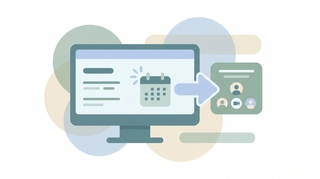
- In the meeting, click Present now on the bottom toolbar (the box with an upward arrow).
- Choose one of three options:
- Your entire screen — shares everything, including other apps and notifications.
- A window — shares just one app window, so the rest stays private.
- A tab — shares a single Chrome tab and passes its audio cleanly. Best for videos, slideshows, and anything with sound.
- Select the specific screen, window, or tab and click Share.
- A coloured border marks what’s being shared. To finish, click Stop sharing on the floating bar or Stop presenting in the meeting.
Share a tab with audio
When you choose A tab, tick Share tab audio (or Also share tab audio) in the picker so people hear the video. Entire-screen and window shares don’t reliably pass system sound, so use a tab for anything with audio.
Present on Mobile (iOS/Android)
- In the meeting, tap the three-dot More menu.
- Tap Share screen (Android) or Present screen (iPhone/iPad).
- Tap Start sharing / Start broadcast and confirm the permission prompt.
- To stop, return to Meet and tap Stop sharing.
On mobile you share your whole screen, so close anything private before you start.
Present Without Joining the Video
If you only need to push content to a room (for example, from a laptop while you’re also on your phone), open Present now and choose Present only. This shares your screen without turning on your mic and camera, which avoids echo when two of your devices are in the same meeting.
Troubleshooting
People see a black screen
This usually means a permission or hardware-acceleration issue. On Mac, grant Chrome screen-recording access in System Settings > Privacy & Security > Screen Recording, then restart the browser. Sharing a single tab instead of the whole screen often avoids it.
No one can hear my video
You shared the entire screen or a window. Stop, then re-share using A tab and tick Share tab audio.
The Present button is greyed out
Someone else may be presenting, or host controls restrict sharing. Ask the current presenter to stop, or ask the host to allow participants to share.
My shared window froze
Switching apps can pause a window share. Share Your entire screen for reliability, or re-select the window from Present now.
Quick Reference
| Goal | What to do |
|---|---|
| Start sharing | Present now > choose screen, window, or tab |
| Share video with sound | Present a tab > Share tab audio |
| Keep other apps private | Share a window, not the whole screen |
| Stop sharing | Stop sharing / Stop presenting |
| Share on mobile | More > Share screen > Start sharing |
Related Google Meet guides: How to record a Google Meet · How to use breakout rooms in Google Meet · How to change your background on Google Meet · How to create a Google Meet link
Ready to automate your busywork?
Carly schedules, researches, and briefs you—so you can focus on what matters.
Get Carly Today →Or explore our free tools