How to Sync Google Calendar With Android (Setup, Troubleshooting, and Multiple Accounts)
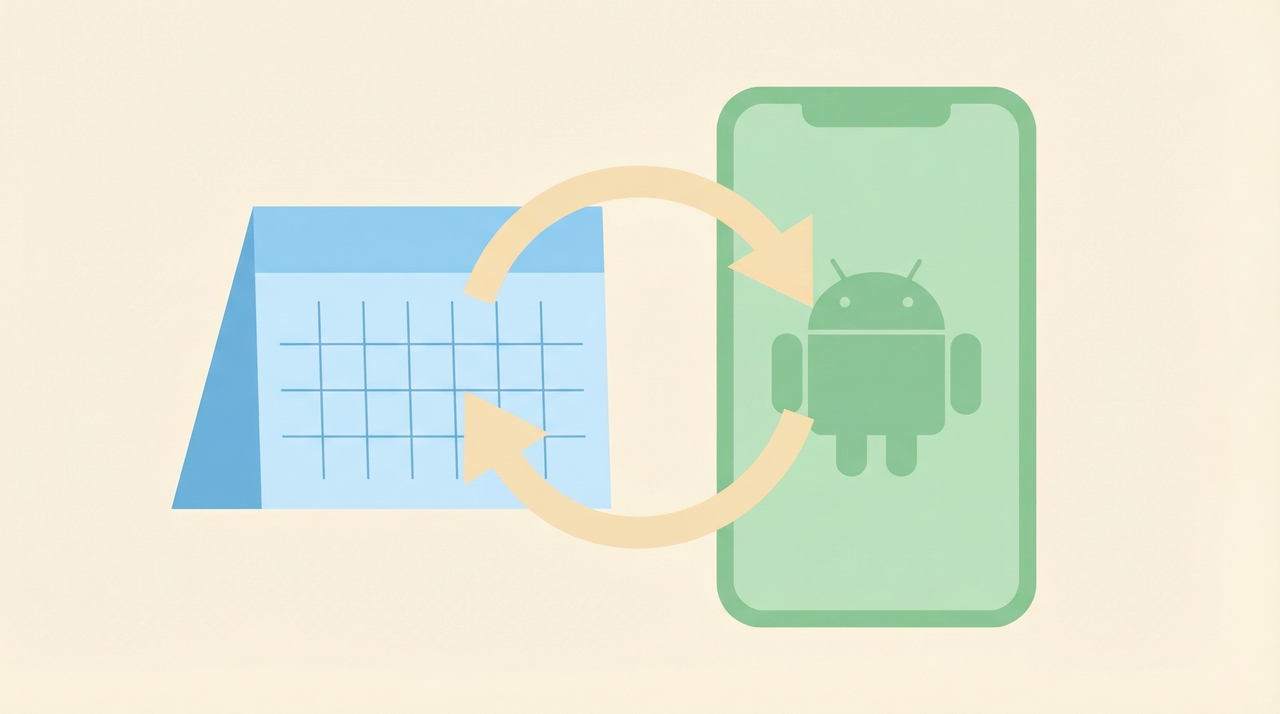
Google Calendar syncs automatically on Android the moment you sign in with a Google account. If you signed in during phone setup, your calendars are already syncing. Here’s how to verify, manage multiple accounts, and fix common issues.
1. How to Verify Sync Is Enabled
Even though sync is on by default, it can get toggled off accidentally (or by battery optimization settings).
- Open Settings on your Android phone.
- Tap Accounts (or Passwords & accounts on some devices).
- Tap your Google account.
- Tap Account sync.
- Make sure Google Calendar is toggled on.
If it was off, toggle it on and wait a minute for events to populate. You can also tap the three-dot menu and select Sync now to force an immediate update.
2. How to Add a Second Google Account for Calendar Sync
If you have separate Google accounts for work and personal use, you can sync both to the same device.
- Open Settings → Accounts → Add account.
- Select Google.
- Sign in with the second account.
- Once added, go back to Accounts → tap the new Google account → Account sync → confirm Google Calendar is toggled on.
Both accounts’ calendars now appear in the Google Calendar app. Events from each account are color-coded separately so you can tell them apart at a glance.
You can add as many Google accounts as you need.
3. How to Choose Which Calendars Are Visible
Each Google account can have multiple calendars — your primary calendar, shared calendars, holiday calendars, and any others you have created or subscribed to. You do not have to display all of them.
- Open the Google Calendar app.
- Tap the hamburger menu (three horizontal lines) in the top left.
- You will see a list of all synced accounts and their calendars.
- Uncheck any calendar you want to hide.
Hidden calendars still sync in the background — you’re only hiding them from view, not unsubscribing.
If you juggle calendars across multiple Google accounts and want a single view of everything, tools like Carly can help you manage visibility and scheduling across accounts without switching back and forth.
4. How to Force a Manual Sync
If an event was just created on the web but is not showing on your phone yet, you can force a sync:
Method 1 — From the Calendar app:
- Open Google Calendar.
- Pull down from the top of the screen to refresh.
Method 2 — From Settings:
- Open Settings → Accounts → your Google account → Account sync.
- Tap the three-dot menu → Sync now.
Method 3 — Toggle sync off and on:
- In the same Account sync screen, toggle Google Calendar off, wait five seconds, then toggle it back on.
Events normally sync within seconds. If it consistently takes longer, see the troubleshooting section below.
5. Troubleshooting Sync Issues
| Problem | Likely cause | Fix |
|---|---|---|
| Events not appearing on phone | Calendar sync disabled | Settings → Accounts → Google → Account sync → toggle Calendar on |
| Events visible on web but not phone | Slow background sync | Pull down to refresh in the Calendar app, or force sync from Settings |
| Calendar stuck and not updating | Corrupted cache | Settings → Apps → Google Calendar → Storage → Clear cache (not data) |
| Events from second account missing | Account not added or sync off | Settings → Accounts → verify the second Google account is listed and Calendar is toggled on |
| Events disappeared after phone update | Calendar visibility reset | Open Calendar app → hamburger menu → re-check the calendars that were unchecked |
| Battery saver blocking sync | Background sync restricted | Settings → Battery → Battery saver → make sure Calendar is excluded from optimization |
| ”Sync is currently experiencing problems” error | Connectivity or account issue | Check Wi-Fi/data connection; remove and re-add the Google account if it persists |
| Shared calendar not showing | Not subscribed on the account | Go to calendar.google.com on a browser → subscribe to the shared calendar → it will sync to phone |
If none of the above fixes work, remove the Google account from your phone entirely (Settings → Accounts → Google → Remove account) and add it back. This forces a full re-sync. Your data is stored on Google’s servers, so nothing is lost.
6. Using Third-Party Calendar Apps With Google Calendar
The built-in Google Calendar app is not the only option. Several third-party Android calendar apps support Google account sync:
- Samsung Calendar (pre-installed on Samsung devices) — syncs with Google accounts added in Settings. No extra configuration needed.
- Microsoft Outlook — Add your Google account within the Outlook app to see Google Calendar events alongside Outlook calendars.
- Business Calendar 2 — A popular alternative with week and month views that some people prefer over Google’s layout.
- aCalendar — Lightweight app that reads directly from the Android calendar provider, so any synced Google account shows up automatically.
Most third-party calendar apps use the Android system-level calendar provider, so any Google account you add in Settings feeds events into these apps automatically. If you see duplicate events, check whether the app is also syncing on its own in addition to reading from the system.
7. Managing Notifications on Android
Notifications are controlled in two places: the Calendar app’s settings and Android’s system-level notification settings.
In the Google Calendar app:
- Open the app → tap the hamburger menu → Settings.
- Tap General to set default notification timing (e.g., 10 minutes before events).
- Tap a specific calendar under an account to override the default with a custom notification time.
In Android system settings:
- Open Settings → Apps → Google Calendar → Notifications.
- Here you can enable or disable notification categories — upcoming events, event invitations, reminders, and others.
- You can also control whether notifications make sound, vibrate, or appear silently.
If notifications aren’t working, check both places. A common issue: system notifications are enabled but the in-app notification for that specific calendar is set to “No notification.” On Android 13+, Calendar must also have OS-level notification permission — if you denied it when prompted, re-enable it in Settings → Apps → Google Calendar → Notifications.
More on Google Calendar: How to add Google Calendar to iPhone · How to sync Google Calendar with Outlook · Best AI calendar assistants
Ready to automate your busywork?
Carly schedules, researches, and briefs you—so you can focus on what matters.
Get Carly Today →Or try our Free Group Scheduling Tool or Free Booking Page