How to Add Google Calendar to iPhone (And Keep It in Sync)
There are two ways to use Google Calendar on iPhone: the Google Calendar app, or syncing it into Apple’s native Calendar app. Both work well — the right choice depends on whether you want a dedicated Google Calendar experience or everything unified in one place.
Method 1: Use the Google Calendar App
The simplest option. The Google Calendar app for iOS is a faithful port of the web experience with a few mobile-specific features.
- Download Google Calendar from the App Store.
- Open the app and sign in with your Google account.
- All your Google Calendars sync automatically — personal, work, shared calendars, and holiday calendars.
- To add multiple Google accounts: tap the hamburger menu (☰) → your profile photo → Add another account.
What you get: The full Google Calendar experience, Google Meet integration, the Schedule view, and direct access to all calendar settings. Invites sent to your Gmail address appear automatically.
Limitation: The Google Calendar app only shows Google calendars. If you also have iCloud Calendar or subscribed calendars (like sports schedules), those won’t appear here.
Method 2: Sync Google Calendar Into Apple Calendar
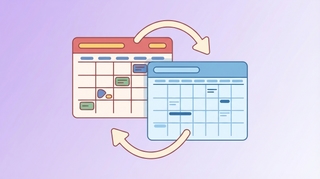
This adds your Google calendars to the built-in iOS Calendar app so everything — Google, iCloud, and others — appears in one place.
- Open Settings on your iPhone.
- Tap Calendar → Accounts → Add Account.
- Select Google.
- Sign in with your Google account.
- On the permissions screen, toggle Calendars to on. (Leave Mail, Contacts, Notes off unless you want those too.)
- Tap Save.
Your Google calendars will appear in the Apple Calendar app within a minute or two. Look for them listed under your Google account name in the calendar list.
What you get: All calendars in one app. Works with Siri, widgets, and Focus modes. Events from Google Calendar and iCloud appear side by side.
Limitation: Some Google Calendar features (like creating Google Meet links) aren’t available from Apple Calendar.
How to Choose
| Google Calendar App | Apple Calendar (synced) | |
|---|---|---|
| See Google calendars | Yes | Yes |
| See iCloud calendars | No | Yes |
| Google Meet integration | Yes | No |
| Siri integration | Limited | Full |
| Works offline | Yes | Yes |
| Best for | Google-only users | Mixed Google + Apple |
Set Up a Calendar Widget
Google Calendar app widget:
- Long-press your home screen → tap + in the top left.
- Search for “Google Calendar.”
- Choose a widget size and add it.
Apple Calendar widget (shows synced Google events):
- Long-press your home screen → tap +.
- Search for “Calendar.”
- Add the widget in your preferred size.
Both show upcoming events. The Apple Calendar widget shows events from all synced accounts, including Google.
Sync Settings and Battery
If your Google Calendar events are slow to update on iPhone, adjust the fetch interval:
For the Apple Calendar sync:
- Settings → Calendar → Accounts → your Google account → Fetch New Data.
- Set to Push or Fetch Every 15 Minutes for faster updates.
For the Google Calendar app: The app syncs automatically when open and periodically in the background. For real-time updates, keep push notifications enabled.
Troubleshooting
| Issue | Cause | Fix |
|---|---|---|
| Google calendars not showing in Apple Calendar | Account not added | Settings → Calendar → Accounts → Add Account → Google |
| Events not syncing | Sync turned off | Tap the Google account in Accounts → toggle Calendars on |
| Duplicate events | Both methods active | Use one method — either Google Calendar app or Apple Calendar sync |
| Can’t edit events in Apple Calendar | Permissions issue | Events should be editable; try signing out and back in |
| Google Calendar app not loading | App needs update | Update from the App Store; restart the app |
| New events missing | Slow fetch interval | Settings → Calendar → Fetch New Data → set to Push or 15 min |
Best Practices
- Use one method, not both. Running both the Google Calendar app and an Apple Calendar sync can create duplicates.
- Check visibility toggles. In both apps, individual calendars can be hidden. If events are missing, make sure the relevant calendar is checked.
- Manage notifications in Settings. iOS controls notification permissions for the Google Calendar app separately from in-app notification settings.
- For complex multi-calendar setups, Carly can help you manage visibility and scheduling across Google and other calendars without losing track of anything.
More on Google Calendar: How to sync Google Calendar with Outlook · How to manage multiple Google Calendars · Best AI calendar assistants
Ready to automate your busywork?
Carly schedules, researches, and briefs you—so you can focus on what matters.
Get Carly Today →Or try our Free Group Scheduling Tool