Need Admin Approval to Connect Outlook? Here's the Fix
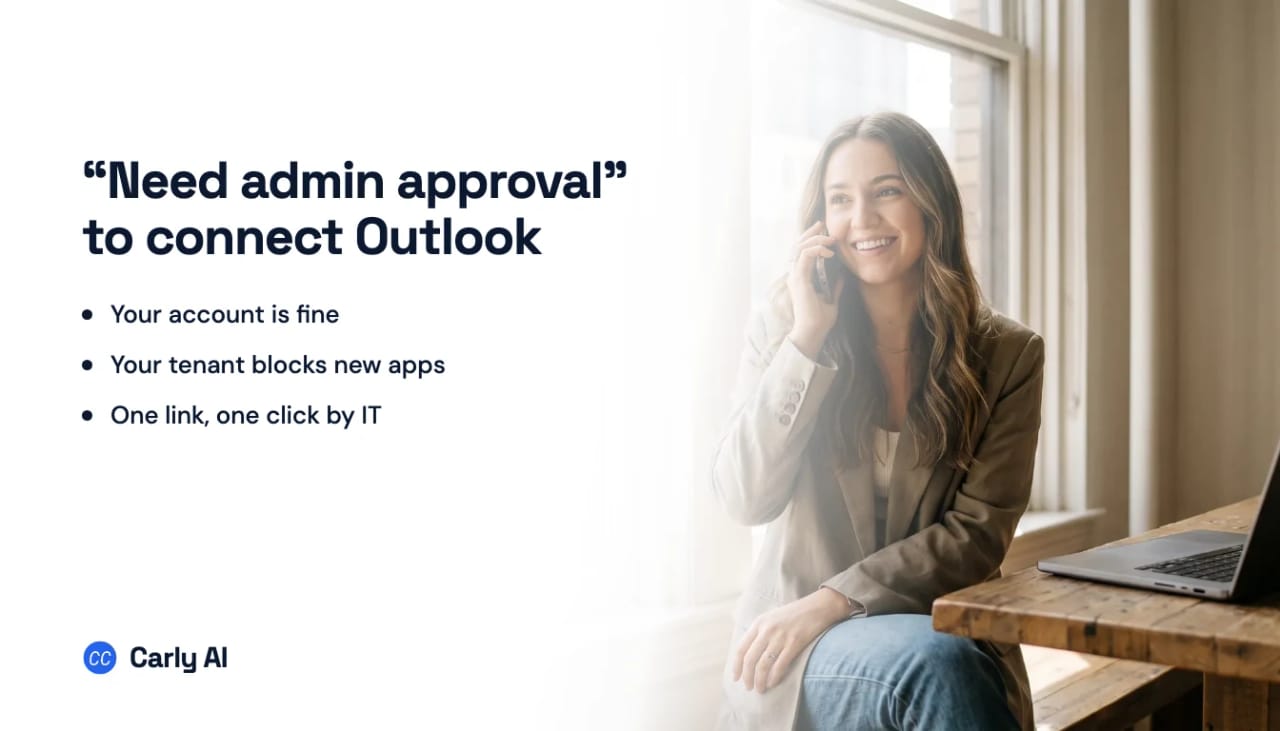
Tried to connect Outlook and got stopped by a message about needing admin approval? Nothing is wrong with your account or your password. Your company has Microsoft 365 set to require an administrator’s sign-off before anyone connects a new app, and that setting is doing its job.
It takes one person one click to clear. Here is the whole thing in three steps.
- You send your admin a link.
- They open it and approve, once, for the whole company.
- You go back and connect your email.
Step 1: send this to your admin
The link is carlyassistant.com/admin-setup.
It is a public page, so your administrator does not need a Carly account to open it. Here is a message you can paste straight into an email or a Slack DM:
Hi, I’m trying to connect our Outlook to Carly AI and Microsoft is telling me it needs admin approval.
Could you open this page and approve it? https://carlyassistant.com/admin-setup
It lists every permission being requested, and the button takes you to Microsoft’s own consent screen to approve. It’s a one-time thing that covers the whole organization, so nobody else will get prompted later. It can be revoked any time from Entra ID.
Happy to send anything else you need for it. Thanks!
That is genuinely all you need to do. The rest of this page is for whoever picks that message up.
Step 2: if you’re the admin, here’s what you do
Four clicks, start to finish.
- Open carlyassistant.com/admin-setup. No account needed. The page lists every permission requested, in plain language, next to the Microsoft Graph scope behind it.
- Click Grant Admin Consent. This does not approve anything by itself. It hands you to Microsoft.
- Sign in with an account that can consent for the organization. More on which roles work below.
- Review the permissions Microsoft shows you and select Accept.
Done. Everyone in the tenant can now connect without being prompted individually.
What you’re approving
| Group | What it covers | Graph scopes |
|---|---|---|
| Calendar | Read and write events, including shared calendars | Calendars.ReadWrite, Calendars.ReadWrite.Shared |
| Online meetings | Create Teams links on events | OnlineMeetings.ReadWrite |
| Read, send, and manage email so replies can go out | Mail.Read, Mail.Send, Mail.ReadWrite | |
| Shared mailboxes | Mailboxes the user can already open | Mail.Read.Shared, Mail.ReadWrite.Shared, Mail.Send.Shared |
| Mailbox settings | Time zone, working hours, automatic replies | MailboxSettings.Read, MailboxSettings.ReadWrite |
| OneDrive files | Files attached or worked on | Files.ReadWrite.All |
| Contacts | Read, create, and update contacts | Contacts.ReadWrite |
| Microsoft Tasks | To Do and basic Planner tasks | Tasks.ReadWrite |
| Sign-in and profile | Name and email, staying connected | User.Read, offline_access, openid, profile, email |
These are delegated permissions. They apply on behalf of a signed-in user who has connected their own account, and never exceed what that person can already do. Approving removes the prompt; it does not touch the mailbox of anyone who never signs in and connects.
Which role you need
- Privileged Role Administrator consents to anything
- Cloud Application Administrator, Application Administrator, or AI Administrator consents to anything except Microsoft Graph app roles, which is enough here because these are delegated scopes
- A custom directory role carrying permission to grant these permissions
If you get “you do not have rights to do that,” you are signed in as something below this list.
If you’d rather not follow a link from an email
Fair. The same grant is in the portal once the app exists in your tenant, which it does as soon as someone has tried to connect:
- Sign in to the Microsoft Entra admin center as at least a Cloud Application Administrator.
- Go to Entra ID → Enterprise apps → All applications.
- Search for the application and select it.
- Open Permissions under Security.
- Review the requested permissions and select Grant admin consent.
Two things worth knowing. Consent and access are separate controls, so if you want only one team to have this, grant consent and then configure the app to require user assignment and assign that group. And if the app was partly approved before, granting tenant-wide consent can revoke permissions previously granted tenant-wide, though anything individual users granted for themselves is unaffected.
Then tell them it’s done
Send a one-liner back. The person waiting cannot see that you approved it, and they will keep hitting the same wall until they know to retry:
Approved. You should be able to connect now.
Step 3: back to you, connect your email
Once your admin says it’s approved:
- Go to carlyassistant.com/integrations.
- Find Outlook and click Connect.
- Sign in with your Microsoft 365 account.
- Approve access on the Microsoft screen. This time it goes through.
Then add the rest. Click Connect again for every additional mailbox or calendar you want reachable, choosing Use another account if Microsoft preselects the first login.
If you still see the approval message, wait a few minutes and retry, since consent takes a short while to propagate.
If your company has a request button instead
Some organizations turn on Microsoft’s admin consent workflow, which replaces the dead end with a box asking why you need the app. If you saw that box and submitted it, you have already done step 1. The request goes to whoever your company designated as a reviewer, and you get notified either way. Requests expire after a number of days your company sets, so if it goes quiet, send the link directly.
If you got a flat refusal with no way to ask, that workflow is switched off in your tenant, which is exactly why step 1 exists.
When it still doesn’t work
| What you’re seeing | What to do |
|---|---|
| Admin approved, still blocked | Wait a few minutes and retry; consent takes a moment to propagate |
| Admin says they lack rights | Send them the role list above; they need Application Administrator or higher |
| You’re a guest in a client’s tenant | Approval has to come from that tenant’s admin, not your own |
| Approved but the wrong mailbox connected | Disconnect, reconnect, and choose Use another account |
| Your company won’t approve third-party apps at all | Book a call and we’ll work through what your security team needs |
What you can do while you wait
Approval is rarely instant, so it helps to know what isn’t blocked by it.
Google accounts connect on their own. Gmail and Google Calendar authorize per user, so if you have a personal or Workspace Google account, connect it now and start there. The Microsoft approval only gates the Microsoft side.
Build the parts that don’t need Outlook. Booking pages and workflows over your other tools can be set up and tested while the request sits with IT. When consent lands, connect Outlook and what you already built starts covering it.
Free Zapier-style workflows; AI agents from $35/month.
Frequently asked questions
What does “Need admin approval” mean in Outlook?
Your Microsoft 365 organization requires an administrator to approve third-party apps before users connect them. It is a company policy setting, not a problem with your account, licence, or password.
How do I get admin approval?
Send whoever administers your Microsoft 365 the link carlyassistant.com/admin-setup. They open it, review the permissions, and approve on Microsoft’s own consent screen. There is a copy-paste message above you can send them.
How long does it take?
The approval itself is about a minute. How long it takes to reach the top of your IT team’s list is the real variable, which is why sending the permission list up front helps.
Why does my employee need admin approval to connect Carly?
Your Microsoft settings require IT to approve the integration. You review the permissions, approve them, and your employee can connect.
It says “organization-wide consent.” Am I giving Carly everyone’s email?
No. You’re approving the integration for your users. You’re not connecting anyone’s account, and nobody’s mailbox is touched until that person signs in and connects it themselves.
If Emily connects Carly, can it read Josh’s inbox?
No, not unless Emily already has access to Josh’s mailbox. Connecting Emily doesn’t connect Josh or anyone else.
What about shared mailboxes and calendars?
Carly can work with those when the connected user already has permission to open them. It doesn’t give anyone access to anything new.
Can Carly act on its own inside our Microsoft tenant?
No. Carly uses delegated permissions, so it acts on behalf of a connected user, within the permissions you approved and that user’s existing access. It has no separate app-only access.
What if I only want a few employees using it?
Grant consent, then in Microsoft Entra set the app to require user assignment and add only the users or groups who should have it.
What if we change our minds?
Revoke the permissions in Microsoft Entra at any time. IT stays in control.
What do I do after my admin approves?
Go back to the integrations page, click Connect on Outlook, sign in, and approve access. Then repeat for any other accounts you want connected.
Related: Need admin approval in Microsoft 365? · How to grant admin consent in Microsoft 365 · Best AI email assistants for Outlook · Best AI assistants for Outlook Calendar · New Outlook vs classic Outlook · Multiple Outlook accounts with AI · Carly’s Outlook integration
Ready to automate your busywork?
Carly schedules, researches, and briefs you—so you can focus on what matters.
See what people say
"Before Carly, I relied on a Calendly link, but the whole process felt impersonal and not very professional. Carly changed that by handling all the back-and-forth, so I'm no longer stuck in endless email threads trying to line up schedules.
Now Carly reaches out to candidates, shares my real-time availability, lets them pick a slot, then sends a Zoom link and drops it straight into my calendar. She sends reminders to both of us before each call, which has significantly reduced no-shows and last-minute confusion.
On top of scheduling, Carly acts like a full executive assistant, sending me my schedule the night before so I can prepare for each call. It reminds me of the old x.ai assistant, but Carly is noticeably smarter, faster, and better suited to my healthcare recruitment business."