What Is Claude in Chrome? How Anthropic's Browser Agent Works (2026)
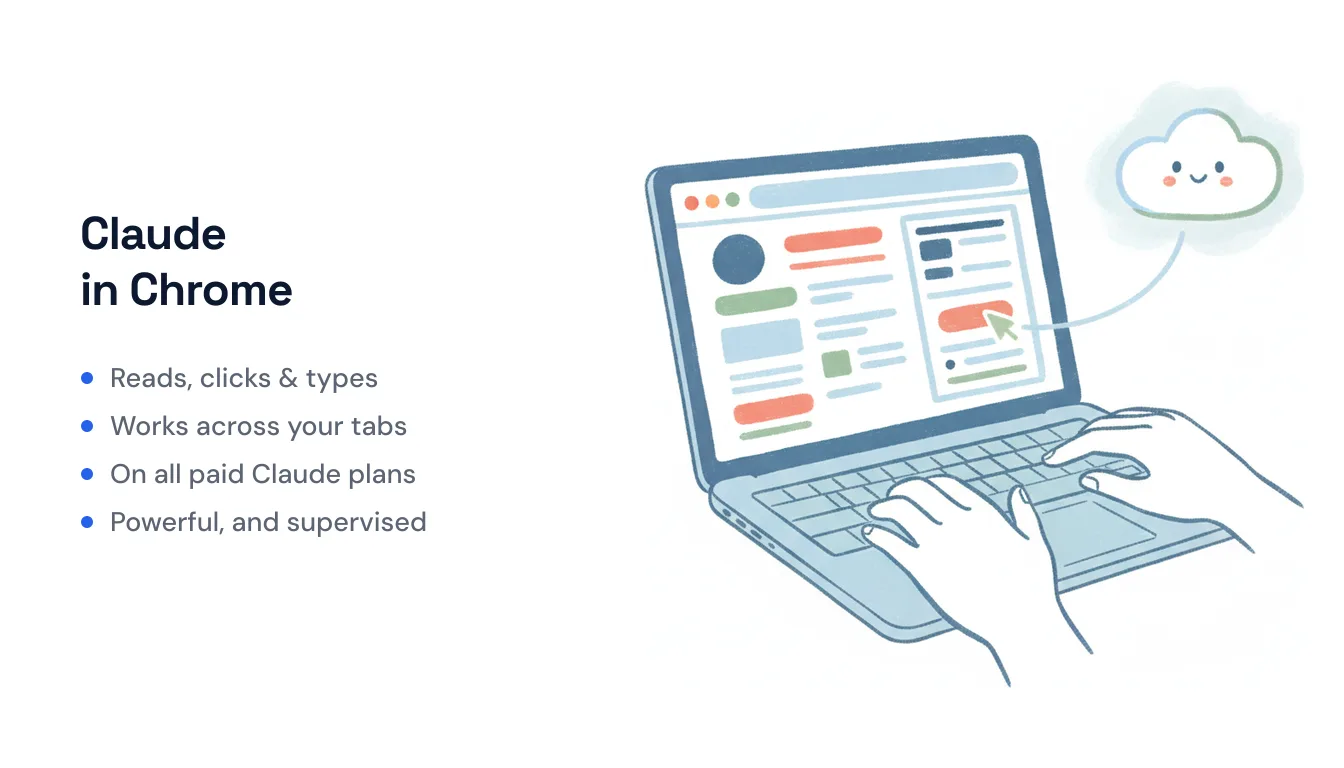
Claude in Chrome is a browser extension from Anthropic that lets Claude actually use your browser — not just talk about web pages, but read them, click buttons, type into fields, fill out forms, and move between tabs on your behalf. It opens in a side panel next to whatever page you’re on, sees what’s on screen, and takes actions inside the live browser session you’re already signed into.
If you’ve used Claude on the web or in the desktop app, this is the same Claude reaching into Chrome to do the clicking for you. It’s Anthropic’s answer to browser agents like Perplexity’s Comet and OpenAI’s ChatGPT Atlas — and it’s now out of Max-only exclusivity and available on every paid Claude plan.
What Claude in Chrome actually does
The extension gives Claude a side panel and a real set of browser controls. In practice, it can:
- Read the page — text, DOM state, and what’s visually on screen via screenshots.
- Click, type, and fill forms — navigate through multi-step flows the way you would.
- Work across multiple tabs at once. Claude organizes the tabs it opens into its own color-coded tab group, and you can drag your own tabs into that group so Claude can view and act on all of them together. This is what makes cross-site research and comparison workflows possible without you manually tab-switching.
- Record and replay workflows. You demonstrate a repetitive task once and save it as a shortcut; Claude repeats the pattern later.
- Run scheduled tasks. Click the clock icon in the extension panel to set a shortcut to run daily, weekly, monthly, or annually — a report pulled from a dashboard, a recurring check-in, an update — with no manual trigger.
- Debug for developers. Because it reads console output, errors, network requests, and DOM state, it pairs with Claude Code for a build-test-verify loop: Claude writes code, then opens Chrome to check whether it works.
- Log in with 1Password (beta on macOS) so it can get past sign-in screens without you pasting credentials.
Claude also ships with built-in knowledge of popular sites — Slack, Google Calendar, Gmail, Google Docs, and GitHub — so plain commands like “schedule a meeting” or “update the doc” work without you spelling out every click.
How it works under the hood
When you install the extension, Claude connects to a specific Chrome profile. It uses Chrome’s debugger API — the same low-level interface behind Chrome DevTools — which is what gives it access to the console, the DOM, network requests, and browser-level click and type actions. That’s a lot of power, and it’s the reason the permission list is long (more on that below).
Everything happens inside your existing session. Because Claude is driving the browser you’re already logged into, it acts as you — it doesn’t need separate API keys or accounts for the sites it touches. That’s convenient, and it’s also the crux of the safety trade-off.
Which plans include it
Claude in Chrome is available on all paid Claude plans — Pro, Max, Team, and Enterprise. It is not included on the free plan, and it earlier required Max, so if you last checked when it launched, that restriction is gone.
Your plan affects which models you can point at it. Pro gives you access with the fast Haiku model for basic page reading and simple interactions. Max, Team, and Enterprise let you choose a heavier model (Opus for complex reasoning, Sonnet for multi-step workflows) or stick with Haiku for speed.
The extension runs in desktop Google Chrome only — not other Chromium browsers, and not mobile.
How to set it up
- Open Google Chrome and go to the Claude extension on the Chrome Web Store.
- Click Add to Chrome.
- Sign in with your Claude account (you’ll need a paid plan).
- Pin the extension using the puzzle-piece icon so the side panel is one click away.
- Grant the requested permissions, then open the side panel and start giving Claude tasks.
The first time Claude acts on a site, you’ll be asked to grant permission for that site. Claude asks again before high-stakes actions like publishing or making a purchase.
The safety model — and why Anthropic still calls it “risky”
This is the part worth reading carefully. Claude in Chrome requests roughly 14 permissions, including debugger (control the browser), scripting (read and run code on pages), tabs/tabGroups, downloads, alarms (scheduling), nativeMessaging (talk to Claude Desktop/Code), and webNavigation (used to “intervene if you are on a high-risk website”). Taken together, that’s broad reach into your browsing.
The central threat is prompt injection: malicious instructions hidden inside a web page, email, or document that trick Claude into doing something you never asked for — because Claude is acting inside your logged-in session, a successful injection can act as you. Anthropic has been unusually candid here, guarding the feature with safety classifiers but still describing browser use as carrying inherent risk. Independent security researchers have repeatedly demonstrated injection chains against the extension through 2026, so this isn’t hypothetical.
Anthropic’s mitigations include:
- High-risk site blocks — Claude is restricted from acting on sensitive categories like banking and investment sites.
- Per-site permissions — you approve each site before Claude can operate there, and confirm before consequential actions.
- Admin allowlists and blocklists — Team and Enterprise admins can control exactly which sites Claude may touch.
- Intervention on high-risk pages via the
webNavigationpermission.
The honest takeaway: it’s powerful and it’s supervised for a reason. Treat it as an assistant you watch, not one you walk away from, and be cautious about pointing it at pages you don’t trust.
Where a browser agent fits — and where it doesn’t
Driving the browser UI is the right tool when the job is the browser: research across tabs, checking your own work, clicking through a site that has no API, or reproducing a bug. It’s session-bound (it runs where you’re logged in), per-site permissioned, and something you supervise.
That’s a different shape of automation than running work server-side. For always-on tasks that need to fire on their own — reply to an inbound email, update a CRM when a lead comes in, file a document, follow up on a schedule — an approach that connects to apps through APIs and reacts to events tends to be steadier than one clicking through a live browser tab. That’s the lane Carly sits in: it’s an AI assistant that runs in the cloud with its own email address, triggers on incoming email, calendar invites, and Slack messages, and reaches your tools through 260+ native integrations (plus a bring-your-own-key option for almost anything with a public API) rather than by driving Chrome. Pricing is free for unlimited Zapier-style workflows, with AI agents from $35/month. Different mechanism, different reliability profile — worth knowing which one your task actually needs.
For a lot of people the answer is both: a browser agent like Claude in Chrome for the hands-on, in-the-tab work you’re doing right now, and event-driven automation for the recurring work you’d rather never touch again.
Ready to automate your busywork?
Carly schedules, researches, and briefs you—so you can focus on what matters.
See what people say
"Before Carly, I relied on a Calendly link, but the whole process felt impersonal and not very professional. Carly changed that by handling all the back-and-forth, so I'm no longer stuck in endless email threads trying to line up schedules.
Now Carly reaches out to candidates, shares my real-time availability, lets them pick a slot, then sends a Zoom link and drops it straight into my calendar. She sends reminders to both of us before each call, which has significantly reduced no-shows and last-minute confusion.
On top of scheduling, Carly acts like a full executive assistant, sending me my schedule the night before so I can prepare for each call. It reminds me of the old x.ai assistant, but Carly is noticeably smarter, faster, and better suited to my healthcare recruitment business."