Claude Browser Agent: What It Is and What It Can Actually Do (2026)
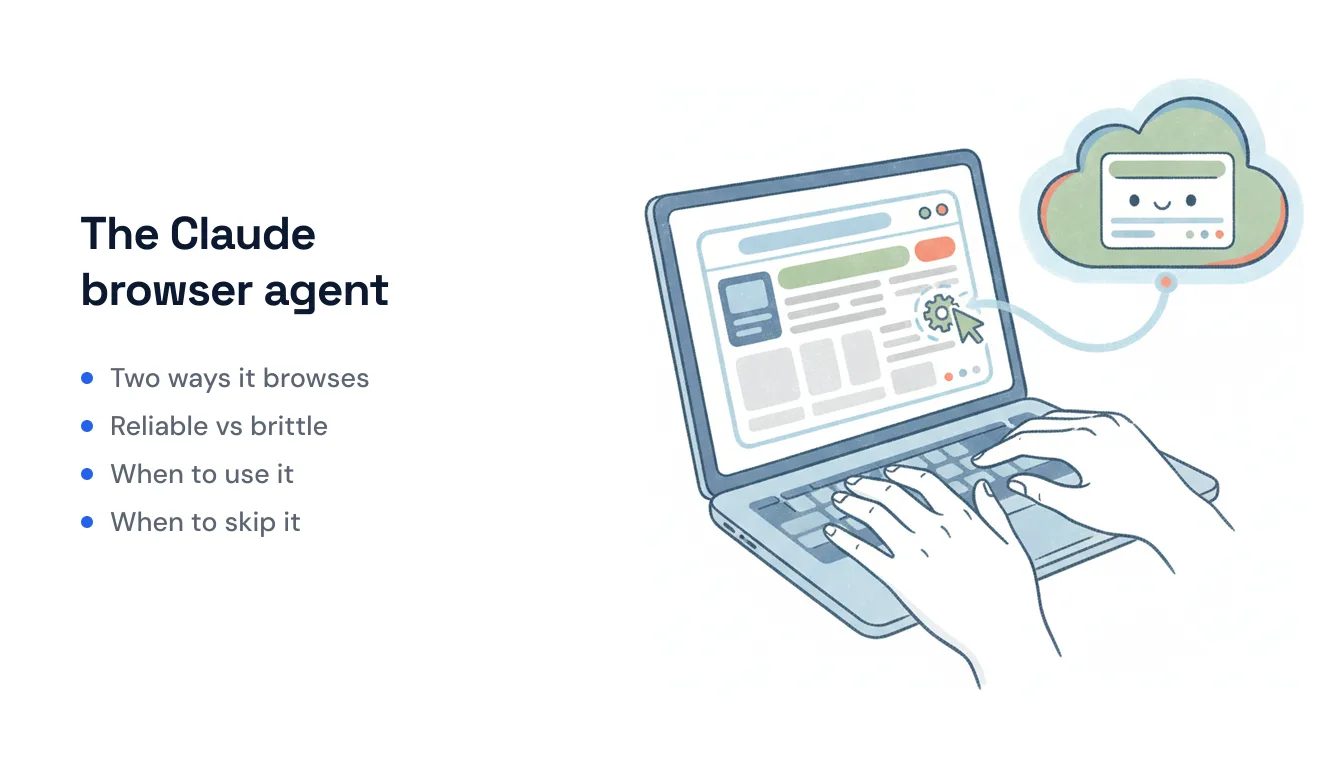
Search “Claude browser” and you’re usually after one of two things: the browser extension that lets Claude click around inside Chrome, or the autonomous “coworker” that can go browse the web on its own. They’re related — same underlying browser-driving tech from Anthropic — but they surface in different places and behave differently. This is a plain-English map of what a “Claude browser agent” actually is, what it does reliably, and where driving a browser is the wrong tool entirely.
The short version: Anthropic has one browser-control capability that shows up two ways. Claude in Chrome is a Chrome extension you install and supervise. Claude Cowork is Anthropic’s agentic mode that can also open Chrome and drive it as part of a larger job. Under the hood, Cowork’s web browsing is handled through the same Claude-in-Chrome machinery — Anthropic’s own docs say “Claude can open Chrome and work on websites — clicking, typing, navigating, and filling forms.”
The two forms of “Claude browser agent”
| Claude in Chrome | Claude Cowork | |
|---|---|---|
| What it is | Browser extension you drive | Autonomous agent mode inside the Claude apps |
| Where it runs | Desktop Google Chrome, in your session | macOS/Windows (local) + web/iOS/Android (remote, beta) |
| How you use it | Side panel, you watch and approve | Describe an outcome, walk away |
| Browsing | Its whole job | One tool among many (files, spreadsheets, email) |
| Included in | All paid Claude plans | All paid Claude plans (not Free) |
If you just want Claude to help with the tab in front of you, that’s the extension. If you want Claude to finish a multi-step job that happens to touch a website along the way, that’s Cowork calling the same browser capability.
What the Chrome extension does
Claude in Chrome installs from the Chrome Web Store and opens in a side panel next to whatever page you’re on. It can:
- Read the page — text, DOM, and what’s on screen via screenshots.
- Click, type, and fill forms — moving through multi-step flows the way you would.
- Work across multiple tabs. Claude groups the tabs it opens into a color-coded tab group, and you can drag your own tabs in so it can act on all of them together — the thing that makes cross-site research practical.
- Record and replay workflows, and run scheduled tasks (click the clock icon to set a shortcut daily/weekly/monthly).
- Debug for developers — it reads console output, network requests, and errors, so it pairs with Claude Code in a write-code-then-check-it loop.
It ships with built-in knowledge of Slack, Google Calendar, Gmail, Google Docs, and GitHub, so plain commands like “schedule a meeting” work without spelling out every click. It’s now available on all paid Claude plans — Pro, Max, Team, and Enterprise — not the Max-only exclusive it launched as. It runs in desktop Chrome only, not Edge, Brave, Arc, or mobile.
What Cowork’s browsing does
Cowork is the “hand off a whole job” mode. Browsing is one capability inside a bigger toolkit that also reads and writes files, builds spreadsheets and slide decks, and (with the Microsoft 365 connector enabled) sends email. When a task needs the web — pulling data off a dashboard with no API, filling a form, checking a listing — Cowork opens Chrome and drives it.
The big 2026 change: Cowork’s web and mobile versions now run remotely on Anthropic’s servers (beta since July 7, 2026; GA on macOS/Windows since April 9). Scheduled tasks fire with no device of yours online. So if you read older write-ups saying Cowork “only runs while your laptop is awake,” that’s stale — it was true of the first desktop release, not the remote model.
What it can and can’t do reliably
Browser-driving is genuinely useful, but it’s worth being honest about the failure modes, because Anthropic itself is.
It works well when the job is the browser: research across tabs, checking your own work, clicking through a site that has no API, reproducing a bug, or a demonstrated repetitive task you’ve recorded. For “help me with what’s on my screen right now,” it’s hard to beat.
Where it gets brittle:
- Prompt injection is a live risk. Because Claude acts inside your logged-in session, malicious text hidden in a page, email, or document can try to hijack it. Anthropic guards this with safety classifiers and high-risk-site blocks but still describes browser use as carrying inherent risk, and security researchers have demonstrated real injection chains against the extension through 2026. Treat it as an assistant you watch, not one you walk away from.
- It’s session-bound and per-site permissioned. It runs where you’re logged in, and you approve each site (Team/Enterprise admins can allowlist or blocklist). Great for control, but it means it isn’t a set-and-forget service reachable by anyone but you.
- UIs change; APIs are steadier. Clicking through a live page that redesigns, A/B-tests, or throws a modal is inherently more fragile than calling a documented endpoint.
- It burns your plan’s usage. Browser automation counts against your normal Claude allocation and consumes it faster than chat, so heavy use can push you toward a bigger plan.
When to skip the browser entirely
Here’s the distinction most “which Claude browser tool?” comparisons miss: driving a browser and automating a task server-side are different shapes of work.
Use a browser agent when a human would need the browser — the site has no API, you’re researching or verifying, or you’re demonstrating something once. Use server-side automation when the work should run on its own, reliably, without anyone watching: reply to an inbound email, update a CRM when a lead lands, file a document, follow up on a schedule. That kind of work fires on events and reaches apps through APIs, which is steadier than clicking through a live tab and doesn’t depend on your session being open.
That second lane is where Carly sits. It’s an AI assistant that runs in the cloud with its own email address — people email or text it and it does the work underneath — triggering on inbound email, calendar invites, and Slack messages, and reaching your tools through 260+ native integrations (plus a bring-your-own-key option for almost anything with a public API) rather than by driving Chrome. Pricing is free for Zapier-style workflows, with AI agents from $35/month. It’s a different mechanism with a different reliability profile — no browser to supervise, no per-site permissions, no session to keep alive.
For a lot of people the honest answer is both: a Claude browser agent for the hands-on, in-the-tab work you’re doing right now, and event-driven automation for the recurring work you’d rather never touch again. Knowing which one a task actually needs is most of the decision.
Ready to automate your busywork?
Carly schedules, researches, and briefs you—so you can focus on what matters.
See what people say
"Before Carly, I relied on a Calendly link, but the whole process felt impersonal and not very professional. Carly changed that by handling all the back-and-forth, so I'm no longer stuck in endless email threads trying to line up schedules.
Now Carly reaches out to candidates, shares my real-time availability, lets them pick a slot, then sends a Zoom link and drops it straight into my calendar. She sends reminders to both of us before each call, which has significantly reduced no-shows and last-minute confusion.
On top of scheduling, Carly acts like a full executive assistant, sending me my schedule the night before so I can prepare for each call. It reminds me of the old x.ai assistant, but Carly is noticeably smarter, faster, and better suited to my healthcare recruitment business."