Using Claude in Chrome to Manage Google Calendar (2026 Guide)
Claude in Chrome is Anthropic’s browser extension that lets Claude read, click, and type on the page next to you. One of the things it’s genuinely good at is Google Calendar: Anthropic ships built-in knowledge of how a handful of popular sites are laid out — Slack, Google Calendar, Gmail, Google Docs, and GitHub — so Claude doesn’t have to guess where the “Create” button is. Open the side panel on calendar.google.com and it already understands the week view, the event dialog, and how to move a block from Tuesday to Thursday.
This guide covers what that actually gets you, where the browser-driven approach hits a wall, and when it makes more sense to hand scheduling off to something that runs without a browser open at all.
What Claude in Chrome does on Google Calendar
Because the extension operates the real Google Calendar UI, anything you can do with a mouse, Claude can attempt with a prompt:
- Create events by clicking through the dialog. “Book a 45-minute focus block Thursday at 2pm” — Claude opens the create-event panel, fills the title and time, and saves it.
- Move and reschedule. Drag-equivalent actions: “Push my 10am standup to 10:30” or “Move everything on Friday afternoon to Monday.”
- Read your week and reason over it. Open the panel on your calendar and Claude can summarize what’s coming, flag which meetings need prep, and pull context from an adjacent Gmail tab to draft an agenda.
- Work across tabs. Drag a Gmail tab and a Calendar tab into Claude’s tab group and it can read an email thread, then create the event it describes.
- Run saved shortcuts on a schedule. You can save a prompt and set it to re-run daily or weekly via the clock icon in the panel, so a “prep me for tomorrow’s meetings” routine fires on its own.
For a lot of one-off calendar chores, this is legitimately useful — it’s your calendar, your logged-in session, and Claude is just the fast hands.
Where the browser approach stops
The catch is baked into the mechanism: Claude in Chrome works by driving the browser, not by talking to Google’s Calendar API. That has real consequences.
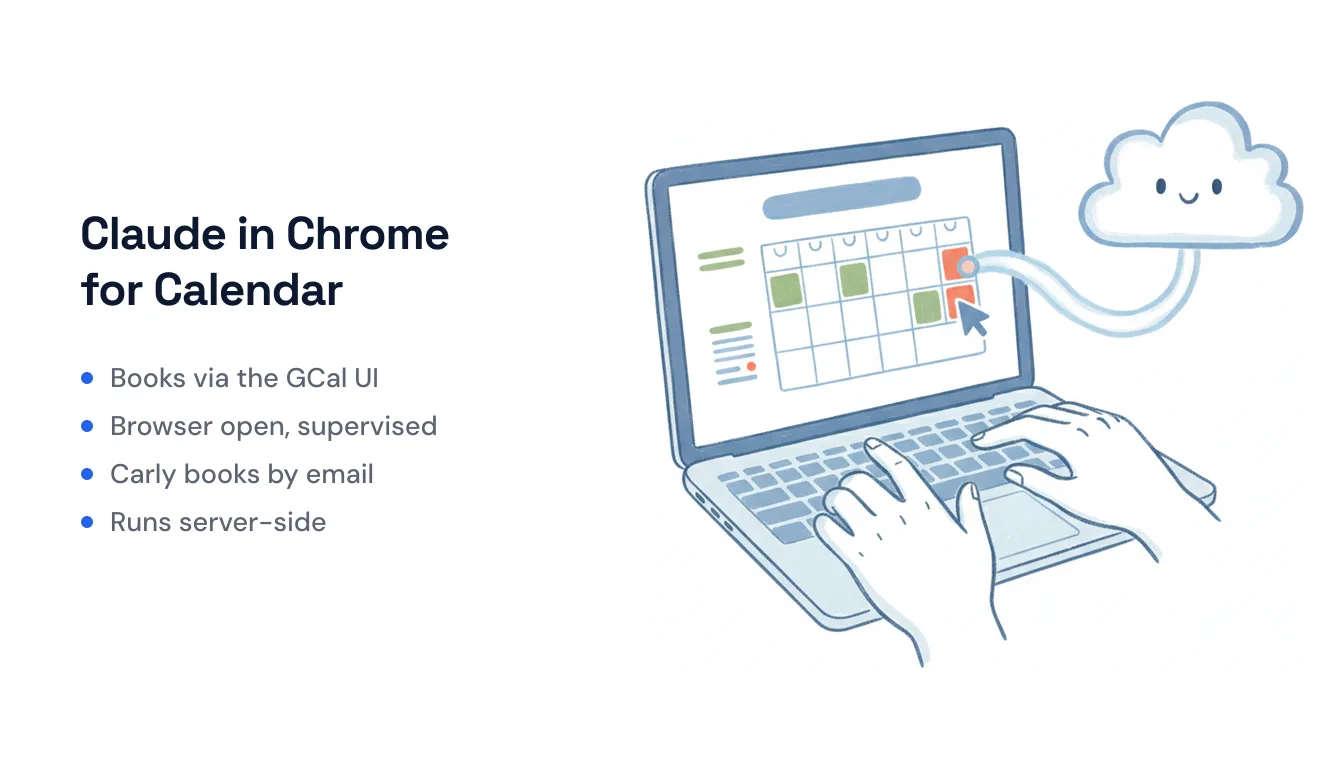
- The browser has to be open and you’re supervising. It runs in beta inside the Chrome browser and is generally available inside Claude Cowork and Claude Code, but it acts inside a live session you’re watching. Anthropic is candid that letting an agent click around the web still carries risk — it’s guarded by safety classifiers, not free of danger.
- Heavy permissions, per site. The extension needs a stack of Chrome permissions including
scriptinganddebuggerto read pages and take actions, and admins on Team/Enterprise can allowlist or blocklist which sites it touches. - It’s session-bound. Nothing happens unless your logged-in Chrome session is available and the tab is reachable. There’s no inbox it watches and no server firing events when you’re away from the machine.
- It reacts to you, not to your calendar. Claude in Chrome does what you prompt in the moment (or on a saved timer). It doesn’t wake up because a new invite landed or because a client emailed asking to reschedule — those are the moments scheduling actually gets painful.
- Paid-plan only. The extension is limited to paid Claude subscriptions (Pro, Max, Team, Enterprise); the free tier can’t use it.
None of this makes it bad. It makes it a supervised, in-session tool — great for “help me clean up this week,” less suited to “handle my scheduling while I’m not looking.” (Worth noting: Anthropic also ships a separate Google Calendar connector that talks to the API for read/write inside Claude chats — a different tool from the Chrome extension this guide is about.)
When scheduling should run without a browser
Scheduling is a background job. The request usually arrives by email — “Can we find 30 minutes next week?” — and the work is the same every time: check availability, propose times, send the invite, handle the reschedule. That’s exactly the part a browser-driven agent can’t own, because it isn’t watching your inbox and it isn’t running when your laptop is closed.
This is the core of what Carly does. Instead of clicking through the Google Calendar UI in your browser, Carly is an AI assistant with its own email address — you (or the people booking with you) email it, and it does the work server-side:
- It connects to Google Calendar or Outlook Calendar via their APIs, so it reads and writes events directly, no browser session required.
- It triggers on inbound events — a new calendar invite, an email asking to meet, a form submission — and acts on them whether or not you’re at your computer.
- It runs in the cloud on Zapier-style workflows, so a “someone requested a meeting → check my calendar → propose three times → book it” flow just happens.
Because it lives in email and runs on triggers, Carly fits the shape of scheduling work more naturally than an in-browser agent does. And it reaches well beyond calendar: 260+ native integrations across CRMs, docs, and messaging, plus bring-your-own-key access to almost any app with a public API. Pricing is free for Zapier-style workflows, with AI agents from $35/month — so the calendar-watching and invite-sending scaffolding doesn’t meter against you.
If you want to compare the field of tools built specifically for this, see our roundup of the best AI scheduling assistants.
Which one to use
Reach for Claude in Chrome when you’re already at your desk and want a fast pair of hands on your calendar — reorganizing a messy week, prepping for the day’s meetings, turning an email into an event while both tabs are open. It’s an excellent in-session assistant, and its built-in Google Calendar knowledge makes those tasks smooth.
Reach for a server-side, inbox-native agent when scheduling needs to happen to your calendar without you driving — booking requests that arrive over email, reschedules while you’re offline, the recurring coordination that shouldn’t require a browser tab to be open. Different mechanism, different job.
Ready to automate your busywork?
Carly schedules, researches, and briefs you—so you can focus on what matters.
See what people say
"Before Carly, I relied on a Calendly link, but the whole process felt impersonal and not very professional. Carly changed that by handling all the back-and-forth, so I'm no longer stuck in endless email threads trying to line up schedules.
Now Carly reaches out to candidates, shares my real-time availability, lets them pick a slot, then sends a Zoom link and drops it straight into my calendar. She sends reminders to both of us before each call, which has significantly reduced no-shows and last-minute confusion.
On top of scheduling, Carly acts like a full executive assistant, sending me my schedule the night before so I can prepare for each call. It reminds me of the old x.ai assistant, but Carly is noticeably smarter, faster, and better suited to my healthcare recruitment business."