How to Add a Checkbox in OneNote (2026)
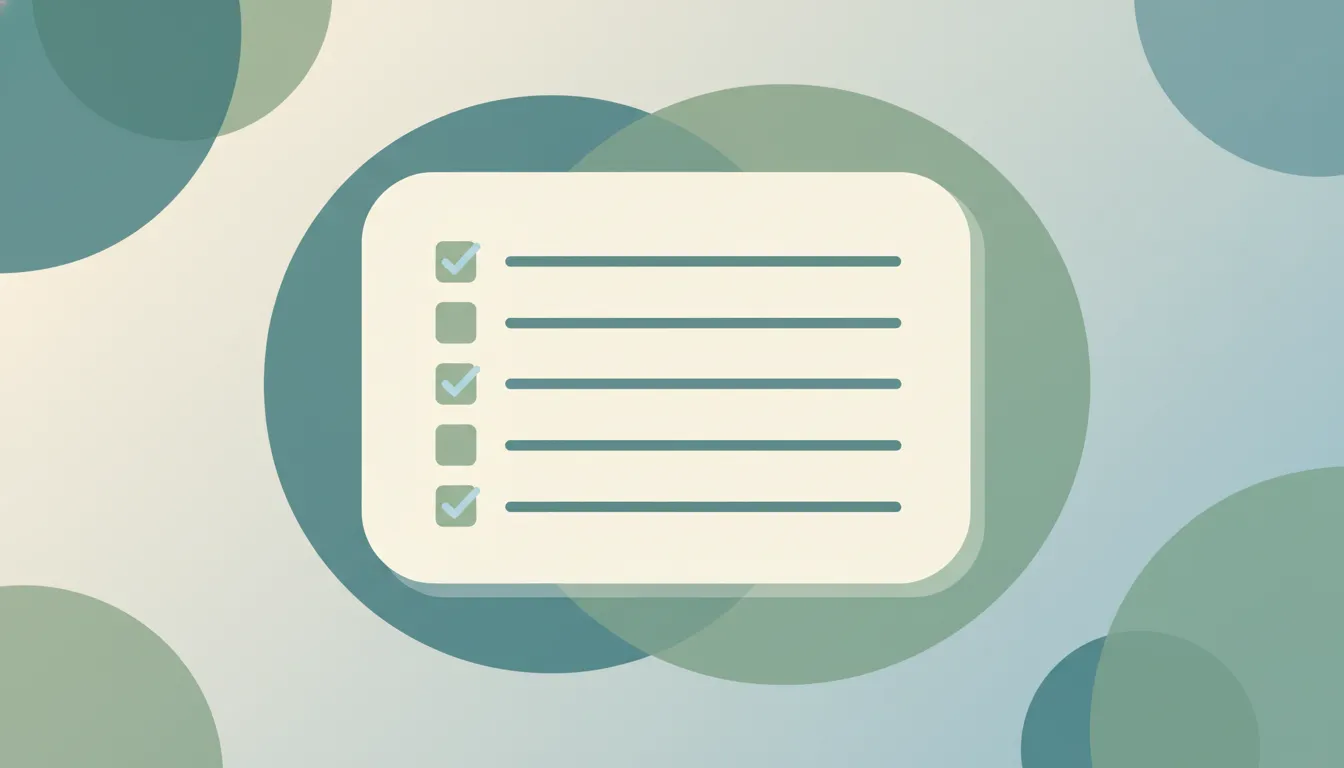
OneNote’s checkbox is the To Do tag — a clickable box you tick to mark tasks complete. It’s a real interactive checkbox (not a symbol), and you can round up every checkbox across a notebook with Find Tags.
1. Add a Checkbox (Windows & Mac)
- Click the line where you want the box.
- On the Home tab, click the To Do Tag (the checkbox icon).
- Type your task. Click the box to check it off.
Shortcut: Ctrl+1 (Windows) or ⌘+1 (Mac) toggles a To Do checkbox on the current line.
2. Make a Whole Checklist
Press Ctrl+1, type a line, press Enter, and the next line gets its own checkbox automatically. Press Ctrl+1 again on a line to remove the box.
3. Find Every Checkbox
To see all unfinished tasks:
- Home tab > Find Tags.
- A summary pane lists every tagged item, grouped by tag.
- Click any result to jump to that note.
4. OneNote on the Web & Mobile
At onenote.com/notebooks, use Home > To Do to add checkboxes. On iOS and Android, tap the tag/checkbox icon in the formatting bar. Checked states sync across all your devices.
5. Troubleshooting
My checkbox is just a symbol, not clickable
You inserted a Wingdings character or bullet. Use the To Do tag (Ctrl+1) for a clickable box.
Find Tags is empty
It only finds tagged items. Make sure you used the To Do tag, not a typed character.
Pressing Enter doesn’t add a new checkbox
That auto-continue only works when the current line already has a To Do tag applied.
Related OneNote guides: How to use tags · How to use templates · How to insert a table · How to link notes · How to sync OneNote
Ready to automate your busywork?
Carly schedules, researches, and briefs you—so you can focus on what matters.
See what people say
"Before Carly, I relied on a Calendly link, but the whole process felt impersonal and not very professional. Carly changed that by handling all the back-and-forth, so I'm no longer stuck in endless email threads trying to line up schedules.
Now Carly reaches out to candidates, shares my real-time availability, lets them pick a slot, then sends a Zoom link and drops it straight into my calendar. She sends reminders to both of us before each call, which has significantly reduced no-shows and last-minute confusion.
On top of scheduling, Carly acts like a full executive assistant, sending me my schedule the night before so I can prepare for each call. It reminds me of the old x.ai assistant, but Carly is noticeably smarter, faster, and better suited to my healthcare recruitment business."