How to Connect Google Tasks to an AI Agent
Google Tasks is dead simple — which is exactly why people use it. No boards, no sprints, no Gantt charts. Just a list of things to do, pinned right inside Gmail and Google Calendar.
The problem is getting tasks into the list. You’re in the middle of something — an email thread, a meeting, a call — and you think “I need to remember to do that.” Opening Google Tasks, typing it out, setting a date… it’s just enough friction that things slip through.
Carly is a full-service AI agent with 60+ integrations — email, calendar, CRM, file storage, project management, and more. Google Tasks is one of those integrations. Once connected, you email the agent or chat with it and tasks appear in your list with due dates, context, and the right task list. No context switching.
Connect Google Tasks in One Step
Go to dashboard.carlyassistant.com/integrations, find Google Tasks, click Connect, and sign into your Google account. That’s it.
Your agent can now create tasks, set due dates, organize lists, and mark items complete — through email or chat.
This is the same integrations page where you connect everything else: Gmail, Google Calendar, HubSpot, Slack, Asana, Google Drive, and 60+ other tools. Each integration is individually authorized — you control what the agent can access and can revoke it anytime.
Two Ways to Talk to Your Agent
You interact with your Carly agent two ways:
Email it at agent@usecarly.com — send a plain-English request and the agent takes action and replies.
Chat with it at dashboard.carlyassistant.com/agents — same capabilities, real-time conversation.
Both work identically for Google Tasks. Use whichever fits the moment.
Creating Tasks by Email
Add Multiple Tasks at Once
To: agent@usecarly.com Subject: Tasks
Add these to my Google Tasks:
- Send revised proposal to Jamie — due Friday
- Review Q2 budget spreadsheet — due next Monday
- Book travel for SF trip — due March 28
Three tasks, with due dates, added to your Google Tasks in one email. They show up in your Gmail sidebar and Google Calendar.
Extract Action Items From Email Threads
Since the agent has access to your connected Gmail or Outlook, it can read your email threads directly:
To: agent@usecarly.com Subject: Q2 Planning tasks
Check my recent email thread with the product team about Q2 planning and pull out the action items assigned to me. Add them to my Google Tasks.
The agent reads the thread from your inbox, identifies your commitments, and creates individual tasks with context. A long email chain turns into a clean task list in seconds.
Dump Meeting Notes
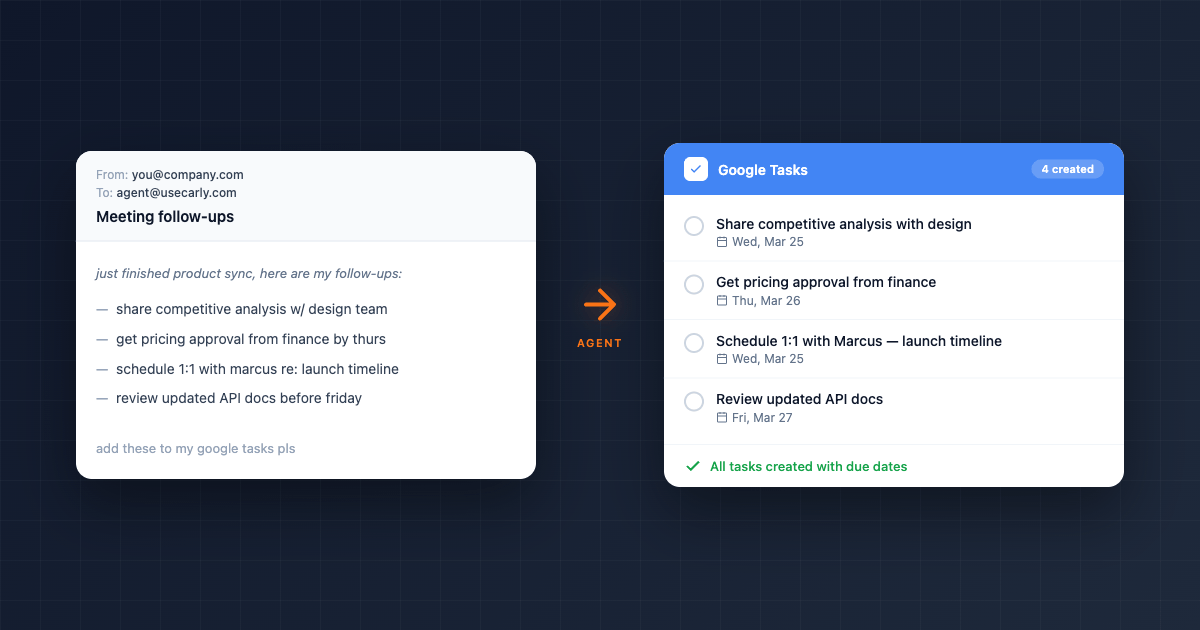
To: agent@usecarly.com Subject: Meeting follow-ups
Just finished the product sync. Here are the follow-ups:
- I need to share the competitive analysis with design team
- Get pricing approval from finance by Thursday
- Schedule a 1:1 with Marcus to align on launch timeline
Add these to Google Tasks with due dates.
The agent creates each task and infers appropriate due dates from context — Thursday for the pricing approval, this week for the others. Don’t worry about formatting. The agent handles stream-of-consciousness bullets just fine.
Creating Tasks by Chat
Same capabilities, different interface. Open dashboard.carlyassistant.com/agents and type:
You: Add “Draft blog post outline” to my Content task list due next Wednesday. Add “Fix onboarding email sequence” to my Marketing task list due Friday.
Agent: Done. I created two tasks:
- “Draft blog post outline” on your Content list, due Wednesday March 25
- “Fix onboarding email sequence” on your Marketing list, due Friday March 27
You: What’s on my Google Tasks due this week?
Agent: Here’s what’s due this week:
- Send revised proposal to Jamie — Friday March 27
- Draft blog post outline — Wednesday March 25
- Fix onboarding email sequence — Friday March 27
- Get pricing approval from finance — Thursday March 26
Chat is useful when you want to go back and forth — check your list, add a task, rearrange priorities, mark things done — without composing separate emails.
Google Tasks + the Rest of Your Workflow
Because Carly connects to 60+ tools, tasks don’t exist in isolation. The agent chains actions across your integrations in a single request:
- Google Tasks + Gmail — Agent reads an email, creates a task, and drafts a reply — all in one step
- Google Tasks + Google Calendar — Agent creates a task and blocks time on your calendar to do it
- Google Tasks + Slack — Someone @mentions you with a request in Slack, agent creates a Google Task
- Google Tasks + HubSpot — New deal created? Agent adds follow-up tasks to your list
- Google Tasks + Google Drive — Agent creates a task to review a document and links the Drive file in the task notes
To: agent@usecarly.com Subject: Follow up on Jamie’s email
Read Jamie Torres’s last email. Create a Google Task for whatever she’s asking me to do, block 30 minutes on my calendar Thursday afternoon to work on it, and reply to Jamie letting her know I’ll have it by Friday.
One email. Three integrations. The agent reads the email from your inbox, creates the task, finds an open slot on your calendar, blocks it, and sends the reply — all without you opening Gmail, Google Tasks, or Google Calendar.
This is the difference between a task management tool and an AI agent that manages your work. Tasks become a natural output of your existing workflows, not a separate system you maintain.
Build a Dedicated Task Capture Agent
Your main agent at agent@usecarly.com handles everything — email, calendar, CRM, research, tasks. But you can also create specialized email agents with their own email addresses for specific jobs.
A task capture agent watches for inbound messages and automatically extracts tasks:
You are a task extraction assistant. You have access to my inbox and Google Tasks.

1. When someone emails you, identify action items — things I need to do, follow up on, or deliver
2. For each action item, create a Google Task with:
   - A clear, short task title
   - The due date (if mentioned or inferable)
   - A brief note with context from the email
3. Reply with a summary of the tasks you created

If no action items are found, reply saying "No tasks identified."
Don't create tasks for things other people need to do — only things I'm responsible for.
Give it a dedicated email address like tasks@yourdomain.usecarly.com. Teammates, clients, and vendors can send requests directly to it. The agent reads the message and creates your tasks in Google Tasks automatically.
This is one example of Carly’s specialized email agents — autonomous AI employees with their own inboxes, instructions, and tool access. You can spin up agents for sales, support, recruiting, billing, and more.
The Agent Learns How You Work
One thing that separates Carly from standard task automation: the agent writes its own skills and memories over time.
After you use it for a while, it learns patterns. You always put client tasks on your “Client Work” list. You prefer due dates on weekdays. You want task titles under 10 words. It picks up on these preferences without you re-instructing it.
This means your Google Tasks workflow gets more accurate the longer you use it — the agent adapts to you, not the other way around.
FAQ
Does this work with Google Tasks in Gmail?
Yes. Tasks created by the agent show up everywhere Google Tasks appears — the Gmail sidebar, Google Calendar, the Google Tasks mobile app, and the web app.
Can the agent work with multiple task lists?
Yes. Specify which list in your email or chat message. The agent can create tasks on any of your Google Tasks lists, and create new lists if you ask.
What if I use Google Tasks and another task tool?
No conflict. Many people use Google Tasks for personal to-dos and something like Asana or ClickUp for team projects. Your agent can manage both simultaneously — they’re separate integrations.
Can the agent mark tasks as complete?
Yes. Tell the agent “mark ‘send proposal to Jamie’ as done in Google Tasks” and it updates the status.
Can team members send tasks to my agent?
Yes. If you set up a dedicated task capture agent with its own email address, anyone can send it requests. The agent reads the message and creates tasks on your Google Tasks list.
What else can the agent do besides Google Tasks?
Google Tasks is one of 60+ integrations. The same agent handles your email, calendar scheduling, CRM updates, file management, web research, document processing, Slack messages, and more. See the full list of what Carly can do.
Connect Google Tasks to your Carly agent
Ready to automate your busywork?
Carly schedules, researches, and briefs you—so you can focus on what matters.
Get Carly Today →Or try our Free Group Scheduling Tool